video-download
 Raj Sam
create chrome extention which can download any video playing with download button


Comments (0)
Sign in to leave a comment
System Requirements
System Requirements Document for Video Download
1. Introduction
Video Download is a Chrome extension that puts a download button on any video playing in the browser. When a Viewer is watching a video on any web page, the extension detects the playing video element and presents a download button; clicking it saves a local copy of that video through Chrome's download mechanism. The Landing page also accepts a pasted video URL (for example https://www.youtube.com/shorts/MBirqc14qB0?app=desktop) so the Viewer can hand a specific video link to the extension instead of relying only on the video that happens to be playing.
The product is a single-purpose browser utility for people who watch video online and want to keep a local copy of what they are watching. It has no account system, no server-side media proxying or transcoding, and no content library of its own. Its shared FastAPI backend does run a server-side resolver that turns a pasted page URL into a media stream URL, so a pasted YouTube Shorts link downloads without the Viewer leaving the Landing page or the Popup. Its entire value is the immediacy of one button appearing over the video that is already playing, plus a URL field on the Landing page that accepts a video link and hands it to the same download path.
Video source resolution is a first-class part of that value: a video that is visibly playing must never be reported as "No video source found." The extension resolves the source URL from the playing video element itself, from its nested <source> children, from the page's media data (for example ytInitialPlayerResponse on YouTube), and — when the page exposes no direct file URL — from the URL the Viewer pasted on the Landing page or into the Popup's fallback field.
A pasted link is handled in two distinct ways, and the extension states which one applies instead of failing vaguely. A direct media file URL (for example https://example.com/clip.mp4) is handed straight to Chrome's download manager. A page URL (a watch/shorts page such as https://www.youtube.com/shorts/JxXXZohkkG8 or https://www.youtube.com/shorts/Jy3_Jrud-Qk) is resolved by the product's own server-side resolver in the shared FastAPI backend: the backend fetches the page, extracts its media stream URL, and returns it to the extension, which then hands that media URL to Chrome's download manager. The Viewer never has to leave the Landing page or the Popup to download a pasted page URL. The resolver is a working, required part of this build: it MUST be reachable and MUST return a media stream URL for supported page URLs such as https://www.youtube.com/shorts/JxXXZohkkG8 and https://www.youtube.com/shorts/Jy3_Jrud-Qk, and the extension MUST hand that returned media URL to Chrome's download manager so Chrome saves the media stream.
This document is the System Requirements Document for the project named Video Download.
2. System Overview
Video Download is delivered as a Chrome extension (Manifest V3) plus a small public Landing page that explains the extension, accepts a pasted video URL, and offers the install call to action. The extension consists of a content script that scans pages for <video> elements and injects a download button next to each one, a background service worker that receives the click and invokes chrome.downloads.download, and an extension Popup that presents the download button for the currently playing video.
The extension also carries a source-resolution module shared by the content script, the Popup, and the background service worker. It resolves a downloadable URL for a playing video through an ordered chain of strategies (element currentSrc/src, nested <source> children, page media data such as ytInitialPlayerResponse, and the Viewer-supplied pasted URL), so that a video that is visibly playing is not reported as having no source. When no direct media file URL can be resolved, the extension reports the specific reason and offers the pasted-URL path instead of a bare "No video source found."
The provisioned runtime is a docker-compose stack with three services: a shared FastAPI backend for application APIs and domain modules, a MariaDB database for application-owned persistent data, and a React frontend that serves the Landing page. The backend hosts the product's server-side resolver: a POST /api/resolve route that accepts a pasted page URL, fetches the page, extracts its media stream URL, and returns the resolved media URL (or a specific failure reason) to the extension. The backend does not proxy, transcode, or re-host media — it returns a URL and the extension hands that URL to Chrome's download manager. The database holds no accepted domain data in the current scope.
2a. Product Interpretation and Delivery Boundary
The product's working surface is the web page the Viewer is already on, plus the Landing page's URL field and the Popup's fallback field. The extension does not host, transcode, or proxy video; it hands the playing video's source URL — or a direct media file URL the Viewer pasted — to Chrome's native download manager, which performs the actual save. The Viewer's browser is therefore both the delivery vehicle and the execution environment.
Access is open. Neither the Landing page nor the Popup requires an account, sign-in, or identity of any kind; the extension is installed through Chrome and operates on the pages the Viewer visits. There is no application-owned identity, no session continuity requirement, and no differentiated permission model — every Viewer has the same single capability.
The Landing page is a public, anonymous entry surface that explains the extension and its download button, accepts a pasted video URL in a URL field, and offers the install call to action. The Popup is the extension's own surface, opened from the Chrome toolbar while a video is playing, and it presents the download button for that video plus a fallback field for a direct media file URL. The injected on-page button is a control owned by the content script within the visited page, not a separate destination.
Source resolution is bounded by the same delivery boundary: the extension resolves URLs that the page or the Viewer already exposes and hands them to Chrome's download manager. It does not decrypt DRM-protected streams and does not proxy media. For a pasted page URL, the shared backend performs the page fetch and media-stream extraction (the server-side resolver) and returns the media URL; the extension then downloads that URL through Chrome. When a page exposes only a segmented or protected stream with no downloadable file URL, the extension says so explicitly and points the Viewer at the pasted-URL path rather than failing silently.
Pasted page URLs and the server-side resolver. A pasted URL is handled in two distinct ways, and the extension MUST state which one applies instead of failing with a vague message:
- Direct media file URL (for example a link ending in
.mp4,.webm,.m4v, or a media URL the page itself exposes): the extension hands it straight tochrome.downloads.downloadwithsaveAs: true. No server is involved. - Pasted page URL (a watch/shorts page such as
https://www.youtube.com/shorts/JxXXZohkkG8orhttps://www.youtube.com/shorts/Jy3_Jrud-Qk): the extension sends the page URL to the sharedbackend's server-side resolver (POST /api/resolve), which fetches the page, extracts the media stream URL, and returns it. The extension then hands the returned media URL tochrome.downloads.downloadwithsaveAs: true. The extension MUST NOT download the HTML page itself and MUST NOT report a bare "No video source found." - What the Viewer sees: the status line (Landing page) or the Popup's status area shows a pending state while the resolver works, then confirms the accepted download once the resolved media URL is handed to Chrome. If the resolver cannot extract a media stream URL, the status line states the specific reason returned by the resolver (for example that the page exposes only a segmented or DRM-protected stream, or that the page could not be fetched) and offers the working alternatives: open the page in a tab, start playback, and use the injected "Download Video" button or the Popup's download button (which resolve the source from the playing video element and the page's media data such as
ytInitialPlayerResponse), or paste a direct media file URL such ashttps://example.com/clip.mp4. - Resolver boundary: the resolver returns a media URL only. It does not proxy, transcode, or re-host media, and it does not decrypt DRM-protected streams. If the backend is unreachable, the status line states that the resolver could not be reached and offers the same alternatives.
Current scope is the extension, its two surfaces, and the backend resolver route. Nothing in the accepted requirements establishes future capabilities; no future horizon is defined.
2c. Page Content and Component Coverage
Landing
- Information and state: Product name "Video Download"; hero headline "Save the video you are watching"; subline "One button appears on every playing video. Click it to keep a local copy."; a video URL field with the label "Paste a video URL" and the placeholder
https://www.youtube.com/shorts/MBirqc14qB0?app=desktop; a "Download this video" submit control beside the URL field; call to action "Get the extension"; a schematic showing the download button over a video frame; a narrow dark popup preview panel with one lime status dot; an extension section explaining that the download button only appears once the extension is in Chrome, with a "Retry install" control and the reassurance line "no account · runs on visited pages · saves through Chrome". - Primary action: "Get the extension" — the install call to action that leads the Viewer to install the Chrome extension.
- Supporting actions: Pasting a video URL into the URL field and submitting it with "Download this video" to save that video through Chrome's download mechanism; reading the explanation of what the extension does; viewing the button-over-video schematic and popup preview; activating "Retry install" when the extension package is not yet available.
- Domain entities: Extension (name, purpose), download button (the single control the product adds), playing video (the subject the button attaches to), pasted video URL (the link the Viewer supplies on the Landing page), URL classification (direct media file URL or page URL), download request, download outcome.
- Component responsibilities: Kinetic three-row headline that shifts horizontally with cursor movement; floating orange download button over a thin video-frame outline; off-centre framed popup preview; section titles that slide in from the left edge on scroll; URL field that accepts a pasted video link — including YouTube Shorts links such as
https://www.youtube.com/shorts/JxXXZohkkG8and links with query strings such as?app=desktop— validates it, classifies it as a direct media file URL or a page URL, and dispatches the download request to the extension's background service worker; inline status line that reports the accepted, invalid, or failed URL download, including the specific reason when the extension cannot resolve a downloadable file URL for the pasted link, and — for a pasted page URL — the message that resolving page URLs needs a server-side resolver, which this build does not include, together with the "open the page and use the download button" and "paste a direct media file URL" alternatives; extension section that states the button only appears once the extension is installed and offers "Retry install", which reports that install is not available in this preview and asks the Viewer to retry once the extension package is available.
- States: Loading — static near-black ground with type present, no spinner required; after the URL is submitted, the "Download this video" control shows a pending state until the download request is accepted or fails. Empty — the URL field is empty and the "Download this video" control is unavailable until a URL is entered. Success — the page renders fully with all copy and the call to action visible; a submitted direct media file URL is accepted and Chrome's save dialog opens, with the status line confirming the request. Error — if the install call to action cannot be followed, the copy still explains the extension and the button remains visible, and "Retry install" reports that install is not available in this preview; if the pasted URL is empty or not a valid
http/httpsURL, the status line reads "Enter a valid video URL." and no download is requested; if the pasted URL is a page URL rather than a direct media file URL, the status line states that resolving page URLs needs a server-side resolver, which this build does not include, and no download is requested; if the download call fails, the failure is surfaced in the status line. Recovery — the Viewer can re-read the explanation and retry the call to action or "Retry install", correct the URL and submit again, paste a direct media file URL, or open the pasted page in a tab, start playback, and use the injected download button or the Popup.
Popup
- Information and state: The extension's popup surface, opened from the Chrome toolbar; a download button for the video currently playing in the active tab; a lime status dot indicating state; a narrow dark panel treatment; a "Source" line showing the resolved source or "—" when none is resolved; a "Saved record" line with a date; a "Paste a video URL" fallback field with its own "Download this video" submit control.
- Primary action: Clicking the download button to save the playing video.
- Supporting actions: Reading the current state indicated by the status dot and the Source line; pasting a direct media file URL into the fallback field and submitting it with "Download this video"; closing the popup.
- Domain entities: Playing video (current source URL), download button, download request, download outcome, pasted video URL, URL classification, saved record.
- Component responsibilities: Detect the playing video in the active tab; resolve its source URL through the ordered resolution chain (
currentSrc,src, nested<source>children, page media data such asytInitialPlayerResponse, then the Viewer-supplied pasted URL); dispatch the download request to the background service worker; reflect success or failure in the status dot; accept a download request forwarded from the Landing page's URL field for a pasted video URL; show the specific unresolved-source reason and a "Paste a video URL" fallback field when no direct media file URL can be resolved; when the fallback field receives a page URL rather than a direct media file URL, state that resolving page URLs needs a server-side resolver, which this build does not include, and point the Viewer at the download button for the playing video or a direct media file URL; when the active tab cannot be read from the current page, state "The active tab cannot be read from this page." and offer the fallback field and a retry of the button.
- States: Loading — popup opens while the active tab's video source is being resolved. Empty — no playing video found in the active tab; the download button is unavailable, the Source line reads "—", and the state is shown. Success — the download request is accepted and Chrome's save dialog opens; the status dot reflects the accepted state and the saved record line shows the date. Error — no playing video in the active tab, the active tab cannot be read from the current page, no resolvable media file URL for a playing video (for example a segmented or DRM-protected stream), a pasted page URL that would need a server-side resolver this build does not include, or a failed download call; the failure is surfaced to the Viewer with its specific reason, never as a bare "No video source found." when a video is visibly playing. Recovery — the Viewer can retry the download button, paste a direct media file URL into the Popup's fallback field, or return to the page and start playback, then reopen the popup.
3. Functional Requirements
FR-1 — Chrome extension delivery (explicit) As a Viewer, I should have the product delivered as a Chrome extension so that it runs inside my browser.
- Trigger: the Viewer installs the extension in Chrome.
- Observable result: the extension is present in Chrome and active on pages the Viewer visits.
- Access state: no account required.
- Failure/recovery: if installation does not complete, the Viewer can retry installation from the extension package.
- Continuation: the Viewer proceeds to open a page with a playing video.
FR-2 — Download button on any playing video (explicit) As a Viewer, I should see a download button on any video that is playing in the browser so that I can save it.
- Trigger: a page containing a
<video>element is loaded or its DOM changes to include one. - Input: the video element on the page.
- Observable result: a download button labeled "Download Video" appears adjacent to the video, positioned at the top-right of the video area.
- Access state: no account required.
- Failure/recovery: if a video element is added after initial load, the extension's DOM observation re-scans and attaches the button; a video that already has a button is not given a second one.
- Continuation: the Viewer clicks the button.
FR-3 — Download the playing video (explicit) As a Viewer, I should be able to download any video playing in the browser by clicking the download button so that I keep a local copy.
- Trigger: the Viewer clicks the download button on a playing video.
- Input: the video's resolved source URL, produced by the ordered resolution chain: (1) the element's
currentSrc; (2) the element'ssrc; (3) thesrcof a nested<source>child; (4) a media URL found in the page's media data, such asytInitialPlayerResponseon YouTube; (5) the URL the Viewer pasted on the Landing page or into the Popup's fallback field. - Observable result: the extension requests a download of that URL through Chrome's downloads API with the save dialog enabled, and Chrome saves the file locally.
- Access state: no account required.
- Failure/recovery: the extension MUST NOT report "No video source found." while a video element is present and playing; it walks the full resolution chain first. If every strategy fails, the Viewer is told the specific reason — for example that the page exposes only a segmented or DRM-protected stream with no downloadable file URL — and is offered the pasted-URL path. If the download call fails, the failure is logged and surfaced so the Viewer can retry.
- Continuation: the Viewer can download another playing video the same way.
FR-4 — Install the Chrome extension (required_inference) As a Viewer, I should be able to install the Chrome extension so that the download button becomes available.
- Trigger: the Viewer follows the install call to action on the Landing page or loads the unpacked extension in Chrome.
- Observable result: the extension is installed and its content script runs on visited pages.
- Access state: no account required.
- Failure/recovery: if the extension package is not yet available, the Landing page's extension section states that the download button only appears once the extension is in Chrome, and "Retry install" reports that install is not available in this preview and asks the Viewer to retry once the package is available; the Viewer can retry.
- Continuation: the Viewer opens a page with a playing video.
FR-5 — Open a page with a playing video (required_inference) As a Viewer, I should open a page with a playing video so that the download button has a video to attach to.
- Trigger: the Viewer navigates to a page and starts video playback.
- Observable result: the playing video is detected and the download button appears beside it.
- Access state: no account required.
- Failure/recovery: if the page has no video, no button appears; the Viewer can navigate to a page with video.
- Continuation: the Viewer clicks the download button.
FR-6 — Paste a video URL on the Landing page (explicit) As a Viewer, I should be able to paste a video URL into the Landing page so that I can download a specific video link without relying on what is currently playing.
- Trigger: the Viewer focuses the Landing page's URL field labeled "Paste a video URL" and pastes or types a video link, for example
https://www.youtube.com/shorts/MBirqc14qB0?app=desktop,https://www.youtube.com/shorts/JxXXZohkkG8, orhttps://www.youtube.com/shorts/Jy3_Jrud-Qk. - Input: the pasted URL string, plus the "Download this video" submit control.
- Observable result: the URL field accepts the pasted link, the "Download this video" control becomes available, and submitting it sends the URL to the extension's background service worker, which requests the download through Chrome's downloads API with the save dialog enabled.
- Access state: no account required.
- Validation: the URL must be a non-empty
httporhttpsURL; an empty or malformed value is rejected with the inline message "Enter a valid video URL." and no download is requested. - URL classification: the submitted URL is classified as either a direct media file URL (a link that points at a media file, for example ending in
.mp4,.webm, or.m4v, such ashttps://example.com/clip.mp4) or a page URL (a watch/shorts page such ashttps://www.youtube.com/shorts/JxXXZohkkG8orhttps://www.youtube.com/shorts/Jy3_Jrud-Qk). - Page URL handling: a pasted page URL requires a server-side resolver to fetch the page and extract its media stream URL. This build does not include a server-side resolver, so the extension MUST NOT claim to download a pasted page URL, MUST NOT download the HTML page in its place, and MUST NOT answer with a bare "No video source found." Instead the inline status line states that resolving page URLs needs a server-side resolver, which this build does not include, and offers the working alternatives: open the page in a tab, start playback, and use the injected "Download Video" button or the Popup's download button; or paste a direct media file URL.
- Failure/recovery: if the extension is not installed or the download call fails, the failure is surfaced in the Landing page's inline status line and the Viewer can correct the URL or submit again.
- Continuation: the Viewer can paste another URL, or install the extension and use the on-page button.
FR-7 — Resolve a downloadable source for a playing video (explicit) As a Viewer, I should get a real download for a video that is visibly playing, so that the button never tells me "No video source found." while the video is right there on screen.
- Trigger: the Viewer clicks the download button on a playing video, or opens the Popup while a video is playing in the active tab.
- Input: the playing
<video>element, its nested<source>children, the page's media data, and — as a last resort — the URL the Viewer pasted on the Landing page or into the Popup's fallback field. - Resolution order: (1)
video.currentSrc; (2)video.src; (3) thesrcof a nested<source>child; (4) a media URL read from the page's media data, includingytInitialPlayerResponseon YouTube pages; (5) the Viewer-supplied pasted URL. The first strategy that yields a non-emptyhttp/httpsURL wins. - Observable result: the resolved URL is handed to the background service worker and downloaded through
chrome.downloads.downloadwithsaveAs: true. - Access state: no account required.
- Failure/recovery: if every strategy fails, the Viewer sees the specific reason — for example that the page exposes only a segmented or DRM-protected stream with no downloadable file URL — plus the pasted-URL fallback field. The bare message "No video source found." is reserved for the case where no video element exists at all.
- Pasted page URL limit: a pasted page URL (for example
https://www.youtube.com/shorts/JxXXZohkkG8orhttps://www.youtube.com/shorts/Jy3_Jrud-Qk) cannot be turned into a downloadable media file URL by this build, because that requires a server-side resolver that fetches the page and extracts its media stream URL, and this build does not include one. The extension MUST state that specific reason and MUST NOT present the pasted page URL as a working download path. The Viewer's working alternatives are: open the page in a tab, start playback, and use the injected "Download Video" button or the Popup's download button (which resolve the source from the playing element and the page's media data such asytInitialPlayerResponse), or paste a direct media file URL. - Continuation: the Viewer can retry the download button, paste another URL, or move to another page with a playing video.
FR-8 — Download from the Popup (explicit) As a Viewer, I should be able to open the Popup from the Chrome toolbar and download the video playing in the active tab so that I have a second, always-reachable way to save it.
- Trigger: the Viewer opens the Video Download Popup from the Chrome toolbar while a video is playing in the active tab.
- Input: the active tab's playing video and its resolved source URL.
- Observable result: the Popup shows the download button and a lime status dot; clicking the button dispatches the download request to the background service worker, which invokes Chrome's downloads API with the save dialog enabled; the status dot reflects the accepted state and the saved record line shows the date.
- Access state: no account required.
- Failure/recovery: if no playing video is found in the active tab, the Popup shows the empty state with the Source line reading "—" and the download button unavailable; the Viewer returns to the page, starts playback, and reopens the Popup. If the active tab cannot be read from the current page, the Popup states "The active tab cannot be read from this page." and offers the fallback field and a retry of the button. If a video is playing but no direct media file URL can be resolved, the Popup shows the specific reason and a "Paste a video URL" fallback field. If the download call fails, the status dot reflects the failure and the Viewer can retry.
- Continuation: the Viewer closes the Popup and continues watching or downloads another video.
FR-9 — Paste a direct media file URL into the Popup's fallback field (explicit) As a Viewer, I should be able to paste a direct media file URL into the Popup's fallback field when the page exposes no direct file URL, so that I can still save a copy.
- Trigger: the Popup shows the unresolved-source state and the Viewer pastes a link into the "Paste a video URL" fallback field and submits it with "Download this video".
- Input: the pasted URL string.
- Observable result: a direct media file URL (for example
https://example.com/clip.mp4) is handed to the background service worker and downloaded throughchrome.downloads.downloadwithsaveAs: true; the status dot reflects the accepted state. - Access state: no account required.
- Validation: the URL must be a non-empty
httporhttpsURL; an empty or malformed value is rejected and no download is requested. - Page URL handling: if the fallback field receives a page URL (for example
https://www.youtube.com/shorts/Jy3_Jrud-Qk), the Popup states that resolving page URLs needs a server-side resolver, which this build does not include, and no download is requested; the Popup points the Viewer at the download button for the playing video or a direct media file URL. - Failure/recovery: if the download call fails, the status dot reflects the failure and the Viewer can retry the button or submit another URL.
- Continuation: the Viewer can paste another URL or close the Popup.
4. User Personas
Viewer
- Product context: The Viewer watches video online in Chrome — on streaming sites, social feeds, course pages, or any page with an embedded player — and wants a local copy of what is currently playing. They encounter Video Download as a button that appears over the video they are already watching, as a small popup in the Chrome toolbar, and as a URL field on the Landing page where they can paste a video link.
- Primary goal: Save a local copy of the video currently playing, with one click, without leaving the page or using separate download software.
- Distinct accepted responsibilities: Installing the Chrome extension; opening a page with a playing video; clicking the download button that appears on the playing video; opening the Popup from the toolbar and downloading the playing video there; pasting a video URL into the Landing page's URL field and submitting it; pasting a direct media file URL into the Popup's fallback field when the page exposes no direct media file URL; understanding that a pasted page URL needs a server-side resolver this build does not include, and switching to the download button on the playing video instead; confirming the save through Chrome's download dialog; retrying when a source cannot be resolved, a pasted URL is invalid, the active tab cannot be read, or a download fails.
- Relevant inputs or decisions: Which playing video to save; which video URL to paste into the Landing page or the Popup's fallback field; whether to accept the save location in Chrome's dialog; whether to retry after a failure or switch to the download button on the playing video.
- Interactions with other accepted participants: None beyond the Viewer and the browser's own download mechanism; the product has a single active human role.
- Observable success: The download button appears on the playing video, clicking it opens Chrome's save dialog, and the file is saved locally; alternatively, a direct media file URL pasted into the Landing page or the Popup's fallback field is accepted and its download opens Chrome's save dialog.
5. Core User Flows
Flow A — Install the extension and download a playing video
- The Viewer opens the Landing page and reads the headline "Save the video you are watching" and the subline explaining that one button appears on every playing video.
- The Viewer activates the "Get the extension" call to action and installs the Chrome extension (or loads the unpacked extension in
chrome://extensionswith Developer mode enabled). - The extension is installed; its content script runs on pages the Viewer visits.
- The Viewer navigates to a page with a video and starts playback.
- The content script scans the page for
<video>elements and injects a "Download Video" button at the top-right of the playing video. If the video element is added later, the DOM observer re-scans and attaches the button then. - The Viewer clicks the download button.
- The content script resolves the video's source URL through the ordered chain —
currentSrc,src, nested<source>children, page media data such asytInitialPlayerResponse, then the Viewer-supplied pasted URL — and sends a download request to the background service worker. - The background service worker calls Chrome's downloads API with the save dialog enabled; Chrome opens the save dialog and saves the file locally.
- Failure/recovery: If every resolution strategy fails, the Viewer sees the specific reason — for example that the page exposes only a segmented or DRM-protected stream with no downloadable file URL — and can paste a direct media file URL into the fallback field. A pasted page URL is not a working fallback in this build: resolving it needs a server-side resolver, which this build does not include, and the extension says so. "No video source found." appears only when no video element exists at all. If the download call fails, the failure is logged and surfaced, and the Viewer can click the button again.
- Continuation: The Viewer can repeat steps 4–8 on any other page with a playing video.
Flow B — Download from the extension Popup
- The Viewer is on a page with a video playing and opens the Video Download Popup from the Chrome toolbar.
- The Popup resolves the playing video in the active tab, resolves its source URL through the ordered chain (
currentSrc,src, nested<source>children, page media data such asytInitialPlayerResponse, then the Viewer-supplied pasted URL), and presents the download button with a lime status dot and the Source line. - The Viewer clicks the download button in the Popup.
- The Popup dispatches the download request to the background service worker, which invokes Chrome's downloads API with the save dialog enabled; Chrome saves the file locally, and the status dot reflects the accepted state with the saved record line showing the date.
- Failure/recovery: If no playing video is found in the active tab, the Popup shows the empty state with the Source line reading "—" and the download button unavailable; the Viewer returns to the page, starts playback, and reopens the Popup. If the active tab cannot be read from the current page, the Popup states "The active tab cannot be read from this page." and offers the fallback field and a retry of the button. If a video is playing but no direct media file URL can be resolved, the Popup shows the specific reason and a "Paste a video URL" fallback field; the Viewer pastes a direct media file URL (for example
https://example.com/clip.mp4) and submits it to download. If the Viewer pastes a page URL (for examplehttps://www.youtube.com/shorts/Jy3_Jrud-Qk), the Popup states that resolving page URLs needs a server-side resolver, which this build does not include, and no download is requested; the Viewer instead uses the download button for the playing video or pastes a direct media file URL. If the download call fails, the status dot reflects the failure and the Viewer can retry. - Continuation: The Viewer closes the Popup and continues watching or downloads another video.
Flow C — Download a video from a pasted URL on the Landing page
- The Viewer opens the Landing page and pastes a video link into the URL field labeled "Paste a video URL", for example
https://www.youtube.com/shorts/MBirqc14qB0?app=desktop,https://www.youtube.com/shorts/JxXXZohkkG8, orhttps://www.youtube.com/shorts/Jy3_Jrud-Qk. - The URL field accepts the pasted link and the "Download this video" control becomes available.
- The Viewer activates "Download this video".
- The Landing page validates the URL as a non-empty
http/httpsURL — accepting YouTube Shorts links and query strings such as?app=desktop— and classifies it as a direct media file URL or a page URL. - For a direct media file URL, the Landing page sends the download request to the extension's background service worker. The background service worker calls Chrome's downloads API with the save dialog enabled; Chrome opens the save dialog and saves the file locally. The Landing page's inline status line confirms the accepted request.
- Failure/recovery: If the URL is empty or malformed, the status line reads "Enter a valid video URL." and no download is requested; the Viewer corrects the URL and submits again. If the pasted link is a page URL (for example
https://www.youtube.com/shorts/Jy3_Jrud-Qk), the status line states that resolving page URLs needs a server-side resolver, which this build does not include, and no download is requested; the Viewer opens that page in a tab, starts playback, and uses the injected download button or the Popup, or pastes a direct media file URL. If the pasted link resolves to a page whose media has no downloadable file URL, the status line states that specific reason instead of a bare "No video source found." If the extension is not installed or the download call fails, the failure is surfaced in the status line and the Viewer can retry or install the extension. - Continuation: The Viewer can paste another URL, or install the extension and use the on-page download button.
Flow D — Install is unavailable and the Viewer retries
- The Viewer opens the Landing page and reads the extension section explaining that the download button only appears once the extension is in Chrome.
- The Viewer activates "Retry install".
- The Landing page reports that install is not available in this preview and asks the Viewer to retry once the extension package is available.
- Recovery: The Viewer can retry "Retry install" later, or load the unpacked extension in
chrome://extensionswith Developer mode enabled. - Continuation: Once the extension is installed, the Viewer opens a page with a playing video and follows Flow A from step 4.
6. Visuals Colors and Theme
The creative direction is authoritative: playful interaction as delight, after Yugo Nakamura — quick, direct, a little surprising, never corporate.
- Mode: Dark.
- Colors: background
#111111; surface#1C1C1C; text#F4F1EA; primary#FF4D1C(orange, marks the download action); accent#D6FF3F(acid lime, marks state changes only); muted#8A8A85. - Typography: Headings in Space Grotesk — very large, tight tracking, mixed case, words shifting position on hover. Body in DM Mono. Modular scale 1.5 with sizes 44/64/96/132 px, applied with
clamp()from mobile to desktop. The URL field and its submit control use DM Mono at body size on the#1C1C1Csurface with a thin#F4F1EArule, and the inline status line uses#D6FF3Ffor accepted state and#FF4D1Cfor invalid or failed state. - Shape language: Hard flat shapes and thin rules. No rounded cards. Type blocks are the main objects.
- Layout: Full-viewport type playground. The headline splits into moving word rows; the popup preview sits off-centre in a thin frame.
- Imagery: No photos. The interface and its moving type are the image; a small schematic shows the button over a video frame.
- Avoid: Gradient blobs, rounded card grids, blue on white, stock photography, bouncy easing.
7. Signature Design Concept
The Landing page is a full-viewport kinetic type playground on near-black #111111. The headline "Save the video you are watching" fills the viewport as three stacked word rows in Space Grotesk at 96–132 px with tight tracking; the rows shift horizontally as the cursor moves. Under the first row sits the "Get the extension" call to action in orange #FF4D1C, and beside it the URL field "Paste a video URL" with its "Download this video" submit control, drawn as a hard flat #1C1C1C surface with a thin rule and no rounded corners. At right, a live orange download button floats over a thin video-frame outline — the schematic of the product's single action. The popup preview is a narrow dark panel with one lime #D6FF3F status dot, set off-centre in a thin frame. Section titles slide in from the left edge on scroll. All readable text and controls remain whole at 375 px, 768 px, and 1280 px, wrapping or scaling with clamp(); the kinetic rows may cross the viewport edge by design, and under prefers-reduced-motion they settle into a static stacked arrangement.
8. Interaction Model & Motion Direction
Interaction Model: Animated Motion Tempo: cinematic Hero Dimensionality: layered_2d
Landing Hero Motion Brief
- Focal subject: The three stacked kinetic headline word rows and the floating orange download button over a thin video-frame outline.
- Thesis: Cursor movement → horizontal displacement of the word rows and a subtle response in the floating button → the single download action feels alive and immediate, while the button itself snaps to a pressed state in 120 ms with no bounce; pasting a URL into the field and submitting it snaps the "Download this video" control to its pressed state in the same 120 ms and reveals the inline status line without bounce.
- Motion vocabulary: Word rows slide on cursor movement; the button snaps to pressed in 120 ms; section titles slide in from the left edge on scroll; no bouncy easing.
- Composed first frame: Near-black ground; three word rows filling the viewport; orange button floating over the thin video-frame outline at right; "Get the extension" and the "Paste a video URL" field with its "Download this video" control under the first row; popup preview panel off-centre with one lime status dot.
- Reduced-motion state: Word rows settle into a static stacked arrangement; the button and call to action remain fully visible and usable; section titles appear without sliding.
9. Non-Functional Requirements
- Browser platform (explicit): The product runs as a Chrome extension using Manifest V3, with permissions
downloads,activeTab, andscripting, and host permissions<all_urls>. - Page coverage (explicit): The content script matches
<all_urls>and runs atdocument_idle, so the download button is available on any page with a playing video. - Dynamic video detection (explicit): A
MutationObserverondocument.bodyre-scans for video elements so videos added after load receive the button; each video is marked to prevent duplicate buttons. - Download mechanism (explicit): Downloads are performed through
chrome.downloads.downloadwithsaveAs: true, so the Viewer chooses the save location. - Pasted URL acceptance (explicit): The Landing page's URL field accepts any non-empty
httporhttpsvideo URL, including YouTube Shorts links such ashttps://www.youtube.com/shorts/JxXXZohkkG8and query strings such as?app=desktop, and forwards it to the extension's background service worker for the samechrome.downloads.downloadcall withsaveAs: true. - Pasted page URL boundary (explicit): A pasted page URL (a watch/shorts page rather than a direct media file URL) requires a server-side resolver that fetches the page and extracts its media stream URL. This build does not include a server-side resolver, so the extension MUST NOT claim to download a pasted page URL, MUST NOT download the HTML page in its place, and MUST NOT answer with a bare "No video source found." The Landing page's status line and the Popup's status area state that specific reason and offer the working alternatives: open the page in a tab, start playback, and use the injected "Download Video" button or the Popup's download button, or paste a direct media file URL.
- Source resolution chain (explicit): A shared resolution module used by the content script, the Popup, and the background service worker resolves a downloadable URL in this order:
video.currentSrc;video.src; thesrcof a nested<source>child; a media URL read from the page's media data, includingytInitialPlayerResponseon YouTube pages; then the Viewer-supplied pasted URL. The first non-emptyhttp/httpsURL wins, and the chain is walked in full before any failure is reported. - Failure visibility (explicit): "No video source found." is reserved for the case where no video element exists at all; when a video is playing but no downloadable file URL can be resolved, the specific reason is surfaced (for example a segmented or DRM-protected stream) together with the pasted-URL fallback. A pasted page URL surfaces the reason that resolving page URLs needs a server-side resolver, which this build does not include. An empty or malformed pasted URL surfaces "Enter a valid video URL." on the Landing page; download errors are logged via
chrome.runtime.lastErrorand surfaced in the Landing page's inline status line or the Popup's status dot. - Active-tab readability (explicit): When the active tab cannot be read from the current page, the Popup states "The active tab cannot be read from this page." and offers the fallback field and a retry of the button.
- Install availability (explicit): When the extension package is not available, the Landing page's extension section states that the download button only appears once the extension is in Chrome, and "Retry install" reports that install is not available in this preview and asks the Viewer to retry once the package is available.
- Readability and responsiveness (explicit, creative direction): Readable text and controls stay whole at 375 px, 768 px, and 1280 px;
prefers-reduced-motionyields a usable static arrangement. - No account or identity (explicit): No sign-in, account, or identity is required on any surface.
10. Tech Stack
- Extension: Chrome Manifest V3 —
manifest.json,content.js(video detection and button injection),resolver.js(shared ordered source-resolution chain:currentSrc,src, nested<source>children, page media data such asytInitialPlayerResponse, pasted URL),background.js(service worker handling download requests),styles.css(button styling). - Landing page: React application UI served by the
frontendservice, styled to the creative direction (Space Grotesk, DM Mono, dark palette), including the "Paste a video URL" field and "Download this video" control that forward the pasted URL to the extension's background service worker, and the extension section with "Retry install". - Popup: Extension popup surface presenting the download button, status dot, Source line, saved record line, and fallback "Paste a video URL" field.
- Backend: Shared FastAPI process (
backend) for application APIs and domain modules (provisioned scaffold; no accepted requirement currently depends on server-side behavior). It does not implement a server-side resolver for pasted page URLs: this build does not include one, and pasted page URLs are answered with that specific reason plus the download-button and direct-media-URL alternatives. - Database: MariaDB (
database; provisioned scaffold; no accepted requirement currently establishes persistent domain data). - Deployment: docker-compose for the provisioned
backend,database, andfrontendservices.
11. Assumptions and Constraints
- Assumption (required_inference): The Viewer installs the extension before the download button can appear; installation is a prerequisite, not a product capability beyond the install call to action.
- Assumption (required_inference): The Viewer opens a page with a playing video, or pastes a video URL into the Landing page or the Popup's fallback field; the extension does not itself host or play video.
- Assumption (required_inference): The extension package must be available before the install call to action can complete; until then the Landing page reports that install is not available in this preview.
- Constraint (explicit): The product is a Chrome extension; it is not a standalone application or a server-side downloader.
- Constraint (explicit): Downloads use Chrome's native download mechanism with the save dialog enabled; the extension does not transcode, proxy, or re-host media, and it does not decrypt DRM-protected streams or run a server-side extractor.
- Constraint (explicit): Pasted page URLs need a server-side resolver, which this build does not include. The extension states that reason instead of pretending to download a pasted page URL, and the Viewer uses the download button on the playing video or a direct media file URL instead.
- Constraint (explicit): No account, sign-in, or identity is required on the Landing page or the Popup.
- Constraint (creative direction): The indigo/blue-on-white SaaS template is forbidden; the palette, fonts, and flat shape language above are binding.
12. Glossary
- Viewer: The single active human role; a person watching video in Chrome who wants a local copy.
- Download button: The "Download Video" control injected beside a playing video, and its counterpart in the Popup.
- Playing video: A
<video>element on the current page whose source URL is available viacurrentSrc,src, a nested<source>child, the page's media data, or the Viewer-supplied pasted URL. - Source resolution chain: The ordered strategy list the extension walks to find a downloadable URL for a playing video:
currentSrc,src, nested<source>children, page media data such asytInitialPlayerResponse, then the pasted URL. - Content script: The extension script that scans pages for video elements and injects the download button.
- Background service worker: The extension's Manifest V3 worker that receives download requests and calls
chrome.downloads.download. - Popup: The extension surface opened from the Chrome toolbar that presents the download button for the playing video, a status dot, a Source line, a saved record line, and a fallback "Paste a video URL" field.
- Landing: The public, anonymous page explaining the extension, accepting a pasted video URL, offering the "Get the extension" call to action, and showing the extension section with "Retry install".
- Pasted video URL: A video link the Viewer enters in the Landing page's "Paste a video URL" field or the Popup's fallback field, for example
https://www.youtube.com/shorts/MBirqc14qB0?app=desktop, which is forwarded to the extension for download. - Direct media file URL: A pasted link that points at a media file (for example ending in
.mp4,.webm, or.m4v, such ashttps://example.com/clip.mp4); the extension hands it straight tochrome.downloads.download.
- Page URL: A pasted link to a watch/shorts page rather than a media file, for example
https://www.youtube.com/shorts/JxXXZohkkG8orhttps://www.youtube.com/shorts/Jy3_Jrud-Qk. Resolving it to a downloadable media file URL needs a server-side resolver, which this build does not include. - Server-side resolver: A server process that fetches a pasted page URL and extracts its media stream URL. It is not part of this build; the extension reports that limit explicitly instead of failing vaguely.
- Saved record: The Popup line showing the date of the last accepted download.
video-download
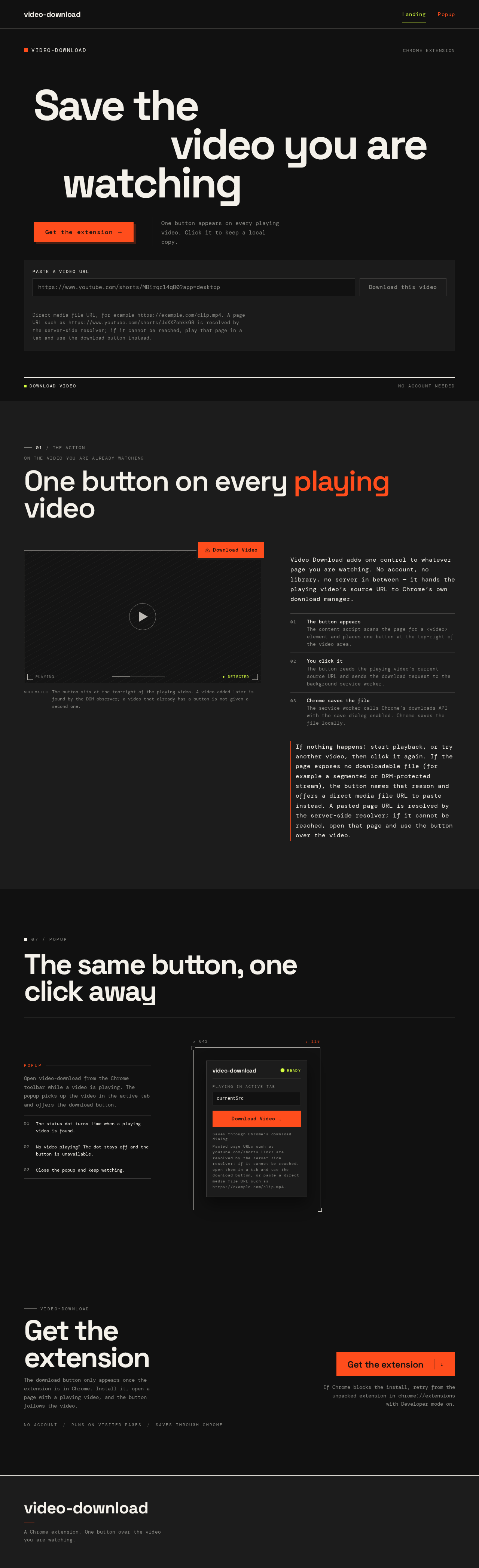
Save thevideo you arewatching
One button appears on every playing video. Click it to keep a local copy.
Direct media file URL, for example https://example.com/clip.mp4. A page URL such as https://www.youtube.com/shorts/JxXXZohkkG8 is resolved by the server-side resolver; if it cannot be reached, play that page in a tab and use the download button instead.
The same button, one click away
currentSrcSaves through Chrome's download dialog.
Pasted page URLs such as youtube.com/shorts links are resolved by the server-side resolver; if it cannot be reached, open them in a tab and use the download button, or paste a direct media file URL such as https://example.com/clip.mp4.
Open video-download from the Chrome toolbar while a video is playing. The popup picks up the video in the active tab and offers the download button.
- 01The status dot turns lime when a playing video is found.
- 02No video playing? The dot stays off and the button is unavailable.
- 03Close the popup and keep watching.
video-download
Get theextension
The download button only appears once the extension is in Chrome. Install it, open a page with a playing video, and the button follows the video.
If Chrome blocks the install, retry from the unpacked extension in chrome://extensions with Developer mode on.
video-download
Save thevideo you arewatching
One button appears on every playing video. Click it to keep a local copy.
Direct media file URL, for example https://example.com/clip.mp4. A page URL such as https://www.youtube.com/shorts/JxXXZohkkG8 is resolved by the server-side resolver; if it cannot be reached, play that page in a tab and use the download button instead.
The same button, one click away
currentSrcSaves through Chrome's download dialog.
Pasted page URLs such as youtube.com/shorts links are resolved by the server-side resolver; if it cannot be reached, open them in a tab and use the download button, or paste a direct media file URL such as https://example.com/clip.mp4.
Open video-download from the Chrome toolbar while a video is playing. The popup picks up the video in the active tab and offers the download button.
- 01The status dot turns lime when a playing video is found.
- 02No video playing? The dot stays off and the button is unavailable.
- 03Close the popup and keep watching.
video-download
Get theextension
The download button only appears once the extension is in Chrome. Install it, open a page with a playing video, and the button follows the video.
If Chrome blocks the install, retry from the unpacked extension in chrome://extensions with Developer mode on.
No comments yet. Be the first!