todo-application
by Diya Trivedi
Diya Trivedicreate a simple single page project of the todo application

Comments (0)
Sign in to leave a comment
Project Tasks
24 tasks#1
Generate system requirement document
0m 54s0.1 cr used
Done#2
Generate personas & user flows
0m 9s0.1 cr used
Done#7
Create flow for Todo User
0m 9sCredits in parent
Done#8
Todo
10m 8sCredits in subtasks
Done#14
Repair Todo JSX
2m 0s0.2 cr used
Error#13
Repair Todo JSX
1m 45s0.2 cr used
Done#12
Repair Todo JSX
2m 20s0.2 cr used
Done#9
Todo / Hero
0m 47s0.8 cr used
Done#10
Todo / Photo Strip
0m 24s0.8 cr used
Done#11
Todo / Task List
0m 41s0.8 cr used
Done#4
Design remaining pages
Not recorded0.1 cr needed
Done#5
Architecture
1m 3s0.1 cr used
Done#15
Create frontend_modules diagram
0m 18sCredits in parent
Done#6
Workspace task plan
2m 6s0.1 cr used
Done#16
Empty list shows muted guidance and zero open count
40 cr estimated
To Do#17
List shows correct open/done split and matching open count
50 cr estimated
To Do#18
Completing a task strikes it through and reflows it to DONE
50 cr estimated
To Do#19
Add, complete, and remove tasks on the single page
50 cr estimated
To Do#20
Open rows, DONE section, and live headline count render correctly
50 cr estimated
To Do#21
Live open count, completion motion, and DONE review
50 cr estimated
To Do#22
All-complete state, add, complete, and remove behaviors
50 cr estimated
To Do#23
Create, view, complete, and remove tasks with live count
50 cr estimated
To Do#24
Live todo list state for one page
50 cr estimated
To Do#25
Connect the Todo page to its live list state
50 cr estimated
To Do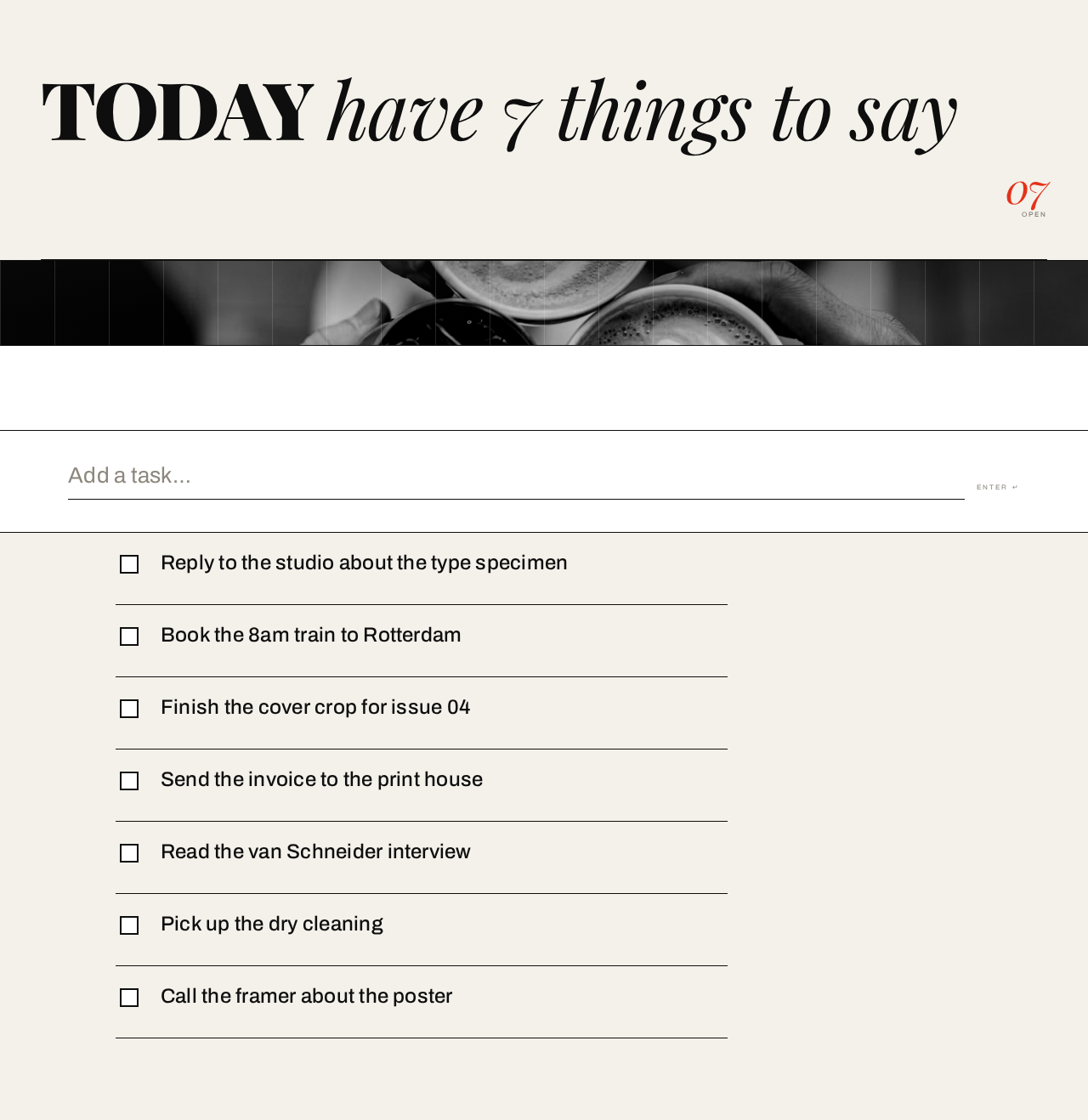
7 open tasks on your list.

- Reply to the studio about the type specimen
- Book the 8am train to Rotterdam
- Finish the cover crop for issue 04
- Send the invoice to the print house
- Read the van Schneider interview
- Pick up the dry cleaning
- Call the framer about the poster
7 open tasks on your list.
- Reply to the studio about the type specimen
- Book the 8am train to Rotterdam
- Finish the cover crop for issue 04
- Send the invoice to the print house
- Read the van Schneider interview
- Pick up the dry cleaning
- Call the framer about the poster
No comments yet. Be the first!