
student-expense-tracker

byAnshika

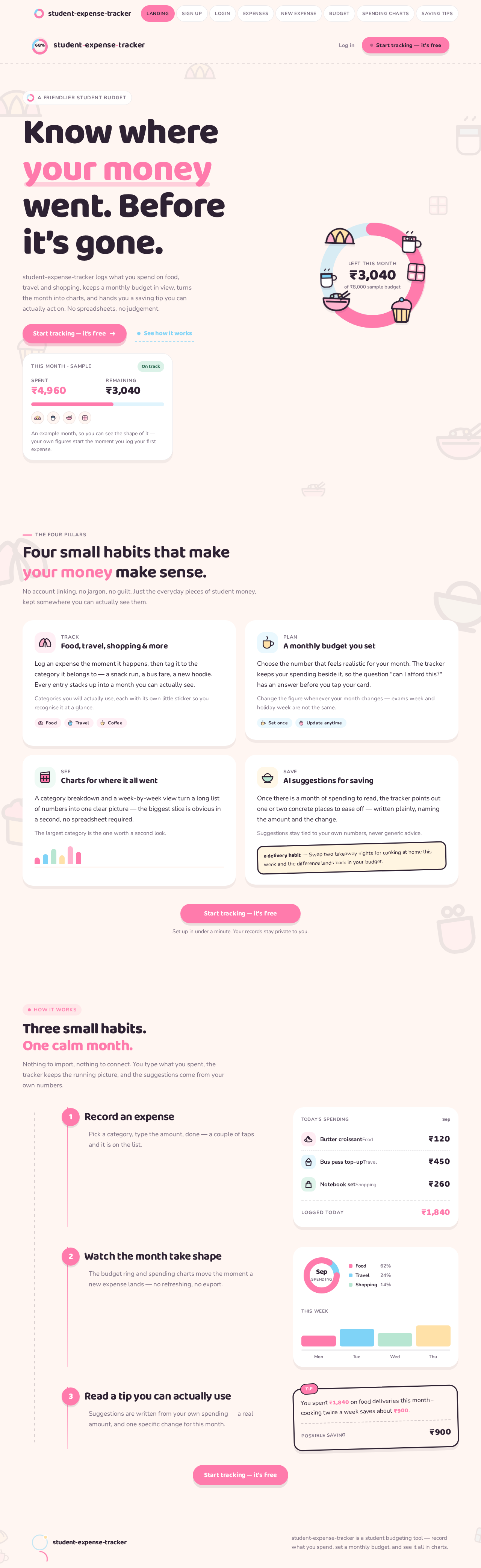
Make me a website about Student Expense Tracker * Track food, travel, shopping, etc. * Monthly budget * Charts showing spending * AI suggestions for saving And make it look cute, pink, baby blue color, and little in background there should be cute food like croissants, cupcakes, noodles, and which is cute food, coffee, chocolate, hot chocolate, like that should be the background. This should be, this should be professional where I can publish this website. So please help me with it. money with reference make the background of the website like this pictures

LandingSign Up
Landing

Comments (0)

No comments yet. Be the first!

Architecture

No Services Diagrams Yet

Architecture diagrams will be automatically generated when the Project Manager creates tasks for your project.

Landing design preview
Landing: Read the four pillars
Landing: See how it works
Landing: Start tracking — it's free
Landing: Log in
Sign Up: Create account
Login: Verify returning account
New Expense: Record first expense
Expenses: 1. Review new expense row
Expenses: 2. Filter by category
Expenses: 3. Filter by month
Expenses: 4. Open expense detail
Expenses: 5. Delete expense in error
New Expense: 6. Pick category and amount
New Expense: 7. Correct rejected field
New Expense: 8. Cancel entry
Budget: 9. Set monthly budget
Budget: 10. Review past month position
Budget: 11. Check spent and remaining
Spending Charts: 12. Select month to analyse
Spending Charts: 13. Read donut and weekly bars
Spending Charts: 14. Inspect category exact amount
Saving Tips: 15. Read suggestions for month
Saving Tips: 16. Refresh suggestions
Saving Tips: 17. Review earlier month tips
New Expense: 18. Record expense from tip
Landing design preview
Landing: Read the four pillars
Landing: See how it works
Landing: Start tracking — it's free
Landing: Log in
Sign Up: Create account
Login: Verify returning account
New Expense: Record first expense
Expenses: 1. Review new expense row
Expenses: 2. Filter by category
Expenses: 3. Filter by month
Expenses: 4. Open expense detail
Expenses: 5. Delete expense in error
New Expense: 6. Pick category and amount
New Expense: 7. Correct rejected field
New Expense: 8. Cancel entry
Budget: 9. Set monthly budget
Budget: 10. Review past month position
Budget: 11. Check spent and remaining
Spending Charts: 12. Select month to analyse
Spending Charts: 13. Read donut and weekly bars
Spending Charts: 14. Inspect category exact amount
Saving Tips: 15. Read suggestions for month
Saving Tips: 16. Refresh suggestions
Saving Tips: 17. Review earlier month tips
New Expense: 18. Record expense from tip