sky-inventory
 Sarvesh kirodiwal
For managing inventory


Comments (0)
Sign in to leave a comment
System Requirements
System Requirements Document for Inventory Management
1. Introduction
Inventory Management (project name: sky-inventory) is a web application for managing inventory. Its purpose is to let an inventory manager keep stock records correct and current: adding items, updating item details and quantities, and reviewing every stock level in one ordered list. The product is built for daily operations work where accuracy and speed of reading matter more than decoration.
The audience is the inventory manager — the person responsible for the correctness of stock records. The product gives that person a private, durable record of their inventory that they can return to, review, and correct over time.
2. System Overview
2a. Product Interpretation and Delivery Boundary
Inventory Management is a first-party web application with application-owned identity and a custom user interface. The inventory manager reaches a public Landing page that explains the product, then establishes identity through self-service Sign Up, and returns later through Login to reach their durable inventory records. The Inventory, New Item, and Item Details pages are protected and available only after identity is established; the Landing, Sign Up, and Login pages are reachable without identity.
All inventory records are owned by the application and persisted in the application database, so a returning inventory manager sees the same records they left. The shared backend process serves the application APIs and domain modules; the React frontend renders the pages; MariaDB holds the persistent data. No provider-owned or external surface carries accepted product behavior, and no headless delivery is in scope.
Current scope is limited to: explaining the product on Landing, self-service enrollment, returning verification, reviewing the inventory list, adding an item, and updating item details or quantity. Everything else — procurement, suppliers, orders, reporting, multi-user roles, and differentiated permissions — is outside the accepted requirements and is not delivered.
Removed from scope
- None. No concept was explicitly removed by the user.
2c. Page Content and Component Coverage
Landing
- Information and state: Public entry surface, reachable without identity. Presents the product name and the accepted hero copy: headline "Stock records that stay correct", subline "Add items, update quantities and review every stock level in one ordered list.", call to action "Start inventory". A ruled sample inventory table is shown as the hero image with hairline rows and orange quantity cells. Section labels sit in small caps orange above each block.
- Primary action: "Start inventory" leads to Sign Up.
- Supporting actions: A link to Login for a returning inventory manager.
- Domain entities: None persisted; the sample table is illustrative presentation of the inventory list concept.
- Component responsibilities: Hero panel (off-white surface on warm grey ground, 12-column grid, 64px headline in the left column, ruled sample table in the right column); logo (square grid mark of four cells, one cell in orange); section label component; primary button (6px radius, visible 1px border, accent orange).
- States: Loading — not applicable (static content). Empty — not applicable. Success — page renders fully. Error — not applicable. Recovery — if the inventory manager already has an account, the Login link is always visible.
Sign Up
- Information and state: Public identity-access surface, reachable without identity. Collects the information needed to create the inventory manager's account and establishes the identity that will own inventory records.
- Primary action: Submit enrollment to create the account and proceed to the Inventory page.
- Supporting actions: Navigate to Login if the inventory manager already has an account.
- Domain entities: Account (identity owning inventory records).
- Component responsibilities: Enrollment form with labeled fields, inline field validation, submit control (6px radius, 1px border, accent orange for the main action), link to Login.
- States: Loading — submit control shows pending state while the account is created. Empty — form fields start empty with labels visible. Success — account created and the inventory manager lands on Inventory. Error — invalid or incomplete input is reported inline next to the field; a rejected submission keeps entered values and allows correction. Recovery — the inventory manager can correct the input and resubmit, or switch to Login.
Login
- Information and state: Public identity-access surface, reachable without identity. Collects the credentials of an existing inventory manager to verify identity and restore access to their durable inventory records.
- Primary action: Verify identity and proceed to the Inventory page.
- Supporting actions: Navigate to Sign Up if the inventory manager has no account.
- Domain entities: Account.
- Component responsibilities: Credential form with labeled fields, inline validation, submit control, link to Sign Up.
- States: Loading — submit control shows pending state during verification. Empty — fields start empty with labels visible. Success — identity verified and the inventory manager lands on Inventory with their records. Error — incorrect credentials are reported without discarding the entered identifier; the inventory manager can retry. Recovery — retry, or switch to Sign Up.
Inventory
- Information and state: Protected surface, requires login. Shows the current inventory list for recurring review: each item's identifying details and current quantity, in a ruled table with hairline row dividers and fixed label/value columns. Low-stock quantities are marked with the accent orange signal. Numbers count up once on load; row updates fade in over 120ms.
- Primary action: Open an item to review or update it (Item Details).
- Supporting actions: Add a new item (New Item); refresh the list to see current records.
- Domain entities: Inventory item (identity, name, quantity, and the item details recorded at creation).
- Component responsibilities: Ruled inventory table with aligned columns; item state pictograms; low-stock signal in accent orange; "New item" control; row link to Item Details; empty-state block; loading indicator.
- States: Loading — table area shows a loading indicator while records are fetched. Empty — a clear empty state explains that no items exist yet and offers the "New item" action. Success — rows render with quantities and low-stock signals. Error — a fetch failure is reported with a retry action; previously loaded rows are not silently replaced with fabricated data. Recovery — retry the fetch, or navigate to New Item.
New Item
- Information and state: Protected surface, requires login. A form for recording a new inventory item with its identifying details and starting quantity.
- Primary action: Save the item, creating a durable record owned by the signed-in inventory manager, then return to Inventory with the new row visible.
- Supporting actions: Cancel and return to Inventory without creating a record.
- Domain entities: Inventory item.
- Component responsibilities: Labeled form fields for item details and quantity; inline validation; save control (accent orange, 6px radius, 1px border); cancel control.
- States: Loading — save control shows pending state while the record is written. Empty — fields start empty with labels visible. Success — record created and the inventory manager returns to Inventory where the new row appears. Error — invalid input is reported inline; a failed save keeps entered values and allows retry. Recovery — correct and resubmit, or cancel back to Inventory.
Item Details
- Information and state: Protected surface, requires login. Shows one inventory item's recorded details and current quantity, and allows the inventory manager to update them.
- Primary action: Save changes to the item's details or quantity, updating the durable record.
- Supporting actions: Return to Inventory without saving.
- Domain entities: Inventory item.
- Component responsibilities: Detail panel with fixed label/value columns; editable fields for details and quantity; inline validation; save control; back control; low-stock signal in accent orange when the quantity is low.
- States: Loading — detail panel shows a loading indicator while the item is fetched. Empty — not applicable for a selected item; a missing item is treated as an error. Success — changes saved and reflected in the panel and on Inventory. Error — a missing item or failed save is reported with a recovery action; entered values are preserved on save failure. Recovery — retry the save, or return to Inventory.
3. Functional Requirements
FR-1 — Public product explanation As an inventory manager, I should see a public Landing page that explains the inventory management app before I establish identity, so that I understand what the product does and how to start.
- Provenance: required_inference
- Lifecycle: Trigger — the inventory manager opens the application without identity. Input — none. Observable result — the Landing page renders the accepted hero copy and the "Start inventory" call to action. Access state — anonymous. Failure/recovery — not applicable to static content; the Login link remains available. Continuation — "Start inventory" proceeds to Sign Up, or the Login link proceeds to Login.
- Acceptance: The Landing page is reachable without identity and shows the headline "Stock records that stay correct", the subline "Add items, update quantities and review every stock level in one ordered list.", and the call to action "Start inventory".
FR-2 — Self-service enrollment As an inventory manager, I should complete self-service enrollment so that I have an account that owns my inventory records.
- Provenance: required_inference
- Lifecycle: Trigger — the inventory manager selects "Start inventory" on Landing. Input — the enrollment information required to create the account. Observable result — an account is created and the inventory manager is taken to the Inventory page. Access state — anonymous entry; the account is established before protected pages are reachable. Failure/recovery — invalid or incomplete input is reported inline, entered values are preserved, and the inventory manager can correct and resubmit or switch to Login. Continuation — the inventory manager lands on Inventory.
- Acceptance: A new inventory manager can create an account from Sign Up and reach Inventory without a separate provisioning step.
FR-3 — Returning identity verification As an inventory manager, I should verify my identity to return to my inventory records.
- Provenance: required_inference
- Lifecycle: Trigger — the inventory manager opens Login. Input — existing account credentials. Observable result — identity is verified and the inventory manager reaches Inventory with their durable records. Access state — anonymous entry to Login; protected pages become available after verification. Failure/recovery — incorrect credentials are reported without discarding the entered identifier, and the inventory manager can retry or switch to Sign Up. Continuation — the inventory manager lands on Inventory.
- Acceptance: A returning inventory manager can verify identity from Login and see the same records they previously created.
FR-4 — Review the inventory list As an inventory manager, I should review the current inventory list so that I can see every stock level in one ordered place.
- Provenance: explicit (users manage inventory items; the Inventory page shows the current inventory list for recurring review)
- Lifecycle: Trigger — the inventory manager opens Inventory after identity is established. Input — none beyond navigation. Observable result — the ruled table renders each item with its details and current quantity, with low-stock quantities marked in accent orange. Access state — requires login. Failure/recovery — a fetch failure is reported with a retry action. Continuation — the inventory manager opens an item for Item Details or starts New Item.
- Acceptance: Every stored item appears once in the list with its current quantity; an empty inventory shows an empty state with the "New item" action.
FR-5 — Add an inventory item As an inventory manager, I should add an inventory item so that new stock is recorded.
- Provenance: explicit (users manage inventory items; the New Item page lets the inventory manager add an inventory item)
- Lifecycle: Trigger — the inventory manager selects "New item" from Inventory. Input — the item's identifying details and starting quantity. Observable result — a durable inventory item record owned by the signed-in inventory manager is created and appears on Inventory. Access state — requires login. Failure/recovery — invalid input is reported inline; a failed save preserves entered values and allows retry; cancel returns to Inventory without creating a record. Continuation — the inventory manager returns to Inventory with the new row visible.
- Acceptance: After saving, the new item appears in the Inventory list with the entered details and quantity.
FR-6 — Update item details or quantity As an inventory manager, I should update an item's details or quantity so that stock records stay correct.
- Provenance: explicit (the Item Details page lets the inventory manager update item details or quantity)
- Lifecycle: Trigger — the inventory manager opens an item from Inventory. Input — revised details or quantity. Observable result — the durable record is updated and the change is reflected in Item Details and on Inventory. Access state — requires login. Failure/recovery — a missing item or failed save is reported with a recovery action; entered values are preserved on save failure. Continuation — the inventory manager returns to Inventory or continues editing.
- Acceptance: A saved change is visible on Item Details and in the Inventory list, and persists for the next visit.
4. User Personas
Inventory manager
- Product context: The inventory manager is the sole active human role in the product. They keep stock records correct and current in daily operations, working from a private account that owns their inventory records.
- Primary goal: Keep every stock record accurate — add items as stock arrives, correct quantities as stock moves, and review the full list to confirm nothing is wrong.
- Distinct accepted responsibilities: Enrolling through self-service Sign Up; verifying identity through Login to return to records; reviewing the Inventory list; adding items through New Item; updating details or quantity through Item Details.
- Relevant inputs and decisions: The item's identifying details and starting quantity when adding; the corrected details or quantity when updating; the decision of which item to open from the list; the decision to save or cancel.
- Interactions with other accepted participants: None. No other human participant is affected by the inventory manager's work in the accepted scope; the application persists and returns their records.
- Observable success: The Inventory list shows every item with its current quantity, low-stock quantities are visibly signalled, and a change saved on Item Details is still present on the next visit.
5. Core User Flows
Flow A — First use: enroll and start recording inventory
- The inventory manager opens the application without identity and lands on Landing. They read the headline "Stock records that stay correct" and the subline describing adding items, updating quantities, and reviewing stock levels.
- They select Start inventory and arrive at Sign Up.
- On Sign Up they enter the enrollment information and submit. The submit control shows a pending state while the account is created.
- If input is invalid, the error is reported inline, their entered values remain, and they correct and resubmit.
- On success, an account is created and they land on Inventory, which shows the empty state because no items exist yet.
- They select New item and arrive at New Item.
- They enter the item's details and starting quantity and save. The save control shows a pending state while the record is written.
- On success they return to Inventory, where the new row appears with its quantity; numbers count up once on load and the row fades in over 120ms.
- Continuation: they repeat steps 6–8 for further items, or open a row to review it.
Flow B — Returning use: verify identity and review stock
- The inventory manager opens the application and selects the Login link from Landing, arriving at Login.
- They enter their credentials and submit. The submit control shows a pending state during verification.
- If the credentials are incorrect, the error is reported without discarding their identifier, and they retry or switch to Sign Up.
- On success they land on Inventory, which loads their durable records into the ruled table with hairline row dividers and fixed label/value columns.
- They scan the list; quantities below the low-stock threshold are marked in accent orange, and item state pictograms identify each row's state.
- If the fetch fails, an error is reported with a retry action; they retry and the list loads.
- Continuation: they open an item to update it (Flow C) or add a new item (Flow D).
Flow C — Update an item's details or quantity
- From Inventory, the inventory manager selects a row and arrives at Item Details, which loads that item's recorded details and current quantity.
- They revise the details or the quantity. If the quantity becomes low, the accent orange low-stock signal appears in the panel.
- They save. The save control shows a pending state while the record is written.
- If the save fails, the error is reported, their entered values are preserved, and they retry.
- On success the panel reflects the saved values, and returning to Inventory shows the updated row with the 120ms fade on the changed row.
- Continuation: they return to Inventory to continue reviewing, or open another item.
Flow D — Add another item during a review session
- From Inventory, the inventory manager selects New item and arrives at New Item.
- They enter the item's details and starting quantity.
- If they decide not to record the item, they cancel and return to Inventory with no record created.
- Otherwise they save; on success the record is created and they return to Inventory, where the new row appears.
- Continuation: they continue reviewing the list.
6. Visuals Colors and Theme
The visual direction is functional clarity after Dieter Rams: an operations tool that gives order, speed, and trust through a strict grid, honest controls, and a single signal colour.
- Muse and headline: Dieter Rams — "Functional clarity after Dieter Rams."
- Mode: Light mode only.
- Colour tokens by role:
- Background (warm grey ground):
#F2EFE9 - Surface (panels and rows):
#FBFAF7 - Text:
#1C1B19 - Primary (controls, structural emphasis):
#2E2C29 - Accent (main action and low-stock signals only):
#E4571C - Muted (secondary labels, dividers text):
#8A857C
- Background (warm grey ground):
- Typography:
- Headings: Archivo, Medium weight grotesque, tight tracking, flush-left.
- Body: Fira Sans.
- Scale: 1.25 modular — 56/40/28/20/16/14; mobile 32 to desktop 64 for the hero headline.
- Section labels: small caps in accent orange above every block.
- Shape language: Rounded rectangles — 6px radius on controls, 2px radius on panels. Hairline rules divide rows. No shadows.
- Layout: Strict 12-column grid with flush-left type. Each data row aligns label and value in fixed columns; dense but ordered.
- Imagery: Diagrammatic line art of shelves and boxes; pictograms mark item states. No photography.
- Motion: Instant state changes with no flourish; one short 120ms fade on row update; numbers count up once on load.
- Avoid: Gradient blobs and glass panels; hover-lift cards in a grid; blue or indigo accents; decorative illustration; large soft shadows. The generic indigo/blue-on-white SaaS template is forbidden.
- Responsive integrity: Headlines, wordmarks, labels, numbers, card text, and controls stay entirely inside the viewport and their container at 375px, 768px, and 1280px, wrapping or scaling (for example
font-size: clamp(...)with its mobile size) to fit, with no element covering any part of them.
7. Signature Design Concept
The public entry is a full-width off-white data panel (#FBFAF7, 2px radius) sitting on the warm grey ground (#F2EFE9), laid out on the strict 12-column grid. The left column holds the 64px Archivo headline "Stock records that stay correct" in #1C1B19, flush left, with the subline in Fira Sans beneath it and the "Start inventory" control as a 6px-radius rounded rectangle with a visible 1px border in accent orange #E4571C. The right column holds the hero image: a ruled sample inventory table with hairline row dividers, fixed label/value columns, and orange quantity cells marking stock levels. A small-caps orange section label sits above the panel. The logo is a square grid mark of four cells, one cell in orange, placed at the top-left of the panel. No shadows, no gradients, no decorative illustration — the ruled table itself is the hero.
8. Interaction Model & Motion Direction
Interaction Model: Animated Motion Tempo: restrained Hero Dimensionality: flat
Landing Hero Motion Brief
- Focal subject: The ruled sample inventory table in the right column of the off-white hero panel, with orange quantity cells.
- Input → transformation → outcome thesis: On load, the hero panel and its ruled table settle into place with no flourish; the orange quantity cells and the small-caps section label appear in a single instant state change, and the "Start inventory" control is immediately available. The motion communicates order and readiness, not spectacle.
- Motion vocabulary: Instant state changes; one short 120ms fade on row update; numbers count up once on load. No parallax, no scroll-linked depth, no hover-lift.
- Composed first frame: Warm grey ground filling the viewport; the off-white panel flush to the 12-column grid; the 64px headline fully composed in the left column; the ruled table fully composed in the right column with hairline rows and orange quantity cells; the logo grid mark at top-left; the orange-bordered "Start inventory" control below the subline.
- Reduced-motion state: With
prefers-reduced-motion, the count-up and the 120ms fade are removed; the hero renders in its final composed state immediately, with all text and controls fully visible and unchanged in position.
9. Non-Functional Requirements
- Durable state: Inventory records and accounts persist in the application database so a returning inventory manager sees the same records. Provenance: explicit (durable_state_required). Rationale: the accepted returning-identity journey depends on durable records.
- Identity continuity: Protected pages (Inventory, New Item, Item Details) are reachable only after identity is established; Landing, Sign Up, and Login are reachable without identity. Provenance: required_inference. Rationale: records must remain bound to the correct inventory manager.
- Readability and responsive integrity: Readable text and controls remain whole and uncovered at 375px, 768px, and 1280px, wrapping or scaling to fit. Provenance: explicit (creative direction). Rationale: dense operational data must stay legible.
- Accessibility of signal colour: Low-stock state is conveyed by the accent orange signal together with a pictogram, not by colour alone. Provenance: required_inference. Rationale: the direction requires pictograms to mark item states.
- Performance of list rendering: The Inventory list renders with instant state changes and a single 120ms fade on row update, with no decorative animation. Provenance: explicit (creative direction).
- No differentiated permissions: All signed-in inventory managers see only their own records; no role-based visibility is introduced. Provenance: required_inference. Rationale: no source establishes shared state or differentiated control.
10. Tech Stack
- Frontend: React application UI.
- Backend: Shared FastAPI process for application APIs and domain modules (accounts, inventory items).
- Database: MariaDB for application-owned persistent data (accounts, inventory items).
- Infrastructure: docker-compose with the
frontend,backend, anddatabaseservices. No additional services are required for the accepted workflows.
11. Assumptions and Constraints
- Assumption: The inventory manager is the only active human role; no other participant is affected by inventory changes in the accepted scope. Labeled required_inference from the closed persona catalog.
- Assumption: Self-service enrollment is the chosen identity bootstrap; no invitation or provisioning flow is in scope. Labeled required_inference.
- Assumption: Each inventory manager's records are private to their account. Labeled required_inference; no source establishes shared inventory.
- Constraint: The product is an inventory management app; only adding items, updating details or quantity, and reviewing the list are in scope. Procurement, suppliers, orders, reporting, and multi-user roles are excluded.
- Constraint: The palette, typography, shape language, layout, motion tempo, and imagery of the creative direction are binding; the generic indigo/blue-on-white SaaS template is forbidden.
- Constraint: Readable text and controls must remain whole and uncovered at 375px, 768px, and 1280px.
12. Glossary
- Inventory item: A durable record of a stock item, holding its identifying details and current quantity, owned by the signed-in inventory manager.
- Inventory manager: The sole active human role; the person who keeps stock records correct and current.
- Low-stock signal: The accent orange marking (with a state pictogram) applied to quantities below the low-stock threshold.
- Ruled table: The inventory list presentation with hairline row dividers and fixed label/value columns.
- Self-service enrollment: The Sign Up flow by which an inventory manager creates their own account.
- Identity verification: The Login flow by which a returning inventory manager restores access to their durable records.
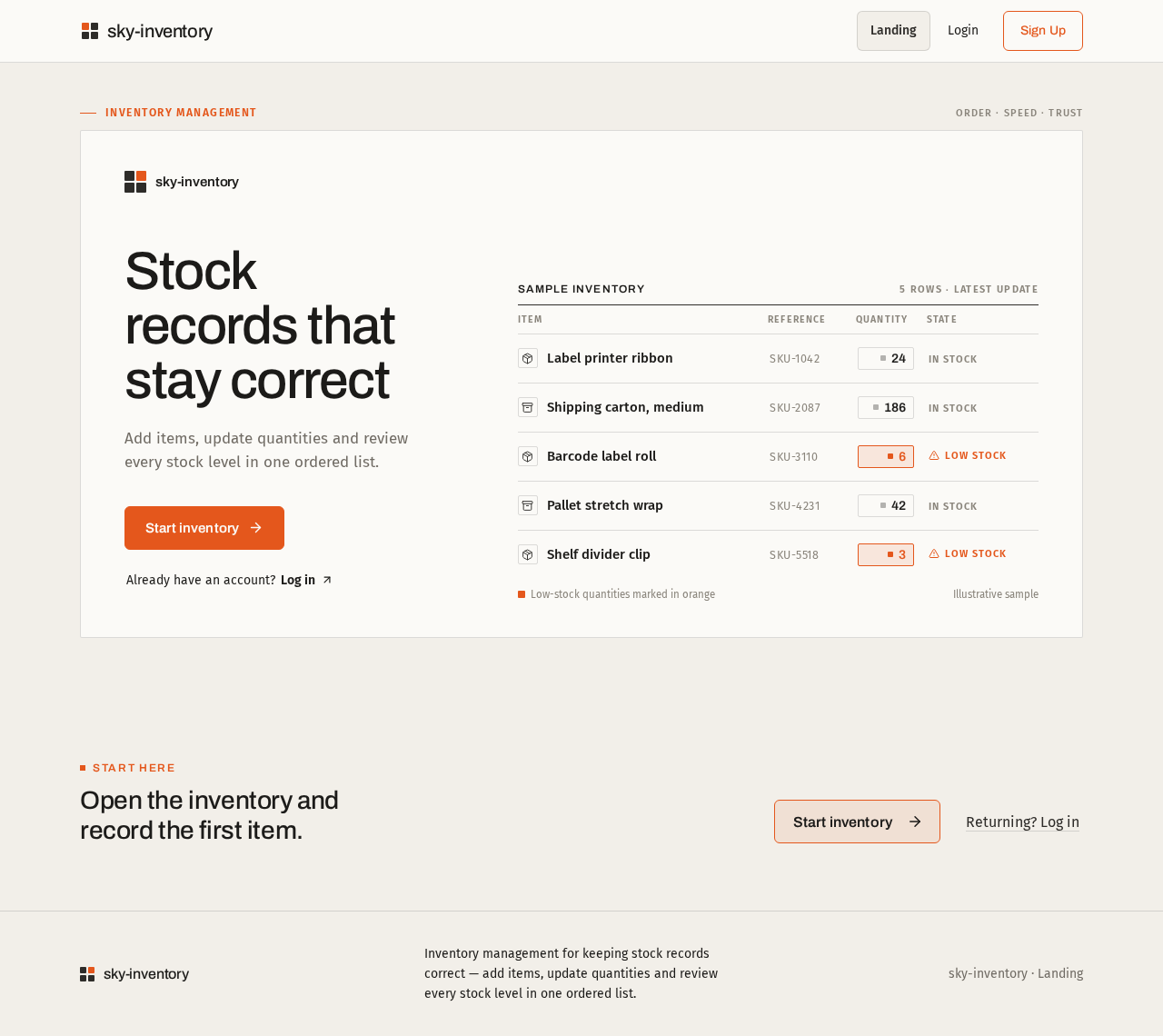
Inventory management
Stock records that stay correct
Add items, update quantities and review every stock level in one ordered list.
| Item | Reference | Quantity | State |
|---|---|---|---|
| Label printer ribbon | SKU-1042 | 0 | In stock |
| Shipping carton, medium | SKU-2087 | 0 | In stock |
| Barcode label roll | SKU-3110 | 0 | Low stock |
| Pallet stretch wrap | SKU-4231 | 0 | In stock |
| Shelf divider clip | SKU-5518 | 0 | Low stock |
Open the inventory and record the first item.
Inventory management
Stock records that stay correct
Add items, update quantities and review every stock level in one ordered list.
| Item | Reference | Quantity | State |
|---|---|---|---|
| Label printer ribbon | SKU-1042 | 0 | In stock |
| Shipping carton, medium | SKU-2087 | 0 | In stock |
| Barcode label roll | SKU-3110 | 0 | Low stock |
| Pallet stretch wrap | SKU-4231 | 0 | In stock |
| Shelf divider clip | SKU-5518 | 0 | Low stock |
No comments yet. Be the first!