new-project-151a3516
 Waqas Elijah “Elijah” Kazim
Build a high-fidelity interactive screen for Pulse Budget. Pulse Budget is an AI property budgeting SaaS for managing agents, surveyors and FM/property teams. This screen is the Annual Budget Review Workspace. Do not build a generic finance dashboard. Build a calm, premium, iOS-style SaaS workspace for reviewing and defending a service charge/property budget. Core behaviour Use an Adaptive Progressive Workspace. The layout must not use static equal columns. When no line is selected: * left navigation is compact * budget outline is visible * budget table is wide * line workspace is closed/minimal When a category is selected: * budget outline shrinks * table expands and filters to that category When a line item is selected: * budget outline collapses into a narrow icon/context rail * budget table compresses into a narrow context strip * right-side line workspace expands and becomes dominant When Spend, Evidence, Comments, History, or Full Line Workspace is opened: * outline collapses further or disappears * table remains only as context * line workspace becomes the main working area * no horizontal overflow * all content must wrap/reflow inside its container Screen content Top bar: * Pulse Budget logo * Property: Highfield Residential * Budget year: 2025/26 * Version: Version 2 * Status: In Review * Search * Notification/help/profile icons Pipeline: Import → Reconcile → Analyse → Assumptions → Forecast → Review → Scenarios → Approval → Export Active stage: Reconcile Small status strip: * Proposed Budget: £6,839,450 * Total Gap: +£329,870 * Lines Needing Review: 27 * Missing Evidence: 6 * View review queue button Context table Selected line: 1.1.1 Electricity Compressed table columns: * Line Item * Gap * Manager Proposed * Status Rows: * 1.1.1 Electricity | +£18,750 | £135,450 | Needs review * 1.1.2 Gas | +£6,200 | £98,500 | Missing evidence * 1.1.3 Water & Sewage | +£1,500 | £122,300 | In progress * 1.1.4 Waste Services | -£1,100 | £86,900 | In progress * 1.2 Cleaning | +£5,200 | £620,300 | In progress * 1.3 Security | +£62,600 | £812,400 | Needs review Dominant line workspace Header: * 1.1.1 Electricity * Needs review * Imported from Utilities.xlsx * Tab: Running Costs * Row: 14 Line micro-pipeline: Identity → Spend Reconciliation → Gap Explanation → Assumption → Evidence → Discussion → Decision → Audit Active micro-stage: Spend Reconciliation Tabs: Review | Spend | Evidence | Comments | History Active tab: Spend Spend tab Show this clearly: Reconciliation Summary * Previous Budget: £120,000 * Spend to Date: £48,320 * Committed / Accrued: £12,500 * Forecast Year-End: £138,750 * Gap: +£18,750 / +15.6% * Gap Type: Contractual increase Spend Evidence table Columns: Date | Supplier | Document | Period | Amount | Status | Linked Rows: * 30 Apr 2025 | EDF Energy | Invoice 10482 | Apr 2025 | £12,430 | Posted | Yes * 31 Mar 2025 | EDF Energy | Invoice 10391 | Mar 2025 | £11,980 | Posted | Yes * 28 Feb 2025 | EDF Energy | Invoice 10277 | Feb 2025 | £13,110 | Posted | Yes * 31 Jan 2025 | EDF Energy | Statement | Jan 2025 | £10,800 | Posted | Yes * Pending | Broker renewal | Quote expected | 2025/26 | — | Missing | No Buttons: * Upload Document * Link Spend Document * Open Full Workspace * Continue to Gap Explanation AI Reconciliation Check Show a calm AI insight panel: “Spend to date is £48,320 across 4 linked documents. Forecast year-end of £138,750 appears to rely on current spend plus expected tariff uplift. Broker renewal quote is missing, so data quality is Low.” Also include this note: “Spend = actual invoices/statements and accruals. Evidence = contracts, quotes and future support for next-year assumption.” Important distinction Spend/Reconcile is for: * invoices * statements * ledger entries * actuals extracts * accruals * committed spend Evidence is separate and is for: * supplier contracts * broker renewal quotes * uplift letters * specifications * client instructions * future pricing evidence Visual style * high-resolution * premium iOS-style * calm white/off-white interface * thin dividers * subtle shadows * compact cards only * no huge KPI cards * no noisy dashboard * no modal-heavy workflow * smooth adaptive layout * meaningful colour only * blue for active/selected/AI * green for approved/healthy * amber for warning/needs review * red for missing/risk * grey for neutral/history The final UI should feel like: premium spreadsheet intelligence + line-level case file + AI reconciliation assistant + approval workflow.

Comments (0)
Sign in to leave a comment
System Requirements
System Requirements Document for new-project-151a3516
1. Introduction
Pulse Budget is an AI property budgeting SaaS used by managing agents, surveyors and FM/property teams. This document specifies the Annual Budget Review Workspace — a high-fidelity, interactive screen for reviewing and defending a service charge/property budget, using the 2025/26 Highfield Residential budget (Version 2, In Review) as the working case.
The product intent is not a generic finance dashboard. It is a calm, premium, iOS-style workspace that behaves like a line-level case file: a budget outline, a budget table, and a dominant line workspace that progressively adapt and resize as the reviewer moves from the whole budget, to a category, to a single line, and into that line's Spend, Evidence, Comments, History or Full Line Workspace. The screen must feel like premium spreadsheet intelligence combined with an AI reconciliation assistant and an approval workflow — evidence, not marketing.
The audience is professionally sceptical: managing agents, surveyors and FM/property teams who must defend service charge budgets to leaseholders and tribunals. Every number must be traceable, and nothing on screen should shout.
2. System Overview
Pulse Budget's Annual Budget Review Workspace is a single working surface with four continuously resizing zones: a left navigation rail, a budget outline, a budget table, and a right-side line workspace. The zones are never static equal columns; they resize with physical easing as selection deepens.
The workspace is organised around a nine-stage budget pipeline (Import → Reconcile → Analyse → Assumptions → Forecast → Review → Scenarios → Approval → Export), currently at Reconcile, and a per-line eight-stage micro-pipeline (Identity → Spend Reconciliation → Gap Explanation → Assumption → Evidence → Discussion → Decision → Audit), currently at Spend Reconciliation.
Two accepted human roles work in the workspace: the Managing Agent Budget Reviewer, who drives the line-by-line review and records decisions, and the Surveyor / FM Property Team Analyst, who reconciles actual spend and supplies future pricing evidence. Both reach the workspace through application-owned identity (self-service enrollment and returning verification).
A central product distinction is enforced throughout: Spend/Reconcile covers invoices, statements, ledger entries, actuals extracts, accruals and committed spend; Evidence is separate and covers supplier contracts, broker renewal quotes, uplift letters, specifications, client instructions and future pricing evidence.
2a. Product Interpretation and Delivery Boundary
The Annual Budget Review Workspace is a first-party, application-owned screen. Its durable state — budget lines, spend records, evidence links, comments, history and decisions — is owned by the application and persists across sessions, so a reviewer can leave a line mid-review and resume it. Because that state is durable and shared between the two accepted roles, access to the workspace requires an established identity; the anonymous entry surfaces (Landing, Login, Sign Up) exist only to explain the product and to establish or verify that identity, and they never expose protected budget state.
The current delivery horizon covers the workspace itself, its adaptive progressive layout, the Spend/Reconcile and Evidence separation, the AI Reconciliation Check, and the identity surfaces needed to reach it. The remaining pipeline stages beyond Reconcile (Analyse, Assumptions, Forecast, Review, Scenarios, Approval, Export) are shown as pipeline context only; they are not built as working stages in this delivery. No provider-owned or external destination owns any part of this workflow.
2b. Source Content Inventory
Not applicable — no reference directive declares a content_source.
2c. Page Content and Component Coverage
Landing
- Information / state: Anonymous first impression of Pulse Budget for managing agents, surveyors and FM/property teams; explains that the product is an AI property budgeting SaaS and that the Annual Budget Review Workspace is where a service charge/property budget is reviewed and defended line by line.
- Primary action: Enter the product (proceed to identity establishment).
- Supporting actions: Navigate to Login for returning users; navigate to Sign Up for first-time users.
- Domain entities: Product (Pulse Budget), audience roles, the annual budget review workflow.
- Component responsibilities: Wordmark; short product statement; a restrained explanation of the review workflow (outline → table → line workspace); entry controls to Login and Sign Up. No budget figures, no protected state, no KPI cards.
- States: Loading — minimal placeholder for the wordmark and statement. Empty — not applicable (static explanatory content). Success — page renders with entry controls available. Error — if entry navigation fails, an inline message with a retry. Recovery — retry returns the user to the same entry point.
Login
- Information / state: Returning verification surface for users resuming access to shared durable budget review state.
- Primary action: Verify identity and enter the workspace.
- Supporting actions: Navigate to Sign Up if the user has no identity yet; return to Landing.
- Domain entities: User identity, session.
- Component responsibilities: Credential fields; submit control; link to Sign Up; inline validation messaging.
- States: Loading — submit control shows in-progress state. Empty — fields empty with no error shown. Success — identity verified, user proceeds to the Annual Budget Review Workspace. Error — invalid credentials shown inline without clearing entered values. Recovery — user can correct and resubmit, or switch to Sign Up.
Sign Up
- Information / state: Self-service enrollment surface for first use; no invitation or provisioning boundary is established.
- Primary action: Establish a new identity.
- Supporting actions: Navigate to Login if an identity already exists; return to Landing.
- Domain entities: User identity, role assignment sufficient to distinguish managing-agent review from surveyor/FM analysis responsibilities.
- Component responsibilities: Enrollment fields; submit control; link to Login; inline validation messaging.
- States: Loading — submit control shows in-progress state. Empty — fields empty with no error shown. Success — identity established, user proceeds to the Annual Budget Review Workspace. Error — validation or enrollment failure shown inline without clearing entered values. Recovery — user can correct and resubmit, or switch to Login.
Annual Budget Review Workspace
- Information / state: The 2025/26 Highfield Residential budget, Version 2, Status In Review, at pipeline stage Reconcile. Status strip figures: Proposed Budget £6,839,450; Total Gap +£329,870; Lines Needing Review 27; Missing Evidence 6. Selected line 1.1.1 Electricity, Needs review, imported from Utilities.xlsx, Tab Running Costs, Row 14, micro-stage Spend Reconciliation, active tab Spend. Reconciliation Summary: Previous Budget £120,000; Spend to Date £48,320; Committed / Accrued £12,500; Forecast Year-End £138,750; Gap +£18,750 / +15.6%; Gap Type Contractual increase.
- Primary action: Review and defend the budget line by line — select a category or line, reconcile spend, attach evidence, discuss, and record a decision.
- Supporting actions: Search; notification/help/profile icons; View review queue; Upload Document; Link Spend Document; Open Full Workspace; Continue to Gap Explanation; switch line workspace tabs (Review | Spend | Evidence | Comments | History).
- Domain entities: Budget line (line item, gap, manager proposed, status); spend record (date, supplier, document, period, amount, status, linked); evidence item; comment; history entry; decision; assumption; audit entry.
- Component responsibilities:
- Top bar (56px): Pulse Budget logo; Property: Highfield Residential; Budget year: 2025/26; Version: Version 2; Status: In Review; Search; notification/help/profile icons.
- Pipeline rail (40px): nine stages Import → Reconcile → Analyse → Assumptions → Forecast → Review → Scenarios → Approval → Export, with Reconcile active.
- Status strip (44px): Proposed Budget £6,839,450; Total Gap +£329,870; Lines Needing Review 27; Missing Evidence 6; View review queue button.
- Left navigation rail: compact by default, expanding when needed.
- Budget outline: full tree → shrinks on category selection → collapses to a narrow icon/context rail on line selection → collapses further or disappears when a line workspace tab is opened.
- Budget table: wide by default → expands and filters to the selected category → compresses to a narrow context strip on line selection → remains only as context when a line workspace tab is opened. Compressed columns: Line Item | Gap | Manager Proposed | Status, with rows 1.1.1 Electricity (+£18,750, £135,450, Needs review), 1.1.2 Gas (+£6,200, £98,500, Missing evidence), 1.1.3 Water & Sewage (+£1,500, £122,300, In progress), 1.1.4 Waste Services (-£1,100, £86,900, In progress), 1.2 Cleaning (+£5,200, £620,300, In progress), 1.3 Security (+£62,600, £812,400, Needs review).
- Line workspace: closed/minimal by default; expands and becomes dominant on line selection; becomes the main working area when a tab is opened. Header shows 1.1.1 Electricity, Needs review, Imported from Utilities.xlsx, Tab: Running Costs, Row: 14. Micro-pipeline: Identity → Spend Reconciliation → Gap Explanation → Assumption → Evidence → Discussion → Decision → Audit, with Spend Reconciliation active.
- Spend tab: Reconciliation Summary (six aligned label/value pairs); Spend Evidence table (Date | Supplier | Document | Period | Amount | Status | Linked) with rows 30 Apr 2025 EDF Energy Invoice 10482 Apr 2025 £12,430 Posted Yes; 31 Mar 2025 EDF Energy Invoice 10391 Mar 2025 £11,980 Posted Yes; 28 Feb 2025 EDF Energy Invoice 10277 Feb 2025 £13,110 Posted Yes; 31 Jan 2025 EDF Energy Statement Jan 2025 £10,800 Posted Yes; Pending Broker renewal Quote expected 2025/26 — Missing No; buttons Upload Document, Link Spend Document, Open Full Workspace, Continue to Gap Explanation; AI Reconciliation Check panel; Spend vs Evidence note.
- Evidence tab: separate from Spend — supplier contracts, broker renewal quotes, uplift letters, specifications, client instructions, future pricing evidence.
- Comments tab: discussion entries for the selected line.
- History tab: neutral/history record of changes to the selected line.
- States: Loading — zones render with skeleton rows and the status strip figures in a pending state. Empty — a category or filter with no matching lines shows an inline empty message inside the table container; a line with no spend records shows an empty Spend Evidence table with the Upload Document and Link Spend Document actions available. Success — selected line, reconciliation summary, spend evidence rows, AI insight and statuses render as specified. Error — if spend records or the AI insight fail to load, an inline error appears within the affected panel with a retry, and the rest of the workspace remains usable. Recovery — retry reloads the affected panel without losing the selected line or active tab; the reviewer can continue to Gap Explanation once spend is reconciled.
3. Functional Requirements
FR-1 — Adaptive Progressive Workspace layout (explicit) As a Managing Agent Budget Reviewer, I should see a workspace whose four zones resize continuously with selection state, so that the working area always matches the depth of my review.
- Trigger/input: selection state changes (no line selected; category selected; line item selected; a line workspace tab opened).
- Observable result: zones resize with physical easing; no static equal columns at any state.
- Access state: authenticated workspace.
- Failure/recovery: if a resize or panel reveal fails, the previous zone arrangement remains usable and the selection is preserved.
- Continuation: the reviewer continues from the new arrangement without losing context.
FR-2 — No-line-selected state (explicit) As a Managing Agent Budget Reviewer, when no line is selected I should see a compact left navigation, a visible budget outline, a wide budget table, and a closed/minimal line workspace, so that I can survey the whole budget.
- Trigger/input: workspace opened with no line selected.
- Observable result: compact nav, visible outline, wide table, closed/minimal line workspace.
- Access state: authenticated workspace.
- Failure/recovery: if the outline or table fails to load, an inline error with retry appears in the affected zone.
- Continuation: selecting a category or line moves to the next state.
FR-3 — Category-selected state (explicit) As a Managing Agent Budget Reviewer, when I select a category I should see the budget outline shrink and the table expand and filter to that category, so that I can focus on one part of the budget.
- Trigger/input: category selection in the budget outline.
- Observable result: outline shrinks; table expands and shows only that category's lines.
- Access state: authenticated workspace.
- Failure/recovery: if filtering returns no lines, an inline empty message appears inside the table container.
- Continuation: selecting a line within the category moves to the line-selected state.
FR-4 — Line-item-selected state (explicit) As a Managing Agent Budget Reviewer, when I select a line item I should see the outline collapse into a narrow icon/context rail, the table compress into a narrow context strip, and the right-side line workspace expand and become dominant, so that the line becomes the subject of my work.
- Trigger/input: line selection in the budget table.
- Observable result: outline becomes a narrow icon/context rail; table becomes a narrow context strip; line workspace expands and dominates.
- Access state: authenticated workspace.
- Failure/recovery: if the line workspace fails to load, the context strip and rail remain usable and an inline retry is offered.
- Continuation: opening a line workspace tab moves to the deep-work state.
FR-5 — Deep-work state on tab open (explicit) As a Managing Agent Budget Reviewer, when I open Spend, Evidence, Comments, History or Full Line Workspace I should see the outline collapse further or disappear, the table remain only as context, and the line workspace become the main working area, with no horizontal overflow and all content wrapping/reflowing inside its container.
- Trigger/input: opening Spend, Evidence, Comments, History or Full Line Workspace.
- Observable result: outline collapses further or disappears; table remains as context only; line workspace is the main working area; no horizontal overflow; content wraps/reflows inside its container.
- Access state: authenticated workspace.
- Failure/recovery: if a tab's content fails to load, the tab shows an inline error with retry while the rest of the workspace remains usable.
- Continuation: the reviewer continues within the tab or returns to the table context.
FR-6 — Top bar context (explicit) As a Managing Agent Budget Reviewer, I should see a top bar showing the Pulse Budget logo, Property: Highfield Residential, Budget year: 2025/26, Version: Version 2, Status: In Review, Search, and notification/help/profile icons, so that I always know which property, year and version I am reviewing.
- Trigger/input: workspace load.
- Observable result: all top-bar items render as specified.
- Access state: authenticated workspace.
- Failure/recovery: if search or an icon action fails, an inline message appears without disturbing the workspace.
- Continuation: the reviewer continues in the workspace.
FR-7 — Budget pipeline with active stage (explicit) As a Managing Agent Budget Reviewer, I should see the pipeline Import → Reconcile → Analyse → Assumptions → Forecast → Review → Scenarios → Approval → Export with Reconcile as the active stage, so that I know where the budget is in its lifecycle.
- Trigger/input: workspace load.
- Observable result: nine stages render in order with Reconcile marked active.
- Access state: authenticated workspace.
- Failure/recovery: if the pipeline fails to render, the workspace remains usable and the stage is shown as text.
- Continuation: the reviewer continues in the Reconcile stage.
FR-8 — Status strip (explicit) As a Managing Agent Budget Reviewer, I should see a status strip showing Proposed Budget £6,839,450, Total Gap +£329,870, Lines Needing Review 27, Missing Evidence 6, and a View review queue button, so that I can see the budget's overall position at a glance.
- Trigger/input: workspace load.
- Observable result: the four figures and the View review queue button render as specified.
- Access state: authenticated workspace.
- Failure/recovery: if figures fail to load, the strip shows a pending state with retry.
- Continuation: the reviewer can open the review queue or continue in the table.
FR-9 — Context table with compressed columns and specified rows (explicit) As a Managing Agent Budget Reviewer, I should see a context table with columns Line Item, Gap, Manager Proposed and Status, showing the six specified rows with their exact values and statuses, so that I can compare lines at a glance.
- Trigger/input: workspace load or category selection.
- Observable result: rows 1.1.1 Electricity (+£18,750, £135,450, Needs review), 1.1.2 Gas (+£6,200, £98,500, Missing evidence), 1.1.3 Water & Sewage (+£1,500, £122,300, In progress), 1.1.4 Waste Services (-£1,100, £86,900, In progress), 1.2 Cleaning (+£5,200, £620,300, In progress), 1.3 Security (+£62,600, £812,400, Needs review) render with 1.1.1 Electricity selected.
- Access state: authenticated workspace.
- Failure/recovery: if rows fail to load, an inline error with retry appears inside the table container.
- Continuation: selecting a row opens that line in the line workspace.
FR-10 — Line workspace header (explicit) As a Managing Agent Budget Reviewer, I should see the line workspace header showing 1.1.1 Electricity, Needs review, Imported from Utilities.xlsx, Tab: Running Costs and Row: 14, so that I can confirm the line's identity and provenance.
- Trigger/input: line selection.
- Observable result: all header items render as specified.
- Access state: authenticated workspace.
- Failure/recovery: if provenance fails to load, the header shows the line identity and an inline retry for provenance.
- Continuation: the reviewer proceeds into the line's micro-pipeline.
FR-11 — Line micro-pipeline with active micro-stage (explicit) As a Managing Agent Budget Reviewer, I should see the micro-pipeline Identity → Spend Reconciliation → Gap Explanation → Assumption → Evidence → Discussion → Decision → Audit with Spend Reconciliation active, so that I know where this line is in its own review.
- Trigger/input: line selection.
- Observable result: eight micro-stages render in order with Spend Reconciliation marked active.
- Access state: authenticated workspace.
- Failure/recovery: if the micro-pipeline fails to render, the active micro-stage is shown as text.
- Continuation: the reviewer continues in the Spend tab.
FR-12 — Line workspace tabs (explicit) As a Managing Agent Budget Reviewer, I should see tabs Review | Spend | Evidence | Comments | History with Spend active, so that I can move between the line's review, spend, evidence, discussion and history.
- Trigger/input: line selection.
- Observable result: five tabs render with Spend active.
- Access state: authenticated workspace.
- Failure/recovery: if a tab fails to load, it shows an inline error with retry.
- Continuation: the reviewer switches tabs as needed.
FR-13 — Reconciliation Summary (explicit) As a Managing Agent Budget Reviewer, I should see a Reconciliation Summary showing Previous Budget £120,000, Spend to Date £48,320, Committed / Accrued £12,500, Forecast Year-End £138,750, Gap +£18,750 / +15.6% and Gap Type Contractual increase, so that I can see how the line's forecast was built.
- Trigger/input: Spend tab opened.
- Observable result: six aligned label/value pairs render as specified.
- Access state: authenticated workspace.
- Failure/recovery: if the summary fails to load, an inline error with retry appears in the summary area.
- Continuation: the reviewer reviews the spend evidence rows.
FR-14 — Spend Evidence table (explicit) As a Managing Agent Budget Reviewer, I should see a Spend Evidence table with columns Date | Supplier | Document | Period | Amount | Status | Linked and the five specified rows, including the pending Broker renewal quote marked Missing and not linked, so that I can see exactly which spend documents support the line.
- Trigger/input: Spend tab opened.
- Observable result: rows 30 Apr 2025 EDF Energy Invoice 10482 Apr 2025 £12,430 Posted Yes; 31 Mar 2025 EDF Energy Invoice 10391 Mar 2025 £11,980 Posted Yes; 28 Feb 2025 EDF Energy Invoice 10277 Feb 2025 £13,110 Posted Yes; 31 Jan 2025 EDF Energy Statement Jan 2025 £10,800 Posted Yes; Pending Broker renewal Quote expected 2025/26 — Missing No render as specified.
- Access state: authenticated workspace.
- Failure/recovery: if rows fail to load, an inline error with retry appears inside the table container.
- Continuation: the reviewer uploads or links a document, or continues to Gap Explanation.
FR-15 — Spend tab actions (explicit) As a Managing Agent Budget Reviewer, I should be able to use Upload Document, Link Spend Document, Open Full Workspace and Continue to Gap Explanation from the Spend tab, so that I can close the spend gap and move the line forward.
- Trigger/input: action selected on the Spend tab.
- Observable result: Upload Document and Link Spend Document add or link a spend record; Open Full Workspace expands the line workspace; Continue to Gap Explanation advances the line's micro-stage.
- Access state: authenticated workspace.
- Failure/recovery: if an upload or link fails, an inline error appears with retry and the entered context is preserved.
- Continuation: the reviewer continues in the Spend tab or advances to Gap Explanation.
FR-16 — AI Reconciliation Check (explicit) As a Managing Agent Budget Reviewer, I should see a calm AI insight panel stating: "Spend to date is £48,320 across 4 linked documents. Forecast year-end of £138,750 appears to rely on current spend plus expected tariff uplift. Broker renewal quote is missing, so data quality is Low.", so that I understand the reconciliation position and its data-quality limitation.
- Trigger/input: Spend tab opened.
- Observable result: the AI insight renders with the specified text and a Low data-quality indication.
- Access state: authenticated workspace.
- Failure/recovery: if the insight fails to load, an inline error with retry appears in the panel area.
- Continuation: the reviewer acts on the missing broker renewal quote or continues to Gap Explanation.
FR-17 — Spend vs Evidence distinction note (explicit) As a Managing Agent Budget Reviewer, I should see the note "Spend = actual invoices/statements and accruals. Evidence = contracts, quotes and future support for next-year assumption.", so that I never confuse spend records with evidence.
- Trigger/input: Spend tab opened.
- Observable result: the note renders as specified.
- Access state: authenticated workspace.
- Failure/recovery: if the note fails to render, the Spend and Evidence tabs remain clearly separate.
- Continuation: the reviewer continues in the correct tab for the item at hand.
FR-18 — Spend/Reconcile scope (explicit) As a Surveyor / FM Property Team Analyst, I should be able to reconcile invoices, statements, ledger entries, actuals extracts, accruals and committed spend against the line, so that the line's spend position is grounded in actuals.
- Trigger/input: spend item available for the selected line.
- Observable result: the item is recorded as spend and reflected in the Reconciliation Summary and Spend Evidence table.
- Access state: authenticated workspace.
- Failure/recovery: if an item cannot be recorded, an inline error with retry appears and the item is not silently dropped.
- Continuation: the analyst continues reconciling or hands the line back for decision.
FR-19 — Evidence scope, separate from Spend (explicit) As a Surveyor / FM Property Team Analyst, I should be able to attach supplier contracts, broker renewal quotes, uplift letters, specifications, client instructions and future pricing evidence in the Evidence tab, separate from Spend, so that next-year assumptions are supported by the right kind of document.
- Trigger/input: evidence item available for the selected line.
- Observable result: the item is recorded as evidence in the Evidence tab and is not counted as spend.
- Access state: authenticated workspace.
- Failure/recovery: if an evidence item cannot be attached, an inline error with retry appears and the item is not silently dropped.
- Continuation: the analyst continues attaching evidence or hands the line back for decision.
FR-20 — Self-service enrollment for first use (required_inference) As a Managing Agent Budget Reviewer or Surveyor / FM Property Team Analyst, I should be able to establish my identity on first use, so that I can reach the workspace and my review state is bound to me.
- Trigger/input: first use of the product.
- Observable result: an identity is established and the user proceeds to the workspace.
- Access state: anonymous entry surface.
- Failure/recovery: validation or enrollment failure is shown inline without clearing entered values; the user can correct and resubmit.
- Continuation: the user enters the workspace.
FR-21 — Returning verification (required_inference) As a Managing Agent Budget Reviewer or Surveyor / FM Property Team Analyst, I should be able to verify my identity on return, so that I can resume the shared durable budget review state.
- Trigger/input: returning use of the product.
- Observable result: identity is verified and the user proceeds to the workspace.
- Access state: anonymous entry surface.
- Failure/recovery: invalid credentials are shown inline without clearing entered values; the user can correct and resubmit or switch to Sign Up.
- Continuation: the user resumes in the workspace.
FR-22 — Role assignment sufficient to distinguish responsibilities (required_inference) As a Managing Agent Budget Reviewer or Surveyor / FM Property Team Analyst, my identity should carry a role sufficient to distinguish managing-agent review from surveyor/FM analysis responsibilities, so that the workspace reflects the correct responsibility.
- Trigger/input: identity established or verified.
- Observable result: the user's role is associated with their identity and the workspace reflects the corresponding responsibility.
- Access state: authenticated workspace.
- Failure/recovery: if role association fails, the user is informed inline and can retry.
- Continuation: the user continues in the workspace with the correct responsibility.
FR-23 — Persistent backend storage (required_inference) As a Managing Agent Budget Reviewer or Surveyor / FM Property Team Analyst, my work on budget lines, spend records, evidence links, comments, history and decisions should persist, so that I can leave a line mid-review and resume it later.
- Trigger/input: any change to a line, spend record, evidence link, comment, history entry or decision.
- Observable result: the change is stored and is present when the line is reopened.
- Access state: authenticated workspace.
- Failure/recovery: if a save fails, an inline error with retry appears and the change is not silently lost.
- Continuation: the reviewer continues from the saved state.
4. User Personas
Managing Agent Budget Reviewer
Product context. The Managing Agent Budget Reviewer owns the defence of the service charge/property budget for Highfield Residential 2025/26, Version 2, currently In Review. They work in the Annual Budget Review Workspace at pipeline stage Reconcile, moving from the whole budget, to a category, to a single line, and into that line's Spend, Evidence, Comments and History.
Primary goal. To work line by line through the budget so that every line can be defended — reconciling spend, explaining gaps, attaching evidence, discussing, and recording decisions — and to resolve the lines flagged as needing review or missing evidence.
Distinct accepted responsibilities. The reviewer drives the review itself: they select categories and lines, read the Reconciliation Summary and Spend Evidence table, use the status strip and View review queue to find lines needing attention, and record decisions. They are the actor who decides whether a line is defensible; the analyst supplies the underlying spend and evidence.
Relevant inputs or decisions. The reviewer reads the status strip (Proposed Budget £6,839,450; Total Gap +£329,870; Lines Needing Review 27; Missing Evidence 6), the context table rows and their statuses, the line header (1.1.1 Electricity, Needs review, Imported from Utilities.xlsx, Tab: Running Costs, Row: 14), the Reconciliation Summary, the Spend Evidence table, and the AI Reconciliation Check. They decide whether to upload or link a spend document, whether to open the full workspace, and whether to continue to Gap Explanation.
Interactions with other accepted participants. The reviewer depends on the Surveyor / FM Property Team Analyst for reconciled spend and for future pricing evidence; the analyst's work in the Spend and Evidence tabs is what makes a line defensible. The reviewer's decisions and comments are what the analyst's evidence supports.
Observable success. Lines that were flagged as needing review or missing evidence move forward with reconciled spend, attached evidence, recorded discussion and a recorded decision, and the budget's overall position is visible in the status strip.
Surveyor / FM Property Team Analyst
Product context. The Surveyor / FM Property Team Analyst supports the budget review by reconciling actual invoices, statements, accruals and committed spend against the previous budget, and by supplying future pricing evidence. They work in the Spend and Evidence tabs of the line workspace.
Primary goal. To close data-quality gaps on each line before decisions are made — so that the spend position is grounded in actuals and the next-year assumption is supported by the right kind of document.
Distinct accepted responsibilities. The analyst reconciles spend (invoices, statements, ledger entries, actuals extracts, accruals, committed spend) and attaches evidence (supplier contracts, broker renewal quotes, uplift letters, specifications, client instructions, future pricing evidence). They are the actor who keeps the Spend and Evidence distinction correct: spend records are actuals, evidence supports the next-year assumption.
Relevant inputs or decisions. The analyst reads the Reconciliation Summary (Previous Budget £120,000; Spend to Date £48,320; Committed / Accrued £12,500; Forecast Year-End £138,750; Gap +£18,750 / +15.6%; Gap Type Contractual increase), the Spend Evidence table rows and their Linked status, and the AI Reconciliation Check's data-quality finding. They decide which documents to upload or link, and which evidence to attach.
Interactions with other accepted participants. The analyst supplies the Managing Agent Budget Reviewer with reconciled spend and evidence; the reviewer's decisions depend on the analyst's work. The analyst's work is what turns a line flagged as Missing evidence into a line that can be defended.
Observable success. Spend records are linked and posted, the missing broker renewal quote is resolved, evidence is attached in the Evidence tab, and the line's data quality improves from Low.
5. Core User Flows
Flow A — Managing Agent Budget Reviewer: survey the budget and select a line
- The reviewer opens Pulse Budget and, having no identity yet, establishes one through Sign Up (or verifies through Login on return).
- The reviewer lands in the Annual Budget Review Workspace with no line selected: the left navigation is compact, the budget outline is visible, the budget table is wide, and the line workspace is closed/minimal.
- The reviewer reads the top bar (Pulse Budget logo; Property: Highfield Residential; Budget year: 2025/26; Version: Version 2; Status: In Review) and the pipeline rail, confirming Reconcile is the active stage.
- The reviewer reads the status strip: Proposed Budget £6,839,450; Total Gap +£329,870; Lines Needing Review 27; Missing Evidence 6.
- The reviewer selects a category in the budget outline. The outline shrinks and the table expands and filters to that category.
- The reviewer selects line 1.1.1 Electricity in the table. The outline collapses into a narrow icon/context rail, the table compresses into a narrow context strip, and the right-side line workspace expands and becomes dominant.
- The reviewer reads the line header: 1.1.1 Electricity, Needs review, Imported from Utilities.xlsx, Tab: Running Costs, Row: 14, and the micro-pipeline with Spend Reconciliation active.
- Next step: the reviewer opens the Spend tab (Flow B) or the Evidence tab (Flow C).
Flow B — Managing Agent Budget Reviewer: reconcile spend on 1.1.1 Electricity
- Starting from the line-selected state on 1.1.1 Electricity, the reviewer opens the Spend tab. The outline collapses further or disappears, the table remains only as context, and the line workspace becomes the main working area, with no horizontal overflow and all content wrapping inside its container.
- The reviewer reads the Reconciliation Summary: Previous Budget £120,000; Spend to Date £48,320; Committed / Accrued £12,500; Forecast Year-End £138,750; Gap +£18,750 / +15.6%; Gap Type Contractual increase.
- The reviewer reads the Spend Evidence table: 30 Apr 2025 EDF Energy Invoice 10482 Apr 2025 £12,430 Posted Yes; 31 Mar 2025 EDF Energy Invoice 10391 Mar 2025 £11,980 Posted Yes; 28 Feb 2025 EDF Energy Invoice 10277 Feb 2025 £13,110 Posted Yes; 31 Jan 2025 EDF Energy Statement Jan 2025 £10,800 Posted Yes; Pending Broker renewal Quote expected 2025/26 — Missing No.
- The reviewer reads the AI Reconciliation Check: "Spend to date is £48,320 across 4 linked documents. Forecast year-end of £138,750 appears to rely on current spend plus expected tariff uplift. Broker renewal quote is missing, so data quality is Low."
- The reviewer reads the note: "Spend = actual invoices/statements and accruals. Evidence = contracts, quotes and future support for next-year assumption."
- Decision: the reviewer either uses Upload Document or Link Spend Document to close the spend gap, or uses Open Full Workspace to work in the full line workspace.
- Material failure/recovery: if an upload or link fails, an inline error appears with retry and the entered context is preserved; the reviewer retries without losing the selected line or active tab.
- Continuation: the reviewer uses Continue to Gap Explanation to advance the line's micro-stage, or hands the missing broker renewal quote to the Surveyor / FM Property Team Analyst (Flow C).
Flow C — Surveyor / FM Property Team Analyst: reconcile spend and supply evidence
- The analyst verifies their identity through Login and enters the Annual Budget Review Workspace.
- The analyst selects line 1.1.1 Electricity and opens the Spend tab.
- The analyst reconciles actual spend against the line: invoices, statements, ledger entries, actuals extracts, accruals and committed spend. The four posted EDF Energy documents (Invoice 10482, Invoice 10391, Invoice 10277, Statement) are confirmed as linked; the Pending Broker renewal quote is confirmed as Missing and not linked.
- The analyst reads the AI Reconciliation Check's finding that the broker renewal quote is missing and data quality is Low.
- Decision: the analyst opens the Evidence tab — separate from Spend — and attaches the missing broker renewal quote, along with any supplier contracts, uplift letters, specifications, client instructions or future pricing evidence that support the next-year assumption.
- Observable result: the evidence is recorded in the Evidence tab and is not counted as spend; the line's data quality improves from Low.
- Material failure/recovery: if an evidence item cannot be attached, an inline error appears with retry and the item is not silently dropped.
- Continuation: the analyst hands the line back to the Managing Agent Budget Reviewer, who continues to Gap Explanation (Flow B, step 8).
Flow D — Managing Agent Budget Reviewer: discuss and record a decision
- Starting from the line-selected state on 1.1.1 Electricity, the reviewer opens the Comments tab. The outline collapses further or disappears, the table remains only as context, and the line workspace becomes the main working area.
- The reviewer reads and adds discussion entries for the line, including the analyst's note on the broker renewal quote.
- The reviewer opens the History tab to review the line's neutral/history record of changes.
- Decision: the reviewer records the line's decision, moving the line's micro-stage from Discussion toward Decision and Audit.
- Observable result: the decision is stored and is present when the line is reopened; the line's status in the context table reflects the outcome.
- Material failure/recovery: if a save fails, an inline error appears with retry and the change is not silently lost.
- Continuation: the reviewer returns to the context table and selects the next line needing review.
Flow E — Managing Agent Budget Reviewer: work the review queue
- Starting from the workspace, the reviewer uses the View review queue button in the status strip.
- The reviewer works through the lines flagged as needing review (27) and missing evidence (6), selecting each line and repeating Flows B and D.
- Observable result: the status strip figures reflect the reviewer's progress as lines are resolved.
- Continuation: the reviewer continues until the lines needing review and missing evidence are resolved.
6. Visuals Colors and Theme
The creative direction is authoritative for this section. The muse is Jony Ive, and the headline is "Quiet precision for a budget you can defend line by line." The register is calm authority: a case file that happens to be beautiful, where every number is traceable and nothing shouts.
Palette (light mode).
| Role | Token | Value |
|---|---|---|
| Page background | --bg | #F7F7F5 |
| Surface / panel | --surface | #FFFFFF |
| Text (primary) | --text | #1C1C1E |
| Primary / accent (active, selected, AI) | --primary | #0A84FF |
| Muted text | --muted | #8E8E93 |
| Divider hairline | --divider | #E5E5EA |
| Amber — Needs review / warning | --amber | #C77700 |
| Red — Missing / risk | --red | #D70015 |
| Green — Approved / healthy | --green | #248A3D |
| Grey — Neutral / history | --grey | #8E8E93 |
Blue is used only for the active tab, the selected row, the active pipeline node, the AI panel rule and the primary button — never as a large fill. Semantic signals are single-purpose and never decorative. Proportion: 90% white/off-white, 6% ink, 4% signal colour.
Typography. Headings and body use Inter Tight. Headings and panel titles use light-to-regular weights (300/400) with tight tracking (-0.02em), sentence case; all-caps is reserved for 11px micro-labels with +0.08em tracking. Numbers use tabular figures at medium weight (500) so amounts align in columns. The largest type on screen is the selected line title at 28–40px — never a marketing headline.
Type scale (1.25 modular, tabular numerals throughout). Desktop: line title 40px, panel title 22px, body 15px, micro-label 11px. Mobile: line title 22px, panel title 17px, body 15px, micro-label 11px. Amounts are always tabular and right-aligned.
Shape language. Soft continuous-curve radii — 10px panels, 8px controls, 6px chips (the iOS squircle, not pill buttons). Hairline 1px dividers do the structural work; borders are #E5E5EA, never heavier than 1px. No gradients, no glass, no blur-as-decoration. Depth comes from a single soft shadow and from panel resizing, not from stacked layers.
Shadow. One soft pass only: 0 1px 2px rgba(0,0,0,0.04), 0 8px 24px rgba(0,0,0,0.05) — never stacked.
Spacing rhythm. A 4px base unit; 8px within a control cluster, 16px between related blocks, 24px between panels, 40px between major zones. The top bar is 56px, the pipeline rail 40px, the status strip 44px.
Imagery style. No photography, no illustration, no 3D. The imagery is the interface itself: hairline-ruled data rows, tabular numerals, a single status dot per row, and the AI panel marked by one 2px blue left rule. Where a visual is needed it is diagrammatic — the pipeline as a thin horizontal track of 9 nodes, the micro-pipeline as an 8-node track, the reconciliation summary as an aligned label/value column. Nothing decorative that is not also functional.
7. Signature Design Concept
The working surface as the hero. The first screen is not a hero — it is a working surface, and that is the point.
A 56px white top bar carries the Pulse Budget wordmark, then a hairline-separated cluster: Property Highfield Residential · Budget year 2025/26 · Version 2 · a Status chip In Review in amber, then search and three icon buttons at the far right. Beneath it a 40px pipeline rail: nine stages as a thin track, Reconcile filled in blue with a 2px underline, the rest ink-grey with hairline connectors. Beneath that a 44px status strip of four hairline-separated figures — Proposed Budget £6,839,450, Total Gap +£329,870 in amber, Lines Needing Review 27, Missing Evidence 6 in red — with a View review queue text button at the end.
The dominant element is the budget table occupying the full remaining width, its rows separated by 1px hairlines, tabular amounts right-aligned, status dots at the row end. The line workspace sits closed as a 0-width panel with a 1px edge. No KPI cards, no gradient, no centred headline — a quiet, precise instrument.
Signature moves.
- Adaptive progressive workspace. Four zones resize continuously with physical easing as selection deepens — the outline collapses to a 48px icon rail, the table compresses to a 320px context strip, and the line workspace unfolds to dominate the viewport in one gesture. Never a static equal-column dashboard.
- Two scales of the same track. A 9-node pipeline rail with the active stage (Reconcile) filled blue and underlined, mirrored directly beneath the line title by an 8-node micro-pipeline (Identity → … → Audit) with Spend Reconciliation active — so the user always knows where they are.
- Reconciliation summary as a precision instrument. Six aligned label/value pairs with tabular numerals, the Gap row set in amber with the +£18,750 / +15.6% figure at medium weight, and a hairline rule above and below — counting up once on tab entry, no card, no chart.
- Spend evidence table where every row ends in a status dot and a Linked Yes/No. The single Missing row (Broker renewal, Pending, —) is marked by a red dot and a red "Missing" label with no amount — the one red thing on the screen, earning its place.
- AI Reconciliation Check as a calm insight panel. White surface, one 2px blue left rule, a small "AI" micro-label, the paragraph in 15px ink, and the data-quality "Low" chip in amber — with the Spend vs Evidence distinction set beneath a hairline as two aligned definition columns, not a callout box.
8. Interaction Model & Motion Direction
Interaction Model: Animated Motion Tempo: restrained Hero Dimensionality: layered_2d
Landing Hero Motion Brief. The public entry is the Annual Budget Review Workspace itself — a working surface, not a marketing hero. The focal subject is the budget table occupying the full remaining width, its rows separated by 1px hairlines, tabular amounts right-aligned, status dots at the row end, with the line workspace closed as a 0-width panel with a 1px edge.
- Input → transformation → outcome thesis: as the reviewer deepens selection (no line → category → line → tab), the four zones resize continuously with physical easing — the outline collapses to a 48px icon rail, the table compresses to a 320px context strip, and the line workspace unfolds from the right edge to dominate the viewport in one gesture. The outcome is a workspace that always matches the depth of the review, with no horizontal overflow and all content wrapping inside its container.
- Motion vocabulary: slow, physical easing
cubic-bezier(0.32, 0.72, 0, 1)at 320–420ms for zone resizing and panel reveals; 120ms for state changes. One purposeful reveal: when a line is selected, the line workspace unfolds from the right edge while the table compresses to a strip in the same gesture. Numbers in the reconciliation summary count up once on tab entry. No bounce, no particles, no decorative loops. - Composed first frame: the 56px top bar with the wordmark and hairline-separated property cluster; the 40px pipeline rail with Reconcile filled blue and underlined; the 44px status strip of four hairline-separated figures; the budget table wide and dominant; the line workspace closed at 0-width with a 1px edge.
- Reduced-motion state: with
prefers-reduced-motion, zones snap instantly and all content is reachable by scrolling; the reconciliation summary shows its final figures without counting up.
9. Non-Functional Requirements
NFR-1 — No horizontal overflow (explicit) At 375px, 768px and 1280px, no horizontal overflow may occur; all content must wrap or reflow inside its container, and every amount must stay whole. Rationale: the user explicitly requires this, and the workspace must remain usable on every viewport.
NFR-2 — Adaptive layout, not static equal columns (explicit) The layout must not use static equal columns at any state. Rationale: the Adaptive Progressive Workspace is the core behaviour of the screen.
NFR-3 — No huge KPI cards, no noisy dashboard (explicit) Figures live in the status strip and reconciliation summary as aligned label/value pairs; no huge KPI cards, gauges or donut charts. Rationale: the user explicitly excludes these.
NFR-4 — No modal-heavy workflow (explicit) The line workspace is a panel, not a dialog; Spend, Evidence, Comments and History are tabs, not overlays. Rationale: the user explicitly excludes modal-heavy workflows.
NFR-5 — Meaningful colour only (explicit) Blue for active/selected/AI, green for approved/healthy, amber for warning/needs review, red for missing/risk, grey for neutral/history; semantic colours are never decorative. Rationale: the user explicitly requires meaningful colour only.
NFR-6 — Readable text and controls stay whole (explicit)
Headlines, wordmarks, labels, numbers, cards' text and controls stay entirely inside the viewport and their container at 375px, 768px and 1280px, wrapping or scaling (for example font-size: clamp(...) with its mobile size) to fit, and no other element covers any part of them. Rationale: the creative direction requires this and it takes precedence for readable text and controls.
NFR-7 — Durable state (required_inference) Budget lines, spend records, evidence links, comments, history and decisions persist across sessions so a reviewer can leave a line mid-review and resume it. Rationale: the accepted review workflow is line-by-line and long-running, and the workspace is shared between two roles.
NFR-8 — Access control (required_inference) The Annual Budget Review Workspace is reachable only with an established identity; the anonymous entry surfaces never expose protected budget state. Rationale: durable, shared budget state must remain bound to the correct participant.
NFR-9 — AI insight availability (explicit) The AI Reconciliation Check must render its specified insight for the selected line, and its failure must not block the rest of the workspace. Rationale: the AI reconciliation assistant is an accepted part of the screen, and the workspace must remain usable if it is unavailable.
10. Tech Stack
- Frontend: React (web), with the adaptive progressive workspace implemented as a fluid 12-column grid; no static equal columns.
- Backend: Python / FastAPI, extending a single shared backend process for the workspace APIs (budget lines, spend records, evidence links, comments, history, decisions, AI reconciliation insight).
- Storage: a persistent database for budget lines, spend records, evidence links, comments, history and decisions.
- AI: an AI reconciliation service that produces the Reconciliation Check insight and data-quality finding.
- Deployment: Docker / docker-compose for the frontend, backend and database. Kubernetes is not required for this delivery.
11. Assumptions and Constraints
Assumptions.
- The workspace is delivered as a first-party, application-owned screen; no provider-owned or external destination owns any part of the workflow.
- Identity is application-owned, with self-service enrollment and returning verification, because durable shared budget state must remain bound to the correct participant.
- Role assignment is sufficient to distinguish managing-agent review from surveyor/FM analysis responsibilities; no further differentiated permissions are assumed.
- The remaining pipeline stages beyond Reconcile (Analyse, Assumptions, Forecast, Review, Scenarios, Approval, Export) are shown as pipeline context only and are not built as working stages in this delivery.
- The figures, rows, statuses and text specified in this document are the working case for the 2025/26 Highfield Residential budget, Version 2.
Constraints.
- Do not build a generic finance dashboard.
- The layout must not use static equal columns.
- No horizontal overflow; all content must wrap/reflow inside its container.
- No huge KPI cards.
- No noisy dashboard.
- No modal-heavy workflow.
- Use meaningful colour only.
- Spend/Reconcile is for invoices, statements, ledger entries, actuals extracts, accruals and committed spend; Evidence is separate and is for supplier contracts, broker renewal quotes, uplift letters, specifications, client instructions and future pricing evidence.
12. Glossary
- Adaptive Progressive Workspace — the layout behaviour in which the left navigation, budget outline, budget table and line workspace resize continuously as selection deepens, never as static equal columns.
- Annual Budget Review Workspace — the screen specified in this document, where the 2025/26 Highfield Residential budget is reviewed and defended line by line.
- Budget line — a single item in the budget (for example 1.1.1 Electricity), with a line item, gap, manager proposed amount and status.
- Budget outline — the tree of budget categories and lines; it shrinks on category selection and collapses to a narrow icon/context rail on line selection.
- Budget table — the table of budget lines; it is wide by default, expands and filters to a selected category, and compresses to a narrow context strip on line selection.
- Context strip — the narrow form of the budget table shown when a line is selected.
- Evidence — supplier contracts, broker renewal quotes, uplift letters, specifications, client instructions and future pricing evidence; separate from Spend.
- Line workspace — the right-side panel that expands and becomes dominant when a line is selected, containing the Review, Spend, Evidence, Comments and History tabs.
- Micro-pipeline — the per-line eight-stage track: Identity → Spend Reconciliation → Gap Explanation → Assumption → Evidence → Discussion → Decision → Audit.
- Pipeline — the nine-stage budget lifecycle: Import → Reconcile → Analyse → Assumptions → Forecast → Review → Scenarios → Approval → Export.
- Reconciliation Summary — the six aligned label/value pairs on the Spend tab showing how the line's forecast was built.
- Spend / Reconcile — invoices, statements, ledger entries, actuals extracts, accruals and committed spend; separate from Evidence.
- Spend Evidence table — the table of spend documents on the Spend tab, with columns Date, Supplier, Document, Period, Amount, Status and Linked.
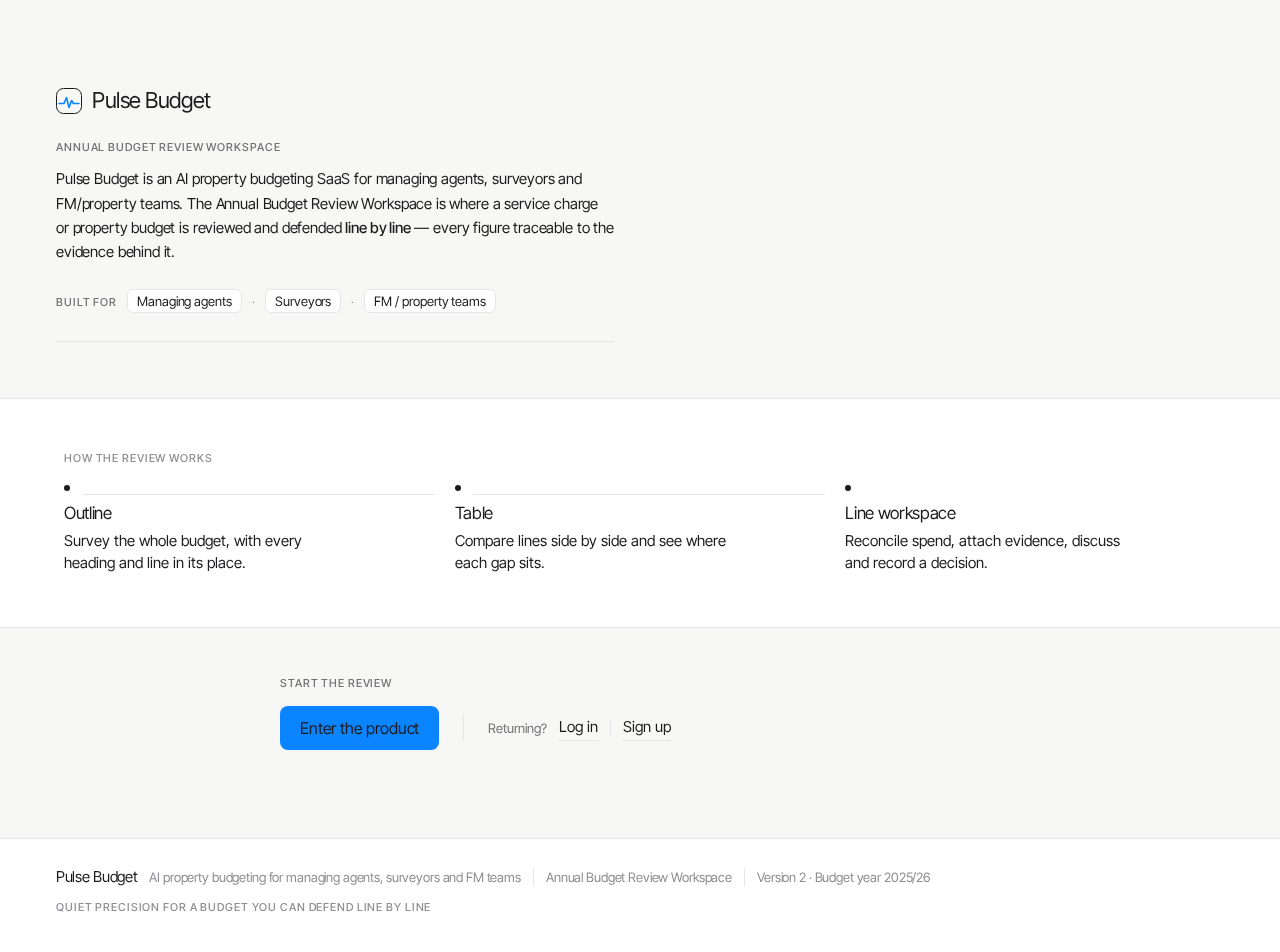
Pulse Budget
Annual Budget Review Workspace
Pulse Budget is an AI property budgeting SaaS for managing agents, surveyors and FM/property teams. The Annual Budget Review Workspace is where a service charge or property budget is reviewed and defended line by line — every figure traceable to the evidence behind it.
How the review works
- Outline
Survey the whole budget, with every heading and line in its place.
- Table
Compare lines side by side and see where each gap sits.
- Line workspace
Reconcile spend, attach evidence, discuss and record a decision.
Start the review
Pulse Budget
Annual Budget Review Workspace
Pulse Budget is an AI property budgeting SaaS for managing agents, surveyors and FM/property teams. The Annual Budget Review Workspace is where a service charge or property budget is reviewed and defended line by line — every figure traceable to the evidence behind it.
How the review works
- Outline
Survey the whole budget, with every heading and line in its place.
- Table
Compare lines side by side and see where each gap sits.
- Line workspace
Reconcile spend, attach evidence, discuss and record a decision.
Start the review
No comments yet. Be the first!