voxlink-offline-communication
 Shiva Gupta
Build Step 1 of my Flutter app VoxLink. Goal Create a beautiful, modern, premium-looking UI/UX for an offline communication app. Do NOT implement Bluetooth, networking, encryption, database, login backend, mesh, voice or file transfer yet. This step is UI/UX only. Design Make VoxLink feel like a professional modern communication/security app. Style: - dark premium theme - clean minimal interface - smooth animations - rounded cards - subtle gradients - modern typography - excellent spacing - attractive icons - responsive Android layout - accessible contrast - no excessive decoration Suggested brand: - App name: VoxLink - Tagline: "Connect. Communicate. Offline." Use a consistent design system: - colors - typography - spacing - buttons - cards - icons - navigation Do not use random colors on different screens. Screens Create polished UI for: 1. Splash Screen 2. Welcome Screen 3. Create VoxLink Identity 4. Login / Unlock 5. Home 6. Chat 7. Nearby 8. Voice / Push-to-Talk 9. Files 10. Emergency / SOS 11. Profile 12. Settings Welcome Screen Show: VoxLink "Connect. Communicate. Offline." Buttons: Create VoxLink ID I already have an account Identity Screen Show: Create your VoxLink identity Display Name VoxLink ID preview Create Identity button For now use sample/demo data only for UI. Clearly keep demo data separate from future real implementation. Home Screen Create a premium dashboard. Show: Hello, [Name] VoxLink ID VX-XXXX-XXXX Connection status card: Offline Nearby devices: 0 Main cards: Chat Nearby Voice Files Emergency Bottom navigation: Home Chat Nearby Profile Chat Screen Create realistic empty-state UI: "No conversations yet" "Find a nearby VoxLink user to start communicating." Include: Search New Chat button Do NOT implement actual messaging yet. Nearby Screen Create a beautiful discovery interface. Show: Nearby VoxLink Scanning animation area Nearby device cards with: Name VoxLink ID Signal strength Connect button For now use clearly marked demo UI data only. Do NOT claim these are real devices. Voice Screen Create premium Push-to-Talk UI. Large circular microphone button. States: Hold to Talk Listening Transmitting UI only. Files Screen Show: Send Files Recent Transfers Empty state. UI only. Emergency Screen Create a clear SOS interface. Large SOS button. Show: "Emergency communication" "Send an SOS to nearby VoxLink devices." Do NOT implement actual emergency transmission. Profile Show: Profile photo placeholder Display name VoxLink ID Edit Profile Copy ID button. Settings Include: Account Security Notifications Appearance Bluetooth About VoxLink Navigation Use smooth navigation and transitions. Avoid unnecessary animations that reduce performance. Important Do NOT create fake functionality. Demo data must be clearly separated from real services. Do not add unnecessary packages unless required. Keep the code modular and ready for future real functionality. Use reusable widgets/components instead of duplicating UI code. At the end: 1. Run "flutter analyze" 2. Fix UI/code errors 3. Tell me which files were created/modified 4. Tell me what is UI-only 5. STOP Do not implement the next functionality stage until I say NEXT.

Comments (0)
Sign in to leave a comment
Architecture
No Services Diagrams Yet
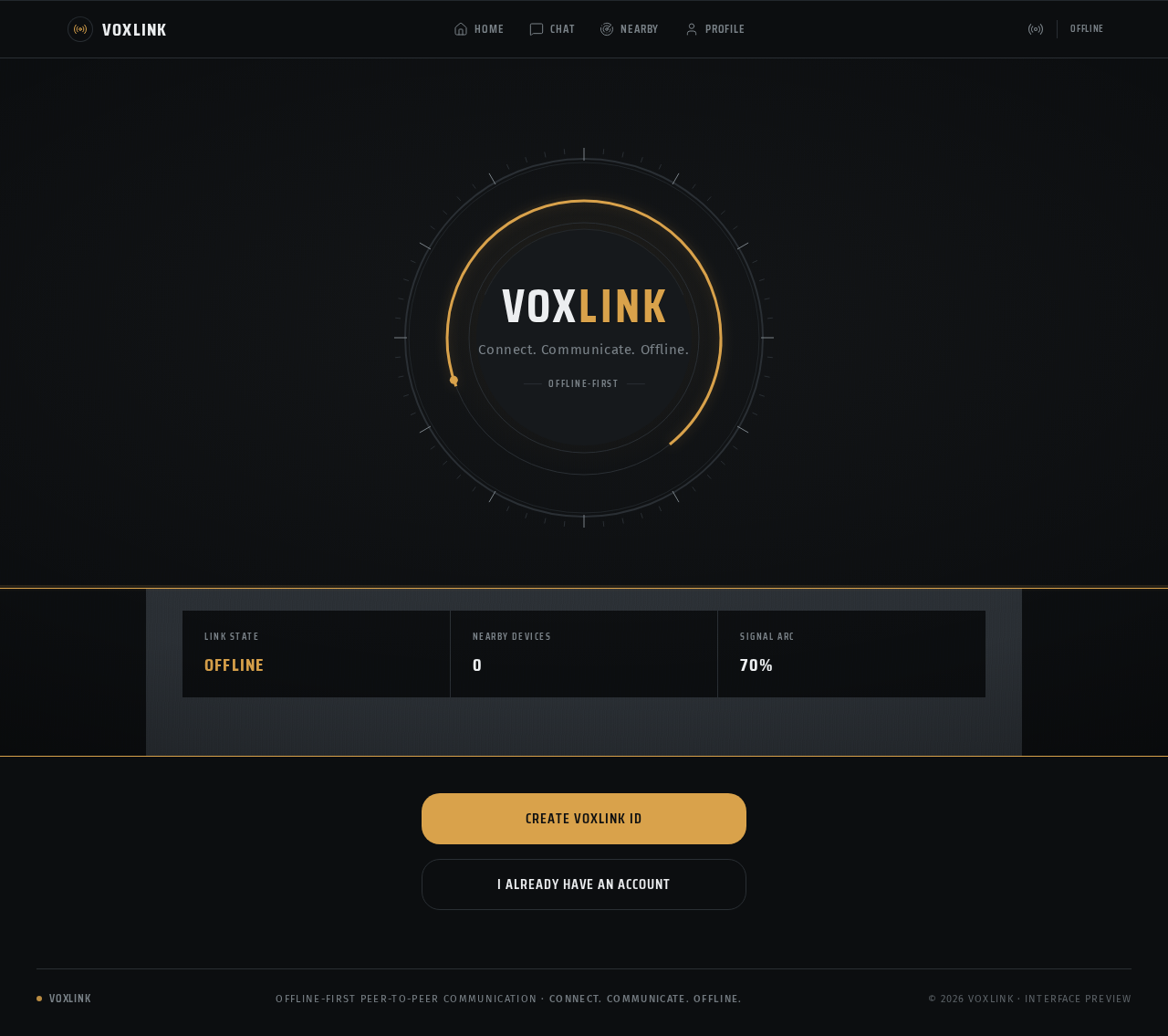
VoxLink
Connect. Communicate. Offline.
VoxLink
Connect. Communicate. Offline.
No comments yet. Be the first!