Dense conceptual lessons, read closely. Open a concept chapter in the Lesson Reader and work through the material line by line, moving between chapters from the left rail without losing your place.
ux-ui-learning
by Saikiran Gouroju
Saikiran GourojuBuild a UX/UI learning platform, also using AI to learn where users ask questions between the lines. The user reads wherever he has a doubt or needs more examples or explanations; they just have to click on drag and select the content, and an AI button should appear at the end of the copy and ask AI, and if they choose that, an AI popup will appear, and they can ask what they want, and AI will reply that, and the user can save the AI chat. Seccion, also once user completed a concept chapter or any important lesson, at the end there should be a quiz, and they will gather the points and based on those points, the app will suggest and try to fill that gap of the users


Comments (0)
Sign in to leave a comment
System Requirements
Page 1 of 11
System Requirements Document for ux-ui-learning
1. Introduction
ux-ui-learning is a UX/UI learning platform that teaches design and design-adjacent craft through dense conceptual lesson reading, contextual AI assistance, and end-of-chapter assessment. The product's defining intent is that a learner never has to leave the page to resolve a doubt: while reading, they drag-select the exact passage that confused them, an Ask AI button appears at the end of the selected copy, and choosing it opens an AI popup where they ask whatever they want and receive a reply. The learner can save that AI chat for later reference. When a learner finishes a concept chapter or any important lesson, a quiz is presented at the end; the points they gather are accumulated, and based on those points the app suggests content and tries to fill the learner's knowledge gap.
The audience is aspiring and practicing designers and design-adjacent builders who read dense conceptual material and want help exactly where they get stuck. The product is deliberately a demonstration of the design-engineering duality it teaches: the reading surface behaves like a precise instrument, and the AI surface answers back as a second voice.
Page 2 of 11
2. System Overview
The current delivery is a first-party web application with application-owned identity. A learner self-enrolls, verifies on return, and then works across a protected continuation hub, a lesson catalog, a lesson-reading workspace, a focused contextual AI workspace, a saved-chat collection, a focused assessment destination, and a progress destination that shows accumulated quiz points and gap-targeting recommendations.
Actors. The only accepted active human persona is the UX/UI Learner. The AI tutor is a system/provider capability that answers learner questions; it is not a persona. Durable storage is a system actor.
Accepted behavior in scope. Lesson reading; drag-selection of lesson copy; an Ask AI button appearing at the end of the selected copy; an AI popup for asking questions and receiving replies; saving an AI chat; end-of-chapter/important-lesson quizzes; gathering quiz points; and point-based suggestions that try to fill the learner's knowledge gap.
Ownership. All learner-facing interaction is owned by first-party custom pages. The AI reply generation is owned by the AI provider/system; the learner's interaction with it is owned by the AI Tutor page. Durable persistence of lesson progress, saved chats, quiz points, and recommendation state is owned by the backend system.
Narrow exclusions. No social, cohort, instructor, marketplace, or content-authoring capability is accepted. No stock photography of people, no cartoon mascot or robot avatar, and no generic indigo/blue-on-white SaaS template look. No infinite looping hero animation.
Page 3 of 11
2a. Product Interpretation and Delivery Boundary
The platform is delivered as a first-party web application with custom UI. Because a learner independently begins using the platform and no invitation or provisioning boundary is established, enrollment is self-service, and returning access is verified so that lesson progress, saved AI chats, quiz points, and recommendations remain bound to the correct learner. The Landing, Sign Up, and Login surfaces are anonymously reachable; every other destination requires an established learner identity. Identity here establishes continuity of a learner's own durable state only — it does not establish differentiated roles, permissions, or visibility over shared product state.
Everything described in this document is current. No future-horizon capability is accepted by the source; the future section records only what the source left open.
2b. Source Content Inventory
No reference directive in this project declares content_source authority, so no source content inventory is included. Lesson content, quiz items, and AI replies are product runtime content, not pre-verified source facts.
2c. Page Content and Component Coverage
Page 4 of 11
Landing
- Information/state: Anonymous first impression explaining the UX/UI learning platform, its audience, lesson learning, AI assistance, and quizzes. Full-viewport 50/50 vertical split: left half warm paper ground with an oversized Archivo Black headline stacked in three lines — "READ IT. / SELECT IT. / UNDERSTAND IT." — with "SELECT" set in accent vermilion and underlined by a hand-drawn 2px rule; one line of Source Serif 4 at 22px beneath it: "A UX/UI course that answers back when you get stuck." Right half is a deep ink panel, edge to edge, holding a monospace "lesson" snippet that types itself out once on load — a comment block explaining the rule of thirds in UI layout, then a small live-looking grid demo. A 1px ink divider separates the halves. A single small mono ALL-CAPS label at the bottom of the left half reads "SCROLL TO READ".
- Primary actions: Navigate to Sign Up; navigate to Login.
- Supporting actions: Hover the split to nudge the divider 8px toward the hovered side.
- Domain entities: Platform description, audience statement, capability summary (lesson learning, AI assistance, quizzes).
- Component responsibilities: Split hero composition; typewriter code panel (runs once, then stops); divider hover nudge; anonymous entry links to Sign Up and Login.
- States: Loading — code panel types its snippet character by character over 2.5s with a blinking cursor. Empty — not applicable. Success — hero fully composed, typewriter complete and stopped. Error — if the code panel content cannot render, the ink panel shows its static snippet text without the typewriter. Recovery — the static snippet remains readable and the entry links remain available.
Sign Up
- Information/state: Anonymous self-service enrollment surface. Fields for establishing a learner identity; explanation that enrollment preserves lesson progress, saved AI chats, quiz points, and recommendations.
- Primary actions: Submit enrollment to create the learner identity.
- Supporting actions: Navigate to Login for an existing learner.
- Domain entities: Learner identity, credential.
- Component responsibilities: Enrollment form; validation messaging; navigation to Login.
- States: Loading — submission in progress with the form disabled. Empty — pristine form. Success — identity established, learner continues into the protected application. Error — invalid or incomplete input, or an identity that already exists; the form retains entered values. Recovery — correct the flagged input and resubmit, or switch to Login.
Login
- Information/state: Anonymous returning-verification surface for continued access to durable learner progress, saved chats, quiz points, and recommendations.
- Primary actions: Submit credentials to verify the returning learner.
- Supporting actions: Navigate to Sign Up for a new learner.
- Domain entities: Learner identity, credential.
- Component responsibilities: Verification form; error messaging; navigation to Sign Up.
- States: Loading — verification in progress with the form disabled. Empty — pristine form. Success — learner verified and returned to the protected application. Error — credentials do not verify; the form retains the entered identifier. Recovery — re-enter credentials, or navigate to Sign Up.
Page 5 of 11
Dashboard
- Information/state: Protected continuation hub for returning learners. Editorial panels rather than identical rounded tiles: each card is a numbered panel with a 48px Archivo Black numeral in the top-left, a mono ALL-CAPS label under it, and a one-line Source Serif 4 description, separated by 1px hairlines instead of shadows or rounded corners. Surfaces the learner's resumable lessons, quizzes, saved chats, and gap-targeting recommendations.
- Primary actions: Resume a lesson; open a pending quiz; open a saved chat; open a recommendation.
- Supporting actions: Navigate to Lessons, Saved Chats, Progress.
- Domain entities: Lesson progress, quiz state, saved AI chats, recommendations.
- Component responsibilities: Editorial numbered panels; hairline separators; continuation links into each destination.
- States: Loading — panel skeletons on the paper ground. Empty — a new learner with no progress sees the panel structure with an invitation to open Lessons. Success — panels populated with current progress, pending quizzes, saved chats, and recommendations. Error — a panel whose data failed shows its label with an inline retry. Recovery — retry the failed panel without losing the rest of the hub.
Lessons
- Information/state: Revisitable lesson catalog for finding UX/UI concepts and chapters before reading them. Chapter numbers in mono ALL-CAPS; titles in Archivo; short serif descriptions.
- Primary actions: Open a lesson in the Lesson Reader.
- Supporting actions: Browse and identify chapters and important lessons.
- Domain entities: Lesson, concept chapter, important lesson.
- Component responsibilities: Catalog listing; chapter numbering; entry into the reader.
- States: Loading — catalog placeholders. Empty — no lessons available; an explanatory message. Success — catalog listed with chapter numbers and titles. Error — catalog failed to load; inline retry. Recovery — retry the catalog load.
Lesson Reader
- Information/state: Lesson-reading workspace. Narrow left rail (chapter nav, 240px) and a wide reading column (max 680px) on the paper ground. Body copy is Source Serif 4 at 19–20px. Reading cards have 0–2px radius. When the learner finishes a drag-selection, a solid accent-vermilion highlight with 0 radius paints behind the text, and an Ask AI → button in Archivo ExtraBold caps with a mono arrow appears anchored to the last selected word. At the end of a completed concept chapter or important lesson, the quiz entry point is presented.
- Primary actions: Read lesson content; drag-select a passage; choose Ask AI; begin the end-of-chapter quiz.
- Supporting actions: Navigate chapters via the left rail; continue reading.
- Domain entities: Lesson, chapter, selected passage, lesson completion state.
- Component responsibilities: Chapter navigation rail; reading column; selection highlight; anchored Ask AI button; quiz entry point at chapter/lesson end.
- States: Loading — reading column placeholders while the lesson loads. Empty — a lesson with no content shows an explanatory message. Success — lesson readable; selection produces the highlight and the Ask AI button; completion reveals the quiz entry point. Error — lesson content failed to load; inline retry. Recovery — retry the lesson load; a failed AI handoff leaves the selection and the Ask AI button available to try again.
Page 6 of 11
AI Tutor
- Information/state: Focused contextual AI workspace opened from selected copy. The AI panel opens as a right-side drawer (420px) on the ink ground; the AI tutor's replies are set in JetBrains Mono at 14px on the ink ground, while the learner's questions appear in the serif body font on a white card — a visible dialogue between the reading voice and the answering voice. The panel's avatar is a subtle cursor glyph, not a robot or a face. The selected passage is carried in as context.
- Primary actions: Ask a question about the selected copy; read the AI reply; save the AI chat.
- Supporting actions: Continue asking follow-up questions in the same chat; close the drawer and return to reading.
- Domain entities: Selected passage, question, AI reply, AI chat.
- Component responsibilities: Ink-ground drawer; monospace reply stream; serif question cards; save-chat control; cursor-glyph avatar.
- States: Loading — the drawer slides in over 240ms with cubic-bezier(0.22, 1, 0.36, 1) ease; the reply stream shows a pending state while the AI composes. Empty — the drawer opens with the selected passage shown and an invitation to ask. Success — the AI reply is rendered in the monospace stream; the chat can be saved. Error — the AI reply fails; the question remains in the stream with an inline retry. Recovery — retry the question, or rephrase and ask again; the selected passage context is preserved.
Saved Chats
- Information/state: Revisitable collection preserving saved AI learning conversations, each retaining its originating selected passage and question/reply exchange.
- Primary actions: Open a saved chat to re-read it.
- Supporting actions: Identify chats by their originating lesson context.
- Domain entities: Saved AI chat, originating passage, exchange history.
- Component responsibilities: Saved-chat listing; entry into a saved conversation.
- States: Loading — list placeholders. Empty — no saved chats yet; an explanatory message. Success — saved chats listed with their lesson context. Error — the collection failed to load; inline retry. Recovery — retry the load.
Quiz
- Information/state: Focused assessment destination presented after a completed concept chapter or important lesson. Single centred column, 720px. After submitting, the score renders as a 160px Archivo Black number in the accent colour on the paper ground, with a small mono line beside it reading the gap as a code-style diagnostic (for example "GAP: FITTS'S LAW / SPACING SYSTEM"). Quiz feedback uses a before/after diagram motif — a wireframe and its finished state side by side — drawn in ink on paper.
- Primary actions: Answer quiz questions; submit the quiz; read the score and the gap diagnostic.
- Supporting actions: Continue to the suggested gap-filling content.
- Domain entities: Quiz, question, answer, points, gap diagnostic.
- Component responsibilities: Centred question column; active-quiz accent state; score numeral; mono gap diagnostic; before/after feedback diagram; continuation into recommendations.
- States: Loading — quiz questions loading. Empty — no quiz available for this chapter; an explanatory message. Success — answers submitted, points gathered and persisted, score and gap diagnostic rendered. Error — submission failed; answers are retained and the quiz can be resubmitted. Recovery — resubmit; if scoring cannot persist, the learner is told the points were not recorded and can retry.
Page 7 of 11
Progress
- Information/state: Learner progress destination showing accumulated quiz points and the recommendations that target the learner's knowledge gaps. Points and scores are set in JetBrains Mono.
- Primary actions: Review accumulated points; open a recommended lesson or chapter that targets a gap.
- Supporting actions: Return to a completed chapter or quiz.
- Domain entities: Accumulated points, per-chapter results, recommendations, knowledge gaps.
- Component responsibilities: Points display; recommendation list; continuation links into Lessons and the Lesson Reader.
- States: Loading — progress placeholders. Empty — no quiz points yet; an explanatory message pointing to Lessons. Success — points and gap-targeting recommendations shown. Error — progress failed to load; inline retry. Recovery — retry the load.
Page 8 of 11
3. Functional Requirements
FR-1 — Platform delivery. As a UX/UI Learner, I should use a UX/UI learning platform delivered as a first-party web application with custom UI, so that lesson reading, AI assistance, and assessment live in one place. (explicit)
- Trigger: the learner opens the platform.
- Observable result: the platform's destinations are reachable per their access state.
- Access state: Landing, Sign Up, and Login are anonymously reachable; all other destinations require an established learner identity.
- Failure/recovery: if a protected destination is opened without an established identity, the learner is directed to Login.
- Continuation: the learner proceeds to enrollment, verification, or their continuation hub.
FR-2 — AI-assisted learning from selected content. As a UX/UI Learner, I should get AI help about content I select between the lines, so that my doubt is answered in the context of the exact passage I was reading. (explicit)
- Trigger: the learner has a doubt or needs more examples or explanations while reading.
- Observable result: the selected passage becomes the context for an AI question and reply.
- Access state: requires an established learner identity.
- Failure/recovery: if the AI reply fails, the question and its passage context remain available to retry.
- Continuation: the learner reads the reply and either continues reading or saves the chat.
FR-3 — Drag-selection of lesson content. As a UX/UI Learner, I should click and drag to select the content I am reading, so that I can mark exactly the passage I need help with. (explicit)
- Trigger: the learner drags across lesson copy in the Lesson Reader.
- Observable result: a solid accent-vermilion highlight with 0 radius paints behind the selected text, fading in over 120ms.
- Access state: requires an established learner identity.
- Failure/recovery: if the selection is cleared or the drag is abandoned, the highlight disappears and no button is shown.
- Continuation: the learner either selects a different passage or proceeds to Ask AI.
FR-4 — Ask AI button at the end of the selected copy. As a UX/UI Learner, I should see an Ask AI button appear at the end of the copy I selected, so that the next step is offered exactly where my selection ended. (explicit)
- Trigger: the learner finishes a drag-selection.
- Observable result: an Ask AI → button in Archivo ExtraBold caps with a mono arrow appears anchored to the last selected word, scaling in from 0.92 to 1.0 over 180ms.
- Access state: requires an established learner identity.
- Failure/recovery: if the selection is dismissed, the button is removed with it.
- Continuation: choosing the button opens the AI popup; ignoring it returns the learner to reading.
FR-5 — AI popup for asking questions. As a UX/UI Learner, I should have choosing the AI button open an AI popup where I can ask what I want, so that I can put my question in my own words. (explicit)
- Trigger: the learner chooses the Ask AI button.
- Observable result: the AI drawer opens from the right over 240ms with cubic-bezier(0.22, 1, 0.36, 1) ease, showing the selected passage and an input for the learner's question.
- Access state: requires an established learner identity.
- Failure/recovery: if the drawer cannot open, the selection and the Ask AI button remain so the learner can try again.
- Continuation: the learner types and submits a question.
FR-6 — AI replies to the learner's question. As a UX/UI Learner, I should receive the AI's reply to what I asked, so that my doubt is resolved in the context of the passage I selected. (explicit)
- Trigger: the learner submits a question in the AI popup.
- Observable result: the AI reply renders in the monospace reply stream on the ink ground, with the learner's question shown in the serif body font on a white card.
- Access state: requires an established learner identity.
- Failure/recovery: if the reply fails, the question stays in the stream with an inline retry, and the passage context is preserved.
- Continuation: the learner asks a follow-up, saves the chat, or returns to reading.
FR-7 — Saving the AI chat. As a UX/UI Learner, I should be able to save the AI chat, so that I can return to that explanation later. (explicit)
- Trigger: the learner chooses to save the chat in the AI popup.
- Observable result: the conversation, with its originating selected passage, is persisted and appears in Saved Chats.
- Access state: requires an established learner identity; the saved chat remains bound to that learner.
- Failure/recovery: if saving fails, the learner is told the chat was not saved and can retry without losing the conversation.
- Continuation: the learner continues reading or opens Saved Chats later.
FR-8 — Quiz at the end of a completed concept chapter or important lesson. As a UX/UI Learner, I should be presented with a quiz at the end of a completed concept chapter or any important lesson, so that I can check what I actually took in. (explicit)
- Trigger: the learner completes a concept chapter or an important lesson.
- Observable result: the quiz entry point is presented at the end of that chapter or lesson and opens the Quiz destination.
- Access state: requires an established learner identity.
- Failure/recovery: if the quiz cannot be loaded, the learner is told and can retry from the chapter end.
- Continuation: the learner answers and submits the quiz.
FR-9 — Gathering quiz points. As a UX/UI Learner, I should have my quiz points gathered, so that my performance is recorded against the chapter I completed. (explicit)
- Trigger: the learner submits quiz answers.
- Observable result: points are gathered and persisted before any point-based suggestion is generated; the score renders as a 160px Archivo Black numeral in the accent colour on the paper ground.
- Access state: requires an established learner identity; points remain bound to that learner.
- Failure/recovery: if scoring cannot persist, the learner is told the points were not recorded and can resubmit with answers retained.
- Continuation: the learner reads the gap diagnostic and continues to the suggested content.
FR-10 — Point-based gap suggestions. As a UX/UI Learner, I should receive suggestions based on my points that try to fill my knowledge gap, so that the platform directs me to what I did not yet understand. (explicit)
- Trigger: quiz points have been gathered and persisted.
- Observable result: a gap diagnostic is shown beside the score as a code-style mono line (for example "GAP: FITTS'S LAW / SPACING SYSTEM"), and matching recommendations appear in Progress and on the Dashboard.
- Access state: requires an established learner identity; recommendations remain bound to that learner.
- Failure/recovery: if recommendations cannot be generated, the score and gap diagnostic still stand and the learner can retry from Progress.
- Continuation: the learner opens a recommended lesson or chapter and continues learning.
FR-11 — Self-service enrollment. As a UX/UI Learner, I should be able to enroll myself, so that I can begin learning without an invitation or provisioning step. (required_inference)
- Trigger: the learner chooses to begin from Landing.
- Observable result: a learner identity is established and the learner enters the protected application.
- Access state: Sign Up is anonymously reachable.
- Failure/recovery: invalid or already-existing identity input is flagged with entered values retained.
- Continuation: the learner proceeds to their continuation hub.
FR-12 — Returning verification. As a UX/UI Learner, I should verify myself on return, so that my lesson progress, saved chats, quiz points, and recommendations remain mine. (required_inference)
- Trigger: a returning learner opens a protected destination.
- Observable result: the learner is verified and returned to the protected application with their durable state intact.
- Access state: Login is anonymously reachable; protected destinations require the verified identity.
- Failure/recovery: unverifiable credentials are flagged and the learner can retry or navigate to Sign Up.
- Continuation: the learner resumes from their continuation hub.
FR-13 — Durable storage of learner state. As the platform, I should durably store lesson progress, saved AI chats, quiz points, and recommendation state, so that a learner's work survives across sessions. (required_inference)
- Trigger: the learner completes a lesson, saves a chat, submits a quiz, or receives a recommendation.
- Observable result: the state is persisted and retrievable on the learner's next verified visit.
- Access state: system-owned; no learner interaction.
- Failure/recovery: a failed write is surfaced to the learner as a retryable error on the affected action.
- Continuation: the learner retries the action or continues with the rest of their state intact.
FR-14 — Scoring persists before suggestions. As the platform, I should persist quiz scoring before generating point-based gap suggestions, so that suggestions always reflect recorded points. (required_inference)
- Trigger: the learner submits a quiz.
- Observable result: points are written first; only then is the gap diagnostic and recommendation set produced.
- Access state: system-owned; no learner interaction.
- Failure/recovery: if scoring cannot persist, no suggestion is generated and the learner is told the points were not recorded.
- Continuation: the learner resubmits, and suggestions follow the successful write.
Page 9 of 11
4. User Personas
Page 10 of 11
UX/UI Learner
Product context. The UX/UI Learner is an aspiring or practicing designer, or a design-adjacent builder, working through dense conceptual UX/UI material. They read lesson chapters and important lessons in a reading surface built to feel like a precise instrument, and they expect the platform to behave like the design-engineering duality it teaches.
Primary goal. To understand UX/UI concepts well enough to apply them — and to get unstuck at the exact moment and place they get stuck, without leaving the passage they were reading.
Distinct accepted responsibilities.
- Reading lesson content in the Lesson Reader and navigating chapters from the left rail.
- Recognizing a doubt or a need for more examples or explanations, and drag-selecting the exact passage that caused it.
- Choosing the Ask AI button that appears at the end of the selected copy.
- Asking their own question in the AI popup and reading the AI's reply.
- Saving the AI chat so the explanation can be revisited.
- Completing a concept chapter or important lesson and taking the quiz presented at its end.
- Accumulating quiz points and acting on the gap-targeting suggestions those points produce.
Relevant inputs or decisions. Which passage to select; whether to ask AI or keep reading; how to phrase the question; whether to save the chat; how to answer each quiz question; whether to follow a recommended gap-filling lesson.
Interactions with other accepted participants. The learner's questions are answered by the AI tutor, which speaks in the monospace panel as the "code half" of the dialogue while the learner's own questions appear in the serif reading voice. The learner's progress, saved chats, points, and recommendations are held by the platform's durable storage and returned to them on verification.
Observable success. The learner's doubt is answered in the context of their own selected passage; the chat is saved and reappears in Saved Chats; the end-of-chapter quiz is taken and scored; points accumulate; and the platform names the gap and points them at content that fills it.
What makes this role distinct. The learner is simultaneously the reader and the questioner. Their work is not browsing a catalog or managing content — it is a tight loop of reading, selecting, asking, and being assessed, where the selection itself is the input that starts the AI interaction and the quiz score is the input that starts the recommendation.
Page 11 of 11
5. Core User Flows
Flow A — First-time enrollment and first lesson
- The UX/UI Learner arrives at Landing anonymously. The split hero composes: the paper half with "READ IT. / SELECT IT. / UNDERSTAND IT." and the ink half typing out its monospace lesson snippet once, then stopping.
- The learner chooses to begin and moves to Sign Up.
- On Sign Up, the learner submits their enrollment details. The form disables while submitting.
- Observable result: a learner identity is established and the learner enters the protected application.
- Failure/recovery: if the input is invalid or the identity already exists, the form flags it and retains the entered values; the learner corrects it and resubmits, or switches to Login.
- Continuation: the learner lands on Dashboard, where the editorial numbered panels show an empty state inviting them to open **Lessons
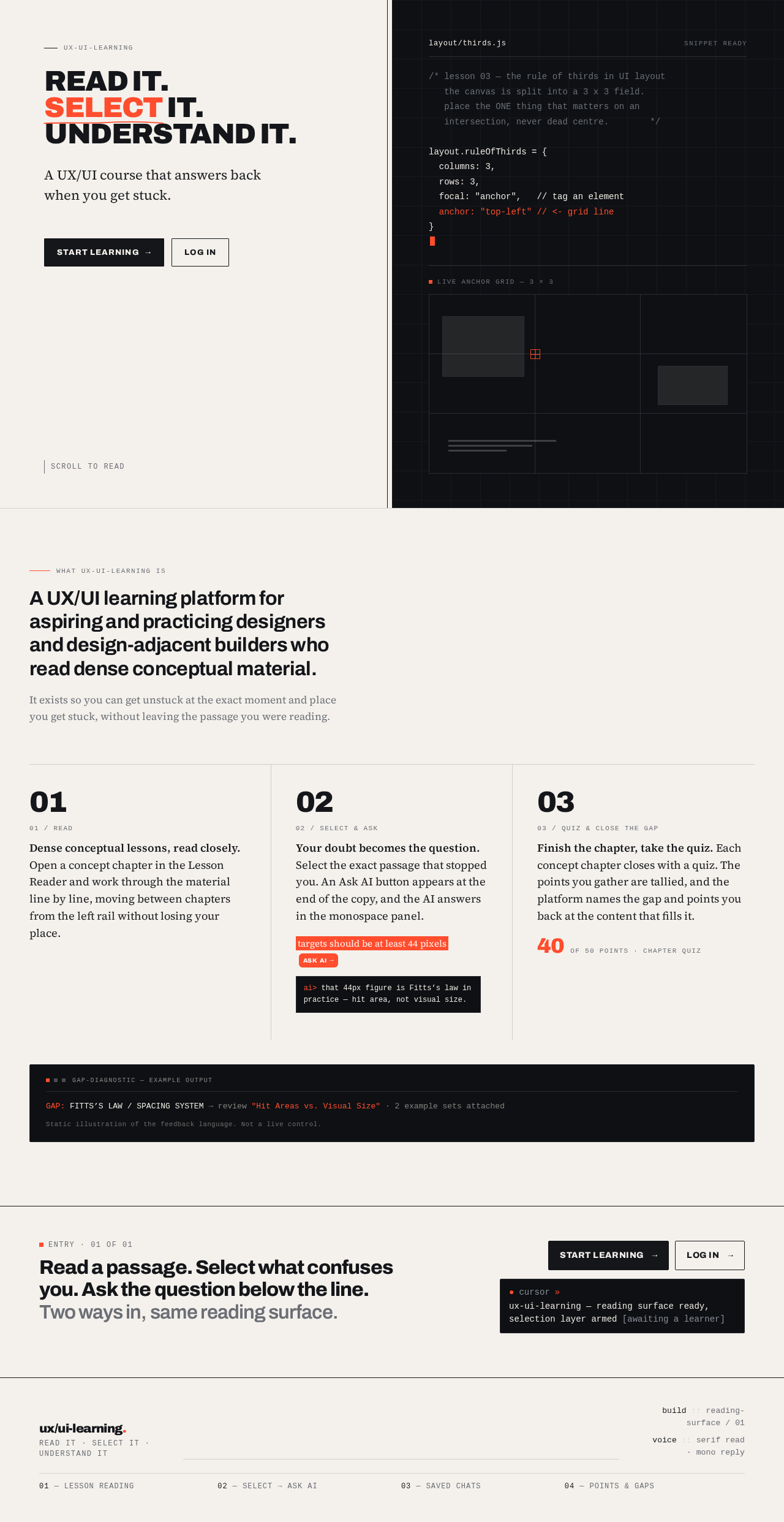
ux-ui-learning
Read it.Select it.Understand it.
A UX/UI course that answers back when you get stuck.
Scroll to read
layout/thirds.js
/* lesson 03 — the rule of thirds in UI layout
   the canvas is split into a 3 x 3 field.
   place the ONE thing that matters on an
live anchor grid — 3 × 3
What ux-ui-learning is
A UX/UI learning platform for aspiring and practicing designers and design-adjacent builders who read dense conceptual material.
It exists so you can get unstuck at the exact moment and place you get stuck, without leaving the passage you were reading.
Your doubt becomes the question. Select the exact passage that stopped you. An Ask AI button appears at the end of the copy, and the AI answers in the monospace panel.
targets should be at least 44 pixelsAsk AI
that 44px figure is Fitts’s law in practice — hit area, not visual size.
Finish the chapter, take the quiz. Each concept chapter closes with a quiz. The points you gather are tallied, and the platform names the gap and points you back at the content that fills it.
40of 50 points · chapter quiz
gap-diagnostic — example output
GAP: FITTS’S LAW / SPACING SYSTEM → review "Hit Areas vs. Visual Size" · 2 example sets attached
Static illustration of the feedback language. Not a live control.
Entry · 01 of 01
Read a passage. Select what confuses you. Ask the question below the line. Two ways in, same reading surface.
ux-ui-learning — reading surface ready, selection layer armed [awaiting a learner]
ux-ui-learning
Read it.Select it.Understand it.
A UX/UI course that answers back when you get stuck.
Scroll to read
layout/thirds.js
/* lesson 03 — the rule of thirds in UI layout
   the canvas is split into a 3 x 3 field.
   place the ONE thing that matters on a
live anchor grid — 3 × 3
What ux-ui-learning is
A UX/UI learning platform for aspiring and practicing designers and design-adjacent builders who read dense conceptual material.
It exists so you can get unstuck at the exact moment and place you get stuck, without leaving the passage you were reading.
Dense conceptual lessons, read closely. Open a concept chapter in the Lesson Reader and work through the material line by line, moving between chapters from the left rail without losing your place.
Your doubt becomes the question. Select the exact passage that stopped you. An Ask AI button appears at the end of the copy, and the AI answers in the monospace panel.
targets should be at least 44 pixelsAsk AI
that 44px figure is Fitts’s law in practice — hit area, not visual size.
Finish the chapter, take the quiz. Each concept chapter closes with a quiz. The points you gather are tallied, and the platform names the gap and points you back at the content that fills it.
40of 50 points · chapter quiz
gap-diagnostic — example output
GAP: FITTS’S LAW / SPACING SYSTEM → review "Hit Areas vs. Visual Size" · 2 example sets attached
Static illustration of the feedback language. Not a live control.
Entry · 01 of 01
Read a passage. Select what confuses you. Ask the question below the line. Two ways in, same reading surface.
ux-ui-learning — reading surface ready, selection layer armed [awaiting a learner]
No comments yet. Be the first!