task-tracker
 Neel Gorasiya
Make a simple task tracker website which only have 2 pages: Landing and tasks page

Comments (0)
Sign in to leave a comment
System Requirements
System Requirements Document for task-tracker
1. Introduction
task-tracker is a simple task tracker website. It exists so that one person can keep a calm, quick, ordered view of their own to-dos: see what is still to do, add new tasks, mark tasks complete, and remove tasks they no longer need. The product is deliberately small — the requester specified that the website has only 2 pages: a Landing page and a tasks page — and every requirement in this document fits inside that boundary.
The audience is an individual who wants a fast, quiet place to manage their own task list, with no dashboards, no sidebars, and no account ceremony. The task list is durable: it survives across sessions, so returning to the tasks page shows the same list the user left.
2. System Overview
task-tracker is delivered as a two-page web application:
- Landing — the anonymous public entry. It explains the task tracker and links to the tasks page.
- tasks page — the working surface where the user views their tasks, adds new tasks, marks tasks complete, and removes tasks.
Both pages are openly reachable; there is no sign-in, registration, or account management anywhere in the product. Task data is stored durably by the application so the list persists across sessions.
The single active human actor is the Task tracker user. The application itself owns persistence and the mechanical state changes of a task (created, completed, removed).
Delivery uses three provisioned services: a frontend React application serving the two pages, a shared backend FastAPI process exposing the task APIs, and a database (MariaDB) holding the application-owned task records. The backend is the only service that talks to the database; the frontend talks only to the backend.
Removed from scope
- Additional pages beyond Landing and the tasks page (also: extra routes, dashboard, settings page, task detail page).
- User accounts, sign-in, registration, and authentication flows.
- Dashboard stat tiles, sidebar navigation, and analytics views.
2a. Product Interpretation and Delivery Boundary
The requester asked for a simple task tracker with exactly two pages. That is the whole current product: a public Landing page that introduces the tracker and routes the visitor to the tasks page, and a tasks page where the user does the actual work of managing their list.
Access is intentionally open. Neither page requires identity, and the product does not create accounts. Because the task list must survive across sessions, the application stores tasks durably on the server side; the user's list is the application's own data, not a per-account record. Nothing in the accepted requirements asks for differentiated permissions, sharing, or multi-user separation, so none is introduced.
Everything described in this document is current. No future-phase capabilities are committed.
2c. Page Content and Component Coverage
Landing
Information and state
- Product wordmark "task-tracker" and a short statement of what the tracker does.
- An oversized, left-aligned headline composition: "Your tasks. / In order. / Done." set across three lines.
- A colour-coded "how it works" strip of three numbered steps describing the accepted behaviour: add a task, mark it done, remove what you no longer need.
- A miniature static task-list diagram (three rows, one red status square, one struck-through completed row) presented as a flat diagram, not a screenshot.
- No loading state is needed beyond the page itself; the page is static content.
Primary action
- A single full-width red CTA band / red rectangle labelled in white uppercase micro-type that navigates to the tasks page.
Supporting actions
- The wordmark and any in-page anchor links remain within the Landing page; the only navigation away from Landing is to the tasks page.
Domain entities
- None owned here. The miniature task list is illustrative diagram content only and is not read from or written to storage.
Component responsibilities
- Hero type block: renders the headline and the mustard rule beneath it.
- CTA control: performs navigation to the tasks page.
- Three-step strip: numbered squares with short step labels.
- Miniature task-list panel: static diagram with hairline rules and one red status square.
States
- Empty / loading: not applicable — static content.
- Success: page renders and the CTA navigates to the tasks page.
- Error / recovery: if navigation fails, the user can retry the CTA; the Landing page itself remains usable.
tasks page
Information and state
- A fixed top bar with the wordmark on the left and the "Add task" control on the right.
- A single-column list of task rows grouped under two uppercase labels, TO DO and DONE, each preceded by a full-width 1px black rule.
- Each task row shows the task text, a 10px square status dot (red for incomplete, mustard for complete), and a remove control.
- Completed rows show struck-through text.
- The list reflects the durable stored task set, so it is the same list on return visits.
Primary actions
- Add a task: the user supplies task text and the new row appears in the TO DO group.
- Mark a task complete: the status dot flips to mustard and the text is struck through; the row moves to the DONE group.
- Remove a task: the row is deleted from the list and from storage.
Supporting actions
- Reopening a completed task is not an accepted capability and is not offered.
- Navigating back to the Landing page via the wordmark.
Domain entities
- Task: identifier, text, completion state, creation order.
Component responsibilities
- Top bar: wordmark link and the circular 44px black "Add task" control.
- Add-task input: captures task text and submits it.
- Group headers: TO DO and DONE labels with rules.
- Task row: text, status dot, remove control; renders the completed treatment.
- Empty state: when no tasks exist, the list area shows a quiet empty message inviting the user to add the first task.
States
- Loading: a brief loading indication while the stored task list is fetched.
- Empty: no tasks yet — empty message plus the Add task control.
- Success: new row appears in TO DO; completing moves the row to DONE; removing deletes the row.
- Error: if loading fails, an error message with a retry action is shown; if adding, completing, or removing fails, the row returns to its prior state and an error message explains that the change was not saved, with the action available to retry.
- Recovery: retry re-attempts the failed operation; the list re-syncs with stored state.
3. Functional Requirements
FR-1 — Two-page website (explicit) As a Task tracker user, I should get a task tracker website that consists of exactly two pages — Landing and the tasks page — so that the product stays as simple as requested.
- Trigger: the user opens the website.
- Observable result: only the Landing page and the tasks page exist as destinations; no other page is reachable.
- Access: both pages are openly reachable.
- Failure/recovery: a mistyped or unknown route returns the user to one of the two pages rather than exposing a third page.
- Continuation: from Landing the user proceeds to the tasks page.
FR-2 — Landing entry and link to tasks (required_inference) As a Task tracker user, I should land on a public Landing page that explains the tracker and links to the tasks page, so that I know what the product does and can start.
- Trigger: the user visits the site root.
- Input: none.
- Observable result: the Landing page renders its headline, three-step explanation, and CTA; activating the CTA navigates to the tasks page.
- Access: anonymous, no identity required.
- Failure/recovery: if navigation fails, the CTA can be activated again.
- Continuation: the user arrives on the tasks page.
FR-3 — View tasks (explicit) As a Task tracker user, I should see my tasks on the tasks page, so that I know what I still need to do.
- Trigger: the user opens the tasks page.
- Input: none.
- Observable result: the stored task list is displayed, grouped into TO DO and DONE, with each row's text and status dot.
- Access: open, no identity required.
- Failure/recovery: if the list cannot be loaded, an error message with a retry action is shown; retry reloads the list.
- Continuation: the user can add, complete, or remove tasks from the displayed list.
FR-4 — Add a task (explicit) As a Task tracker user, I should add new tasks to my task list, so that I can record what I need to do.
- Trigger: the user activates the "Add task" control and supplies task text.
- Input: the task text.
- Observable result: a new row appears in the TO DO group with an incomplete (red) status dot, and the task is stored durably.
- Access: open, no identity required.
- Failure/recovery: empty text is not accepted; if saving fails, the row is not kept and an error message explains the task was not saved, with the add action available to retry.
- Continuation: the new task is visible in the list and survives a later visit.
FR-5 — Mark a task complete (explicit) As a Task tracker user, I should mark tasks as complete, so that my list shows what is done.
- Trigger: the user activates the completion control on an incomplete task row.
- Input: the selected task.
- Observable result: the status dot flips from red to mustard, the row text is struck through, and the row appears under DONE; the completion state is stored durably.
- Access: open, no identity required.
- Failure/recovery: if saving fails, the row reverts to its incomplete state and an error message explains the change was not saved, with the action available to retry.
- Continuation: the completed task remains under DONE on later visits.
FR-6 — Remove a task (explicit) As a Task tracker user, I should remove tasks I no longer need, so that my list stays relevant.
- Trigger: the user activates the remove control on a task row.
- Input: the selected task.
- Observable result: the row disappears from the list and the task is deleted from storage.
- Access: open, no identity required.
- Failure/recovery: if deletion fails, the row remains in the list and an error message explains the task was not removed, with the action available to retry.
- Continuation: the removed task does not reappear on later visits.
FR-7 — Durable task storage (required_inference) As a Task tracker user, I should find my task list unchanged when I come back, so that the tracker is dependable.
- Trigger: any add, complete, or remove operation, and any later visit to the tasks page.
- Observable result: the stored task set matches the last successful change, and the tasks page renders that stored set.
- Access: application-owned storage; no identity required.
- Failure/recovery: a failed write leaves the stored set unchanged and surfaces the error described in FR-4 through FR-6.
- Continuation: the user resumes work on the same list.
4. User Personas
Task tracker user
Product context. An individual who wants a calm, quick place to see and manage their own to-dos. They arrive at the Landing page with no account and no setup, read what the tracker does, and move to the tasks page to work on their list.
Primary goal. Keep a short, accurate list of what they need to do — add what comes up, mark what is finished, and delete what no longer matters — and find that list intact when they return.
Distinct accepted responsibilities.
- Reading the Landing page and choosing to proceed to the tasks page.
- Reviewing the current list, grouped into TO DO and DONE.
- Entering new task text and adding it.
- Marking an existing task complete.
- Removing a task they no longer need.
Relevant inputs and decisions. The task text they type; which task to complete; which task to remove. They decide when the list is accurate enough to leave.
Interactions with other participants. None beyond the application itself. There is no sharing, assignment, or second human participant in the accepted behaviour; the application stores and returns their list.
Observable success. The tasks page shows exactly the tasks they expect, with correct completion states, and the same list is present on their next visit.
5. Core User Flows
Flow A — First visit from the Landing page to the tasks page
- The Task tracker user opens the website root and arrives on the Landing page (anonymous; no identity required).
- The Landing page renders the headline "Your tasks. / In order. / Done.", the mustard rule, the three-step "how it works" strip, and the miniature task-list diagram.
- The user reads the explanation and activates the red CTA.
- The application navigates to the tasks page.
- If navigation fails, the user activates the CTA again; the Landing page remains usable.
Flow B — Viewing the task list
- The user is on the tasks page.
- The page shows a brief loading indication while the stored list is fetched.
- On success, the list renders grouped under TO DO and DONE, each row showing its text and status dot.
- If no tasks exist, the page shows the empty message and the Add task control.
- If loading fails, the page shows an error message with a retry action; the user retries and the list reloads.
- The user continues to Flow C, D, or E, or leaves the page.
Flow C — Adding a task
- From the tasks page, the user activates the circular black "Add task" control in the top bar.
- The user types the task text.
- The user submits.
- If the text is empty, the submission is rejected and the user can type again.
- On success, a new row slides into the TO DO group with a red status dot, and the task is stored durably.
- If saving fails, the row is not kept, an error message explains the task was not saved, and the user can retry.
- The user sees the new task in the list; it will be present on their next visit.
Flow D — Marking a task complete
- From the tasks page, the user locates an incomplete task under TO DO.
- The user activates the completion control on that row.
- The status dot snaps from red to mustard, the text is struck through, and the row moves under DONE; the completion state is stored durably.
- If saving fails, the row reverts to incomplete, an error message explains the change was not saved, and the user can retry.
- The completed task remains under DONE on later visits.
Flow E — Removing a task
- From the tasks page, the user locates a task they no longer need, under TO DO or DONE.
- The user activates the remove control on that row.
- The row disappears from the list and the task is deleted from storage.
- If deletion fails, the row remains, an error message explains the task was not removed, and the user can retry.
- The removed task does not reappear on later visits.
Flow F — Returning to the list
- The user returns to the website and navigates to the tasks page (directly or via the Landing page CTA).
- The page loads the stored task set.
- The user sees the same tasks and completion states they left, and resumes Flow C, D, or E as needed.
6. Visuals Colors and Theme
The creative direction is authoritative: Systematic clarity, after Massimo Vignelli — order, reliability, quiet confidence.
Colour tokens (light mode)
- Background:
#F7F5F0(warm paper ground) - Surface:
#FFFFFF(pure white task rows and hero panel) - Text:
#111111(black type dominates) - Primary:
#E63946(Vignelli red — primary CTA, active nav underline, incomplete status dot) - Accent:
#F4C430(mustard — only a thin 4px rule or the completion checkmark fill) - Muted:
#7A7A7A(secondary metadata) - No blue or indigo anywhere.
Typography
- Headings: Archivo, Heavy 900, tracking
-0.03em; uppercase for section labels and page titles, sentence case for the oversized landing headline. - Body: Archivo.
- Modular scale 1.25: 12 / 14 / 16 / 20 / 24 / 32 / 48 / 72 px.
- Landing hero:
clamp(56px, 9vw, 128px); section headings 32–48px; body 16px; micro-labels 11px uppercase with0.12emtracking.
Shape language
- Hard edges, 0–2px radii. Horizontal 1px
#111rules separate sections and task groups. - Task rows are flat white with a 1px bottom rule; no cards, no shadows.
- Status is a 10px square dot, not a pill.
- The only rounded element is the circular 44px black "add task" control with a white plus.
Layout
- Strict 12-column grid; outer margins 24px mobile, 48px tablet, 96px desktop.
- Landing: left-aligned oversized headline spanning 8 columns, three-step strip below, single full-width red CTA band.
- Tasks page: fixed top bar (wordmark left, "Add task" right), single-column list grouped by TO DO and DONE, each group preceded by an 11px uppercase label with a 1px rule. No sidebar, no dashboard tiles.
Imagery
- No photography, no illustration. Only geometric elements: the 4px mustard rule, the red circular CTA, the numbered-square three-step strip, and 16px line pictograms (check, plus, trash) drawn on a 1px grid.
7. Signature Design Concept
The Landing page is a left-aligned type composition, not a centred SaaS hero. A 900-weight Archivo headline at clamp(56px, 9vw, 128px) occupies the left 8 of 12 columns across three lines — "Your tasks. / In order. / Done." — with a 4px mustard rule running the full viewport width beneath it. To the right, a single flat white panel shows a miniature static task list: three rows with black text, one red status square, one struck-through completed row, rendered as a diagram with hairline rules and no device frame or shadow. The primary CTA is a solid red rectangle (#E63946) with a white uppercase 12px label pinned to the bottom-left of the type block. No subtext paragraph, no gradient, no floating cards.
The tasks page carries the same logic as a subway line map: TO DO and DONE labels in 11px uppercase with 0.12em tracking, each preceded by a full-width 1px black rule, with flat white rows beneath.
8. Interaction Model & Motion Direction
Interaction Model: Static (direction) Motion Tempo: still Hero Dimensionality: flat
Landing Hero Motion Brief
- Focal subject: the oversized three-line Archivo headline over the full-width mustard rule, with the flat white miniature task-list panel to its right.
- Input → transformation → outcome thesis: on load, the composed hero fades in once (200ms opacity) and then holds perfectly still; the red CTA is the only interactive element, and activating it navigates to the tasks page.
- Motion vocabulary: a single 200ms opacity fade on load; no entrance choreography, no parallax, no decorative loops.
- Composed first frame: headline left-aligned across 8 columns, mustard rule spanning the viewport, white diagram panel right, red CTA rectangle pinned bottom-left of the type block.
- Reduced-motion state: the fade is removed and the hero renders immediately in its final composed state.
Tasks page motion
- Checking a task snaps the dot to mustard and strikes the text with a 120ms linear transition.
- Adding a task slides the new row in from 8px below over 160ms.
- No bounce, no springy easing, no parallax.
9. Non-Functional Requirements
- Page count (explicit): the website must have only 2 pages — Landing and the tasks page. No additional routes, pages, or navigable destinations are introduced.
- Durability (required_inference): task data must persist across sessions in application-owned storage so the list survives visits.
- Access (explicit/required_inference): both pages are openly reachable; no authentication, registration, or account management is required or offered.
- Readable text and controls: headlines, wordmarks, labels, numbers, and controls stay entirely inside the viewport and their container at 375px, 768px, and 1280px, wrapping or scaling (e.g.
clamp(...)) to fit; no other element covers any part of them. Decoration may bleed or be cropped, but never readable text or controls. - Reduced motion: with
prefers-reduced-motion, the landing fade is removed and all state changes render immediately in their final arrangement. - Responsiveness: the 12-column grid adapts with 24px / 48px / 96px outer margins at mobile / tablet / desktop.
- Accessibility: text/background contrast meets WCAG AA for the specified palette; status is conveyed by both the dot colour and the struck-through text, not colour alone.
10. Tech Stack
- Frontend: React application UI serving the Landing page and the tasks page.
- Backend: shared FastAPI process exposing the task APIs (list, create, complete, delete) and owning all database access.
- Database: MariaDB for application-owned persistent task data.
- Orchestration: docker-compose with the three provisioned services —
frontend,backend,database— where the frontend depends on the backend and the backend depends on the database.
11. Assumptions and Constraints
- Assumption: the task list is a single shared application-owned list, since no accounts or multi-user separation were requested. (required_inference)
- Assumption: a task consists of its text and a completion state; no due dates, priorities, tags, or descriptions were requested and none are added. (required_inference)
- Constraint: exactly two pages exist; any additional capability must fit inside Landing or the tasks page. (explicit)
- Constraint: no authentication or account management is introduced. (explicit boundary)
- Constraint: the visual direction forbids blue/indigo primaries, rounded cards with shadows, gradients, glassmorphism, centred hero with subtext, illustration, emoji, dashboard tiles, sidebar navigation, springy easing, and photography. (creative direction)
12. Glossary
- Landing — the public entry page explaining the tracker and linking to the tasks page.
- tasks page — the working page where the user views, adds, completes, and removes tasks.
- Task — a single to-do item with text and a completion state.
- TO DO — the group of incomplete tasks on the tasks page.
- DONE — the group of completed tasks on the tasks page.
- Status dot — the 10px square indicator on each task row: red for incomplete, mustard for complete.
- Durable storage — application-owned persistence that keeps the task list across sessions.
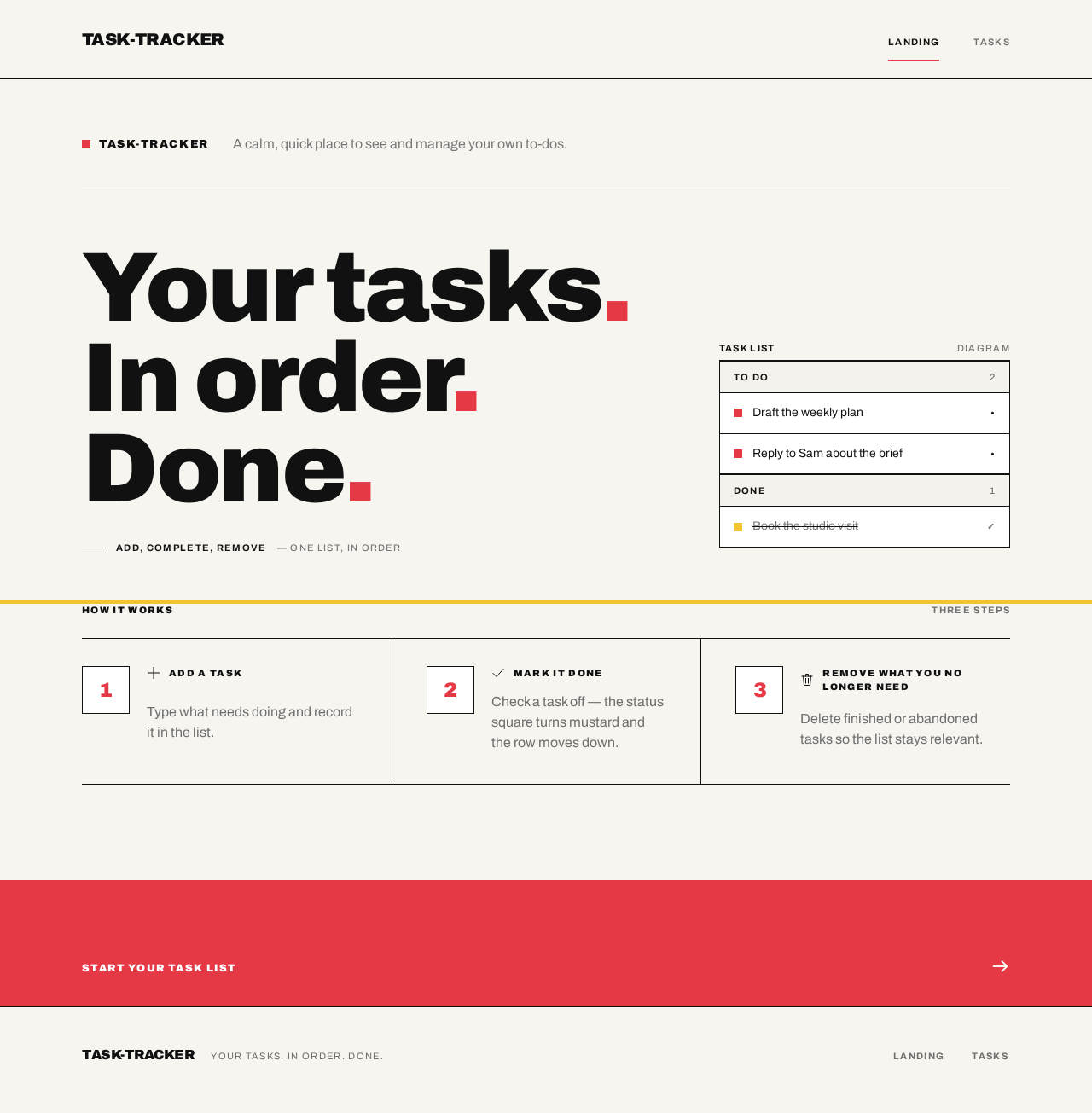
task-tracker
A calm, quick place to see and manage your own to-dos.
Your tasks.In order.Done.
Add, complete, remove— one list, in order
How it works
Step 1: Add a task
Type what needs doing and record it in the list.
Step 2: Mark it done
Check a task off — the status square turns mustard and the row moves down.
Step 3: Remove what you no longer need
Delete finished or abandoned tasks so the list stays relevant.
task-tracker
A calm, quick place to see and manage your own to-dos.
Your tasks.In order.Done.
Add, complete, remove— one list, in order
How it works
Step 1: Add a task
Type what needs doing and record it in the list.
Step 2: Mark it done
Check a task off — the status square turns mustard and the row moves down.
Step 3: Remove what you no longer need
Delete finished or abandoned tasks so the list stays relevant.
No comments yet. Be the first!