task-organiser
 ATHARVRAJ GAIKWAD
Build a modern, responsive Daily Task Scheduling and Productivity Analytics application that helps users plan their day, manage tasks, track completion, and understand their productivity through clear statistical data. 1. Core Features Create a dashboard where users can: Add, edit, delete, and complete tasks. Assign a task title, description, priority, category, date, start time, end time, and optional notes. Set tasks as Low, Medium, or High priority. Create recurring tasks such as daily, weekly, or monthly tasks. Drag and drop tasks to reschedule them. Mark tasks as completed, skipped, or pending. Set reminders and notifications for upcoming tasks. Search and filter tasks by date, category, priority, and status. Create multiple categories such as Work, Study, Personal, Health, and Other. 2. Daily Schedule Create a timeline/calendar view showing the user's entire day. The schedule should display: Time slots from morning to night. Tasks positioned according to their start and end times. Current time indicator. Color coding based on task category or priority. Ability to quickly add a task by clicking an empty time slot. Ability to move or resize tasks to change their duration. A clear indication of overdue and completed tasks. Include Day, Week, and Month views. 3. Smart Daily Planning Add a "Plan My Day" feature. When the user provides a list of tasks, the application should intelligently organize them based on: Priority. Estimated duration. Deadline. Available time. Existing scheduled tasks. User's preferred working hours. Avoid scheduling overlapping tasks. If there is not enough available time, clearly show the conflict and suggest alternative time slots. 4. Productivity Dashboard Create a separate analytics page showing statistical productivity data. Display: Tasks completed today. Tasks completed this week. Tasks completed this month. Completion percentage. Total planned hours. Total completed hours. Average tasks completed per day. Average task duration. Overdue tasks. Current productivity streak. Best productivity day. Most productive time of day. Use attractive charts such as: Daily task completion bar chart. Weekly productivity line chart. Completed vs pending donut chart. Productivity by category. Productivity by time of day. Weekly/monthly completion trends. Allow users to switch between 7-day, 30-day, and 90-day analytics. 5. Productivity Score Create a simple productivity score from 0–100 based on factors such as: Task completion rate. On-time completion. Priority tasks completed. Consistency. Overdue tasks. Explain the score briefly so users understand how it was calculated. 6. Dashboard Layout Create a clean dashboard with: Sidebar Dashboard My Tasks Calendar Analytics Categories Settings Main Dashboard Greeting and current date. Productivity score. Today's progress bar. Today's upcoming tasks. Quick-add task button. Daily schedule. Small productivity chart. Completed/pending task summary. 7. User Experience The UI should be: Modern and minimal. Fast and responsive. Mobile, tablet, and desktop friendly. Easy to understand for first-time users. Use cards, charts, progress bars, badges, and subtle animations. Support both light mode and dark mode. Use a professional productivity-focused color palette. 8. Data Model Create a proper database structure for: Users Tasks Categories Recurring tasks Reminders Task completion history Productivity statistics Store historical task data so analytics can be calculated over time. 9. Important Logic Implement the following logic: Prevent accidental overlapping schedules when possible. Automatically calculate task duration. Automatically update productivity statistics when a task is completed. Track completion dates and times. Track whether tasks were completed before or after their deadline. Calculate daily, weekly, and monthly statistics from actual task history. Preserve historical data even when a task is completed. Handle recurring tasks correctly. Automatically identify overdue tasks. 10. Quick Add Add a prominent "+ Add Task" button. The user should be able to quickly enter something like: "Study JavaScript tomorrow from 7 PM to 9 PM, high priority." Convert the input into a structured task where possible. 11. Notifications Support reminders for upcoming tasks. Show notifications such as: "Meeting starts in 15 minutes." "You have 3 tasks remaining today." "You completed 80% of today's planned tasks." 12. Empty States Design useful empty states instead of showing blank screens. For example: "No tasks scheduled today. Enjoy your free time or plan something productive." Include clear call-to-action buttons. 13. Technical Requirements Build the application using a clean, scalable architecture. Use: A modern frontend framework. A reliable database. Secure user authentication. Responsive UI components. Reusable components. Proper form validation. Error handling. Loading states. Persistent user data. Make the application production-ready rather than creating a static prototype. 14. Final Goal The final application should feel like a combination of a daily planner, calendar, task manager, and personal productivity analytics dashboard. The main goal is: "Plan your day → Complete your tasks → Track your progress → Understand your productivity → Improve your next day." Prioritize simplicity and usability. A user should be able to open the application and understand what they need to do today within a few seconds.

Comments (0)
Sign in to leave a comment
System Requirements
System Requirements Document for task-organiser
1. Introduction
The task-organiser application is designed to be a modern, responsive Daily Task Scheduling and Productivity Analytics tool. It aims to help users effectively plan their day, manage tasks, track task completion, and understand their productivity through clear statistical data. The application is targeted at users seeking efficient daily planning and performance insights.
2. System Overview
The task-organiser application provides a comprehensive platform for users to manage their daily tasks and analyze their productivity. Key features include task management, smart scheduling, productivity tracking, and a user-friendly interface. The application supports multiple devices, including mobile, tablet, and desktop, and offers both light and dark modes. The design is inspired by Dieter Rams' principles of functional clarity, ensuring a clean and intuitive user experience.
2a. Product Interpretation and Delivery Boundary
The application is delivered as a web-based platform, accessible via modern browsers on various devices. User authentication is required to access personalized task management and productivity analytics features. The application does not include external integrations or third-party data sources. Future enhancements may include additional analytics features and integrations, but these are outside the current scope.
2b. Source Content Inventory
Not applicable as no explicit content source directive was provided.
2c. Page Content and Component Coverage
Dashboard
- Greeting and Current Date: Displays a personalized greeting and the current date.
- Productivity Score: Shows a calculated score based on task completion and productivity metrics.
- Today's Progress Bar: Visual representation of task completion for the day.
- Today's Upcoming Tasks: List of tasks scheduled for the current day.
- Quick-Add Task Button: Prominent button for quickly adding new tasks.
- Daily Schedule: Timeline view of tasks for the day.
- Small Productivity Chart: Visual summary of productivity metrics.
- Completed/Pending Task Summary: Overview of tasks completed and pending.
My Tasks
- Task Management: Add, edit, delete, and complete tasks.
- Task Details: Title, description, priority, category, date, start time, end time, and optional notes.
- Recurring Tasks: Set tasks to recur daily, weekly, or monthly.
- Task Rescheduling: Drag and drop to reschedule tasks.
- Task Status: Mark tasks as completed, skipped, or pending.
- Search and Filter: By date, category, priority, and status.
Calendar
- Timeline/Calendar View: Displays tasks in a timeline format.
- Time Slots: From morning to night with tasks positioned accordingly.
- Current Time Indicator: Highlights the current time.
- Color Coding: Based on task category or priority.
- Quick Task Addition: Add tasks by clicking empty time slots.
- Task Duration Adjustment: Move or resize tasks.
Analytics
- Productivity Data: Tasks completed today, this week, and this month.
- Completion Percentage: Visual representation of task completion.
- Planned vs Completed Hours: Comparison of planned and completed hours.
- Average Metrics: Tasks completed per day and average task duration.
- Overdue Tasks: List and count of overdue tasks.
- Productivity Streaks: Current and best productivity streaks.
- Charts: Daily task completion, weekly productivity, completed vs pending, productivity by category and time of day.
Categories
- Category Management: Create and manage task categories such as Work, Study, Personal, Health, and Other.
Settings
- User Preferences: Configure notification settings, preferred working hours, and theme (light/dark mode).
3. Functional Requirements
- As a user, I should be able to add, edit, delete, and complete tasks to manage my daily activities effectively. (explicit)
- As a user, I should be able to assign a task title, description, priority, category, date, start time, end time, and optional notes to organize my tasks with detailed information. (explicit)
- As a user, I should be able to set tasks as Low, Medium, or High priority to prioritize my tasks accordingly. (explicit)
- As a user, I should be able to create recurring tasks such as daily, weekly, or monthly tasks to automate repetitive scheduling. (explicit)
- As a user, I should be able to drag and drop tasks to reschedule them for flexible task management. (explicit)
- As a user, I should be able to mark tasks as completed, skipped, or pending to track task status. (explicit)
- As a user, I should be able to set reminders and notifications for upcoming tasks to stay informed about my schedule. (explicit)
- As a user, I should be able to search and filter tasks by date, category, priority, and status to quickly find specific tasks. (explicit)
- As a user, I should be able to view my schedule in Day, Week, and Month views to plan my tasks over different time frames. (explicit)
- As a user, I should be able to use the "Plan My Day" feature to intelligently organize my tasks based on priority, duration, deadline, and available time. (explicit)
- As a user, I should be able to view a productivity dashboard showing statistical productivity data and analytics. (explicit)
- As a user, I should be able to view a productivity score to understand my task completion performance. (explicit)
- As a user, I should be able to quickly add a task using natural language input to streamline task creation. (explicit)
- As a user, I should receive notifications for upcoming tasks to ensure timely task completion. (explicit)
- As a user, I should see useful empty states with call-to-action buttons when no tasks are scheduled. (explicit)
4. User Personas
- General User: Responsible for managing daily tasks, planning schedules, and analyzing productivity. Outcomes include efficient task management, improved productivity, and insightful analytics.
5. Core User Flows
-
Task Management Flow
- User logs in and accesses the "My Tasks" page.
- User adds a new task by clicking the "+ Add Task" button.
- User fills in task details and saves the task.
- User edits or deletes tasks as needed.
- User marks tasks as completed, skipped, or pending.
- Observable result: Task list updated with user actions.
-
Daily Schedule Flow
- User navigates to the "Calendar" page.
- User views tasks in the timeline/calendar view.
- User adds tasks by clicking empty time slots.
- User reschedules tasks by dragging and dropping.
- Observable result: Calendar view reflects task changes.
-
Smart Daily Planning Flow
- User accesses the "Plan My Day" feature.
- User inputs a list of tasks.
- Application organizes tasks based on priority, duration, and available time.
- Observable result: Optimized daily schedule presented to the user.
-
Productivity Dashboard Flow
- User navigates to the "Analytics" page.
- User views productivity data and charts.
- User switches between 7-day, 30-day, and 90-day analytics.
- Observable result: Updated analytics view with user-selected time frame.
-
Quick Add Task Flow
- User clicks the "+ Add Task" button.
- User inputs a task using natural language.
- Application converts input into a structured task.
- Observable result: New task added to the task list.
6. Visuals Colors and Theme
- Muse: Dieter Rams
- Palette (light mode):
- Background: #F8F8F8
- Surface: #FFFFFF
- Text: #333333
- Primary: #FF6F00
- Accent: #00ACC1
- Muted: #B0BEC5
- Typography:
- Headings: Work Sans — medium weights, small caps for labels, generous tracking
- Body: Source Sans Pro
- Scale: 1.25 modular, 48/36/24/18/16
- Shape Language: Rounded-rectangle controls with aligned label/value pairs
- Layout: Strict modular grid with rounded rectangles for tasks and cards
- Motion: Instant, mechanical feedback for interactions
- Imagery: Diagrammatic line art and iconography
7. Signature Design Concept
The public entry page features a split-screen hero layout with a timeline/calendar view on one side and a productivity score and summary on the other. The design uses a warm grey background with the primary orange color highlighting the current time and priority indicators. Task cards are color-coded and dynamically resize and reposition when dragged within the calendar. Small caps labels enhance clarity and organization.
8. Interaction Model & Motion Direction
- Interaction Model: Static
- Motion Tempo: Restrained
- Hero Dimensionality: Flat
- Landing Hero Motion Brief: The hero section features a timeline/calendar view with task cards that provide instant feedback animations when tasks are added, completed, or moved. The motion vocabulary is mechanical, ensuring users can focus on task management without distraction. The first frame is composed with a clear view of the timeline and task cards. A reduced-motion state is available for accessibility.
9. Non-Functional Requirements
- Performance: The application must load within 3 seconds on a standard broadband connection.
- Scalability: The architecture should support up to 10,000 concurrent users.
- Security: Implement secure user authentication and data encryption.
- Accessibility: Ensure compliance with WCAG 2.1 AA standards.
- Responsiveness: The UI must adapt seamlessly to mobile, tablet, and desktop screens.
10. Tech Stack
- Frontend: React
- Backend: Python/FastAPI
- Database: PostgreSQL
- Authentication: OAuth 2.0
- Deployment: Docker, Kubernetes (if required for scaling)
- State Management: Redux
11. Assumptions and Constraints
- Assumption: Users have internet access and a modern web browser.
- Constraint: The application must not include third-party integrations in the current version.
- Assumption: Users are familiar with basic task management concepts.
12. Glossary
- Task: An activity or piece of work that needs to be completed.
- Productivity Score: A numerical representation of a user's task completion performance.
- Recurring Task: A task that repeats at regular intervals.
- Timeline/Calendar View: A visual representation of tasks scheduled over time.
- Analytics: Statistical data and insights related to task completion and productivity.
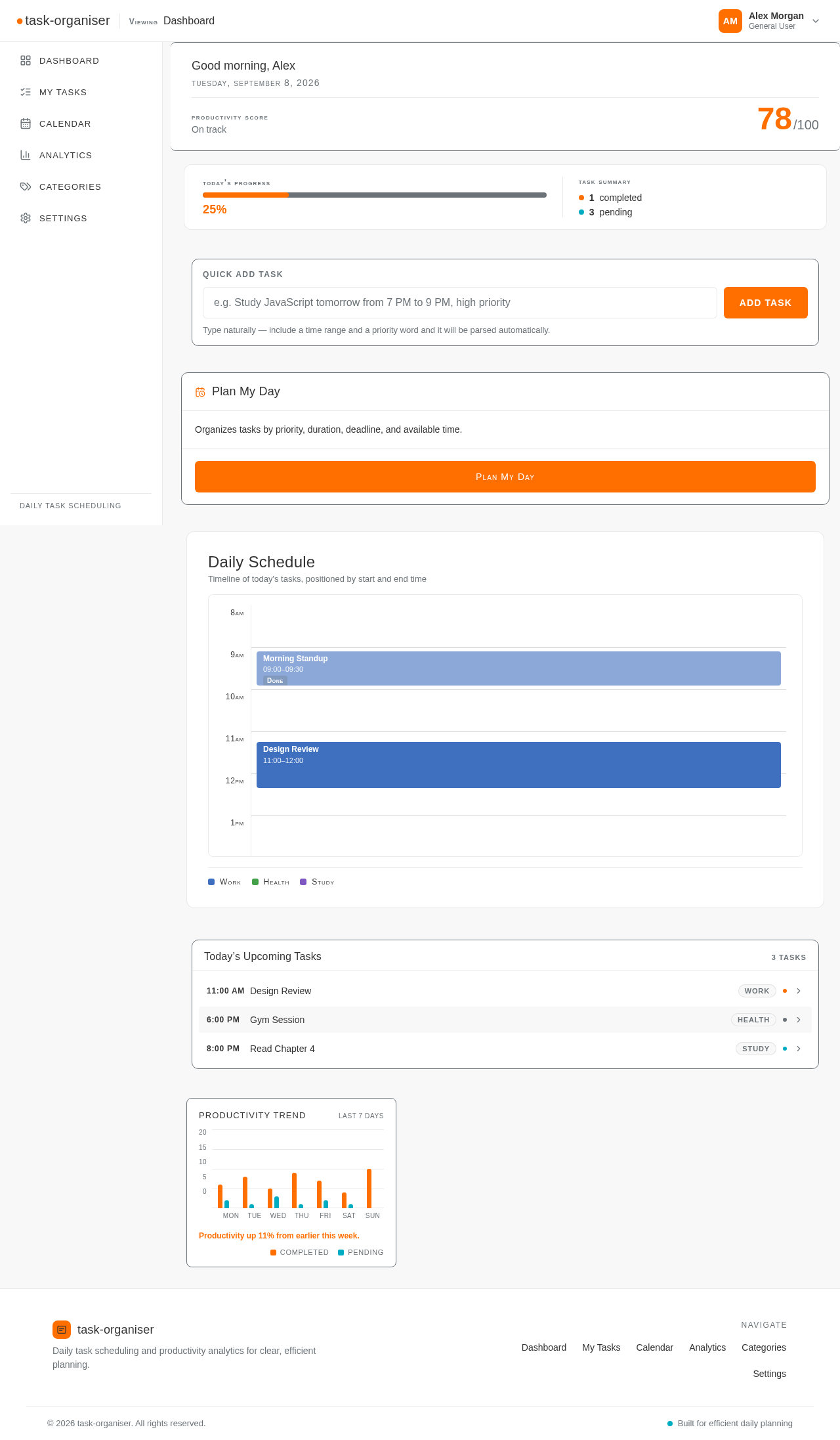
Good evening, Alex
Tuesday, September 8, 2026
Productivity Score
On track
Today's Progress
25%
Task Summary
Quick Add Task
Type naturally — include a time range and a priority word and it will be parsed automatically.
Plan My Day
Organizes tasks by priority, duration, deadline, and available time.
Daily Schedule
Timeline of today's tasks, positioned by start and end time
Today’s Upcoming Tasks
3 TasksProductivity Trend
Last 7 DaysProductivity up 11% from earlier this week.
Good evening, Alex
Tuesday, September 8, 2026
Productivity Score
On track
Today's Progress
25%
Task Summary
Quick Add Task
Type naturally — include a time range and a priority word and it will be parsed automatically.
Plan My Day
Organizes tasks by priority, duration, deadline, and available time.
Daily Schedule
Timeline of today's tasks, positioned by start and end time
Today’s Upcoming Tasks
3 TasksProductivity Trend
Last 7 DaysProductivity up 11% from earlier this week.
No comments yet. Be the first!