task-organiser
 ATHARVRAJ GAIKWAD
Build a modern, responsive Daily Task Scheduling and Productivity Analytics application that helps users plan their day, manage tasks, track completion, and understand their productivity through clear statistical data. 1. Core Features Create a dashboard where users can: Add, edit, delete, and complete tasks. Assign a task title, description, priority, category, date, start time, end time, and optional notes. Set tasks as Low, Medium, or High priority. Create recurring tasks such as daily, weekly, or monthly tasks. Drag and drop tasks to reschedule them. Mark tasks as completed, skipped, or pending. Set reminders and notifications for upcoming tasks. Search and filter tasks by date, category, priority, and status. Create multiple categories such as Work, Study, Personal, Health, and Other. 2. Daily Schedule Create a timeline/calendar view showing the user's entire day. The schedule should display: Time slots from morning to night. Tasks positioned according to their start and end times. Current time indicator. Color coding based on task category or priority. Ability to quickly add a task by clicking an empty time slot. Ability to move or resize tasks to change their duration. A clear indication of overdue and completed tasks. Include Day, Week, and Month views. 3. Smart Daily Planning Add a "Plan My Day" feature. When the user provides a list of tasks, the application should intelligently organize them based on: Priority. Estimated duration. Deadline. Available time. Existing scheduled tasks. User's preferred working hours. Avoid scheduling overlapping tasks. If there is not enough available time, clearly show the conflict and suggest alternative time slots. 4. Productivity Dashboard Create a separate analytics page showing statistical productivity data. Display: Tasks completed today. Tasks completed this week. Tasks completed this month. Completion percentage. Total planned hours. Total completed hours. Average tasks completed per day. Average task duration. Overdue tasks. Current productivity streak. Best productivity day. Most productive time of day. Use attractive charts such as: Daily task completion bar chart. Weekly productivity line chart. Completed vs pending donut chart. Productivity by category. Productivity by time of day. Weekly/monthly completion trends. Allow users to switch between 7-day, 30-day, and 90-day analytics. 5. Productivity Score Create a simple productivity score from 0–100 based on factors such as: Task completion rate. On-time completion. Priority tasks completed. Consistency. Overdue tasks. Explain the score briefly so users understand how it was calculated. 6. Dashboard Layout Create a clean dashboard with: Sidebar Dashboard My Tasks Calendar Analytics Categories Settings Main Dashboard Greeting and current date. Productivity score. Today's progress bar. Today's upcoming tasks. Quick-add task button. Daily schedule. Small productivity chart. Completed/pending task summary. 7. User Experience The UI should be: Modern and minimal. Fast and responsive. Mobile, tablet, and desktop friendly. Easy to understand for first-time users. Use cards, charts, progress bars, badges, and subtle animations. Support both light mode and dark mode. Use a professional productivity-focused color palette. 8. Data Model Create a proper database structure for: Users Tasks Categories Recurring tasks Reminders Task completion history Productivity statistics Store historical task data so analytics can be calculated over time. 9. Important Logic Implement the following logic: Prevent accidental overlapping schedules when possible. Automatically calculate task duration. Automatically update productivity statistics when a task is completed. Track completion dates and times. Track whether tasks were completed before or after their deadline. Calculate daily, weekly, and monthly statistics from actual task history. Preserve historical data even when a task is completed. Handle recurring tasks correctly. Automatically identify overdue tasks. 10. Quick Add Add a prominent "+ Add Task" button. The user should be able to quickly enter something like: "Study JavaScript tomorrow from 7 PM to 9 PM, high priority." Convert the input into a structured task where possible. 11. Notifications Support reminders for upcoming tasks. Show notifications such as: "Meeting starts in 15 minutes." "You have 3 tasks remaining today." "You completed 80% of today's planned tasks." 12. Empty States Design useful empty states instead of showing blank screens. For example: "No tasks scheduled today. Enjoy your free time or plan something productive." Include clear call-to-action buttons. 13. Technical Requirements Build the application using a clean, scalable architecture. Use: A modern frontend framework. A reliable database. Secure user authentication. Responsive UI components. Reusable components. Proper form validation. Error handling. Loading states. Persistent user data. Make the application production-ready rather than creating a static prototype. 14. Final Goal The final application should feel like a combination of a daily planner, calendar, task manager, and personal productivity analytics dashboard. The main goal is: "Plan your day → Complete your tasks → Track your progress → Understand your productivity → Improve your next day." Prioritize simplicity and usability. A user should be able to open the application and understand what they need to do today within a few seconds.

Comments (0)
Sign in to leave a comment
Architecture
No Services Diagrams Yet
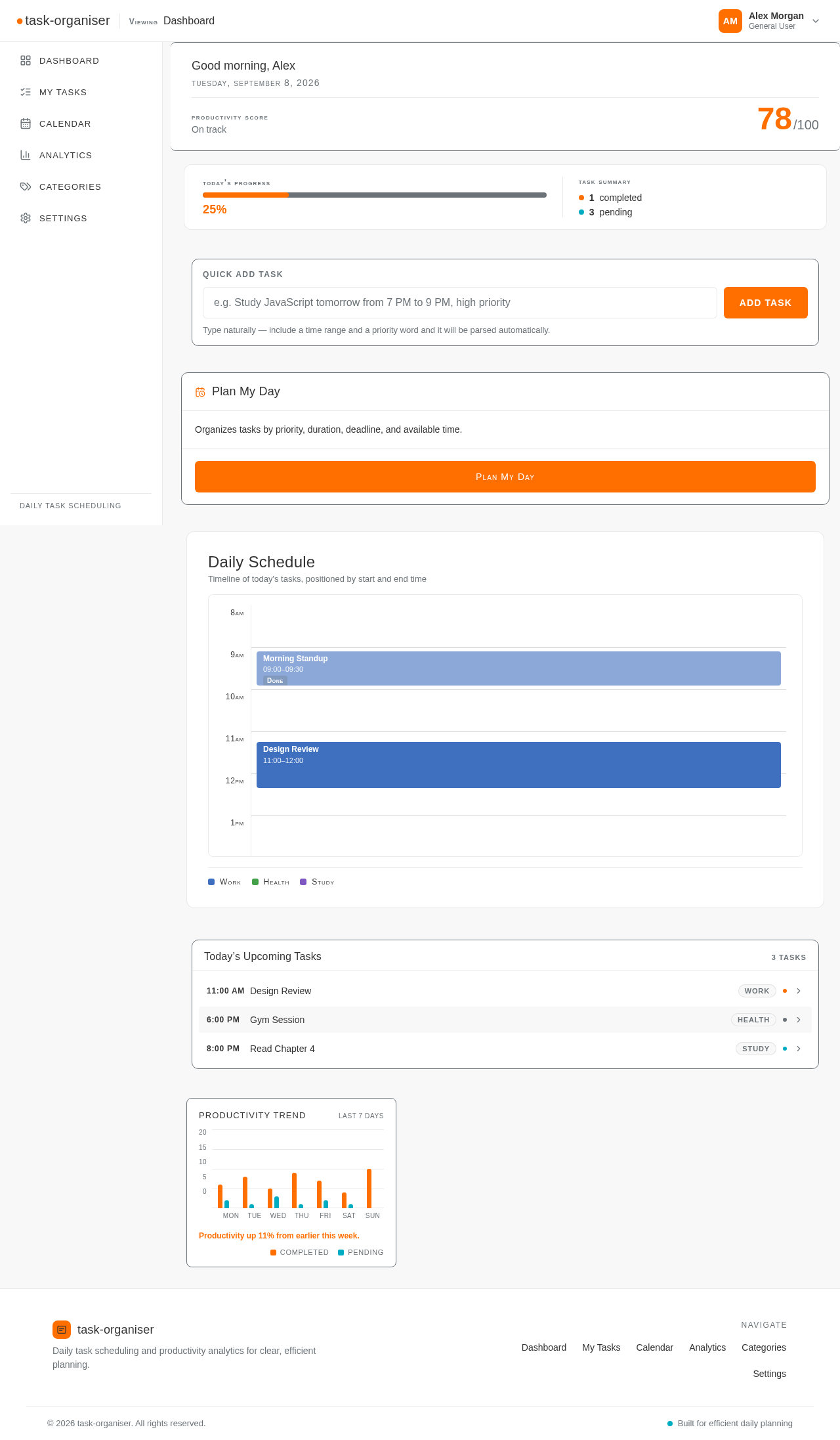
Good evening, Alex
Tuesday, September 8, 2026
Productivity Score
On track
Today's Progress
25%
Task Summary
Quick Add Task
Type naturally — include a time range and a priority word and it will be parsed automatically.
Plan My Day
Organizes tasks by priority, duration, deadline, and available time.
Daily Schedule
Timeline of today's tasks, positioned by start and end time
Today’s Upcoming Tasks
3 TasksProductivity Trend
Last 7 DaysProductivity up 11% from earlier this week.
Good evening, Alex
Tuesday, September 8, 2026
Productivity Score
On track
Today's Progress
25%
Task Summary
Quick Add Task
Type naturally — include a time range and a priority word and it will be parsed automatically.
Plan My Day
Organizes tasks by priority, duration, deadline, and available time.
Daily Schedule
Timeline of today's tasks, positioned by start and end time
Today’s Upcoming Tasks
3 TasksProductivity Trend
Last 7 DaysProductivity up 11% from earlier this week.
No comments yet. Be the first!