stud-flow

bylayla

Build a simple student task manager where students can create, edit, delete and mark tasks as completed

LandingLoginTasks
Landing

Comments (0)

No comments yet. Be the first!

System Requirements

System Requirement Document
Page 1 of 8

System Requirements Document for stud-flow

1. Introduction

The purpose of this document is to outline the system requirements for "stud-flow," a simple student task manager. The application is designed to enable students to manage their tasks effectively by allowing them to create, edit, delete, and mark tasks as completed. The target audience for this application is students who need an intuitive and straightforward tool to keep track of their academic and personal tasks.

2. System Overview

Stud-flow is a web-based application that provides students with a task management tool. The application allows students to perform essential task management functions such as creating, editing, deleting, and marking tasks as completed. The system is designed to be simple and user-friendly, aligning with the needs of students who require a straightforward task management solution.

2a. Product Interpretation and Delivery Boundary

Stud-flow is delivered as a web application with custom UI components. The application requires user authentication to access task management features, ensuring that each student's task data is private and secure. The application supports self-service enrollment for new users and returning verification for existing users. The system is designed to be simple, focusing on core task management functionalities without additional complexities.

Page 2 of 8

2b. Source Content Inventory

Not applicable as no content_source directive was provided.

2c. Page Content and Component Coverage

Landing

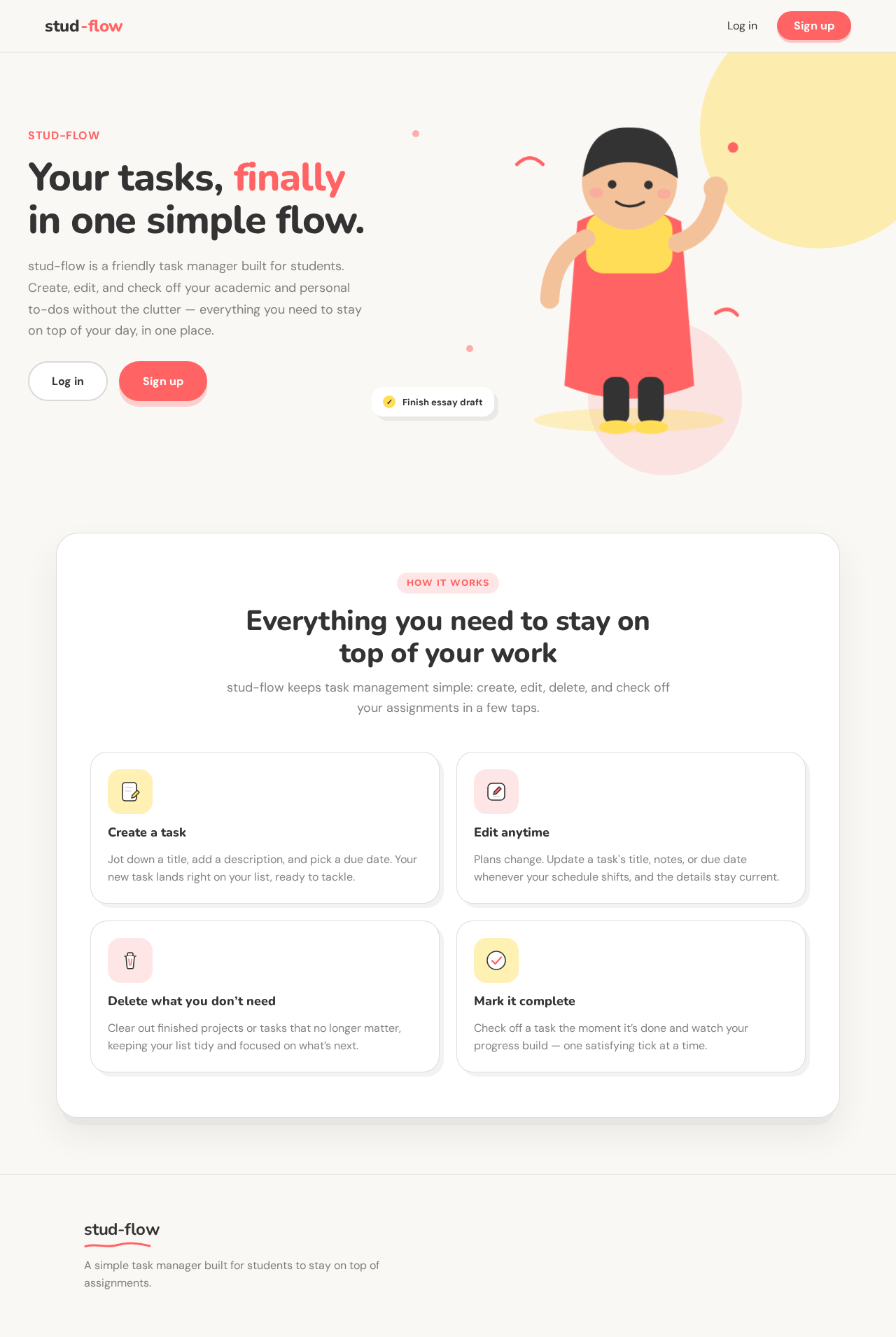
  • Purpose: Introduce the application and provide an overview of its capabilities.
  • Components:
    • Introduction to stud-flow
    • Explanation of key features
    • Call to action for login or signup

Login

  • Purpose: Authenticate returning users.
  • Components:
    • Username and password fields
    • Login button
    • Link to password recovery
    • Option to sign up for new users

Tasks

  • Purpose: Display the list of tasks for the student.
  • Components:
    • List of tasks with status indicators (completed or pending)
    • Buttons for creating a new task, editing, deleting, and marking tasks as completed
    • Task filtering and sorting options
Page 3 of 8

New Task

  • Purpose: Allow students to create a new task.
  • Components:
    • Task title input
    • Task description input
    • Due date selector
    • Save button

Task Details

  • Purpose: Provide detailed view and editing options for a specific task.
  • Components:
    • Task title and description
    • Edit and delete buttons
    • Mark as completed button
    • Back to task list link

3. Functional Requirements

  • As a Student, I should be able to create a new task with a title, description, and due date so that I can keep track of my assignments. (explicit)
  • As a Student, I should be able to edit an existing task to update its details if needed. (explicit)
  • As a Student, I should be able to delete a task that I no longer need to keep my task list organized. (explicit)
  • As a Student, I should be able to mark a task as completed to track my progress. (explicit)
  • As a Student, I should be able to log in to access my personalized task list securely. (required_inference)
  • As a Student, I should be able to sign up to create an account and start using the task manager. (required_inference)

4. User Personas

Page 4 of 8

Student

  • Context: Uses stud-flow to manage academic and personal tasks efficiently.
  • Primary Goal: To maintain an organized list of tasks and track their completion status.
  • Responsibilities:
    • Create, edit, delete, and mark tasks as completed.
    • Manage personal task data securely through authentication.
  • Interactions:
    • Interacts with the task list to manage tasks.
    • Uses the login and signup features to access the application.
  • Success: Successfully manages tasks and maintains an up-to-date task list.

5. Core User Flows

5.1 Creating a New Task

  1. Start: Student logs into the application.
  2. Page: Tasks
  3. Action: Clicks on "Add Task" button.
  4. Page: New Task
  5. Action: Enters task title, description, and due date.
  6. Action: Clicks "Save" to create the task.
  7. Result: Task is added to the task list.
  8. Continuation: Student is redirected to the Tasks page.
Page 5 of 8

5.2 Editing an Existing Task

  1. Start: Student logs into the application.
  2. Page: Tasks
  3. Action: Selects a task to edit.
  4. Page: Task Details
  5. Action: Modifies task details.
  6. Action: Clicks "Save" to update the task.
  7. Result: Task details are updated in the task list.
  8. Continuation: Student is redirected to the Tasks page.

5.3 Deleting a Task

  1. Start: Student logs into the application.
  2. Page: Tasks
  3. Action: Selects a task to delete.
  4. Page: Task Details
  5. Action: Clicks "Delete" button.
  6. Result: Task is removed from the task list.
  7. Continuation: Student is redirected to the Tasks page.
Page 6 of 8

5.4 Marking a Task as Completed

  1. Start: Student logs into the application.
  2. Page: Tasks
  3. Action: Selects a task to mark as completed.
  4. Page: Task Details
  5. Action: Clicks "Mark as Completed" button.
  6. Result: Task status is updated to completed in the task list.
  7. Continuation: Student is redirected to the Tasks page.

6. Visuals Colors and Theme

  • Muse: Pablo Stanley
  • Palette:
    • Background: #FAF8F5
    • Surface: #FFFFFF
    • Text: #333333
    • Primary: #FF6363
    • Accent: #FFDD57
    • Muted: #D9D9D9
  • Typography:
    • Headings: Nunito — Bold
    • Body: DM Sans
    • Scale: 1.414 modular, 56/40/28/18/16
  • Shape Language: Big radii, pill buttons, soft offset shadows
  • Layout: Friendly geometric sans, generous line-height, cards with soft shadows
  • Imagery: Modular vector people and objects, hand-drawn accents
Page 7 of 8

7. Signature Design Concept

The public entry page will feature a large illustrated character on a cream background with a bold headline. A pill-shaped CTA button in the primary color (#FF6363) will invite users to log in or sign up. The design will incorporate playful hover effects and friendly, conversational tooltips to guide users.
8. Interaction Model & Motion Direction

  • Interaction Model: Animated
  • Motion Tempo: Expressive
  • Hero Dimensionality: Layered_2d
  • Landing Hero Motion Brief: The landing page will feature an illustrated character that waves upon interaction. The transformation will occur when the user hovers over the CTA button, which will expand slightly and change color to indicate interactivity. The first frame will show the character in a welcoming pose, and a reduced-motion state will offer static imagery for accessibility.

9. Non-Functional Requirements

  • The application must be responsive and accessible on various devices and screen sizes. (basic_default)
  • The system should ensure data security and privacy for all student information. (basic_default)

10. Tech Stack

  • Frontend: React
  • Backend: Python/FastAPI
  • Database: PostgreSQL
  • Containerization: Docker
  • Deployment: Docker-compose
Page 8 of 8

11. Assumptions and Constraints

  • The application is intended solely for student use.
  • The task manager will remain simple, focusing on core functionalities without additional features.
  • User authentication is required to access task management features.

12. Glossary

  • Task: An item created by the student to track assignments or activities.
  • CTA: Call to Action, a button or link that prompts user interaction.
  • Responsive Design: An approach to web design that makes web pages render well on a variety of devices and window or screen sizes.
Preview dataChanges stay in this preview.
Landing design preview
Landing: View intro
Login: Sign up new account
Login: Submit login credentials
Tasks: View task list
New Task: Enter task details
New Task: Save new task
Tasks: 1. View updated task list
Tasks: 2. Select task to edit
Task Details: 3. Modify task details
Task Details: 4. Save task changes
Tasks: 5. Select task to delete
Task Details: 6. Delete task
Tasks: 7. Select task to complete
Task Details: 8. Mark task completed
Preview dataChanges stay in this preview.
Landing design preview
Landing: View intro
Login: Sign up new account
Login: Submit login credentials
Tasks: View task list
New Task: Enter task details
New Task: Save new task
Tasks: 1. View updated task list
Tasks: 2. Select task to edit
Task Details: 3. Modify task details
Task Details: 4. Save task changes
Tasks: 5. Select task to delete
Task Details: 6. Delete task
Tasks: 7. Select task to complete
Task Details: 8. Mark task completed