Page 1 of 11
System Requirements Document for steel-project
1. Introduction
steel-project is an image-editing application built for one specific kind of material: images that were generated by artificial intelligence. It is not a personal-photo editor, and it is not a photo-management or identity-document tool. The product exists so that a solo creator who generates synthetic images can bring those machine-made images into a focused editing workspace, apply edits, and produce finished edited results.
The audience is the AI Image Creator — a self-starting maker (the user, ALi, Arabic-speaking, typically working late) who treats AI-generated imagery as raw material to be remixed. The product's register is playful, uncensored and studio-like: a maker's toy for remixing machine dreams, deliberately operating without NSFW content limits, as explicitly requested. The surface should read as free, sensual and optimistic rather than policed and clinical.
The product intent, in one line: take AI-generated images, edit them freely, and keep the results.
Page 2 of 11
2. System Overview
steel-project is a first-party web application with application-owned identity and custom UI. It delivers:
- An anonymous Landing surface that explains the product is for editing AI-generated images and directs visitors into the product journey.
- Self-service Sign Up enrollment and returning Login verification for the AI Image Creator.
- A protected Library where the creator selects AI-generated or previously edited images before editing.
- A protected Editor where the creator brings in an AI-generated image, applies edits, and produces the edited result.
Actors. The only active human persona is the AI Image Creator. The application itself owns identity, durable image storage, and the editing workspace. No other human roles, administrators, moderators, or reviewers are part of the current product.
Accepted behavior. Editing AI-generated images; operating without NSFW content limits; self-service enrollment; returning verification; durable storage of selected source images and edited results.
Narrow exclusions. The product is not for editing personal photos, and it is not a photo-capture, photo-organization, or identity-document tool. No stock photography of people and no imagery implying personal-photo editing appears in the product surface. There is no content-moderation gate, no NSFW warning banner, and no clinical safety iconography.
Page 3 of 11
2a. Product Interpretation and Delivery Boundary
Delivery ownership. steel-project is delivered as a first-party application with its own custom interface. The application owns the Landing, Sign Up, Login, Library and Editor surfaces. There is no provider-owned or external-only surface in the current product, and no headless-only delivery.
Access ownership. Identity is application-owned. The Landing, Sign Up and Login surfaces are reachable anonymously — a visitor can read what the product is and can establish or verify identity without first being authenticated. The Library and Editor require login, because the creator must privately own and resume durable, actor-specific image state across sessions. Establishing access to a protected destination never happens inside that protected destination: enrollment and verification live on their own anonymous surfaces.
Current vs. future boundary. Everything described in this document is current. No future-horizon requirements were stated by the user; nothing in this document is deferred, and nothing outside the accepted scope is implied.
Content boundary. The application edits images generated by artificial intelligence. It does not accept or target personal photographs as its purpose, and the interface must not present itself as a personal-photo utility.
2b. Source Content Inventory
Not applicable — no reference directive in this project declares a content_source.
2c. Page Content and Component Coverage
Page 4 of 11
Landing
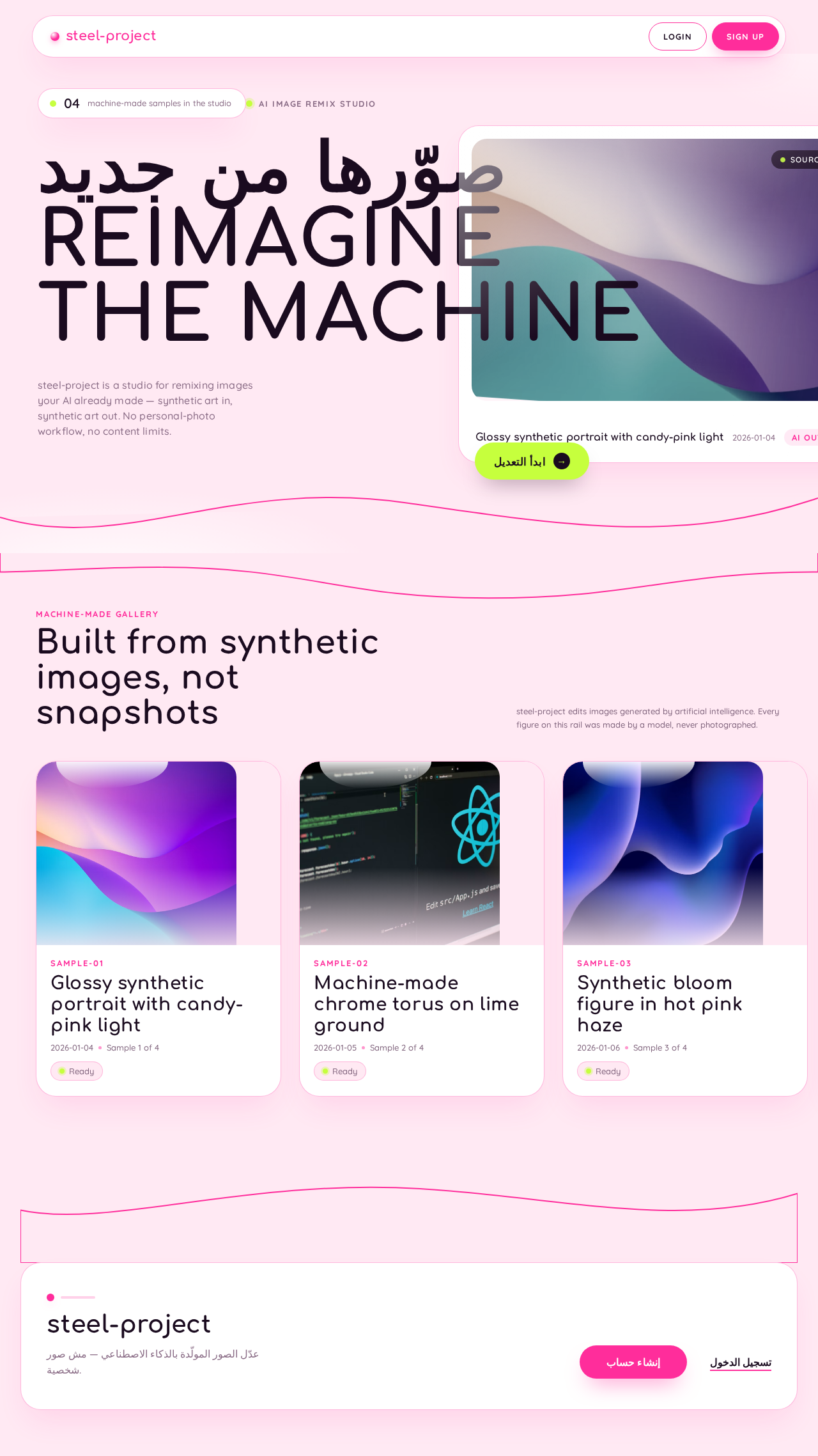
- Information / state. Anonymous public entry. Full-bleed bubblegum-pink ground (#FFE9F3). A single oversized Comfortaa 700 headline at 120px running the full viewport width — "صوّرها من جديد" / "REIMAGINE THE MACHINE" — wrapping across three lines and physically overlapping a large glossy white pebble panel that is partially off-screen to the right. Inside that pebble, one AI-generated image is displayed at near-full height, tilted 4 degrees. A second, smaller pebble floats top-left with a live counter and a lime dot. A horizontal rail of glossy white pebble cards follows, each holding one AI-generated sample image bleeding off the card's left edge. Section boundaries are cut as soft S-curves with a 2px pink outline.
- Primary action. A lime #C6FF3D pill button cut into the hero pebble's bottom-left corner reading "ابدأ التعديل", leading into the product journey.
- Supporting actions. Navigate to Sign Up; navigate to Login for returning creators.
- Domain entities. AI-generated sample images; the product's own output as display imagery.
- Component responsibilities. Hero headline block (type as foreground object); hero pebble panel with embedded sample image and commit pill; floating live-counter pebble; horizontal sample rail of pebble cards; S-curve section dividers; footer entry points to Sign Up and Login.
- States. Loading: morphing blob placeholder in place of sample imagery, never a spinner. Empty: if no sample imagery is available, the hero pebble shows a glossy 3D primitive (torus, blob, capsule) in pink/lime/white as empty-state art. Success: hero renders with sample imagery and both entry actions available. Error: if sample imagery fails to load, the pebble retains its frame and shows the primitive placeholder; entry actions remain fully functional. Recovery: imagery retries on next visit; the visitor is never blocked from entering the product.
Sign Up
- Information / state. Anonymous identity-access surface on the pink ground — never white-first. A white pebble panel (32px radius, 1px pink hairline, soft pink-tinted shadow) holds the enrollment form. Fields: email, password, and confirmation of password. Comfortaa 700 panel heading at 20px; Quicksand 500 body at 16px; labels in Quicksand 500 at 13px in #8A6C86.
- Primary action. Create the account and enter the product.
- Supporting actions. Navigate to Login if the visitor already has an account; return to Landing.
- Domain entities. Creator account (email, credential).
- Component responsibilities. Enrollment form pebble; field-level validation messaging; submit pill (full pill, radius = height/2); link to Login.
- States. Loading: submit pill shows a morphing blob progress state; fields disabled. Empty: pristine form with no validation messaging. Success: account created and the creator proceeds into the product journey. Error: invalid or already-registered email, mismatched password confirmation, or weak password — the message appears inline beside the offending field in plum text, never as a red warning banner. Recovery: the creator corrects the field and resubmits without losing entered values.
Login
- Information / state. Anonymous identity-access surface on the pink ground. A white pebble panel holds the verification form. Fields: email, password. Same type and colour treatment as Sign Up.
- Primary action. Verify identity and resume access to the application and its durable image workflow.
- Supporting actions. Navigate to Sign Up; return to Landing.
- Domain entities. Creator account (email, credential); session continuity.
- Component responsibilities. Verification form pebble; inline error messaging; submit pill; link to Sign Up.
- States. Loading: submit pill shows a morphing blob progress state; fields disabled. Empty: pristine form. Success: the creator lands in the product with prior Library and Editor state available. Error: unrecognized credentials — inline plum message, no red banner, no account-existence disclosure beyond what the source supports. Recovery: the creator retries, or moves to Sign Up.
Page 5 of 11
Library
- Information / state. Protected surface. A masonry wall of pebble tiles on the pink ground, each tile holding one AI-generated or previously edited image. A sticky floating capsule toolbar sits at the bottom-centre. Tiles carry a 1px pink hairline and a soft pink-tinted shadow (#FF2D9B at 12% opacity, 0 24px 48px -12px).
- Primary action. Select an image to bring into the Editor.
- Supporting actions. Add an AI-generated image to the Library; filter or sort the wall; open a previously edited result.
- Domain entities. Source image (AI-generated); edited image result; image metadata (creation date, edit state).
- Component responsibilities. Masonry tile wall; pebble tile with two-layer hover (tile lifts 8px, image slides 12px inside the frame); sticky floating capsule toolbar; add-image control; empty-state art.
- States. Loading: morphing blob tiles in the wall's masonry rhythm. Empty: glossy 3D primitive art with a prompt to add a first AI-generated image. Success: tiles render with their images and are selectable. Error: a tile whose image fails to load keeps its pebble frame and shows a primitive placeholder; the rest of the wall stays usable. Recovery: the creator retries the tile or re-adds the image; no wall-wide failure state.
Editor
- Information / state. Protected surface. Three-zone layout on the pink ground with visible breathing room, never edge-to-edge chrome: a narrow vertical pill rail of tools on the left; the large pebble canvas in the centre with a 40px radius and a 3px glossy pink rim; a white pebble inspector panel on the right. Tool labels are 13px Quicksand 700, uppercase-tracked. Numeric values (sliders, resolution, seed) are set in Quicksand 600 with tabular figures.
- Primary action. Apply edits to the AI-generated image and commit the result with the single acid-lime #C6FF3D capsule labeled "طبّق" — the only lime element on screen at any time.
- Supporting actions. Select a tool from the pill rail; adjust parameters in the inspector; compare against the source; return to the Library.
- Domain entities. Source image (AI-generated); edit parameters (tool values, slider values, resolution, seed); edited image result.
- Component responsibilities. Vertical pill tool rail; pebble canvas frame with glossy pink rim; inspector panel with capsule sliders (round glossy thumb with a tiny white specular highlight); commit capsule; comparison control; back-to-Library control.
- States. Loading: the canvas shows a morphing blob while the source image resolves. Empty: no image loaded — the canvas shows a prompt to choose an image from the Library. Success: the edit is applied, the canvas shows a slow moving glossy highlight sweep, and the committed result is stored. Error: an edit that cannot be applied leaves the source image intact on the canvas and surfaces an inline plum message; the commit capsule returns to its resting state. Recovery: the creator adjusts parameters and retries, or discards the pending edit and returns to the source.
Page 6 of 11
3. Functional Requirements
FR-1 — Edit AI-generated images (explicit)
As an AI Image Creator, I should bring an AI-generated image into the Editor and apply edits to it, so that I produce an edited version of a machine-made image.
- Trigger/input: the creator selects or adds an AI-generated image and chooses a tool and its parameters.
- Observable result: the canvas shows the edited image, and the committed result is stored.
- Access state: requires login.
- Failure/recovery: if an edit cannot be applied, the source image remains intact and an inline message appears; the creator adjusts parameters and retries or discards the pending edit.
- Continuation: the creator commits with "طبّق" and returns to the Library, where the result is available.
FR-2 — Work on AI-generated images, not personal photos (explicit)
As an AI Image Creator, I should use the application for images generated by artificial intelligence rather than personal photographs, so that the tool matches the material I actually work with.
- Trigger/input: the creator brings an image into the Library or Editor.
- Observable result: the product presents itself and behaves as a synthetic-image editing tool; its surfaces show AI-generated imagery and never imply personal-photo editing.
- Access state: applies on Landing, Library and Editor.
- Failure/recovery: not applicable — this is a scope constraint on the product's purpose and presentation, not a runtime gate.
- Continuation: the creator continues editing within that scope.
FR-3 — Operate without NSFW content limits (explicit)
As an AI Image Creator, I should edit my AI-generated images without NSFW content limits, so that my work is not restricted by a moderation gate.
- Trigger/input: the creator applies edits to an AI-generated image.
- Observable result: no NSFW moderation gate, warning banner, or clinical safety iconography interrupts or blocks the edit; the tone stays optimistic and free.
- Access state: applies in the Editor and Library.
- Failure/recovery: not applicable — no moderation failure path exists in the accepted scope.
- Continuation: the creator commits the edit and continues working.
FR-4 — Self-service enrollment (required_inference)
As an AI Image Creator, I should create my own account from the Sign Up surface, so that I can start using the application without waiting on anyone else.
- Trigger/input: an anonymous visitor submits email, password and password confirmation on Sign Up.
- Observable result: an account is created and the creator proceeds into the product journey.
- Access state: anonymous entry; the interaction is reachable without being logged in.
- Failure/recovery: invalid or already-registered email, mismatched confirmation, or weak password produces an inline message beside the offending field; entered values are preserved for correction.
- Continuation: the creator enters the product and can add a first AI-generated image.
FR-5 — Returning verification (required_inference)
As an AI Image Creator, I should verify my identity on the Login surface, so that I can resume access to the application and my durable image workflow.
- Trigger/input: a returning creator submits email and password on Login.
- Observable result: the creator reaches the product with prior Library and Editor state available.
- Access state: anonymous entry; the interaction is reachable without being logged in.
- Failure/recovery: unrecognized credentials produce an inline message; the creator retries or moves to Sign Up.
- Continuation: the creator resumes editing from the Library.
FR-6 — Durable storage of source and edited images (required_inference)
As an AI Image Creator, I should have my selected source images and edited results stored durably, so that I can revisit and continue work across sessions.
- Trigger/input: the creator adds an AI-generated image to the Library or commits an edit in the Editor.
- Observable result: the source image and the edited result persist and reappear in the Library on return.
- Access state: requires login; storage is bound to the creator's own account.
- Failure/recovery: an image that fails to load keeps its pebble frame and shows a primitive placeholder while the rest of the Library stays usable; the creator retries or re-adds the image.
- Continuation: the creator selects the stored image and continues editing.
FR-7 — Select an image before editing (required_inference)
As an AI Image Creator, I should browse and select from my stored AI-generated and previously edited images in the Library, so that I can choose what to work on next.
- Trigger/input: the creator opens the Library and picks a tile.
- Observable result: the selected image opens in the Editor as the working source.
- Access state: requires login.
- Failure/recovery: if the Library is empty, empty-state art prompts the creator to add a first AI-generated image.
- Continuation: the creator edits the selected image.
FR-8 — Commit an edited result (required_inference)
As an AI Image Creator, I should commit my edits with a single unmistakable finish action, so that I know when the result is final.
- Trigger/input: the creator presses the acid-lime "طبّق" capsule in the Editor.
- Observable result: the edit is applied and the result is stored; the canvas shows a slow moving glossy highlight sweep.
- Access state: requires login.
- Failure/recovery: if the commit cannot complete, the source image remains intact and an inline message appears; the commit capsule returns to its resting state.
- Continuation: the creator returns to the Library, where the edited result is available.
Page 7 of 11
4. User Personas
Page 8 of 11
AI Image Creator
Product context. The AI Image Creator is a solo maker — the user, ALi, Arabic-speaking, typically working late — who generates images with artificial intelligence and treats them as raw material. The material is synthetic by definition: machine-made images, not personal photographs, not identity documents. The creator's register is playful and studio-like; the tool should feel like a glossy object on a shelf, a maker's toy for remixing machine dreams, not a corporate photo utility.
Primary goal. Take an AI-generated image, edit it in the application, and keep the edited result — without hitting a content limit that stops the work.
Distinct accepted responsibilities.
- Bringing an AI-generated image into the product and selecting it for editing.
- Applying edits in the Editor and committing the finished result.
- Revisiting stored source images and previously edited results in the Library.
- Establishing and verifying their own access so that this durable image work stays theirs across sessions.
Relevant inputs and decisions. Which AI-generated image to work on; which tool and parameter values to apply; whether the pending edit is good enough to commit or should be discarded; whether to continue with the current image or return to the Library for another.
Interactions with other accepted participants. There are no other human participants in the current product. The creator interacts only with the application itself — its identity surfaces, its Library, and its Editor. No administrator, moderator, reviewer, or collaborator is involved, and no approval or handoff to another person exists in the accepted scope.
Observable success. An edited AI-generated image exists in the Library, produced without a moderation gate interrupting the work, and is still there when the creator returns in a later session.
What makes this role distinct. The creator is defined by the material, not by a job title: the work is editing synthetic, machine-generated imagery, and the product's whole surface — its imagery, its tone, its absence of NSFW limits — is shaped around that material. A generic "user of a photo editor" would not capture the constraint that the input is AI-generated rather than personal, nor the explicit freedom from content limits that the creator asked for.
Page 9 of 11
5. Core User Flows
Flow 1 — First visit and enrollment
- The AI Image Creator arrives at the anonymous Landing surface. The full-bleed pink field renders with the oversized Comfortaa headline overlapping the glossy hero pebble, which displays an AI-generated sample image tilted 4 degrees.
- The creator reads that the product is for editing AI-generated images, and presses the lime "ابدأ التعديل" pill cut into the hero pebble's bottom-left corner.
- Because the creator has no account yet, the journey continues to Sign Up — an anonymous surface, not a protected one.
- The creator enters email, password and password confirmation into the white pebble form and submits.
- Failure/recovery: if the email is already registered, the confirmation does not match, or the password is too weak, an inline plum message appears beside the offending field and the entered values are preserved. The creator corrects the field and resubmits.
- Success: the account is created and the creator enters the product.
- Next step: the creator proceeds to the Library to add a first AI-generated image (Flow 3).
Flow 2 — Returning creator resumes work
- The AI Image Creator opens the application and reaches the anonymous Login surface.
- The creator enters email and password into the white pebble form and submits.
- Failure/recovery: if the credentials are not recognized, an inline plum message appears — no red warning banner. The creator retries, or follows the link to Sign Up.
- Success: the creator reaches the product with prior Library and Editor state available.
- Next step: the creator opens the Library and continues from a stored image (Flow 4).
Flow 3 — Add an AI-generated image to the Library
- The AI Image Creator is in the protected Library, which shows a masonry wall of pebble tiles on the pink ground with a sticky floating capsule toolbar at the bottom-centre.
- If the Library is empty, glossy 3D primitive art appears with a prompt to add a first AI-generated image.
- The creator uses the add-image control in the floating capsule toolbar to bring an AI-generated image into the Library.
- Success: a new pebble tile appears in the wall holding the image, with a 1px pink hairline and a soft pink-tinted shadow.
- Failure/recovery: if the image fails to load, the tile keeps its pebble frame and shows a primitive placeholder while the rest of the wall stays usable; the creator retries the tile or re-adds the image.
- Next step: the creator selects the tile to edit it (Flow 4).
Page 10 of 11
Flow 4 — Select an image and edit it
- The AI Image Creator is in the protected Library and browses the masonry wall. Hovering a tile lifts it 8px while its image slides 12px inside the frame.
- The creator selects a tile — either an AI-generated source image or a previously edited result.
- The Editor opens with that image as the working source: a narrow vertical pill rail of tools on the left, the large pebble canvas with its 3px glossy pink rim in the centre, and the white pebble inspector panel on the right, all sitting on pink with visible breathing room.
- The creator picks a tool from the pill rail and adjusts its parameters in the inspector — capsule sliders with a round glossy thumb and a tiny white specular highlight; numeric values set in Quicksand 600 with tabular figures.
- The canvas shows the edit, with a slow moving glossy highlight sweep as the filter is applied.
- Failure/recovery: if an edit cannot be applied, the source image stays intact on the canvas and an inline plum message appears; the creator adjusts parameters and retries, or discards the pending edit and returns to the source.
- Decision: the creator judges the result. If it is not right, they return to step 4. If it is right, they continue.
- Commit: the creator presses the single acid-lime #C6FF3D capsule labeled "طبّق" — the only lime element on screen.
- Success: the edit is applied and the edited result is stored.
- Failure/recovery: if the commit cannot complete, the source image remains intact, an inline message appears, and the commit capsule returns to its resting state; the creator retries.
- Next step: the creator returns to the Library, where the edited result now appears as a tile (Flow 5).
Flow 5 — Revisit a stored result in a later session
- The AI Image Creator returns to the application in a later session and verifies identity on Login (Flow 2).
- The creator opens the Library and finds the previously edited result still present as a pebble tile, alongside the original AI-generated source.
- The creator selects the stored result and reopens it in the Editor.
- Success: the creator continues editing from the stored state, or commits a further edit.
- Continuation: the creator returns to the Library, where the updated result is available.
Page 11 of 11
6. Visuals, Colors and Theme
Muse and headline. Karim Rashid — sensual pop minimalism for machine-made images: glossy curves on candy grounds. The product is a glossy object on a shelf, not a corporate photo utility.
Colour tokens — light mode.
| Role | Hex | Use |
|---|
| Background (ground) | #FFE9F3 | Bubblegum-pink ground covering the whole app — never white-first, including auth and editor |
| Surface | #FFFFFF | Glossy white pebble panels floating on the pink ground |
| Text | #1A0B1F | Near-black plum; 14:1 contrast on the pink ground |
| Primary | #FF2D9B | Hot Rashid pink — buttons, active tool, progress, the selection outline in the editor |
| Accent | #C6FF3D | Acid lime — used sparingly: the "طبّق" commit action, the live badge, the one thing you press to finish |
| Muted | #8A6C86 | Labels and metadata |
Proportion. 60% pink ground, 25% white surface, 10% pink primary, 5% lime.
Prohibited colours. No blue, indigo or violet anywhere — no #0057FF, #2563EB, #6366F1, no bootstrap-blue buttons, no blue-on-white. No flat neutral greys.
Typography.
- Headings: Comfortaa 700. Landing headline 120px with generous letter-spacing (+0.02em) so the rounded terminals read as individual objects; sentence case, never all-caps. Editor panel headings drop to Comfortaa 700 at 20px.
- Body: Quicksand 500 at 16px.
- Numeric values (sliders, resolution, seed): Quicksand 600 with tabular figures.
- Editor tool labels: 13px Quicksand 700, uppercase-tracked.
- Metadata: 13px Quicksand 500 in
#8A6C86.
- Scale: 1.333 modular — 120 / 90 / 68 / 51 / 38 / 28 / 21 / 16 / 13.
- Prohibited: Inter, Roboto, Arial, Helvetica, Poppins, system-ui for headings or body.
Shape language. Everything is a capsule, a blob or a pebble — no sharp corners anywhere. Buttons are full pills (radius = height/2). Panels are 32px-radius rounded rectangles. Section boundaries between landing blocks are cut as soft S-curves and wave edges, not straight lines. The editor's canvas frame is a single large pebble with a 40px radius and a 3px glossy pink rim. Sliders use a capsule track with a round glossy thumb carrying a tiny white specular highlight. Chips and tags are pills. Even the loading state is a morphing blob, not a spinner.
Elevation. Soft pink-tinted shadow — #FF2D9B at 12% opacity, 0 24px 48px -12px — instead of grey drop shadows, so cards look like resin objects sitting on pink. Surfaces carry a 1px pink hairline.
Spacing rhythm. Generous breathing room; the editor frame sits on pink with visible margin, never edge-to-edge chrome. Landing blocks stack as full-bleed colour fields separated by S-curves.
Imagery style. The product's own output is the imagery — AI-generated images shown large, glossy, saturated and uncropped, presented like objects in a display case on pink or white pebble plinths with

 ALi Ghaly


No comments yet. Be the first!