solar-simple
 Diya Trivedi
start a project to build simple singke page design of calcuator

Comments (0)
Sign in to leave a comment
System Requirements
System Requirements Document for solar-simple
1. Introduction
solar-simple is a simple calculator delivered as a single-page design. The product exists so that a person can complete everyday arithmetic quickly, in one place, without learning an interface: they enter numbers and operators, see the computed result, and clear the calculation to start over.
The audience is the everyday calculator user — someone who wants a quick, quiet, tactile arithmetic tool rather than a dashboard, an account-based service, or a multi-screen application. The product is intentionally narrow: one page, one calculator, no navigation, no sign-up, no marketing surface.
There is no separate planning document requested for this project; this SRD is the complete specification of the product.
2. System Overview
solar-simple is a single-page web calculator. The page presents one softly rounded calculator object against a warm stone background: an oversized tabular-number display in the upper panel, a small non-scrollable last-result line beneath it, and a disciplined four-column keypad anchoring the lower portion. A thin utility strip above the calculator carries only the wordmark "solar-simple", a tiny live calculation label, and a clear control.
Current delivery is a React frontend served as one page, backed by a shared FastAPI backend process and a MariaDB database provisioned as part of the project scaffold. The calculator's arithmetic is a client-side interaction on the single page; the backend and database are provisioned infrastructure and do not, by themselves, create accounts, stored calculations, or any additional product capability.
Actors: one active human persona, the Calculator User, who anonymously opens the page and performs arithmetic. There are no other human personas, no system-initiated user-facing work, and no provider or external destinations in the current product.
Accepted behavior: entering numbers and operators, viewing the computed result, clearing the calculation, and correcting the current calculation — all on the single Calculator page, with no identity, no persistence requirement, and no additional destinations.
Removed from scope
- Multi-page navigation, side navigation, and dashboard-style modules (also: dashboard, side nav)
- Accounts, sign-up, sign-in, and marketing hero copy or CTAs (also: sign-up CTA, testimonials, feature-card grids)
- Gradient blobs, glass panels, neon effects, and 3D decorative forms (also: glassmorphism, neon)
- Blue or indigo actions on a white background (also: indigo/blue-on-white SaaS template)
2a. Product Interpretation and Delivery Boundary
solar-simple is delivered as exactly one first-party page, the Calculator, reachable anonymously with no access requirement. There is no application-owned identity, no session continuity requirement, and no protected destination: the accepted calculator lifecycle is ephemeral and self-contained on the page, so no first-use identity establishment, invitation, or provisioning flow exists or is needed.
The page is the whole product. The wordmark, live calculation label, and clear control live in the page's utility strip; the display, last-result line, and keypad are the page's central subject. Nothing in the current product sits behind a login, in a second route, or in a background process the user must wait on.
Future ideas are not part of this delivery. Anything beyond the single-page calculator — persistence of calculations, accounts, history across visits, additional tools — is out of the current boundary and is not represented in the page, requirements, or flows below.
2c. Page Content and Component Coverage
Calculator
The single page of the product, anonymously reachable, hosting the complete calculator lifecycle.
Information and state
- Current expression being entered (numbers, operators, and the pending operation), shown in the oversized display.
- Current computed result, shown in the same display once equals is pressed.
- Prior completed expression, preserved quietly in the small non-scrollable last-result line beneath the display until the next input begins.
- Live calculation label in the utility strip reflecting the current calculation state.
- Active operator state, highlighted in sage while an operator is pending.
- Error state when an expression cannot be evaluated (for example division by zero), shown in the display with a clear recovery path.
Primary actions
- Enter digits 0–9 and a decimal point via the keypad.
- Select operators (add, subtract, multiply, divide) via the keypad; the selected operator shows its active sage state.
- Press the sage equals key to compute and display the result.
- Press the terracotta clear control (in the utility strip and as the keypad clear key) to reset the calculation to its starting state.
- Press the terracotta correction key to delete the last entered character of the current entry.
Supporting actions and components
- Utility strip: wordmark "solar-simple", tiny live calculation label, clear control — separated from the calculator body by a single rule.
- Display panel: right-aligned tabular figures, scaled from 48px on mobile to 88px on desktop; long expressions reduce in size or scroll horizontally within the display rather than clipping.
- Last-result line: small, non-scrollable, showing the prior completed expression.
- Keypad: four-column, five-row matrix of warm paper keys with hairline seams and pressed inset states; keys scale through fluid gaps at every viewport and never clip.
- Equals key: sage, carrying the visual weight of the operator column as the main action.
- Correction key: terracotta, visually distinct from numeric and operator keys.
States
- Loading: not applicable in a material sense; the page renders its static calculator immediately.
- Empty/initial: display shows the starting value (0), no pending operator, no last-result line content.
- Success: display shows the computed result; the completed expression moves to the last-result line when the next input begins.
- Error: an unevaluable expression shows an error indication in the display; clear or correction returns the calculator to a usable state.
- Recovery: clear resets all state; correction removes the last character so the user can continue entering.
3. Functional Requirements
FR-1 — Enter numbers and operators (explicit) As a Calculator User I should enter numbers and operators on the single Calculator page so that I can build the arithmetic expression I intend to compute.
- Trigger/input: the user presses digit keys, the decimal point, and operator keys on the four-column keypad.
- Observable result: the display shows the expression as entered, right-aligned in tabular figures; a selected operator shows its active sage state.
- Access state: anonymous; no identity required.
- Failure/recovery: an invalid sequence (for example a second decimal point in one number) is not appended; the user continues entering or uses correction.
- Continuation: the user presses equals to compute, or continues building the expression.
FR-2 — View the computed result (explicit) As a Calculator User I should press the sage equals key and see the computed result so that I know the answer to my arithmetic.
- Trigger/input: the user presses the equals key with a complete expression.
- Observable result: the display updates immediately to the computed result; the result changes with no bouncing or decorative animation.
- Access state: anonymous.
- Failure/recovery: if the expression cannot be evaluated (for example division by zero), the display shows an error indication; the user clears or corrects and tries again.
- Continuation: the user begins a new input, at which point the prior completed expression is preserved in the last-result line.
FR-3 — Clear the calculation (explicit) As a Calculator User I should clear the calculation so that I can start over from a clean state.
- Trigger/input: the user presses the terracotta clear control in the utility strip or the clear key on the keypad.
- Observable result: the display returns to its starting value, the pending operator and active operator state are removed, and the last-result line is cleared.
- Access state: anonymous.
- Failure/recovery: clear is always available and always returns the calculator to a usable state, including from an error state.
- Continuation: the user begins a new calculation.
FR-4 — Correct the current entry (required_inference) As a Calculator User I should delete the last entered character so that I can fix a mistyped digit without clearing the whole calculation.
- Trigger/input: the user presses the terracotta correction key.
- Observable result: the last entered character is removed from the current entry and the display updates; the rest of the expression is preserved.
- Access state: anonymous.
- Failure/recovery: correction on an empty entry leaves the display at its starting value; the user can continue entering or clear.
- Continuation: the user continues entering the expression or presses equals.
FR-5 — Preserve the prior completed expression (required_inference) As a Calculator User I should see the prior completed expression quietly retained beneath the display so that I can confirm what I just computed before starting the next input.
- Trigger/input: a completed calculation exists and the user begins the next input.
- Observable result: the small non-scrollable last-result line beneath the display shows the prior completed expression; it is replaced when the next calculation completes.
- Access state: anonymous.
- Failure/recovery: with no prior completed calculation, the line is empty and does not disturb the layout.
- Continuation: the user proceeds with the new calculation.
FR-6 — Read the live calculation label (required_inference) As a Calculator User I should see a tiny live calculation label in the utility strip so that the current calculation state is legible at a glance.
- Trigger/input: the user enters numbers, operators, or computes a result.
- Observable result: the label reflects the current calculation state and updates with it.
- Access state: anonymous.
- Failure/recovery: in the initial state the label shows a neutral starting indication.
- Continuation: the user continues the calculation.
FR-7 — Read long expressions without clipping (explicit) As a Calculator User I should be able to read a long expression in full so that I never lose sight of what I am computing.
- Trigger/input: the entered expression exceeds the display width.
- Observable result: the display reduces the numeral size or scrolls horizontally within the display so the expression remains fully readable; readable text and controls are never clipped or covered.
- Access state: anonymous.
- Failure/recovery: at 375px, 768px, and 1280px the display and keypad stay entirely within the viewport and their container.
- Continuation: the user continues entering or presses equals.
4. User Personas
Calculator User
Product context. The Calculator User wants to perform everyday arithmetic quickly in a single-page calculator. They arrive at the page anonymously, with no account and no prior state, and expect the calculator to be immediately usable — a quiet desk tool rather than an application to learn.
Primary goal. Complete a quick calculation and see a result that matches their intended arithmetic, then clear or correct and move on.
Distinct accepted responsibilities.
- Entering numbers and operators to build an expression.
- Pressing equals to compute and reading the result.
- Clearing the calculation to start over.
- Correcting the current entry when a digit is mistyped.
- Reading the prior completed expression in the last-result line and the live calculation label in the utility strip.
Relevant inputs and decisions. Which digits and operators to enter; when the expression is complete enough to compute; whether to correct a single character or clear entirely; when to begin a new calculation.
Interactions with other accepted participants. None. The Calculator User is the only active human persona; there is no counterparty, recipient, or decision-maker whose state the calculation changes.
Observable success. The displayed result matches the intended arithmetic; long expressions remain fully readable; clear returns the calculator to a clean starting state; correction fixes a mistyped entry without losing the rest of the expression.
5. Core User Flows
Flow 1 — Complete a calculation
- The Calculator User opens the Calculator page anonymously; the page renders the calculator object with the display at its starting value and an empty last-result line.
- The user presses digit keys on the four-column keypad; the digits appear right-aligned in tabular figures in the display, and the live calculation label in the utility strip reflects the entry.
- The user presses an operator key; the operator shows its active sage state and the expression continues in the display.
- The user enters the remaining digits of the expression.
- The user presses the sage equals key; the display updates immediately to the computed result with no bouncing or decorative animation.
- The user reads the result. Success is the displayed result matching the intended arithmetic.
- The user begins the next input; the prior completed expression is preserved quietly in the small non-scrollable last-result line beneath the display.
Flow 2 — Clear and start over
- The Calculator User is mid-calculation or has just seen a result on the Calculator page.
- The user presses the terracotta clear control in the utility strip (or the clear key on the keypad).
- The display returns to its starting value, the pending operator and active operator state are removed, and the last-result line is cleared.
- The user begins a new calculation from the clean state.
Flow 3 — Correct a mistyped entry
- The Calculator User notices a mistyped digit in the current entry on the Calculator page.
- The user presses the terracotta correction key.
- The last entered character is removed and the display updates; the rest of the expression is preserved.
- The user continues entering the expression or presses equals to compute.
Flow 4 — Recover from an unevaluable expression
- The Calculator User presses equals on an expression that cannot be evaluated (for example division by zero).
- The display shows an error indication instead of a result.
- The user presses clear to reset to the starting state, or correction to remove the offending entry.
- The calculator returns to a usable state and the user continues with a new calculation.
Flow 5 — Read a long expression
- The Calculator User enters an expression longer than the display width.
- The display reduces the numeral size or scrolls horizontally within the display so the expression remains fully readable; nothing is clipped or covered.
- At 375px, 768px, and 1280px the display and keypad remain entirely within the viewport and their container.
- The user presses equals to compute, or continues entering.
6. Visuals Colors and Theme
The creative direction is authoritative: "Super-normal arithmetic, made quietly obvious", after the muse Naoto Fukasawa. The emotional register is calm, familiar, tactile, and free of performance — a single-page everyday utility whose every control feels inevitable.
Colour tokens (light mode)
- Background (full-page field):
#ECEAE4— soft stone. - Surface (calculator body):
#F8F7F2— warm paper-white. - Text (numerals and labels):
#242521— charcoal, high contrast on the surface. - Primary (equals action and active operator state):
#6F7D59— sage. - Accent (clear/correction actions and small status details):
#D9895B— terracotta. - Muted (seams, helper text, last-result line):
#A6A59D— warm grey.
Typography
- Headings and body: Karla — medium-weight, quietly humanist numerals with slightly open tracking; tabular figures for the calculation display. Labels are sentence case and unforced.
- Scale: display
clamp(48px, 11vw, 88px)with a 48px mobile minimum; page title 16/20px; keypad numerals 28/32px; control labels 13/16px; helper text 14/20px.
Shape language
- A single softly rounded calculator object with 20px outer corners, 14px key corners, 1px warm-grey seams, and shallow tactile shadows.
- Keys sit in a disciplined four-column matrix with clear physical spacing; no glass, gradients, pills, or floating ornaments.
Layout
- One responsive page with a quiet top utility strip and the calculator as the sole central subject.
- At 1280px, the calculator sits slightly left of centre with a narrow right-side column for a concise usage hint and calculation history line.
- At 768px and 375px, the layout stacks into one column and keeps the calculator fully visible within 16px page gutters.
- The keypad remains four columns at every viewport, with keys scaling through fluid gaps rather than clipping.
Imagery
- No photography or decorative illustration. The calculator itself is the product image: a softly lit, object-like interface against the warm stone ground.
Motion
- Still by default. Keys receive a 120ms pressed-state inset shadow and a brief numeral update fade. The result changes immediately, with no bouncing, floating, or decorative entrance animation. Reduced-motion uses instant state changes.
7. Signature Design Concept
The first screen is a quiet still life. An oversized calculator display reading "128" occupies the upper third of a warm paper-white calculator body, while the full four-column keypad anchors the lower portion. The object is centred on a soft stone background and sized to feel like a physical desk tool — about 92% of the mobile viewport width and 460px wide on desktop — without any marketing headline, generic CTA, or hero artwork.
A thin top strip carries only the small wordmark "solar-simple", a restrained "clear" control, and a tiny live calculation label, separated from the calculator body by a single rule. Sage marks the equals key; terracotta marks correction. The signature moves are:
- An oversized tabular-number display filling the calculator's upper panel, right-aligned and scaled from 48px on mobile to 88px on desktop without truncating long expressions.
- A tactile 4×5 keypad with warm paper keys, hairline seams, and pressed inset states rather than elevated card styling.
- A narrow utility strip above the calculator containing only the wordmark, the tiny live calculation label, and clear.
- A dedicated sage equals key spanning the visual weight of the operator column, making the main action readable at a glance.
- A small, non-scrollable last-result line beneath the display that quietly preserves the prior completed expression before the next input begins.
8. Interaction Model & Motion Direction
Interaction Model: Static (direction) Motion Tempo: still Hero Dimensionality: flat
Landing Hero Motion Brief
- Focal subject: the calculator object itself — the oversized tabular-number display in the upper third of the warm paper-white body, with the four-column keypad anchoring the lower portion, centred on the soft stone field.
- Input → transformation → outcome thesis: a key press produces a 120ms pressed-state inset shadow and a brief numeral update fade; the display updates immediately with the entered digit or computed result; the outcome is a legible, still calculator state with no decorative motion.
- Motion vocabulary: still by default; 120ms pressed-state inset shadow; brief numeral update fade; instant state changes under reduced-motion.
- Composed first frame: the calculator at rest on the warm stone background, display reading "128" in tabular figures, sage equals key and terracotta correction key visible, utility strip with wordmark and clear above a single rule.
- Reduced-motion state: all state changes are instant; the pressed-state inset shadow and numeral fade are removed; the layout remains fully usable and unchanged.
9. Non-Functional Requirements
- Single-page constraint (explicit): the product is delivered as exactly one page; no additional routes, side navigation, or dashboard modules exist.
- Simplicity constraint (explicit): the design is a simple single-page calculator; no adjacent capabilities are added.
- Readability at every viewport (explicit): headlines, wordmarks, labels, numbers, and controls stay entirely inside the viewport and their container at 375px, 768px, and 1280px, wrapping or scaling to fit; no element covers any part of them.
- No clipped calculation text (explicit): long expressions must reduce in size or horizontally scroll within the display; readable text and controls are never cropped, clipped, or covered.
- Touch target discipline (explicit): keys are generous and never cramped; the keypad remains four columns at every viewport with fluid gaps.
- Contrast (explicit): high contrast is maintained for all numeric labels; charcoal
#242521on warm paper#F8F7F2. - Reduced motion (explicit): with
prefers-reduced-motion, state changes are instant and the layout remains fully usable. - Anonymous access (explicit): the Calculator page has no access requirement; no identity, account, or session continuity is needed.
- Forbidden visual patterns (explicit): no blue or indigo actions on white, no gradient blobs, glass panels, neon effects, or 3D decorative forms, no marketing hero copy, sign-up CTAs, testimonials, or feature-card grids, no playful bounce animations or hover-lift cards, and no Inter, Roboto, Arial, Helvetica, Open Sans, Lato, Poppins, or system-ui typography.
10. Tech Stack
- Frontend: React application UI — the single Calculator page, with the calculator interaction implemented client-side.
- Backend: shared FastAPI process for application APIs and domain modules, provisioned as part of the project scaffold and reused for any feature APIs.
- Database: MariaDB, provisioned as application-owned persistent storage. The current calculator lifecycle is ephemeral and does not require stored domain entities; the database remains available infrastructure without adding product requirements.
- Containerization: Docker and docker-compose for the backend, database, and frontend services.
11. Assumptions and Constraints
- Assumption (required_inference): the calculator's arithmetic is evaluated on the single page; the provisioned backend and database do not add persistence, accounts, or stored history to the current product.
- Assumption (required_inference): the calculator supports the four basic operators (add, subtract, multiply, divide), a decimal point, equals, clear, and correction, as the minimum set needed for the accepted "simple calculator" behavior.
- Constraint (explicit): exactly one page, the Calculator, anonymously reachable.
- Constraint (explicit): no identity, sign-up, sign-in, or account management.
- Constraint (explicit): no multi-page navigation, side navigation, or dashboard-style modules.
- Constraint (explicit): the creative direction's palette, typography, shape language, layout, and still motion are authoritative; the generic indigo/blue-on-white SaaS template is forbidden.
- Constraint (explicit): readable text and controls stay whole at 375px, 768px, and 1280px; long expressions reduce or scroll within the display rather than clipping.
12. Glossary
- Calculator page: the single page of solar-simple, anonymously reachable, hosting the complete calculator lifecycle.
- Display: the oversized tabular-number panel in the upper portion of the calculator body showing the current expression or computed result.
- Last-result line: the small, non-scrollable line beneath the display preserving the prior completed expression.
- Utility strip: the thin top strip containing the wordmark "solar-simple", the tiny live calculation label, and the clear control, separated from the calculator body by a single rule.
- Live calculation label: the tiny label in the utility strip reflecting the current calculation state.
- Keypad: the four-column, five-row matrix of warm paper keys with hairline seams and pressed inset states.
- Equals key: the sage key that computes and displays the result.
- Correction key: the terracotta key that deletes the last entered character.
- Clear control: the terracotta control in the utility strip (and the clear key on the keypad) that resets the calculation to its starting state.
- Calculator User: the single active human persona who performs everyday arithmetic on the Calculator page.
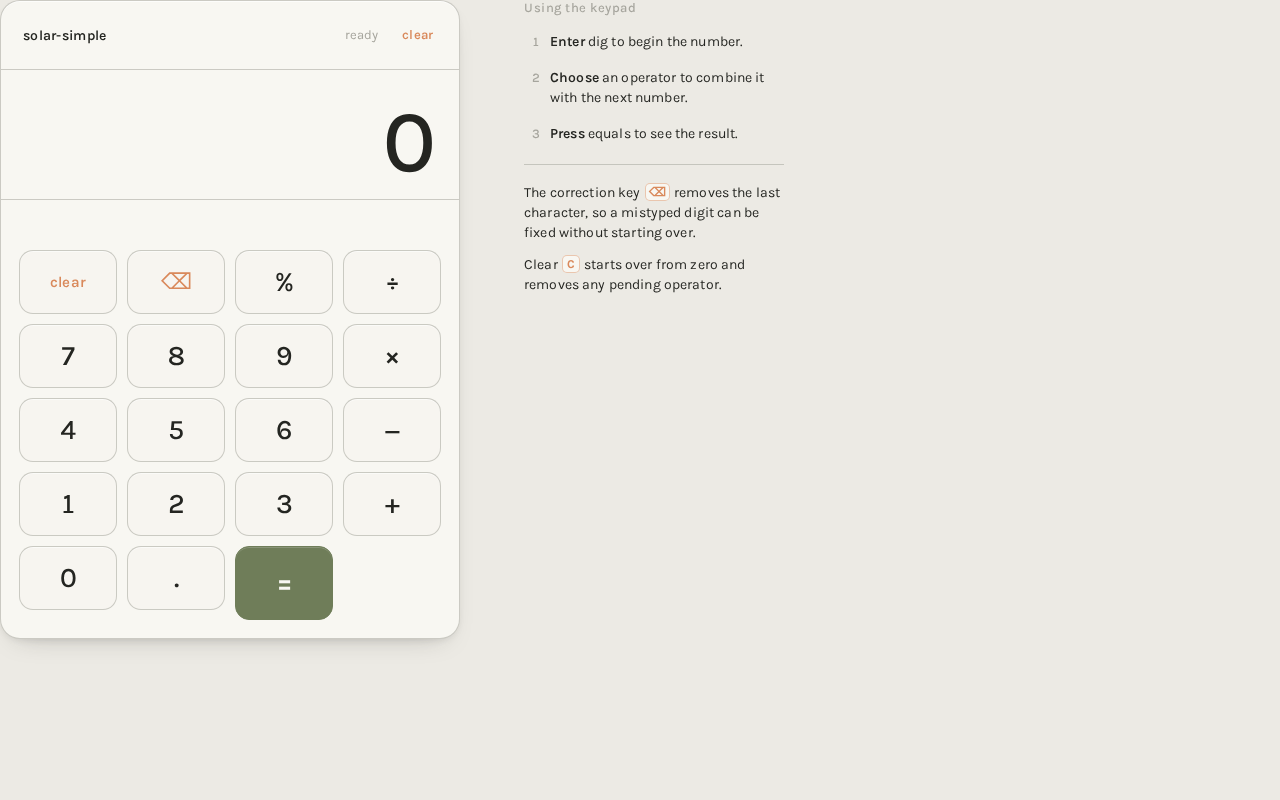
Using the keypad
Enter dig to begin the number.
Choose an operator to combine it with the next number.
Press equals to see the result.
The correction key ⌫ removes the last character, so a mistyped digit can be fixed without starting over.
Clear C starts over from zero and removes any pending operator.
Using the keypad
Enter dig to begin the number.
Choose an operator to combine it with the next number.
Press equals to see the result.
The correction key ⌫ removes the last character, so a mistyped digit can be fixed without starting over.
Clear C starts over from zero and removes any pending operator.
No comments yet. Be the first!