silver-modern
 Israel Ayomide
Build a modern, full-featured Ever Editing App for creating and editing videos, images, and social media content. Include a clean dashboard, project management, drag-and-drop media upload, timeline editor, text overlays, filters, transitions, audio editing, templates, export options, and autosave. Make the UI professional, fast, responsive, and beginner-friendly, with dark and light mode support.


Comments (0)
Sign in to leave a comment
System Requirements
System Requirements Document for silver-modern
1. Introduction
silver-modern is a modern, full-featured Ever Editing App for creating and editing videos, images, and social media content. It gives independent creators, small marketing teams, and social media managers a single browser-based studio where they can start a project, drag media in, arrange it on a timeline, layer text, filters, transitions, and audio, apply templates, and export finished content — without advanced editing expertise.
The product intent is a professional instrument with attitude: a dark-first cutting room that stays readable and obvious for beginners, backed by autosave so work is never lost, and delivered with a clean dashboard for organizing a library of ongoing projects. The audience is the working creator who lives inside the tool for hours and needs speed, responsiveness, and a UI that never tints the footage.
2. System Overview
silver-modern is a browser-delivered, application-owned editing studio. Two accepted human personas use it: the Content Creator, who does the hands-on editing work, and the Project Manager / Organizer, who curates and tracks the project library. Both are active human actors; there are no other accepted personas.
Current delivery is a first-party custom UI with application-owned identity. Anonymous visitors meet a public Landing page, establish identity through Sign Up or return through Login, and then work inside protected destinations: the Dashboard (project library, creation, tracking, theme controls), the Editor (drag-and-drop media upload, timeline editing, text overlays, filters, transitions, audio editing, templates, autosave), and Export (export options and finished output). Backend persistence holds projects, media-editing state, export state, and autosave continuity.
Narrow exclusions: no invitation, provisioning, or deployment-bootstrap enrollment path is accepted — enrollment is self-service only. No differentiated permissions, roles, or role-based visibility over shared product state are established; identity provides continuity of a user's own projects, not tiered control. No collaboration, commenting, or multi-editor workflow is accepted. No third-party provider surface owns any accepted editing capability.
2a. Product Interpretation and Delivery Boundary
Everything the user asked for is current and first-party. The app owns its own identity because creators must privately own and resume durable, autosaved project state across sessions; that is why Sign Up and Login exist as anonymous entry boundaries and why Dashboard, Editor, and Export are protected. The Landing page is the anonymous public entry that explains the studio and its video, image, and social content editing capabilities before any account exists.
The editing lifecycle is deliberately split: the Dashboard owns the library-level responsibilities of creating, naming, organizing, tracking, opening, and resuming projects plus interface theme control; the Editor owns the working context of a single project — its media, timeline, overlays, filters, transitions, audio, templates, and autosaved state; Export owns the completion outcome of choosing export options and producing finished video, image, or social media content. These are separate because their working context, authoritative state, access boundary, and completion outcome differ.
Nothing in the current scope is deferred. There is no future-horizon feature set beyond the accepted requirements, and no provider-owned or headless delivery path is accepted.
2b. Source Content Inventory
Not applicable. No reference directive declares a content_source, so no source content inventory is included.
2c. Page Content and Component Coverage
Landing
- Information/state: Anonymous public entry. Full-bleed black field. Oversized left-aligned Archivo Black headline "EDIT LIKE YOU MEAN IT" spanning columns 1–9 with the word "MEAN" knocked out in accent #FF3B1F; one line of 16px body copy describing the Ever Editing App and its video, image, and social content editing capabilities; a monochrome editorial video still of a creator at a colour-grading desk bleeding off the right and bottom edges with a thin silver rule and a mono caption "FRAME 00:12:04 — GRADE / WARM"; a decorative hairline timeline strip along the bottom edge with a ticking playhead.
- Primary actions: "START A PROJECT" sharp-cornered accent CTA leading to Sign Up; "WATCH THE 40s CUT" silver ghost button.
- Supporting actions: Navigate to Login for returning users.
- Domain entities: None persisted; presentation only.
- Component responsibilities: Hero headline block; body copy block; CTA pair; bleeding editorial image frame with silver rule and mono caption; decorative timeline hairline strip; section rules with mono folio captions.
- States: Loading — static content, no data fetch. Empty — not applicable. Success — page renders fully at 375px, 768px, and 1280px with headline, copy, CTAs, and caption whole inside the viewport. Error — not applicable. Recovery — under
prefers-reduced-motionall reveals become instant and the headline sits static; the decorative timeline strip stops.
Login
- Information/state: Anonymous returning-verification surface. Sharp-cornered form panel on the black ground with hairline borders; mono caps field labels; no decorative chrome competing with the form.
- Primary actions: Submit credentials to verify identity and resume protected projects and autosaved work.
- Supporting actions: Navigate to Sign Up when the visitor has no account; return to Landing.
- Domain entities: User identity (email/credential), session.
- Component responsibilities: Credential form; submit control; inline validation messaging; link to Sign Up.
- States: Loading — submit control shows in-progress state while verification runs. Empty — pristine form. Success — identity verified, session established, redirect to Dashboard. Error — invalid credentials shown as inline message with the form preserved for retry. Recovery — user corrects input and resubmits, or switches to Sign Up.
Sign Up
- Information/state: Anonymous self-service enrollment surface. Same sharp-cornered hairline form language as Login; mono caps labels; no invitation or provisioning path.
- Primary actions: Submit new account details to establish identity.
- Supporting actions: Navigate to Login for existing accounts; return to Landing.
- Domain entities: User identity (email/credential), session.
- Component responsibilities: Enrollment form; submit control; inline validation messaging; link to Login.
- States: Loading — submit control shows in-progress state while the account is created. Empty — pristine form. Success — identity established, session started, redirect to Dashboard. Error — validation or duplicate-account message shown inline with input preserved. Recovery — user corrects input and resubmits, or switches to Login.
Dashboard
- Information/state: Authenticated hub. Three-zone asymmetric layout: narrow left icon rail (72px, expanding to a 240px media bin), dominant centre stage, right inspector column (320px). Oversized Archivo greeting headline; project library as flat sharp-cornered tiles with hairline borders; per-project status and last-edited timecode in Space Mono; interface theme control for dark and light mode.
- Primary actions: Create a new project; open an existing project into the Editor; resume the most recent project.
- Supporting actions: Rename a project; organize and track projects by status; switch interface theme between dark and light mode.
- Domain entities: Project (name, status, last-edited timestamp, thumbnail), user identity, theme preference.
- Component responsibilities: Greeting headline block; project creation control; project tile grid with status and timecode; rename control; theme toggle; left icon rail; right inspector column.
- States: Loading — project tiles show skeleton placeholders in the centre stage. Empty — first-use state with a plain-spoken prompt to create the first project and the creation control prominent. Success — project library renders with statuses and timestamps; newly created or renamed project appears immediately. Error — library load failure shows an inline retry affordance without losing the creation control. Recovery — retry reloads the library; a failed rename restores the previous name and allows another attempt.
Editor
- Information/state: Authenticated single-project workspace. Three-zone split: 72px icon rail expanding to a 240px media bin, dominant centre preview stage with a thin silver rule around the content, and a 320px right inspector column. A full-width timeline band is pinned to the bottom third of the viewport, always visible, never inside a card, with flat sharp-cornered clips, a 3px accent left edge on the selected clip, and a mono timecode ruler. Autosave status is a mono caps line in the top rail — "AUTOSAVED 00:12" — that pulses accent #FF3B1F for 400ms on each save then settles to muted grey. Headings collapse to compact 13–15px caps labels so the timeline owns the screen.
- Primary actions: Drag and drop media into the bin and onto the timeline; arrange, trim, and reorder clips; add text overlays; apply filters; place transitions between clips; edit audio; apply a template; play and scrub the timeline.
- Supporting actions: Select a clip; scrub-preview a media tile on hover; scrub a 2-second preview inside a template tile; deselect; navigate to Export.
- Domain entities: Project, media asset (video, image, audio), timeline clip, text overlay, filter, transition, audio track, template, autosave revision.
- Component responsibilities: Media bin with drag-and-drop drop zone; centre preview stage with silver rule; timeline band with clip blocks, 3px accent selected edge, diagonal transition wedges, and mono timecode ruler; playhead; text overlay controls; filter swatch grid; transition wedge control; audio editing controls; template swatch grid; autosave status line; right inspector column.
- States: Loading — media bin and timeline show placeholders while project state loads. Empty — new project with an empty bin and empty timeline prompting drag-and-drop upload. Success — clips render on the timeline, edits apply to the preview, and the autosave line pulses accent on each save. Error — a failed upload or failed save surfaces an inline message in the top rail or bin without discarding existing edits. Recovery — retry the upload or save; autosave retries and the status line returns to muted grey once a save succeeds.
Export
- Information/state: Authenticated completion destination for a finished project. Sharp-cornered option panel with hairline dividers; mono caps labels; Space Mono numeric values; accent #FF3B1F reserved for the export CTA.
- Primary actions: Select export options and start the export of finished video, image, or social media content.
- Supporting actions: Return to the Editor to continue editing; return to the Dashboard.
- Domain entities: Project, export job (options, status, output), output file.
- Component responsibilities: Export option controls; export CTA; export progress and result display; navigation back to Editor and Dashboard.
- States: Loading — option panel populates from the project's current state. Empty — no export started yet; options shown with the CTA ready. Success — export completes and the finished output is presented as available. Error — export failure shows an inline message with the selected options preserved. Recovery — user adjusts options and retries, or returns to the Editor to fix the project.
3. Functional Requirements
FR-1 — Full-featured editing app for video, image, and social media content (explicit) As a Content Creator, I should create and edit videos, images, and social media content in one app, so that I can produce finished content without leaving the studio.
- Trigger/input: Opening a project in the Editor.
- Observable result: The project workspace accepts video, image, and audio media and produces edited video, image, or social media output.
- Access state: Authenticated.
- Failure/recovery: If project state fails to load, an inline retry is offered and existing edits are not discarded.
- Continuation: The creator continues editing or proceeds to Export.
FR-2 — Clean dashboard (explicit) As a Content Creator or Project Manager / Organizer, I should land on a clean dashboard after signing in, so that I can see my projects and start work immediately.
- Trigger/input: Successful identity verification.
- Observable result: The Dashboard renders with the project library, creation control, and theme control in a three-zone asymmetric layout.
- Access state: Authenticated.
- Failure/recovery: Library load failure shows an inline retry without losing the creation control.
- Continuation: Create a project, open one, or resume the most recent.
FR-3 — Project management (explicit) As a Project Manager / Organizer, I should create, name, open, organize, and track my editing projects, so that every project is findable, current, and ready to continue.
- Trigger/input: Creating a project, renaming a project, or opening a project from the Dashboard.
- Observable result: The project appears in the library with its name, status, and last-edited timecode; opening it loads that project into the Editor.
- Access state: Authenticated.
- Failure/recovery: A failed rename restores the previous name and allows another attempt.
- Continuation: The organizer returns to the library or continues into the Editor.
FR-4 — Drag-and-drop media upload (explicit) As a Content Creator, I should drag and drop media into the project, so that getting footage in is fast and beginner-friendly.
- Trigger/input: Dragging video, image, or audio files onto the media bin or timeline drop zone.
- Observable result: The media appears in the bin and is available to place on the timeline.
- Access state: Authenticated.
- Failure/recovery: A failed upload surfaces an inline message in the bin without discarding existing edits; the creator can retry.
- Continuation: The creator drags the media onto the timeline.
FR-5 — Timeline editor (explicit) As a Content Creator, I should arrange, trim, and reorder clips on a timeline, so that I can build the sequence of my content.
- Trigger/input: Dragging clips on the timeline band, selecting a clip, or scrubbing the playhead.
- Observable result: Clips render as flat sharp-cornered blocks with a 3px accent left edge on the selected clip; the preview reflects the arrangement; the playhead moves at true 1:1 with time.
- Access state: Authenticated.
- Failure/recovery: If a save fails, the autosave status line reports it and retries without discarding the arrangement.
- Continuation: The creator adds overlays, filters, transitions, or audio, or proceeds to Export.
FR-6 — Text overlays (explicit) As a Content Creator, I should add text overlays to my content, so that I can title and caption what viewers see.
- Trigger/input: Adding a text overlay from the inspector and editing its content.
- Observable result: The overlay renders over the preview and is bound to its position on the timeline.
- Access state: Authenticated.
- Failure/recovery: An invalid or empty overlay is not committed; the previous state is preserved.
- Continuation: The creator adjusts the overlay or continues editing.
FR-7 — Filters (explicit) As a Content Creator, I should apply filters to my content, so that I can set the look of the footage.
- Trigger/input: Selecting a filter from the square swatch grid.
- Observable result: The filter applies to the selected clip and the preview updates; swatches desaturate at rest and snap to full colour on hover.
- Access state: Authenticated.
- Failure/recovery: Removing or replacing a filter restores the prior look.
- Continuation: The creator stacks another filter, adds a transition, or continues editing.
FR-8 — Transitions (explicit) As a Content Creator, I should place transitions between clips, so that cuts between shots feel intentional.
- Trigger/input: Dragging a transition onto the boundary between two clips.
- Observable result: The transition renders as a hard-edged diagonal wedge cut into the track, and dragging it shows the two adjacent frames crossfading live inside the wedge.
- Access state: Authenticated.
- Failure/recovery: Dropping a transition where no adjacent clip boundary exists leaves the timeline unchanged.
- Continuation: The creator adjusts the transition or continues editing.
FR-9 — Audio editing (explicit) As a Content Creator, I should edit the audio in my project, so that the sound matches the picture.
- Trigger/input: Adjusting audio on a clip or audio track from the inspector.
- Observable result: The audio change is reflected in the project and persists with the autosaved state.
- Access state: Authenticated.
- Failure/recovery: A failed audio change leaves the previous audio state intact.
- Continuation: The creator continues editing or proceeds to Export.
FR-10 — Templates (explicit) As a Content Creator, I should apply templates to my content, so that I can start from a proven layout instead of a blank timeline.
- Trigger/input: Selecting a template from the square swatch grid; hovering a template scrubs a 2-second preview inside the tile.
- Observable result: The template's structure is applied to the project and shown as a real rendered frame, not an icon abstraction.
- Access state: Authenticated.
- Failure/recovery: Applying a template over existing work preserves the prior state so the creator can return to it.
- Continuation: The creator customizes the templated content or proceeds to Export.
FR-11 — Export options (explicit) As a Content Creator, I should choose export options and export my finished content, so that I can publish video, image, or social media output.
- Trigger/input: Selecting export options on the Export page and starting the export.
- Observable result: The export runs and the finished output becomes available.
- Access state: Authenticated.
- Failure/recovery: Export failure shows an inline message with the selected options preserved so the creator can retry.
- Continuation: The creator returns to the Editor to fix the project or to the Dashboard to start another.
FR-12 — Autosave (explicit) As a Content Creator, I should have my work saved automatically, so that I never lose edits.
- Trigger/input: Any edit in the Editor.
- Observable result: The mono caps status line in the top rail reads "AUTOSAVED 00:12", pulses accent #FF3B1F for 400ms on each save, then settles to muted grey.
- Access state: Authenticated.
- Failure/recovery: A failed save is reported on the status line and retried; edits are not discarded.
- Continuation: The creator keeps editing with confidence that state is persisted.
FR-13 — Professional, fast, responsive, beginner-friendly UI (explicit) As a Content Creator or Project Manager / Organizer, I should use a UI that is professional, fast, responsive, and beginner-friendly, so that I can work for hours without friction and without advanced editing expertise.
- Trigger/input: Any interaction at 375px, 768px, or 1280px.
- Observable result: Headlines, labels, numbers, media, cards, and controls stay whole inside the viewport and their container; obvious affordances and readable chrome are present; interactions respond without perceptible delay.
- Access state: Applies on all pages, anonymous and authenticated.
- Failure/recovery: Where content cannot fit, it wraps or scales rather than being clipped or covered.
- Continuation: The user continues working at any supported viewport.
FR-14 — Dark and light mode (explicit) As a Content Creator or Project Manager / Organizer, I should switch between dark and light mode, so that I can work in the environment that suits me.
- Trigger/input: Using the theme control on the Dashboard.
- Observable result: The interface switches between the dark-first cutting-room palette and the genuine light-mode palette; the choice persists with the user's state.
- Access state: Authenticated.
- Failure/recovery: If the preference fails to persist, the interface still switches for the current session.
- Continuation: The user continues working in the chosen mode.
FR-15 — Self-service enrollment before first protected project use (required_inference) As a Content Creator or Project Manager / Organizer, I should establish my own account before using protected project features, so that my projects and autosaved work belong to me.
- Trigger/input: Choosing "START A PROJECT" on Landing and submitting the Sign Up form.
- Observable result: Identity is established, a session starts, and the user reaches the Dashboard.
- Access state: Anonymous entry; protected state remains unavailable until identity is established.
- Failure/recovery: Validation or duplicate-account errors are shown inline with input preserved for correction.
- Continuation: The user creates a first project or opens an existing one.
FR-16 — Returning verification before resuming protected projects and autosaved work (required_inference) As a Content Creator or Project Manager / Organizer, I should verify my identity when I return, so that I can resume my projects and autosaved work exactly where I left off.
- Trigger/input: Submitting credentials on Login.
- Observable result: Identity is verified, a session starts, and the user's project library and autosaved state are available.
- Access state: Anonymous entry; protected destinations remain unavailable until verification succeeds.
- Failure/recovery: Invalid credentials show an inline message with the form preserved for retry.
- Continuation: The user opens a project into the Editor or manages the library.
FR-17 — Backend persistence for projects, media-editing state, export state, and autosave continuity (required_inference) As a Content Creator or Project Manager / Organizer, I should have my projects, editing state, export state, and autosaves persisted, so that my work survives across sessions and devices.
- Trigger/input: Creating a project, editing in the Editor, or running an export.
- Observable result: Project records, media-editing state, export state, and autosave revisions are stored and restored on return.
- Access state: Authenticated; state is bound to the owning user.
- Failure/recovery: A failed write is reported through the autosave status line and retried.
- Continuation: The user resumes work in a later session.
4. User Personas
Content Creator
Product context: The Content Creator is the primary active user of silver-modern. They work inside the Editor for extended sessions, producing videos, images, and social media content. They are not necessarily trained editors — beginner-friendliness is a promise made to them directly — but they expect a professional instrument, not a toy.
Primary goal: Produce a polished, shareable piece of content quickly, without advanced editing expertise, and without ever losing work.
Distinct accepted responsibilities: Drag-and-drop media upload (FR-4); timeline arrangement, trimming, and reordering (FR-5); text overlays (FR-6); filters (FR-7); transitions (FR-8); audio editing (FR-9); applying templates (FR-10); choosing export options and exporting (FR-11); relying on autosave (FR-12).
Relevant inputs or decisions: Which media to bring in and in what order; where cuts fall on the timeline; what text appears and when; which filter and transition set the look; how audio sits against picture; whether to start from a template or a blank timeline; which export options match the destination platform.
Interactions with other accepted participants: The Content Creator shares the Dashboard and the project library with the Project Manager / Organizer, and shares the identity boundaries (Landing, Sign Up, Login) with them. The creator's editing work is what the organizer's library tracks and resumes.
Observable success: A finished video, image, or social media output produced from the Export page, with the autosave status line confirming that every step along the way was persisted.
Project Manager / Organizer
Product context: The Project Manager / Organizer works at the library level rather than the frame level. They keep multiple ongoing projects organized and current, and they are the persona for whom the Dashboard is the primary working surface.
Primary goal: Every project is findable, current, and ready to continue.
Distinct accepted responsibilities: Creating, naming, opening, organizing, and tracking projects from the Dashboard (FR-3); resuming work where it was left off (FR-16, FR-17); controlling the interface theme between dark and light mode (FR-14).
Relevant inputs or decisions: What to name a project; how to organize and track its status; which project to open next; which theme suits the working environment.
Interactions with other accepted participants: The organizer shares the project library with the Content Creator and depends on the creator's autosaved editing state being current when a project is reopened. Both personas pass through the same identity boundaries.
Observable success: A project library where each project shows an accurate status and last-edited timecode, and where opening any project resumes exactly the state that was last autosaved.
5. Core User Flows
Flow 1 — Content Creator: first project from scratch to export
- The Content Creator arrives anonymously on Landing and reads the oversized headline "EDIT LIKE YOU MEAN IT" and the single line of body copy describing the Ever Editing App and its video, image, and social content editing capabilities.
- The creator selects the sharp-cornered accent CTA "START A PROJECT" and lands on Sign Up.
- The creator submits the enrollment form. Identity is established, a session starts, and the creator is taken to the Dashboard. If validation fails, an inline message appears and the input is preserved for correction.
- On the Dashboard, the creator selects the project creation control. A new project appears in the library with a name and a last-edited timecode.
- The creator opens the new project into the Editor. The media bin and timeline are empty and prompt for drag-and-drop upload.
- The creator drags video, image, and audio files onto the media bin. The media appears in the bin. If an upload fails, an inline message appears in the bin and the creator retries without losing anything already in the project.
- The creator drags media from the bin onto the timeline band. Clips render as flat sharp-cornered blocks; the selected clip shows a 3px accent left edge; the preview stage reflects the arrangement.
- The creator trims and reorders clips. The playhead moves at true 1:1 with time as the creator scrubs.
- The creator adds a text overlay from the inspector and edits its content. The overlay renders over the preview.
- The creator opens the filter swatch grid, hovers tiles to see them snap to full colour, and selects a filter. The look applies to the selected clip and the preview updates.
- The creator drags a transition onto the boundary between two clips. A hard-edged diagonal wedge is cut into the track, and while dragging, the two adjacent frames crossfade live inside the wedge.
- The creator adjusts audio from the inspector so the sound matches the picture.
- At any point, the creator may open the template swatch grid and hover a template to scrub a 2-second preview inside the tile, then apply it. Applying a template over existing work preserves the prior state so the creator can return to it.
- Throughout steps 6–13, the autosave status line in the top rail reads "AUTOSAVED 00:12", pulses accent #FF3B1F for 400ms on each save, then settles to muted grey. If a save fails, the status line reports it and retries without discarding edits.
- The creator navigates to Export, selects export options, and starts the export. The export runs and the finished output becomes available. If the export fails, an inline message appears with the selected options preserved, and the creator retries or returns to the Editor to fix the project.
- The creator returns to the Dashboard to start another project, or closes the session knowing the work is persisted.
Flow 2 — Content Creator: returning to resume autosaved work
- The Content Creator returns and selects the path to Login from Landing.
- The creator submits credentials. Identity is verified, a session starts, and the creator reaches the Dashboard with the project library and autosaved state available. If credentials are invalid, an inline message appears and the form is preserved for retry.
- The creator opens the project they were working on. The Editor loads the project's media, timeline arrangement, overlays, filters, transitions, audio, and template state exactly as last autosaved.
- The creator continues editing, with the autosave status line confirming each save.
- The creator proceeds to Export when the content is ready.
Flow 3 — Project Manager / Organizer: keeping the library current
- The Project Manager / Organizer arrives on Landing and selects "START A PROJECT" or navigates to Login.
- On Sign Up or Login, the organizer establishes or verifies identity and reaches the Dashboard.
- The organizer reviews the project library, reading each project's status and last-edited timecode in Space Mono.
- The organizer creates a new project and names it. It appears immediately in the library.
- The organizer renames an existing project to reflect its current state. If the rename fails, the previous name is restored and the organizer tries again.
- The organizer organizes and tracks projects by status so that each one is findable and current.
- The organizer switches the interface theme between dark and light mode using the theme control. The interface switches; the choice persists with the organizer's state. If the preference fails to persist, the interface still switches for the current session.
- The organizer opens a project to check its state, or leaves the library knowing every project is ready to continue.
Flow 4 — Content Creator: starting from a template
- The Content Creator is authenticated and inside the Editor with a project open.
- The creator opens the template swatch grid and hovers tiles, each scrubbing a 2-second preview inside the tile.
- The creator selects a template. Its structure is applied to the project and shown as a real rendered frame.
- The creator replaces the template's placeholder media with their own drag-and-drop uploads.
- The creator customizes text overlays, filters, transitions, and audio on top of the template.
- Autosave persists each change with the accent pulse on the status line.
- The creator proceeds to Export and produces the finished content.
6. Visuals Colors and Theme
Muse: Tobias van Schneider. Headline direction: Editorial swagger for a cutting room — black canvas, silver type, one hot signal.
The register is focused craft and creative control: the user is inside a dark cutting room for hours, so the tool must feel like a professional instrument with attitude. Beginner-friendly means obvious affordances and readable chrome, not a soft or childish surface.
Dark mode (default, dark-first):
| Role | Value |
|---|---|
| Background | #0B0B0C |
| Surface (timeline tracks, media bins, inspector) | #141416 |
| Text | #F4F2ED |
| Primary (silver chrome, scrubbers, neutral buttons) | #E8E6E1 |
| Accent (record dot, playhead, active clip edge, export CTA, selected tool, autosave pulse) | #FF3B1F |
| Muted (secondary copy) | #8A8A8E |
| Hairlines | rgba(244,242,237,0.12) |
Light mode (genuine, not an inverted afterthought):
| Role | Value |
|---|---|
| Background | #F4F2ED |
| Surface | #FFFFFF |
| Text | #0B0B0C |
| Accent (darkened for AA contrast on light ground) | #C42A12 |
| Chrome | Same silver chrome as dark mode |
Proportion: roughly 70% black, 20% silver/grey chrome, 7% off-white type, 3% accent. The accent is rationed. Never blue, never indigo, never a gradient blob.
Typography:
- Headings: Archivo — Display weights 700–900, tight tracking (-0.03em), tight leading (0.92–0.98) for oversized editorial moments; short labels in 600 caps with +0.14em tracking.
- Body: Archivo.
- Numeric and timecode data: Space Mono 12–13px tabular.
- Scale: 1.333 modular with editorial jumps — hero
clamp(56px, 11vw, 168px); page titlesclamp(32px, 5vw, 64px); section heads 28/22; body 16/15; UI labels 13; micro caps 11 with 0.14em tracking. - Inside the Editor, headings collapse to compact 13–15px caps labels so the timeline owns the screen.
Shape language: Sharp corners everywhere (0–2px radius) — panels, buttons, clip blocks, modals. Hard 1px hairlines instead of shadows. Timeline clips are flat rectangles with a 3px accent left edge for the selected clip; transitions render as hard-edged diagonal wedges between clips; filters render as square swatch tiles. The only soft forms are the video/image content itself inside the preview frame, which gets a thin silver rule rather than a rounded container.
Spacing rhythm: Asymmetric editorial grid — 12 columns with a deliberately off-centre gutter. Dashboard and Editor use a three-zone split: narrow left rail (72px icon rail, expanding to 240px media bin), dominant centre stage, right inspector column (320px), with the centre stage intentionally wider than any balanced 50/50 split. Section transitions are hard horizontal rules with a small mono caption above, like magazine folios.
Imagery style: Large-scale editorial photography and video stills treated monochrome with one accent retained — creator hands on a keyboard, a colour-graded frame, a camera on a table, a phone filming a product. Media thumbnails in the bin are desaturated until hovered, when full colour returns. No illustrations, no 3D blobs, no stock "team smiling at laptop". Overlay templates are shown as real rendered frames, not icon abstractions.
7. Signature Design Concept
The Landing page is a full-bleed black #0B0B0C field, not a centred SaaS stack. Left-aligned, an oversized Archivo Black headline — "EDIT LIKE YOU MEAN IT" — spans columns 1–9 at clamp(56px, 11vw, 168px), set in warm off-white #F4F2ED with the word "MEAN" knocked out in accent #FF3B1F. Below it sits a single line of 16px body copy and one sharp-cornered accent CTA "START A PROJECT" plus a silver ghost "WATCH THE 40s CUT".
To the right, a monochrome video still of a creator at a colour-grading desk bleeds off the right and bottom edges of the viewport, framed by a thin silver rule and a mono caption "FRAME 00:12:04 — GRADE / WARM". Along the very bottom edge of the hero, a live timeline strip runs as a decorative hairline of clip blocks with the playhead ticking.
No gradient, no blob, no centred composition. The headline, body copy, both CTAs, and the mono caption stay whole inside the viewport at 375px, 768px, and 1280px; only the decorative image bleed and the decorative timeline hairline cross the edge.
8. Interaction Model & Motion Direction
Interaction Model: Static Motion Tempo: restrained Hero Dimensionality: flat
Landing Hero Motion Brief
- Focal subject: The oversized Archivo Black headline "EDIT LIKE YOU MEAN IT" with "MEAN" knocked out in accent
#FF3B1F, paired with the monochrome colour-grading-desk still bleeding off the right and bottom edges. - Input → transformation → outcome thesis: As the page settles, the headline reveals with a slow type reveal (600–900ms, ease-out, no bounce) and the monochrome still crossfades in behind its silver rule; the decorative timeline hairline at the bottom edge ticks its playhead. The outcome is a composed editorial first frame that reads as a cutting room, not a marketing page — using only the accepted Landing content and controls.
- Motion vocabulary: Slow crossfades and type reveals, 600–900ms, ease-out, no bounce. Hover on media tiles swaps the still for a scrub-preview with a 200ms crossfade. Clip drags snap with a 120ms hard settle. The playhead moves at true 1:1 with time, never eased. Autosave announces itself with a 400ms accent pulse on a mono "SAVED 00:12" label.
- Composed first frame: Black field; headline occupying columns 1–9 with "MEAN" in accent; one line of body copy; the accent CTA and silver ghost button beneath; the monochrome still bleeding off the right and bottom with its silver rule and mono caption; the decorative timeline hairline along the bottom edge with the playhead at rest.
- Reduced-motion state: Under
prefers-reduced-motionall reveals become instant and the landing type simply sits static; the decorative timeline strip stops and shows whole clip blocks.
9. Non-Functional Requirements
NFR-1 — Professional, fast, responsive, beginner-friendly UI (explicit) The UI must be professional, fast, responsive, and beginner-friendly. Rationale: stated directly as a hard constraint. Fast means interactions respond without perceptible delay; responsive means the layout holds at 375px, 768px, and 1280px; beginner-friendly means obvious affordances and readable chrome rather than jargon-dense controls.
NFR-2 — Dark and light mode support (explicit) The app must support both dark and light mode. Rationale: stated directly as a hard constraint. The editor is dark-first with a genuine light mode, not an inverted afterthought.
NFR-3 — Readable content stays whole at every viewport (explicit, from the creative direction)
Headlines, wordmarks, labels, numbers, item images, cards, and controls stay entirely inside the viewport and their container at 375px, 768px, and 1280px, wrapping or scaling (for example font-size: clamp(...) with its mobile size) to fit, and no other element covers any part of them. Crops, bleeds, and off-edge placement are for decoration only: shapes, textures, rules, and background art. Moving and scrollable content (marquees, tickers, carousels, horizontally scrollable rows) may cross the viewport or container edge by design and is judged by whether it actually moves or scrolls and whether every item becomes fully readable as it passes. With prefers-reduced-motion it stops and shows whole items: they wrap into rows, or sit in a horizontally scrollable row (overflow-x: auto) whose further items are reached by scrolling.
NFR-4 — Palette and typography fidelity (explicit, from the creative direction) The dark-first palette, the silver chrome, the single rationed accent, and the Archivo / Space Mono type system are binding. Blue, indigo, and their neighbours are forbidden anywhere; Inter, Roboto, Arial, Helvetica, Open Sans, Lato, Poppins, and system-ui are forbidden for headings and body; gradient-blob heroes, soft glass cards, grids of identical hover-lift cards, rounded 16px+ cards, pill buttons, and drop shadows as the default container language are forbidden.
NFR-5 — Persistence and continuity (required_inference) Projects, media-editing state, export state, and autosave revisions must be persisted server-side and bound to the owning user, so that work survives across sessions. Rationale: required to make the accepted autosave and resume journeys executable.
NFR-6 — Identity continuity without differentiated permissions (required_inference) Application-owned identity provides continuity of a user's own projects and autosaved work. No RBAC, role-based visibility, or permission tiering over shared product state is established by the source, and none is to be added.
10. Tech Stack
- Frontend: React — a browser-delivered custom UI with the three-zone editor layout, drag-and-drop media handling, and the timeline band.
[Default — not specified by user] - Backend: Python / FastAPI — serving project, media-editing state, export state, and autosave persistence.
[Default — not specified by user] - Storage: Relational database for projects, media assets, timeline state, export jobs, and autosave revisions, plus object storage for uploaded media and rendered output.
[Default — not specified by user] - Containerization: Docker and docker-compose for local and single-host deployment.
[Default — not specified by user] - Orchestration: Kubernetes is not required by any accepted requirement and is omitted.
[Default — not specified by user]
No source-specified technology choices were given, so the above are labeled defaults and carry no product behavior.
11. Assumptions and Constraints
Assumptions
- A1: Enrollment is self-service only. No invitation, provisioning, or deployment-bootstrap path exists, because the source establishes independently starting users and no such boundary. (required_inference)
- A2: Identity exists to bind durable projects and autosaved work to the correct user, not to differentiate permissions. (required_inference)
- A3: The Landing page is anonymously reachable; Dashboard, Editor, and Export require identity. Login and Sign Up are anonymous entry boundaries, since a protected destination cannot own the interaction that establishes access to itself. (required_inference)
- A4: Media upload accepts video, image, and audio, matching the accepted content types. (required_inference)
- A5: Export produces video, image, or social media output, matching the accepted content types. (required_inference)
Constraints
- C1: The UI must be professional, fast, responsive, and beginner-friendly. (explicit)
- C2: Both dark and light mode must be supported, dark-first. (explicit)
- C3: The palette, typography, shape language, layout, and motion direction in sections 6–8 are binding. (explicit)
- C4: Blue, indigo, and their neighbours are forbidden anywhere in the product. (explicit)
- C5: Readable text and needed content stay whole at 375px, 768px, and 1280px; only decoration may crop or bleed. (explicit)
- C6: No collaboration, commenting, or multi-editor workflow is in scope. (explicit exclusion)
- C7: No differentiated permissions, roles, or role-based visibility over shared product state. (explicit exclusion)
Future Requirements
None. Every accepted requirement in the authoritative thread is current; no future-horizon features were stated.
12. Glossary
- Ever Editing App: The product category named by the user — a browser-based studio for creating and editing videos, images, and social media content.
- Content Creator: The accepted persona who performs hands-on editing work in the Editor.
- Project Manager / Organizer: The accepted persona who curates, names, organizes, and tracks the project library from the Dashboard.
- Project: A durable, user-owned unit of editing work containing media, timeline state, overlays, filters, transitions, audio, and template state.
- Media bin: The left-rail region of the Editor that holds uploaded video, image, and audio assets and accepts drag-and-drop uploads.
- Timeline: The full-width band pinned to the bottom third of the Editor, holding flat sharp-cornered clips, a mono timecode ruler, and the playhead.
- Clip: A flat rectangular block on the timeline representing a placed media asset; the selected clip carries a 3px accent left edge.
- Playhead: The timeline position indicator that moves at true 1:1 with time, never eased.
- Text overlay: Text bound to a position on the timeline and rendered over the preview.
- Filter: A look applied to a clip, presented as a square swatch tile that desaturates at rest and snaps to full colour on hover.
- Transition: A hard-edged diagonal wedge cut into the track between two clips; dragging it crossfades the two adjacent frames live inside the wedge.
- Template: A reusable project structure presented as a square swatch tile that scrubs a 2-second preview on hover and renders as a real frame.
- Autosave: The automatic persistence of editing state, announced by the mono caps status line "AUTOSAVED 00:12" that pulses accent #FF3B1F for 400ms then settles to muted grey.
- Export: The completion step on the Export page where export options are selected and finished video, image, or social media content is produced.
- Cutting room: The dark-first working environment the UI evokes — black ground, silver chrome, one hot accent.
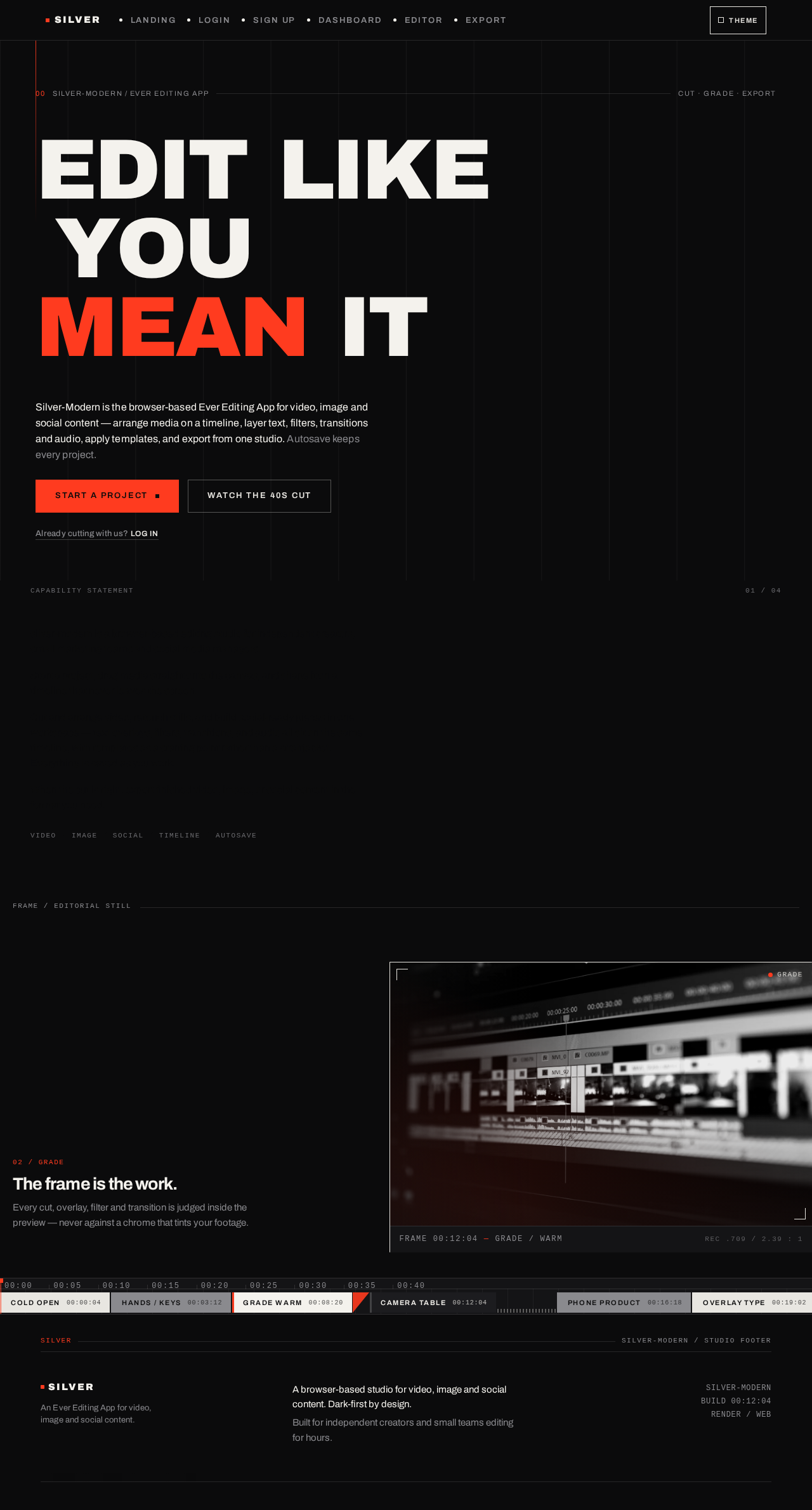
00Silver-Modern / Ever Editing App
Edit Like YouMean It
Silver-Modern is the browser-based Ever Editing App for video, image and social content — arrange media on a timeline, layer text, filters, transitions and audio, apply templates, and export from one studio. Autosave keeps every project.
Already cutting with us? Log insilver-modern capability statement
silver-modern is a browser-based editing studio for independent creators, small marketing teams and social media managers.
Start a project, drag media straight onto the canvas, and shape it on a timeline that never leaves the screen.
Cut and arrange video, retouch stills, and build social-ready pieces in one workspace — text overlays, filters, transitions, and audio all sit on the same timeline, with templates as a starting point rather than a straitjacket. Everything is saved as you work.
When the cut is right, export finished video, image, or social content in the format you need.
The frame is the work.
Every cut, overlay, filter and transition is judged inside the preview — never against a chrome that tints your footage.

FRAME 00:12:04 GRADE / WARM
00Silver-Modern / Ever Editing App
Edit Like YouMean It
Silver-Modern is the browser-based Ever Editing App for video, image and social content — arrange media on a timeline, layer text, filters, transitions and audio, apply templates, and export from one studio. Autosave keeps every project.
Already cutting with us? Log insilver-modern capability statement
silver-modern is a browser-based editing studio for independent creators, small marketing teams and social media managers.
Start a project, drag media straight onto the canvas, and shape it on a timeline that never leaves the screen.
Cut and arrange video, retouch stills, and build social-ready pieces in one workspace — text overlays, filters, transitions, and audio all sit on the same timeline, with templates as a starting point rather than a straitjacket. Everything is saved as you work.
When the cut is right, export finished video, image, or social content in the format you need.
The frame is the work.
Every cut, overlay, filter and transition is judged inside the preview — never against a chrome that tints your footage.
FRAME 00:12:04 GRADE / WARM
No comments yet. Be the first!