shiny-calculator
by Diya Trivedi
Diya Trivedistart a project to build simple single page design of calculator

Comments (0)
Sign in to leave a comment
Project Tasks
14 tasks#1
Generate system requirement document
0m 35s0.05 cr used
Done#2
Generate personas & user flows
0m 3s0.05 cr used
Done#7
Create flow for Calculator User
0m 3sCredits in parent
Done#8
Calculator
3m 3sCredits in subtasks
Done#13
Fix Calculator review findings: frontend/src/components/Calculator Instrument.jsx: the… (+1 more)
0m 12s0.02 cr used
Done#9
Calculator / Masthead
0m 43s0.85 cr used
Done#10
Calculator / Instrument
1m 23s0.85 cr used
Done#11
Fix Calculator: The visible equals key inside the keypad is explicitly disabled with; the actual working…
0m 20sCredits unavailable
Done#12
Fix Calculator: Keyboard input is attached to the via , but the section is not focusable and no input…
0m 20sCredits unavailable
Done#4
Design remaining pages
Not recorded0.05 cr needed
Done#5
Architecture
0m 12s0.05 cr used
Done#14
Create frontend_modules diagram
0m 12sCredits in parent
Done#6
Workspace task plan
1m 0s0.05 cr used
Done#15
Make the calculator compute: digits, operators, equals, clear, sign, percent
100 cr estimated
To Do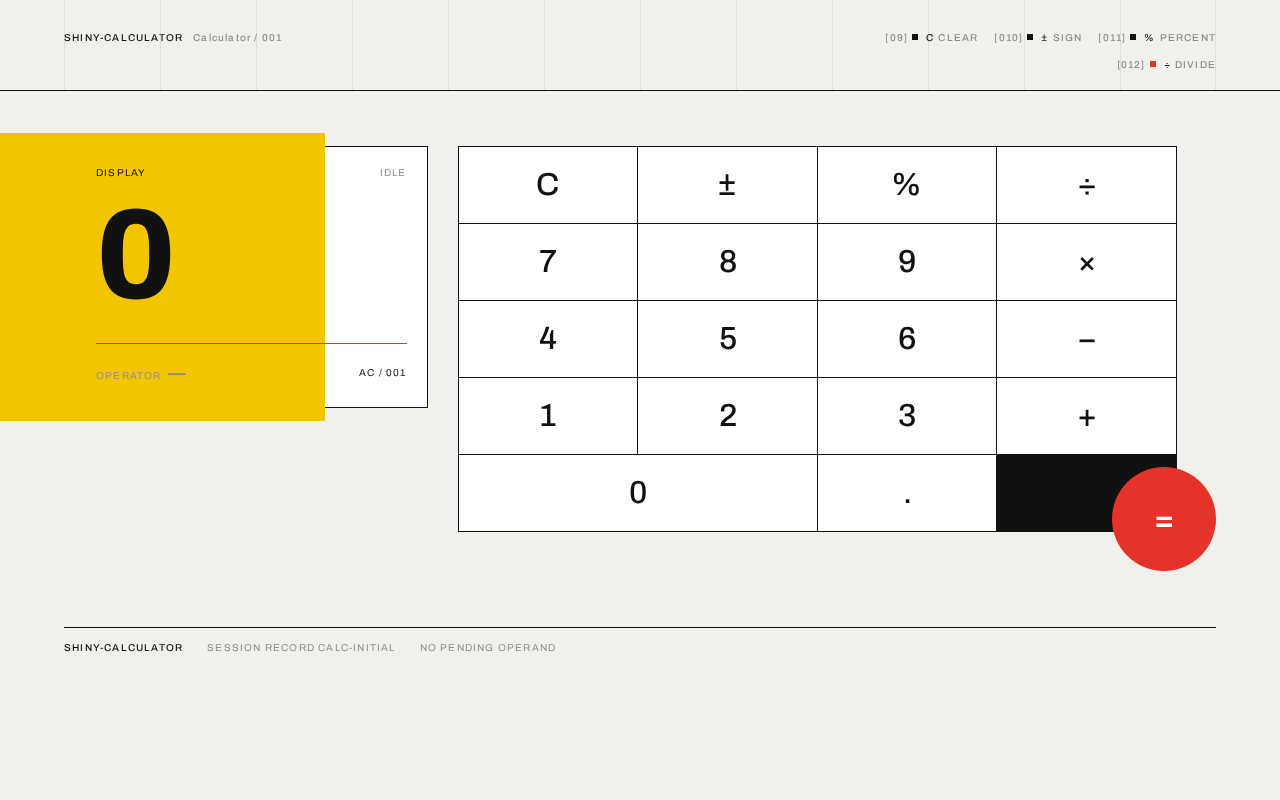
shiny-calculatorCalculator / 001
0
Operator —No active operator
shiny-calculatorSession record calc-initialNo pending operand
shiny-calculatorCalculator / 001
0
Operator —No active operator
shiny-calculatorSession record calc-initialNo pending operand
No comments yet. Be the first!