regal-calculator
 Diya Trivedi
start a project to build a simple single page design of calculator

Comments (0)
Sign in to leave a comment
System Requirements
System Requirements Document for regal-calculator
1. Introduction
regal-calculator is a simple calculator delivered as a single-page design. Its intent is narrow and complete: a person enters numbers and arithmetic operators, sees the computed result of their expression, and can clear the calculator to begin a new calculation. The product is a focused utility for everyday arithmetic performed in quick, focused bursts by anyone who needs a number fast.
The audience is the everyday calculator user — no account, no setup, no surrounding workflow. The entire product is one page, and that page is the calculator itself.
2. System Overview
regal-calculator is a single-page, browser-delivered calculator. It has exactly one page, Calculator, which is the product's anonymous public entry surface and the sole owner of all accepted behavior: entering digits and arithmetic operators, seeing the computed result, and clearing to start a new calculation.
There is one active human actor, the Calculator user, who interacts directly with the calculator chassis on the page. No other human participants are affected by the calculator's state: the result is produced for and read by the same person who entered the expression, and no commitment, transfer, or durable relationship is created for anyone else. There is no application-owned identity, no sign-in, and no persisted actor-specific state; the calculator's working state lives only in the current page session.
The visual delivery is an instrument-grade composition: a dark titanium ground, a single centred calculator chassis with a circular dial bezel around the display, ruled titanium keys, and one amber signal reserved for the equals key, the active operator, and the result caret. The machine is the composition — there is no marketing hero, no subtext, and no call to action.
Removed from scope
- None — no concept was removed by the user.
2a. Product Interpretation and Delivery Boundary
The product is delivered entirely as one first-party page. Access is anonymous and immediate: opening the page presents the calculator ready for input, with no identity establishment, verification, or session continuity required, because the accepted behavior creates no durable actor-specific state that must be privately owned or resumed.
Everything the user does — keying digits and operators, reading the result, clearing — happens on the Calculator page. There is no backend-owned workflow, no provider surface, and no external destination in the current product. Future ideas are not part of this delivery and are not represented on the page.
2c. Page Content and Component Coverage
Calculator
The single page of the product: a dark graphite field holding one centred calculator instrument. It is anonymously reachable and requires no identity.
Information and state
- The running expression line: the sequence of entered digits and operators, right-aligned, in tabular condensed numerals.
- The current result: the computed value of the expression, displayed huge and right-aligned inside the circular dial bezel like a gauge readout.
- The active operator indicator: the operator key most recently chosen is shown in amber outline so the current operation is readable at a glance.
- The result caret: a small amber needle mark beside the result that sweeps when a new result lands.
- The label stack (desktop, left of the chassis; collapsed to a single ruled strip above the chassis on mobile): 11px all-caps champagne labels MODE / MEMORY / PRECISION with ruled values beside them, presented as instrument readouts.
- The wordmark: REGAL CALCULATOR in Barlow Condensed 600 caps with a 1px champagne rule beneath and a single small amber dot beside it.
Primary actions
- Press digit keys (0–9) to append digits to the current entry.
- Press operator keys (+, −, ×, ÷) to select an operation; the selected operator shows in amber outline.
- Press the equals key (amber, spanning two rows) to compute and display the result of the entered expression.
- Press the clear key to reset the calculator and begin a new calculation.
Supporting actions
- Press the decimal point key to enter fractional values.
- Press the sign-toggle key to flip the sign of the current entry.
- Press the percent key to apply a percentage to the current entry.
Domain entities
- Expression: the ordered sequence of entered operands and operators.
- Current entry: the number being typed.
- Result: the computed value of the expression.
- Active operator: the operator awaiting its right operand.
Component responsibilities
- Chassis: rounded-rectangle titanium panel (20px outer radius) with a hairline bezel, holding the dial and key matrix.
- Dial bezel: circular SVG ring with 60 tick marks framing the display; carries the slow ambient glow pulse.
- Display: expression line and result readout, right-aligned, tabular numerals.
- Key matrix: 4×5 grid of flat titanium plate keys with 1px inset top highlights and 1px ruled gutters between rows; every key at least 56px tall and 64px wide at 375px so labels never wrap or clip; the amber equals key spans two rows.
- Topographic contour SVG: bleeds off the left viewport edge at 6% opacity behind the chassis, decoration only, covering no readable text or control.
- Label stack: champagne micro-labels with ruled values; collapses into a single header strip below 900px.
States
- Loading: not applicable — the page renders its static instrument immediately with no data fetch.
- Empty: on first load the expression line is empty and the result readout shows a neutral zero, ready for input.
- Success: after equals, the result appears in the display and the amber caret sweeps once (180ms) to mark the new result.
- Error: if an expression cannot be evaluated (for example division by zero or a malformed expression), the display shows an error indication in place of a result and the user can clear to recover.
- Recovery: the clear key always returns the calculator to the empty state so a new calculation can begin.
- Reduced motion: with
prefers-reduced-motion, key-press depression, caret sweep, and bezel pulse become instant state changes.
3. Functional Requirements
FR-1 — Single-page calculator delivery (explicit) As a Calculator user, I should get the calculator as a simple single-page design, so that the entire tool is available on one page without navigation.
- Trigger: the user opens the product.
- Observable result: the Calculator page renders the complete instrument — display, dial bezel, and key matrix — as the only page.
- Access: anonymous; no identity required.
- Failure/recovery: not applicable; the page is static and self-contained.
- Continuation: the user proceeds directly to entering a calculation.
FR-2 — Enter numbers and arithmetic operators (explicit) As a Calculator user, I should enter numbers and arithmetic operators, so that I can build the expression I want computed.
- Trigger: the user presses digit keys and operator keys on the key matrix.
- Observable result: the entered digits appear in the expression line; the chosen operator is indicated in amber outline on its key.
- Access: anonymous.
- Failure/recovery: the clear key resets the entry at any time.
- Continuation: the user presses equals to compute.
FR-3 — See the computed result (explicit) As a Calculator user, I should see the computed result of my expression, so that I get the number I needed.
- Trigger: the user presses the amber equals key.
- Observable result: the computed result appears in the display, right-aligned in tabular numerals inside the dial bezel, and the amber caret sweeps once to mark the new result.
- Access: anonymous.
- Failure/recovery: if the expression cannot be evaluated, an error indication replaces the result and the user can clear to recover.
- Continuation: the user reads the result, or continues with a new calculation.
FR-4 — Clear to begin a new calculation (explicit) As a Calculator user, I should clear the calculator, so that I can start a fresh calculation.
- Trigger: the user presses the clear key.
- Observable result: the expression line and result readout return to the empty state, and the active operator indicator is removed.
- Access: anonymous.
- Failure/recovery: not applicable; clear always succeeds.
- Continuation: the user begins entering a new expression.
FR-5 — Decimal, sign, and percent entry (required_inference) As a Calculator user, I should enter decimal points, toggle the sign of an entry, and apply a percentage, so that everyday arithmetic beyond whole positive numbers is usable.
- Trigger: the user presses the decimal point, sign-toggle, or percent key.
- Observable result: the current entry reflects the decimal point, flipped sign, or percentage value.
- Access: anonymous.
- Failure/recovery: the clear key resets the entry.
- Continuation: the user continues the expression or presses equals.
- Rationale: these are the indispensable entry mechanics for a usable arithmetic calculator; they introduce no separate user goal beyond computing an expression.
4. User Personas
Calculator user
Product context. The Calculator user needs a number fast. They arrive at the single Calculator page in a quick, focused burst — mid-task, on any device — and expect the instrument to be immediately ready. They have no account, no history, and no setup; the page is the whole product.
Primary goal. Enter an arithmetic expression and read its computed result at a glance, then clear and move on.
Distinct accepted responsibilities.
- Entering digits and arithmetic operators to build an expression.
- Reading the computed result of that expression.
- Clearing the calculator to begin a new calculation.
Relevant inputs and decisions. Which digits and operators to key, when the expression is complete enough to press equals, and when to clear rather than continue. The user reads the active operator indicator to confirm the current operation before committing with equals.
Interactions with other participants. None. The Calculator user is the sole active human actor; the result is produced for and read by the same person, and no other participant is affected.
Observable success. The result appears in the display, right-aligned and legible at a glance, and the user can clear to a fresh state for the next calculation.
5. Core User Flows
Flow 1 — Compute an arithmetic result
- The Calculator user opens the product and lands on the Calculator page; the instrument renders immediately with an empty expression line and a neutral zero result.
- The user presses digit keys; the digits appear in the expression line.
- The user presses an operator key; that key shows in amber outline, indicating the active operation.
- The user presses further digit keys for the right operand.
- The user presses the amber equals key; the computed result appears in the display inside the dial bezel, and the amber caret sweeps once to mark the new result.
- The user reads the result and continues with a new calculation or leaves the page.
Failure/recovery: if the expression cannot be evaluated (for example division by zero), an error indication replaces the result; the user presses clear and re-enters the expression.
Flow 2 — Clear and start a new calculation
- The Calculator user, having finished or abandoned a calculation, presses the clear key.
- The expression line and result readout return to the empty state and the active operator indicator is removed.
- The user begins entering a new expression, continuing from Flow 1 step 2.
Flow 3 — Enter a fractional or signed value
- The Calculator user presses digit keys, then the decimal point key, then further digits; the current entry shows the fractional value.
- Optionally, the user presses the sign-toggle key to flip the sign, or the percent key to apply a percentage; the current entry updates accordingly.
- The user presses an operator or equals to continue the calculation as in Flow 1.
6. Visuals Colors and Theme
The creative direction is authoritative: Instrument-grade arithmetic — titanium dark, one amber signal, dial-precise numerals, after the muse MARQ by Garmin.
Colour tokens (dark mode)
- Background / page ground:
#14171A(graphite titanium dark) - Surface / calculator chassis:
#1E2226(lifted titanium panel) - Bezel hairline:
#3A4045 - Text:
#EDE8DF(warm off-white, 12.5:1 on the ground) - Primary / secondary labels and rules:
#B9A888(warm champagne) - Accent / instrument signal:
#F2A33C(amber — equals key, active operator, result caret, one status dot; never more than 10% of the surface) - Muted / key hints:
#7C848B(5.2:1; never used for the display)
Typography
- Headings: Barlow Condensed 600, all caps, +0.08em tracking — wordmark and section labels.
- Display and expression: Saira Semi Condensed 500 with tabular numerals, right-aligned like a gauge readout.
- Body: Saira.
- No weights below 400 anywhere on the dark ground.
- Scale (1.25 modular): display result
clamp(56px, 11vw, 128px); expression lineclamp(20px, 3vw, 32px); key labels 22–28px; micro-labels 11px caps +0.14em; body 15–17px.
Shape language
- Rounded-rectangle chassis with 20px outer radius; 8px key radius.
- Circular bezel ring around the display like a watch dial.
- Ruled 1px dividers between key rows.
- Keys are flat titanium plates with a 1px inset top highlight — no drop shadows, no blobs, no pills.
Layout
- Single page, one centred instrument on a dark ground.
- Desktop: left column holds a vertical wordmark, an 11px caps label stack, and a thin topographic line motif; right column is the calculator chassis at 420px wide on an 8px grid, with a 4×5 key matrix and the amber equals key spanning two rows.
- Below 900px: wordmark and labels collapse to a single header line above the chassis, which scales to the viewport with 16px gutters at 375px.
- Every key is at least 56px tall and 64px wide at 375px so labels never wrap or clip.
Imagery
- No photography. The instrument is built from CSS surfaces: brushed-titanium gradients (
repeating-linear-gradientat 2% opacity), a topographic contour SVG behind the chassis at 6% opacity, and a dial-ring SVG around the display. Numerals are the ornament.
Avoid
- Blue or indigo anywhere, especially as a primary or equals-key colour; white or near-white page ground; rounded pill buttons, soft drop shadows, floating cards; gradient-blob or mesh backgrounds; centred marketing hero with headline + subtext + CTA; Inter, Roboto, Poppins, or system-ui; playful bounce easing or confetti on results; photographic stock imagery of people.
7. Signature Design Concept
The first screen is the instrument itself, not a marketing hero. A full-viewport graphite field (#14171A) carries a faint topographic contour line drawing bleeding off the left edge at 6% opacity. The calculator chassis sits right-of-centre as the dominant object, lit like a product shot with a soft top-left titanium sheen. Above it, a single line of Barlow Condensed caps — REGAL CALCULATOR at clamp(28px, 5vw, 56px) — sits flush-left with a 1px champagne rule beneath it and a small amber dot beside it as the only signal colour on the screen. There is no centred headline, no subtext, no button, no gradient blob: the machine is the composition.
The signature moves that carry the concept:
- A circular bezel ring (SVG dial with 60 tick marks) framing the display, with the result set in tabular Saira Semi Condensed at
clamp(56px, 11vw, 128px), right-aligned inside the dial like a watch readout. - Keys as flat titanium plates on a ruled 8px grid with 1px inset top highlights and a visible 1px gutter line between rows — no rounded cards, no hover-lift.
- The amber equals key spanning two rows as the only saturated surface on the page; the active operator key mirrors it in amber outline so the current operation is readable from across the room.
- A topographic contour SVG bleeding off the left viewport edge at 6% opacity behind the chassis.
- An 11px all-caps champagne label stack (MODE / MEMORY / PRECISION) with ruled values left of the chassis on desktop, collapsing into a single ruled strip above it on mobile.
8. Interaction Model & Motion Direction
Interaction Model: Animated Motion Tempo: restrained Hero Dimensionality: dimensional_css
Landing Hero Motion Brief
- Focal subject: the calculator chassis itself — the titanium panel, dial bezel, and key matrix — as the dominant object on the graphite field.
- Input → transformation → outcome thesis: a key press depresses the key plate (translateY 1px plus inset highlight, 120ms); the expression line updates; pressing equals lands a new result in the dial and the amber caret sweeps once (180ms) to mark it. The instrument responds like a machined device, never like a toy.
- Motion vocabulary: restrained instrument feedback — 120ms key-press depression, 180ms amber needle-sweep on the result caret when a new result lands, and a slow 8s ambient glow pulse on the bezel ring only. No bouncing, no particles.
- Composed first frame: graphite field with the topographic contour bleeding off the left edge; the wordmark line with its champagne rule and amber dot above; the chassis right-of-centre with a soft top-left titanium sheen; the display showing the neutral zero inside the dial; the amber equals key the only saturated surface.
- Reduced-motion state:
prefers-reduced-motiondrops all motion to instant state changes — key presses, result updates, and the caret appear immediately with no depression, sweep, or pulse.
9. Non-Functional Requirements
- Single-page constraint (explicit): the calculator design must be a single page; no additional pages, routes, or navigation exist.
- Simplicity (explicit): the design must remain a simple single-page calculator — no adjacent features beyond entering numbers and operators, seeing the result, and clearing.
- Readability at every viewport (explicit, from the design constraints): headlines, wordmarks, labels, numbers, and controls stay entirely inside the viewport and their container at 375px, 768px, and 1280px, wrapping or scaling (for example
clamp(...)with its mobile size) to fit; no other element covers any part of them. Decoration such as the topographic contour may bleed off an edge but must cover no readable text or control. - Contrast (explicit, from the creative direction): text
#EDE8DFat 12.5:1 on the ground; muted#7C848Bat 5.2:1 reserved for key hints and never for the display. - Reduced motion (explicit, from the creative direction): with
prefers-reduced-motion, provide a usable static arrangement with instant state changes. - No photography (explicit, from the creative direction): the instrument is built entirely from CSS surfaces and SVG; no stock imagery of people.
10. Tech Stack
- React — single-page front end rendering the Calculator page.
- CSS and SVG — brushed-titanium gradients, topographic contour SVG, and dial-ring SVG built directly, per the creative direction.
- Google Fonts — Barlow Condensed, Saira Semi Condensed, and Saira.
- No backend, database, or container orchestration is required: the calculator's state is held in the page session and no server-side behavior is accepted.
11. Assumptions and Constraints
- A-1 (required_inference): The calculator's working state (expression, current entry, result) lives only in the current page session; nothing is persisted or resumed across visits, because no durable actor-specific state is accepted.
- A-2 (required_inference): The key set includes digits 0–9, the four arithmetic operators, equals, clear, decimal point, sign toggle, and percent, arranged in the 4×5 matrix described by the creative direction with the amber equals key spanning two rows.
- A-3 (required_inference): An expression that cannot be evaluated shows an error indication in the display rather than a result, and the clear key is the recovery path.
- A-4 (explicit): Access is anonymous; no account, sign-in, or identity establishment exists.
- A-5 (explicit): The product is exactly one page; no additional destinations may be added.
- A-6 (explicit): The palette, fonts, surfaces, tone, and layout follow the creative direction; the generic indigo/blue-on-white SaaS template is forbidden.
12. Glossary
- Calculator page — the single page of the product and the sole owner of all accepted behavior.
- Chassis — the rounded-rectangle titanium panel holding the display and key matrix.
- Dial bezel — the circular SVG ring with 60 tick marks framing the display.
- Expression line — the running sequence of entered digits and operators, shown above the result.
- Result readout — the computed value displayed huge and right-aligned inside the dial.
- Active operator — the operator most recently chosen, shown in amber outline.
- Result caret — the small amber needle mark beside the result that sweeps when a new result lands.
- Label stack — the 11px all-caps champagne MODE / MEMORY / PRECISION labels with ruled values.
- Instrument signal — the single amber accent (
#F2A33C) reserved for the equals key, active operator, result caret, and one status dot.
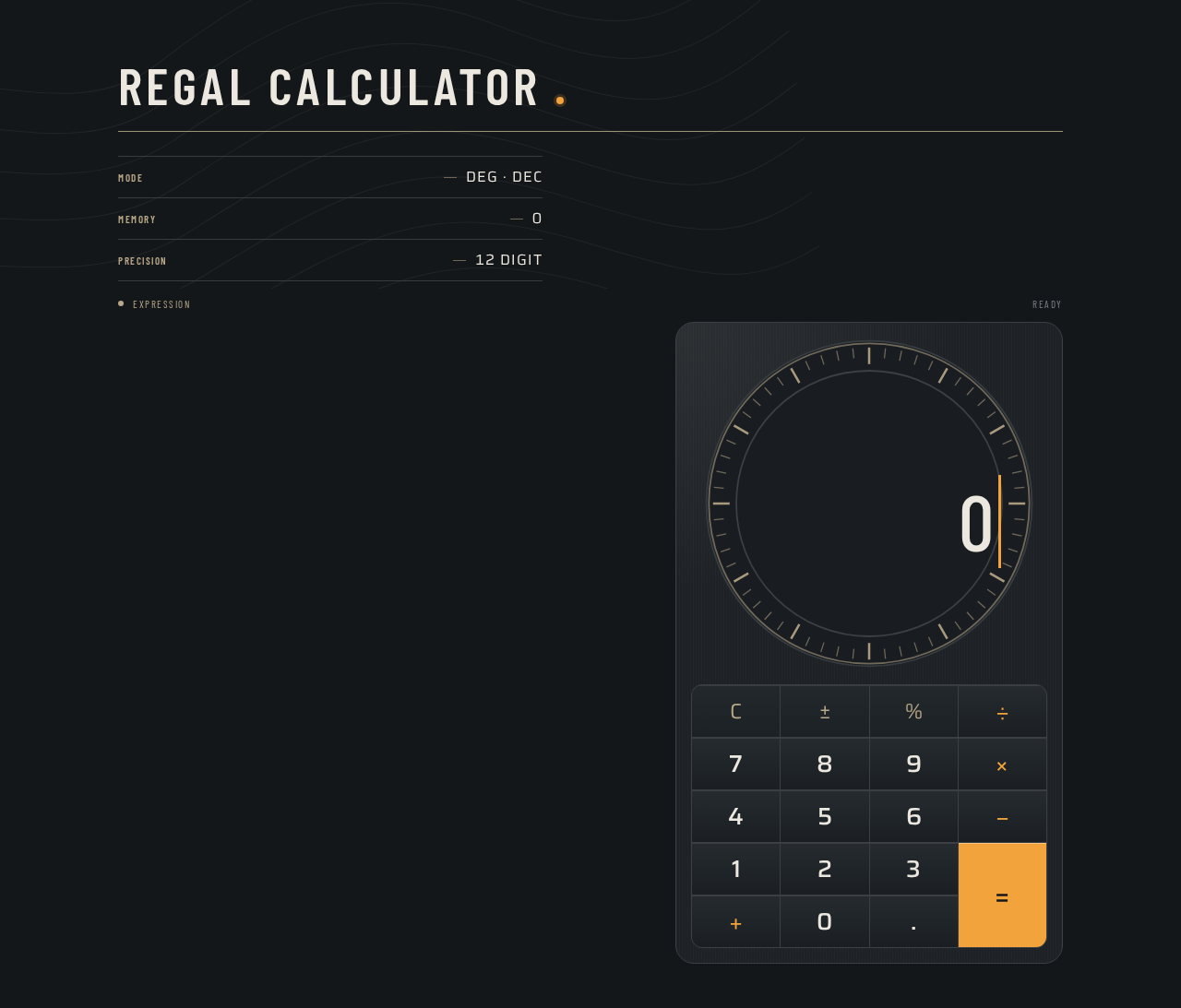
REGAL CALCULATOR
- MODE
- DEG · DEC
- MEMORY
- 0
- PRECISION
- 12 DIGIT
REGAL CALCULATOR
- MODE
- DEG · DEC
- MEMORY
- 0
- PRECISION
- 12 DIGIT
No comments yet. Be the first!