reallymysingingmonsters-test
 Gabza
test


Comments (0)
Sign in to leave a comment
System Requirements
System Requirements Document for reallymysingingmonsters-test
1. Introduction
reallymysingingmonsters-test is a small, playful monster music game — a simple indie game, not a website. It takes the spirit of a monster-collecting music game — creatures that sing and play together — and hands the creative work to the player: you draw your own monsters as pixel art, arrange them on a plain white field, move them around, and give each one a beat and a voice.
The product intent, derived from the requester's own words, is a single white workspace with only small UI for adding new monsters. Selecting one monster opens the option to fully zoom in on that monster's pixel art drawing and on its music making. Music making means building your own beats, recording your voice into the game, setting pitch and volume on that recording, and turning it into a note.
The audience is young monster makers and beat makers: players who want to doodle creatures, hear them come alive, and experiment with their own voice without a studio's worth of controls. The interface stays white, the controls stay small, and the creative surface stays large. The whole experience reads as a hand-made indie game: a tiny, self-contained toy you open and immediately play, with no marketing scaffolding, no dashboard chrome, and no website-style navigation around it.
2. System Overview
2a. Product Interpretation and Delivery Boundary
The game is delivered as a first-party web application. A React front end renders the white studio and the two zoomed creative panels; a shared FastAPI backend owns the application APIs and domain logic; MariaDB stores the application-owned data — each player's monsters, their pixel art, their positions on the field, their beats, and their recorded voice notes with pitch and volume settings.
Because a player's monsters, art, and beats are durable personal work that must be resumed on return, the application owns identity. A visitor can read the Landing page anonymously. Creating an account happens on Sign Up, and a returning player verifies identity on Login. Monster Studio, Pixel Art, and Music Maker are protected: they are reachable only after identity is established, and the anonymous entry interactions live on their own pages rather than inside the protected pages themselves. Sign Up and Login are presented as small in-game screens in the same pixel style as the rest of the game, not as a website account area.
Voice capture uses the browser's microphone access on the player's own device; the recorded audio is uploaded to the backend and stored with the note it becomes. Nothing in the current scope is delegated to a third-party music service, and there is no provider-owned surface.
Everything described in this document is current. No future-horizon features are specified.
Removed from scope
- None. No concept from the requirement thread was removed or superseded.
2c. Page Content and Component Coverage
Landing
- Information and state: The game's name in a wide VT323 headline at the top left, one sentence describing what you do (draw monsters, give them beats and your voice), and a row of small pixel monster tiles beneath it. The screen reads as the title screen of a simple indie game: one headline, one line of copy, one tile row, and the entry controls — no navigation bar, no feature grid, no marketing sections. Anonymous, no session required.
- Primary action: Enter the game — routes a visitor with no session to Sign Up and a visitor with a session to Monster Studio.
- Supporting actions: Go to Login for a returning player.
- Domain entities: None persisted; the monster tiles shown are illustrative pixel sprites.
- Component responsibilities: Headline block; monster tile row (16×16 sprites, 2px ink outline); one small plus tile in the top bar; one orange record dot as the only accent; entry and login controls.
- States: Loading — not applicable beyond first paint. Empty — not applicable. Success — entry control navigates. Error — if the session check fails, the visitor is treated as anonymous and sent to Sign Up. Recovery — the Login link is always present.
Sign Up
- Information and state: A short form establishing a new player's identity so their monsters, art, and beats are kept, presented as a small in-game screen in the same pixel style rather than a website account page. Anonymous access.
- Primary action: Create the account and land in Monster Studio.
- Supporting actions: Switch to Login if the visitor already has an account.
- Domain entities: Player identity (identifier and credential).
- Component responsibilities: Identity fields; submit control; inline validation messages; link to Login.
- States: Loading — submit control shows a pending state and is not double-submitted. Empty — fields start blank with no prefilled values. Success — session established, redirect to Monster Studio. Error — duplicate identity or invalid input shows an inline message and keeps entered values. Recovery — the player corrects the field and resubmits, or switches to Login.
Login
- Information and state: A short form verifying a returning player's identity to reach their saved monsters, art, and beats, presented as a small in-game screen in the same pixel style rather than a website account page. Anonymous access.
- Primary action: Verify identity and land in Monster Studio.
- Supporting actions: Switch to Sign Up.
- Domain entities: Player identity.
- Component responsibilities: Identity and credential fields; submit control; inline error region; link to Sign Up.
- States: Loading — pending submit state. Empty — blank fields. Success — session established, redirect to Monster Studio. Error — wrong credentials show one non-revealing message and keep the identity field. Recovery — retry, or switch to Sign Up.
Monster Studio
- Information and state: The white main view, framed as the play field of a simple indie game rather than a web app screen: no sidebar, no dashboard cards, no site navigation. A small top bar holds the add-monster plus tile and the player's identity control. Below it, a loose grid of the player's monster tiles, each a 16×16 pixel sprite with a 2px ink outline. The selected monster carries an orange corner tick. Requires login.
- Primary action: Select one monster, which reveals the options to fully zoom in on its Pixel Art or its Music Maker.
- Supporting actions: Add a new monster via the small plus tile; drag a monster tile to a new position on the field; open Pixel Art for the selected monster; open Music Maker for the selected monster; sign out.
- Domain entities: Monster (name, sprite, field position), Player.
- Component responsibilities: Top bar with plus tile and identity control; monster tile grid; selection state with orange corner tick; drag handling on tiles; zoom option controls that appear for the selected monster; empty-state prompt.
- States: Loading — tiles render as outlined placeholders while the player's monsters load. Empty — a new player sees a plain white field with a short prompt pointing at the plus tile. Success — a new monster appears as a tile and is selected; a drag persists the new position; zoom options open the chosen panel. Error — a failed save of a new monster or a move shows a small inline message and restores the previous tile or position. Recovery — retry the add or the move; the selection is preserved.
Pixel Art
- Information and state: A full white canvas for the selected monster with a visible pixel grid, opened only after a monster is selected and presented as a full-screen in-game drawing mode with only small tool tiles. Requires login.
- Primary action: Draw the monster's pixel art on the grid.
- Supporting actions: Pick an ink colour from the small palette; erase; clear the canvas; save the sprite; return to Monster Studio.
- Domain entities: Monster sprite (16×16 pixel grid of colours).
- Component responsibilities: Pixel grid canvas; small tool tiles on cream surfaces; colour swatches; save and back controls; unsaved-change indicator.
- States: Loading — the existing sprite fills the grid before drawing is enabled. Empty — a monster with no art yet shows a blank grid. Success — the saved sprite appears on the monster's tile in Monster Studio. Error — a failed save keeps the drawing on screen with an inline message. Recovery — retry save, or leave with an explicit discard confirmation.
Music Maker
- Information and state: A full-screen panel for the selected monster, opened only after a monster is selected and presented as a full-screen in-game music mode with only small tool tiles. Holds the beat sequencer and the voice note tools. Requires login.
- Primary action: Build a beat for the monster and turn a recorded voice into a note.
- Supporting actions: Toggle sequencer cells to place beat steps; start and stop playback with a playhead that steps cell by cell; record voice from the microphone; set pitch on the recording; set volume on the recording; convert the recording into a note; save; return to Monster Studio.
- Domain entities: Beat pattern (grid of steps), Voice recording (audio, pitch, volume), Note (the converted recording bound to the monster).
- Component responsibilities: Step grid with cell toggles; playhead indicator; transport controls; record control carrying the orange record state; pitch control; volume control; convert-to-note control; save and back controls; microphone-permission message region.
- States: Loading — the saved beat and note settings populate before playback is enabled. Empty — a monster with no beat shows an empty step grid and no note. Success — playback runs the saved pattern; a converted note is listed for the monster and persists. Error — microphone permission denied shows a plain message with a retry; a failed save or failed conversion keeps the current pattern or recording on screen with an inline message. Recovery — grant permission and record again, retry save, or retry conversion.
3. Functional Requirements
FR-1 — Monster music game. As a Monster Creator, I should play a monster music game in which my monsters make music, so that the experience feels like a creature music game built around my own creations. (explicit)
- Trigger: the player enters Monster Studio.
- Observable result: the player's monsters are presented as musical creatures whose beats and notes can be played.
- Access: login required.
- Failure/recovery: if the player's monsters fail to load, an inline message appears and a retry reloads them.
- Continuation: the player selects a monster to work on it.
FR-2 — Make your own beats. As a Beat Maker, I should build my own beat for a monster, so that each monster has a rhythm I composed. (explicit)
- Trigger: the player opens Music Maker for a selected monster and toggles sequencer cells.
- Observable result: the pattern of active steps is stored for that monster and plays back with a playhead stepping cell by cell.
- Access: login required; a monster must be selected.
- Failure/recovery: a failed save keeps the pattern on screen with an inline message and a retry.
- Continuation: the player starts playback to hear it, or returns to Monster Studio.
FR-3 — Draw pixel art of your monsters. As a Monster Creator, I should draw my monster's pixel art, so that each monster looks the way I designed it. (explicit)
- Trigger: the player opens Pixel Art for a selected monster and draws on the grid.
- Observable result: the saved sprite replaces the monster's tile art in Monster Studio.
- Access: login required; a monster must be selected.
- Failure/recovery: a failed save keeps the drawing on screen with an inline message; leaving with unsaved changes asks for confirmation.
- Continuation: the player returns to Monster Studio and sees the updated tile.
FR-4 — Move monsters around. As a Monster Creator, I should move my monsters around the field, so that I can arrange them as I like. (explicit)
- Trigger: the player drags a monster tile in Monster Studio.
- Observable result: the tile lands at the new position and that position persists for the next visit.
- Access: login required.
- Failure/recovery: a failed position save restores the previous position with an inline message and a retry.
- Continuation: the player continues arranging or selects a monster.
FR-5 — Record your voice and input it. As a Beat Maker, I should record my voice and input it into the game, so that my own sound becomes part of a monster's music. (explicit)
- Trigger: the player presses record in Music Maker and grants microphone access.
- Observable result: the recording is captured, attached to the selected monster, and available for pitch, volume, and note conversion.
- Access: login required; a monster must be selected.
- Failure/recovery: denied or unavailable microphone access shows a plain message with a retry; a failed upload keeps the take available to retry.
- Continuation: the player adjusts pitch and volume or converts the take to a note.
FR-6 — Set pitch and volume on the recorded voice. As a Beat Maker, I should set pitch and volume on my recording, so that the sound fits the monster. (explicit)
- Trigger: the player moves the pitch control or the volume control on a recording.
- Observable result: the recording plays back at the chosen pitch and volume, and those values persist with the recording.
- Access: login required; a recording must exist.
- Failure/recovery: a failed save keeps the chosen values on screen with an inline message and a retry.
- Continuation: the player converts the recording into a note or records again.
FR-7 — Turn the recorded voice into a note. As a Beat Maker, I should turn my recording into a note, so that the monster can play it as part of its music. (explicit)
- Trigger: the player uses the convert-to-note control on a recording with its pitch and volume set.
- Observable result: a note bound to the selected monster exists and persists, carrying the recording's pitch and volume.
- Access: login required; a recording must exist.
- Failure/recovery: a failed conversion keeps the recording and its settings on screen with an inline message and a retry.
- Continuation: the player returns to Monster Studio, where the monster's note is retained.
FR-8 — White interface with small add-monster UI. As a Monster Creator, I should see an entirely white interface with only small UI for adding new monsters, so that the creative surface stays clean and the controls stay out of the way. (explicit)
- Trigger: any visit to Monster Studio.
- Observable result: the field is white; the add-monster control is one small plus tile in the top bar; no large marketing sections appear on the studio screen.
- Access: login required.
- Failure/recovery: not applicable to presentation.
- Continuation: the player adds a monster or selects one.
FR-9 — Add a new monster. As a Monster Creator, I should add a new monster with the small plus tile, so that I can grow my collection. (explicit, via the small add-monster UI)
- Trigger: the player activates the plus tile.
- Observable result: a new monster appears as a tile on the field and becomes the selected monster.
- Access: login required.
- Failure/recovery: a failed creation shows an inline message and leaves the field unchanged; retry is available.
- Continuation: the player draws its pixel art or opens its Music Maker.
FR-10 — Select one monster to reveal zoom options. As a Monster Creator, I should select one monster and then have the option to fully zoom in on its pixel art drawing or its music making, so that detailed work happens only on the monster I chose. (explicit)
- Trigger: the player selects a monster tile.
- Observable result: the tile shows the orange corner tick and the zoom options for Pixel Art and Music Maker become available for that monster.
- Access: login required.
- Failure/recovery: with no monster selected, the zoom options are not offered; selecting a tile restores them.
- Continuation: the player opens Pixel Art or Music Maker, or selects a different monster.
FR-11 — Self-service enrollment. As a new player, I should create my own account before protected work, so that my monsters, art, and beats are kept. (required_inference)
- Trigger: an anonymous visitor chooses to enter the game from Landing.
- Observable result: a session is established and Monster Studio opens.
- Access: anonymous entry on Sign Up.
- Failure/recovery: invalid or duplicate identity shows an inline message and keeps entered values.
- Continuation: the player lands in Monster Studio.
FR-12 — Returning identity verification. As a returning player, I should verify my identity on return, so that I reach my saved monsters, art, and beats. (required_inference)
- Trigger: a returning player submits Login.
- Observable result: a session is established and Monster Studio opens with the player's saved work.
- Access: anonymous entry on Login.
- Failure/recovery: wrong credentials show one non-revealing message and allow retry.
- Continuation: the player resumes work on a monster.
FR-13 — Monster selection precedes zoomed views. As a Monster Creator, I should select one monster before the zoomed Pixel Art or Music Maker view opens, so that each zoomed view always belongs to a specific monster. (required_inference)
- Trigger: the player requests Pixel Art or Music Maker.
- Observable result: the panel opens bound to the selected monster; without a selection the request is not offered.
- Access: login required.
- Failure/recovery: if the selected monster is no longer available, the player is returned to Monster Studio with an inline message.
- Continuation: the player works in the panel and returns to Monster Studio.
4. User Personas
Monster Creator
The Monster Creator is the player who builds the collection. Their context is the white Monster Studio: a plain field, a small top bar, and a loose grid of their own monster tiles, all inside a simple indie game rather than a website. Their primary goal is to grow and arrange a set of monsters that look the way they imagined.
Their distinct responsibilities are adding new monsters with the small plus tile, dragging monsters to new positions on the field, and drawing each monster's pixel art in the zoomed Pixel Art canvas. Their key decisions are where a monster sits on the field, which monster to select, and what its sprite looks like pixel by pixel. They interact with the Beat Maker through the shared monster: the sprite the Monster Creator draws is the creature whose beat the Beat Maker composes, and both work from the same selection in Monster Studio.
Their observable success is a field of monsters, each in the position they chose, each showing the sprite they drew, and each selectable so its zoom options appear.
Beat Maker
The Beat Maker is the player who gives the monsters their sound. Their context is the zoomed Music Maker panel for one selected monster, holding a step grid and the voice tools, presented as a full-screen in-game music mode. Their primary goal is to make a beat and turn their own recorded voice into a note that belongs to that monster.
Their distinct responsibilities are toggling sequencer cells to compose a beat, running playback with a playhead that steps cell by cell, recording their voice through the microphone, setting pitch and volume on the recording, and converting the recording into a note. Their key decisions are which steps carry the beat, which take to keep, and how much pitch and volume the voice needs. They depend on the Monster Creator having added and selected a monster, and they work on that same monster's music.
Their observable success is a saved beat that plays back and a note bound to the monster that persists when they return.
5. Core User Flows
Flow A — A new player starts and adds a first monster (Monster Creator)
- The visitor opens Landing, which reads as the title screen of a simple indie game, and reads the headline and the row of pixel monster tiles.
- The visitor chooses to enter the game and is routed to Sign Up because no session exists.
- On Sign Up, the visitor enters an identity and credential and submits. The control shows a pending state.
- On success a session is established and Monster Studio opens. On failure an inline message appears, the entered values remain, and the visitor corrects and resubmits.
- Monster Studio shows a plain white field with a short prompt pointing at the plus tile.
- The player activates the small plus tile in the top bar. A new monster tile appears and becomes selected, carrying the orange corner tick.
- If creation fails, an inline message appears, the field is unchanged, and the player retries.
- Next step: the player draws the monster's art (Flow B) or opens its music (Flow C).
Flow B — Drawing a monster's pixel art (Monster Creator)
- In Monster Studio, the player selects a monster tile. The tile shows the orange corner tick and the zoom options for Pixel Art and Music Maker appear.
- The player chooses the Pixel Art option. Pixel Art opens as a full white canvas with a visible pixel grid, bound to the selected monster.
- The player picks an ink colour from the small palette and draws on the grid, using erase or clear as needed.
- The player saves the sprite. On success the sprite replaces the monster's tile art in Monster Studio.
- If the save fails, the drawing stays on screen with an inline message and the player retries.
- If the player leaves with unsaved changes, a discard confirmation appears; confirming discards, cancelling returns to the canvas.
- Next step: the player returns to Monster Studio and sees the updated tile, or opens the monster's Music Maker.
Flow C — Making a beat and turning a voice into a note (Beat Maker)
- In Monster Studio, the player selects a monster and chooses the Music Maker option. Music Maker opens for that monster.
- The player toggles sequencer cells to place beat steps, then starts playback. The playhead steps cell by cell with no easing. The player stops playback.
- The player presses record. The record control shows the orange record state. If microphone permission is denied, a plain message appears with a retry; the player grants access and records again.
- The recording is captured and attached to the selected monster. If the upload fails, the take remains available and the player retries.
- The player sets pitch and volume on the recording and hears it play back at those settings. If saving those values fails, the chosen values stay on screen with an inline message and the player retries.
- The player uses the convert-to-note control. On success a note bound to the monster exists, carrying the recording's pitch and volume. On failure the recording and its settings stay on screen with an inline message and the player retries.
- The player saves and returns to Monster Studio, where the monster's beat and note are retained.
- Next step: the player selects another monster, or returns later via Login to continue.
Flow D — Arranging monsters on the field (Monster Creator)
- In Monster Studio, the player drags a monster tile to a new position on the white field.
- The tile lands at the new position and the position is saved.
- If the save fails, the tile returns to its previous position with an inline message and the player retries the move.
- Next step: the player continues arranging, adds another monster, or selects one to work on it.
Flow E — A returning player resumes saved work (Monster Creator and Beat Maker)
- The returning player opens Landing and chooses Login.
- On Login, the player enters identity and credential and submits. On failure one non-revealing message appears, the identity field is kept, and the player retries or switches to Sign Up.
- On success a session is established and Monster Studio opens with the player's saved monsters, their positions, and their sprites.
- The player selects a monster and opens Pixel Art to continue drawing, or Music Maker to continue the beat and note.
- If the selected monster is no longer available, the player is returned to Monster Studio with an inline message and selects another.
6. Visuals Colors and Theme
The muse is Susan Kare, and the headline is "Charming clarity, one pixel at a time." The theme is a white ground with crisp pixel craft: small icons, hard corners, and one warm accent. The overall feel is a simple, hand-made indie game — a small self-contained toy with a title screen, a play field, and two full-screen creative modes — never a website with marketing sections, dashboards, or app chrome.
Colour tokens (light mode)
| Role | Hex | Use |
|---|---|---|
| Background | #FFFFFF | The white ground, roughly 80 percent of every screen |
| Surface | #F4F4EC | Cream tool tiles and control backgrounds |
| Text | #1A1A1A | Body copy |
| Primary | #2B2B2B | Ink for pixel icons, labels, and 2px outlines |
| Accent | #E4572E | Selected-monster corner tick and the record state only |
| Muted | #8A8A8A | Secondary labels and disabled controls |
Typography
- Headings: VT323, sentence case, loose tracking, one ink colour, giving a friendly terminal voice. Scale is a 1.25 modular ramp: 64 / 48 / 32 / 20 / 16. The headline uses
clamp(40px, 9vw, 96px). - Body: Space Mono.
Shape language
- Square pixel tiles with 2px ink outlines and hard corners. No soft radius on controls. Icons sit on a 16×16 cell unit.
Layout
- A white canvas with a small top bar and a loose grid of monster tiles. Selecting one monster opens a full-screen Pixel Art or Music Maker panel.
Imagery
- Pixel icons and simple pictograms only. Monsters are user-drawn 16×16 sprites on plain white.
Avoided
- Soft drop shadows and rounded glass cards; gradient blobs or photo heroes; blue or indigo accents; large marketing sections on the studio screen; website-style navigation bars, sidebars, dashboard cards, or account-area chrome that would make the game read as a website instead of a simple indie game.
Readability constraint
- Headlines, wordmarks, labels, numbers, and control text stay entirely inside the viewport and their container at 375px, 768px, and 1280px, wrapping or scaling to fit, with nothing covering them. Decoration and motion may crop or bleed; readable text and controls may not.
7. Signature Design Concept
The first screen is a white field with a wide VT323 headline at the top left, and beneath it a row of small pixel monster tiles. It reads as the title screen of a simple indie game: one headline, one line of copy, one tile row, and the entry controls, with nothing else competing for attention. The composition is deliberately sparse: the headline anchors the upper left, the tile row sits under it as a loose horizontal band, and the only colour on the page is one orange record dot and one small plus tile.
The signature moves carry through the whole product:
- Monster tiles are 16×16 pixel sprites on white with a 2px ink outline.
- The selected monster gets an orange
#E4572Ecorner tick — never a shadow. - The Music Maker playhead steps cell by cell with no easing.
- The add-monster control is one small plus tile in the top bar.
- Zoom opens Pixel Art as a full white canvas with a visible pixel grid.
The concept recomposes only accepted content: the headline, the monster tiles, the plus tile, the record dot, and the entry and login controls. It introduces no new behaviour or destination. The same small-game framing carries into Monster Studio, Pixel Art, and Music Maker: each is a full-screen in-game mode with only small tool tiles, never a website page with surrounding chrome.
8. Interaction Model & Motion Direction
Interaction Model: Animated Motion Tempo: restrained Hero Dimensionality: flat
Landing Hero Motion Brief
- Focal subject: the row of small pixel monster tiles beneath the wide VT323 headline, with the single orange record dot and the small plus tile as the only colour.
- Input → transformation → outcome thesis: as the page settles, the monster tiles snap into place one cell at a time and the orange record dot blinks once — the same frame-by-frame step the Music Maker playhead uses — so the first frame already teaches the game's rhythm before the visitor enters.
- Motion vocabulary: frame-by-frame steps with no easing; pixels blink; tiles snap; the playhead advances one cell at a time.
- Composed first frame: white ground, headline at top left, tile row beneath, plus tile in the top bar, record dot at rest in orange.
- Reduced-motion state: all tiles and the record dot appear in their final positions with no blinking or snapping; the layout is fully static and every label and control remains whole and readable.
9. Non-Functional Requirements
- White-ground presentation. Every screen keeps the white ground dominant, with the cream surface reserved for tool tiles and the orange accent reserved for selection and recording. (explicit)
- Readable at every viewport. Text and controls remain fully inside the viewport and their container at 375px, 768px, and 1280px. (explicit, from the creative direction)
- Microphone handling. Voice capture requires the player's browser microphone permission; denial is reported plainly with a retry path, and no recording is captured without permission. (explicit, from the voice-recording requirement)
- Durable personal state. Monsters, sprites, field positions, beats, recordings with pitch and volume, and notes persist per player across sessions, which is why identity is required for the protected pages. (required_inference)
- Session protection. Monster Studio, Pixel Art, and Music Maker are reachable only with an established session; Landing, Sign Up, and Login are anonymously reachable. (required_inference)
- Reduced motion. With
prefers-reduced-motion, blinking and snapping stop and the playhead position is shown without animation, while all content stays usable. (required_inference, from the motion direction) - Simple indie game feel. Every screen reads as a small, self-contained indie game rather than a website: a title screen on Landing, a play field in Monster Studio, and full-screen creative modes for Pixel Art and Music Maker, with no marketing sections, site navigation bars, sidebars, dashboard cards, or account-area chrome. (explicit)
10. Tech Stack
- Frontend: React application UI, rendering the white studio, the pixel grid canvas, the step sequencer, and the microphone capture controls.
- Backend: a shared FastAPI process hosting the application APIs and domain modules for players, monsters, sprites, positions, beats, recordings, and notes.
- Database: MariaDB for application-owned persistent data.
- Deployment: Docker and docker-compose for the frontend, backend, and database services.
11. Assumptions and Constraints
- Hard constraint — white interface. The entire interface is just white with small UI for adding new monsters. No large marketing sections appear on the studio screen. (explicit)
- Hard constraint — selection gates zoom. The zoomed pixel art drawing and the music making are options available only after the player selects one monster. (explicit)
- Hard constraint — simple indie game, not a website. The product must feel like a simple indie game: a title screen, a play field, and full-screen creative modes, with no website-style navigation, marketing sections, dashboards, or account-area chrome. (explicit)
- Assumption — sprite size. Monsters are drawn on a 16×16 pixel grid, following the creative direction's icon unit. (default — not specified by user)
- Assumption — beat grid. The beat is composed on a step grid whose cells are toggled on and off, with a playhead stepping cell by cell. (default — not specified by user)
- Assumption — identity form. Sign Up and Login use an identifier and credential entered by the player; no third-party sign-in is specified. (default — not specified by user)
- Assumption — single-player ownership. Each player's monsters, art, beats, and notes belong to that player; no sharing or collaboration is specified. (default — not specified by user)
- Reference boundary. My Singing Monsters is used only as a feature reference for a monster music game; none of its content, names, or assets are copied. (explicit)
12. Glossary
- Monster — a creature the player creates, with a pixel-art sprite, a position on the field, a beat, and optionally a note.
- Monster tile — the small 16×16 sprite with a 2px ink outline representing a monster in Monster Studio.
- Pixel Art — the zoomed full-white canvas with a visible pixel grid where a selected monster's sprite is drawn.
- Music Maker — the zoomed panel for a selected monster holding the beat sequencer and the voice note tools.
- Beat — the pattern of active sequencer steps composed for a monster.
- Playhead — the indicator that steps cell by cell across the sequencer during playback.
- Recording — a captured voice take attached to a monster, with pitch and volume settings.
- Note — a recording converted into a musical note bound to a monster, carrying its pitch and volume.
- Pitch — the setting that raises or lowers a recording's playback tone.
- Volume — the setting that controls a recording's playback loudness.
- Orange corner tick — the
#E4572Emark on the selected monster tile.
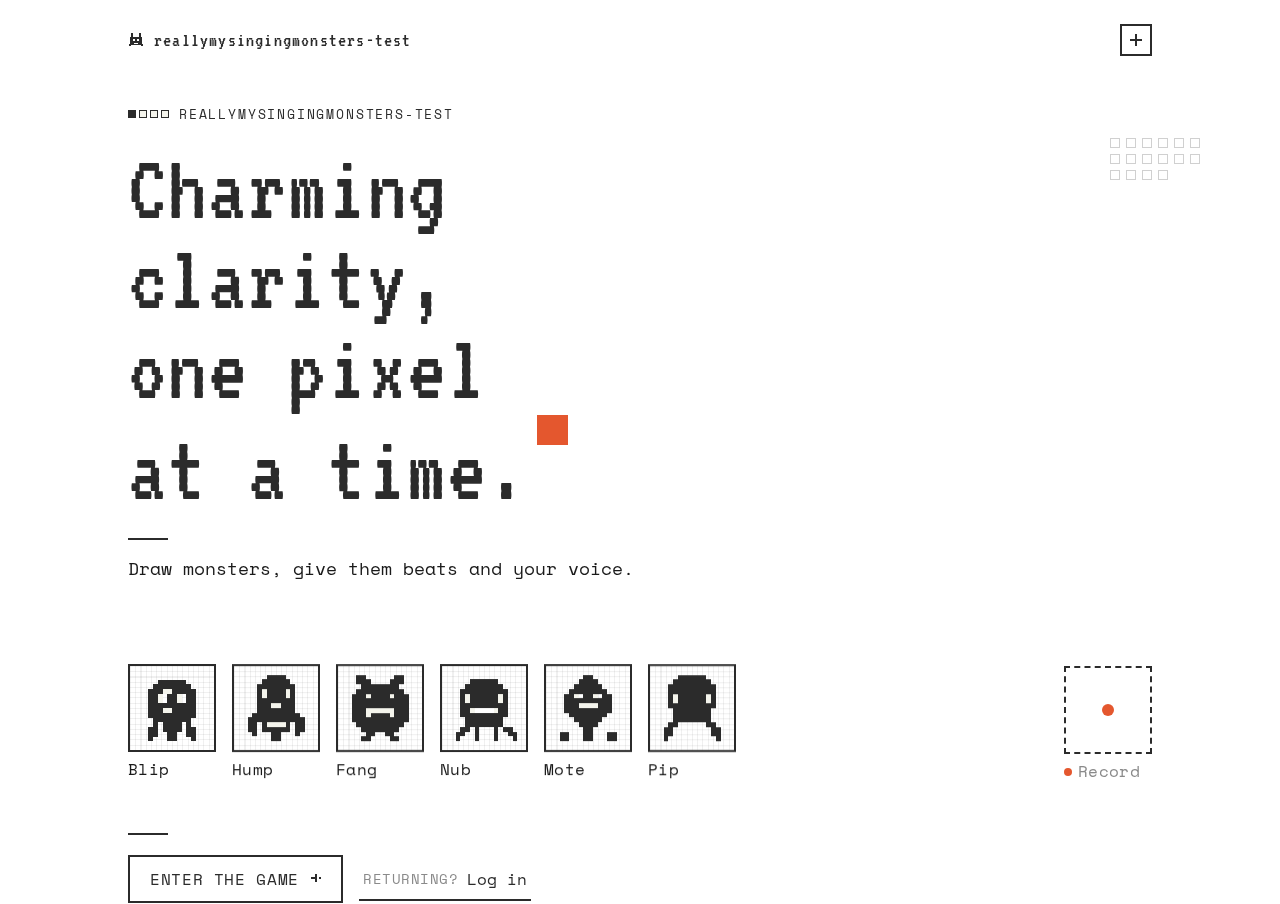
reallymysingingmonsters-test
Charming clarity, one pixel at a time.
Draw monsters, give them beats and your voice.
Illustrative pixel monster tiles
- Blip
- Hump
- Fang
- Nub
- Mote
- Pip
Enter the game
Enter the game opens Sign Up for new players and Monster Studio when you're already signed in.
reallymysingingmonsters-test
Charming clarity, one pixel at a time.
Draw monsters, give them beats and your voice.
Illustrative pixel monster tiles
- Blip
- Hump
- Fang
- Nub
- Mote
- Pip
Enter the game
Enter the game opens Sign Up for new players and Monster Studio when you're already signed in.
No comments yet. Be the first!