quizcraft-quiz-platform
 jay bhatt
🎯 Prompt to Build QuizCraft — AI-Powered Quiz Platform Overview Build QuizCraft, a full-stack AI-powered quiz platform for instructors to create, share, and track student performance. Instructors log in to create quizzes (AI-generated or manual), share a public link with students (no login required), and view detailed analytics. Students take quizzes via the shared link, get graded instantly, and receive their results by email. Tech Stack React + Tailwind CSS + shadcn/ui components Framer Motion for animations Recharts for analytics charts date-fns for date formatting lucide-react for icons Base44 SDK for auth, entities, and AI integration React Router for navigation Data Model (Entities) Quiz title (string, required) description (string) subject (enum: mathematics, science, history, literature, geography, technology, business, custom; default: custom) difficulty (enum: easy, medium, hard; default: medium) time_limit (number — minutes, 0 = no limit) questions (array of objects, required): question (string) type (enum: multiple_choice, true_false, short_answer) options (array of strings) correct_answer (string) explanation (string) is_public (boolean, default: true) is_active (boolean, default: true) start_date (date-time) end_date (date-time) Built-in: id, created_date, updated_date, created_by QuizAttempt quiz_id (string, required) student_name (string) quiz_owner_email (string) user_answers (array of objects, required): question_index (number) answer (string) is_correct (boolean) time_spent (number) score (number, required — percentage) total_time (number — seconds) completed_at (date-time) Built-in: id, created_date, updated_date, created_by RLS: read = creator OR quiz_owner_email OR admin; write = creator OR admin Pages (Routes) 1. Dashboard (landing page) Purpose: Instructor's home — stats, analytics, recent quizzes, quick start Header: "Welcome back, {firstName}" + "Create New Quiz" button Stats cards (4): Quizzes Created, Quiz Attempts, Average Score, Study Time — each with trend ("X this week") Detailed Analytics section: filter by quiz & time range; bar/line/pie charts showing score distributions, completion trends, hardest questions Recent Quizzes grid (2/3 width): cards with subject/difficulty badges, status (active/closed/scheduled), take/share/edit/delete actions based on ownership Quick Start (1/3 width): buttons to create quiz, view results, etc. Data loading: User.me(), Quiz.list('-created_date', 50), QuizAttempt.filter({quiz_owner_email}), QuizAttempt.filter({created_by}) 2. CreateQuiz (4-step wizard) Step 1 — Configuration (QuizCreationForm): title, description, subject, difficulty, time_limit, start/end dates, is_public, is_active → Next Step 2 — AI Generation (AIGenerationForm): textarea for source text, question count (5-20), question type (mixed/multiple_choice/true_false/short_answer), "Generate with AI" button + "Add Manually" option → calls InvokeLLM with a detailed prompt and response_json_schema returning {questions: [...]} → loads questions into editor Step 3 — Edit Questions (QuestionEditor): add/edit/delete/reorder questions, set type/options/correct_answer/explanation → Preview Step 4 — Preview (PreviewQuiz): full quiz preview → Save (create or update if editing via ?id= param) Progress indicator: 4 numbered circles with connecting lines, current step highlighted with gradient Back button: navigates between steps Editing mode: loads existing quiz when ?id= present in URL 3. TakeQuiz (student-facing, no login required for students but requires auth) States: loading, start, in_progress, completed, already_taken, unavailable Start screen (QuizStartScreen): quiz title/description, question count, time limit; student enters name + optional email → Start In progress (QuestionDisplay): one question at a time, progress bar, timer (if set), answer input (radio for MCQ/T-F, text for short answer), Next button Completion: grades all answers, saves QuizAttempt, shows results screen with score, correct/incorrect breakdown, explanations Availability checks: is_active, start_date not yet reached, end_date passed → shows "Not Available" message Already taken check: if QuizAttempt exists for this quiz + user → shows "Already Completed" with previous score Email notification: if student provided email, sends result email via SendEmail (pass = score ≥ 70%) Grading logic (shared utility): MCQ & true/false: exact match (case-insensitive, trimmed) Short answer: Levenshtein similarity ≥ 40% 4. Results (instructor's personal history) Purpose: Instructor views their own quiz-taking history Stats: average score, best score, total attempts List: chronological attempts with quiz title, date, score badge (green ≥70%, amber 50-69%, red <50%), time taken 5. QuizResults (per-quiz detailed results — instructor only) Access control: only quiz owner or admin can view; others redirect to Dashboard Quiz info card: subject, difficulty, time limit, student count Share button: copies TakeQuiz?id={quizId} URL to clipboard Download CSV: exports all attempts as CSV (name, email, score, time, date) Statistics (QuizStatistics): average score, pass rate, score distribution chart Student results list (StudentResultsList): table of each student's name, score, time, date, pass/fail badge Layout (Sidebar) QuizCraft branding with BookOpen icon + gradient Nav items: Dashboard, Create Quiz, My Results (with icons) Quick Stats section: Quizzes Created count, Average Score Active state: gradient highlight on current route Responsive: sidebar collapses on mobile, hamburger header shown Theme: purple/blue gradient background (from-slate-50 via-blue-50 to-purple-50), glass cards, rounded-xl Embedded Chatbase widget: loaded via script in index.html for in-app support AI Generation Details Uses InvokeLLM with a prompt specifying: content, question count, difficulty, subject, question type response_json_schema returns { questions: [{question, type, options, correct_answer, explanation}] } Questions load into editor for review before saving Model: default (no URL); gemini_3_flash when URL-based (with add_context_from_internet: true) Design System Primary gradient: linear-gradient(135deg, hsl(250,84%,60%) 0%, hsl(260,80%,65%) 100%) — used on buttons, icons, active states Background: bg-gradient-to-br from-slate-50 via-blue-50 to-purple-50 Glass cards: bg-white/95 backdrop-blur border-white/20 Fonts: default sans Animations: Framer Motion — fade + slide on mount, staggered delays Badges: subject (blue), difficulty (purple), status (green/amber/red) Responsive: mobile-first, grid breakpoints (1 → 2 → 3 → 4 cols) Key Behaviors Students don't need accounts — they access via share link + enter name/email One attempt per student per quiz (enforced by checking existing attempts) Quizzes have scheduling (start/end dates) and active toggle Instructor sees only their own quizzes and analytics CSV export of all student results per quiz Email notifications sent to students on completion (if email provided) You can use your own tech stack and all


Comments (0)
Sign in to leave a comment
System Requirements
System Requirements Document for quizcraft-quiz-platform
1. Introduction
QuizCraft is a full-stack, AI-powered quiz platform for instructors and students. Instructors log in to create quizzes — either generated by AI from source text or entered manually — configure scheduling and availability, review and edit questions, preview the full quiz, and save it. They then share a public link with students, who open it without an account, enter their name and an optional email, take the quiz one question at a time under an optional timer, and receive instant grading with a score, correct/incorrect breakdown, and explanations. Instructors track performance through a dashboard of stats and analytics, a per-quiz results view with CSV export, and a personal quiz-taking history.
The product intent is a modern creative-tool feel rather than a sterile LMS: instructors need clarity and control; students need a low-friction, confidence-building experience. The audience is two active human roles — Instructor and Student — plus an Admin actor referenced only by the access-control rules for per-quiz results and attempt records.
2. System Overview
QuizCraft is delivered as a React single-page application (React Router navigation, Tailwind CSS, shadcn/ui components, Framer Motion animations, Recharts charts, date-fns formatting, lucide-react icons) backed by application-owned authentication, entities, and AI integration. The user permits an alternative tech stack; the source-specified libraries and behaviors are preserved as the product contract, with implementation technology left open where the user explicitly allowed substitution.
Current actors:
- Instructor (active human persona) — authenticated owner of quizzes and analytics.
- Student (active human persona) — anonymous, link-based quiz taker; no account.
- Admin (access-control actor referenced by RLS and QuizResults rules) — may read attempts and view any quiz's results.
- AI generation service (external/system actor) — invoked by the instructor's AI generation step.
- Email delivery service (external/system actor) — sends result emails to students who provided an email.
- Chatbase support widget (external embedded actor) — loaded via script in
index.htmlfor in-app support.
Accepted behavior spans: instructor identity and access; quiz configuration; AI-assisted and manual question authoring; question editing and preview; save/create/update; public link sharing; student quiz-taking with availability and one-attempt enforcement; instant grading; result email; instructor dashboard with stats and filtered analytics; per-quiz results with CSV export; and personal quiz-taking history.
Narrow exclusions and boundaries:
- Students do not need accounts; they access quizzes only via a shared link and enter name plus optional email.
- One attempt per student per quiz.
- Instructors see only their own quizzes and analytics.
- QuizResults is viewable only by the quiz owner or admin; others are redirected to Dashboard.
- No adjacent account-management, billing, roster, or course-management capabilities are introduced.
2a. Product Interpretation and Delivery Boundary
QuizCraft is a first-party web application with application-owned identity for instructors. Instructors establish identity through a self-service Login surface (enrollment and returning verification) before reaching Dashboard, CreateQuiz, Results, or QuizResults. Students never authenticate: the shared TakeQuiz?id={quizId} link is their entry, and the name/optional-email start screen is the only identity they provide. The Landing page is the anonymous public entry that explains the product to both audiences before sign-in.
Access ownership:
- Landing — anonymous, public entry for Instructor and Student.
- Login — anonymous access surface where instructors enroll or verify identity; protected destinations are not reachable until identity is established.
- Dashboard, CreateQuiz, Results, QuizResults — protected, instructor-scoped; QuizResults additionally restricted to the quiz owner or admin with redirect to Dashboard for others.
- TakeQuiz — public via shared link, no account required.
All listed behavior is current. No future-horizon requirements were stated; the "you can use your own tech stack" allowance is a delivery latitude, not a future feature.
2b. Source Content Inventory
No reference directive declares a content_source; this section is intentionally omitted.
2c. Page Content and Component Coverage
Landing
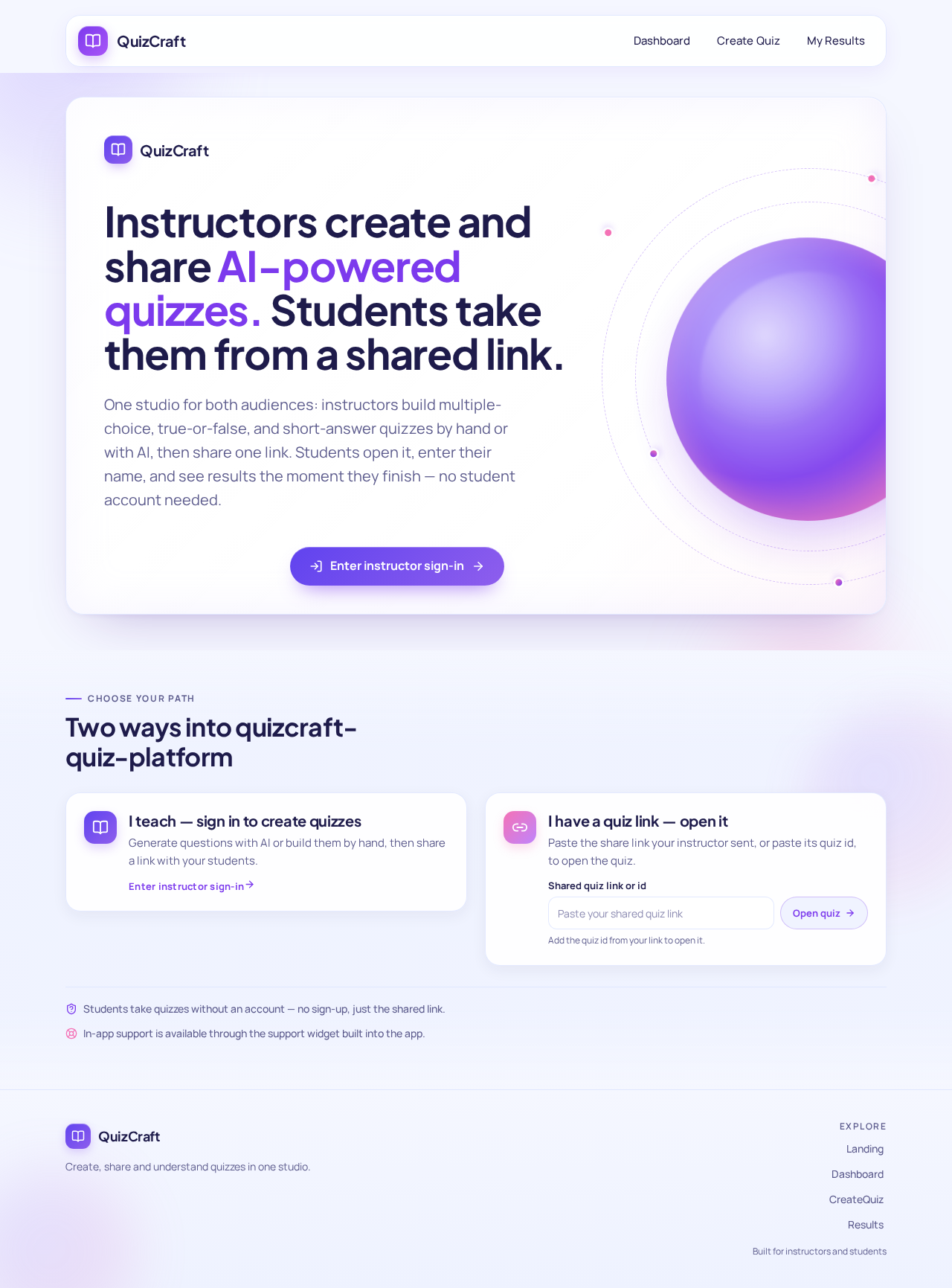
- Information/state: Anonymous first impression explaining that QuizCraft lets instructors create and share AI-powered quizzes and students take them via a shared link. Product name "QuizCraft" with BookOpen icon and gradient branding. Primary gradient
linear-gradient(135deg, hsl(250,84%,60%) 0%, hsl(260,80%,65%) 100%)on hero accents and CTAs. Backgroundbg-gradient-to-br from-slate-50 via-blue-50 to-purple-50. Glass cardsbg-white/95 backdrop-blur border-white/20,rounded-xl. - Primary actions: Enter instructor sign-in (navigate to Login); open a shared quiz link if the visitor already holds one (navigates to TakeQuiz).
- Supporting actions: None beyond navigation.
- Domain entities: None persisted on this page.
- Component responsibilities: Hero panel with gradient headline and floating gradient orb (decorative, layered_2d); two audience entry points (Instructor → Login, Student → shared link); Chatbase widget available.
- States: Loading (static content, no data fetch); empty/success not applicable; error not applicable; recovery — if a shared link is invalid, the visitor is routed to TakeQuiz which shows its own unavailable state.
Login
- Information/state: Instructor self-service enrollment and returning verification. Fields for identity credentials; clear indication that students do not need an account and use the shared link instead.
- Primary actions: Enroll a new instructor identity; verify a returning instructor identity; on success, continue to Dashboard.
- Supporting actions: Navigate back to Landing.
- Domain entities: Instructor identity (application-owned).
- Component responsibilities: Credential form; submit control with gradient; inline validation messaging; link to Landing.
- States: Loading (submitting); empty (blank form); success (redirect to Dashboard); error (invalid credentials or enrollment conflict, with retry); recovery (retry without losing entered fields where possible).
Dashboard
- Information/state: Header "Welcome back, {firstName}" plus "Create New Quiz" button. Four stats cards — Quizzes Created, Quiz Attempts, Average Score, Study Time — each with a trend ("X this week"). Detailed Analytics section with filters by quiz and time range and bar/line/pie charts for score distributions, completion trends, and hardest questions. Recent Quizzes grid (2/3 width) with cards showing subject/difficulty badges, status (active/closed/scheduled), and take/share/edit/delete actions based on ownership. Quick Start panel (1/3 width) with buttons to create quiz, view results, etc.
- Primary actions: Create New Quiz; filter analytics by quiz and time range; take/share/edit/delete a quiz from its card (ownership-gated); use Quick Start buttons.
- Supporting actions: Open QuizResults for a quiz; open Results.
- Domain entities: Quiz, QuizAttempt, Instructor profile (
User.me()). - Data loading:
User.me(),Quiz.list('-created_date', 50),QuizAttempt.filter({quiz_owner_email}),QuizAttempt.filter({created_by}). - Component responsibilities: Stats cards with colored top borders (violet, pink, teal, amber); analytics filter controls; Recharts bar/line/pie charts; recent quiz cards with badge row and hover-revealed glass action overlay; Quick Start button group; sidebar with QuizCraft branding, nav items (Dashboard, Create Quiz, My Results), Quick Stats (Quizzes Created count, Average Score), gradient active state, mobile collapse with hamburger header.
- States: Loading (skeletons for stats and charts); empty (no quizzes — friendly line-art empty state with create CTA); success (populated stats, charts, grid); error (data fetch failure with retry); recovery (retry re-fetches; partial data renders available sections).
CreateQuiz
- Information/state: Four-step wizard with progress indicator (four numbered circles connected by lines, current step highlighted with gradient). Step 1 Configuration (QuizCreationForm): title, description, subject, difficulty, time_limit, start/end dates, is_public, is_active. Step 2 AI Generation (AIGenerationForm): source-text textarea, question count (5–20), question type (mixed/multiple_choice/true_false/short_answer), "Generate with AI" button, "Add Manually" option. Step 3 Edit Questions (QuestionEditor): add/edit/delete/reorder questions; set type/options/correct_answer/explanation. Step 4 Preview (PreviewQuiz): full quiz preview with Save. Editing mode loads an existing quiz when
?id=is present. - Primary actions: Next between steps; Back between steps; Generate with AI; Add Manually; add/edit/delete/reorder questions; Preview; Save (create or update).
- Supporting actions: Cancel/leave wizard.
- Domain entities: Quiz with nested questions.
- Component responsibilities: Progress indicator; QuizCreationForm; AIGenerationForm with shimmering gradient orb loading state; QuestionEditor; PreviewQuiz; Save control.
- States: Loading (AI generation in progress — shimmering orb); empty (no questions yet); success (questions loaded into editor; quiz saved); error (AI generation failure with retry and manual fallback; validation errors on required fields); recovery (retain entered configuration and questions on failure).
TakeQuiz
- Information/state: States: loading, start, in_progress, completed, already_taken, unavailable. Start screen (QuizStartScreen): quiz title/description, question count, time limit; student enters name plus optional email. In progress (QuestionDisplay): one question at a time, progress bar, timer when set, answer input (radio for MCQ/true-false, text for short answer), Next button. Completion: score, correct/incorrect breakdown, explanations.
- Primary actions: Start quiz; answer each question; Next; finish and submit.
- Supporting actions: None beyond the quiz flow.
- Domain entities: Quiz, QuizAttempt.
- Component responsibilities: QuizStartScreen; QuestionDisplay with progress bar and timer (pulses subtly under 10 seconds); results screen with animated score badge, glowing ring, confetti burst when score ≥ 70%; availability and already-taken messaging.
- States: Loading (fetching quiz); start; in_progress; completed; already_taken (shows previous score); unavailable (inactive or outside start/end window — "Not Available" message); error (fetch failure with retry).
Results
- Information/state: Instructor's personal quiz-taking history. Stats: average score, best score, total attempts. Chronological attempt list with quiz title, date, score badge (green ≥70%, amber 50–69%, red <50%), and time taken.
- Primary actions: Review personal attempt history.
- Supporting actions: Navigate to Dashboard or QuizResults.
- Domain entities: QuizAttempt, Quiz.
- Component responsibilities: Stats summary; chronological attempt list with score badges; sidebar.
- States: Loading; empty (no attempts — friendly empty state); success; error (fetch failure with retry).
QuizResults
- Information/state: Per-quiz detailed results, instructor-only. Access control: only quiz owner or admin; others redirected to Dashboard. Quiz info card: subject, difficulty, time limit, student count. Share button copies
TakeQuiz?id={quizId}URL to clipboard. Download CSV exports all attempts (name, email, score, time, date). Statistics (QuizStatistics): average score, pass rate, score distribution chart. Student results list (StudentResultsList): table of each student's name, score, time, date, pass/fail badge. - Primary actions: Copy share link; download CSV; review statistics and student table.
- Supporting actions: Navigate back to Dashboard.
- Domain entities: Quiz, QuizAttempt.
- Component responsibilities: Quiz info card; Share button with clipboard confirmation; Download CSV control; QuizStatistics with Recharts distribution chart; StudentResultsList table with pass/fail badges.
- States: Loading; empty (no attempts yet); success; error (fetch failure with retry); access-denied (redirect to Dashboard).
3. Functional Requirements
FR-1 — Instructor identity and access (required_inference) As an Instructor I should establish my identity through Login (self-service enrollment or returning verification) so that I can reach my protected workspace.
- Trigger/input: instructor opens Login and submits credentials.
- Observable result: authenticated session; redirect to Dashboard.
- Access state: Login is anonymously reachable; Dashboard, CreateQuiz, Results, and QuizResults require established identity.
- Failure/recovery: invalid credentials or enrollment conflict show an inline error and allow retry.
- Continuation: proceed to Dashboard.
FR-2 — Instructor creates a quiz manually or with AI (explicit) As an Instructor I should create quizzes either AI-generated from source text or manually entered so that I can author assessments quickly or precisely.
- Trigger/input: instructor opens CreateQuiz.
- Observable result: a new quiz draft in the wizard.
- Access state: authenticated instructor.
- Failure/recovery: validation errors on required fields block Next with inline messages.
- Continuation: proceed through wizard steps.
FR-3 — Quiz configuration fields (explicit) As an Instructor I should configure title, description, subject, difficulty, time limit, start/end dates, is_public, and is_active so that the quiz has complete settings.
- Fields: title (required string); description (string); subject (enum: mathematics, science, history, literature, geography, technology, business, custom; default custom); difficulty (enum: easy, medium, hard; default medium); time_limit (number, minutes, 0 = no limit); start_date (date-time); end_date (date-time); is_public (boolean, default true); is_active (boolean, default true).
- Observable result: configuration captured for the draft.
- Failure/recovery: missing required title blocks Next.
- Continuation: Next to AI Generation step.
FR-4 — AI generation inputs and output (explicit) As an Instructor I should generate questions from source text with a chosen count and type so that questions load into the editor for review.
- Inputs: source-text textarea; question count 5–20; question type (mixed/multiple_choice/true_false/short_answer).
- Behavior: calls InvokeLLM with a detailed prompt specifying content, question count, difficulty, subject, and question type;
response_json_schemareturns{ questions: [{question, type, options, correct_answer, explanation}] }. - Model: default (no URL);
gemini_3_flashwhen URL-based (withadd_context_from_internet: true). - Observable result: generated questions loaded into the editor.
- Failure/recovery: generation failure shows an error with retry; "Add Manually" remains available.
- Continuation: review in Step 3.
FR-5 — Manual question entry (explicit) As an Instructor I should add questions manually so that I can author without AI.
- Trigger/input: "Add Manually" option in Step 2.
- Observable result: empty question editor ready for entry.
- Continuation: Step 3.
FR-6 — Question editing (explicit) As an Instructor I should add, edit, delete, and reorder questions and set type, options, correct answer, and explanation so that the quiz content is correct.
- Fields per question: question (string), type (enum: multiple_choice, true_false, short_answer), options (array of strings), correct_answer (string), explanation (string).
- Observable result: updated question list.
- Failure/recovery: invalid question (missing correct answer) flagged inline.
- Continuation: Preview.
FR-7 — Full quiz preview (explicit) As an Instructor I should preview the full quiz before saving so that I can verify it.
- Observable result: rendered preview of all questions.
- Continuation: Save.
FR-8 — Save, create, or update via ?id= (explicit)
As an Instructor I should save the quiz, creating a new one or updating an existing one when ?id= is present so that edits persist.
- Observable result: quiz persisted with built-in id, created_date, updated_date, created_by.
- Failure/recovery: save failure shows error and preserves draft.
- Continuation: return to Dashboard or share.
FR-9 — Share public link (explicit)
As an Instructor I should share a public TakeQuiz?id={quizId} link so that students can take the quiz without an account.
- Observable result: link copied to clipboard with confirmation.
- Continuation: students open the link.
FR-10 — Student opens shared link without account (explicit) As a Student I should open the shared link without an account so that I can take the quiz.
- Access state: TakeQuiz is public via link; no account required.
- Observable result: start screen with quiz title/description, question count, time limit.
- Failure/recovery: invalid link shows unavailable state.
FR-11 — Student start with name and optional email (explicit) As a Student I should enter my name and optional email to start so that my attempt is identified.
- Observable result: quiz enters in_progress.
- Failure/recovery: missing name blocks start.
- Continuation: answer questions.
FR-12 — One question at a time with progress and timer (explicit) As a Student I should answer one question at a time with a progress bar and timer when a time limit is set so that I can complete the quiz.
- Inputs: radio for MCQ/true-false; text for short answer; Next button.
- Observable result: progress advances; timer counts down when time_limit > 0.
- Failure/recovery: timer expiry ends the attempt with answers so far.
- Continuation: finish and submit.
FR-13 — Availability checks (explicit) As a Student I should see "Not Available" when the quiz is inactive or outside its start/end window so that I know it cannot be taken.
- Conditions: is_active false; start_date not yet reached; end_date passed.
- Observable result: unavailable state message.
FR-14 — One attempt per student per quiz (explicit) As a Student I should see "Already Completed" with my previous score if I have already attempted this quiz so that duplicate attempts are prevented.
- Behavior: checks existing QuizAttempt for this quiz + user before starting.
- Observable result: already_taken state with previous score.
FR-15 — Instant grading (explicit) As a Student I should have my answers graded instantly so that I see my result immediately.
- MCQ and true/false: exact match, case-insensitive, trimmed.
- Short answer: Levenshtein similarity ≥ 40%.
- Observable result: score (percentage) and per-question is_correct.
FR-16 — Attempt persistence (explicit) As a Student my completed attempt should be saved with score, per-question correctness, time spent, and total time so that results are recorded.
- Fields: quiz_id (required), student_name, quiz_owner_email, user_answers (array of {question_index, answer, is_correct, time_spent}), score (required, percentage), total_time (seconds), completed_at; built-in id, created_date, updated_date, created_by.
- RLS: read = creator OR quiz_owner_email OR admin; write = creator OR admin.
FR-17 — Results screen with breakdown (explicit) As a Student I should see my score with correct/incorrect breakdown and explanations so that I can learn from the result.
- Observable result: completed state with score, breakdown, explanations; confetti burst when score ≥ 70%.
FR-18 — Result email (explicit) As a Student I should receive a result email if I provided an email so that I have a record.
- Behavior: sends via SendEmail; pass = score ≥ 70%.
- Failure/recovery: email failure does not block the results screen.
FR-19 — Dashboard stats and trends (explicit) As an Instructor I should see four stats cards (Quizzes Created, Quiz Attempts, Average Score, Study Time) each with a weekly trend so that I understand my activity.
- Data loading:
User.me(),Quiz.list('-created_date', 50),QuizAttempt.filter({quiz_owner_email}),QuizAttempt.filter({created_by}).
FR-20 — Detailed analytics (explicit) As an Instructor I should filter analytics by quiz and time range and see bar/line/pie charts of score distributions, completion trends, and hardest questions so that I can diagnose performance.
FR-21 — Recent quizzes grid with ownership actions (explicit) As an Instructor I should see recent quiz cards with subject/difficulty badges, status (active/closed/scheduled), and take/share/edit/delete actions based on ownership so that I can manage my quizzes.
FR-22 — Quick Start panel (explicit) As an Instructor I should have Quick Start buttons (create quiz, view results, etc.) so that I can act quickly.
FR-23 — Instructor sees only own quizzes and analytics (explicit) As an Instructor I should see only my own quizzes and analytics so that my data is scoped to me.
FR-24 — Personal quiz-taking history (explicit) As an Instructor I should view my personal quiz-taking history with average score, best score, total attempts, and a chronological attempt list with score badges and time taken so that I can review my own attempts.
- Score badges: green ≥70%, amber 50–69%, red <50%.
FR-25 — Per-quiz results access control (explicit) As an Instructor I should access QuizResults only for quizzes I own (or as admin) so that others' results are protected.
- Behavior: only quiz owner or admin can view; others redirected to Dashboard.
FR-26 — Quiz info and share from QuizResults (explicit) As an Instructor I should see a quiz info card (subject, difficulty, time limit, student count) and copy the share link so that I can distribute the quiz.
FR-27 — CSV export (explicit) As an Instructor I should download all attempts as CSV (name, email, score, time, date) so that I can analyze externally.
FR-28 — Per-quiz statistics (explicit) As an Instructor I should see average score, pass rate, and a score distribution chart so that I can assess the cohort.
FR-29 — Student results table (explicit) As an Instructor I should see a table of each student's name, score, time, date, and pass/fail badge so that I can review individual outcomes.
FR-30 — Sidebar navigation and branding (explicit) As an Instructor I should navigate via a sidebar with QuizCraft branding (BookOpen icon + gradient), nav items (Dashboard, Create Quiz, My Results), Quick Stats (Quizzes Created count, Average Score), gradient active state, and mobile collapse with hamburger header so that navigation is clear and responsive.
FR-31 — Embedded Chatbase support widget (explicit)
As a user I should have an embedded Chatbase widget loaded via script in index.html so that I can get in-app support.
4. User Personas
Instructor
- Product context: An authenticated creator and analyst. They own quizzes and their analytics; they see only their own quizzes and analytics.
- Primary goal: Publish shareable quizzes and track student performance in detail.
- Distinct responsibilities: Configure quizzes (title, description, subject, difficulty, time limit, start/end dates, is_public, is_active); generate questions with AI from source text (5–20 questions, chosen type) or add manually; edit/reorder questions and set type/options/correct answer/explanation; preview and save (create or update via
?id=); share the public link; monitor dashboard stats and filtered analytics; manage recent quizzes with ownership-based take/share/edit/delete; view per-quiz results (owner or admin only) with statistics, student table, and CSV export; review personal quiz-taking history. - Inputs/decisions: Source text and generation parameters; question content and correctness; scheduling and availability; which quiz and time range to analyze; whether to export CSV.
- Interactions with other participants: Shares the link with Students; receives Student attempts reflected in analytics and results; relies on the AI generation service and email service; may act as Admin for access to any quiz's results.
- Observable success: Quizzes published and shareable; student performance tracked with stats, charts, tables, and exports.
Student
- Product context: An anonymous quiz taker who arrives via a shared
TakeQuiz?id={quizId}link and never creates an account. - Primary goal: Complete the quiz once and see results immediately.
- Distinct responsibilities: Open the shared link; review quiz title/description, question count, and time limit; enter name and optional email; answer one question at a time with progress bar and timer when set; submit for instant grading; view score, correct/incorrect breakdown, and explanations; receive a result email if an email was provided.
- Inputs/decisions: Name and optional email; answers (radio for MCQ/true-false, text for short answer); pacing under the timer.
- Interactions with other participants: Receives the link from an Instructor; their attempt is recorded and visible to the owning Instructor (and Admin) per RLS; receives email from the email service.
- Observable success: One completed attempt with an immediate score and breakdown; "Already Completed" with previous score on return; "Not Available" when the quiz is closed.
5. Core User Flows
Flow A — Instructor enrolls or verifies identity
- Instructor opens Landing (anonymous) and selects the instructor entry.
- Login presents the credential form; the instructor enrolls a new identity or verifies a returning one.
- On success the instructor is redirected to Dashboard; on failure an inline error appears and the instructor retries without losing entered fields.
- Continuation: Dashboard loads
User.me()and the instructor's quizzes and attempts.
Flow B — Instructor creates a quiz with AI
- From Dashboard, the instructor clicks "Create New Quiz" (or Quick Start) to open CreateQuiz.
- Step 1 — Configuration: enters title, description, subject, difficulty, time_limit, start/end dates, is_public, is_active; clicks Next. Missing required title blocks Next with an inline message.
- Step 2 — AI Generation: pastes source text, selects question count (5–20) and question type (mixed/multiple_choice/true_false/short_answer), clicks "Generate with AI". A shimmering gradient orb indicates loading. InvokeLLM is called with the detailed prompt and
response_json_schemareturning{questions: [...]}; the default model is used, orgemini_3_flashwithadd_context_from_internet: truewhen URL-based. - Generated questions load into Step 3 — Edit Questions. On generation failure, an error with retry appears and "Add Manually" remains available.
- Step 3: the instructor adds, edits, deletes, and reorders questions and sets type/options/correct_answer/explanation; clicks Preview.
- Step 4 — Preview: reviews the full quiz and clicks Save. The quiz is created (or updated when
?id=is present) with built-in id, created_date, updated_date, created_by. - Continuation: the instructor returns to Dashboard, where the new quiz appears in Recent Quizzes.
Flow C — Instructor creates a quiz manually
- In CreateQuiz Step 1, the instructor completes configuration and clicks Next.
- In Step 2, the instructor chooses "Add Manually" instead of generating.
- In Step 3, the instructor adds questions with type/options/correct_answer/explanation, reorders as needed, and clicks Preview.
- In Step 4, the instructor reviews and clicks Save; the quiz is persisted.
- Continuation: Dashboard shows the quiz.
Flow D — Instructor edits an existing quiz
- From Dashboard Recent Quizzes, the instructor clicks Edit on an owned quiz, opening CreateQuiz with
?id=in the URL. - The wizard loads the existing quiz configuration and questions.
- The instructor changes configuration or questions, previews, and clicks Save; the existing quiz is updated.
- Continuation: Dashboard reflects the update.
Flow E — Instructor shares a quiz link
- On Dashboard, the instructor clicks Share on an owned quiz card, or opens QuizResults and clicks Share.
- The
TakeQuiz?id={quizId}URL is copied to the clipboard with confirmation. - Continuation: the instructor distributes the link to students.
Flow F — Instructor reviews dashboard analytics
- Instructor opens Dashboard;
User.me(),Quiz.list('-created_date', 50), andQuizAttempt.filter({quiz_owner_email})/QuizAttempt.filter({created_by})load. - Stats cards show Quizzes Created, Quiz Attempts, Average Score, Study Time with weekly trends.
- The instructor filters Detailed Analytics by quiz and time range; bar/line/pie charts show score distributions, completion trends, and hardest questions.
- Recent Quizzes (2/3 width) show subject/difficulty badges, status (active/closed/scheduled), and ownership-based take/share/edit/delete actions; Quick Start (1/3 width) offers create quiz, view results, etc.
- Failure/recovery: a fetch failure shows an error with retry; partial data renders available sections.
Flow G — Instructor reviews per-quiz results and exports CSV
- Instructor opens QuizResults for an owned quiz (or as admin). Non-owners are redirected to Dashboard.
- The quiz info card shows subject, difficulty, time limit, and student count.
- QuizStatistics shows average score, pass rate, and a score distribution chart.
- StudentResultsList shows each student's name, score, time, date, and pass/fail badge.
- The instructor clicks Download CSV to export all attempts (name, email, score, time, date).
- Continuation: the instructor returns to Dashboard or shares the link.
Flow H — Instructor reviews personal quiz-taking history
- Instructor opens Results from the sidebar ("My Results").
- Stats show average score, best score, and total attempts.
- The chronological attempt list shows quiz title, date, score badge (green ≥70%, amber 50–69%, red <50%), and time taken.
- Failure/recovery: empty state when no attempts; fetch failure shows retry.
Flow I — Student takes a quiz
- Student opens the shared
TakeQuiz?id={quizId}link (no account). - TakeQuiz loads (loading state) and checks availability: if is_active is false, start_date is not yet reached, or end_date has passed, the unavailable state shows "Not Available".
- It checks for an existing attempt for this quiz + user; if found, the already_taken state shows "Already Completed" with the previous score.
- Otherwise the start screen shows quiz title/description, question count, and time limit; the student enters name and optional email and clicks Start.
- In progress, QuestionDisplay shows one question at a time with a progress bar, a timer when a time limit is set (pulsing subtly under 10 seconds), radio inputs for MCQ/true-false or text for short answer, and a Next button.
- On completion, answers are graded instantly (MCQ/true-false exact match case-insensitive trimmed; short answer Levenshtein ≥ 40%), the QuizAttempt is saved with score, per-question correctness, time spent, and total time, and the results screen shows the score, correct/incorrect breakdown, and explanations, with a confetti burst when score ≥ 70%.
- If the student provided an email, SendEmail sends the result email (pass = score ≥ 70%); email failure does not block the results screen.
- Continuation: the student may close the page; returning to the link shows "Already Completed" with the previous score.
6. Visuals Colors and Theme
Muse: Michal Malewicz. Headline: "Layered translucency for a quiz studio that feels like a smart workspace." The emotional register is encouraging, intelligent, and slightly playful but not childish — clarity and control for instructors, low-friction confidence for students.
Mode: Light mode.
Color tokens (exact hex by role):
- Background base:
#F5F7FFwith a subtle gradient overlay from#EEF2FFto#F5F3FF(source:bg-gradient-to-br from-slate-50 via-blue-50 to-purple-50). - Surface:
#FFFFFFat 95% opacity with backdrop blur and 1px border#E0E7FF(source:bg-white/95 backdrop-blur border-white/20). - Text:
#1E1B4B(deep indigo, high contrast). - Primary:
#7C3AED(rich violet) for buttons, active states, icon gradients. - Primary gradient:
linear-gradient(135deg, hsl(250,84%,60%) 0%, hsl(260,80%,65%) 100%)— used on buttons, icons, active states. - Accent:
#F472B6(warm pink) used sparingly for highlights, badges, hover states. - Muted:
#E0E7FF(pale periwinkle) for dividers and secondary surfaces. - Status badges: subject blue, difficulty purple, status green/amber/red; score badges green ≥70%, amber 50–69%, red <50%.
- Ratio: 60% light background, 30% glass surfaces, 7% primary violet, 3% accent pink.
Typography:
- Headings: Plus Jakarta Sans, weight 700, tracking −0.02em.
- Body: Manrope, weights 400/500, line-height 1.6.
- Scale (1.25 modular): 56/44/34/26/20/16/14 desktop; 40/32/26/20/16/14/12 mobile. Headings use
clamp()scaling between 40px and 56px.
Shape language: Generous rounded corners 16–24px on cards, buttons, inputs; glass panels with 1px semi-transparent borders and soft inner glow; pill-shaped or rounded-xl buttons with gradient fills; subtle blurred low-opacity blob shapes and floating orbs in the background; rounded friendly lucide-react icons with rounded linecaps.
Spacing rhythm: Generous padding 24–32px and spacing between sections; 12-column dashboard grid; stats cards in a row of 4; analytics full-width; recent quizzes 2/3 and quick start 1/3; wizard progress indicator with numbered circles connected by lines, current step highlighted with gradient.
Imagery style: Abstract gradient blobs and soft 3D primitives (spheres, toruses) in violet/pink gradients as decorative background elements; no stock photos; gradient-stroke lucide icons; simple line-art with gradient fills for empty states; a shimmering gradient orb as the AI generation loading state.
Avoid: Flat opaque cards with no depth; harsh shadows or neumorphism; overuse of gradients on text (keep text solid); cluttered layouts; stock photography or generic illustrations; bouncy or exaggerated animations; low-contrast text on glass surfaces (minimum 4.5:1); gradient blobs overlapping readable text or controls.
Readability constraint: Headlines, wordmarks, labels, numbers, and card text/controls stay entirely inside the viewport and their container at 375px, 768px, and 1280px, wrapping or scaling (e.g., clamp()) to fit; no other element covers any part of them. Decoration and motion may crop, bleed, rotate, or overlap as the direction asks, provided they cover no readable text or control. With prefers-reduced-motion, provide a usable static arrangement.
7. Signature Design Concept
"The Luminous Studio" — the public entry (Landing) is a full-width glass panel floating over a soft lavender-blue field (#F5F7FF with #EEF2FF → #F5F3FF overlay). A large gradient-filled headline in Plus Jakarta Sans bold (56px desktop, 40px mobile via clamp()) anchors the left side, with a floating 3D gradient orb (CSS radial gradient in violet/pink) drifting slowly and bleeding off the right edge. The panel has a soft inner glow and a 1px light border (#E0E7FF) that catches light. Composition is asymmetric: text left-aligned, orb bleeding off the right edge, and a prominent pill-shaped "Create New Quiz" / instructor entry button with the primary gradient anchored bottom-right, with a subtle shine animation on hover. Two audience entry points are composed as glass chips — Instructor (→ Login) and Student (→ shared link) — so the anonymous visitor immediately understands both paths. Decorative blobs sit behind the panel and never overlap readable text or controls. This recomposes only accepted content and navigation; it introduces no new behavior.
8. Interaction Model & Motion Direction
Interaction Model: Animated Motion Tempo: expressive Hero Dimensionality: layered_2d
Landing Hero Motion Brief
- Focal subject: The floating gradient orb (violet/pink radial gradient) drifting behind the asymmetric glass hero panel, with the gradient headline and instructor entry button as the readable focal anchors.
- Input → transformation → outcome thesis: On load, the hero panel fades and slides up 20px while the orb drifts slowly into its bleeding-off-edge position; on hover, the entry button lifts (translateY −2px), scales to 1.02, and a shine sweeps across its gradient — signaling "start here" without changing any accepted behavior.
- Motion vocabulary: Framer Motion fade + slide up (20px) with staggered delays (0.05s per item); gentle hover lift and shadow increase on cards; button scale to 1.02; page transitions fade; slow continuous orb drift; timer pulses subtly under 10 seconds; confetti burst on quiz completion when score ≥ 70%.
- Composed first frame: Glass hero panel centered in the viewport with headline left-aligned, orb partially visible at the right edge, entry button bottom-right, decorative blobs low-opacity behind — all text and controls fully inside the viewport at 375px, 768px, and 1280px.
- Reduced-motion state: Orb drift, shine, stagger, and confetti are disabled; the hero renders as a static composed arrangement with all text and controls fully visible and usable.
9. Non-Functional Requirements
- NFR-1 — Access control (explicit): QuizAttempt RLS: read = creator OR quiz_owner_email OR admin; write = creator OR admin. QuizResults viewable only by quiz owner or admin; others redirected to Dashboard.
- NFR-2 — Data scoping (explicit): Instructors see only their own quizzes and analytics.
- NFR-3 — Student anonymity (explicit): Students do not need accounts; access is via shared link with name and optional email.
- NFR-4 — Attempt uniqueness (explicit): One attempt per student per quiz, enforced by checking existing attempts.
- NFR-5 — Grading determinism (explicit): MCQ/true-false exact match case-insensitive trimmed; short answer Levenshtein similarity ≥ 40%.
- NFR-6 — Pass threshold (explicit): Pass for result emails is score ≥ 70%.
- NFR-7 — AI generation bounds (explicit): Question count limited to 5–20;
response_json_schemareturns{questions: [...]}; model default orgemini_3_flashwithadd_context_from_internet: truewhen URL-based. - NFR-8 — Responsiveness (explicit): Mobile-first; grid breakpoints 1 → 2 → 3 → 4 columns; sidebar collapses on mobile with hamburger header.
- NFR-9 — Accessibility (direction): Minimum 4.5:1 contrast on glass surfaces; all motion respects
prefers-reduced-motion; readable text and controls stay whole at 375px, 768px, and 1280px. - NFR-10 — Support widget (explicit): Chatbase widget loaded via script in
index.html.
10. Tech Stack
Source-specified stack (preserved; user permits an alternative stack):
- Frontend: React, Tailwind CSS, shadcn/ui components, React Router for navigation.
- Animation: Framer Motion.
- Charts: Recharts.
- Dates: date-fns.
- Icons: lucide-react.
- Backend integration: Base44 SDK for auth, entities, and AI integration (InvokeLLM, SendEmail).
- Support: Chatbase widget script in
index.html.
Where the user's "you can use your own tech stack" allowance is exercised, the replacement must preserve all source-specified behaviors, entities, fields, grading rules, RLS, and AI generation contract. No additional services are required beyond the application backend, the AI generation service, and the email delivery service.
11. Assumptions and Constraints
- A-1 (required_inference): Instructor identity is application-owned; Login provides self-service enrollment and returning verification, and is anonymously reachable. Protected destinations (Dashboard, CreateQuiz, Results, QuizResults) require established identity.
- A-2 (explicit): Students never authenticate; the shared link plus name/optional email is their only identity.
- A-3 (explicit): Admin is an access-control actor referenced by RLS and QuizResults rules; no separate admin persona surface is specified.
- A-4 (explicit): One attempt per student per quiz is enforced by checking existing attempts before starting.
- A-5 (explicit): Instructors see only their own quizzes and analytics.
- A-6 (explicit): QuizResults is restricted to quiz owner or admin; others redirect to Dashboard.
- A-7 (explicit): Pass threshold for result emails is score ≥ 70%.
- A-8 (explicit): AI generation question count is 5–20.
- A-9 (explicit): QuizAttempt RLS read = creator OR quiz_owner_email OR admin; write = creator OR admin.
- A-10 (default — not specified by user): Exact credential mechanics for Login (password, magic link, or provider) are unspecified; any self-service mechanism satisfying A-1 is acceptable.
- A-11 (default — not specified by user): Timer expiry behavior ends the attempt with answers so far; this is the minimal recovery consistent with the stated timer.
- A-12 (explicit): No future-horizon requirements were stated; all listed behavior is current.
12. Glossary
- Quiz: The assessment entity with title, description, subject, difficulty, time_limit, questions, is_public, is_active, start_date, end_date, and built-in id/created_date/updated_date/created_by.
- Question: A nested quiz item with question, type (multiple_choice, true_false, short_answer), options, correct_answer, explanation.
- QuizAttempt: A student's recorded attempt with quiz_id, student_name, quiz_owner_email, user_answers, score, total_time, completed_at, and built-in fields.
- RLS: Row-level security governing QuizAttempt read/write access.
- InvokeLLM: The AI integration call used for question generation with a detailed prompt and
response_json_schema. - SendEmail: The email integration used to send result emails.
- Levenshtein similarity: The string-similarity measure used for short-answer grading (≥ 40% counts correct).
- Pass: Score ≥ 70%, used for result emails and pass/fail badges.
- Already Completed: The TakeQuiz state shown when an existing attempt is found, displaying the previous score.
- Not Available: The TakeQuiz state shown when the quiz is inactive or outside its start/end window.
- Chatbase widget: The embedded in-app support widget loaded via script in
index.html.
Instructors create and share AI-powered quizzes. Students take them from a shared link.
One studio for both audiences: instructors build multiple-choice, true-or-false, and short-answer quizzes by hand or with AI, then share one link. Students open it, enter their name, and see results the moment they finish — no student account needed.
Two ways into quizcraft-quiz-platform
Students take quizzes without an account — no sign-up, just the shared link.
In-app support is available through the support widget built into the app.
Instructors create and share AI-powered quizzes. Students take them from a shared link.
One studio for both audiences: instructors build multiple-choice, true-or-false, and short-answer quizzes by hand or with AI, then share one link. Students open it, enter their name, and see results the moment they finish — no student account needed.
Two ways into quizcraft-quiz-platform
Students take quizzes without an account — no sign-up, just the shared link.
In-app support is available through the support widget built into the app.
No comments yet. Be the first!