quizcraft-quiz-platform
 jay bhatt
🎯 Prompt to Build QuizCraft — AI-Powered Quiz Platform Overview Build QuizCraft, a full-stack AI-powered quiz platform for instructors to create, share, and track student performance. Instructors log in to create quizzes (AI-generated or manual), share a public link with students (no login required), and view detailed analytics. Students take quizzes via the shared link, get graded instantly, and receive their results by email. Tech Stack React + Tailwind CSS + shadcn/ui components Framer Motion for animations Recharts for analytics charts date-fns for date formatting lucide-react for icons Base44 SDK for auth, entities, and AI integration React Router for navigation Data Model (Entities) Quiz title (string, required) description (string) subject (enum: mathematics, science, history, literature, geography, technology, business, custom; default: custom) difficulty (enum: easy, medium, hard; default: medium) time_limit (number — minutes, 0 = no limit) questions (array of objects, required): question (string) type (enum: multiple_choice, true_false, short_answer) options (array of strings) correct_answer (string) explanation (string) is_public (boolean, default: true) is_active (boolean, default: true) start_date (date-time) end_date (date-time) Built-in: id, created_date, updated_date, created_by QuizAttempt quiz_id (string, required) student_name (string) quiz_owner_email (string) user_answers (array of objects, required): question_index (number) answer (string) is_correct (boolean) time_spent (number) score (number, required — percentage) total_time (number — seconds) completed_at (date-time) Built-in: id, created_date, updated_date, created_by RLS: read = creator OR quiz_owner_email OR admin; write = creator OR admin Pages (Routes) 1. Dashboard (landing page) Purpose: Instructor's home — stats, analytics, recent quizzes, quick start Header: "Welcome back, {firstName}" + "Create New Quiz" button Stats cards (4): Quizzes Created, Quiz Attempts, Average Score, Study Time — each with trend ("X this week") Detailed Analytics section: filter by quiz & time range; bar/line/pie charts showing score distributions, completion trends, hardest questions Recent Quizzes grid (2/3 width): cards with subject/difficulty badges, status (active/closed/scheduled), take/share/edit/delete actions based on ownership Quick Start (1/3 width): buttons to create quiz, view results, etc. Data loading: User.me(), Quiz.list('-created_date', 50), QuizAttempt.filter({quiz_owner_email}), QuizAttempt.filter({created_by}) 2. CreateQuiz (4-step wizard) Step 1 — Configuration (QuizCreationForm): title, description, subject, difficulty, time_limit, start/end dates, is_public, is_active → Next Step 2 — AI Generation (AIGenerationForm): textarea for source text, question count (5-20), question type (mixed/multiple_choice/true_false/short_answer), "Generate with AI" button + "Add Manually" option → calls InvokeLLM with a detailed prompt and response_json_schema returning {questions: [...]} → loads questions into editor Step 3 — Edit Questions (QuestionEditor): add/edit/delete/reorder questions, set type/options/correct_answer/explanation → Preview Step 4 — Preview (PreviewQuiz): full quiz preview → Save (create or update if editing via ?id= param) Progress indicator: 4 numbered circles with connecting lines, current step highlighted with gradient Back button: navigates between steps Editing mode: loads existing quiz when ?id= present in URL 3. TakeQuiz (student-facing, no login required for students but requires auth) States: loading, start, in_progress, completed, already_taken, unavailable Start screen (QuizStartScreen): quiz title/description, question count, time limit; student enters name + optional email → Start In progress (QuestionDisplay): one question at a time, progress bar, timer (if set), answer input (radio for MCQ/T-F, text for short answer), Next button Completion: grades all answers, saves QuizAttempt, shows results screen with score, correct/incorrect breakdown, explanations Availability checks: is_active, start_date not yet reached, end_date passed → shows "Not Available" message Already taken check: if QuizAttempt exists for this quiz + user → shows "Already Completed" with previous score Email notification: if student provided email, sends result email via SendEmail (pass = score ≥ 70%) Grading logic (shared utility): MCQ & true/false: exact match (case-insensitive, trimmed) Short answer: Levenshtein similarity ≥ 40% 4. Results (instructor's personal history) Purpose: Instructor views their own quiz-taking history Stats: average score, best score, total attempts List: chronological attempts with quiz title, date, score badge (green ≥70%, amber 50-69%, red <50%), time taken 5. QuizResults (per-quiz detailed results — instructor only) Access control: only quiz owner or admin can view; others redirect to Dashboard Quiz info card: subject, difficulty, time limit, student count Share button: copies TakeQuiz?id={quizId} URL to clipboard Download CSV: exports all attempts as CSV (name, email, score, time, date) Statistics (QuizStatistics): average score, pass rate, score distribution chart Student results list (StudentResultsList): table of each student's name, score, time, date, pass/fail badge Layout (Sidebar) QuizCraft branding with BookOpen icon + gradient Nav items: Dashboard, Create Quiz, My Results (with icons) Quick Stats section: Quizzes Created count, Average Score Active state: gradient highlight on current route Responsive: sidebar collapses on mobile, hamburger header shown Theme: purple/blue gradient background (from-slate-50 via-blue-50 to-purple-50), glass cards, rounded-xl Embedded Chatbase widget: loaded via script in index.html for in-app support AI Generation Details Uses InvokeLLM with a prompt specifying: content, question count, difficulty, subject, question type response_json_schema returns { questions: [{question, type, options, correct_answer, explanation}] } Questions load into editor for review before saving Model: default (no URL); gemini_3_flash when URL-based (with add_context_from_internet: true) Design System Primary gradient: linear-gradient(135deg, hsl(250,84%,60%) 0%, hsl(260,80%,65%) 100%) — used on buttons, icons, active states Background: bg-gradient-to-br from-slate-50 via-blue-50 to-purple-50 Glass cards: bg-white/95 backdrop-blur border-white/20 Fonts: default sans Animations: Framer Motion — fade + slide on mount, staggered delays Badges: subject (blue), difficulty (purple), status (green/amber/red) Responsive: mobile-first, grid breakpoints (1 → 2 → 3 → 4 cols) Key Behaviors Students don't need accounts — they access via share link + enter name/email One attempt per student per quiz (enforced by checking existing attempts) Quizzes have scheduling (start/end dates) and active toggle Instructor sees only their own quizzes and analytics CSV export of all student results per quiz Email notifications sent to students on completion (if email provided) You can use your own tech stack and all


Comments (0)
Sign in to leave a comment
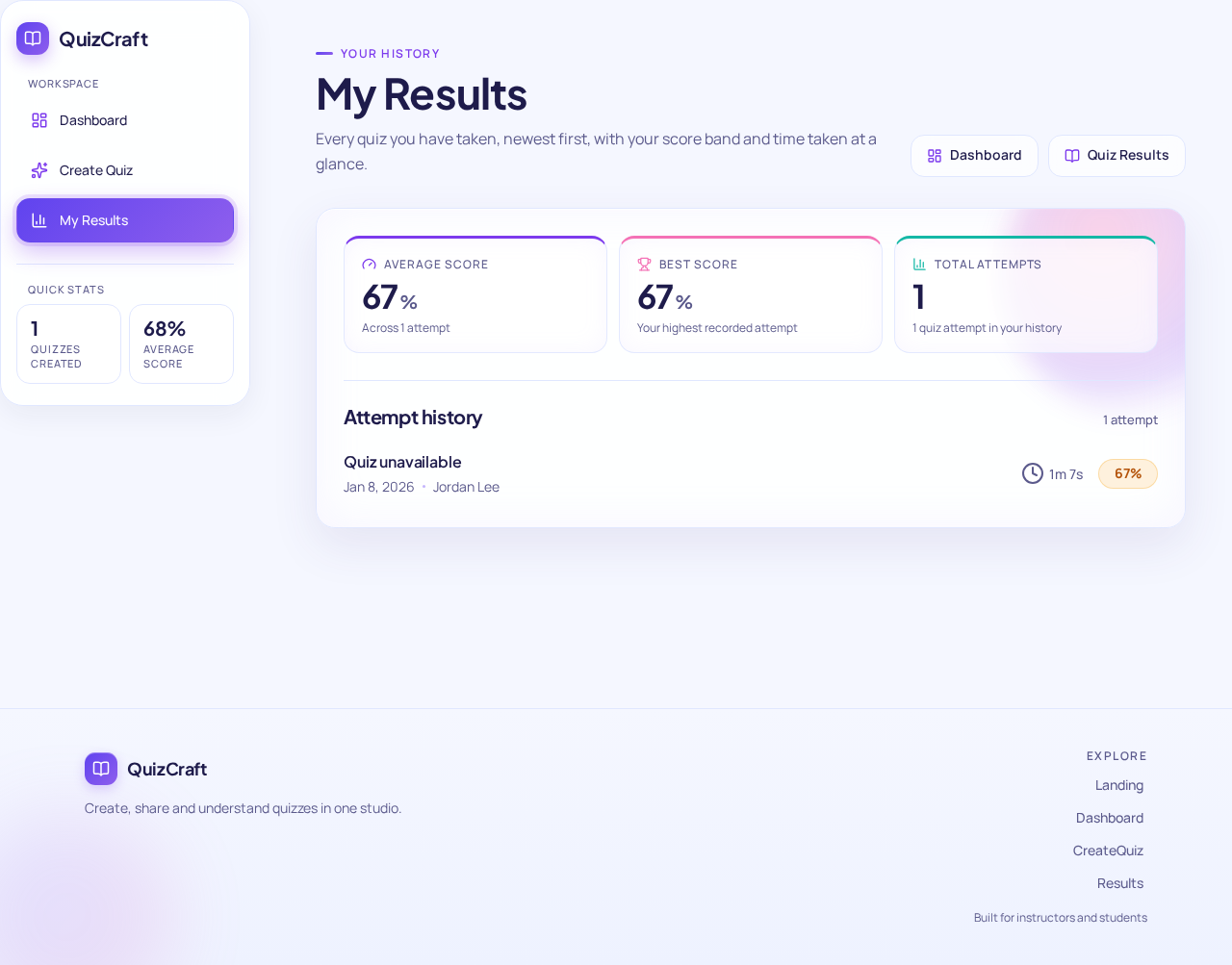
Your history
My Results
Every quiz you have taken, newest first, with your score band and time taken at a glance.
Average Score
67%
Across 1 attempt
Best Score
67%
Your highest recorded attempt
Total Attempts
1
1 quiz attempt in your history
Attempt history
1 attempt- 1m 7s67%
Quiz unavailable
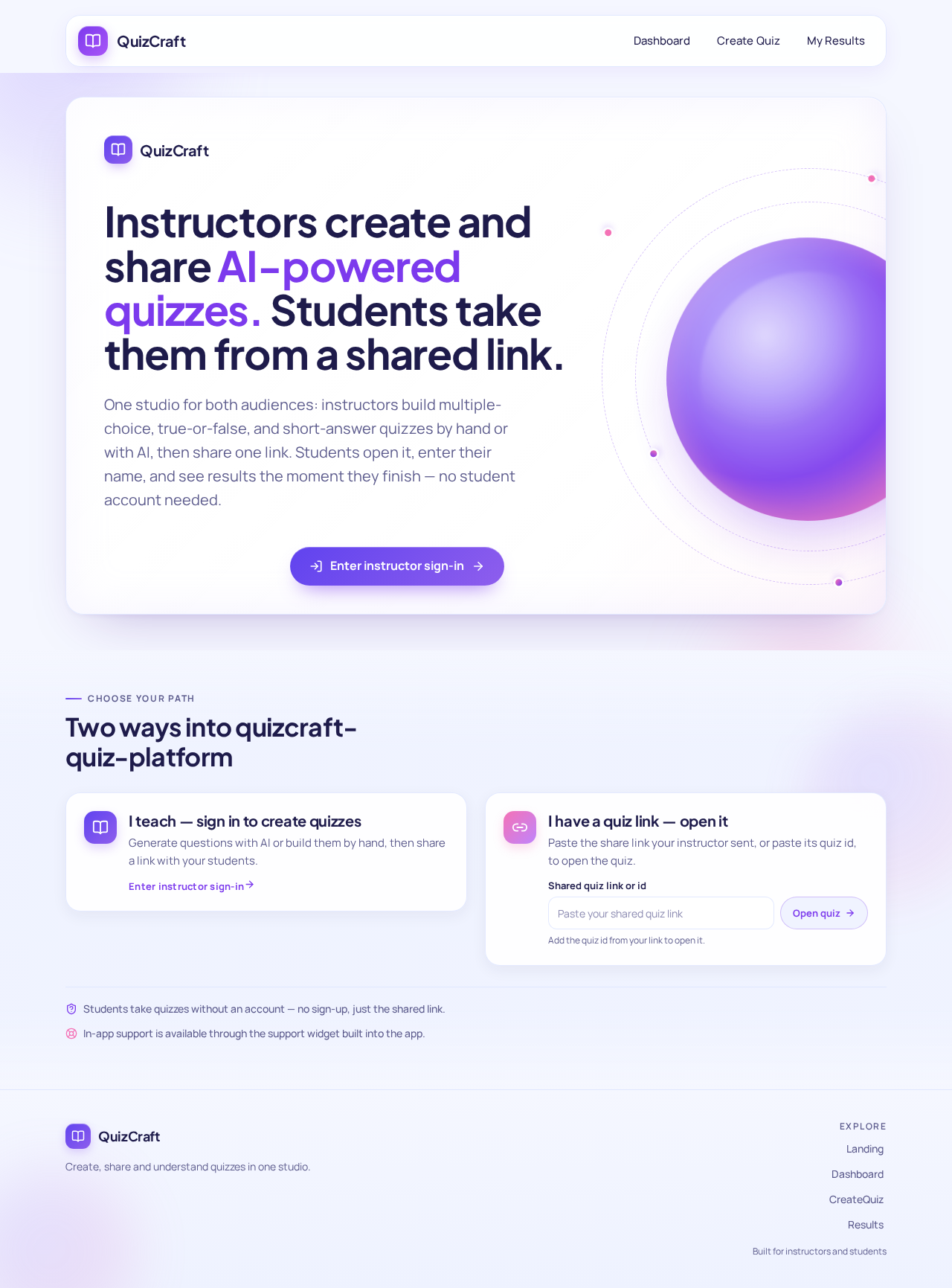
Instructors create and share AI-powered quizzes. Students take them from a shared link.
One studio for both audiences: instructors build multiple-choice, true-or-false, and short-answer quizzes by hand or with AI, then share one link. Students open it, enter their name, and see results the moment they finish — no student account needed.
Two ways into quizcraft-quiz-platform
Students take quizzes without an account — no sign-up, just the shared link.
In-app support is available through the support widget built into the app.
No comments yet. Be the first!