pure-modern
 Smit Bhikadiya
Create a modern and user-friendly Study Planner mobile app for students. Features: User registration and login Home dashboard with today's study tasks Create, edit, and delete study tasks Subject-wise study planning Daily and weekly timetable Exam countdown Study progress tracker with percentage To-do list with completed/pending status Notes section for each subject Reminder/notification option Clean and attractive UI Light and dark mode Responsive design for Android phones Use modern icons, cards, smooth navigation, and simple colors Make the app easy to use, fast, and suitable for school and college students.

Comments (0)
Sign in to leave a comment
System Requirements
System Requirements Document for pure-modern
1. Introduction
The "pure-modern" project aims to develop a modern and user-friendly Study Planner mobile application specifically designed for school and college students. The app will facilitate effective study planning and management by providing features such as user registration and login, task management, subject-wise planning, timetables, exam countdowns, progress tracking, to-do lists, notes, and reminders. The interface will be clean, attractive, and responsive, supporting both light and dark modes, and optimized for Android phones.
2. System Overview
The pure-modern app is a mobile application for Android devices, designed to assist students in organizing their study schedules and tasks efficiently. It offers a range of features including task management, subject-wise planning, timetable views, exam countdowns, progress tracking, and more. The app is intended to be easy to use, fast, and visually appealing, with a clean UI that supports smooth navigation and modern design elements.
2a. Product Interpretation and Delivery Boundary
The app will be delivered as a mobile application for Android phones, with a focus on providing a responsive and user-friendly interface. It will support user registration and login to ensure secure access to personalized study plans. The app will maintain a clean and attractive UI, with support for both light and dark modes. The design will incorporate modern icons, cards, and simple colors to enhance usability and aesthetic appeal.
2b. Source Content Inventory
Not applicable as no explicit content source directive was provided.
2c. Page Content and Component Coverage
Landing
- Purpose: Introduce the Study Planner app, its target audience, and core capabilities.
- Components:
- Overview of app features
- Call-to-action for registration or login
- Visuals aligning with the app's design theme
Login
- Purpose: Facilitate user registration and login for access to personalized study plans.
- Components:
- Registration form
- Login form
- Password recovery option
Dashboard
- Purpose: Provide a summary of today's study tasks and navigation to other features.
- Components:
- List of today's tasks
- Quick links to task creation and editing
- Navigation to other app sections
Tasks
- Purpose: Manage study tasks including creation, editing, and deletion.
- Components:
- Task list with edit and delete options
- Task creation form
- Filters for task status
Subjects
- Purpose: Organize study planning by subject.
- Components:
- List of subjects
- Options to add or edit subjects
- Links to subject-specific notes and tasks
Timetable
- Purpose: Display daily and weekly timetables.
- Components:
- Daily timetable view
- Weekly timetable view
- Options to add or edit timetable entries
Exams
- Purpose: Review upcoming exams and countdowns.
- Components:
- List of upcoming exams
- Countdown timers for each exam
- Options to add or edit exam details
Progress
- Purpose: Track study progress as a percentage.
- Components:
- Progress tracker with percentage display
- Visual representation of progress over time
To-Do
- Purpose: Manage to-do items with completed and pending status.
- Components:
- To-do list with status indicators
- Options to add or edit to-do items
Notes
- Purpose: Maintain notes associated with each subject.
- Components:
- Notes section for each subject
- Options to add or edit notes
Reminders
- Purpose: Configure study-planning reminders or notifications.
- Components:
- Reminder settings
- Notification preferences
3. Functional Requirements
- As a Student, I should be able to register and log in to access my personalized study plans. (explicit)
- As a Student, I should see today's study tasks on the home dashboard. (explicit)
- As a Student, I should be able to create, edit, and delete study tasks. (explicit)
- As a Student, I should be able to plan my studies subject-wise. (explicit)
- As a Student, I should be able to view my daily and weekly timetable. (explicit)
- As a Student, I should be able to see a countdown to my exams. (explicit)
- As a Student, I should be able to track my study progress as a percentage. (explicit)
- As a Student, I should be able to manage a to-do list with completed and pending status. (explicit)
- As a Student, I should be able to maintain notes for each subject. (explicit)
- As a Student, I should be able to set reminders or notifications for study tasks. (explicit)
- As a Student, I should experience a clean, attractive, and easy-to-use interface. (explicit)
- As a Student, I should be able to switch between light and dark modes. (explicit)
- As a Student, I should have a responsive app experience on my Android phone. (explicit)
4. User Personas
Student
- Context: School and college students who need to organize their study schedules and tasks.
- Primary Goal: Efficiently manage study plans, tasks, and schedules to improve academic performance.
- Responsibilities:
- Register and log in to the app.
- Organize study plans by subject and timetable.
- Manage study tasks and to-do items.
- Review exam countdowns and track progress.
- Maintain subject notes and configure reminders.
- Interactions:
- Interacts with all app features to manage study-related activities.
- Receives notifications and reminders for tasks and exams.
- Success: Achieves a manageable study schedule with visible completion status and progress.
5. Core User Flows
5.1 Registration and Login
- Context: New user opens the app.
- Landing Page: User is introduced to the app's features.
- Action: User selects "Register" or "Login".
- Login Page: User completes registration or login form.
- Result: User gains access to personalized study plans.
- Next Step: User is directed to the Dashboard.
5.2 Managing Study Tasks
- Context: User is on the Dashboard.
- Dashboard: User views today's tasks.
- Action: User selects "Create Task".
- Tasks Page: User fills in task details and saves.
- Result: Task is added to the list.
- Next Step: User can edit or delete tasks as needed.
5.3 Subject-wise Planning
- Context: User wants to organize study by subject.
- Dashboard: User navigates to "Subjects".
- Subjects Page: User adds or edits subjects.
- Result: Subjects are organized for study planning.
- Next Step: User can link tasks and notes to subjects.
5.4 Viewing Timetables
- Context: User wants to view their schedule.
- Dashboard: User selects "Timetable".
- Timetable Page: User views daily or weekly schedule.
- Result: User reviews and adjusts schedule as needed.
5.5 Exam Countdown
- Context: User wants to check exam dates.
- Dashboard: User navigates to "Exams".
- Exams Page: User views upcoming exams and countdowns.
- Result: User is informed of exam timelines.
5.6 Tracking Progress
- Context: User wants to track study progress.
- Dashboard: User selects "Progress".
- Progress Page: User views progress tracker.
- Result: User sees progress percentage and trends.
5.7 Managing To-Do List
- Context: User wants to manage to-do items.
- Dashboard: User navigates to "To-Do".
- To-Do Page: User adds or updates to-do items.
- Result: To-do list reflects current status.
5.8 Maintaining Notes
- Context: User wants to take notes.
- Dashboard: User selects "Notes".
- Notes Page: User adds or edits notes for subjects.
- Result: Notes are saved and organized by subject.
5.9 Setting Reminders
- Context: User wants to set reminders.
- Dashboard: User navigates to "Reminders".
- Reminders Page: User configures notification settings.
- Result: Reminders are set for study tasks.
6. Visuals Colors and Theme
- Muse: Rasmus Andersson
- Palette (light mode):
- Background: #F6F3EE
- Surface: #FFFFFF
- Text: #141517
- Primary: #FF6F61
- Accent: #FFD700
- Muted: #D3D3D3
- Typography:
- Headings: Space Grotesk — Bold, uppercase
- Body: Inter Tight
- Scale: 1.333 modular, 48/36/24/18/16
- Shape Language: Crisp, functional with rounded corners
- Layout: 4/8-pt spacing scale
- Imagery: Clean and schematic diagrams, minimalistic icons
7. Signature Design Concept
The public entry page will feature an asymmetric editorial grid with a large heading in Space Grotesk, set against a warm off-white background. A vibrant primary CTA button will be prominently displayed, encouraging user registration or login. The design will incorporate floating cards with subtle shadows and rounded corners, creating a modern and inviting interface.
8. Interaction Model & Motion Direction
- Interaction Model: Static
- Motion Tempo: Restrained
- Hero Dimensionality: Flat
- Landing Hero Motion Brief: The focal subject is the oversized headline in Space Grotesk, with a transformation that highlights the primary CTA button. The motion vocabulary is fast and functional, with transitions between 120–200ms. The first frame is composed with the headline and CTA button, and a reduced-motion state is available for accessibility.
9. Non-Functional Requirements
- The app must be responsive and optimized for Android phone form factors. (explicit)
- The interface should be clean, attractive, fast, and easy to use. (explicit)
- The app should support both light and dark modes. (explicit)
- The app should use modern icons, cards, smooth navigation, and simple colors. (explicit)
10. Tech Stack
- Frontend: React Native
- Backend: Python/FastAPI
- Storage: Appropriate storage solution for user data
- Deployment: Docker/docker-compose for containerization
11. Assumptions and Constraints
- The app is intended for Android phones only.
- The interface must be responsive to various Android phone form factors.
- The design must adhere to the specified color palette, typography, and layout guidelines.
- The app must support both light and dark modes.
12. Glossary
- CTA: Call-to-Action
- UI: User Interface
- UX: User Experience
- Responsive Design: Design that adapts to different screen sizes and orientations
- Progress Tracker: A feature that shows the user's study progress as a percentage
- Timetable: A schedule that displays planned study times and subjects
- Reminder: A notification or alert set to remind the user of tasks or events
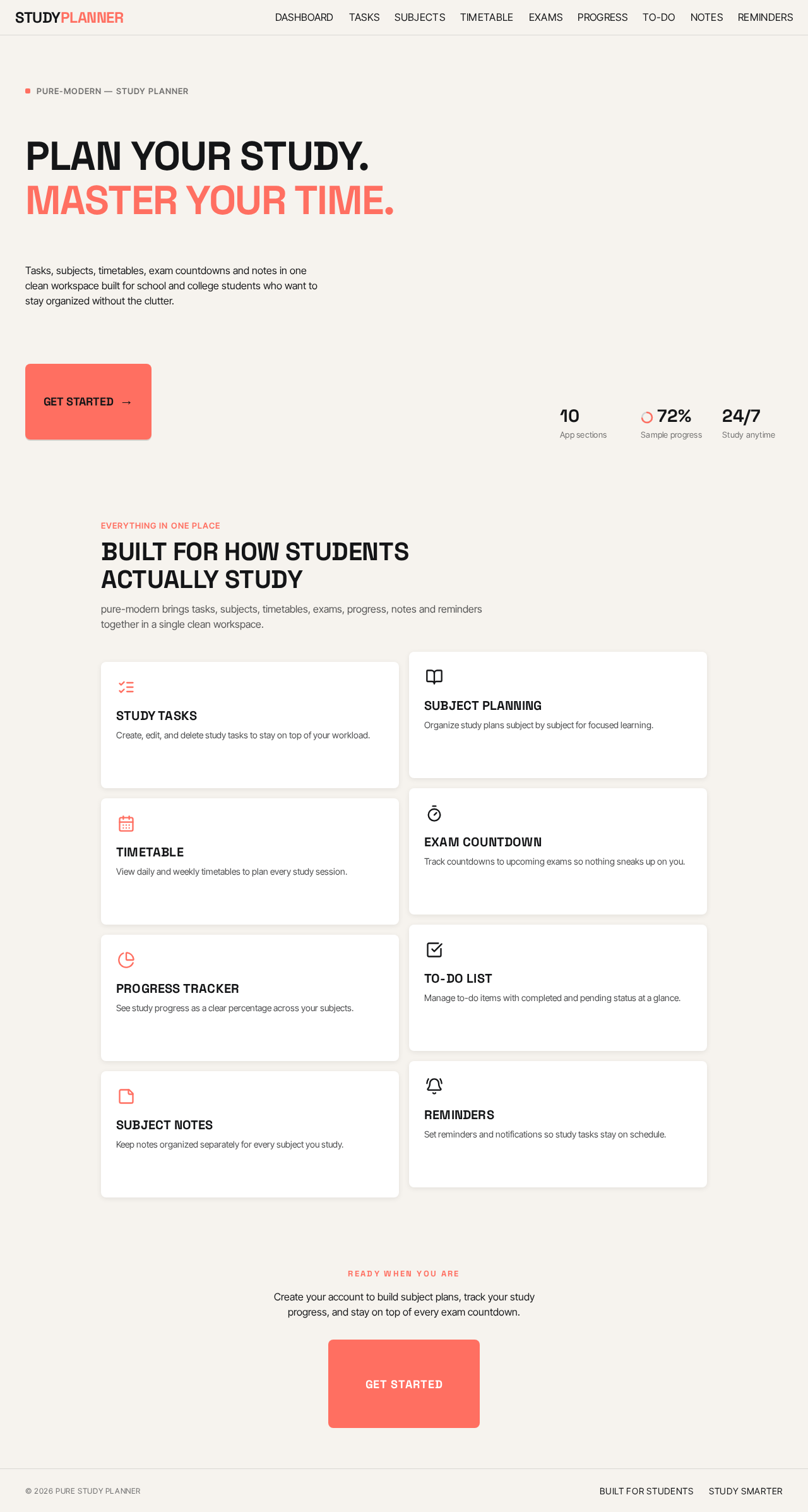
Plan your study.
Master your time.
Tasks, subjects, timetables, exam countdowns and notes in one clean workspace built for school and college students who want to stay organized without the clutter.
Everything in one place
Built for how students actually study
pure-modern brings tasks, subjects, timetables, exams, progress, notes and reminders together in a single clean workspace.
Study Tasks
Create, edit, and delete study tasks to stay on top of your workload.
Subject Planning
Organize study plans subject by subject for focused learning.
Timetable
View daily and weekly timetables to plan every study session.
Exam Countdown
Track countdowns to upcoming exams so nothing sneaks up on you.
Progress Tracker
See study progress as a clear percentage across your subjects.
To-Do List
Manage to-do items with completed and pending status at a glance.
Subject Notes
Keep notes organized separately for every subject you study.
Reminders
Set reminders and notifications so study tasks stay on schedule.
Create your account to build subject plans, track your study progress, and stay on top of every exam countdown.
Plan your study.
Master your time.
Tasks, subjects, timetables, exam countdowns and notes in one clean workspace built for school and college students who want to stay organized without the clutter.
Everything in one place
Built for how students actually study
pure-modern brings tasks, subjects, timetables, exams, progress, notes and reminders together in a single clean workspace.
Study Tasks
Create, edit, and delete study tasks to stay on top of your workload.
Subject Planning
Organize study plans subject by subject for focused learning.
Timetable
View daily and weekly timetables to plan every study session.
Exam Countdown
Track countdowns to upcoming exams so nothing sneaks up on you.
Progress Tracker
See study progress as a clear percentage across your subjects.
To-Do List
Manage to-do items with completed and pending status at a glance.
Subject Notes
Keep notes organized separately for every subject you study.
Reminders
Set reminders and notifications so study tasks stay on schedule.
Create your account to build subject plans, track your study progress, and stay on top of every exam countdown.
No comments yet. Be the first!