prompt-app
 Tejvir Dhiman
i want you to help me another ai website which will be working as rork in which user can enter the prompt and create the app himself means we can show the designs minimum to him and for the further setup he have to count on us and we will help him/her further

Comments (0)
Sign in to leave a comment
System Requirements
System Requirements Document for prompt-app
1. Introduction
prompt-app is an AI-powered app-building website that works like Rork: a person types a prompt describing the app they want, and the product generates it. The product's promise is deliberately bounded — it shows the user a minimal preview of the generated designs, and for everything beyond that minimal preview the user counts on the product team, who help them further with the setup.
The audience is ambitious but non-technical people who have an app idea and no ability to build it themselves. They need a precise, serious tool that turns a sentence into a first artefact, and then a clear, honest handoff to real people who finish the job. The product must never imply that full self-serve app creation, deployment, or configuration is available inside the website.
2. System Overview
prompt-app is a web application with five first-party pages: a public Landing page, a Sign Up page, a Login page, an authenticated Create App page where the prompt is entered, and an authenticated App Preview page that displays the minimal generated design preview and directs the user to the product team for further setup.
The single active human actor is the App Creator. The product team is referenced by the accepted requirements as the party who handles further setup; the product team is not modelled as an in-product actor with its own pages or tools in this release.
Current accepted behaviour:
- An anonymous visitor learns what the product does and that further setup is handled with the product team.
- A visitor enrolls with a self-service account, or a returning user verifies identity to reach their durable prompt and preview state.
- A signed-in App Creator submits a prompt describing the app they want.
- The product generates a minimal design preview from that prompt and presents it as a catalogue-style artefact.
- The App Preview page tells the App Creator that further setup is not self-serve and must be handled with the product team's help.
Narrow exclusions (binding):
- The design preview shown to the user is limited to a minimum. It is not a full app, not a working build, and not an editable project.
- Further setup beyond the minimal preview is not self-serve. It must be handled with the product team's help. No in-product flow for completing setup, configuring infrastructure, deploying, or publishing an app is part of this release.
2a. Product Interpretation and Delivery Boundary
prompt-app is delivered as a first-party web application with application-owned identity. Because prompt and preview state is durable and belongs to a specific person who must be able to return to it, the product establishes identity through self-service Sign Up and verifies returning users through Login. Landing and Sign Up are reachable anonymously; Create App and App Preview require a signed-in App Creator. Login is reachable anonymously so a returning user can establish access to protected state.
The delivery boundary is the minimal preview. Everything the product does ends at the point where the App Creator has seen the generated design preview and has been told, plainly, that the rest is done with the product team. The product team's own working tools, the actual build, deployment, hosting, and any post-preview configuration are outside this release and remain with the product team.
AI generation is used for exactly one accepted purpose: producing the minimal design preview from the submitted prompt. It is not used for adjacent capabilities such as chat assistance, code editing, or iterative app modification.
2b. Source Content Inventory
Not applicable — no reference directive supplies a content_source.
2c. Page Content and Component Coverage
Landing
- Information/state: Anonymous public entry. States the product turns a prompt into an app, who it is for (non-coders with an app idea), and that further setup is handled with the product team. Carries the hero composition described in Sections 6–8 and a numbered three-step index (01 prompt, 02 preview, 03 handoff) laid out as ruled rows, not cards.
- Primary actions: Enter a prompt in the ruled input line and choose Generate preview; navigate to Sign Up; navigate to Login.
- Supporting actions: Read the three-step index; read the handoff statement.
- Domain entities: Prompt (draft text, not yet persisted), App Creator (anonymous visitor).
- Component responsibilities:
- Left metadata rail: vertical stack of 11px uppercase labels (PROMPT-APP / BUILD-01 / ORANGE CODE) separated by hairlines.
- Stepped headline: "PROMPT" flush-left in bone, "an app." offset and in Saville orange.
- Ruled prompt input: single 1px line, orange caret, placeholder "describe the app you want to build…".
- Text CTA "Generate preview" with arrow, not a filled button.
- Numbered index rows 01/02/03 with a full-width rule above each.
- States:
- Loading: none required; the page is static content.
- Empty: prompt input empty with placeholder visible.
- Success: prompt accepted → anonymous visitor is routed to Sign Up (or Login) to establish identity before generation, with the entered prompt preserved for continuation.
- Error: prompt submitted empty or whitespace-only → inline message that a description is required; input retains focus.
- Recovery: the visitor can edit the prompt and resubmit, or proceed to Sign Up and continue from Create App.
Sign Up
- Information/state: Anonymous self-service enrollment for an App Creator. Explains that an account is needed to keep the prompt and its preview and to return to them.
- Primary actions: Submit enrollment details to create the account; on success, continue into Create App.
- Supporting actions: Navigate to Login if already enrolled; return to Landing.
- Domain entities: App Creator account (identity, credential, created timestamp).
- Component responsibilities: Enrollment form fields; submit action as ruled text action; inline validation messaging; link to Login.
- States:
- Loading: submit disabled with a restrained in-place pending indicator while the account is created.
- Empty: blank form with field labels in 11px uppercase metadata voice.
- Success: account created and session established → routed to Create App, carrying any prompt entered on Landing.
- Error: invalid or incomplete fields → field-level messages, no account created; duplicate identity → message directing the visitor to Login.
- Recovery: correct the fields and resubmit, or switch to Login.
Login
- Information/state: Anonymous returning verification for an App Creator who already has an account and durable prompt/preview state.
- Primary actions: Submit credentials to verify identity and reach protected state.
- Supporting actions: Navigate to Sign Up; return to Landing.
- Domain entities: App Creator account, session.
- Component responsibilities: Credential form; submit action as ruled text action; error region; link to Sign Up.
- States:
- Loading: submit disabled with restrained pending indicator during verification.
- Empty: blank form.
- Success: verified → routed to Create App (or to App Preview when the App Creator's most recent preview is the intended destination).
- Error: incorrect credentials → single non-revealing error message; form remains usable.
- Recovery: retry credentials; if the account is not recognised, follow the link to Sign Up.
Create App
- Information/state: Authenticated working surface where the App Creator describes the app they want. Shows the signed-in App Creator's own prompt state, including a prompt carried over from Landing. Makes clear that what follows is a minimal design preview and that further setup is handled with the product team.
- Primary actions: Enter or edit the prompt; submit it to generate the minimal design preview.
- Supporting actions: Review the handoff statement before submitting; return to Landing.
- Domain entities: Prompt (text, owner, submitted timestamp, generation status), App Creator.
- Component responsibilities:
- Ruled prompt input spanning the content grid, orange caret, no rounded box.
- Submit action as plain orange text with an arrow.
- Generation status region: idle, generating (orange rule sweep and pulse), failed, complete.
- Handoff note stating that further setup is handled with the product team.
- States:
- Loading: generation in progress — the 1px orange rule sweeps across the input (600ms) and a restrained generating pulse indicates work; input locked during generation.
- Empty: no prompt yet — input focused with placeholder; submit unavailable until non-empty text exists.
- Success: preview generated → routed to App Preview for that prompt.
- Error: generation fails → explicit failure message on the page, prompt text preserved, retry action offered.
- Recovery: retry generation with the same prompt, or edit the prompt and submit again.
App Preview
- Information/state: Authenticated display of the minimal generated design preview for the submitted prompt, presented as a catalogue artefact: thin-stroke wireframe with a circular orange gauge and metadata (APP TYPE / SCREENS / PALETTE / STATUS) in 11px uppercase. States plainly that this is the minimum, that further setup is not self-serve, and that the product team will help with the rest.
- Primary actions: Review the preview and its metadata; read the handoff instruction for contacting the product team for further setup.
- Supporting actions: Return to Create App to submit a different prompt; return to Landing.
- Domain entities: Prompt, generated preview artefact (wireframe, gauge, metadata fields APP TYPE / SCREENS / PALETTE / STATUS), generation status, App Creator.
- Component responsibilities:
- Preview artefact frame with hard edges and hairline rules.
- Circular orange gauge at the artefact's centre.
- Metadata column beneath the artefact in 11px uppercase, acid-green chips for code-style metadata only.
- Handoff block naming the product team as the owner of further setup.
- States:
- Loading: artefact fades in from 0 to 1 opacity over 900ms with metadata labels ticking in at 80ms intervals; under reduced motion everything appears instantly.
- Empty: no preview exists for this App Creator yet → message directing them to Create App.
- Success: artefact and metadata fully rendered; handoff instruction visible.
- Error: preview could not be retrieved → explicit message with a retry action and a route back to Create App.
- Recovery: retry retrieval, or resubmit the prompt from Create App.
3. Functional Requirements
FR-1 — Prompt-to-app product promise (explicit) As an App Creator, I should be able to use an AI-powered website that works like Rork, where I enter a prompt and create the app myself, so that my idea becomes something concrete without me writing code.
- Trigger/input: a text prompt describing the desired app.
- Observable result: the product accepts the prompt and produces a generated result attributable to it.
- Access state: requires a signed-in App Creator for the generation step.
- Failure/recovery: if the prompt cannot be processed, the prompt text is preserved and the App Creator can retry or edit it.
- Continuation: on success, the App Creator proceeds to the minimal design preview.
- Acceptance: a signed-in App Creator submits a non-empty prompt and receives a generated result tied to that prompt.
FR-2 — Minimal design preview (explicit) As an App Creator, I should be shown a minimal preview of the generated designs, so that I can see the direction of my app without being handed a full build.
- Trigger/input: a successfully generated result for a submitted prompt.
- Observable result: a preview artefact is displayed with its metadata (APP TYPE / SCREENS / PALETTE / STATUS).
- Access state: requires a signed-in App Creator who owns the prompt.
- Failure/recovery: if the preview cannot be produced or retrieved, an explicit failure message is shown with a retry action; the prompt remains available.
- Continuation: the App Creator reviews the preview and reads the handoff instruction.
- Acceptance: the preview is present, labelled as minimal, and does not present itself as a complete or working app.
FR-3 — Handoff to the product team for further setup (explicit) As an App Creator, I should be told that for further setup beyond the minimal preview I have to count on the product team, who will help me further, so that I know exactly where the product's self-serve capability ends and who finishes the job.
- Trigger/input: viewing the App Preview after a preview has been generated.
- Observable result: a visible handoff statement on App Preview naming the product team as the party who handles further setup, and stating that further setup is not self-serve.
- Access state: requires a signed-in App Creator.
- Failure/recovery: the handoff statement is static content and must render whenever the preview renders; if the preview fails to load, the handoff statement is still shown alongside the failure message.
- Continuation: the App Creator takes the next step with the product team outside the product.
- Acceptance: no in-product control offers to complete, configure, deploy, or publish the app; the only path forward described is with the product team.
FR-4 — Self-service enrollment (required_inference) As an App Creator, I should be able to create my own account, so that I can begin using the product without waiting for someone to set me up.
- Trigger/input: enrollment details submitted on Sign Up.
- Observable result: an account exists and a session is established; the App Creator lands on Create App.
- Access state: Sign Up is reachable anonymously.
- Failure/recovery: invalid or incomplete details produce field-level messages and no account; an already-enrolled identity is directed to Login.
- Continuation: proceed to Create App, carrying any prompt entered on Landing.
- Acceptance: a new visitor completes Sign Up and reaches Create App signed in.
FR-5 — Returning verification (required_inference) As an App Creator, I should be able to verify my identity when I return, so that I can reach my own durable prompt and preview state.
- Trigger/input: credentials submitted on Login.
- Observable result: session established; the App Creator reaches Create App or their most recent App Preview.
- Access state: Login is reachable anonymously; Create App and App Preview require the resulting session.
- Failure/recovery: incorrect credentials produce a single non-revealing error and the form stays usable; an unrecognised account is directed to Sign Up.
- Continuation: resume work on the prompt or review the existing preview.
- Acceptance: a returning App Creator signs in and sees only their own prompt and preview state.
FR-6 — AI generation of the minimal design preview from the prompt (required_inference) As an App Creator, I should have the minimal design preview generated by AI from the prompt I submitted, so that the preview reflects what I actually described.
- Trigger/input: submission of a non-empty prompt on Create App.
- Observable result: a preview artefact whose metadata derives from the prompt, persisted against that prompt and that App Creator.
- Access state: requires a signed-in App Creator.
- Failure/recovery: generation failure is surfaced explicitly on Create App with the prompt preserved and a retry action; no partial artefact is presented as complete.
- Continuation: on success, route to App Preview for that prompt.
- Acceptance: two different prompts produce previews whose metadata differ accordingly, and each preview is retrievable by its owner after signing out and back in.
FR-7 — Durable prompt and preview state (required_inference) As an App Creator, I should have my prompt and its preview kept for me, so that returning to the product shows my work rather than an empty page.
- Trigger/input: submitting a prompt and generating a preview while signed in.
- Observable result: the prompt and its preview artefact persist against the App Creator's account and are shown again on return.
- Access state: requires a signed-in App Creator; state is scoped to the owning account.
- Failure/recovery: if retrieval fails, an explicit message and retry action are shown rather than a silent empty state.
- Continuation: the App Creator can review the preview or submit a new prompt.
- Acceptance: after signing out and back in, the App Creator's most recent prompt and preview are available.
4. User Personas
App Creator
Product context. The App Creator is a visitor who wants to build an app without coding. They arrive with an idea expressed in ordinary language and no expectation of configuring anything technical. They have likely tried or heard of prompt-to-app tools and expect the first interaction to be typing a sentence.
Primary goal. Turn a described app idea into something visible — a minimal design preview — and then get real help finishing the rest.
Distinct accepted responsibilities.
- Learn from the Landing page what the product does and that further setup is handled with the product team.
- Enter a prompt describing the app they want, either on Landing or on Create App.
- Enroll with a self-service account, or verify identity on return, so their prompt and preview are kept for them.
- Submit the prompt for generation and wait through the generating state.
- Review the minimal design preview and its metadata (APP TYPE / SCREENS / PALETTE / STATUS).
- Read and act on the handoff instruction: further setup is not self-serve and is handled with the product team.
Relevant inputs and decisions. The prompt text itself; the decision to enroll versus sign in; the decision to accept the preview and move to the product team, or to submit a different prompt.
Interactions with other accepted participants. The App Creator's journey ends in a handoff to the product team, who are named in the product as the owners of further setup. The product team is not an in-product actor in this release; the App Creator's observable outcome is the explicit instruction that the team will help them further.
Observable success. The App Creator sees a preview artefact generated from their own prompt, understands that it is deliberately minimal, and knows unambiguously that the next step is with the product team rather than with a self-serve control.
What makes this role distinct. The App Creator is the only human actor in the product, and their work is a single arc — describe, preview, hand off — rather than an ongoing management role. Their success is measured by clarity at the boundary, not by how much they can do inside the product.
5. Core User Flows
Flow A — Anonymous visitor discovers the product and starts a prompt
- The visitor opens Landing anonymously. They see the stepped headline, the left metadata rail (PROMPT-APP / BUILD-01 / ORANGE CODE), and the numbered index 01/02/03 explaining prompt → preview → handoff.
- The visitor types a description into the ruled prompt input, e.g. "a booking app for a small barber shop".
- The visitor chooses Generate preview (plain orange text with an arrow).
- Because generation requires an owned, durable prompt, the product routes the visitor to Sign Up, preserving the entered prompt for continuation. If the visitor already has an account, they follow the link to Login instead.
- Continuation: Flow B (new account) or Flow C (returning account), then Flow D.
Failure/recovery: if the visitor submits an empty or whitespace-only prompt, an inline message states that a description is required and the input keeps focus; they can type and resubmit.
Flow B — App Creator enrolls for the first time
- From Sign Up, the visitor enters their enrollment details.
- They submit. While the account is created, the submit action is disabled with a restrained in-place pending indicator.
- On success, a session is established and the App Creator lands on Create App, with any prompt entered on Landing already present in the input.
- Continuation: Flow D.
Failure/recovery: invalid or incomplete details produce field-level messages and no account is created; the visitor corrects and resubmits. If the identity is already enrolled, the product directs them to Login.
Flow C — Returning App Creator verifies identity
- The returning App Creator opens Login anonymously and enters their credentials.
- They submit; the form shows a restrained pending state during verification.
- On success they reach Create App, or their most recent App Preview if that is what they came back for. Their own prompt and preview state is available; no other App Creator's state is visible.
- Continuation: Flow D or Flow E.
Failure/recovery: incorrect credentials produce a single non-revealing error and the form remains usable for another attempt. If the account is not recognised, the App Creator follows the link to Sign Up.
Flow D — App Creator submits a prompt and generation runs
- The signed-in App Creator is on Create App. The page shows the ruled prompt input, the submit action, and the handoff note stating that further setup is handled with the product team.
- The App Creator writes or edits the prompt describing the app they want.
- They submit. The 1px orange rule sweeps left-to-right across the input (600ms) and a restrained orange pulse indicates generation; the input is locked while generation runs.
- On success, the product routes the App Creator to App Preview for that prompt.
- Continuation: Flow E.
Failure/recovery: if generation fails, an explicit failure message appears on Create App, the prompt text is preserved, and a retry action is offered. The App Creator retries the same prompt or edits it and submits again. No partial artefact is presented as a finished preview.
Flow E — App Creator reviews the minimal preview and receives the handoff
- The signed-in App Creator arrives on App Preview. The preview artefact fades in from 0 to 1 opacity over 900ms, its metadata labels ticking in one by one at 80ms intervals; under reduced motion everything appears instantly.
- The App Creator sees the catalogue-style artefact: a thin-stroke wireframe of the requested app on the black ground, a circular Saville-orange gauge at its centre, and a metadata column beneath it reading APP TYPE / SCREENS / PALETTE / STATUS in 11px uppercase, with acid-green chips used only for code-style metadata.
- The App Creator reads the handoff block: this is the minimum the product shows; further setup is not self-serve and is handled with the product team, who will help them further.
- The App Creator's observable outcome is a clear decision point — take the preview to the product team for further setup, or return to Create App to submit a different prompt.
- Continuation: the App Creator contacts the product team outside the product; the product offers no control to complete, configure, deploy, or publish the app.
Failure/recovery: if the preview cannot be retrieved, an explicit message with a retry action is shown together with the handoff statement, and a route back to Create App is offered. If no preview exists yet for this App Creator, the page directs them to Create App.
Flow F — App Creator returns later to their own work
- The App Creator opens Login and verifies identity (Flow C).
- They reach Create App or their most recent App Preview and find their prompt and preview intact.
- They review the existing preview, or submit a new prompt, which produces a new preview artefact for that prompt.
- Continuation: Flow E.
Failure/recovery: if retrieval of stored state fails, an explicit message and retry action are shown instead of a silent empty state.
6. Visuals Colors and Theme
Muse and headline. Peter Saville — one coded artefact on a black ground. The register is restrained confidence: this machine is precise and serious, and real people finish the job. Not hype, not playful, not a blue-gradient SaaS template.
Mode. Dark only.
Colour tokens (exact).
| Role | Hex | Usage |
|---|---|---|
| Background | #0B0B0C | Near-black ground; dominates ~70% of every viewport |
| Surface | #141416 | Raised panels and the preview artefact frame |
| Text | #F2F0EA | Bone-white; carries all reading |
| Primary | #E8552A | Saville orange — the single spot colour: prompt caret, rule under the input, active states, generating pulse, circular gauge, second headline line |
| Accent | #C8FF3D | Acid green — only as a code colour on the preview artefact's metadata chips; never body text |
| Muted | #7A7873 | Metadata labels at 11px uppercase |
| Rule | #2A2A2C | Hairline 1px dividers |
No second hue anywhere. One accent hue per viewport.
Typography. Headings and body both Archivo (no Inter, Roboto, Poppins, or system-ui anywhere in the stack).
- Display: Archivo 300–400, tight tracking
-0.03em, sentence case, ragged right, single clause per line, never more than three words per line, with one hard colour change mid-phrase (bone → orange) as the only emphasis. - Scale (1.5 modular): 24 / 36 / 54 / 80 / 120 / 176px display; mobile 32 / 40 / 54, desktop 96 / 128 / 176. Every display size uses
clamp()so headlines wrap inside 375px. - Body: 16px / 1.6.
- Metadata: Archivo 500, 11px / 1.4, uppercase,
0.18emtracking, muted grey — the label voice of the whole product.
Shape language. Hard edges only — zero border-radius on inputs, buttons, cards, and image frames. Hairline 1px rules in #2A2A2C divide sections. The one circular form is the preview artefact's dial/ring, reading as a record label or gauge. Nothing rounded, nothing glossy, nothing blurred.
Layout. 12-column grid with a visible left metadata rail (columns 1–2) carrying a vertical stack of uppercase labels: PROMPT / PREVIEW / HANDOFF. Main content sits in columns 4–11, asymmetric and flush-left. Vertical silence: 160px between sections on desktop, 72px on mobile. The prompt input is a full-width ruled line, not a box. Below the fold, the three-step sequence is a numbered index (01, 02, 03) with rules between rows, not cards.
Imagery. No stock photography. The hero artefact is a generated SVG design diagram: a wireframe of the requested app as thin white strokes on the black ground, with a circular Saville-orange gauge at its centre and a metadata column beneath it (APP TYPE / SCREENS / PALETTE / STATUS). Supporting imagery is schematic only — grid overlays, axis ticks, colour swatches as exact rectangles. The preview screen shows three such wireframes in a horizontal rail, each labelled like a record catalogue number.
Readability constraint. Headlines, wordmarks, labels, numbers, and controls stay entirely inside the viewport and their container at 375px, 768px, and 1280px, wrapping or scaling to fit, with nothing covering them. The horizontal wireframe rail may cross the container edge by design; every item becomes fully readable as it scrolls, and under reduced motion the rail wraps into rows or scrolls horizontally so each item can be brought fully into view.
7. Signature Design Concept
The sleeve. The Landing page is composed as a record sleeve rather than a marketing page. Full-bleed #0B0B0C. The left third is a vertical metadata rail of 11px uppercase labels — PROMPT-APP / BUILD-01 / ORANGE CODE — separated by hairlines, running the full height like a catalogue number block. Centre and right: the word PROMPT set at 176px Archivo 300 in bone white, flush-left, with the second line an app. in Saville orange offset 120px to the right, so the two lines form a stepped composition. Beneath the headline, a single full-width ruled input line with a blinking orange caret and the placeholder "describe the app you want to build…", and the CTA Generate preview as plain orange text with an arrow — not a filled button. No gradient, no blob, no centred stack.
Below the fold, the three-step sequence is an index, not a feature grid: rows numbered 01 / 02 / 03, each with a full-width rule above it, stating prompt, preview, and handoff. The handoff row is the page's quiet climax — it is where the product says, in the same measured voice, that people finish the job.
The concept recomposes only accepted content and controls: the prompt input, the Generate preview action, the three-step explanation, and the handoff statement. It introduces no new behaviour.
8. Interaction Model & Motion Direction
Interaction Model: Static Motion Tempo: still Hero Dimensionality: flat
Landing Hero Motion Brief
- Focal subject. The stepped headline (PROMPT / an app.) and the ruled prompt input beneath it, framed by the left metadata rail.
- Input → transformation → outcome thesis. The App Creator types into the ruled line; on submission a 1px orange rule sweeps left-to-right across the input (600ms,
cubic-bezier(0.2,0,0,1)), marking the moment the prompt is taken; the outcome is the transition toward the generated preview artefact, which fades in from 0 to 1 opacity over 900ms with its metadata labels ticking in one by one at 80ms intervals. - Motion vocabulary. One sweep, one fade, one tick sequence. No bounce, no float, no parallax. Page transitions are 200ms crossfades.
- Composed first frame. Black ground; metadata rail at left with hairline separators; "PROMPT" in bone at 176px flush-left; "an app." in orange offset 120px right; the ruled input line with a blinking orange caret and the placeholder; "Generate preview →" in orange text.
- Reduced-motion state. Everything appears instantly: no rule sweep, no fade, no ticking labels, no caret blink. The page is fully usable and fully legible as a static composition.
9. Non-Functional Requirements
- NFR-1 — Minimal-preview boundary (explicit). The design preview shown to the user is limited to a minimum. The product must not present the preview as a complete, working, editable, or deployable app, and must not offer controls that imply it is.
- NFR-2 — Non-self-serve further setup (explicit). Further setup beyond the minimal preview is not self-serve and must be handled with the product team's help. No in-product flow for completing setup, configuring, deploying, or publishing an app may be introduced.
- NFR-3 — Durable state (required_inference). Prompt and preview state persists against the owning App Creator's account and survives sign-out and return.
- NFR-4 — State isolation (required_inference). An App Creator can only reach their own prompt and preview state; protected pages are inaccessible without a verified session.
- NFR-5 — AI generation reliability (required_inference). Generation failures are surfaced explicitly with the prompt preserved and a retry path; a failed generation never renders as a completed preview.
- NFR-6 — Legibility across viewports (explicit, from the creative direction). Readable text and controls remain whole and uncovered at 375px, 768px, and 1280px; display type uses
clamp()with its mobile size. - NFR-7 — Reduced motion (explicit, from the creative direction). Under
prefers-reduced-motion, all motion resolves instantly and the layout remains usable, including the wireframe rail. - NFR-8 — Palette discipline (explicit, from the creative direction). One accent hue per viewport; acid green restricted to preview metadata chips; no rounded corners, glass, blur, or gradients.
10. Tech Stack
- Frontend: React web application. Archivo loaded as a webfont; no Inter, Roboto, Poppins, or system-ui in the type stack.
- Backend: Python / FastAPI, serving the prompt submission, AI generation orchestration, preview retrieval, and identity endpoints from a single shared backend process.
- AI generation: a server-side model call that turns the submitted prompt into the minimal preview artefact and its metadata (APP TYPE / SCREENS / PALETTE / STATUS). Invoked only from the backend; credentials never reach the browser.
- Storage: a relational database for App Creator accounts, prompts, generation status, and preview artefacts.
- Deployment: Docker / docker-compose for the frontend, backend, and database.
11. Assumptions and Constraints
- A-1 (assumption). The product team's own tools and the actual build of the user's app live outside this product; the product's responsibility ends at the minimal preview and the handoff statement.
- A-2 (assumption). One App Creator may hold multiple prompts over time; the most recent preview is the one surfaced on return, with earlier prompts retained.
- A-3 (assumption). Self-service enrollment uses email-and-password credentials; no third-party identity provider is specified by the source.
- A-4 (constraint, explicit). The preview is minimal by design. Any request to expand it into a full build, editor, or deployment flow is out of scope for this release.
- A-5 (constraint, explicit). Further setup is not self-serve and is handled with the product team.
- A-6 (constraint, explicit). The visual direction is binding: Saville-derived black ground, single orange spot colour, acid green only on metadata chips, Archivo throughout, hard edges, ruled inputs, numbered index rows instead of cards, and no indigo/blue-on-white SaaS template look.
- A-7 (default — not specified by user). Exact credential rules, session lifetime, and rate limits are implementation defaults chosen to be conservative; they do not alter any accepted behaviour.
12. Glossary
- App Creator — the single active human persona: a non-coder who describes an app in a prompt, receives a minimal design preview, and relies on the product team for further setup.
- Prompt — the natural-language description of the desired app, entered on Landing or Create App and owned by an App Creator.
- Minimal design preview — the deliberately limited generated artefact shown after a prompt is submitted: a thin-stroke wireframe with a circular orange gauge and metadata. Not a working app.
- Preview artefact — the catalogue-style presentation of the minimal design preview, labelled like a record catalogue number.
- Metadata (APP TYPE / SCREENS / PALETTE / STATUS) — the four labelled fields set in 11px uppercase beneath the preview artefact.
- Handoff — the explicit statement on App Preview that further setup is not self-serve and is handled with the product team.
- Product team — the human party, referenced by the accepted requirements, who handle further setup beyond the minimal preview. Not an in-product actor in this release.
- Generating state — the in-progress state on Create App, marked by the orange rule sweep and pulse, during which the input is locked.
- Metadata rail — the vertical stack of 11px uppercase labels down the left edge of every page, separated by hairlines.
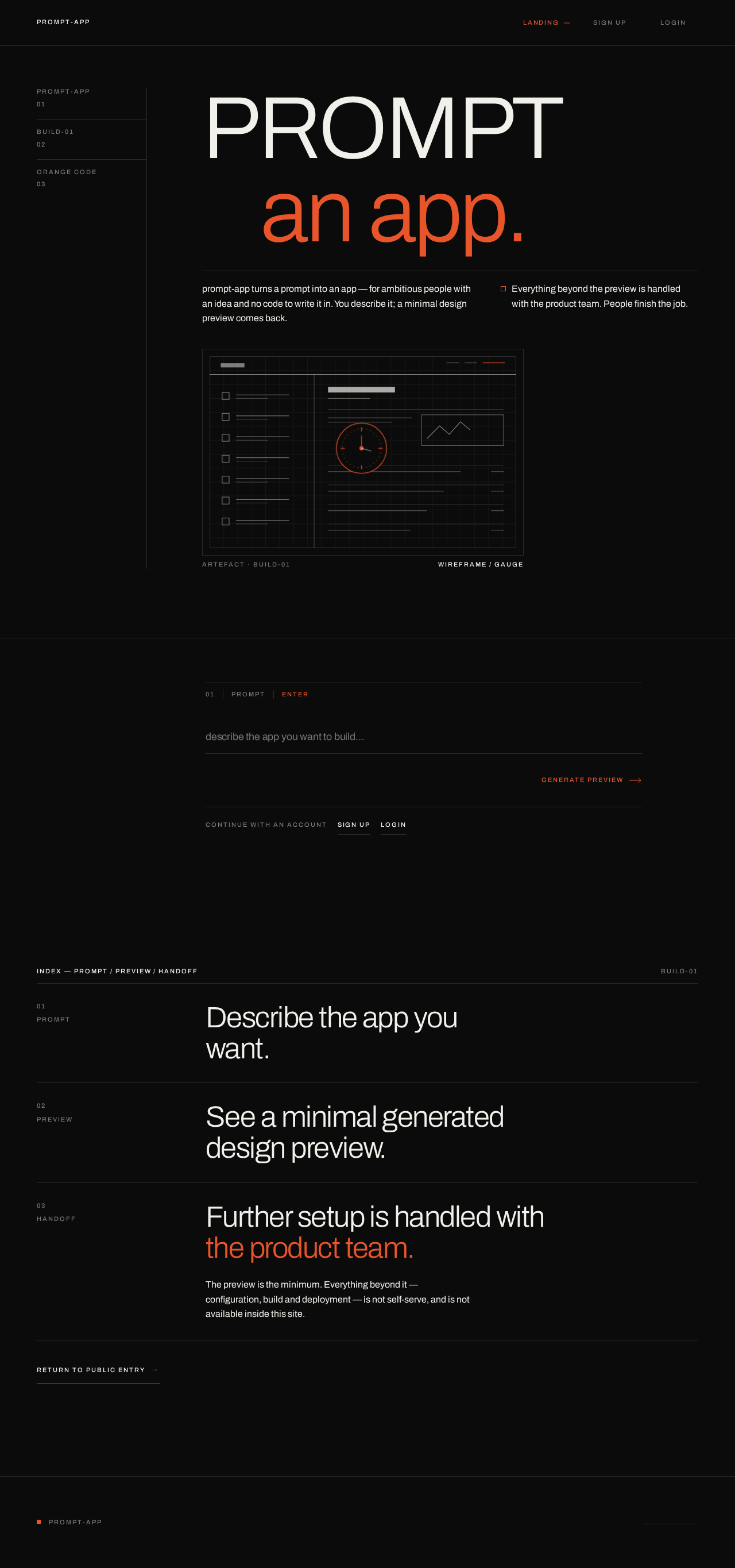
PROMPTan app.
prompt-app turns a prompt into an app — for ambitious people with an idea and no code to write it in. You describe it; a minimal design preview comes back.
Everything beyond the preview is handled with the product team. People finish the job.
Describe the app you want.
See a minimal generated design preview.
Further setup is handled with the product team.
The preview is the minimum. Everything beyond it — configuration, build and deployment — is not self-serve, and is not available inside this site.
PROMPTan app.
prompt-app turns a prompt into an app — for ambitious people with an idea and no code to write it in. You describe it; a minimal design preview comes back.
Everything beyond the preview is handled with the product team. People finish the job.
Describe the app you want.
See a minimal generated design preview.
Further setup is handled with the product team.
The preview is the minimum. Everything beyond it — configuration, build and deployment — is not self-serve, and is not available inside this site.
No comments yet. Be the first!