penny

byHemen Ashodia

A personal expense tracker web app called Penny Ledger. Users sign up, log daily expenses with a category and amount, see a monthly spending chart by category, and set a monthly budget per category with a warning when they get close to it.

LandingDashboardAdd ExpenseExpensesBudget DetailsBudgetsLoginSign Up
Landing

Comments (0)

No comments yet. Be the first!

System Requirements

Page 1 of 24

System Requirements Document for penny

1. Introduction

Penny Ledger is a personal expense tracker web app for everyday people who want to understand where their money goes without feeling judged or overwhelmed. The product intent is a friendly, low-friction money habit: a person signs up for an account, logs daily expenses — each with a category and an amount — sees a monthly spending chart broken down by category, and sets a monthly budget per category so that they receive a warning when their spending gets close to that budget.

The audience is a single everyday person managing their own household spending. They are not an accountant, a finance team, or a business. They want an accurate monthly view of their spending and a timely, encouraging nudge before they exceed a category budget. The tone throughout is warm, plain-spoken, and reassuring — a tool that coaxes rather than audits.

Page 2 of 24

2. System Overview

Penny Ledger is delivered as a first-party web application with application-owned identity and custom UI. A single active human role — the Penny Ledger User — signs up, logs expenses, reviews the monthly category chart, and sets per-category monthly budgets.

Current delivery consists of eight pages: an anonymous Landing page that explains Penny Ledger and its expense, chart, budget, and warning capabilities; anonymous Login and Sign Up pages that establish and verify the user's identity; and five protected pages — Dashboard (monthly spending chart by category), Expenses (the durable daily expense ledger), Add Expense (focused entry of a category and amount), Budgets (the user's monthly category budgets), and Budget Details (setting a monthly budget for a category).

A durable backend stores expenses, category budgets, monthly calculations, and threshold-warning state so that a returning user resumes their own records.

Narrow exclusions: Penny Ledger does not include income tracking, bank or card account linking, multi-user or shared household ledgers, investment or net-worth tracking, bill payment, or financial advice. It does not provide differentiated roles or permissions — every signed-in user sees only their own data. There is no dark mode as the default; the product lives in warm light.

Page 3 of 24

2a. Product Interpretation and Delivery Boundary

Penny Ledger is a first-party web application. All eight pages are owned and rendered by the application itself; no page is delegated to a provider surface or an external destination. The three anonymous pages (Landing, Login, Sign Up) are reachable without an account. The five remaining pages (Dashboard, Expenses, Add Expense, Budgets, Budget Details) require the user to be signed in, because each one reads or writes durable, user-specific records — expenses, budgets, and the monthly calculations and warning state derived from them.

Identity is application-owned. A new user establishes it themselves on Sign Up; a returning user verifies it on Login. This is the minimum continuity needed for a user to resume their own expenses and budgets across visits. It does not create roles, permissions, or visibility differences: every signed-in user has exactly the same capabilities over exactly their own data.

Everything described in this document is current. No future-horizon capabilities are accepted, so none are specified as current behavior.

2b. Source Content Inventory

Not applicable. No reference directive in this project declares a content_source, so no source content inventory is produced.

2c. Page Content and Component Coverage

Page 4 of 24

Landing

  • Information/state: Anonymous public entry. Explains Penny Ledger as a personal expense tracker and names its four capabilities: logging daily expenses with a category and amount, a monthly spending chart by category, a monthly budget per category, and a warning when spending gets close to a budget.
  • Primary actions: "Start tracking — it's free." (pill CTA in tangerine, white text) leading to Sign Up; a secondary text link to Login for returning users.
  • Supporting actions: None beyond the two entry paths.
  • Domain entities: None persisted. The page presents the product's concepts — expense, category, amount, monthly chart, monthly budget, warning — as illustration and copy only.
  • Component responsibilities:
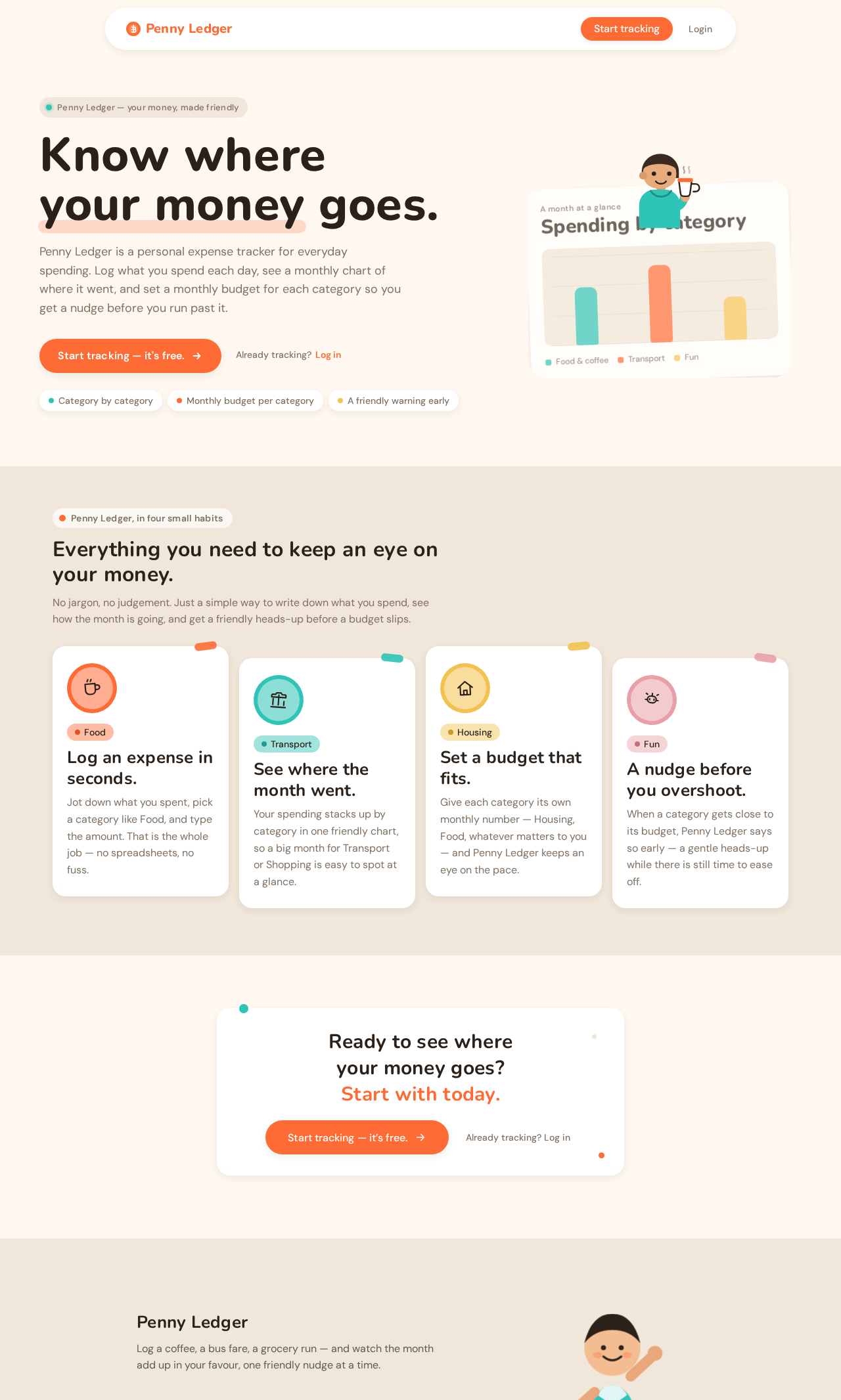
    • Hero headline in Nunito 800 at clamp(40px, 7vw, 72px): "Know where your money goes." with a DM Sans 18px subline.
    • Pill CTA button (999px radius, tangerine #FF6B35, white text) and a quiet Login link.
    • Layered illustration composition: a rounded white card showing a mini monthly chart of three stacked coloured bars (teal, tangerine, soft yellow), with a friendly character illustration peeking over the card's top edge holding a coffee cup; the card carries a soft offset shadow and sits at −2deg rotation.
    • Capability strip: three or four short friendly statements covering logging, the monthly chart, budgets, and the near-budget warning, each with a sticker-style category icon.
  • States:
    • Loading: Static content; no data fetch. Illustration assets may fade in with the standard 200ms ease-out entrance.
    • Empty: Not applicable — the page has no data-dependent regions.
    • Success: The user reads the value proposition and chooses Sign Up or Login.
    • Error: If illustration assets fail to load, the text, headline, and both CTAs remain fully readable and usable.
    • Recovery: No recovery flow needed; the page is stateless.
Page 5 of 24

Login

  • Information/state: Anonymous identity-verification surface for a returning Penny Ledger User. Explains that signing in resumes the user's own expenses and budgets.
  • Primary actions: Submit email and password to sign in; on success, land on Dashboard.
  • Supporting actions: Link to Sign Up for a user who does not yet have an account.
  • Domain entities: User identity (email, password).
  • Component responsibilities:
    • Email input (12px radius) and password input (12px radius) with 14px medium labels.
    • Primary pill submit button in tangerine.
    • Inline validation and error messaging region.
    • Link to Sign Up.
  • States:
    • Loading: Submit button shows a pending state and is disabled while verification is in flight.
    • Empty: Both fields empty; submit disabled until both are filled.
    • Success: Identity verified; the user is taken to Dashboard with their own data loaded.
    • Error: Invalid credentials or a failed request shows a friendly, non-blaming inline message; the entered email is preserved and the password field is cleared.
    • Recovery: The user can correct the email or password and resubmit, or follow the Sign Up link.
Page 6 of 24

Sign Up

  • Information/state: Anonymous self-service enrollment surface. Establishes a new Penny Ledger User's identity so their expenses and budgets can be privately owned and resumed.
  • Primary actions: Submit email and password to create the account; on success, land on Dashboard.
  • Supporting actions: Link to Login for a user who already has an account.
  • Domain entities: User identity (email, password).
  • Component responsibilities:
    • Email input (12px radius) and password input (12px radius) with 14px medium labels.
    • Primary pill submit button in tangerine.
    • Inline validation and error messaging region.
    • Link to Login.
  • States:
    • Loading: Submit button shows a pending state and is disabled while account creation is in flight.
    • Empty: Both fields empty; submit disabled until both are filled.
    • Success: Account created and the user is signed in; they land on Dashboard with an empty first-month state.
    • Error: An already-registered email or a failed request shows a friendly inline message with a path to Login; the entered email is preserved.
    • Recovery: The user can correct the input and resubmit, or switch to Login.
Page 7 of 24

Dashboard

  • Information/state: Protected monthly overview. Shows the current month's total spend as a giant friendly number, and the monthly spending chart broken down by category as a horizontal stacked bar. Shows each category's budget progress, including the near-budget warning state.
  • Primary actions: Read the monthly total and the category chart; open Add Expense to log a new expense; open Budget Details for a category to set or adjust its monthly budget.
  • Supporting actions: Switch the month being viewed; open Expenses for the full ledger; open Budgets for the budget overview.
  • Domain entities: Expense (category, amount, date), Category, Monthly total, Category monthly total, Category monthly budget, Budget progress, Near-budget warning state.
  • Component responsibilities:
    • Hero monthly spend total: Nunito 800 at clamp(48px, 8vw, 96px), currency symbol in tangerine, cents in a smaller muted size; counts up over 600ms on load.
    • Monthly spending chart: horizontal stacked bar (never a pie), categories reading left to right, each segment in its category tint, with a legend of sticker chips.
    • Category chips: pill-shaped with a custom vector icon, a coloured dot, and the category name, each with a unique pastel tint.
    • Budget progress capsules: rounded capsules filling with tangerine; at 80% the capsule grows a small warning flag at the tip and a pulsing outline, and the warning chip slides in from the right.
    • Month selector and quick links to Add Expense, Expenses, and Budgets.
  • States:
    • Loading: Skeleton cards enter with the standard 200ms ease-out translateY(8px) + opacity fade, staggered 40ms apart; the total counts up once data arrives.
    • Empty: No expenses logged this month — a single modular character illustration (shrugging or holding an empty wallet) with a one-line friendly prompt in Nunito 700 and a direct Add Expense action. The chart region shows the muted sand chart background rather than an axis with no bars.
    • Success: The monthly total, the stacked category bar, and each category's budget progress render with the correct values for the selected month.
    • Error: If the monthly data fails to load, the page shows a friendly retry affordance and keeps navigation available; no partial or stale total is presented as current.
    • Recovery: Retry reloads the month's data; the user can also switch months and back to force a fresh read.
Page 8 of 24

Expenses

  • Information/state: Protected, revisitable ledger of the user's durable daily expense records, showing each expense's category, amount, and date.
  • Primary actions: Browse the expense list; open Add Expense to record a new one.
  • Supporting actions: Filter or group the list by month and by category; open a single expense's detail for review.
  • Domain entities: Expense (category, amount, date), Category.
  • Component responsibilities:
    • Expense list rows with the category's sticker chip, the amount, and the date.
    • Month and category filter controls.
    • Empty-state illustration and prompt.
    • Entry point to Add Expense.
  • States:
    • Loading: List rows enter with the staggered 200ms ease-out entrance.
    • Empty: No expenses recorded — a single modular character illustration with a one-line friendly prompt in Nunito 700 and a direct Add Expense action.
    • Success: Every recorded expense for the selected period appears with its category, amount, and date.
    • Error: A failed list load shows a friendly retry affordance in place of the list.
    • Recovery: Retry reloads the list; changing the filter re-issues the read.
Page 9 of 24

Add Expense

  • Information/state: Protected focused entry surface for recording one daily expense with a category and an amount. Logging an expense should feel like sending a text, not filling a form.
  • Primary actions: Enter the amount on the large centred number field with the custom numeric keypad; choose a category from the horizontal scrollable row of sticker chips; save the expense.
  • Supporting actions: Set or confirm the expense date (defaulting to today); cancel and return without saving.
  • Domain entities: Expense (category, amount, date), Category.
  • Component responsibilities:
    • Large centred amount field with the currency symbol in tangerine and cents in a smaller muted size.
    • Custom numeric keypad below the amount field.
    • Horizontally scrollable row of the same sticker category chips used elsewhere.
    • Date control defaulting to today.
    • Primary pill save button in tangerine; a quiet cancel action.
  • States:
    • Loading: Save button shows a pending state and is disabled while the write is in flight.
    • Empty: No amount entered and no category selected; save disabled until both are present.
    • Success: The expense is saved and appears immediately in the user's ledger and in the current month's chart and budget progress; the user is returned to where they came from with a friendly confirmation.
    • Error: A failed save keeps the entered amount, category, and date on screen and shows a friendly inline message with a retry.
    • Recovery: Retry resubmits the same expense; the user can also adjust the amount or category before retrying.
Page 10 of 24

Budgets

  • Information/state: Protected, revisitable overview of the user's monthly category budgets, showing each category's budget amount and its current progress against this month's spending.
  • Primary actions: Review each category's monthly budget and progress; open Budget Details for a category to set or change its budget.
  • Supporting actions: See at a glance which categories are approaching their budget.
  • Domain entities: Category, Category monthly budget, Category monthly total, Budget progress, Near-budget warning state.
  • Component responsibilities:
    • Budget cards in a 2-column grid at 768px+ and stacked at 375px, each with the category's sticker chip, the budget amount, and a rounded progress capsule.
    • Warning flag and pulsing outline on any capsule at or above 80%.
    • Entry point to Budget Details per category.
  • States:
    • Loading: Budget cards enter with the staggered 200ms ease-out entrance.
    • Empty: No budgets set — a single modular character illustration with a one-line friendly prompt in Nunito 700 and a direct path to set a first category budget.
    • Success: Every category with a budget shows its amount and its progress against this month's spending.
    • Error: A failed load shows a friendly retry affordance in place of the cards.
    • Recovery: Retry reloads the budgets and their progress.
Page 11 of 24

Budget Details

  • Information/state: Protected focused workspace for setting a monthly budget for one category, showing that category's current budget, this month's spending in it, and its progress.
  • Primary actions: Enter or change the monthly budget amount for the category and save it.
  • Supporting actions: Clear the category's budget; return to Budgets without saving.
  • Domain entities: Category, Category monthly budget, Category monthly total, Budget progress, Near-budget warning state.
  • Component responsibilities:
    • Category identity header with the sticker chip and icon.
    • Budget amount input (12px radius) with the currency symbol in tangerine.
    • Rounded progress capsule showing this month's spending against the budget, with the warning flag and pulsing outline at 80% or above.
    • Primary pill save button in tangerine; a quiet clear and cancel action.
  • States:
    • Loading: The category's current budget and progress load before the input becomes editable.
    • Empty: No budget set for this category yet — the input is empty and the progress capsule shows this month's spending with no budget line.
    • Success: The budget is saved and the category's progress and warning state update on Budgets and Dashboard.
    • Error: A failed save keeps the entered amount on screen and shows a friendly inline message with a retry.
    • Recovery: Retry resubmits the same amount; the user can also adjust the amount before retrying.
Page 12 of 24

3. Functional Requirements

FR-1 — Account creation. As a Penny Ledger User, I should be able to sign up for an account so that my expenses and budgets are mine and come back when I return. (provenance: explicit; access: anonymous Sign Up page; result: an account exists and the user is signed in; failure/recovery: an already-registered email or a failed request shows a friendly inline message with a path to Login and preserves the entered email; continuation: the user lands on Dashboard with an empty first-month state.)

FR-2 — Returning sign-in. As a Penny Ledger User, I should be able to sign in to my existing account so that I can resume my own expenses and budgets. (provenance: required_inference; access: anonymous Login page; result: identity verified and the user's own data loads; failure/recovery: invalid credentials show a friendly inline message, preserve the email, and clear the password for correction; continuation: the user lands on Dashboard.)

FR-3 — Log a daily expense with a category and an amount. As a Penny Ledger User, I should be able to log a daily expense with a category and an amount so that my spending record stays current. (provenance: explicit; access: signed in, Add Expense page; result: the expense is durably stored and appears in the ledger, the current month's chart, and the affected category's budget progress; failure/recovery: a failed save keeps the entered amount, category, and date on screen with a friendly retry; continuation: the user returns to where they came from with a friendly confirmation.)

FR-4 — Review the durable expense ledger. As a Penny Ledger User, I should be able to browse my recorded daily expenses so that I can check what I have logged. (provenance: required_inference; access: signed in, Expenses page; result: each expense shows its category, amount, and date for the selected period; failure/recovery: a failed list load shows a friendly retry in place of the list; continuation: the user can open Add Expense or adjust the filter.)

FR-5 — See the monthly spending chart by category. As a Penny Ledger User, I should be able to see a monthly spending chart broken down by category so that I understand where my money went this month. (provenance: explicit; access: signed in, Dashboard page; result: the month's total renders as the giant friendly number and the category breakdown renders as a horizontal stacked bar with a sticker-chip legend; failure/recovery: a failed monthly load shows a friendly retry and never presents a stale total as current; continuation: the user can switch months or open a category's budget.)

FR-6 — Set a monthly budget per category. As a Penny Ledger User, I should be able to set a monthly budget for a category so that I have a target for that category each month. (provenance: explicit; access: signed in, Budget Details page reached from Budgets or Dashboard; result: the category's monthly budget is durably stored and its progress appears on Budgets and Dashboard; failure/recovery: a failed save keeps the entered amount on screen with a friendly retry; continuation: the user returns to Budgets or Dashboard with the updated budget visible.)

FR-7 — Review monthly category budgets. As a Penny Ledger User, I should be able to review my monthly category budgets and their progress so that I can see how each category is tracking. (provenance: required_inference; access: signed in, Budgets page; result: each budgeted category shows its budget amount and a rounded progress capsule against this month's spending; failure/recovery: a failed load shows a friendly retry in place of the cards; continuation: the user can open Budget Details for any category.)

FR-8 — Warning when spending gets close to a category budget. As a Penny Ledger User, I should receive a warning when my spending gets close to a category's monthly budget so that I can adjust before I exceed it. (provenance: explicit; access: signed in, surfaced on Dashboard and Budgets and in Budget Details; result: at 80% of a category's monthly budget the progress capsule grows a small warning flag at its tip, gains a pulsing outline, and a warning chip slides in from the right; failure/recovery: if the warning state cannot be computed for a month, the affected category shows its progress without a warning rather than a false warning; continuation: the user can open Budget Details to adjust the budget or Add Expense to keep logging.)

FR-9 — Durable storage of expenses, budgets, monthly calculations, and warning state. As a Penny Ledger User, I should have my expenses, category budgets, monthly calculations, and threshold-warning state stored durably so that my records and warnings are correct when I return. (provenance: required_inference; access: system process supporting the signed-in pages; result: reads and writes are scoped to the signed-in user and survive across sessions; failure/recovery: a failed read or write surfaces as the friendly retry on the page that requested it; continuation: the user retries or continues browsing.)

Page 13 of 24

4. User Personas

Page 14 of 24

Penny Ledger User

Product context. An everyday person tracking their own household spending. They are not a finance professional and do not want a bank statement; they want a friendly habit that tells them where their money went and nudges them before they overspend a category. They use Penny Ledger in short, frequent sessions — often on a phone right after a purchase — and occasionally sit down to look at the month as a whole.

Primary goal. Keep an accurate, current record of daily spending and see, at a glance, how this month's spending breaks down by category and how close each category is to its monthly budget — so that they get a timely warning before exceeding a budget rather than discovering it afterward.

Distinct accepted responsibilities.

  • Creating their own account on Sign Up, and verifying it on Login when they return.
  • Logging each daily expense with a category and an amount on Add Expense.
  • Reviewing their recorded expenses on Expenses.
  • Reading the monthly spending chart by category on Dashboard.
  • Setting a monthly budget per category on Budget Details and reviewing all budgets on Budgets.
  • Acting on the near-budget warning when a category approaches its monthly budget.

Relevant inputs and decisions. The amount and category of each expense, and its date (defaulting to today). The monthly budget amount for each category. The decision that matters most is the one the warning prompts: whether to slow down in a category, or to adjust that category's budget because the original target was unrealistic.

Interactions with other accepted participants. The Penny Ledger User is the only active human role. There is no second human participant, no approver, and no shared ledger. The user's counterpart in every flow is the application itself, which stores their records and computes their monthly totals, budget progress, and warning state.

Observable success. The monthly total and the category stacked bar match what the user actually spent; every logged expense appears in the ledger with the right category, amount, and date; each budgeted category shows its progress; and a category that reaches 80% of its monthly budget visibly shows the warning flag, pulsing outline, and warning chip before the user overspends it.

Page 15 of 24

5. Core User Flows

Flow A — A new user creates an account and logs their first expense

  1. The Penny Ledger User arrives at the anonymous Landing page and reads the headline "Know where your money goes." and the capability strip covering logging, the monthly chart, budgets, and the near-budget warning.
  2. They choose the pill CTA "Start tracking — it's free." and land on Sign Up.
  3. On Sign Up they enter an email and a password and submit. The submit button shows a pending state while the account is created.
  4. On success they are signed in and land on Dashboard, which shows an empty first-month state: a friendly character illustration with a one-line prompt and a direct Add Expense action, and the muted sand chart background rather than an empty axis.
  5. They open Add Expense. They enter the amount on the large centred number field using the custom numeric keypad, choose a category from the horizontally scrollable row of sticker chips, and confirm the date (defaulting to today).
  6. They save. The expense is durably stored and the user returns to where they came from with a friendly confirmation.
  7. Back on Dashboard, the monthly total counts up over 600ms to include the new expense, and the category's segment appears in the horizontal stacked bar with its sticker chip in the legend.
  8. Failure/recovery: if the save fails, the entered amount, category, and date stay on screen with a friendly inline message and a retry; retrying resubmits the same expense. If the account creation fails because the email is already registered, the message offers a path to Login and preserves the entered email.
  9. Continuation: the user can log another expense, open Expenses to see the ledger, or open Budgets to set a first category budget.

Flow B — A returning user signs in and reviews the month

  1. The Penny Ledger User arrives at the anonymous Landing page and follows the quiet Login link, or goes directly to Login.
  2. On Login they enter their email and password and submit; the submit button is disabled while verification is in flight.
  3. On success they land on Dashboard with their own data loaded. The giant monthly spend total counts up over 600ms, with the currency symbol in tangerine and the cents in a smaller muted size.
  4. They read the monthly spending chart as a horizontal stacked bar, categories reading left to right, each segment in its category tint, with the sticker-chip legend below.
  5. They switch the month being viewed to compare against an earlier month; the chart and total update for the selected month.
  6. Failure/recovery: if the monthly data fails to load, the page shows a friendly retry and keeps navigation available; no partial or stale total is presented as current. If sign-in fails, the message is friendly and non-blaming, the email is preserved, and the password field is cleared for correction.
  7. Continuation: the user opens Expenses to check individual records, or opens a category's Budget Details to set or adjust its budget.
Page 16 of 24

Flow C — The user logs a daily expense from the ledger

  1. The signed-in Penny Ledger User opens Expenses and browses their recorded daily expenses, each row showing the category's sticker chip, the amount, and the date.
  2. They filter or group the list by month and by category to find what they are looking for.
  3. They open Add Expense to record a new expense, enter the amount on the number pad, pick a category from the sticker-chip row, and save.
  4. The new expense appears immediately in the ledger for the selected period, and in the current month's chart and budget progress.
  5. Failure/recovery: if the list fails to load, a friendly retry appears in place of the list; changing the filter re-issues the read. If the save fails, the entered values stay on screen with a retry.
  6. Continuation: the user keeps browsing the ledger or returns to Dashboard.

Flow D — The user sets a monthly budget for a category

  1. The signed-in Penny Ledger User opens Budgets and reviews their monthly category budgets, each card showing the category's sticker chip, the budget amount, and a rounded progress capsule against this month's spending.
  2. They open Budget Details for the category they want to budget. The category's current budget and this month's spending load before the input becomes editable.
  3. They enter the monthly budget amount for that category and save. The save button shows a pending state while the write is in flight.
  4. On success the budget is durably stored, and the category's progress and warning state update on Budgets and Dashboard.
  5. Failure/recovery: if the save fails, the entered amount stays on screen with a friendly inline message and a retry; the user can adjust the amount before retrying. If the category has no budget yet, the input is empty and the progress capsule shows this month's spending with no budget line.
  6. Continuation: the user returns to Budgets to set another category's budget, or to Dashboard to see the updated progress.

Flow E — The user receives and acts on a near-budget warning

  1. The signed-in Penny Ledger User logs expenses through Add Expense as usual.
  2. When a category's spending reaches 80% of its monthly budget, the rounded progress capsule on Dashboard and Budgets fills further with tangerine, grows a small warning flag at its tip, gains a pulsing outline (scale 1.0 → 1.02 → 1.0 over 400ms), and a warning chip slides in from the right. The warning is a visual character, not just red text.
  3. The user sees the warning and opens Budget Details for that category to see exactly how much has been spent against the budget this month.
  4. The user decides: either slow down in that category, or adjust the budget amount because the original target was unrealistic, and saves the new amount.
  5. Failure/recovery: if the warning state cannot be computed for a month, the affected category shows its progress without a warning rather than a false warning. If the budget save fails, the entered amount stays on screen with a retry.
  6. Continuation: the user keeps logging expenses; the progress capsule and warning state update as spending changes, and the warning clears when the category is no longer at or above 80% of its budget.
Page 17 of 24

Flow F — The user reviews all budgets at a glance

  1. The signed-in Penny Ledger User opens Budgets.
  2. Budget cards render in a 2-column grid at 768px+ and stack at 375px, each with the category's sticker chip, the budget amount, and a rounded progress capsule.
  3. Any capsule at or above 80% shows the warning flag and pulsing outline, so the user can see at a glance which categories are approaching their budget.
  4. The user opens Budget Details for any category to set or change its budget.
  5. Failure/recovery: if the budgets fail to load, a friendly retry appears in place of the cards. If no budgets are set yet, a single modular character illustration with a one-line friendly prompt in Nunito 700 offers a direct path to set a first category budget.
  6. Continuation: the user returns to Dashboard or keeps adjusting budgets.
Page 18 of 24

6. Visuals Colors and Theme

The muse is Pablo Stanley, and the headline is "Know where your money goes." The direction is warm, human money tracking: rounded characters, sunny colour, copy that talks like a person, and big pill buttons — deliberately sidestepping the cold, clinical fintech look that makes people avoid their own spending data.

Colour tokens (light mode).

RoleHexUse
Background#FFF8F0Cream ground across every page
Surface#FFFFFFCards, inputs, chart card
Text#2B2118Deep espresso for all body and heading text
Primary#FF6B35CTAs, active states, budget progress fill, currency symbol
Accent#2EC4B6Category chips and positive progress
Muted#F0E6D9Secondary surfaces and chart backgrounds
Warning#E63946Saturated coral-red, applied only to the specific over-budget element

Category chip tints are drawn from the palette: tangerine, teal, soft yellow, dusty rose, and sage. The chart's three illustrative bars on the Landing card are teal, tangerine, and soft yellow.

Typography. Headings use Nunito at 700–800 weight — slightly rounded terminals that echo the shape language. Headlines are large and friendly, not shouty: 800 for the hero number, 700 for section titles. Tracking is normal to slightly loose (+0.01em) so the rounded letterforms breathe. Case is sentence case, never all-caps. Body uses DM Sans. The scale is a 1.333 modular progression: 56 / 42 / 32 / 24 / 18 / 16 / 14. The hero display number (monthly spend total) is clamp(48px, 8vw, 96px). Section headings are 24–32px. Body is 16px with 1.6 line-height. Labels are 14px medium.

Shape language. Generous radii everywhere — 20px on cards, 999px on buttons and category chips, 12px on input fields. Soft offset shadows (0 4px 12px rgba(43,33,24,0.08)) make cards feel like they are sitting on the surface rather than floating. Blob and sticker shapes are used for category icons and empty states. No sharp corners except the chart axis lines, which are 1px and subtle.

Layout. Single-column mobile-first with a max-width of 640px for forms and 960px for the dashboard. Category chips wrap in a flex row with 8px gaps. The monthly chart is a horizontal stacked bar — never a pie — so categories read left to right in a friendly queue. Budget cards are a 2-column grid at 768px+ and stacked at 375px. Navigation is a bottom tab bar on mobile (5 items: Home, Expenses, Add, Budgets, Profile) that becomes a top pill nav at 768px+.

Imagery. Modular vector illustrations in Pablo Stanley's Humaaans/Open Peeps style — simple rounded figures with varied skin tones and casual clothing, shown in everyday money moments (checking a phone, putting a receipt in a pocket, looking at a chart with a small smile). Category icons are custom sticker-style vectors: a coffee cup for Food, a bus for Transport, a house for Housing, a game controller for Fun, a pill for Health, a shopping bag for Shopping. Empty states use a single friendly character shrugging or celebrating. No photography, no stock imagery, no 3D renders.

Avoid. Blue or indigo primary colours; sharp corners, hairline borders, and clinical white dashboards; pie charts; stock photography, 3D renders, gradient blobs, and glassmorphism; all-caps labels, monospace numerals, and technical jargon like "variance" or "reconciliation"; hover-lift card grids where every card is identical; dark mode as the default; and bouncy, attention-seeking animations that make a budget warning feel like a game over screen.

Page 19 of 24

7. Signature Design Concept

The Landing page is a warm cream field (#FFF8F0) split asymmetrically. On the left — 60% at 1280px, full width stacked at 375px — sits an oversized friendly headline in Nunito 800 at clamp(40px, 7vw, 72px) reading "Know where your money goes." with a DM Sans 18px subline beneath it. Below the subline is a single pill CTA in tangerine (#FF6B35) with white text: "Start tracking — it's free." A quiet text link to Login sits beside it for returning users.

On the right is a layered illustration composition: a rounded white card showing a mini monthly chart of three stacked coloured bars in teal, tangerine, and a soft yellow, with a friendly character illustration peeking over the top edge of the card, one hand holding a coffee cup. The card carries a soft offset shadow and sits at a slight −2deg rotation.

At 375px the illustration stacks below the text, the card rotates to 0deg, and the character is cropped at the card's bottom edge. The headline, subline, CTA label, and Login link stay entirely inside the viewport and their container at 375px, 768px, and 1280px, wrapping or scaling to fit; the illustration and its rotation carry the gesture, never the readable text or the control.

Below the hero, a capability strip presents the four accepted capabilities — logging daily expenses with a category and amount, the monthly spending chart by category, a monthly budget per category, and the warning when spending gets close to a budget — each with a sticker-style category icon. No gradient blobs, no blue button, no centred headline.

Page 20 of 24

8. Interaction Model & Motion Direction

Interaction Model: Animated Motion Tempo: expressive Hero Dimensionality: layered_2d

Page 21 of 24

Landing Hero Motion Brief

Focal subject. The layered illustration composition: the rounded white chart card at −2deg with its three stacked coloured bars, and the friendly character peeking over the card's top edge holding a coffee cup.

Input → transformation → outcome thesis. As the Landing page settles, the chart card and the character enter as separate layers — the card first, then the character rising slightly into place over its top edge — so the visitor sees the product's defining state (a monthly category chart) assemble itself before they choose the CTA. The transformation is purely compositional: no data is fetched and no product behavior is implied beyond the accepted capabilities.

Motion vocabulary. Springy but purposeful. The card enters with a 200ms ease-out translateY(8px) plus opacity fade; the character layer follows on the same 40ms stagger used across the product. The three chart bars grow to their heights in sequence, left to right, in teal, tangerine, and soft yellow. The CTA pill lifts 2px with a soft shadow increase on hover, matching the category-chip hover treatment.

Composed first frame. Cream ground, headline and subline fully rendered and readable, the CTA pill and Login link fully rendered and readable, and the chart card already present at −2deg with its bars at their final heights and the character in place — so the page is complete and legible before any motion runs.

Reduced-motion state. Under prefers-reduced-motion, entrances become instant, the bars appear at their final heights with no growth sequence, the character is in place with no rise, and hover produces no lift. The composed first frame is the reduced-motion state.

Page 22 of 24

9. Non-Functional Requirements

NFR-1 — Readable text and controls at every viewport. Headlines, wordmarks, labels, numbers, and cards' text and controls stay entirely inside the viewport and their container at 375px, 768px, and 1280px, wrapping or scaling (for example font-size: clamp(...) with its mobile size) to fit, and no other element covers any part of them. Imagery, decoration, and motion may be cropped, bled off an edge, rotated, overlapped, or cut exactly as the creative direction asks, as long as they cover no readable text or control. (provenance: explicit user design constraint; rationale: the direction's rotated and cropped illustration must never compromise legibility or operability.)

NFR-2 — Horizontally scrollable rows. The Add Expense category chip row and any other horizontally scrollable row may cross the container edge by design; every item must become fully readable as it passes. Under prefers-reduced-motion the row stops and shows whole items, either wrapped into rows or in a horizontally scrollable row (overflow-x: auto) whose further items are reached by scrolling. (provenance: explicit user design constraint; rationale: the sticker-chip row is a signature move and must remain fully usable.)

NFR-3 — Reduced-motion compliance. All motion respects prefers-reduced-motion: the monthly total jumps to its final value instead of counting up, entrances become instant, and pulses are removed. (provenance: explicit creative direction; rationale: motion is encouraging, never alarming, and must never be a barrier.)

NFR-4 — Per-user data isolation. Every expense, category budget, monthly calculation, and warning state read or written through the protected pages is scoped to the signed-in user. No signed-in user can see or modify another user's records. (provenance: required_inference; rationale: the accepted journeys require durable, privately owned records that resume correctly for the right person.)

NFR-5 — Durable persistence. Expenses, category budgets, monthly calculations, and threshold-warning state persist across sessions so that a returning user's ledger, chart, and warnings are correct. (provenance: required_inference; rationale: the accepted monthly chart and budget-warning journeys depend on records surviving between visits.)

NFR-6 — Warning threshold consistency. The near-budget warning is computed from the same monthly category totals that drive the chart and the budget progress capsules, so the warning, the chart, and the progress bar never disagree for the same category and month. (provenance: explicit; rationale: the warning is only useful if it matches the spending the user sees.)

NFR-7 — No differentiated permissions. The application provides no roles, role-based visibility, or permission controls. Every signed-in user has the same capabilities over exactly their own data. (provenance: explicit scope boundary; rationale: the accepted product has one active human role and no shared state.)
Page 23 of 24

10. Tech Stack

  • Frontend: React web application, single-column mobile-first, with the bottom tab bar on mobile (Home, Expenses, Add, Budgets, Profile) becoming a top pill nav at 768px+. (provenance: required_inference; rationale: a first-party custom-UI web app is the accepted delivery shape.)
  • Backend: Python with FastAPI, serving the expense, budget, monthly-calculation, and warning-state endpoints behind the signed-in session. (provenance: required_inference; rationale: durable backend storage and per-user scoping are required by the accepted journeys.)
  • Storage: A relational database for users, expenses (category, amount, date), and per-category monthly budgets, with monthly category totals and warning state derived from them. (provenance: required_inference; rationale: the accepted records are structured and must be queried by month and category.)
  • Packaging and deployment: Docker with docker-compose for local and single-host deployment. Kubernetes is not required by any accepted requirement and is therefore not included. (provenance: required_inference; rationale: the accepted delivery is a single web application with one backend service.)

11. Assumptions and Constraints

  • A-1. The product name is Penny Ledger; the project name is penny. (provenance: explicit user statement.)
  • A-2. There is exactly one active human role, the Penny Ledger User. No second human participant, approver, or shared household member exists in the accepted scope. (provenance: explicit planning scope persona catalog.)
  • A-3. Identity is application-owned and self-service: a new user enrolls on Sign Up, a returning user verifies on Login. This is the minimum continuity required for a user to resume their own expenses and budgets. (provenance: required_inference.)
  • A-4. The three anonymous pages (Landing, Login, Sign Up) are reachable without an account; the five remaining pages (Dashboard, Expenses, Add Expense, Budgets, Budget Details) require the user to be signed in. (provenance: explicit planning scope page contract.)
  • A-5. The near-budget warning threshold is 80% of a category's monthly budget, expressed as the warning flag at the capsule tip, the pulsing outline, and the warning chip sliding in from the right. (provenance: explicit creative direction.)
  • A-6. The monthly breakdown is always a horizontal stacked bar or a friendly ranked list, never a pie chart. (provenance: explicit creative direction.)
  • A-7. The product lives in warm light; dark mode is not the default. (provenance: explicit creative direction.)
  • A-8. Currency formatting follows the user's locale; the currency symbol renders in tangerine and the cents in a smaller muted size. (provenance: required_inference; rationale: the giant friendly number is a signature move and needs a defined currency treatment.)
  • A-9. Out of scope: income tracking, bank or card account linking, multi-user or shared ledgers, investment or net-worth tracking, bill payment, and financial advice. (provenance: explicit scope boundary.)
  • A-10. No future-horizon capabilities are accepted; everything in this document is current. (provenance: explicit planning scope delivery horizon.)
Page 24 of 24

12. Glossary

  • Penny Ledger — The personal expense tracker web app described by this document.
  • Penny Ledger User — The sole active human role: signs up, logs daily expenses, reviews the monthly category chart, and sets per-category monthly budgets.
  • Expense — A single daily spending record consisting of a category, an amount, and a date.
  • Category — The label an expense is filed under (for example Food, Transport, Housing, Fun, Health, Shopping), represented in the interface as a pill-shaped sticker chip with a custom vector icon and a coloured dot.
  • Monthly spending chart — The Dashboard's horizontal stacked bar showing the current month's spending broken down by category, with a sticker-chip legend.
  • Monthly budget — The amount a user sets for one category for a month, on Budget Details.
  • Budget progress — The rounded capsule showing a category's spending against its monthly budget.
  • Near-budget warning — The visual warning shown when a category's spending reaches 80% of its monthly budget: a warning flag at the capsule tip, a pulsing outline, and a warning chip sliding in from the right.
  • Landing — The anonymous public entry page explaining Penny Ledger and its capabilities.
  • Login — The anonymous page where a returning user verifies their identity.
  • Sign Up — The anonymous page where a new user creates their account.
  • Dashboard — The protected monthly overview showing the total spend and the category chart.
  • Expenses — The protected, revisitable ledger of the user's recorded daily expenses.
  • Add Expense — The protected focused entry surface for recording one expense with a category and an amount.
  • Budgets — The protected overview of the user's monthly category budgets and their progress.
  • Budget Details — The protected focused workspace for setting a monthly budget for one category.
Landing design preview
Landing: Read capabilities
Sign Up: Create account
Dashboard: View empty first month
Login: 1. Sign in with credentials
Dashboard: 1. Read monthly total
Dashboard: 2. Review category chart
Dashboard: 3. Switch viewed month
Dashboard: 4. Retry monthly load
Expenses: 5. Browse expense ledger
Expenses: 6. Filter by month and category
Expenses: 7. Retry ledger load
Add Expense: 8. Enter amount
Add Expense: 9. Choose category
Add Expense: 10. Save expense
Add Expense: 11. Retry failed save
Budgets: 12. Review budget progress
Budgets: 13. Retry budgets load
Budget Details: 14. Set category budget
Budget Details: 15. Retry budget save
Budget Details: 16. Clear category budget
Dashboard: 17. See near-budget warning
Budget Details: 18. Adjust unrealistic budget
Landing design preview
Landing: Read capabilities
Sign Up: Create account
Dashboard: View empty first month
Login: 1. Sign in with credentials
Dashboard: 1. Read monthly total
Dashboard: 2. Review category chart
Dashboard: 3. Switch viewed month
Dashboard: 4. Retry monthly load
Expenses: 5. Browse expense ledger
Expenses: 6. Filter by month and category
Expenses: 7. Retry ledger load
Add Expense: 8. Enter amount
Add Expense: 9. Choose category
Add Expense: 10. Save expense
Add Expense: 11. Retry failed save
Budgets: 12. Review budget progress
Budgets: 13. Retry budgets load
Budget Details: 14. Set category budget
Budget Details: 15. Retry budget save
Budget Details: 16. Clear category budget
Dashboard: 17. See near-budget warning
Budget Details: 18. Adjust unrealistic budget