Page 1 of 13
System Requirements Document for noris-2
1. Introduction
Noris Study AI is a production-ready mobile application for Android and iPhone that acts as an AI-powered education assistant for students around the world. It helps students study, prepare for exams, understand difficult topics, practice questions, and work through assignments. The product carries its own original branding, logo, colors, interface, and user experience, and must not copy ChatGPT, OpenAI, or another company's branding.
Tagline: "Learn. Practice. Succeed."
The audience is students worldwide, from secondary school through university entrance, studying across different countries and education systems. The product must feel like a real global education platform rather than a basic chatbot: warm, encouraging, fast, clean, premium, student-friendly, and easy to navigate.
Page 2 of 13
2. System Overview
Noris Study AI delivers an AI tutoring and study companion experience through a mobile app backed by a secure server-side platform. Students ask questions about any school subject, receive step-by-step explanations, upload photos, scan questions with the camera, upload PDFs and study documents, summarize notes, generate practice questions, quizzes, flashcards, and mock examinations, get help understanding assignments, ask follow-up questions, use voice input, listen to explanations with text-to-speech, search previous conversations, save important answers, and keep separate conversations for different subjects.
Supported subjects include Mathematics, English, Biology, Chemistry, Physics, Computer Science, Geography, History, Economics, Accounting, Business, Literature, Languages, and other subjects, with flexibility for students from different countries and education systems.
Every new user receives 10 free AI messages every day, displayed clearly in the app, with server-side usage tracking and an automatic reset every 24 hours according to the account's configured reset period. A paid Premium subscription provides significantly higher usage limits or unlimited AI messages subject to reasonable fair-use limits, with backend-configurable plans and pricing.
A secure backend processes all AI requests, stores usage and subscription status server-side, validates purchases, protects uploaded documents, uses secure authentication, and applies rate limiting. An admin dashboard lets authorized administrators monitor platform statistics and configure the free daily message limit, subscription plans, pricing, AI models, maximum upload size, and feature availability.
Page 3 of 13
2a. Product Interpretation and Delivery Boundary
Noris Study AI is delivered as a first-party mobile application with its own application-owned identity. Students establish an account through email registration or supported Google sign-in, verify returning access through email login, and recover access through password reset. Protected student work — conversations, saved answers, quiz results, study plans, flashcards, uploaded learning materials, daily usage, and subscription status — is bound to the authenticated account so that progress and entitlements follow the correct student and cannot be reset by logging out and creating another account.
The public entry surface (Landing) and the legal, support, and permission-information surfaces (Privacy policy, Terms of service, Support, App permissions explanations) are reachable without an account. All student working destinations and the Admin dashboard require authenticated access; the Admin dashboard additionally requires authorized administrator role enforcement.
AI processing, usage enforcement, subscription validation, file protection, and durable record storage are owned by the secure backend. AI API keys are never exposed inside the mobile application. Subscription prices and plan options are not hard-coded; they are configured from the app's subscription/payment system and the backend so they can be changed later.
Current scope covers all capabilities described in this document. No future-horizon capabilities are defined by the source; the architecture is required to be scalable so thousands or millions of students can eventually use the application.
2b. Source Content Inventory
Not applicable. No reference directive with content_source was supplied.
Page 4 of 13
2c. Page Content and Component Coverage
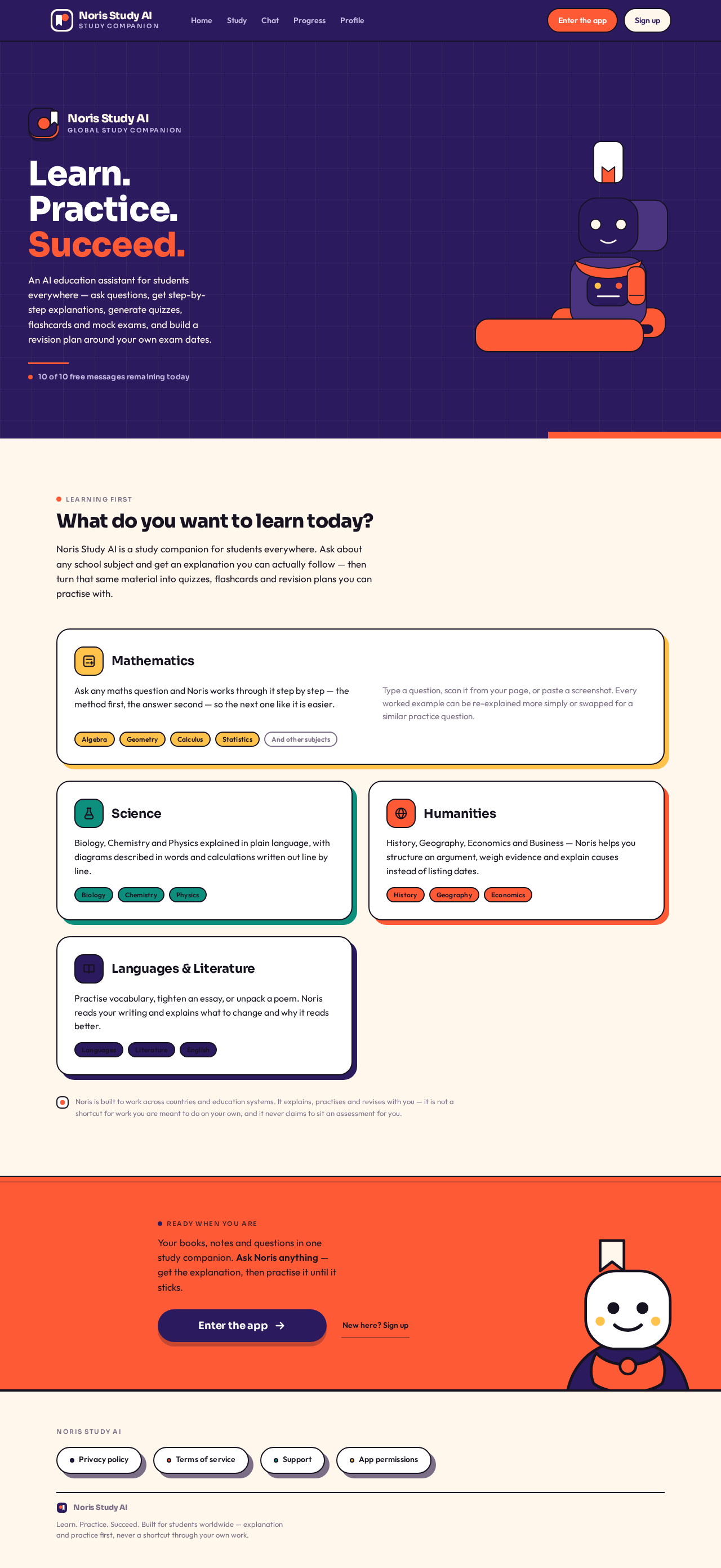
Landing
- Information/state: Noris Study AI identity (logo mark, wordmark), tagline "Learn. Practice. Succeed.", a plain-language explanation of what the app does for students worldwide, and the learning-first purpose statement.
- Primary actions: Enter the app (to Login or Sign Up), read Privacy policy, read Terms of service.
- Supporting actions: View Support, view App permissions explanations.
- Domain entities: Brand identity, tagline, legal and support links.
- Component responsibilities: Hero brand block; value explanation; entry buttons; footer legal/support links.
- States: Loading (brand splash); empty not applicable; success (rendered entry); error (content fetch failure with retry); recovery (retry or continue to Login).
Login
- Information/state: Email and password fields; Google sign-in option where supported; link to Account Recovery; link to Sign Up.
- Primary actions: Submit email login; sign in with Google where supported.
- Supporting actions: Navigate to Account Recovery; navigate to Sign Up.
- Domain entities: User credentials, session.
- Component responsibilities: Credential form; provider sign-in control; error messaging; navigation links.
- States: Loading (submitting); empty (blank form); success (authenticated session established, routed to Home or Admin dashboard by role); error (invalid credentials, provider failure, network failure); recovery (retry, reset password).
Sign Up
- Information/state: Email registration fields; Google sign-up option where supported; link to Login.
- Primary actions: Register with email; register with Google where supported.
- Supporting actions: Navigate to Login; read Terms of service and Privacy policy.
- Domain entities: User profile, credentials, initial daily usage record.
- Component responsibilities: Registration form; provider sign-up control; validation messaging; consent links.
- States: Loading (submitting); empty (blank form); success (account created, authenticated, routed to Home with 10 of 10 free messages); error (duplicate email, weak password, provider failure); recovery (correct input, retry, switch to Login).
Page 5 of 13
Account Recovery
- Information/state: Password-reset request field and confirmation state.
- Primary actions: Request password reset; set a new password from the reset continuation.
- Supporting actions: Return to Login.
- Domain entities: Account identity, reset request.
- Component responsibilities: Reset request form; confirmation messaging; return link.
- States: Loading (submitting); empty (blank form); success (reset instructions issued or password updated); error (unknown email, expired link, network failure); recovery (re-request, return to Login).
Home
- Information/state: Sticky top bar with Noris Study AI logo, profile picture, and settings icon; daily free-message counter rendered as a coral ring with the sentence "10 of 10 free messages remaining today"; headline "What do you want to learn today?"; large AI input box with placeholder "Ask Noris anything…"; study shortcuts Exam Prep, Homework Help, Practice Quiz, Flashcards, Study Plan.
- Primary actions: Ask Question; Scan Question; Upload File; Voice Question; open a study shortcut.
- Supporting actions: Open Profile; open settings; open Chat with the typed question.
- Domain entities: Daily usage, user profile, conversation, uploaded file, subject.
- Component responsibilities: Top bar; counter ring; headline; input card with 2×2 action pills; shortcut row; counter sentence.
- States: Loading (usage and profile fetch); empty (no recent activity, character-led empty state); success (counter and shortcuts rendered); error (usage fetch failure with retry); recovery (retry; continue with cached counter where possible).
Study
- Information/state: Colour-coded hub of the five study destinations: Exam Prep, Assignments, Quizzes, Flashcards, Study Planner; uploaded-material actions Summarize, Explain, Create Quiz, Create Flashcards, Ask Questions.
- Primary actions: Open a study destination; run an uploaded-material action.
- Supporting actions: Upload a document; return to Home.
- Domain entities: Uploaded learning materials, quizzes, flashcards, study plans, assignments.
- Component responsibilities: Colour-blocked destination grid; uploaded-material action list; upload control.
- States: Loading (materials fetch); empty (no uploaded materials, character-led empty state with upload button); success (destinations and materials listed); error (fetch failure with retry); recovery (retry, re-upload).
Page 6 of 13
Chat
- Information/state: Conversation list with subject separation and search; conversation thread with student messages and AI responses; typing indicator; daily counter context.
- Primary actions: Send a message; ask a follow-up question; regenerate explanation; copy answer; save answer; use voice input; attach file; open camera; upload image; listen to explanation with text-to-speech.
- Supporting actions: Search previous conversations; create a separate conversation for a subject; open a saved answer.
- Domain entities: Conversations, messages, saved answers, files, usage.
- Component responsibilities: Conversation list and search; message thread; composer with voice, attach, camera, and image controls; per-message actions; typing indicator; step-card rendering for mathematics and science.
- States: Loading (conversation fetch, AI generation); empty (no conversations, character-led empty state); success (messages rendered with explanations and steps); error (generation failure, upload failure, limit reached); recovery (retry, regenerate, upgrade prompt at zero messages).
Progress
- Information/state: Quiz scores, study time, completed study tasks, strong subjects, topics needing improvement, exam countdowns, recent activity, rendered with simple visual charts.
- Primary actions: Open a recent activity item; open a related study destination.
- Supporting actions: Filter by subject or period.
- Domain entities: Quiz results, study tasks, study plans, exam countdowns, activity records.
- Component responsibilities: Score and time charts; strength and weakness lists; countdown tiles; recent activity feed.
- States: Loading (metrics fetch); empty (no activity yet, character-led empty state); success (charts and lists rendered); error (metrics fetch failure with retry); recovery (retry).
Profile
- Information/state: User profile details; subscription status; daily AI usage; entry points to Subscription management, Account deletion, Privacy policy, Terms of service, Support, and App permissions explanations; sign-out.
- Primary actions: Manage profile; open Subscription management; open Account deletion; open legal, support, and permission pages.
- Supporting actions: Sign out; open Premium.
- Domain entities: User profile, subscription status, daily usage.
- Component responsibilities: Profile header; profile edit form; subscription status block; settings list; sign-out control.
- States: Loading (profile fetch); empty (incomplete profile prompt); success (profile and status rendered); error (save or fetch failure with retry); recovery (retry, revert unsaved changes).
Page 7 of 13
Exam Prep
- Information/state: Configuration for Country, Education Level, Subject, Topic, Difficulty, and Number of questions; generated practice examination containing multiple choice, short answer, true/false, calculation questions, and essay questions where appropriate; Start Exam control; timer during the attempt; results with Score, Correct answers, Incorrect answers, Explanation for each question, Weak topics, and Recommended revision topics.
- Primary actions: Configure and generate the examination; Start Exam; answer questions; submit; review results.
- Supporting actions: Regenerate; return to Study.
- Domain entities: Practice examination, questions, attempt, timer, results, weak topics.
- Component responsibilities: Configuration form; generation control; exam runner with timer; question renderers per type; results panel; revision recommendation list.
- States: Loading (generation, scoring); empty (no examination generated yet); success (exam generated, attempt completed, results shown); error (generation failure, timer expiry handling, submission failure); recovery (retry generation, resume attempt, re-review results).
Assignments
- Information/state: Study navigation destination listing assignment-related learning work and entry to Assignment Helper.
- Primary actions: Open Assignment Helper; open a previous assignment session.
- Supporting actions: Return to Study.
- Domain entities: Assignment sessions, uploaded materials.
- Component responsibilities: Assignment list; entry control to Assignment Helper.
- States: Loading (list fetch); empty (no assignments yet, character-led empty state); success (list rendered); error (fetch failure with retry); recovery (retry).
Quizzes
- Information/state: Study navigation destination listing quizzes and saved quiz results with scores and explanations.
- Primary actions: Open Quiz Generator; open a saved quiz result.
- Supporting actions: Return to Study.
- Domain entities: Quizzes, quiz results.
- Component responsibilities: Quiz list; result list with scores; entry control to Quiz Generator.
- States: Loading (list fetch); empty (no quizzes yet, character-led empty state); success (quizzes and results rendered); error (fetch failure with retry); recovery (retry).
Page 8 of 13
Flashcards
- Information/state: Flashcard sets generated from notes, PDFs, topics, or text entered by the student; card front and back; difficult-card markers; progress tracking.
- Primary actions: Generate flashcards; swipe through cards; flip a card; mark difficult cards; review difficult cards.
- Supporting actions: Track progress; return to Study.
- Domain entities: Flashcard sets, cards, difficulty markers, progress.
- Component responsibilities: Generation form; swipeable card deck with 3D flip; difficulty marking control; difficult-card review filter; progress indicator.
- States: Loading (generation); empty (no sets yet, character-led empty state); success (deck rendered, progress updated); error (generation failure); recovery (retry, regenerate from another source).
Study Planner
- Information/state: Inputs for Exam date, Subjects, Available study hours, Current level, and Topics they find difficult; generated personalized revision schedule displayed as Today, Tomorrow, This Week, and Exam Countdown; task completion state.
- Primary actions: Enter planner inputs; generate the schedule; mark tasks as completed.
- Supporting actions: Regenerate schedule; return to Study.
- Domain entities: Study plan, schedule tasks, exam countdown.
- Component responsibilities: Planner input form; schedule sections; task completion controls; countdown display.
- States: Loading (generation); empty (no plan yet, character-led empty state); success (schedule rendered, tasks completable); error (generation failure); recovery (retry, adjust inputs).
Assignment Helper
- Information/state: Input area for a typed question, uploaded picture, uploaded document, or pasted assignment instructions; AI output that understands the assignment, explains what the student is being asked to do, breaks the task into steps, provides guidance and examples, helps the student develop their own answer, and checks the student's completed work; clear educational-use message encouraging students to understand and complete their own work.
- Primary actions: Submit a question, picture, document, or pasted instructions; submit completed work for checking.
- Supporting actions: Ask follow-up questions; return to Assignments.
- Domain entities: Assignment session, uploaded materials, guidance steps, submitted work.
- Component responsibilities: Multi-mode input; educational-use message; guidance and step output; work-checking panel.
- States: Loading (analysis); empty (no assignment submitted, character-led empty state); success (guidance, examples, and feedback rendered); error (analysis failure, unsupported file); recovery (retry, change input mode).
Page 9 of 13
Question Scanner
- Information/state: Camera capture and image upload; detected question; explanation and answer/working; step-by-step calculation display for mathematics; follow-up prompts "Explain this more simply.", "Show me another example.", "Give me a similar question to practice."
- Primary actions: Capture with camera; scan; view explanation and working; run a follow-up prompt.
- Supporting actions: Upload an existing image; return to Home or Chat.
- Domain entities: Captured image, detected question, explanation, working steps.
- Component responsibilities: Camera and upload control; scan progress; detected-question display; explanation and step renderer; follow-up prompt controls.
- States: Loading (scan and detection); empty (no image captured); success (question detected, explanation and working shown); error (detection failure, unreadable image, permission denied); recovery (retake, upload another image, retry).
Quiz Generator
- Information/state: Options for Subject, Topic, Difficulty, and Number of questions; generated quiz; score and explanations after completion; saved results.
- Primary actions: Configure and generate a quiz; answer questions; submit; review score and explanations.
- Supporting actions: Save result to profile; return to Quizzes.
- Domain entities: Quiz, questions, quiz result.
- Component responsibilities: Configuration form; quiz runner; scoring and explanation panel; result save.
- States: Loading (generation, scoring); empty (no quiz generated); success (quiz completed, score and explanations shown, result saved); error (generation failure, submission failure); recovery (retry, regenerate).
Premium
- Information/state: Headline "Unlock your full learning potential."; benefits list — More AI messages, Advanced AI tutoring, More document uploads, More question scans, Unlimited practice tools, Personalized study plans, Advanced exam preparation; backend-configured plans and pricing (e.g., Monthly, Yearly); Restore Purchases.
- Primary actions: Start Premium; View Plans; Restore Purchases.
- Supporting actions: Open Subscription management; return to Profile.
- Domain entities: Subscription plans, pricing, purchase, entitlement.
- Component responsibilities: Headline and benefits block; plan selector with configured pricing; purchase controls; restore control.
- States: Loading (plan fetch, purchase processing); empty (no plans available); success (purchase validated, Premium entitlements active); error (purchase failure, validation failure, restore failure); recovery (retry, restore purchases, contact Support).
Page 10 of 13
Privacy policy
- Information/state: Privacy disclosure content.
- Primary actions: Read the policy.
- Supporting actions: Return to previous screen.
- Domain entities: Policy document.
- Component responsibilities: Content renderer.
- States: Loading (content fetch); empty not applicable; success (policy rendered); error (fetch failure with retry); recovery (retry).
Terms of service
- Information/state: Service terms content.
- Primary actions: Read the terms.
- Supporting actions: Return to previous screen.
- Domain entities: Terms document.
- Component responsibilities: Content renderer.
- States: Loading (content fetch); empty not applicable; success (terms rendered); error (fetch failure with retry); recovery (retry).
Account deletion
- Information/state: Explanation of what deletion removes; confirmation control.
- Primary actions: Request account deletion; confirm deletion.
- Supporting actions: Cancel and return.
- Domain entities: User account, associated records.
- Component responsibilities: Deletion explanation; confirmation flow; status messaging.
- States: Loading (request processing); empty not applicable; success (deletion requested or completed with confirmation); error (request failure); recovery (retry, cancel).
Page 11 of 13
Subscription management
- Information/state: Current subscription status, plan, renewal or expiry information, and management controls.
- Primary actions: Manage the subscription; open Premium to change plan.
- Supporting actions: Restore Purchases; return to Profile.
- Domain entities: Subscription, entitlement, purchase record.
- Component responsibilities: Status display; management controls; restore control.
- States: Loading (status fetch); empty (no active subscription, prompt to view plans); success (status rendered); error (fetch or management failure); recovery (retry, restore purchases).
Support
- Information/state: Support information and contact route.
- Primary actions: Contact support.
- Supporting actions: Return to previous screen.
- Domain entities: Support content.
- Component responsibilities: Support content renderer; contact control.
- States: Loading (content fetch); empty not applicable; success (support options rendered); error (fetch failure with retry); recovery (retry).
App permissions explanations
- Information/state: Explanation of each app permission requested (for example camera, microphone, photo and file access, notifications) and why it is needed.
- Primary actions: Read permission explanations.
- Supporting actions: Return to previous screen.
- Domain entities: Permission descriptions.
- Component responsibilities: Permission list renderer.
- States: Loading (content fetch); empty not applicable; success (permissions rendered); error (fetch failure with retry); recovery (retry).
Page 12 of 13
Admin dashboard
- Information/state: Total users, Active users, Free users, Premium users, Daily AI requests, Subscription statistics, Usage statistics, Error logs; configuration controls for Free daily message limit, Subscription plans, Pricing, AI models, Maximum upload size, and Feature availability; default free limit 10 messages per day.
- Primary actions: View statistics; configure the free daily message limit; configure subscription plans and pricing; configure AI models; configure maximum upload size; configure feature availability.
- Supporting actions: Review error logs; sign out.
- Domain entities: Users, subscriptions, usage, AI requests, error logs, configuration settings.
- Component responsibilities: Statistics panels; configuration forms; error log viewer; save and confirmation controls.
- States: Loading (statistics and configuration fetch); empty (no data in a period); success (statistics and configuration rendered and saved); error (fetch or save failure, authorization failure); recovery (retry, re-authenticate, revert unsaved configuration).
Page 13 of 13
3. Functional Requirements
FR-1 — Original branding and identity (explicit)
As a Student, I should see Noris Study AI's own original branding, logo, colors, interface, and user experience throughout the app, so that the product is clearly distinct from ChatGPT, OpenAI, and other companies' branding.
- Trigger: any screen render.
- Observable result: Noris Study AI logo mark, wordmark, palette, and interface are present; no OpenAI or ChatGPT logos or branding appear.
- Failure/recovery: if brand assets fail to load, a text wordmark fallback renders.
- Continuation: the student proceeds with the intended task.
FR-2 — Tagline presentation (explicit)
As a Student, I should see the tagline "Learn. Practice. Succeed." as part of the product identity.
- Observable result: the tagline appears in the brand presentation on the public entry surface.
FR-3 — Ask questions about any school subject (explicit)
As a Student, I should ask questions about any school subject and receive an AI response.
- Trigger: student submits a question from Home or Chat.
- Observable result: the question appears as a student message and an AI response is returned.
- Access state: authenticated.
- Failure/recovery: on generation failure, the student can retry or regenerate.
- Continuation: the student can ask a follow-up question.
FR-4 — Step-by-step explanations (explicit)
As a Student, I should receive step-by-step explanations rather than unexplained answers.
- Observable result: the AI response presents ordered explanation steps; for mathematics and science, calculations and steps are shown clearly.
- Failure/recovery: regenerate explanation on an unsatisfactory response.
- Continuation: follow-up questions or saved answer.
FR-5 — Upload photos of questions (explicit)
As a Student, I should upload photos of questions for explanation.
- Trigger: student selects an image from the device.
- Observable result: the image is submitted and the detected question is explained.
- Failure/recovery: unreadable image prompts retake or re-upload.
- Continuation: follow-up prompts or a new upload.
FR-6 — Scan questions using the camera (explicit)
As a Student, I should scan questions using the camera following the flow Camera → Scan → Detect Question → Explain → Answer/Working.
- Observable result: the captured question is detected, explained, and answered with working; mathematics shows the calculation step-by-step.
- Failure/recovery: camera permission denial or detection failure prompts retake or upload.
- Continuation: the student can ask "Explain this more simply.", "Show me another example.", or "Give me a similar question to practice."
FR-7 — Upload PDFs and study documents (explicit)
As a Student, I should upload PDFs and study documents for AI processing.
- Observable result: the document is stored as an uploaded learning material and becomes available for actions.
- Failure/recovery: unsupported format or size over the configured maximum prompts an error and retry.
- Continuation: Summarize, Explain, Create Quiz, Create Flashcards, or Ask Questions.
FR-8 — Summarize notes (explicit)
As a Student, I should summarize notes, including uploaded documents and entered text.
- Observable result: a summary is produced and displayed.
- Failure/recovery: retry on failure.
- Continuation: create a quiz or flashcards from the same material.
FR-9 — Generate practice questions (explicit)
As a Student, I should generate practice questions on a subject or topic.
- Observable result: practice questions are produced and presented for answering.
- Failure/recovery: retry generation.
- Continuation: answer the questions and review explanations.
FR-10 — Generate quizzes (explicit)
As a Student, I should generate quizzes with options Subject, Topic, Difficulty, and Number of questions.
- Observable result: a quiz is generated; after completion the score and explanations are shown and the result is saved to the student's profile.
- Failure/recovery: retry generation or submission.
- Continuation: review explanations or generate another quiz.
FR-11 — Generate flashcards (explicit)
As a Student, I should automatically generate flashcards from notes, PDFs, topics, or text entered by the student.
- Observable result: a flashcard set is created and available for study.
- Failure/recovery: retry generation.
- Continuation: swipe through cards, mark difficult cards, review difficult cards, track progress.
FR-12 — Create mock examinations (explicit)
As a Student, I should create mock examinations through Exam Prep.
- Observable result: a practice examination is generated from the selected Country, Education Level, Subject, Topic, Difficulty, and Number of questions, including multiple choice, short answer, true/false, calculation questions, and essay questions where appropriate.
- Failure/recovery: retry generation.
- Continuation: Start Exam.
FR-13 — Help understanding assignments (explicit)
As a Student, I should get help understanding assignments through Assignment Helper.
- Trigger: student types a question, uploads a picture, uploads a document, or pastes assignment instructions.
- Observable result: the AI understands the assignment, explains what the student is being asked to do, breaks the task into steps, provides guidance and examples, helps the student develop their own answer, and checks the student's completed work.
- Failure/recovery: retry analysis or change input mode.
- Continuation: submit completed work for checking.
FR-14 — Educational-use message in Assignment Helper (explicit)
As a Student, I should see a clear educational-use message encouraging me to understand and complete my own work.
- Observable result: the message is displayed in Assignment Helper.
FR-15 — Ask follow-up questions (explicit)
As a Student, I should ask follow-up questions within a conversation.
- Observable result: the follow-up is appended and answered in context.
- Failure/recovery: retry or regenerate.
- Continuation: continue the conversation or save an answer.
FR-16 — Voice input (explicit)
As a Student, I should use voice input to ask questions.
- Observable result: spoken input is transcribed into the input field or sent as a message.
- Failure/recovery: microphone permission denial or transcription failure prompts retry or typing.
- Continuation: send the question.
FR-17 — Text-to-speech listening (explicit)
As a Student, I should listen to explanations using text-to-speech.


No comments yet. Be the first!