meteor-simple
 Milan Ajudiya
build a simple to do list


Comments (0)
Sign in to leave a comment
System Requirements
System Requirements Document for meteor-simple
1. Introduction
meteor-simple is a simple to-do list. It exists so that one person — the task owner — can keep a small, trustworthy record of what they still have to do: add a task, see what is outstanding, mark a task complete, and delete a task they no longer need. The product's intent is deliberately narrow. It is not a project manager, a habit tracker, a calendar, or a motivational system; it is an everyday tool whose value is that adding, finishing, and clearing a task feel immediate and inevitable.
The audience is a single individual keeping track of personal tasks. Success is a current, accurate list of remaining tasks that the owner can return to and trust.
This document is the System Requirements Document for meteor-simple, written for Milan Ajudiya.
Success Criteria
- A first-time visitor can understand what the product is from the Landing page and reach a working list without assistance.
- A task owner can add a task, see it appear in their outstanding list, mark it complete, and delete it, with each change surviving a return visit.
- The list a returning owner sees is exactly the list they left: no lost additions, no resurrected deletions, no completed item silently reverting to outstanding.
- The interface stays calm and legible at 375px, 768px, and 1280px, with every readable label and control fully inside its container.
2. System Overview
meteor-simple is delivered as a small web application with three runnable services:
- frontend — a React application providing the Landing, Sign Up, Login, and Tasks surfaces.
- backend — a shared FastAPI process exposing the application's task and identity APIs.
- database — MariaDB holding application-owned persistent data: task owner accounts and their to-do items.
The only active human actor is the Task owner. The product has application-owned identity: a task owner enrolls once on Sign Up, verifies on return through Login, and then works inside a single Tasks workspace where all four accepted task capabilities — view, add, complete, delete — live together. Task state is durable and belongs to the owner who created it.
Current scope is exactly the simple to-do list: viewing tasks, adding tasks, marking tasks complete, and deleting tasks, plus the identity establishment and return verification needed to keep a personal list private and resumable.
Removed from scope
- None. No concept from the authoritative requirement thread was removed or replaced.
2a. Product Interpretation and Delivery Boundary
meteor-simple is a first-party web product. All four accepted surfaces are owned and rendered by the application itself; no accepted capability is delegated to a provider surface or an external destination.
Access is split into two boundaries. Landing, Sign Up, and Login are anonymously reachable: a visitor can read what the product is, create an account, or verify an existing one without already being signed in. Tasks requires login, because the list is personal and durable — it must remain bound to the correct owner across visits. A protected destination cannot establish access to itself, so enrollment lives on Sign Up and return verification lives on Login, both reachable before authentication.
The backend owns task persistence and identity verification; the database owns durable storage. There is no differentiated permission model: every task owner sees and controls only their own list, and no role-based visibility or shared-state control is part of this product.
Everything described in this document is current. No future-horizon capabilities are defined.
2c. Page Content and Component Coverage
Landing
- Information and state. Anonymous public entry. Presents the product as a simple to-do list: what it does (add, view, complete, delete tasks), who it is for (one person keeping personal tasks), and the two ways in — create an account or sign in. No task data is shown; no owner state is read.
- Primary action. Proceed to Sign Up to begin using the product.
- Supporting action. Proceed to Login for a returning owner.
- Domain entities. None read or written. The hero checklist is a static specimen, not live task data.
- Component responsibilities.
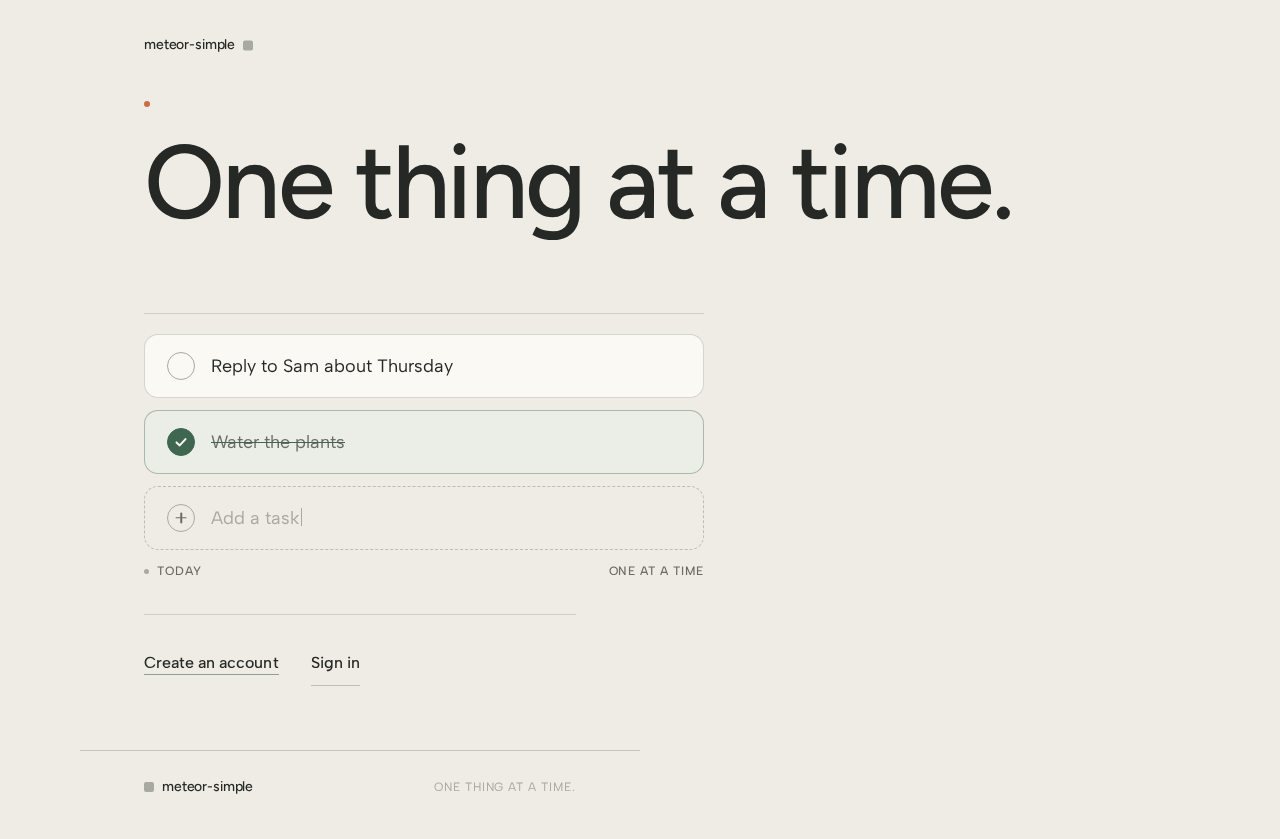
- Oversized hero sentence, "One thing at a time.", flush left across the upper two-thirds.
- A three-row checklist specimen in a narrow column: one unfinished task, one moss-green completed task, one empty add row with a circular plus control. This specimen is decorative and non-interactive; it must not be mistaken for a working list.
- A small terracotta dot and a thin horizontal rule as the only accent.
- Corner wordmark "meteor-simple" with a single square status mark.
- Two entry links to Sign Up and Login, presented as plain text links rather than competing filled buttons.
- States.
- Loading: none required; the page is static content.
- Empty: not applicable.
- Success: the page renders fully with both entry links reachable.
- Error: not applicable; no network dependency for the page body.
- Recovery: if a visitor arrives already authenticated, the entry links lead to Tasks rather than to Sign Up or Login.
Sign Up
- Information and state. Anonymous identity-access surface. Collects the minimum needed to establish a task owner account: an email address and a password, plus password confirmation. Explains that the account keeps the owner's personal list private and resumable.
- Primary action. Submit enrollment to create the account.
- Supporting action. Follow a link to Login if the visitor already has an account.
- Domain entities. Task owner account (email, password credential, creation time).
- Component responsibilities.
- Email field, password field, password confirmation field, each with a visible text label.
- Submit control labeled for account creation.
- Inline field-level validation messages.
- Form-level error region for submission failures.
- Link to Login.
- States.
- Loading: submit control shows a pending state and is disabled while the request is in flight; fields remain visible.
- Empty: fields blank, no error shown until first submission attempt.
- Success: account created and the owner is taken directly into Tasks with an empty list.
- Error: invalid email format, password too short, or mismatched confirmation shown inline against the offending field; an already-registered email shown as a form-level message with a link to Login; a network or server failure shown as a retryable form-level message with all entered values preserved except the password fields.
- Recovery: the owner corrects the field and resubmits, or follows the Login link; no partial account is created on failure.
Login
- Information and state. Anonymous identity-access surface for a returning task owner. Collects email and password.
- Primary action. Submit credentials to verify identity and reach the owner's Tasks list.
- Supporting action. Follow a link to Sign Up if the visitor has no account.
- Domain entities. Task owner account (email, password credential).
- Component responsibilities.
- Email field and password field with visible text labels.
- Submit control labeled for sign-in.
- Form-level error region.
- Link to Sign Up.
- States.
- Loading: submit control shows a pending state and is disabled while verification is in flight.
- Empty: fields blank, no error until first submission attempt.
- Success: identity verified and the owner lands on Tasks with their existing list loaded.
- Error: unrecognized email or incorrect password shown as a single non-specific form-level message that does not reveal which field was wrong; network or server failure shown as a retryable message with the email preserved and the password cleared.
- Recovery: the owner retries with corrected credentials or follows the Sign Up link.
Tasks
- Information and state. Login-protected workspace and the single cohesive home of all four task capabilities. Shows the signed-in owner's own list only. Outstanding tasks appear below the add field; completed tasks are separated by a thin rule and a small count label such as "DONE · 03" and recede into a lightly moss-washed lower section. The corner wordmark's square status mark is moss green when no tasks remain outstanding and muted grey otherwise.
- Primary action. Add a new task by typing into the always-visible blank ruled add line and confirming.
- Supporting actions. Mark an outstanding task complete; delete a task; sign out.
- Domain entities. To-do item (text, completion state, creation time, owning task owner).
- Component responsibilities.
- Add-task row: an always-visible blank ruled line with a circular plus control at its left; confirming creates the task.
- Outstanding task list: each row carries a 28px outlined circular check control, the task text, and a delete control with a visible text or accessible label.
- Completed section: thin rule, count label, and completed rows retaining full shape with a precise line-through on a low-contrast moss-tinted surface, each still deletable.
- Corner wordmark with the square status mark.
- Sign-out control.
- States.
- Loading: the workspace shows a quiet placeholder while the owner's list is fetched; the add row is present but disabled until load completes.
- Empty: no tasks at all — the outstanding area shows a short plain line inviting the first task, the completed section and its count label are hidden, and the status mark is moss green.
- Success: an added task appears at the top of the outstanding list with the input cleared and focus returned to the add line; a completed task moves into the completed section with the count label incremented; a deleted task disappears and the count label updates.
- Error: a failed add, complete, or delete shows a brief inline message near the affected row, leaves the list in its prior state, and offers retry; a failed list load shows a retry control in place of the list.
- Recovery: retrying the failed operation re-applies it; if the session has expired, the owner is sent to Login and returned to Tasks after verification, with the list reloaded from durable state.
3. Functional Requirements
FR-1 — View to-do items (explicit) As a Task owner, I should see my to-do items so that I know what is still outstanding.
- Trigger: the owner opens Tasks while signed in.
- Input: the owner's identity.
- Observable result: the owner's own tasks are listed, outstanding tasks above and completed tasks in a separate lower section with a count label.
- Access state: login required.
- Failure/recovery: if the list cannot be loaded, a retry control replaces the list and retrying reloads from durable state.
- Continuation: the owner reads the list and proceeds to add, complete, or delete.
FR-2 — Add a new to-do item (explicit) As a Task owner, I should add a new to-do item to my list so that I can record something I need to do.
- Trigger: the owner types into the always-visible add line and confirms.
- Input: non-empty task text.
- Observable result: the task is persisted and appears at the top of the outstanding list; the input clears and focus returns to the add line.
- Access state: login required.
- Failure/recovery: empty or whitespace-only input is rejected without creating a task; a failed save shows an inline message, leaves the list unchanged, and offers retry.
- Continuation: the owner adds another task or moves on to completing or deleting.
FR-3 — Mark a to-do item complete (explicit) As a Task owner, I should mark a to-do item complete so that my list reflects what I have finished.
- Trigger: the owner activates the circular check control on an outstanding task.
- Input: the selected task.
- Observable result: the task's completion state is persisted, it moves into the completed section with a line-through on a moss-tinted surface, and the count label increments.
- Access state: login required.
- Failure/recovery: a failed update shows an inline message, leaves the task outstanding, and offers retry.
- Continuation: the owner continues with the remaining outstanding tasks.
FR-4 — Delete a to-do item (explicit) As a Task owner, I should delete a to-do item so that my list stops showing something I no longer need.
- Trigger: the owner activates the delete control on a task, outstanding or completed.
- Input: the selected task.
- Observable result: the task is removed from durable storage and disappears from the list; the completed count label updates if applicable.
- Access state: login required.
- Failure/recovery: a failed deletion shows an inline message, leaves the task in place, and offers retry.
- Continuation: the owner continues managing the list.
FR-5 — Self-service enrollment (required_inference) As a Task owner, I should create my own account so that my list is private to me and survives my return.
- Trigger: a visitor on Landing chooses to begin and reaches Sign Up.
- Input: email, password, password confirmation.
- Observable result: an account is created and the owner lands on Tasks with an empty list.
- Access state: anonymous.
- Failure/recovery: field-level validation errors are shown inline; an already-registered email is reported with a link to Login; a network failure preserves entered values except passwords and allows resubmission. No partial account is created.
- Continuation: the owner adds their first task.
FR-6 — Returning verification (required_inference) As a Task owner, I should sign in to my existing account so that I can reach my saved list.
- Trigger: a returning owner opens Login.
- Input: email and password.
- Observable result: identity is verified and the owner's existing list loads on Tasks.
- Access state: anonymous entry; Tasks becomes available after verification.
- Failure/recovery: invalid credentials produce one non-specific message; a network failure preserves the email and clears the password for retry.
- Continuation: the owner resumes managing their list.
FR-7 — Sign out (required_inference) As a Task owner, I should end my session so that another person using the same device cannot see or change my list.
- Trigger: the owner activates the sign-out control on Tasks.
- Observable result: the session ends and the owner is returned to Landing; Tasks is no longer reachable without verification.
- Access state: login required to invoke.
- Failure/recovery: if the session has already expired, the owner is simply returned to Landing.
- Continuation: the owner may sign in again through Login.
FR-8 — Owner-scoped task isolation (required_inference) As a Task owner, I should only ever see and change my own tasks so that my list remains trustworthy.
- Trigger: any task read or write.
- Observable result: the backend resolves tasks strictly by the authenticated owner; no task from another account is returned or modified.
- Access state: login required.
- Failure/recovery: an unauthenticated or expired request is rejected and the owner is sent to Login.
- Continuation: the owner retries after verification.
4. User Personas
Task owner
- Product context. One individual keeping track of personal tasks. They are not managing a team, a project plan, or a schedule — they want a short, honest list of what remains to be done, and they want it to be there when they come back.
- Primary goal. A current, trustworthy list of remaining tasks.
- Distinct accepted responsibilities.
- Enrolls once on Sign Up so the list is theirs and persists.
- Verifies on return through Login to reach the saved list.
- Views their tasks on Tasks, reading outstanding items first and completed items in a quiet lower section.
- Adds a task by writing onto the always-visible add line.
- Marks a task complete with the circular check control.
- Deletes a task they no longer need, whether outstanding or completed.
- Signs out when finished on a shared device.
- Relevant inputs and decisions. The task text they type; which task to check off; which task to remove; whether to create an account or sign in.
- Interactions with other accepted participants. None. The Task owner is the only active human actor; the backend and database serve them but make no decisions of their own.
- Observable success. The list they see matches reality: every addition present, every completion reflected in the completed section and count, every deletion gone, and the status mark moss green exactly when nothing remains outstanding.
5. Core User Flows
Flow A — First use: enroll and record a first task
- A visitor opens Landing and reads the hero sentence and the three-row checklist specimen, understanding that this is a simple to-do list.
- The visitor selects the entry link to Sign Up.
- On Sign Up, the visitor enters an email, a password, and the password confirmation, then submits.
- The backend validates the input and creates the task owner account in the database. On success the owner is taken to Tasks with an empty list: the outstanding area shows the short invitation line, the completed section and count label are hidden, and the status mark is moss green.
- The owner types a task into the always-visible add line and confirms. The task is persisted and appears at the top of the outstanding list; the input clears and focus returns to the add line.
- The owner adds further tasks the same way, or stops.
- Failure and recovery: if a field is invalid, an inline message appears against it and the owner corrects it. If the email is already registered, a form-level message offers the Login link. If the save fails, an inline message appears, the list is unchanged, and retry re-applies the addition.
Flow B — Returning use: verify and resume the list
- A returning owner opens Login, either directly or from the Landing entry link.
- The owner enters their email and password and submits.
- The backend verifies the credentials. On success the owner lands on Tasks and their existing list loads from durable state, outstanding tasks above and completed tasks below with the count label.
- The owner reads the list and proceeds to add, complete, or delete.
- Failure and recovery: incorrect credentials produce one non-specific message and the owner retries. A network failure preserves the email and clears the password. If the session expires mid-use, the owner is sent to Login and returned to Tasks after verification with the list reloaded.
Flow C — Complete a task
- From Tasks, the owner identifies an outstanding task.
- The owner activates its 28px circular check control.
- The backend persists the completion. The row transitions over 140ms into the completed section, retaining its full shape with a precise line-through on a moss-tinted surface; the count label increments (for example "DONE · 03").
- If that was the last outstanding task, the corner status mark shifts from muted grey to moss green.
- Failure and recovery: a failed update shows an inline message, the task stays outstanding, and retry re-applies the completion.
- Continuation: the owner continues with the remaining outstanding tasks, or deletes a completed one.
Flow D — Delete a task
- From Tasks, the owner identifies a task to remove, outstanding or completed.
- The owner activates that row's delete control.
- The backend removes the task from durable storage. The row collapses in 160ms without bounce and disappears; if it was completed, the count label updates.
- Failure and recovery: a failed deletion shows an inline message, the task remains in place, and retry re-applies the deletion.
- Continuation: the owner continues managing the list.
Flow E — Sign out
- From Tasks, the owner activates the sign-out control.
- The session ends and the owner is returned to Landing.
- Tasks is no longer reachable without verification; the owner may sign in again through Login.
6. Visuals Colors and Theme
The muse is Naoto Fukasawa; the headline is "One thing at a time." The theme is super-normal taskkeeping: quiet, tactile, and unremarkable in the best sense.
Colour tokens (light mode)
| Role | Hex | Use |
|---|---|---|
| Background | #EEECE5 | Warm paper page ground, dominant field (~65%) |
| Surface | #FAF9F4 | Soft ivory task surfaces (~30%) |
| Text | #252824 | Dark charcoal body and headline text |
| Primary | #3F6651 | Deep moss green — completion states, primary action, focus indicators |
| Accent | #C96E43 | Terracotta — destructive actions and small status marks only |
| Muted | #A8AAA1 | Sage-grey borders at low contrast, secondary marks |
Blue and indigo are excluded entirely. Borders are one-pixel muted sage-grey at low contrast; text remains dark and highly readable.
Typography
- Headings: Figtree (Figtree Medium), calm sentence case, tracking
-0.025em, large practical headlines rather than promotional display type. - Body: Albert Sans.
- Scale: display
clamp(48px, 9vw, 104px)with a 48px mobile minimum; page titleclamp(30px, 5vw, 52px); section title 24px; task text 18px; body 16px; labels 12px with0.08emtracking.
Shape language. Tactile rounded rectangles with restrained 14px corners, one-pixel warm-grey outlines, circular check controls sized for touch, and no decorative shadows. Completed tasks retain their full shape but soften into a low-contrast moss-tinted surface with a precise line-through.
Layout rhythm. A single-column product rhythm with unusually generous side margins and a narrow readable task measure. Landing is a calm vertical sequence. Tasks is a focused paper-like workspace: add field anchored at the top, outstanding tasks below, completed tasks folded into a quiet lower section. At 375px all controls stack cleanly with 16px gutters; at 768px and 1280px the workspace stays intentionally narrow rather than expanding into empty dashboard panels.
Imagery. No stock photography, illustrations, gradient blobs, or device mockups. The product itself is the visual subject: large check circles, task rows, a subtle paper grain, and one quiet everyday-object still life only on Landing — such as a softly lit pencil resting outside the reading area.
Motion. Still by default. A completed task changes state with a 140ms opacity and colour transition; deletion collapses the row in 160ms without bounce. Focus states are immediate. With prefers-reduced-motion, all transitions resolve instantly.
7. Signature Design Concept
The Landing hero is a tall warm-paper sheet framed by the #EEECE5 page ground. A single oversized sentence, "One thing at a time.", sits flush left across the upper two-thirds in #252824, scaling from 48px on mobile to 104px on desktop. Beneath it, a real three-row checklist occupies a narrow column: one unfinished task, one moss-green completed task, and one empty add row with a circular plus control. A small terracotta dot and a thin horizontal rule are the only accent. The composition is quiet but unmistakable — an everyday task list enlarged into the hero itself, never a centred SaaS headline-and-button arrangement.
The checklist specimen is the primary visual object: an oversized three-row task specimen under the viewport-spanning sentence, not a product screenshot inside a card. It is decorative and non-interactive; the two real entry links to Sign Up and Login sit below it as plain text links, so the hero never presents competing filled buttons. The corner wordmark "meteor-simple" pairs with a single square status mark.
The same signature moves carry into Tasks: the 28px outlined circle that fills moss green only when completed with a short two-stroke checkmark; the always-visible blank ruled add line with a circular plus at its left, so creating a task feels like writing onto the page rather than opening a modal; the thin rule and small count label ("DONE · 03") separating outstanding from completed; and the corner status mark shifting from muted grey to moss green when nothing remains outstanding.
8. Interaction Model & Motion Direction
Interaction Model: Static (direction) Motion Tempo: still Hero Dimensionality: flat
Landing Hero Motion Brief
- Focal subject. The oversized sentence "One thing at a time." and the three-row checklist specimen beneath it — one unfinished task, one moss-green completed task, one empty add row with a circular plus.
- Input → transformation → outcome thesis. The hero is still. There is no scroll-linked or timed transformation; the visitor's only input is choosing an entry link, which navigates to Sign Up or Login. The composed frame itself carries the message: a task list, enlarged and calm.
- Motion vocabulary. None on the hero. The product's only motion lives in Tasks: a 140ms opacity and colour transition when a task completes, and a 160ms collapse without bounce when a task is deleted. Focus states are immediate.
- Composed first frame. Warm paper ground
#EEECE5; the sentence flush left across the upper two-thirds in#252824; the narrow checklist column below with a moss-green completed row; a terracotta dot and thin rule as the sole accent; the corner wordmark with its square status mark; two plain text entry links. - Reduced-motion state. Identical to the composed first frame — the hero has no motion to suppress. In Tasks, all transitions resolve instantly under
prefers-reduced-motion.
9. Non-Functional Requirements
- Durability. Task state must survive across sessions and devices for the owning account; a returning owner sees exactly the list they left. (required_inference — the accepted capabilities are meaningless without persistence.)
- Owner isolation. Every task read and write is scoped to the authenticated owner; no cross-account exposure is permitted. (required_inference)
- Credential handling. Passwords are stored only as a salted, slow hash; plaintext passwords are never persisted or logged. (required_inference)
- Responsive legibility. At 375px, 768px, and 1280px, all headlines, wordmarks, labels, numbers, task text, and controls remain entirely inside the viewport and their container, wrapping or scaling with
clamp(...)to fit. No element covers readable text or a control. (explicit — creative direction) - Accessibility. Focus indicators use the primary moss green and are immediate; check and delete controls carry visible or accessible text labels rather than icon-only affordances; text contrast against
#EEECE5and#FAF9F4remains high. (explicit — creative direction) - Reduced motion. Under
prefers-reduced-motion, all transitions resolve instantly. (explicit — creative direction) - Simplicity. The product remains a simple to-do list: no dashboards, analytics, gamification, or adjacent productivity modules. (explicit — hard constraint)
10. Tech Stack
- Frontend: React application UI, served as the
frontendservice. - Backend: Python / FastAPI, the shared
backendprocess exposing task and identity APIs. New domain modules extend this process rather than adding services. - Database: MariaDB, the
databaseservice, holding task owner accounts and to-do items. - Orchestration:
docker-compose.ymlwith the three services above:frontend,backend,database. - Fonts: Figtree and Albert Sans, loaded as web fonts.
11. Assumptions and Constraints
- Constraint (explicit). The product should be a simple to-do list. No adjacent capability is added.
- Assumption. Identity is application-owned and self-service: a visitor enrolls on Sign Up and verifies on Login. No invitation, provisioning, or deployment bootstrap path is required.
- Assumption. A task consists of its text and a completion state; no due dates, priorities, tags, categories, or ordering controls are part of the accepted scope.
- Assumption. Completion is a one-way state change in the current scope; no un-complete control is specified, and none is added.
- Assumption. Deletion is immediate on confirmation of the delete control; no separate confirmation dialog is specified.
- Assumption. There is no differentiated permission model; every account sees only its own list.
- Assumption. The Landing hero checklist is a static specimen, not live data.
- Default — not specified by user. Session mechanism (cookie-based session or token) and password minimum length are implementation choices consistent with the credential-handling requirement.
12. Glossary
- Task owner — the single active human actor; the person who owns an account and its to-do list.
- To-do item / task — one record consisting of task text and a completion state, owned by exactly one task owner.
- Outstanding task — a task whose completion state is false; shown above the dividing rule on Tasks.
- Completed task — a task whose completion state is true; shown in the moss-washed lower section with a line-through.
- Status mark — the small square beside the corner wordmark, moss green when no tasks remain outstanding and muted grey otherwise.
- Add line — the always-visible blank ruled row with a circular plus control at its left, used to create a task.
- Count label — the small label such as "DONE · 03" above the completed section.
No comments yet. Be the first!