magic-calculator
 Diya Trivedi
start a project to build a simpe single page of dsign of calculator

Comments (0)
Sign in to leave a comment
System Requirements
System Requirements Document for magic-calculator
1. Introduction
magic-calculator is a simple calculator delivered as a single designed page. The product intent is narrow and exact: one page, one job — arithmetic. A visitor opens the page, sees a disciplined calculator interface, enters numbers and operators, and reads the computed result.
The audience is anyone who needs a quick, correct answer: a general "Calculator User" who performs everyday arithmetic and expects a clear, well-designed instrument rather than a product pitch. There is no onboarding, no marketing narrative, and no second page. The page should feel like a piece of signage — a beautifully disciplined tool.
This document is the System Requirements Document for the project. It specifies the single-page calculator's behavior, its one active human persona, its page content, its visual system, and its technical delivery.
Success Criteria
- A visitor can load the single page and immediately understand that it is a calculator.
- A visitor can enter a sequence of numbers and operators and obtain a correct computed result.
- The interface remains fully readable and operable at 375px, 768px, and 1280px viewport widths, with no readable text or control cropped, clipped, or covered.
- The visual system follows the Vignelli-derived direction: warm paper ground, black rules, red and yellow as coded signals, Archivo only, hard edges, no blue.
2. System Overview
magic-calculator is a single-page web calculator. The current delivery consists of one designed page that presents the calculator plate — a readout and a ruled keypad — together with the page's typographic identity. There is exactly one active human persona, the Calculator User, and no application-owned identity, accounts, or sign-in: the page is anonymously reachable and stateless between visits.
Accepted current behavior: the page presents a designed calculator interface; the user enters numbers and operators; the page computes and displays the result; the user can clear the entry and continue with a new calculation. The product is limited to a single page.
The provisioned infrastructure is a React frontend, a shared FastAPI backend process for application APIs and domain modules, and a MariaDB database. The calculator's arithmetic is a client-side interaction on the single page; the backend and database are provisioned infrastructure and do not by themselves introduce domain entities, authentication, or persistence requirements for this product.
Removed from scope
- Multi-page navigation (also: second page, routes, marketing pages)
- User accounts, sign-in, and authentication (also: login, registration, sessions)
- Calculation history and saved calculations (also: persistence of past results)
- Scientific or advanced calculator functions (also: trigonometry, memory registers, parentheses)
- Marketing copy, feature lists, and onboarding flows
2a. Product Interpretation and Delivery Boundary
The product is delivered as one first-party page, anonymously accessible, with no identity establishment and no protected state. The calculator's working state (the current entry and the displayed result) lives in the page for the duration of the visit; nothing about the user is stored or resumed.
The single-page constraint is a hard boundary: the calculator experience, its typographic identity, and its operation legend all live on the one page. There is no separate landing page, no settings page, and no results page. The backend and database are provisioned as shared infrastructure but carry no current product behavior for this calculator; arithmetic is performed in the page itself.
Future ideas are not part of current delivery and are recorded separately in Section 11.
2c. Page Content and Component Coverage
Calculator
The single page of the product. It is anonymously reachable and holds no user identity.
Information and state
- Current entry / displayed result: a large tabular numeral shown in the readout area of the calculator plate.
- Pending operator state: which of the four operations (add, subtract, multiply, divide) is currently active, indicated by the active operator key flipping to the red signal color.
- Calculation state: whether the readout is showing an in-progress entry or a completed result (the completed result is marked by the red equals rule drawn across the readout).
- Error state: an invalid operation (for example division by zero) is surfaced in the readout as an error indication rather than a silent failure.
Primary actions
- Digit keys (0–9): append a digit to the current entry.
- Decimal key, marked with the single black circle: begin or extend a fractional entry.
- Operator keys (+, −, ×, ÷): select the pending operation; the selected operator key shows the active red state.
- Equals key (red): commit the pending operation and display the computed result; the red equals rule draws across the readout.
- Clear key (yellow): reset the current entry and pending operation to start a new calculation.
Supporting actions
- Operation legend strip: a single ruled strip below the main composition listing the four operations as color-coded labels, with the black dot as the section bullet. It is informational and does not itself perform calculations.
Domain entities
- Calculation entry: the sequence of digits and the decimal marker currently being typed.
- Pending operation: the selected operator and the operand captured before it.
- Result: the computed value displayed after equals.
Component responsibilities
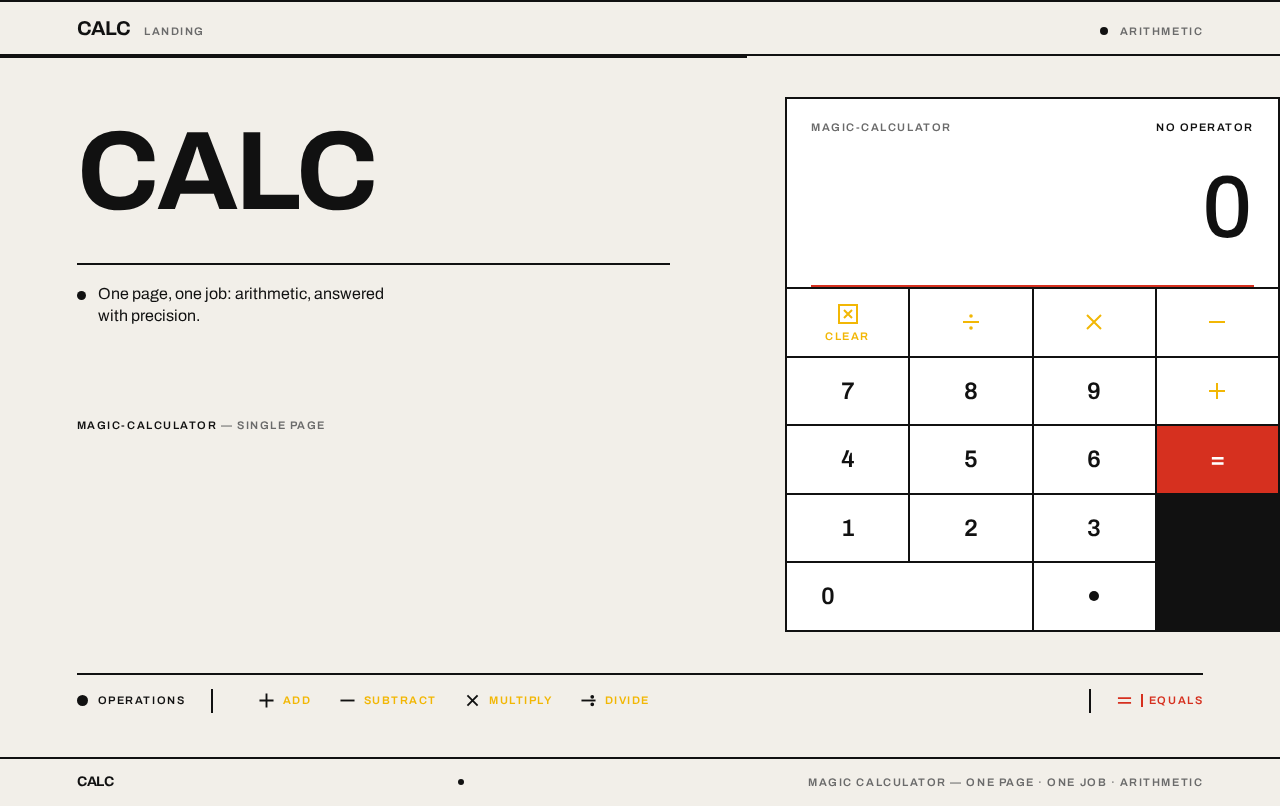
- Wordmark block: oversized flush-left "CALC" in Archivo 700, uppercase, tight tracking, sitting over a black rule with a one-line statement beneath.
- Calculator plate: a white rectangle with a 2px black border containing the readout and the 4×5 ruled keypad; keys are hard-edged, separated by 2px black hairlines, with 0px radius and no shadows.
- Readout: the large tabular result number in Archivo 500 with wide letter-spacing, plus the red equals rule.
- Keypad: a strict 4-column, 5-row grid of keys — digits in black, operators and clear in yellow-coded labels, equals in red.
- Zone divider: a full-height red vertical rule separating the wordmark zone from the calculator plate.
- Operation legend: a ruled strip of four color-coded operation labels with the black dot bullet.
States
- Loading: the page is a static composition; there is no data fetch, so no loading state is presented beyond the page itself rendering.
- Empty: on first load the readout shows a zero entry and no operator is active.
- Success: after equals, the readout shows the computed result and the red equals rule is drawn.
- Error: an invalid operation shows an error indication in the readout; the user recovers by pressing the clear key and starting a new entry.
- Recovery: clear resets entry, pending operator, and result marker so the user can continue with a fresh calculation.
3. Functional Requirements
FR-1 — Single designed calculator page As a Calculator User, I should see a single designed calculator page when I open the product, so that I immediately understand it is a calculator and can begin arithmetic.
- Provenance: explicit
- Lifecycle: trigger — the user opens the product; input — none; observable result — the page renders the wordmark, the calculator plate with readout and keypad, and the operation legend; access — anonymous, no identity required; failure/recovery — if the page fails to render, the user reloads; continuation — the user proceeds to enter a calculation.
- Acceptance: exactly one page is presented; it contains the calculator plate and no navigation to other pages.
FR-2 — Enter digits As a Calculator User, I should press digit keys to build the number I want to calculate with, so that the readout reflects the number I am entering.
- Provenance: explicit
- Lifecycle: trigger — the user presses a digit key; input — the digit; observable result — the digit is appended to the current entry and shown in the readout; access — anonymous; failure/recovery — none material; continuation — the user may press further digits, a decimal, or an operator.
- Acceptance: each digit press appends exactly one digit to the current entry and the readout updates immediately.
FR-3 — Enter a decimal value As a Calculator User, I should press the decimal key, marked with the single black circle, to enter fractional values, so that I can calculate with non-integer numbers.
- Provenance: explicit (decimal marker from the creative direction)
- Lifecycle: trigger — the user presses the decimal key; input — the decimal marker; observable result — a decimal point is placed in the current entry; access — anonymous; failure/recovery — a second decimal press in the same entry does not add a second decimal point; continuation — the user continues entering digits.
- Acceptance: the decimal marker appears once per entry and the readout shows the fractional value.
FR-4 — Select an operation As a Calculator User, I should press an operator key (+, −, ×, ÷) to choose the operation, so that the calculator knows what to do with the next number.
- Provenance: explicit
- Lifecycle: trigger — the user presses an operator key; input — the chosen operator; observable result — the operator key shows the active red state and the pending operation is recorded; access — anonymous; failure/recovery — pressing a different operator replaces the pending operation; continuation — the user enters the next operand and presses equals.
- Acceptance: exactly one operator is shown active at a time, and the active operator is visually distinguished by the red signal color.
FR-5 — Compute and display the result As a Calculator User, I should press the equals key to commit the pending operation and see the computed result, so that I get the answer to my calculation.
- Provenance: explicit
- Lifecycle: trigger — the user presses equals; input — the pending operation and operands; observable result — the readout shows the computed result and the red equals rule draws across the readout; access — anonymous; failure/recovery — an invalid operation (such as division by zero) shows an error indication in the readout; continuation — the user may start a new calculation or continue from the result.
- Acceptance: the displayed result is the correct arithmetic outcome of the pending operation; the equals rule is drawn after the calculation.
FR-6 — Clear the calculation As a Calculator User, I should press the clear key to reset the entry and pending operation, so that I can start a new calculation cleanly.
- Provenance: explicit
- Lifecycle: trigger — the user presses the clear key; input — clear; observable result — the readout returns to a zero entry, no operator is active, and the result marker is removed; access — anonymous; failure/recovery — clear also recovers from an error state; continuation — the user begins a new entry.
- Acceptance: after clear, the readout shows a zero entry and no operator key is in the active red state.
FR-7 — Read the operation legend As a Calculator User, I should see the four operations listed as color-coded labels in a ruled strip, so that I can recognize the available operations at a glance.
- Provenance: explicit (from the creative direction's layout)
- Lifecycle: trigger — the page renders; input — none; observable result — the legend strip lists add, subtract, multiply, and divide as color-coded labels with the black dot bullet; access — anonymous; failure/recovery — none material; continuation — the user proceeds to use the keypad.
- Acceptance: the legend lists exactly the four operations and is visually consistent with the keypad's color coding.
FR-8 — Readable and operable at all supported viewports As a Calculator User, I should be able to read every label and number and press every key at 375px, 768px, and 1280px widths, so that the calculator works on my device.
- Provenance: explicit (readable-text-and-controls constraint)
- Lifecycle: trigger — the user opens the page at a supported viewport; input — none; observable result — headlines, wordmark, labels, numbers, and keys stay entirely inside the viewport and their container, wrapping or scaling to fit, with no element covering them; access — anonymous; failure/recovery — none material; continuation — the user operates the calculator normally.
- Acceptance: at each supported width, no readable text or control is cropped, clipped, or covered.
4. User Personas
Calculator User
Product context. The Calculator User arrives at a single page that is a calculator, not a product site. They may be on a phone, tablet, or desktop, and they want a quick, correct answer to an everyday arithmetic question. They have no account and no expectation of one; the page is anonymous and stateless.
Primary goal. Enter a calculation and read a correct result from a clear, well-designed interface.
Distinct accepted responsibilities.
- Enter digits and decimal values to build operands.
- Select one of the four operations.
- Commit the calculation with equals and read the result.
- Clear the entry to start a new calculation.
- Recognize the available operations from the legend.
Relevant inputs and decisions. Which digits to enter, whether a value is fractional, which operation applies, and when to commit with equals or reset with clear.
Interactions with other accepted participants. None. The Calculator User is the only active human persona; there is no counterparty, recipient, or approver in this product.
Observable success. The readout shows the correct result after equals, the active operator is visibly marked, and the page remains fully readable and operable at every supported viewport.
5. Core User Flows
Flow 1 — Perform a basic calculation
- The Calculator User opens the product in a browser. The single Calculator page renders: the "CALC" wordmark on the left, the red vertical rule, and the calculator plate on the right with a zero entry in the readout and no active operator.
- The user presses digit keys to enter the first operand. Each digit appears in the readout immediately.
- The user presses an operator key (for example, +). That key flips to the active red state, recording the pending operation.
- The user presses digit keys to enter the second operand; the readout reflects the new entry.
- The user presses the red equals key. The page computes the result, the readout shows the computed value, and the red equals rule draws across the readout.
- The user reads the result. They may continue with a new calculation or press clear to reset.
Failure and recovery. If the user presses equals with an invalid operation (for example, division by zero), the readout shows an error indication. The user presses the yellow clear key, the readout returns to a zero entry with no active operator, and they begin again.
Flow 2 — Calculate with a fractional value
- The Calculator User opens the Calculator page.
- The user presses digit keys for the whole part of the number.
- The user presses the decimal key, marked with the single black circle; a decimal point is placed in the entry.
- The user presses digit keys for the fractional part.
- The user selects an operation, enters the second operand, and presses equals.
- The readout shows the computed result and the red equals rule is drawn.
Failure and recovery. A second decimal press within the same entry does not add a second decimal point; the user continues entering digits normally.
Flow 3 — Clear and start over
- The Calculator User is mid-calculation or has just seen a result.
- The user presses the yellow clear key.
- The readout returns to a zero entry, no operator key is in the active red state, and the result marker is removed.
- The user begins a new entry and continues as in Flow 1.
Flow 4 — Use the page on a small screen
- The Calculator User opens the product at a 375px-wide viewport.
- The page scales its typography and keypad so that the wordmark, the readout number, the key labels, and every key remain entirely inside the viewport and their container.
- The user operates the calculator exactly as in Flow 1, with no text or control cropped, clipped, or covered.
6. Visuals Colors and Theme
The visual system follows the supplied creative direction after Massimo Vignelli: information design as wayfinding, a visible grid, one Helvetica-class grotesque, and primary colors used as coded signals.
Palette (light mode)
- Background:
#F2EFE9(warm paper ground, carries the whole page) - Surface:
#FFFFFF(the calculator plate) - Text and rules:
#111111(all type and all rules) - Primary / signal red:
#D6301F(equals key, active operator, the equals rule, the zone divider) - Accent / signal yellow:
#F2B705(operator column labels and the clear key) - Muted:
#6B6B6B(small-caps metadata only)
Proportion: 80% paper and black, 15% white surface, 5% red and yellow. No blue anywhere; color is code, not mood.
Typography
- Family: Archivo only — no other family on the page.
- Display: Archivo 700, uppercase, tight tracking (−0.02em), flush-left ragged-right.
- Result number: Archivo 500 with tabular numerals and wide letter-spacing so digits read as a dial.
- Labels: Archivo 600, 11px, uppercase, +0.14em tracking, small-caps feel.
- Scale (1.5 modular): display
clamp(48px, 9vw, 112px); resultclamp(40px, 7vw, 88px); section label 11px; key labelclamp(18px, 2.4vw, 24px); body 16px. Three sizes only; hierarchy by weight and rules.
Shape language
- Hard edges everywhere: 0px radius on keys, panels, and rules.
- Keys are perfect squares or 1:1.15 rectangles in a strict 4-column grid, separated by 2px black hairlines so the keypad reads as one ruled plate.
- One geometric gesture only: a single black circle (the Vignelli dot) used as the decimal marker and as the page's section bullet. Color blocks are rectangles, never blobs.
Layout
- A 12-column grid on warm paper with generous outer margins
clamp(20px, 6vw, 96px). - One asymmetric poster split: the left 7 columns hold the oversized "CALC" wordmark stacked over a black rule and a one-line statement; the right 5 columns hold the calculator plate — readout on white, keypad beneath in a 4×5 ruled grid.
- A horizontal red rule runs the full viewport width between the two zones.
- Below, a single ruled strip lists the four operations as color-coded labels, like a transit legend. Nothing else on the page.
Imagery. No photography, no illustration. The imagery is the interface itself: the ruled keypad plate, the tabular result, the color-coded operation legend, and a small pictogram set of plus, minus, multiply, and divide drawn as 2px-stroke geometric symbols. Decoration is restricted to the grid rules and the single black dot.
7. Signature Design Concept
The first screen is a poster, not a SaaS hero. A warm paper field (#F2EFE9) carries a full-bleed black rule across the top bearing the wordmark "CALC" in Archivo 700 at clamp(48px, 9vw, 112px), flush left, spanning roughly 40% of the viewport width and sitting tight against the left margin. Directly beneath it, a single 16px line of black body copy.
The right 5 columns are dominated by the calculator plate: a white rectangle with a 2px black border, a huge tabular result number at clamp(40px, 7vw, 88px) in the top third, a red equals rule, and a 4×5 keypad of hard-edged keys divided by hairlines. A red vertical rule separates the two zones. There is no centered headline, no gradient, and no floating card — the composition is two unequal rectangles divided by rules, exactly like a Vignelli information panel.
The signature moves are: the oversized flush-left "CALC" wordmark separated from the calculator plate by a full-height red vertical rule; the calculator as a single ruled plate with no radii and no shadows; the result number treated as signage with a red equals rule that draws across the readout after each calculation; operations color-coded like a transit legend (red for equals, yellow for clear and operator labels, black for digits); and the single black circle serving as the decimal point and the only decorative mark.
8. Interaction Model & Motion Direction
Interaction Model: Static Motion Tempo: still Hero Dimensionality: flat
Landing Hero Motion Brief
- Focal subject. The calculator plate itself — the white ruled rectangle with its tabular result number and 4×5 keypad — set against the warm paper field beside the oversized "CALC" wordmark.
- Input → transformation → outcome thesis. A key press is the input; the key's state flips instantly (the active operator turns red, 0ms ease); the outcome is the updated readout, where the result number counts to its new value over 180ms, linear, and a 120ms red rule draws across the readout after equals. The page itself does not animate on load; the instrument responds only when used.
- Motion vocabulary. Instant state flips, a 180ms linear count to the new result value, and a 120ms red rule draw. Nothing else moves.
- Composed first frame. The poster at rest: black top rule with "CALC" flush left, one line of body copy beneath, red vertical divider, and the calculator plate on the right showing a zero entry with no active operator.
- Reduced-motion state. With
prefers-reduced-motion, the result count and the red rule draw become instant swaps; the page remains fully usable and static.
9. Non-Functional Requirements
- Single-page constraint. The product is limited to a single page; no additional routes, pages, or navigation are introduced. (explicit)
- Readable text and controls. Headlines, wordmarks, labels, numbers, and controls stay entirely inside the viewport and their container at 375px, 768px, and 1280px, wrapping or scaling to fit, with no other element covering them. (explicit)
- Anonymous access. The page requires no account, sign-in, or identity; no user data is stored or resumed between visits. (explicit via the absence of any identity requirement and the single-page, stateless calculator scope)
- Immediate feedback. Key presses update the interface immediately; the only motion is the 180ms result count and the 120ms equals rule, both replaced by instant swaps under
prefers-reduced-motion. (explicit, from the creative direction) - Correct arithmetic. The displayed result must be the correct arithmetic outcome of the pending operation; invalid operations surface an error indication rather than a silent failure. (explicit)
- No blue. No blue or indigo accents of any kind appear on the page. (explicit, from the creative direction)
10. Tech Stack
- Frontend: React application UI, rendering the single Calculator page.
- Backend: shared FastAPI process for application APIs and domain modules. For the current calculator, arithmetic is performed in the page; the backend is provisioned infrastructure and carries no current calculator endpoint requirement.
- Database: MariaDB, provisioned as application-owned persistent storage. The current calculator stores no user data, so no domain entities or schema are required by this product.
- Containerization: Docker / docker-compose for the frontend, backend, and database services.
11. Assumptions and Constraints
Assumptions
- The calculator performs the four basic operations (add, subtract, multiply, divide) on decimal numbers; no scientific functions are assumed.
[Default — not specified by user] - The calculator operates on a single pending operation at a time (operand, operator, operand), consistent with a simple calculator.
[Default — not specified by user] - The page is delivered as a web page in a browser.
[Default — not specified by user]
Constraints
- The product is limited to a single page. (explicit)
- The page presents a designed calculator interface. (explicit)
- The visual system follows the supplied Vignelli-derived creative direction: Archivo only, warm paper ground, black rules, red and yellow as coded signals, hard edges, no blue. (explicit)
- Readable text and controls stay whole at 375px, 768px, and 1280px. (explicit)
Future requirements (not part of current delivery)
- None specified by the user. Any future addition (for example, calculation history or scientific functions) would require a new requirement and is out of scope for this document.
12. Glossary
- Calculator plate: The white, black-bordered rectangle containing the readout and the 4×5 ruled keypad.
- Readout: The large tabular numeral area at the top of the calculator plate showing the current entry or result.
- Equals rule: The red rule that draws across the readout after a calculation is committed.
- Pending operation: The operator selected by the user and the operand captured before it, awaiting the equals key.
- Operation legend: The ruled strip below the main composition listing the four operations as color-coded labels.
- Vignelli dot: The single black circle used as the decimal marker and as the page's section bullet.
- Signal color: Red (
#D6301F) for equals and the active operator; yellow (#F2B705) for clear and operator labels.
CALC
One page, one job: arithmetic, answered with precision.
magic-calculatorSingle page
Operations
- Add
- Subtract
- Multiply
- Divide
CALC
One page, one job: arithmetic, answered with precision.
magic-calculatorSingle page
Operations
- Add
- Subtract
- Multiply
- Divide
No comments yet. Be the first!