kubisa-ai-forteen-10
 Isam Isam
Build a full-stack, responsive, and ultra-modern web application for "kubisa.ai" powered by the "forteen-10" AI Model architecture. ### 1. APPLICATION OVERVIEW & BRANDING - App Name: kubisa.ai - AI Model Engine Name: forteen-10 (Include an dynamic model version switcher in settings, e.g., forteen-10, forteen-11, forteen-12). - Theme & Aesthetic: Dark Mode by default, cyber/neon dark aesthetic (#0a0a0c background, neon blue #00f0ff, glowing red/pink #ff0055 gradient accents, glassmorphism card UI). - Logo: Icon displaying glowing neon lines, vibrant gradient, dark night theme, with the text "kubisa.ai". ### 2. CORE FEATURES & TABS The app must be a single-page application (SPA) with a modern sidebar or bottom navigation bar with 4 primary tabs: 1. 💬 AI Chat Workspace (forteen-10 Engine): - Real-time chat interface with streaming text responses. - Header showing active model: "Model: forteen-10 (Active)". - Features: Code highlighting, prompt templates, copy text, clear chat, and voice input toggle UI. 2. 🎨 3D Image & Asset Generator: - Input box for prompt entry + style preset selection (e.g., "3D Render", "Octane Render", "Blender Style", "Photorealistic 3D"). - Aspect ratio selector (1:1, 16:9, 9:16). - Interactive preview window for generated 3D image assets with download and "Convert to 3D Model" buttons. - Mock interactive Three.js or Lucide 3D viewport canvas where users can rotate/view a dummy 3D mesh model created from their prompt. 3. 🎬 AI Video Generator: - Text-to-Video generation form (Prompt, Duration slider 3-10s, FPS toggle, Camera Movement selector like Zoom In, Pan Right, Orbit). - Video player preview section showing realistic video generation progress/loading animation, playing sample video outputs, with download controls. 4. 📹 3D Camera Tracking Workspace: - File Upload zone for videos (.mp4, .mov). - "Analyze Camera Motion & Point Cloud" button. - Interactive canvas showing simulated camera tracking points (glowing tracker dots over the video/image preview) and tracked camera path coordinates (X, Y, Z camera position data). - Export Tracking Data button (.JSON / .FBX motion dummy). ### 3. TECHNICAL STACK & UI REQUIREMENTS - Framework: React (Vite) + Tailwind CSS + Lucide Icons. - Components: Use Shadcn UI style components (Tabs, Dialogs, Sliders, Cards, Buttons with smooth hover effects). - State Management: Store user history, prompts, generated items, and selected model version in LocalStorage so data persists. - Mobile First & Responsive: Perfectly optimized for mobile phone screens with touch-friendly buttons and a bottom navigation bar on mobile screens. ### 4. INSTRUCTIONS TO BOLT Please set up the complete file structure, clean component architecture, interactive state logic for all features, mockup responses for the forteen-10 AI engine, and deployable production code in one go.

Comments (0)
Sign in to leave a comment
System Requirements
System Requirements Document for kubisa-ai-forteen-10
1. Introduction
kubisa.ai is a full-stack, responsive, ultra-modern web application powered by the forteen-10 AI Model architecture. It is a single-page application (SPA) that gives a single creative operator — the Creator / AI Studio User — one dark, cinematic studio in which to converse with the forteen-10 engine, generate 3D image assets, generate short videos from text, and run simulated camera-motion and point-cloud analysis on uploaded footage.
The product intent is to feel like operating a futuristic render engine rather than a business tool: a dark void ground, luminous glass panels, HUD-style telemetry, and motion as the hero. Every workspace is a two-zone composition — a control column and a dominant viewport — so the interface behaves like the output it produces.
The audience is creators, 3D artists, and technical builders who want to prompt, preview, download, and keep generated assets, and who want their history, prompts, generated items, and selected model version to persist across sessions.
2. System Overview
kubisa.ai is delivered as a client-side React (Vite) single-page application styled with Tailwind CSS and Lucide Icons, using Shadcn UI style components (Tabs, Dialogs, Sliders, Cards, Buttons with smooth hover effects). It is mobile-first and responsive, with a persistent left icon rail on larger screens and a fixed bottom navigation bar with four touch targets on mobile screens.
The application presents six destinations: an anonymous Landing page, the four primary workspaces (AI Chat Workspace, 3D Image & Asset Generator, AI Video Generator, 3D Camera Tracking Workspace), and Settings for switching the active model version.
All AI behavior in the current release is mock: the forteen-10 engine returns mockup responses, the 3D viewport renders a dummy mesh, camera tracking points and camera path coordinates are simulated, and video previews play sample outputs. State — user history, prompts, generated items, and the selected model version — persists in LocalStorage.
2a. Product Interpretation and Delivery Boundary
Delivery ownership. kubisa.ai is a first-party application. All six destinations are application-owned custom pages. There is no provider-owned surface, no external destination, and no headless delivery in the current scope. The four workspaces and Settings are reachable directly; the Landing page is the anonymous first impression that introduces kubisa.ai and routes into the workspaces.
Access ownership. No destination requires an account. The source establishes no sign-in, no invitation, no provisioning, and no differentiated permissions. The Creator / AI Studio User opens the app and works immediately; continuity comes from LocalStorage, not from an identity system. No authentication, account-management, or role-based visibility capability is part of this product.
Current vs. future boundary. Current scope is exactly the four workspaces, the Landing page, and Settings, with mock AI, simulated tracking, sample video outputs, and LocalStorage persistence. Real model inference, real 3D reconstruction, real video rendering, real camera solving, and any server-side or cloud processing are not current requirements. The model version switcher is current and dynamic across forteen-10, forteen-11, and forteen-12; the underlying engine remains mock in this release.
Narrow exclusions. No stock photography, no flat clip art, no full-page gradient washes, no centered headline-plus-subtext-plus-blue-button hero, no soft pastel or warm-neutral surfaces, no bouncy or playful micro-interactions, and no blue-indigo (#2563EB, #4F44E5, #7C3AED) substituting for the specified #00f0ff. Inter, Roboto, Poppins, Arial, and system-ui are excluded for headings and body.
2c. Page Content and Component Coverage
Landing
- Information / state: Anonymous public entry. Full-bleed #0a0a0c void. Left 55% carries the stacked display headline "Generate in three dimensions." at
clamp(2.5rem, 6vw, 4.5rem)in Space Grotesk 600, set flush-left and allowed to run to the viewport edge, with a single 1px cyan→pink gradient beam running diagonally behind it. Right 45% carries a live Three.js wireframe icosphere with an orbiting camera, wrapped in a glass HUD frame. Below the headline sit a single primary CTA filled with the cyan→pink gradient and a ghost secondary "View the engine". - Primary actions: Enter the studio via the primary CTA; inspect the engine via the ghost secondary.
- Supporting actions: Route into any of the four workspaces; open Settings.
- Domain entities: Model version (forteen-10 / forteen-11 / forteen-12), workspace identity, HUD telemetry readouts (MODEL: FORTEEN-10 · LATENCY 42ms · VRAM 18.4GB).
- Component responsibilities: Hero headline block; diagonal gradient beam; Three.js wireframe icosphere subject with orbiting camera at 0.05 rad/s; glass HUD frame with monospace telemetry that counts up on load; primary gradient CTA; ghost secondary CTA; logo mark (glowing neon lines, vibrant gradient, dark night theme) with the wordmark "kubisa.ai".
- States: Loading — icosphere and HUD frame mount, telemetry values count up. Empty — not applicable; the hero is always populated. Success — hero renders, telemetry settles at final values, CTAs are focusable and tappable. Error — if WebGL is unavailable, the hero falls back to a static cyan→pink volumetric gradient stand-in inside the same glass HUD frame, with the headline and CTAs unchanged. Recovery — the fallback is automatic and the user can still enter any workspace.
- Responsive: On mobile the 3D subject moves above the headline as a 220px-tall band; the headline, wordmark, labels, numbers, and controls stay entirely inside the viewport at 375px, 768px, and 1280px.
AI Chat Workspace
- Information / state: Header showing the active model as "Model: forteen-10 (Active)", reflecting the currently selected version. Message thread rendered inside glass "console" panels. Each streaming response carries a cyan left-edge light rail and a blinking #00f0ff caret. Code blocks render in a dark inset panel with a pink filename tab and a copy chip.
- Primary actions: Send a prompt; receive a streaming text response from the forteen-10 engine.
- Supporting actions: Apply a prompt template; copy response text; copy code from a code block; clear chat; toggle voice input UI.
- Domain entities: Conversation history, individual messages (user and engine), prompt templates, code blocks with filenames, active model version.
- Component responsibilities: Model header; message list with glass console panels; streaming caret; code block with pink filename tab and copy chip that flips to "COPIED" in cyan; prompt template picker; copy-text control; clear-chat control (accent #ff0055, destructive); voice input toggle UI; composer input.
- States: Loading — response tokens stream in with a staggered 40ms reveal; the caret blinks. Empty — no messages yet; the composer and prompt templates are presented as the starting point. Success — full response rendered; copy controls available; conversation persisted to LocalStorage. Error — a mock engine failure surfaces an inline error on the console panel with a retry affordance; the user's prompt is preserved. Recovery — retry re-runs the mock response; clearing chat empties the thread and persists the cleared state.
3D Image & Asset Generator
- Information / state: Prompt input box, style preset selection ("3D Render", "Octane Render", "Blender Style", "Photorealistic 3D"), aspect ratio selector (1:1, 16:9, 9:16), a 1:1 preview tile for the generated 3D image asset, and a rotatable dummy mesh viewport in the same frame. A HUD strip below shows the prompt, style preset, and aspect ratio as monospace key/value rows.
- Primary actions: Enter a prompt and generate a 3D image asset.
- Supporting actions: Select a style preset; select an aspect ratio; download the generated asset; press "Convert to 3D Model"; drag the viewport to rotate the dummy mesh.
- Domain entities: Prompt, style preset, aspect ratio, generated image asset, dummy 3D mesh model, generated-item history.
- Component responsibilities: Prompt input; style preset selector; aspect ratio selector; 1:1 preview tile; Three.js/Lucide 3D viewport canvas (hard-edged 12px rect, instrument not soft card); HUD key/value strip; download control; "Convert to 3D Model" control.
- States: Loading — generation progress indicated with a cyan→pink progress bar pulsing along the pipeline. Empty — no asset generated yet; the preview tile shows a cyan-to-pink volumetric gradient stand-in over dark so nothing appears broken. Success — asset preview renders, download and "Convert to 3D Model" become available, the dummy mesh is rotatable, and the item is persisted. Error — generation failure surfaces an inline error on the preview tile with a retry affordance; the prompt, preset, and aspect ratio are preserved. Recovery — retry regenerates; the previous successful asset remains in history.
AI Video Generator
- Information / state: Text-to-video generation form with prompt, duration slider (3–10s), FPS toggle, and camera movement selector (Zoom In, Pan Right, Orbit). Video player preview section with a generation progress/loading animation and sample video outputs.
- Primary actions: Enter a prompt and generate a video.
- Supporting actions: Set duration via slider; toggle FPS; select camera movement; play the sample output; download the video.
- Domain entities: Prompt, duration (3–10s), FPS setting, camera movement, generated video item, sample video outputs.
- Component responsibilities: Prompt input; duration slider; FPS toggle; camera movement selector; video player preview; particle-field loading state; cyan→pink progress bar; download controls.
- States: Loading — realistic video generation progress/loading animation with a particle-field state and a pulsing cyan→pink progress bar. Empty — no video generated yet; the player area shows the gradient stand-in and the form is ready. Success — sample video output plays in the player; download controls are available; the item is persisted. Error — generation failure surfaces an inline error on the player area with a retry affordance; form values are preserved. Recovery — retry regenerates; previously generated videos remain in history.
3D Camera Tracking Workspace
- Information / state: File upload zone for videos (.mp4, .mov), an "Analyze Camera Motion & Point Cloud" button, an interactive canvas showing simulated camera tracking points (glowing tracker dots over the video/image preview) and a swept #ff0055 camera path polyline, and a tracked camera path coordinate table with X, Y, Z camera position data.
- Primary actions: Upload a video and run "Analyze Camera Motion & Point Cloud".
- Supporting actions: Preview the uploaded video/image; inspect tracker dots and the camera path; read X/Y/Z coordinates; export tracking data as .JSON or .FBX motion dummy.
- Domain entities: Uploaded video file (.mp4, .mov), tracker points, camera path polyline, X/Y/Z camera position coordinates, exported tracking data (.JSON / .FBX motion dummy).
- Component responsibilities: File upload zone; analyze button; interactive tracking canvas (hard-edged 12px rect); glowing #00f0ff tracker dots; #ff0055 camera path polyline; monospace X/Y/Z coordinate table with right-aligned values; export control with .JSON / .FBX motion dummy options.
- States: Loading — analysis runs with a progress indication; on completion the X/Y/Z coordinate values count up to their final values over 900ms. Empty — no file uploaded; the upload zone is the primary affordance. Success — tracker dots and camera path render over the preview; coordinates settle; export becomes available. Error — unsupported file type or analysis failure surfaces an inline error on the upload zone with a retry affordance. Recovery — the user can upload a different file or re-run analysis; prior successful analyses remain in history.
Settings
- Information / state: The dynamic model version switcher listing forteen-10, forteen-11, and forteen-12, with the currently active version marked. Related application state that persists alongside the selected version.
- Primary actions: Switch the active AI model version.
- Supporting actions: Review which version is active; confirm the change is reflected in the AI Chat Workspace header.
- Domain entities: Model version (forteen-10, forteen-11, forteen-12), active-version selection.
- Component responsibilities: Model version switcher; active-version indicator; persistence hook writing the selection to LocalStorage.
- States: Loading — the stored selection is read from LocalStorage on mount. Empty — no stored selection; forteen-10 is presented as the default active version. Success — the selected version is marked active, persisted, and reflected in the chat header. Error — if LocalStorage is unavailable, the selection applies for the session and an inline notice explains that it will not persist. Recovery — the user can re-select a version once storage is available.
3. Functional Requirements
FR-1 — Application identity and branding (explicit) As a Creator / AI Studio User, I should see the application presented as kubisa.ai with a logo icon of glowing neon lines and a vibrant gradient on a dark night theme, accompanied by the text "kubisa.ai", so that the product is immediately identifiable.
- Trigger/input: any page load.
- Observable result: the logo mark and wordmark render in the header/nav chrome.
- Access state: anonymous, no account.
- Failure/recovery: if the logo asset fails to load, the wordmark "kubisa.ai" still renders as text.
- Continuation: the user proceeds into any workspace.
FR-2 — Dark cyber/neon theme by default (explicit) As a Creator / AI Studio User, I should see the app in dark mode by default with a cyber/neon aesthetic — #0a0a0c background, neon blue #00f0ff, glowing red/pink #ff0055 gradient accents, and glassmorphism card UI — so that the studio reads as a futuristic render engine.
- Trigger/input: any page load.
- Observable result: dark ground, glass panels at rgba(255,255,255,0.04) with 1px rgba(0,240,255,0.18) borders and backdrop-blur(20px), cyan and pink accents.
- Access state: anonymous.
- Failure/recovery: not applicable; the theme is static.
- Continuation: all workspaces inherit the theme.
FR-3 — Single-page application with four primary tabs (explicit) As a Creator / AI Studio User, I should navigate a single-page application with a modern sidebar or bottom navigation bar containing the 4 primary tabs, so that I can move between workspaces without page reloads.
- Trigger/input: selecting a tab in the sidebar (desktop) or bottom navigation bar (mobile).
- Observable result: the selected workspace renders in place; the active item shows a 2px cyan bar growing from 0 to full height.
- Access state: anonymous.
- Failure/recovery: if a workspace fails to render, the navigation remains usable and the user can switch tabs.
- Continuation: the user works in the selected workspace.
FR-4 — Real-time streaming chat (explicit) As a Creator / AI Studio User, I should use a real-time chat interface in the AI Chat Workspace that returns streaming text responses from the forteen-10 engine, so that I can converse with the model and watch answers arrive progressively.
- Trigger/input: submitting a prompt in the composer.
- Observable result: response tokens stream into a glass console panel with a cyan left-edge light rail and a blinking #00f0ff caret, revealed with a staggered 40ms cadence.
- Access state: anonymous.
- Failure/recovery: a mock engine failure shows an inline error on the console panel with retry; the prompt is preserved.
- Continuation: the completed response stays in the thread and is persisted.
FR-5 — Active model header (explicit) As a Creator / AI Studio User, I should see a header in the AI Chat Workspace showing the active model as "Model: forteen-10 (Active)", so that I always know which engine version is answering.
- Trigger/input: opening the AI Chat Workspace or changing the model version in Settings.
- Observable result: the header text reflects the currently selected version.
- Access state: anonymous.
- Failure/recovery: if no version is stored, forteen-10 is shown as active.
- Continuation: the header updates immediately when the version changes.
FR-6 — Code highlighting (explicit) As a Creator / AI Studio User, I should see code in chat responses rendered with code highlighting in a dark inset panel with a pink filename tab, so that technical answers are readable.
- Trigger/input: a response containing a code block.
- Observable result: the code block renders highlighted inside an inset panel with a pink filename tab.
- Access state: anonymous.
- Failure/recovery: if highlighting fails, the code still renders as plain monospace text.
- Continuation: the user can copy the code.
FR-7 — Prompt templates (explicit) As a Creator / AI Studio User, I should select from prompt templates in the AI Chat Workspace, so that I can start a conversation quickly.
- Trigger/input: choosing a template.
- Observable result: the template text is placed into the composer for editing or sending.
- Access state: anonymous.
- Failure/recovery: if no templates are available, the composer remains usable for free-form prompts.
- Continuation: the user sends the templated prompt.
FR-8 — Copy text (explicit) As a Creator / AI Studio User, I should copy response text and code from the chat, so that I can reuse engine output elsewhere.
- Trigger/input: pressing the copy control on a response or on a code block's copy chip.
- Observable result: the content is copied and the chip flips to "COPIED" in cyan.
- Access state: anonymous.
- Failure/recovery: if the clipboard is unavailable, an inline notice indicates the copy did not succeed.
- Continuation: the user continues the conversation.
FR-9 — Clear chat (explicit) As a Creator / AI Studio User, I should clear the chat, so that I can start a fresh conversation.
- Trigger/input: pressing the clear-chat control (accent #ff0055, destructive).
- Observable result: the message thread empties and the cleared state is persisted.
- Access state: anonymous.
- Failure/recovery: if the clear action fails, the thread remains and an inline error is shown.
- Continuation: the user starts a new conversation in the empty state.
FR-10 — Voice input toggle UI (explicit) As a Creator / AI Studio User, I should toggle a voice input UI in the chat, so that I can indicate voice entry as an input mode.
- Trigger/input: pressing the voice input toggle.
- Observable result: the toggle switches state and the UI reflects the active/inactive voice input mode.
- Access state: anonymous.
- Failure/recovery: if the toggle cannot activate, it returns to its prior state with an inline notice.
- Continuation: the user continues typing or toggles back.
FR-11 — 3D image prompt and style presets (explicit) As a Creator / AI Studio User, I should enter a prompt and select a style preset ("3D Render", "Octane Render", "Blender Style", "Photorealistic 3D") in the 3D Image & Asset Generator, so that I can control the look of the generated asset.
- Trigger/input: typing a prompt and choosing a preset.
- Observable result: the prompt and selected preset are captured and shown in the HUD key/value strip.
- Access state: anonymous.
- Failure/recovery: if no preset is chosen, a default preset is applied and shown.
- Continuation: the user generates the asset.
FR-12 — Aspect ratio selector (explicit) As a Creator / AI Studio User, I should select an aspect ratio of 1:1, 16:9, or 9:16, so that the generated asset matches my intended framing.
- Trigger/input: choosing an aspect ratio.
- Observable result: the selection is applied to the preview tile and shown in the HUD strip.
- Access state: anonymous.
- Failure/recovery: if no ratio is chosen, 1:1 is applied.
- Continuation: the user generates the asset.
FR-13 — Interactive preview with download and Convert to 3D Model (explicit) As a Creator / AI Studio User, I should see an interactive preview window for the generated 3D image asset with download and "Convert to 3D Model" buttons, so that I can keep the asset or turn it into a model.
- Trigger/input: completing a generation.
- Observable result: the preview renders the asset; download and "Convert to 3D Model" become available.
- Access state: anonymous.
- Failure/recovery: if generation fails, an inline error with retry appears on the preview tile and the prompt/preset/ratio are preserved.
- Continuation: the user downloads the asset or converts it to a 3D model.
FR-14 — Mock interactive 3D viewport (explicit) As a Creator / AI Studio User, I should rotate and view a dummy 3D mesh model created from my prompt in a mock interactive Three.js or Lucide 3D viewport canvas, so that I can inspect the asset in three dimensions.
- Trigger/input: dragging the viewport.
- Observable result: the dummy mesh rotates in the hard-edged 12px viewport rect.
- Access state: anonymous.
- Failure/recovery: if WebGL is unavailable, a static gradient stand-in renders in the same frame.
- Continuation: the user continues inspecting or returns to the controls.
FR-15 — Text-to-video generation form (explicit) As a Creator / AI Studio User, I should fill a text-to-video generation form with a prompt, a duration slider from 3–10s, an FPS toggle, and a camera movement selector (Zoom In, Pan Right, Orbit), so that I can define the video I want.
- Trigger/input: entering a prompt, moving the duration slider, toggling FPS, and selecting a camera movement.
- Observable result: all four values are captured and reflected in the form.
- Access state: anonymous.
- Failure/recovery: if a value is unset, defaults are applied (duration within 3–10s, FPS toggle in its default position, a default camera movement).
- Continuation: the user generates the video.
FR-16 — Video preview with progress animation and sample outputs (explicit) As a Creator / AI Studio User, I should see a video player preview section showing a realistic video generation progress/loading animation and playing sample video outputs, with download controls, so that I can watch the result and keep it.
- Trigger/input: starting a generation.
- Observable result: a particle-field loading state and a pulsing cyan→pink progress bar run during generation; on completion a sample video output plays in the player with download controls available.
- Access state: anonymous.
- Failure/recovery: if generation fails, an inline error with retry appears on the player area and the form values are preserved.
- Continuation: the user downloads the video or generates another.
FR-17 — Video file upload zone (explicit) As a Creator / AI Studio User, I should upload videos in .mp4 or .mov format in the 3D Camera Tracking Workspace, so that I can analyze their camera motion.
- Trigger/input: selecting or dropping a .mp4 or .mov file.
- Observable result: the file is accepted and its video/image preview appears in the workspace.
- Access state: anonymous.
- Failure/recovery: an unsupported file type surfaces an inline error on the upload zone with a retry affordance.
- Continuation: the user runs the analysis.
FR-18 — Analyze Camera Motion & Point Cloud (explicit) As a Creator / AI Studio User, I should press "Analyze Camera Motion & Point Cloud" on an uploaded video, so that I can obtain simulated tracking results.
- Trigger/input: pressing the analyze button with a file loaded.
- Observable result: analysis runs with a progress indication, then simulated tracker dots and a camera path render over the preview.
- Access state: anonymous.
- Failure/recovery: if analysis fails, an inline error appears with retry; the user can upload a different file.
- Continuation: the user inspects the results and exports them.
FR-19 — Simulated tracking canvas and X/Y/Z coordinates (explicit) As a Creator / AI Studio User, I should see an interactive canvas with simulated camera tracking points (glowing tracker dots over the video/image preview) and tracked camera path coordinates (X, Y, Z camera position data), so that I can read the camera motion.
- Trigger/input: completing an analysis pass.
- Observable result: glowing #00f0ff tracker dots and a swept #ff0055 camera path polyline render over the preview; the X/Y/Z coordinate table counts up to its final values over 900ms and displays monospace, right-aligned values.
- Access state: anonymous.
- Failure/recovery: if the canvas cannot render, the coordinate table still displays the simulated values.
- Continuation: the user exports the tracking data.
FR-20 — Export Tracking Data (.JSON / .FBX motion dummy) (explicit) As a Creator / AI Studio User, I should export tracking data as .JSON or .FBX motion dummy, so that I can use the motion in other tools.
- Trigger/input: pressing the export control and choosing .JSON or .FBX motion dummy.
- Observable result: the export is produced in the chosen format.
- Access state: anonymous.
- Failure/recovery: if no analysis result exists, export is unavailable; if export fails, an inline error is shown.
- Continuation: the user continues working or exports another format.
FR-21 — Dynamic model version switcher in Settings (explicit) As a Creator / AI Studio User, I should switch the active AI model version in Settings among forteen-10, forteen-11, and forteen-12, so that I can change which engine version the studio uses.
- Trigger/input: selecting a version in the switcher.
- Observable result: the selected version is marked active, persisted, and reflected in the AI Chat Workspace header.
- Access state: anonymous.
- Failure/recovery: if LocalStorage is unavailable, the selection applies for the session with an inline notice that it will not persist.
- Continuation: the user returns to a workspace with the new version active.
FR-22 — LocalStorage persistence (explicit) As a Creator / AI Studio User, I should have my user history, prompts, generated items, and selected model version stored in LocalStorage, so that my data persists across sessions.
- Trigger/input: any action that creates history, a prompt, a generated item, or a version selection.
- Observable result: the data is written to LocalStorage and restored on the next visit.
- Access state: anonymous.
- Failure/recovery: if LocalStorage is unavailable or full, the session continues in memory with an inline notice.
- Continuation: the user resumes with restored state when storage is available.
FR-23 — Mobile-first responsive layout with bottom navigation (explicit) As a Creator / AI Studio User, I should use the app comfortably on a mobile phone with touch-friendly buttons and a bottom navigation bar, so that the studio works on small screens.
- Trigger/input: viewing the app at mobile widths.
- Observable result: the left rail collapses to a fixed bottom nav bar with 4 touch targets (56px tall, safe-area padding); controls are touch-friendly; the 3D hero subject moves above the headline as a 220px-tall band.
- Access state: anonymous.
- Failure/recovery: not applicable; layout adapts.
- Continuation: the user works in any workspace on mobile.
FR-24 — Anonymous Landing entry (required_inference) As a Creator / AI Studio User, I should reach an anonymous Landing page before using any workspace, so that I can understand kubisa.ai and enter the studio.
- Trigger/input: opening the application.
- Observable result: the Landing page renders the hero headline, the live wireframe icosphere in a glass HUD frame with counting telemetry, the primary gradient CTA, and the ghost secondary CTA.
- Access state: anonymous, no account.
- Failure/recovery: if WebGL is unavailable, a static cyan→pink volumetric gradient stand-in renders in the same glass HUD frame.
- Continuation: the user enters a workspace or opens Settings.
FR-25 — Mock AI, simulated tracking, and sample video behavior (required_inference) As a Creator / AI Studio User, I should receive mockup responses from the forteen-10 engine, simulated camera tracking and point-cloud results, and sample video outputs, so that every workspace is fully operable in this release.
- Trigger/input: any generation, chat, or analysis action.
- Observable result: mock responses stream, simulated tracker dots and coordinates render, and sample videos play.
- Access state: anonymous.
- Failure/recovery: mock failures surface inline errors with retry in the affected workspace.
- Continuation: the user keeps working with the mock results.
4. User Personas
Creator / AI Studio User
Product context. The Creator / AI Studio User is the single active human role across kubisa.ai. They are a creator, 3D artist, or technical builder who treats the studio as a render engine: they prompt, preview, iterate, and keep assets. They work in a dark, cinematic environment and expect the interface to behave like the output it produces — glass panels, HUD telemetry, luminous strokes, and instrument-grade motion.
Primary goal. Produce and keep creative assets — chat answers, 3D image assets, short videos, and camera-tracking data — with their history, prompts, generated items, and selected model version persisted so they can resume where they left off.
Distinct accepted responsibilities.
- Converse with the forteen-10 engine in the AI Chat Workspace, reading streaming responses, using prompt templates, copying text and code, clearing the chat, and toggling the voice input UI.
- Generate 3D image assets in the 3D Image & Asset Generator by entering a prompt, choosing a style preset, choosing an aspect ratio, previewing the result, downloading it, or converting it to a 3D model, and rotating the dummy mesh in the viewport.
- Generate videos in the AI Video Generator by entering a prompt, setting duration (3–10s), toggling FPS, choosing a camera movement, watching the progress animation, playing the sample output, and downloading it.
- Run camera-motion and point-cloud analysis in the 3D Camera Tracking Workspace by uploading a .mp4 or .mov file, pressing "Analyze Camera Motion & Point Cloud", reading the simulated tracker dots and X/Y/Z camera path coordinates, and exporting tracking data as .JSON or .FBX motion dummy.
- Switch the active model version in Settings among forteen-10, forteen-11, and forteen-12, and see the change reflected in the chat header.
Relevant inputs or decisions. Prompts; style presets ("3D Render", "Octane Render", "Blender Style", "Photorealistic 3D"); aspect ratios (1:1, 16:9, 9:16); duration (3–10s); FPS toggle; camera movement (Zoom In, Pan Right, Orbit); uploaded .mp4/.mov files; export format (.JSON or .FBX motion dummy); model version (forteen-10, forteen-11, forteen-12).
Interactions with other accepted participants. None. The Creator / AI Studio User is the only accepted active human persona; the forteen-10 engine, the mock generation pipeline, and the simulated tracking process are non-persona system actors that respond to the user's actions.
Observable success. The user sees streaming responses in the chat console, a rendered 3D asset preview with a rotatable dummy mesh, a playing sample video with download controls, glowing tracker dots and a swept camera path with settled X/Y/Z coordinates, and an exported tracking file — all persisted in LocalStorage so the next session restores history, prompts, generated items, and the selected model version.
Constraints carried from source. Dark mode by default; mobile-first and responsive with touch-friendly buttons and a bottom navigation bar on mobile; mock engine responses; mock 3D viewport with a dummy mesh; simulated tracking points and coordinates; sample video outputs; LocalStorage persistence.
5. Core User Flows
Flow 1 — Enter the studio from the Landing page
- The Creator / AI Studio User opens kubisa.ai. The anonymous Landing page renders on the #0a0a0c void.
- The user reads the stacked display headline "Generate in three dimensions." set flush-left, with the 1px cyan→pink gradient beam running diagonally behind it.
- The user watches the live Three.js wireframe icosphere orbit at 0.05 rad/s inside the glass HUD frame, with monospace telemetry (MODEL: FORTEEN-10 · LATENCY 42ms · VRAM 18.4GB) counting up on load.
- The user presses the primary CTA filled with the cyan→pink gradient, or the ghost secondary "View the engine".
- Observable result: the studio opens with the four workspaces and Settings reachable from the navigation.
- Failure/recovery: if WebGL is unavailable, the hero falls back to a static cyan→pink volumetric gradient stand-in inside the same glass HUD frame; the headline and CTAs remain usable.
- Next step: the user selects a workspace.
Flow 2 — Converse with the forteen-10 engine
- The user opens the AI Chat Workspace from the sidebar (desktop) or bottom navigation bar (mobile).
- The header shows "Model: forteen-10 (Active)" for the currently selected version.
- The user optionally selects a prompt template, which places its text into the composer.
- The user submits a prompt. The response streams into a glass console panel with a cyan left-edge light rail and a blinking #00f0ff caret, revealed with a staggered 40ms cadence.
- If the response contains code, it renders in a dark inset panel with a pink filename tab and a copy chip.
- The user presses the copy control on a response or the copy chip on a code block; the chip flips to "COPIED" in cyan.
- Observable result: the completed conversation is persisted to LocalStorage.
- Failure/recovery: if the mock engine fails, an inline error appears on the console panel with retry; the user's prompt is preserved and retry re-runs the mock response.
- Continuation: the user presses clear chat (accent #ff0055) to empty the thread and start fresh, or toggles the voice input UI to change input mode.
Flow 3 — Generate a 3D image asset and convert it to a model
- The user opens the 3D Image & Asset Generator.
- The user types a prompt and selects a style preset from "3D Render", "Octane Render", "Blender Style", or "Photorealistic 3D".
- The user selects an aspect ratio: 1:1, 16:9, or 9:16.
- The user starts generation. A cyan→pink progress bar pulses along the pipeline.
- Observable result: the 1:1 preview tile renders the generated asset, and the HUD strip below shows the prompt, style preset, and aspect ratio as monospace key/value rows.
- The user drags the 3D viewport to rotate the dummy mesh model created from the prompt.
- The user presses download to keep the asset, or presses "Convert to 3D Model".
- Failure/recovery: if generation fails, an inline error with retry appears on the preview tile; the prompt, preset, and ratio are preserved, and the previous successful asset remains in history.
- Continuation: the generated item is persisted to LocalStorage and the user generates another asset or moves to another workspace.
Flow 4 — Generate a video from text
- The user opens the AI Video Generator.
- The user enters a prompt, sets the duration with the 3–10s slider, toggles FPS, and selects a camera movement (Zoom In, Pan Right, Orbit).
- The user starts generation. A particle-field loading state and a pulsing cyan→pink progress bar run in the player area.
- Observable result: a sample video output plays in the video player preview, and download controls become available.
- The user presses download to keep the video.
- Failure/recovery: if generation fails, an inline error with retry appears on the player area; the form values are preserved and previously generated videos remain in history.
- Continuation: the generated item is persisted to LocalStorage and the user generates another video or moves to another workspace.
Flow 5 — Analyze camera motion and export tracking data
- The user opens the 3D Camera Tracking Workspace.
- The user uploads a video in .mp4 or .mov format through the file upload zone; the video/image preview appears.
- The user presses "Analyze Camera Motion & Point Cloud". Analysis runs with a progress indication.
- Observable result: glowing #00f0ff tracker dots and a swept #ff0055 camera path polyline render over the preview, and the X/Y/Z coordinate table counts up to its final values over 900ms, displayed in monospace with right-aligned values.
- The user reads the tracked camera path coordinates (X, Y, Z camera position data).
- The user presses Export Tracking Data and chooses .JSON or .FBX motion dummy.
- Failure/recovery: an unsupported file type or a failed analysis surfaces an inline error on the upload zone with a retry affordance; the user can upload a different file or re-run analysis, and prior successful analyses remain in history.
- Continuation: the exported data is produced and the user continues working or exports another format.
Flow 6 — Switch the active model version
- The user opens Settings.
- The user reviews the dynamic model version switcher listing forteen-10, forteen-11, and forteen-12, with the currently active version marked.
- The user selects a different version.
- Observable result: the selected version is marked active, persisted to LocalStorage, and reflected in the AI Chat Workspace header.
- Failure/recovery: if LocalStorage is unavailable, the selection applies for the session and an inline notice explains that it will not persist.
- Continuation: the user returns to a workspace with the new version active.
Flow 7 — Work on a mobile phone
- The user opens kubisa.ai on a mobile phone.
- The left rail collapses to a fixed bottom navigation bar with 4 touch targets (56px tall, safe-area padding).
- On the Landing page, the 3D subject moves above the headline as a 220px-tall band.
- The user taps a tab and works in the selected workspace with touch-friendly buttons.
- Observable result: headlines, wordmarks, labels, numbers, cards' text, and controls stay entirely inside the viewport and their container at 375px, 768px, and 1280px.
- Continuation: the user switches tabs from the bottom navigation bar.
6. Visuals Colors and Theme
Muse: Gleb Kuznetsov. Headline direction: Cinematic future tech — dark voids, luminous 3D forms, motion as the hero. The emotional register is "powerful machine, cinematic output": the user should feel they are operating a futuristic render engine, not a business tool. Dark ground, glowing volumetric forms, and HUD-like data are literally what the product produces, so the interface behaves like the output.
Colour tokens (dark mode, authoritative):
| Role | Value |
|---|---|
| Background (the void) | #0a0a0c |
| Surface | #12121a |
| Text | #f2f6ff |
| Primary (neon blue signal) | #00f0ff |
| Accent (glowing pink/red) | #ff0055 |
| Muted | #7a8496 |
| Glass panel fill | rgba(255,255,255,0.04) |
| Glass panel border | 1px rgba(0,240,255,0.18) |
| Glass panel blur | backdrop-blur(20px) |
| Glass inner top highlight | inset 0 1px 0 rgba(255,255,255,0.06) |
| Button hover glow | 0 0 24px rgba(0,240,255,0.25) |
| Signature gradient | linear-gradient(135deg, #00f0ff, #ff0055) |
Colour usage rules. #0a0a0c is the void ground. #00f0ff is the primary signal — active nav, focus rings, streaming cursor, tracker dots, primary buttons. #ff0055 is the accent for destructive actions (Clear chat), the generation progress bar, and the gradient partner in the logo and hero beam. Body text is #f2f6ff at ~92% opacity; headings at 100%. #7a8496 is for labels, timestamps, and inactive tabs. The cyan→pink 135deg gradient is used only on the logo mark, the primary CTA fill, and the single hero light beam — never as a full-page background wash.
Typography. Headings: Space Grotesk — wide geometric with a technical cut — 500/600 weight, tight 0.98–1.02 line-height, -0.02em tracking at display sizes. Body: Space Grotesk. Numbers: Space Mono, tabular, for all coordinate and telemetry readouts. Micro-labels: uppercase 11px at 0.18em tracking for HUD chrome (MODEL, ASPECT, TRACKERS). Monospace telemetry at 12/13px.
Type scale (1.25 modular on a 16px base): display 40px mobile / 72px desktop — clamp(2.5rem, 6vw, 4.5rem); h2 28/40; h3 20/24; body 15/16; micro-label 11px uppercase.
Radius and shape language. Thin luminous strokes and glass. Panels are 16–20px radius with a 1px cyan-tinted border and an inner top highlight so they read as lit glass. Buttons are 10px radius with a soft 0 0 24px rgba(0,240,255,0.25) glow on hover. The 3D viewport and camera-tracking canvas are hard-edged 12px rects — instruments, not soft cards. No blobs, no organic curves; every curve belongs to a rendered object, not the chrome.
Spacing rhythm. Each workspace is a two-zone composition: a control column (form, presets, sliders) and a dominant viewport column, separated by a hairline cyan rule. HUD micro-labels sit above every control group. Telemetry data is set in ruled rows with monospace values right-aligned, like an instrument readout. The left rail is 72px, expanding to 240px on ≥1024px; on mobile it collapses to a fixed bottom nav bar with 4 touch targets (56px tall, safe-area padding).
Imagery style. Abstract 3D forms rendered in the app itself — a rotating low-poly icosphere/wireframe mesh in the hero, glowing tracker dots and a swept camera path polyline in the tracking workspace, a particle-field loading state for video generation. No stock photography, no flat clip art. Generation previews are CSS/gradient-based stand-ins (cyan-to-pink volumetric gradients over dark) so the app never ships a broken image.
Avoid. Flat stock photography or generic illustration; centered headline + subtext + blue button hero composition; full-page gradient backgrounds or blurred gradient blobs behind content; soft pastel or warm-neutral surfaces; bouncy, springy, or playful micro-interactions; any blue-indigo (#2563EB, #4F44E5, #7C3AED) sitting in for the specified #00f0ff; Inter, Roboto, Poppins, Arial, or system-ui for headings or body; dense grids of identical hover-lift cards.
7. Signature Design Concept
The hero is the product demo, not a picture of one.
The Landing page is a full-bleed #0a0a0c void. On the left 55%, a stacked display headline — "Generate in three dimensions." — is set at clamp(2.5rem, 6vw, 4.5rem) in Space Grotesk 600, flush-left and allowed to run to the viewport edge, with a single 1px cyan→pink gradient beam running diagonally behind it. On the right 45%, a live Three.js wireframe icosphere orbits at 0.05 rad/s, wrapped in a glass HUD frame carrying monospace telemetry — MODEL: FORTEEN-10 · LATENCY 42ms · VRAM 18.4GB — that counts up on load.
Below the headline sits a single primary CTA filled with the cyan→pink gradient and a ghost secondary "View the engine". The 3D subject bleeds off the right edge of the viewport on desktop and moves above the headline as a 220px-tall band on mobile. There is no centered stack and no gradient blob.
The concept recomposes only accepted content, states, and controls: the headline, the gradient beam, the wireframe icosphere, the glass HUD frame with telemetry, the primary gradient CTA, the ghost secondary CTA, and the logo mark with the wordmark "kubisa.ai". It introduces no new behaviour, page, or destination.
8. Interaction Model & Motion Direction
Interaction Model: Animated Motion Tempo: cinematic Hero Dimensionality: webgl
Landing Hero Motion Brief
Focal subject. A live Three.js wireframe icosphere with an orbiting camera, framed by a glass HUD panel with counting monospace telemetry.
Input → transformation → outcome thesis. On load, the icosphere mounts and the camera begins a continuous slow orbit at 0.05 rad/s; the HUD telemetry values count up to their final readings. The outcome is a hero that reads as a running render engine — the product demonstrating itself — with the headline and CTAs stable and fully readable throughout.
Motion vocabulary. Continuous slow orbit on the hero 3D subject (0.05 rad/s); a light sweep across glass panel edges on hover; staggered 40ms reveal of chat tokens as they stream; a counting-up animation on X/Y/Z coordinate values when a tracking pass completes; a cyan→pink progress bar that pulses along the generation pipeline; scroll-scrubbed parallax between the hero subject and its HUD overlay, capped at 8% translation.
Composed first frame. The icosphere is already in motion at a mid-orbit angle, the diagonal cyan→pink beam is fully drawn behind the flush-left headline, and the HUD telemetry is mid-count — so the first frame reads as an engine already running rather than a static poster.
Reduced-motion state. All decorative motion stops under prefers-reduced-motion: the orbit, the light sweep, the counting telemetry, the parallax, and the progress pulse become static. Streaming text and progress indication remain functional. The hero renders as a still wireframe icosphere inside the glass HUD frame with final telemetry values, and the headline and CTAs are unchanged.
9. Non-Functional Requirements
NFR-1 — Dark mode by default (explicit) The application renders in dark mode by default with the specified cyber/neon palette. Rationale: explicit user constraint; the dark void is the product's visual ground.
NFR-2 — Mobile-first and responsive (explicit) The application is mobile-first and responsive, optimized for mobile phone screens with touch-friendly buttons. Rationale: explicit user constraint; the studio must be usable on a phone.
NFR-3 — Bottom navigation on mobile (explicit) On mobile screens the navigation collapses to a fixed bottom navigation bar with 4 touch targets (56px tall, safe-area padding). Rationale: explicit user constraint.
NFR-4 — Readable text and controls stay whole (explicit, from the creative direction)
Headlines, wordmarks, labels, numbers, cards' text, and controls stay entirely inside the viewport and their container at 375px, 768px, and 1280px, wrapping or scaling (for example font-size: clamp(...) with its mobile size) to fit, and no other element covers any part of them. Imagery, decoration, and motion may be cropped, bled off an edge, rotated, overlapped, or cut as the direction asks, as long as they cover no readable text or control. Rationale: accessibility and legibility at every viewport.
NFR-5 — Mock engine responses (explicit) AI engine responses are mockup responses for the forteen-10 engine. Rationale: explicit user constraint; no real inference is in current scope.
NFR-6 — Mock 3D viewport (explicit) The 3D viewport is a mock interactive canvas with a dummy 3D mesh model. Rationale: explicit user constraint.
NFR-7 — Simulated tracking (explicit) Camera tracking points and camera path coordinates are simulated. Rationale: explicit user constraint.
NFR-8 — Sample video outputs (explicit) The video generation preview plays sample video outputs. Rationale: explicit user constraint.
NFR-9 — LocalStorage persistence (explicit) State persistence uses LocalStorage for user history, prompts, generated items, and the selected model version. Rationale: explicit user constraint; continuity without an identity system.
NFR-10 — Reduced-motion support (explicit, from the creative direction)
All decorative motion stops under prefers-reduced-motion; streaming text and progress remain functional. Rationale: accessibility; the direction requires a usable static arrangement.
NFR-11 — No broken imagery (explicit, from the creative direction) Generation previews are CSS/gradient-based stand-ins (cyan-to-pink volumetric gradients over dark) so the app never ships a broken image. Rationale: the direction forbids stock photography and flat clip art, and requires a graceful fallback.
NFR-12 — WebGL fallback (required_inference) When WebGL is unavailable, the hero and the 3D viewport fall back to static gradient stand-ins in the same frames. Rationale: required to keep the accepted Landing and 3D generator journeys executable on devices without WebGL.
10. Tech Stack
- Framework: React (Vite) — explicit user choice.
- Styling: Tailwind CSS — explicit user choice.
- Icons: Lucide Icons — explicit user choice.
- Components: Shadcn UI style components (Tabs, Dialogs, Sliders, Cards, Buttons with smooth hover effects) — explicit user choice.
- 3D rendering: Three.js (with React Three Fiber for the hero and viewport) — required to satisfy the explicit mock interactive Three.js 3D viewport canvas and the direction's webgl hero dimensionality.
- State persistence: Browser LocalStorage — explicit user choice.
- Typography: Space Grotesk (headings and body) and Space Mono (tabular numbers and telemetry) — from the creative direction.
- Deployment: Static production build of the Vite SPA, deployable as production code in one go — explicit user instruction.
11. Assumptions and Constraints
Assumptions
- A-1 (required_inference) — The four workspaces operate with mock AI, simulated tracking, and sample video behavior; no real model inference, 3D reconstruction, video rendering, or camera solving is in current scope.
- A-2 (required_inference) — LocalStorage is available for history, prompts, generated items, and model-version continuity; if it is unavailable, the session continues in memory with an inline notice.
- A-3 (required_inference) — The Creator / AI Studio User is the only active human persona; the forteen-10 engine, the mock generation pipeline, and the simulated tracking process are non-persona system actors.
- A-4 (required_inference) — The Landing page is the anonymous first impression that routes into the four workspaces and Settings; no account is required anywhere in the product.
- A-5 (required_inference) — The model version switcher is dynamic across forteen-10, forteen-11, and forteen-12, while the underlying engine remains mock in this release.
Constraints
- C-1 — Dark mode by default. (explicit)
- C-2 — Mobile-first and responsive, optimized for mobile phone screens with touch-friendly buttons. (explicit)
- C-3 — Bottom navigation bar on mobile screens. (explicit)
- C-4 — AI engine responses are mockup responses for the forteen-10 engine. (explicit)
- C-5 — The 3D viewport is a mock interactive canvas with a dummy 3D mesh model. (explicit)
- C-6 — Camera tracking points and camera path coordinates are simulated. (explicit)
- C-7 — Video generation preview plays sample video outputs. (explicit)
- C-8 — State persistence uses LocalStorage. (explicit)
- C-9 — The app is a single-page application with a modern sidebar or bottom navigation bar containing 4 primary tabs. (explicit)
- C-10 — The cyan→pink
135deggradient is used only on the logo mark, the primary CTA fill, and the single hero light beam — never as a full-page background wash. (explicit, from the creative direction) - C-11 — No blue-indigo (#2563EB, #4F44E5, #7C3AED) may substitute for the specified #00f0ff. (explicit, from the creative direction)
- C-12 — Inter, Roboto, Poppins, Arial, and system-ui are excluded for headings and body. (explicit, from the creative direction)
- C-13 — No stock photography, no flat clip art, no full-page gradient backgrounds or blurred gradient blobs behind content, no soft pastel or warm-neutral surfaces, and no bouncy or playful micro-interactions. (explicit, from the creative direction)
12. Glossary
- kubisa.ai — The application name and product identity.
- forteen-10 — The AI Model engine architecture powering kubisa.ai; the default active model version.
- forteen-11 / forteen-12 — Additional selectable model versions in the dynamic model version switcher.
- AI Chat Workspace — The primary tab for real-time streaming chat with the forteen-10 engine.
- 3D Image & Asset Generator — The primary tab for generating 3D image assets from a prompt, style preset, and aspect ratio, with preview, download, and conversion to a 3D model.
- AI Video Generator — The primary tab for text-to-video generation with prompt, duration, FPS, and camera movement controls, plus preview and download.
- 3D Camera Tracking Workspace — The primary tab for uploading .mp4/.mov videos, running simulated camera-motion and point-cloud analysis, viewing tracker dots and X/Y/Z camera path coordinates, and exporting tracking data.
- Settings — The destination for switching the active AI model version.
- Landing — The anonymous public entry page introducing kubisa.ai and routing into the workspaces.
- Style preset — A named look applied to 3D image generation: "3D Render", "Octane Render", "Blender Style", "Photorealistic 3D".
- Aspect ratio — The framing of a generated 3D image asset: 1:1, 16:9, or 9:16.
- Camera movement — The simulated motion applied to a generated video: Zoom In, Pan Right, or Orbit.
- Tracker dots — Glowing #00f0ff points rendered over the uploaded preview in the 3D Camera Tracking Workspace.
- Camera path polyline — The swept #ff0055 line representing the simulated camera trajectory.
- X/Y/Z camera position data — The tracked camera path coordinates displayed in monospace, right-aligned rows.
- FBX motion dummy — The exported tracking-data format representing camera motion for use in other tools.
- Glassmorphism — The glass panel treatment:
rgba(255,255,255,0.04)fill, 1pxrgba(0,240,255,0.18)border,backdrop-blur(20px), and an inner top highlight. - HUD micro-label — An uppercase 11px label at 0.18em tracking used for instrument chrome (MODEL, ASPECT, TRACKERS).
- Creator / AI Studio User — The single active human persona across kubisa.ai.
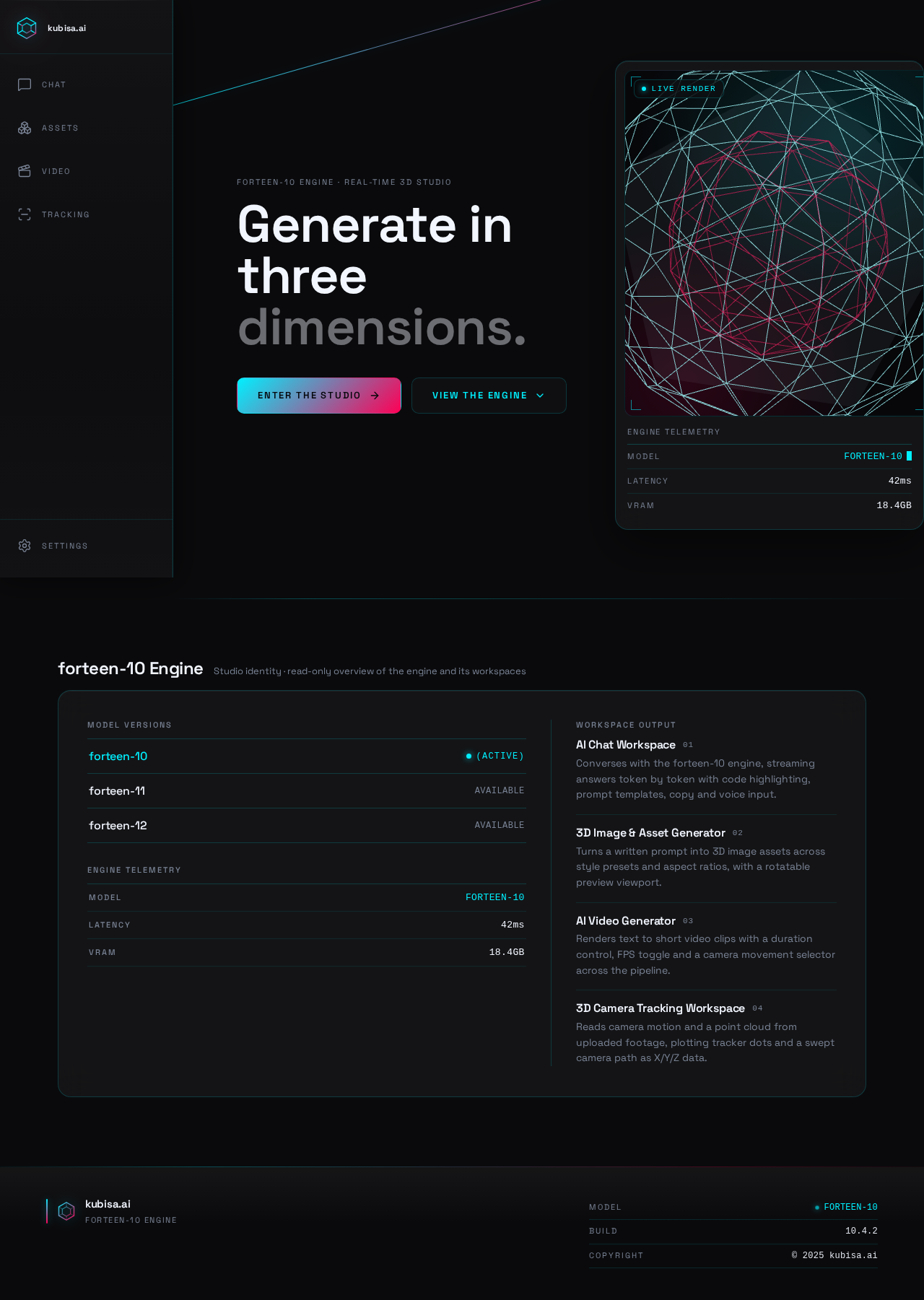
forteen-10 Engine
- forteen-10(Active)
- forteen-11Available
- forteen-12Available
AI Chat Workspace
01Converses with the forteen-10 engine, streaming answers token by token with code highlighting, prompt templates, copy and voice input.
3D Image & Asset Generator
02Turns a written prompt into 3D image assets across style presets and aspect ratios, with a rotatable preview viewport.
AI Video Generator
03Renders text to short video clips with a duration control, FPS toggle and a camera movement selector across the pipeline.
3D Camera Tracking Workspace
04Reads camera motion and a point cloud from uploaded footage, plotting tracker dots and a swept camera path as X/Y/Z data.
forteen-10 Engine
- forteen-10(Active)
- forteen-11Available
- forteen-12Available
AI Chat Workspace
01Converses with the forteen-10 engine, streaming answers token by token with code highlighting, prompt templates, copy and voice input.
3D Image & Asset Generator
02Turns a written prompt into 3D image assets across style presets and aspect ratios, with a rotatable preview viewport.
AI Video Generator
03Renders text to short video clips with a duration control, FPS toggle and a camera movement selector across the pipeline.
3D Camera Tracking Workspace
04Reads camera motion and a point cloud from uploaded footage, plotting tracker dots and a swept camera path as X/Y/Z data.
No comments yet. Be the first!