hyper-start
 Diya Trivedi
start a project to build simple single page of calculator

Comments (0)
Sign in to leave a comment
System Requirements
System Requirements Document for hyper-start
1. Introduction
hyper-start is a simple calculator delivered as a single page. Its product intent is narrow and complete: a person opens one page, enters numbers and operators, and sees the computed result of basic arithmetic. There is no navigation, no account, no saved history, and no second destination — the calculator page is the whole product.
The audience is anyone who needs quick arithmetic — a broad, non-specialist public. The page is an anonymous public entry: it opens directly into a working calculator with no sign-in, no onboarding, and no prerequisite state. The design register is calm, exact, and trustworthy: the numbers should feel locked into a precise system rather than floating in a friendly toy.
This document is the System Requirements Document for hyper-start, prepared for Diya Trivedi (IN).
2. System Overview
hyper-start is a single-page web calculator. The page presents a display strip showing the current entry or computed result, and a keypad of digit keys, operator keys, an equals key, and a clear key. A Calculator User presses keys to build an expression, presses equals to compute, and reads the result in the display. Pressing clear resets the calculator to its starting state so a new calculation can begin.
Current delivery is a first-party custom page owned by the application, anonymously reachable, with no identity, no persistence, and no server-side state required for the accepted behavior. All accepted behavior — entry, computation, display of result, and clearing — happens on the single Calculator page.
Actors:
- Calculator User (human, active): the sole human role; opens the page, enters numbers and operators, reads the result, clears to start again.
- Application (system): renders the page, evaluates the entered arithmetic, and maintains the in-page calculator state.
Removed from scope
- Multi-page navigation or any second destination (also: single page constraint, one page)
- User accounts, sign-in, or identity of any kind
- Saved calculation history or persistence across visits
- Scientific, programmer, or advanced calculator functions beyond basic arithmetic
2a. Product Interpretation and Delivery Boundary
hyper-start is delivered as exactly one page. That page is the anonymous public entry and the sole owner of every accepted interaction: entering numbers and operators, viewing the computed result, and clearing to start a new calculation. Because the product is a utility with no durable per-person state, there is no identity establishment, no session continuity, and no protected destination. Nothing in the accepted requirements calls for a future phase; the current boundary is the complete product.
2c. Page Content and Component Coverage
Calculator
The single page of the product. It is anonymously reachable and requires no identity. It owns all accepted behavior: numeric entry, operator selection, computation, result display, and clearing.
Information and state
- Current display value: the number being typed, or the computed result after equals. Initial state shows
0. - Pending expression state: the first operand, the selected operator, and the second operand as they are entered.
- Active operator indicator: the currently selected operator key is visually marked (red accent) while an operation is pending.
- Error state: an invalid operation (for example division by zero) replaces the display with an error indication until cleared or a new entry begins.
Primary actions
- Digit keys (0–9) and decimal point: append to the current entry.
- Operator keys (+, −, ×, ÷): select the operation to apply to the current entry.
- Equals key: compute and display the result of the pending operation.
- Clear key: reset the calculator to its initial state (
0, no pending operation).
Supporting actions and components
- Display strip: white surface, right-aligned tabular numerals, a single 1px black rule above it.
- Keypad grid: strict 4-column modular grid, rectangular keys with 2px black borders and no border radius; equals key is a solid red block, clear key a mustard block.
- Oversized
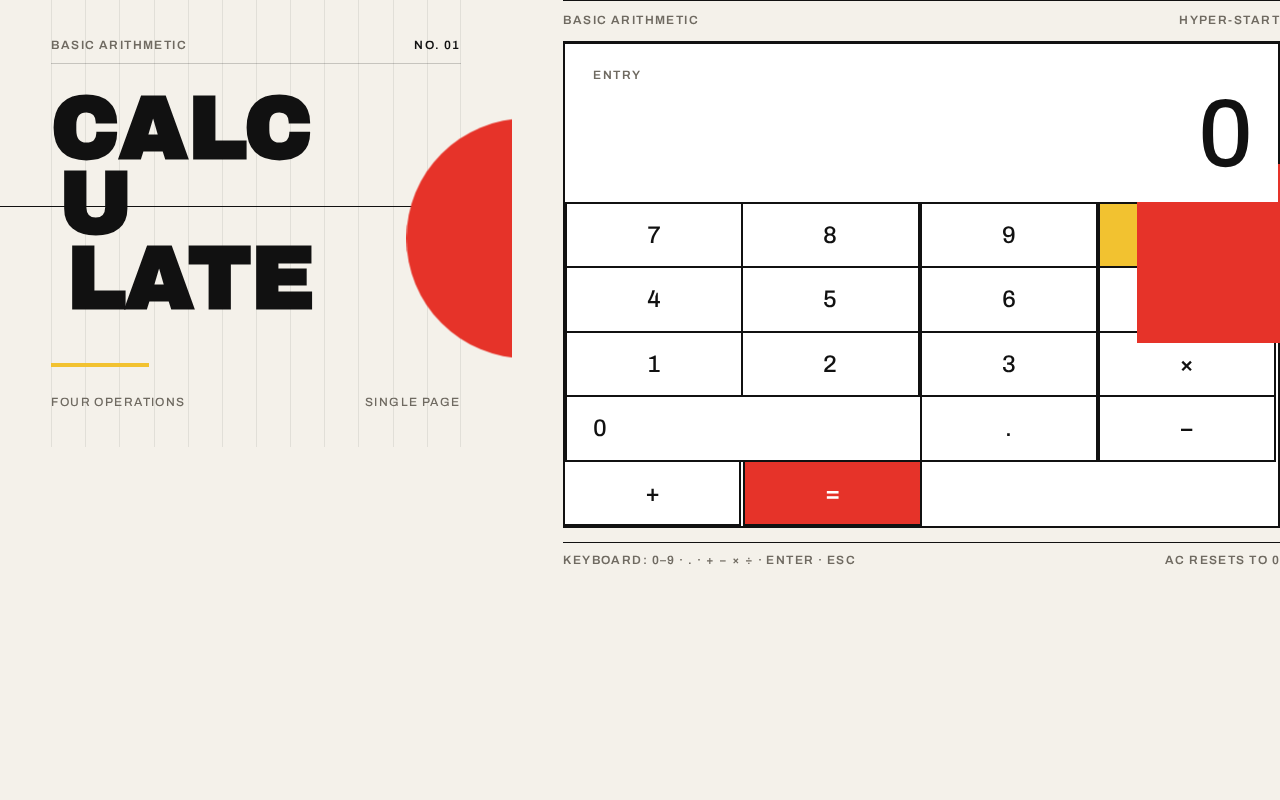
CALCULATEwordmark: three stacked lines of Archivo Black, flush left, with a red disc cropped by the viewport edge overlapping the second line (desktop); collapses to two lines above the calculator on mobile. - Faint 12-column hairline grid across the page background.
States
- Loading: not applicable — the page is static and computes locally; it renders immediately.
- Empty/initial: display shows
0, no operator active. - Success: display shows the computed result after equals.
- Error: invalid operation shows an error indication in the display; clear or a fresh digit entry recovers.
- Recovery: clear key always returns the page to the initial state.
3. Functional Requirements
FR-1 — Single-page delivery (explicit) As a Calculator User I should reach the calculator as a single page, so that I can use it without navigating anywhere else.
- Trigger: opening the product.
- Observable result: the Calculator page renders with the display showing
0and the full keypad available. - Access: anonymous, no identity required.
- Failure/recovery: not applicable; the page is the only destination.
- Continuation: the user may immediately begin entering a calculation.
FR-2 — Enter numbers (explicit) As a Calculator User I should press digit keys to enter a number, so that I can build the operands of my calculation.
- Trigger: pressing a digit key (0–9) or the decimal point.
- Observable result: the pressed digits appear in the display, right-aligned, replacing the initial
0on first digit. - Access: anonymous.
- Failure/recovery: not applicable.
- Continuation: the user may continue entering digits or select an operator.
FR-3 — Select an operator (explicit) As a Calculator User I should select an arithmetic operator (+, −, ×, ÷), so that I can specify the operation to perform.
- Trigger: pressing an operator key after entering a number.
- Observable result: the operator is recorded as pending and its key is visually marked as active.
- Access: anonymous.
- Failure/recovery: pressing a different operator replaces the pending operator.
- Continuation: the user enters the second operand.
FR-4 — Compute and view the result (explicit) As a Calculator User I should press equals and see the result of my calculation, so that I obtain the arithmetic answer.
- Trigger: pressing the equals key with a pending operation.
- Observable result: the display shows the computed result of the pending operation, right-aligned in tabular numerals.
- Access: anonymous.
- Failure/recovery: an invalid operation (for example division by zero) shows an error indication in the display instead of a result; the user can clear or begin a new entry to recover.
- Continuation: the user may clear to start a new calculation or continue entering a new operation from the result.
FR-5 — Clear the calculator (explicit) As a Calculator User I should press the clear key to reset the calculator, so that I can start a new calculation from a clean state.
- Trigger: pressing the clear key.
- Observable result: the display returns to
0and any pending operation is discarded. - Access: anonymous.
- Failure/recovery: clear always succeeds and returns the page to its initial state.
- Continuation: the user begins a new calculation.
4. User Personas
Calculator User
Product context. A member of the general public who needs quick arithmetic and opens hyper-start directly. They arrive with no account, no prior state, and no expectation of anything beyond a working calculator on one page.
Primary goal. Get a correct arithmetic result quickly, on a single page, without navigating elsewhere or signing in.
Distinct accepted responsibilities.
- Enters numbers using the digit keys.
- Selects an arithmetic operator.
- Presses equals to compute and reads the result in the display.
- Presses clear to reset and start a new calculation.
Relevant inputs and decisions. Which digits to enter, which operator to apply, and when to compute or clear. The user decides when a calculation is complete and when to begin a new one.
Interactions with other participants. The Calculator User is the only human participant. The application evaluates the arithmetic and maintains the in-page state; the user observes the result and the active-operator indicator.
Observable success. The display shows the correct result of the entered arithmetic, and the user can clear and repeat without leaving the page.
5. Core User Flows
Flow 1 — Perform a basic calculation
- The Calculator User opens hyper-start. The Calculator page renders anonymously with the display showing
0and the full keypad visible. - The user presses digit keys to enter the first operand; the digits appear right-aligned in the display.
- The user presses an operator key (for example
+); the operator is recorded as pending and its key is marked active. - The user presses digit keys to enter the second operand; the digits appear in the display.
- The user presses the equals key; the application computes the result and the display shows it right-aligned in tabular numerals.
- The user reads the result. To perform another calculation, the user presses clear (Flow 2) or continues with a new operator from the result.
Failure/recovery. If the operation is invalid (for example division by zero), the display shows an error indication instead of a result; the user presses clear or begins a new digit entry to recover.
Flow 2 — Clear and start a new calculation
- From any state on the Calculator page, the Calculator User presses the clear key.
- The display returns to
0and any pending operation is discarded. - The user begins a new calculation by entering digits (Flow 1, step 2).
6. Visuals Colors and Theme
The design follows the supplied Swiss geometric direction, after Josef Müller-Brockmann: a calculator that computes like a concert poster — asymmetric, colour-coded, mathematically honest.
Colour tokens (light mode)
- Background:
#F4F1EA(warm off-white ground covering the page) - Surface:
#FFFFFF(display surface and key faces) - Text:
#111111(all type and keypad grid lines) - Primary:
#E63329(equals key, active operator, one geometric block in the hero) - Accent:
#F2C230(clear key and a thin rule only) - Muted:
#6F6A61(labels and secondary metadata)
No gradients, no shadows beyond a single hard 1px rule.
Typography
- Headings: Archivo — Archivo Black for the oversized
CALCULATEwordmark, all caps, tracking −0.03em, flush left, display scale. - Body: Archivo regular/medium for UI and numerals, tabular figures, flush-left ragged-right, strong weight contrast between labels and values.
- Scale (1.5 modular): 96 / 64 / 40 / 24 / 16 / 14.
- Display wordmark:
clamp(56px, 12vw, 160px). Result numerals:clamp(40px, 8vw, 96px). Key labels: 20–24px. Micro-labels: 12px uppercase with 0.12em tracking.
Shape language
- Hard edges only. Rectangular keys with 2px black borders, no border radius.
- Circular only for the one geometric accent disc in the hero.
- Thin 1px horizontal rules separate sections.
- Keypad is a strict 4-column modular grid with consistent gutters; every key aligns to the grid.
Layout
- Asymmetric 12-column poster grid: left 5 columns hold the oversized wordmark stacked in three lines; right 7 columns hold the calculator panel.
- On mobile the wordmark collapses to two lines above the calculator.
- The calculator is a white surface with a black 2px frame, a right-aligned display strip at top, and a 4×5 key grid below.
- A single red geometric block bleeds off the right edge behind the calculator on desktop.
Imagery. No photography. The visual content is the grid itself: black rules, a red disc, a mustard bar, and tabular numerals. A single large geometric composition — a red circle intersecting a black horizontal rule — sits behind the wordmark as the only decorative artefact.
Avoid. Rounded corners or pill buttons; gradients, glass, or soft shadows; blue or indigo accents; centred headline with subtext and CTA; decorative illustration or photography; bouncy or springy motion; cards with hover-lift effects; Inter, Roboto, or system-ui fonts.
Readability. Headlines, wordmarks, labels, numbers, and controls stay entirely inside the viewport and their container at 375px, 768px, and 1280px, wrapping or scaling to fit. Decoration (the red disc, the red block) may be cropped or bled off an edge but never covers readable text or controls.
7. Signature Design Concept
The first screen is a Swiss poster. A warm off-white field (#F4F1EA) carries a faint 12-column grid of hairline rules. On the left, the word CALCULATE is stacked in three lines of Archivo Black at clamp(56px, 12vw, 160px), flush left, each line offset slightly to create asymmetric tension. A solid red disc (240px, #E63329) overlaps the second line from the right, cropped by the viewport edge. On the right, the calculator panel sits on a white surface with a 2px black frame, its display showing 0 in 96px tabular numerals. There is no centred headline, no subtext, and no blue button — the calculator is the hero, framed like a poster. The keypad is a strict 4-column grid of rectangular keys with 2px black borders; the equals key is a solid red block and the clear key a mustard block. On mobile the wordmark collapses to two lines above the calculator, and the red disc is cropped by the viewport edge without covering any readable text or control.
8. Interaction Model & Motion Direction
Interaction Model: Animated Motion Tempo: restrained Hero Dimensionality: flat
Landing Hero Motion Brief
- Focal subject: the oversized stacked
CALCULATEwordmark and the calculator panel, with the red disc as the single geometric accent. - Input → transformation → outcome thesis: on load, the three wordmark lines reveal in a staggered sequence (120ms apart); as the user presses keys, each key depresses with an instant 80ms
translateY(2px)and a border-colour shift, and the result value counts up over 160ms with a linear ease — the poster assembles, then the numbers lock in. - Motion vocabulary: instant mechanical key depression, linear count-up of the result, one staggered wordmark reveal. No bounce, no spring, no fade-in choreography beyond the wordmark reveal.
- Composed first frame: warm off-white field with faint hairline grid;
CALCULATEstacked in three lines flush left; red disc overlapping the second line, cropped by the viewport edge; calculator panel on the right with display showing0. - Reduced-motion state: all transitions become instant state changes; the wordmark appears fully composed with no stagger; the result updates without count-up.
9. Non-Functional Requirements
- Single-page constraint (explicit): the product must be delivered as exactly one page; no additional routes or destinations.
- Simplicity (explicit): the calculator must remain simple — basic arithmetic only, no advanced functions.
- Anonymous access (required_inference): the page must be reachable without identity, sign-in, or onboarding, since no accepted behavior requires durable per-person state.
- Local computation (required_inference): arithmetic is evaluated in the page; no server round-trip is required for accepted behavior.
- Responsive readability (explicit, from design constraints): readable text and controls stay whole and inside the viewport at 375px, 768px, and 1280px.
- Reduced motion (explicit, from design constraints): with
prefers-reduced-motion, all transitions become instant state changes and the page remains fully usable. - Accessibility (required_inference): keys are operable by keyboard and pointer, with visible focus states consistent with the hard-edged key styling.
10. Tech Stack
- Frontend: React single-page application rendering the Calculator page.
- Styling: CSS with the specified Archivo font family, tabular numerals, and the token palette above.
- Computation: client-side arithmetic evaluation; no backend service is required for accepted behavior.
- Deployment: static hosting of the single-page build.
11. Assumptions and Constraints
- Assumption (required_inference): the calculator supports the four basic operations (+, −, ×, ÷), decimal entry, equals, and clear — the minimum implied by "basic arithmetic calculations."
- Assumption (required_inference): no calculation history is retained between visits; the page starts at
0on each load. - Constraint (explicit): the product is a single page; no additional pages may be added.
- Constraint (explicit): the calculator is simple; advanced or scientific functions are out of scope.
- Constraint (explicit, design): the palette, fonts, surfaces, tone, and layout follow the supplied Swiss geometric direction; the generic indigo/blue-on-white SaaS template is forbidden.
12. Glossary
- Calculator page: the single page of hyper-start; the anonymous public entry and sole owner of all accepted behavior.
- Display strip: the white bar at the top of the calculator panel showing the current entry or result, right-aligned in tabular numerals.
- Keypad grid: the strict 4-column modular grid of rectangular keys with 2px black borders.
- Pending operation: the first operand and selected operator awaiting a second operand and equals.
- Tabular numerals: figures of equal width so digits align vertically in the display.
- Calculator User: the sole human persona; opens the page, enters numbers and operators, reads results, and clears.
Basic Arithmetic
Basic Arithmetic
No comments yet. Be the first!