hardy-invoices

bySwaravox

Build a production-ready multi-tenant micro-SaaS called “PayNudge” for Indian freelancers, consultants, and small digital agencies. It automatically sends respectful email reminders for unpaid invoices. Use free or free-tier tools only: 8080.ai for building. Supabase Free for authentication and PostgreSQL. GitHub Free for source control. Vercel Hobby, Cloudflare Pages, or 8080.ai hosting. Mailpit for local email testing. A free-tier transactional email provider for early production testing. Razorpay test mode only for payment testing. Ollama locally or Google AI Studio free usage for optional AI. PostHog Free or Google Analytics for analytics. Clearly mark services that may cost money in production, especially email, WhatsApp, SMS, AI, hosting, and payment processing. Do not make paid services mandatory for development. PRODUCT POSITIONING: “PayNudge helps Indian service businesses get paid faster by automatically following up on unpaid invoices.” FIRST NICHE: Indian web-development and digital-marketing agencies with 2–10 employees. PLANS: Free: ₹0/month, 5 active invoices, 10 reminders/month, one reminder sequence, email reminders. Solo: ₹299/month, 50 active invoices, 150 reminders/month, custom templates, payment links, Gmail connection. Pro: ₹799/month, 250 active invoices, 1,000 reminders/month, 5 team members, AI tone controls, client history, branded emails. Studio: ₹1,999/month, unlimited invoices, 5,000 reminders/month, 10 team members, client portal, reports, webhooks, priority support. Agency White-label: ₹4,999/month, multiple workspaces, custom branding, client dashboards, reseller mode. Implement plan limits and upgrade prompts. Add a 14-day Pro trial without requiring a credit card. Add annual billing with two months free, but support manual plan assignment during development. Payments may remain optional until validation. CORE PAGES: Landing page, pricing, signup, login, password reset, onboarding, dashboard, clients, invoices, reminder sequences, email templates, delivery logs, billing, workspace settings, team members, help, and onboarding checklist. DASHBOARD: Show outstanding amount, due-soon invoices, overdue invoices, paid invoices, amount recovered after reminders, reminders sent, email opens, and payment-link clicks where supported. DATABASE TABLES: workspaces(id, name, owner_id, plan, timezone, currency, logo_url, created_at) workspace_members(id, workspace_id, user_id, role, created_at) clients(id, workspace_id, name, email, phone, company_name, preferred_language, notes, created_at) invoices(id, workspace_id, client_id, invoice_number, amount, currency, issue_date, due_date, payment_url, status, notes, created_at, updated_at) reminder_sequences(id, workspace_id, name, active, created_at) reminder_steps(id, sequence_id, offset_days, timing_type, channel, template_id, enabled, created_at) email_templates(id, workspace_id, name, subject, body, tone, language, is_default, created_at) reminder_events(id, workspace_id, invoice_id, step_id, scheduled_at, sent_at, status, provider_message_id, error_message, created_at) payments(id, workspace_id, invoice_id, amount, paid_at, provider, reference, created_at) subscriptions(id, workspace_id, plan, status, trial_ends_at, provider, provider_customer_id, current_period_end) audit_logs(id, workspace_id, user_id, action, entity_type, entity_id, metadata, created_at) Enable Supabase Row Level Security. Users may access only workspaces where they are owners or members. Owners manage billing and members. Members manage clients, invoices, and reminders according to role. AUTHENTICATION: Support email/password, Google login if available, password reset, logout, protected routes, and workspace creation after signup. INVOICES: Allow users to create, edit, archive, delete, and mark invoices as paid. Fields: client, amount, currency, invoice number, issue date, due date, payment URL, and notes. Support INR by default plus USD and EUR. Add CSV import with this format: client_name,client_email,invoice_number,amount,currency,issue_date,due_date,payment_url Validate emails, amounts, dates, duplicate invoice numbers, and required fields. Add search, filters, invoice status, pause reminders, and payment history. DEFAULT REMINDER SEQUENCE: 7 days before due date: friendly upcoming-payment reminder. On due date: payment due today. 3 days overdue: polite follow-up. 10 days overdue: firm but professional follow-up. 21 days overdue: final follow-up requesting a payment date. Allow users to edit, disable, reorder, and create steps. Never send more than one reminder for an invoice within 24 hours. EMAIL: Use Mailpit locally and a free-tier provider in early production. Create responsive HTML and plain-text messages containing client name, invoice number, exact amount, due date, payment button, sender name, and reply-to email. Add pause, unsubscribe, and dispute-contact options. Track sends, failures, provider IDs, opens, and clicks where supported. Never send for paid, archived, paused, or cancelled invoices. Respect workspace timezone. REMINDER WORKER: Implement an hourly scheduled job using Supabase scheduled functions, GitHub Actions, Cloudflare Cron, or 8080.ai scheduling. Find unpaid invoices whose reminder steps are due, check plan limits, render the template, send the email, and save a reminder_events record. Make it idempotent so repeated jobs cannot send duplicates. Retry temporary failures with exponential backoff. Add dry-run mode and test-email mode. Never send a reminder if the invoice is paid or paused. PAYMENT TRACKING: For MVP, support payment URLs, payment-link click tracking, and a manual “Mark as paid” button. Add optional Razorpay test-mode webhooks using environment variables. Verify webhook signatures. On valid payment, mark invoice paid, create a payment record, cancel pending reminders, and create an audit log. Never treat a browser redirect alone as proof of payment. AI FEATURES: Add “Improve message with AI.” Support friendly, professional, firm, concise, Telugu, and Hindi options. AI must never change invoice number, amount, currency, due date, payment URL, sender, legal claims, fees, or deadlines. Show the generated draft for approval before sending. If no AI key exists, use built-in templates. Prefer Ollama locally or Google AI Studio free usage. Minimize sensitive data sent to AI. Use this AI instruction: “You write concise, respectful invoice payment reminders. Never invent facts, fees, legal consequences, deadlines, or payment details. Preserve the exact invoice number, amount, currency, due date, and payment URL supplied by the user. Ask the recipient to reply if there is a dispute. Output only a subject and email body.” CLIENTS: Provide client search, filters, detail pages, invoice history, payment history, reminder history, notes, preferred language, communication preference, pause controls, and total outstanding amount. ANALYTICS: Show invoice aging, reminders by week, payments after reminders, recovered amount, and delivery failures. Use only PostHog Free or Google Analytics for anonymous product analytics. Never expose financial data in public analytics. BILLING: Build pricing and plan-management UI with manual plan assignment. Add optional Razorpay subscriptions later. Use environment variables, test/production separation, webhook verification, and never store card details. SECURITY: Validate and sanitize input. Enforce server-side authorization for every workspace resource. Protect webhooks. Rate-limit login, invoice creation, CSV imports, AI requests, and email sending. Keep secrets in environment variables. Do not log API keys, payment secrets, or unnecessary email contents. Add audit logs for login, invoice creation, edits, reminders, plan changes, and payments. Add account deletion and data export. Prevent cross-tenant data leakage. DESIGN: Use a clean, modern, mobile-responsive blue-and-white interface. Primary CTA: “Add invoice.” Format INR as ₹25,000. Include useful empty states, demo data, clear upgrade prompts, and English as default. Make translation files ready for Telugu and Hindi. Add a disclaimer that PayNudge is not accounting, legal, or tax advice software. ONBOARDING: Create workspace. Select business type. Set currency and timezone. Set sender name and reply-to email. Add a client. Add an invoice. Activate the default sequence. Send a test email. Show setup progress. TESTING: Create tests for authentication, workspace isolation, Row Level Security, invoice status changes, reminder scheduling, timezones, duplicate-send prevention, plan limits, CSV validation, webhook signatures, unsubscribe, pause behavior, AI draft approval, and marking invoices paid. Add demo seed data and an end-to-end test from signup to invoice creation, reminder preview, and payment completion. DEPLOYMENT: Provide README, .env.example, database migrations, Supabase setup, Mailpit setup, scheduled-job setup, email-provider setup, Razorpay test setup, deployment instructions, sample CSV, troubleshooting, and complete file structure. Clearly separate implemented features from optional integrations. Build a reliable MVP first. Prioritize email reminders, invoice status handling, plan limits, security, onboarding, and agency workflows. Do not build full accounting, SMS, or automatic WhatsApp sending in the first version. At the end, display setup instructions, environment variables, test results, and remaining tasks.

LandingAuthenticationUPI Payment PageInvoice Management Page
Landing

Comments (0)

No comments yet. Be the first!

System Requirements

System Requirement Document
Page 1 of 7

hardy-invoices System Requirements Document

1. Introduction

This document outlines the system requirements for the project "hardy-invoices," which aims to integrate UPI payment support for Indian users, specifically through Google Pay and PhonePe-compatible UPI links. The project is designed to facilitate invoice payments for Indian freelancers, consultants, and small digital agencies.

2. System Overview

Page 2 of 7

2a. Product Interpretation and Delivery Boundary

Domain Descriptors:

  • UPI Payment Integration: Facilitate UPI payments through standard deep links and QR codes.

Project Scope:

  • Inclusions:

    • UPI payment support using standard UPI deep links and QR codes.
    • Manual payment confirmation for MVP.
    • Optional integration with Razorpay for future automated payment confirmation.
    • Invoice management with UPI-specific fields and security measures.
  • Exclusions:

    • Separate app-specific APIs for Google Pay and PhonePe.
    • Automatic payment confirmation without manual review.

Access:

  • Public access for customers to make payments.
  • Internal access for invoice owners to manage payments and invoices.

Behavior Contracts:

  • Display UPI Payment Options: Triggered when a customer accesses an invoice with UPI enabled, displaying payment options and QR codes.
  • Submit Payment Reference: Allows customers to submit UTR/reference numbers, marking invoices as "Payment submitted."
  • Manual Payment Confirmation: Invoice owners review and confirm payments manually.
  • Generate UPI Payment URI and QR Code: Automatically generates UPI payment URIs and QR codes when UPI payment is enabled.
  • Store Customer Payment Reference and Notes: Stores customer-submitted UTR/reference numbers and payment notes.
  • Set Payment Created Timestamp: Automatically sets the timestamp when a payment record is created.

2b. Source Content Inventory

Not applicable as no explicit content_source directive was provided.

Page 3 of 7

2c. Page Content and Component Coverage

UPI Payment Page:

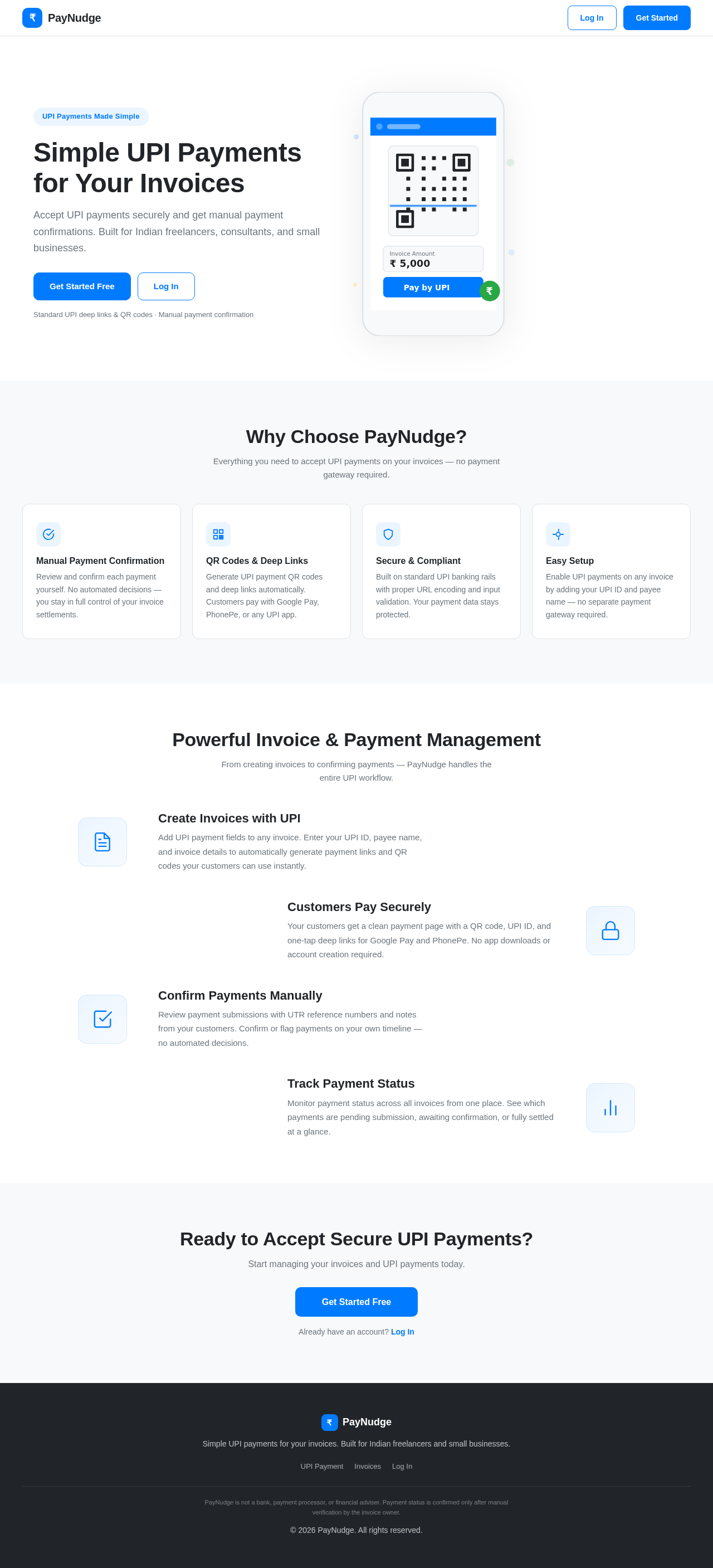
  • Display "Pay by UPI" button.
  • Display "Open in Google Pay" and "Open in PhonePe" buttons if supported.
  • Display QR code generated from UPI URI.
  • Display UPI ID with a copy button.
  • Display invoice details: number, amount, payee name, due date.
  • Payment instructions page for mobile and desktop.
  • Warning: "Payment status is confirmed only after verification."

Invoice Management Page:

  • Review payment submissions.
  • Confirm payments manually.
  • Manage invoice/payment state.

UPI Payment Record Management:

  • Generate and store UPI payment URIs and QR codes.
  • Manage payment record timestamps.

3. Functional Requirements as Story Points

  • As a Customer, I should be able to view UPI payment options when accessing an invoice with UPI enabled. explicit
  • As a Customer, I should be able to submit a UTR/reference number and payment note after a UPI payment attempt. explicit
  • As an Invoice Owner, I should be able to manually confirm payments after reviewing payment submissions. explicit
  • As an Application, I should automatically generate a UPI payment URI and QR code when UPI payment is enabled or updated. explicit
  • As a Customer, I should be able to store my UTR/reference number and payment notes for future reference. explicit
  • As an Application, I should set a created timestamp when a payment record is created. explicit
Page 4 of 7

4. User Personas

  • Invoice Owner: Manages invoices and confirms payments manually.
  • Customer: Makes payments using UPI and submits payment references.

5. Core User Flows

Invoice Owner Flow

  1. Access the Invoice Management Page.
  2. Review payment submissions.
  3. Confirm payments manually.
  4. Manage invoice/payment state.

Customer Flow

  1. Access the UPI Payment Page.
  2. View UPI payment options.
  3. Submit UTR/reference number and payment note.
  4. Receive confirmation of "Payment submitted."
Page 5 of 7

6. Visuals Colors and Theme

  • Primary: #007BFF (Blue)
  • Primary Light: #66B2FF
  • Secondary: #6C757D (Gray)
  • Accent: #28A745 (Green)
  • Highlight: #FFC107 (Yellow)
  • Background: #FFFFFF (White)
  • Surface: #F8F9FA (Light Gray)
  • Text: #212529 (Dark Gray)
  • Text Muted: #6C757D (Muted Gray)
  • Border: #DEE2E6 (Light Border Gray)

7. Signature Design Concept

The UPI Payment Page will feature a clean, modern design with a focus on usability and clarity. The page will prominently display payment options, QR codes, and invoice details. The design will be mobile-responsive, ensuring accessibility across devices. The primary CTA will be the "Pay by UPI" button, with secondary options for Google Pay and PhonePe where supported.

8. Interaction Model & Motion Direction

  • UPI Payment Page: Animated interaction model with moderate scroll-triggered reveals and hover transitions.
  • Invoice Management Page: Static interaction model prioritizing clarity and data density.
Page 6 of 7

9. Non-Functional Requirements

  • Validate UPI IDs using a safe format check. explicit
  • Escape and URL-encode all UPI URI values. explicit
  • Protect payment details and add CSRF protection. explicit
  • Add rate limits to payment-submission forms. explicit
  • Clearly state that PayNudge is not a bank, payment processor, or financial adviser. explicit

10. Tech Stack

  • Frontend: React for Web
  • Backend: Python, FastAPI
  • Database: PostgreSQL
  • AI Tools: Ollama locally or Google AI Studio free usage
  • Hosting: Vercel Hobby, Cloudflare Pages, or 8080.ai
  • Email Testing: Mailpit
  • Analytics: PostHog Free or Google Analytics

11. Assumptions and Constraints

  • UPI payment support is optional and manual confirmation is required for MVP.
  • Razorpay integration is optional and planned for future implementation.
  • No separate app-specific APIs for Google Pay and PhonePe are required.
  • Payment confirmation must be manual or verified through a trusted gateway response.
Page 7 of 7

12. Glossary

  • UPI: Unified Payments Interface, a real-time payment system in India.
  • MVP: Minimum Viable Product, the most basic version of a product that can be released.
  • UTR: Unique Transaction Reference, a number used to identify a payment.
  • QR Code: Quick Response Code, a type of matrix barcode.
  • CTA: Call to Action, a prompt to encourage user interaction.

Landing design preview
UPI Payment Page: Access invoice with UPI payment options
UPI Payment Page: Choose to pay via UPI deep link, QR code, or UPI ID
UPI Payment Page: Customer's UPI app: Complete payment attempt in Google Pay, PhonePe, or other UPI app
UPI Payment Page: 1. Optionally submit UTR/reference number and payment note
UPI Payment Page: 2. Validate optional submission
UPI Payment Page: 3. Show error if submission fails or required fields are missing
UPI Payment Page: Store UTR/reference and note; update invoice status
Invoice Management Page: Invoice owner notified of payment submission
Landing design preview
UPI Payment Page: Access invoice with UPI payment options
UPI Payment Page: Choose to pay via UPI deep link, QR code, or UPI ID
UPI Payment Page: Customer's UPI app: Complete payment attempt in Google Pay, PhonePe, or other UPI app
UPI Payment Page: 1. Optionally submit UTR/reference number and payment note
UPI Payment Page: 2. Validate optional submission
UPI Payment Page: 3. Show error if submission fails or required fields are missing
UPI Payment Page: Store UTR/reference and note; update invoice status
Invoice Management Page: Invoice owner notified of payment submission