hardy-cafeflow

bySwapnil Swapnil

app.cafeflow.fun

LandingCafé SetupLoginTable OrdersCounter Billing
Landing

Comments (0)

No comments yet. Be the first!

System Requirements

System Requirements Document for Cafeflow

1. Introduction

Cafeflow is a new, first-party web application that lets a café run its service without a subscription. A café owner or manager sets the café up, and café staff take customer orders that arrive from table QR codes and bill those orders at the counter. Instead of a recurring subscription, the café pays a small fee for each order.

The product is a fresh build. It is not a link to, an embed of, or a wrapper around the existing app.cafeflow.fun site. That site is used only as a domain reference for what café management involves; nothing from it is linked, embedded, or reproduced as product content.

The audience is small café businesses in India and similar markets: the owner or manager who configures the café and the staff member who works the counter during service. Both need a calm, fast tool that stays out of the way during a busy shift.

2. System Overview

Page 1 of 22

2a. Product Interpretation and Delivery Boundary

Cafeflow is delivered as a single first-party web application with three runnable services: a React frontend, a shared FastAPI backend that owns all application APIs and domain modules, and a MariaDB database for application-owned persistent data. All café-management behavior lives in this application; there is no third-party café platform, no embedded external site, and no provider-owned surface in the current scope.

Access is application-owned. The public Landing page and the Login page are reachable without an established identity. Everything that touches a specific café's data — setup, table orders, and counter billing — requires a signed-in identity that belongs to that café. Identity is established on first use through self-service enrollment on the Login page and verified on every return visit there. A protected destination never establishes access to itself.

The current scope is deliberately narrow: café setup, QR table ordering, and counter billing, priced per order rather than by subscription. Anything beyond that — loyalty programs, inventory, supplier ordering, multi-branch analytics, payments integration beyond recording a counter payment — is not part of this build and is not implied by it.

Removed from scope

  • Linking to, embedding, or wrapping the existing app.cafeflow.fun site (also: CafeFlow external site, app.cafeflow.fun login page).
  • Subscription-based pricing for the café.
Page 2 of 22

2b. Source Content Inventory

The reference directive for https://app.cafeflow.fun/login declares feature_reference and domain_context uses only, with no content_source use. The page itself was not publicly readable, so no verified factual entities, fields, values, or media were available to inventory. No source content inventory is therefore included.

2c. Page Content and Component Coverage

Landing

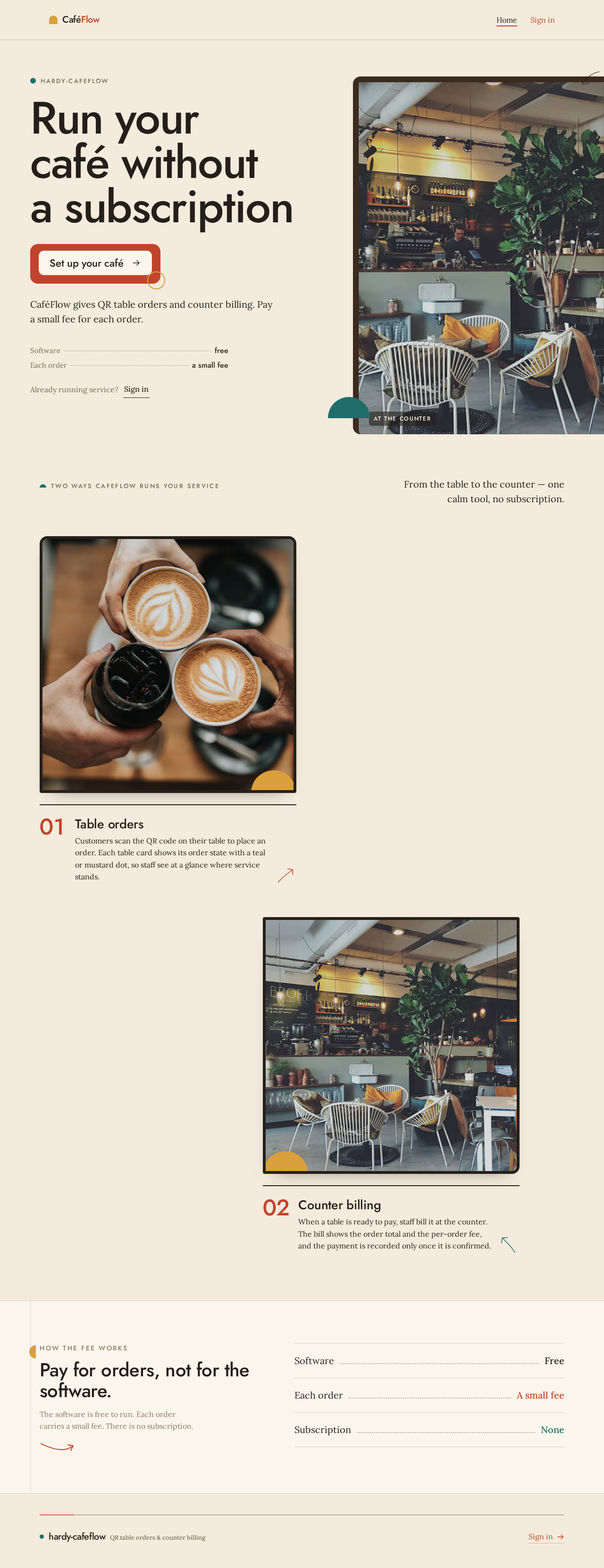
  • Information and state: Anonymous public entry. Explains what Cafeflow does (QR table orders, counter billing), states the pricing model plainly — free software with a small fee per order, not a subscription — and offers the path into setup. No café data is shown.
  • Primary action: "Set up your café" — sends the visitor to Login to enroll or sign in.
  • Supporting actions: Sign-in link for a returning owner, manager, or staff member.
  • Domain entities surfaced: Pricing model (per-order fee), the two service capabilities (table orders, counter billing).
  • Component responsibilities: Split hero (headline block with CTA, café counter photograph, teal half-circle overlap); numbered gallery panels stepping down the page describing table orders and counter billing; a ruled value row with dotted leaders stating the per-order fee model; footer with sign-in entry.
  • States: Loading — static content, no data fetch required. Empty — not applicable. Success — CTA navigates to Login. Error — if navigation fails, the CTA remains available to retry. Recovery — the sign-in link is always present as an alternate path.
Page 3 of 22

Login

  • Information and state: Anonymous access surface. Two modes on one page: first-use enrollment (create an identity for a café owner/manager or a staff member) and returning verification (sign in with existing credentials). Shows validation feedback inline.
  • Primary action: Enroll (first use) or Sign in (returning).
  • Supporting actions: Switch between enrollment and sign-in modes.
  • Domain entities: Account identity, role (owner/manager or staff), café association.
  • Component responsibilities: Mode toggle; credential fields; role selection during enrollment; inline field-level validation; submit control; error banner region.
  • States: Loading — submit control shows progress and is disabled during the request. Empty — blank fields with labels. Success — authenticated session established, redirected to the appropriate destination (Café Setup for a new owner/manager, Table Orders for staff). Error — invalid credentials, duplicate enrollment, or missing required field shown inline without losing entered values. Recovery — user corrects the field and resubmits; the mode toggle remains usable.
Page 4 of 22

Café Setup

  • Information and state: Role-restricted to the café owner or manager. Shows the café's current configuration: café name, and the list of tables with their identifiers and QR codes. Reflects saved state on return.
  • Primary action: Save café details and tables so service can begin.
  • Supporting actions: Add a table, edit a table label, remove a table, view/copy a table's QR link.
  • Domain entities: Café, Table (label, QR identifier), owner/manager account.
  • Component responsibilities: Café detail form; table list with per-row actions; QR display per table; save control with dirty-state indication; validation messages.
  • States: Loading — skeleton for café and table list while fetching. Empty — first visit shows an empty table list with an add-table prompt. Success — saved confirmation and the table list reflects the new state. Error — save failure keeps entered values and shows a retryable message. Recovery — retry save; unsaved changes remain until the user leaves or saves.
Page 5 of 22

Table Orders

  • Information and state: Role-restricted to café staff (and the owner/manager acting in service). Shows live table order state: each table card carries a teal or mustard dot indicating its order state, and each order shows its line items and total. Orders arrive from table QR codes.
  • Primary action: Record and review a customer's table order.
  • Supporting actions: Open a table's order, add or adjust line items, mark an order ready for billing.
  • Domain entities: Table, Order, Order line item, order state.
  • Component responsibilities: Table card grid with state dots; order detail panel with line items and running total; add-item control; state transition control; empty and error regions.
  • States: Loading — table grid skeleton while orders load. Empty — no active orders shows a calm empty state naming the next step. Success — new or updated order appears with its state dot and total. Error — failed order submission keeps the draft and offers retry. Recovery — retry submission; the table card returns to its prior state if the order was not recorded.
Page 6 of 22

Counter Billing

  • Information and state: Role-restricted to café staff (and the owner/manager). Shows orders awaiting payment with their totals, the per-order fee that applies, and the payment result once recorded.
  • Primary action: Bill an order and record the counter payment as complete.
  • Supporting actions: Select an order awaiting payment, confirm the amount, record payment method at the counter.
  • Domain entities: Order, payment record, per-order fee.
  • Component responsibilities: Awaiting-payment order list; bill summary with ruled value rows (order total, per-order fee); payment confirmation control; receipt/confirmation panel.
  • States: Loading — list skeleton while awaiting-payment orders load. Empty — no orders awaiting payment shows a clear empty state. Success — order marked paid, removed from the awaiting list, confirmation shown with the fee applied. Error — payment recording failure keeps the order in the awaiting list with a retryable message. Recovery — retry the payment record; the order is never silently marked paid.
Page 7 of 22

3. Functional Requirements

FR-1 — Public product explanation (explicit) As a visitor, I should see a public Landing page that explains Cafeflow's café management capabilities and its pricing model, so that I understand what the product does before signing up.

  • Trigger: visitor opens the application root.
  • Observable result: Landing renders the product explanation, the per-order fee model, and the "Set up your café" call to action.
  • Access: anonymous.
  • Failure/recovery: if the CTA navigation fails, the CTA and the sign-in link remain available.
  • Continuation: visitor proceeds to Login.

FR-2 — Per-order pricing, not subscription (explicit) As a café owner or manager, I should see and be charged a small fee per order rather than a recurring subscription, so that my cost tracks my actual service volume.

  • Trigger: Landing view; and each billed order on Counter Billing.
  • Observable result: Landing states the per-order fee model; Counter Billing shows the per-order fee applied to each billed order.
  • Access: Landing anonymous; Counter Billing requires a signed-in café identity.
  • Failure/recovery: if the fee cannot be shown on a bill, the bill is not confirmed as paid.
  • Continuation: the café continues service without a subscription obligation.
Page 8 of 22

FR-3 — First-use enrollment (required_inference) As a café owner, manager, or staff member, I should be able to create my own identity on first use, so that I can reach the café's protected work.

  • Trigger: visitor selects enrollment on Login.
  • Input: credentials and role (owner/manager or staff).
  • Observable result: an identity is created and an authenticated session begins; the user is routed to Café Setup (owner/manager) or Table Orders (staff).
  • Access: Login is anonymous; the protected destinations remain unavailable until identity is established.
  • Failure/recovery: duplicate or invalid enrollment shows an inline error and preserves entered values for correction.
  • Continuation: subsequent visits use returning verification.

FR-4 — Returning verification (required_inference) As a returning café owner, manager, or staff member, I should sign in and resume my café's work, so that my café's state is bound to the correct person.

  • Trigger: returning user submits credentials on Login.
  • Observable result: authenticated session; routing to the role-appropriate destination.
  • Access: Login anonymous; destinations protected.
  • Failure/recovery: invalid credentials show an inline error without clearing the form.
  • Continuation: the user resumes Café Setup, Table Orders, or Counter Billing.
Page 9 of 22

FR-5 — Café setup before service (required_inference) As a café owner or manager, I should set up my café and its tables before service, so that table QR ordering has something to point at.

  • Trigger: signed-in owner/manager opens Café Setup.
  • Input: café name, table labels.
  • Observable result: café and tables are saved and each table has a QR identifier; the saved state is shown on return.
  • Access: role-restricted to the owner or manager.
  • Failure/recovery: save failure preserves entered values and offers retry.
  • Continuation: staff can now take table orders.

FR-6 — QR table ordering (explicit) As a café staff member, I should record and review customer orders that come from table QR codes, so that each table's order is captured accurately during service.

  • Trigger: a customer orders at a table via its QR code; staff open Table Orders.
  • Input: table selection, order line items.
  • Observable result: the order appears on the table's card with its state dot and total.
  • Access: role-restricted to café staff (and the owner/manager).
  • Failure/recovery: failed submission keeps the draft and offers retry; the table card returns to its prior state if the order was not recorded.
  • Continuation: the order is marked ready for billing.
Page 10 of 22

FR-7 — Counter billing (explicit) As a café staff member, I should bill an order and complete the payment at the counter, so that the customer's visit closes out correctly.

  • Trigger: staff open Counter Billing with an order awaiting payment.
  • Input: order selection, amount confirmation, counter payment method.
  • Observable result: the order is marked paid, removed from the awaiting list, and a confirmation shows the total and the per-order fee.
  • Access: role-restricted to café staff (and the owner/manager).
  • Failure/recovery: a failed payment record keeps the order in the awaiting list with a retryable message; the order is never silently marked paid.
  • Continuation: the table is free for the next order.

FR-8 — New build, not a link to the existing site (explicit) As the product owner, I should have Cafeflow delivered as a new first-party application, so that it is not a link to, embed of, or wrapper around app.cafeflow.fun.

  • Trigger: any use of the product.
  • Observable result: all pages are served by this application; no page links to or embeds the external site.
  • Access: applies to all pages.
  • Failure/recovery: not applicable — this is a structural constraint.
  • Continuation: not applicable.

4. User Personas

Page 11 of 22

Café owner or manager

  • Product context: Runs a small café and is accountable for how service is set up and how money is collected. Wants a tool that costs what it earns — a small fee per order, not a monthly bill.
  • Primary goal: Get the café configured once, then run service without friction and without a subscription.
  • Distinct accepted responsibilities: Enrolls and verifies identity; sets up the café and its tables with QR identifiers on Café Setup; can act in service on Table Orders and Counter Billing.
  • Relevant inputs and decisions: Café name, table labels, whether the table list is complete enough to start service; confirmation of counter payments.
  • Interactions with other participants: Creates the setup that staff depend on; staff take the orders and bill against those tables.
  • Observable success: The café and tables are saved, staff can take table orders, and each billed order shows the per-order fee rather than a subscription.
Page 12 of 22

Café staff member

  • Product context: Works the floor and the counter during a busy shift. Needs speed and clarity, not configuration.
  • Primary goal: Capture each table's order accurately and close it out at the counter.
  • Distinct accepted responsibilities: Enrolls and verifies identity; records and reviews table orders on Table Orders; bills orders and records counter payments on Counter Billing.
  • Relevant inputs and decisions: Which table, which items, when an order is ready for billing, the payment method at the counter.
  • Interactions with other participants: Works against the tables the owner/manager configured; hands the bill to the customer at the counter.
  • Observable success: Every order appears with a clear state dot and total, and every billed order is marked paid with a confirmation.

5. Core User Flows

Page 13 of 22

Flow A — Owner sets up the café (first use)

  1. The owner opens the application and lands on Landing (anonymous). They read the product explanation and the per-order fee model.
  2. They select "Set up your café" and arrive at Login.
  3. On Login, they choose enrollment, enter credentials, and select the owner/manager role.
  4. The application creates the identity and starts a session; the owner is routed to Café Setup.
  5. On Café Setup, they enter the café name and add tables with labels.
  6. They save. The café and tables are persisted, and each table receives a QR identifier.
  7. Failure/recovery: if the save fails, entered values remain and a retryable message appears; the owner retries without re-entering data.
  8. Continuation: the owner can now hand service to staff, who will see these tables on Table Orders.

Flow B — Staff member enrolls and starts service

  1. The staff member opens Login (anonymous) and chooses enrollment.
  2. They enter credentials and select the staff role.
  3. The application creates the identity and starts a session; the staff member is routed to Table Orders.
  4. Failure/recovery: duplicate or invalid enrollment shows an inline error and preserves the form for correction.
  5. Continuation: the staff member is ready to take orders.
Page 14 of 22

Flow C — Staff takes a table order

  1. A customer orders at a table via its QR code.
  2. The staff member opens Table Orders and sees the table card with its state dot.
  3. They open the table's order and add the line items.
  4. They submit. The order appears on the table card with its state dot and running total.
  5. Failure/recovery: if submission fails, the draft is kept and a retry is offered; the table card returns to its prior state if the order was not recorded.
  6. Continuation: the staff member marks the order ready for billing.

Flow D — Staff bills at the counter

  1. The staff member opens Counter Billing and sees orders awaiting payment.
  2. They select an order and confirm the amount; the bill summary shows the order total and the per-order fee on ruled value rows.
  3. They record the counter payment.
  4. The order is marked paid, removed from the awaiting list, and a confirmation is shown.
  5. Failure/recovery: if the payment record fails, the order stays in the awaiting list with a retryable message and is never silently marked paid.
  6. Continuation: the table is free for the next order.
Page 15 of 22

Flow E — Returning owner or staff member

  1. The user opens Login and signs in with existing credentials.
  2. The application verifies the identity and routes to the role-appropriate destination — Café Setup for the owner/manager, Table Orders for staff.
  3. Failure/recovery: invalid credentials show an inline error without clearing the form.
  4. Continuation: the user resumes the café's saved state.
Page 16 of 22

6. Visuals Colors and Theme

Muse: Charles & Ray Eames — warm modernism for café service.

Headline: "Run your café without a subscription."

Colour tokens (light mode):

RoleHex
Background#F4EBDC
Surface#FBF6EC
Text#241F1A
Primary (action)#C0442B
Accent (live table state)#1F6E6B
Muted#8A7A64
Highlight (small use only)#D9A03C

Typography:

  • Headings: Jost, medium weight, tight tracking, sentence case.
  • Body and numbers: Lora, regular weight.
  • Scale: 1.333 modular — 64 / 48 / 36 / 27 / 20 / 16; headline 40px mobile to 96px desktop, using clamp() so text stays whole at 375px, 768px, and 1280px.

Shape language: Organic-modern forms. Soft rounded panels with 16px radii. Mustard and teal half-circles act as section markers. Hard square photo frames sit inside warm curves.

Page 17 of 22

Layout: Gallery-like sequence on a 12-column grid. Wide margins and modular panels. Ruled label-and-value rows show service data. Asymmetric panels step down the page.

Imagery: Warm still-life photography of cups, counters, and tables in natural light. Small hand-drawn arrow accents. No stock people and no gradient blobs.

Avoid: Gradient blobs and glass panels; identical hover-lift card grids; blue or indigo primary colours; Inter, Roboto, or system-ui fonts; bouncy or playful motion.

7. Signature Design Concept

The public entry is a split hero on cream. On the left, an oversized Jost headline in walnut ink sits over a tomato red block that holds the "Set up your café" CTA. On the right, a tall walnut-framed photograph of a café counter is cropped to the edge of the viewport. A teal half-circle overlaps the frame, tying the live table state colour to the first impression.

Below the hero, numbered gallery panels step down and right like an exhibition wall, each describing one capability — table orders, counter billing — with a mustard half-circle cutting the corner of its photo frame. A ruled value row with dotted leaders states the per-order fee model plainly, so the pricing promise is read as a fact, not a slogan.

The concept recomposes only accepted content: the product explanation, the per-order fee model, and the path into setup. It adds no behaviour and no destination.

Page 18 of 22

8. Interaction Model & Motion Direction

Interaction Model: Animated Motion Tempo: restrained Hero Dimensionality: layered_2d

Landing Hero Motion Brief

  • Focal subject: the walnut-framed café counter photograph on the right of the split hero, with the teal half-circle overlapping its frame.
  • Thesis: as the page settles on load, the headline and tomato red CTA block fade in gently while the counter photograph performs a slow pan within its frame; the teal half-circle eases into its overlap. The outcome is a composed, calm first frame that reads the product promise and the CTA without motion competing for attention.
  • Motion vocabulary: gentle film-like fades; slow pans across imagery; 200ms ease for order rows sliding in; no bounce.
  • Composed first frame: cream ground, oversized Jost headline in walnut ink, tomato red block under the last words holding the CTA, tall walnut-framed photo cropped to the right edge, teal half-circle overlapping the frame.
  • Reduced-motion state: all elements render in their final positions with no fade or pan; the photograph is static within its frame and the half-circle sits in place. Every headline, label, number, and control remains whole and readable at 375px, 768px, and 1280px.
Page 19 of 22

9. Non-Functional Requirements

  • NFR-1 — New build, no external embedding (explicit): The application must not link to, embed, or wrap app.cafeflow.fun. All pages are first-party.
  • NFR-2 — Application-owned identity (required_inference): Identity is established on first use on Login and verified on return; protected destinations (Café Setup, Table Orders, Counter Billing) are unavailable without a session. No adjacent account-management capabilities (password reset, social login, profile editing) are in scope.
  • NFR-3 — Role-restricted destinations (required_inference): Café Setup is restricted to the owner/manager; Table Orders and Counter Billing are restricted to café staff and the owner/manager. Restrictions are enforced by the backend, not only the UI.
  • NFR-4 — Durable café state (required_inference): Café configuration, tables, orders, and payment records persist in MariaDB and are bound to the correct café and identity across sessions.
  • NFR-5 — Readable at every viewport (explicit design constraint): Headlines, wordmarks, labels, numbers, card text, and controls stay entirely inside the viewport and their container at 375px, 768px, and 1280px, wrapping or scaling to fit; no element covers any part of them. Imagery and decoration may be cropped, bled, or overlapped as the direction asks.
  • NFR-6 — Reduced motion (explicit design constraint): With prefers-reduced-motion, the interface provides a usable static arrangement; no content depends on motion to become readable.
  • NFR-7 — Service speed (required_inference): Table Orders and Counter Billing must respond promptly during service; order state changes are reflected without a full page reload.
Page 20 of 22

10. Tech Stack

  • Frontend: React application UI.
  • Backend: shared FastAPI process for application APIs and domain modules — café setup, table orders, counter billing, and identity.
  • Database: MariaDB for application-owned persistent data.
  • Deployment: docker-compose.yml with the three services — frontend, backend, database. No additional infrastructure is required for the current scope.

11. Assumptions and Constraints

  • A-1 (explicit): The product is a new build, not a link to the existing app.cafeflow.fun site.
  • A-2 (explicit): Pricing is free software with a small per-order fee, not a subscription.
  • A-3 (required_inference): Identity is application-owned and self-service; there is no invitation or provisioning flow in the current scope.
  • A-4 (required_inference): A café has one owner/manager and one or more staff members; multi-branch management is out of scope.
  • A-5 (required_inference): Counter payment is recorded in the app; no external payment gateway is integrated in the current scope.
  • A-6 (required_inference): QR codes are generated per table by the application; the customer-facing QR ordering surface is not a first-party page in this scope — staff record the resulting orders on Table Orders.
  • A-7 (design): The Eames warm-modernism direction is authoritative for visuals; the indigo/blue-on-white SaaS template is forbidden.
Page 21 of 22

12. Glossary

  • Café: A business account configured by an owner or manager, containing tables and orders.
  • Table: A physical seating unit in a café, identified by a label and a QR identifier.
  • QR table order: A customer order placed at a table via its QR code and recorded by staff.
  • Counter billing: The act of billing an order and recording its payment at the café counter.
  • Per-order fee: The small fee charged for each billed order, in place of a subscription.
  • Owner or manager: The persona who configures the café and can act in service.
  • Staff member: The persona who takes table orders and bills at the counter.
  • Order state dot: The teal or mustard indicator on a table card showing its live order state.
Page 22 of 22
Live
Landing design preview

Landing: Read product explanation

Landing: Review per-order fee model

Login: Choose enrollment mode

Login: 1. Enter credentials and owner role

Login: 2. Correct inline enrollment error

Café Setup: Enter café name

Café Setup: Add tables with labels

Café Setup: View and copy table QR links

Café Setup: 1. Save café and tables

Café Setup: 2. Retry save with values kept

Table Orders: Review live table orders

Table Orders: Mark order ready for billing

Counter Billing: Select order awaiting payment

Counter Billing: Confirm amount and per-order fee

Counter Billing: 1. Record counter payment

Counter Billing: 2. Retry failed payment record

Counter Billing: View paid confirmation

Landing: Use sign-in link

Login: 1. Sign in with credentials

Login: 2. Correct invalid credentials

Café Setup: Resume saved café state