financexam-net
 ZahidI Sayed
https://financexam.net . I need such type of website

Comments (0)
Sign in to leave a comment
System Requirements
System Requirements Document for financexam-net
1. Introduction
financexam-net is a public web presence for a finance examination body, modeled directly on the structure, content categories, and feature set of https://financexam.net. The site presents the FINANCE EXAM wordmark and a Member Login area for existing registered users, together with the procedural instructions that govern how a member gets in: weak-password handling, password reset, alternate-browser recovery, and the secondary-email fallback that issues a temporary password.
The audience is adult professionals — candidates, examiners, and finance students — arriving either to sign in or to understand how to get in. The product intent is a gate plus a manual: a login surface and a legible, structured body of procedural rules, presented with functional clarity rather than marketing flourish.
The site is a public, openly accessible web presence. No account creation, registration, or sign-in step is required to reach or read the site's content.
2. System Overview
financexam-net is delivered as a single first-party custom web surface, Landing, reachable anonymously. It carries:
- A full-width graphite header band with the FINANCE EXAM wordmark, main navigation, and a single orange-outlined Member login control.
- A Member Login panel with the fields Username and Password, a Remember? option, a submit action, and a Reset password link.
- A numbered, ruled instruction stack that converts the reference site's prose into structured rows covering weak-password handling, reset-email timing and spam-folder checking, alternate-tab/browser recovery, and the secondary-email fallback with temporary-password issuance within 24 hours.
- A thin-stroke schematic of the login flow (attempt → strength check → reset → access) with failure branches marked in orange.
- Tab-style switching between Sign in, Reset password, and Secondary email form.
Actors: the accepted active human persona is Site Visitor. The Imunify360 weak-password protection plugin and the external secondary-email form host are typed non-persona actors (provider/external), not human personas.
Narrow exclusions: no account creation or registration flow, no exam-taking, scoring, or certification-issuance capability, no payment or billing, and no administrative console are specified by the source and none are added here.
2a. Product Interpretation and Delivery Boundary
The reference site is a member-access gate for a finance examination body. Its public face is a title, a login card, and a dense block of procedural instructions about weak passwords, resets, spam folders, and fallback email. financexam-net reproduces that structure and feature set, and turns the dense prose into a legible control panel of labelled rows and numbered steps.
Delivery is first-party custom UI on a single anonymously reachable page. Access to the page itself requires no identity. The Member Login interaction is the site's own surface; the weak-password intervention is owned by the Imunify360 plugin, and the secondary-email fallback form is hosted externally at a forms.gle target. Those two responsibilities stay with their accepted owners and are not rebuilt as first-party capabilities.
Current horizon: the public Landing surface, the member login interaction, the reset-password path, and the secondary-email fallback path, all as described in the reference. Future horizon: nothing beyond the reference is accepted; no additional pages, modules, or capabilities are in scope.
2b. Source Content Inventory
Page title: FINANCE EXAM
Member Login fields:
- Username
- Password
Member Login options:
- Remember? (checkbox)
Member Login instructions:
- Weak password: If using a weak password, after logging in you are redirected to the Imunify360 plugin page; click 'Reset Password' to return and reset your password.
- Forgot username: You can log in using your email by entering your email address in the username field.
- Login failure: If credentials are correct but login fails, open the site in another tab or browser.
- Reset password: You can reset your password yourself via a provided link; check your spam folder if the reset email doesn't arrive within 10 minutes.
- Email issue: If your registered email can't receive mail, fill a form to provide a secondary email; a temporary password will be sent within 24 hours. Users should check their spam folder.
Links:
- "click here" — purpose: reset password; type: link.
- "this form" — purpose: provide secondary email for temporary password; type: link; target: forms.gle.
Navigation: Menu (implied main navigation), Member Login.
Sections: Member Login section including fields Username, Password, Remember? option; instructional text about login behavior and fallback flows.
2c. Page Content and Component Coverage
Landing
Information and state
- Wordmark FINANCE EXAM, set flush left in wide-tracked uppercase.
- Main navigation in the header band, centre.
- A single orange-outlined Member login control, flush right.
- A small status dot beside Member login indicating session required.
- A small-caps MEMBER LOGIN panel label.
- Aligned label/value rows for Username and Password, separated by hairlines.
- A Remember? checkbox row.
- A graphite submit button with an orange underline.
- One orange text link, Reset password.
- A numbered, ruled instruction stack: (1) Weak password → reset required; (2) Reset email → check spam after 10 minutes; (3) No email access → secondary email form → temporary password within 24 hours.
- A thin-stroke schematic of the login flow: attempt → strength check → reset → access, with failure branches in orange.
- A ruled exam-calendar strip.
- Simple line pictograms for the three contingency paths: reset link, alternate browser, secondary email form.
- Tab-style section switching between Sign in, Reset password, and Secondary email form.
Primary actions
- Enter a username or an email address in the Username field.
- Enter a password in the Password field.
- Toggle Remember?.
- Submit the login attempt.
- Follow the Reset password link.
- Switch to the Reset password tab.
- Switch to the Secondary email form tab.
- Follow the "this form" link to the external secondary-email form.
Supporting actions
- Read the numbered instruction rows for each contingency.
- Read the login-flow schematic to understand the failure branches.
- Read the exam-calendar strip.
Domain entities
- Member credential (username or email identifier, password).
- Remember-me preference.
- Password-reset request.
- Secondary email address.
- Temporary password.
Component responsibilities
- Header band: carries the wordmark, main navigation, and the single orange-outlined login control; the only saturated element above the fold.
- Login panel: an instrument face with fixed-width uppercase labels in a left slot and values/inputs right-aligned against hairline rules, so Username / Password / Remember? read as one aligned table.
- Instruction stack: ruled rows of number, rule, and consequence, with the active step marked by an orange left tick.
- Flow schematic: the page's only "image", drawn as thin-stroke boxes and arrows in graphite with orange for failure branches.
- Tab strip: three flat ruled tabs with no rounding on the outer edges, the active one underlined in orange.
- Status dot: a small circular indicator for "session required", the only circular element.
States
- Loading: the panel and instruction stack render as static structure; no skeleton or spinner is required for a static page.
- Empty: Username and Password fields render empty with their uppercase labels; the instruction stack is always populated.
- Success: a valid login attempt proceeds to the member area; the weak-password branch redirects to the Imunify360 plugin page.
- Error: a failed login attempt surfaces the alternate-tab/browser guidance; a weak password surfaces the reset-required guidance; a missing reset email surfaces the spam-folder guidance after 10 minutes; an unreachable registered email surfaces the secondary-email form path.
- Recovery: reset via the provided link; alternate tab or browser; secondary email form followed by a temporary password within 24 hours.
3. Functional Requirements
FR-1 — Public anonymous access to the site As a Site Visitor, I should reach and read the financexam-net site without any account or sign-in step, so that I can understand what the site offers before doing anything else.
- Provenance: explicit
- Trigger/input: navigating to the site.
- Observable result: the Landing page renders with the FINANCE EXAM wordmark, main navigation, Member Login panel, and instruction stack.
- Access state: anonymous; no identity required.
- Failure/recovery: not applicable to a static public page.
- Continuation: the visitor reads the instruction stack or proceeds to the Member Login panel.
FR-2 — Member login with username or email As a Site Visitor, I should enter my username — or my email address in the username field — together with my password, so that I can access the member area.
- Provenance: explicit
- Trigger/input: a username or email address in the Username field and a password in the Password field, then submit.
- Observable result: a valid credential set grants access to the member area.
- Access state: anonymous entry into the member login interaction; the member area itself is protected.
- Failure/recovery: if credentials are correct but login fails, open the site in another tab or browser.
- Continuation: on success, the visitor proceeds into the member area; on failure, the visitor follows the alternate-tab/browser guidance.
FR-3 — Remember-me option As a Site Visitor, I should be able to mark Remember? when I sign in, so that my session persists as I expect.
- Provenance: explicit
- Trigger/input: toggling the Remember? checkbox before submitting.
- Observable result: the remember-me preference is applied to the login attempt.
- Access state: anonymous entry; applies to the resulting session.
- Failure/recovery: not separately specified by the source.
- Continuation: the visitor submits the login.
FR-4 — Weak-password protection via Imunify360 As a Site Visitor, I should be redirected to the Imunify360 plugin page after logging in with a weak password, so that I can reset my password and return.
- Provenance: explicit
- Trigger/input: logging in with a weak password.
- Observable result: redirection to the Imunify360 plugin page.
- Access state: post-login, within the member session.
- Failure/recovery: click Reset Password on the Imunify360 plugin page to return and reset the password.
- Continuation: after resetting, the visitor logs in again.
- Owner: Imunify360 plugin (provider).
FR-5 — Forgot-username handling As a Site Visitor, I should be able to log in using my email address by entering it in the username field, so that I can still access my account when I don't remember my username.
- Provenance: explicit
- Trigger/input: entering an email address in the Username field.
- Observable result: the login attempt is evaluated against the email identifier.
- Access state: anonymous entry into the member login interaction.
- Failure/recovery: if login still fails, open the site in another tab or browser.
- Continuation: on success, the visitor proceeds into the member area.
FR-6 — Login-failure recovery via alternate tab or browser As a Site Visitor, I should be told that if my credentials are correct but login fails, I can open the site in another tab or browser, so that I can recover without contacting support.
- Provenance: explicit
- Trigger/input: a login attempt that fails despite correct credentials.
- Observable result: the alternate-tab/browser guidance is presented as a structured instruction row.
- Access state: anonymous entry.
- Failure/recovery: this requirement is the recovery path.
- Continuation: the visitor retries in another tab or browser.
FR-7 — Self-service password reset As a Site Visitor, I should be able to reset my password myself via a provided link, so that I can regain access without waiting on anyone.
- Provenance: explicit
- Trigger/input: following the Reset password link.
- Observable result: a reset email is sent to the registered address.
- Access state: anonymous entry into the reset interaction.
- Failure/recovery: if the reset email doesn't arrive within 10 minutes, check the spam folder.
- Continuation: the visitor follows the reset link in the email and sets a new password.
FR-8 — Reset-email spam-folder guidance As a Site Visitor, I should be told to check my spam folder if the reset email doesn't arrive within 10 minutes, so that I don't assume the reset failed.
- Provenance: explicit
- Trigger/input: a reset request whose email has not arrived within 10 minutes.
- Observable result: the spam-folder guidance is presented as a structured instruction row.
- Access state: anonymous entry.
- Failure/recovery: this requirement is the recovery path.
- Continuation: the visitor checks the spam folder, or proceeds to the secondary-email fallback.
FR-9 — Secondary-email fallback form As a Site Visitor, I should be able to fill a form to provide a secondary email when my registered email can't receive mail, so that I can still obtain access.
- Provenance: explicit
- Trigger/input: following the "this form" link to the external form target.
- Observable result: the secondary email address is submitted through the external form.
- Access state: anonymous entry; the form is hosted externally.
- Failure/recovery: not separately specified by the source.
- Continuation: the visitor waits for the temporary password.
- Owner: external form host (forms.gle).
FR-10 — Temporary password issuance within 24 hours As a Site Visitor, I should receive a temporary password within 24 hours via my secondary email, so that I can regain access after an email-delivery failure.
- Provenance: explicit
- Trigger/input: a submitted secondary-email form.
- Observable result: a temporary password is sent to the secondary email address within 24 hours.
- Access state: anonymous entry; the resulting temporary password grants member access.
- Failure/recovery: users should check their spam folder.
- Continuation: the visitor logs in with the temporary password.
FR-11 — Structured instruction stack As a Site Visitor, I should see the login rules as numbered, ruled rows — number, rule, consequence — rather than a prose paragraph, so that I can find the rule that applies to me.
- Provenance: explicit (structure_reference)
- Trigger/input: viewing the Landing page.
- Observable result: the instruction stack renders as ruled rows with the active step marked by an orange left tick.
- Access state: anonymous.
- Failure/recovery: not applicable.
- Continuation: the visitor acts on the relevant row.
FR-12 — Login-flow schematic As a Site Visitor, I should see a thin-stroke schematic of the login flow — attempt → strength check → reset → access — with failure branches marked, so that I can understand the sequence at a glance.
- Provenance: explicit (structure_reference)
- Trigger/input: viewing the Landing page.
- Observable result: the schematic renders in graphite with orange failure branches.
- Access state: anonymous.
- Failure/recovery: not applicable.
- Continuation: the visitor follows the branch that applies.
FR-13 — Tab-style section switching As a Site Visitor, I should be able to switch between Sign in, Reset password, and Secondary email form as flat ruled tabs, so that I can move between the three paths without leaving the page.
- Provenance: explicit (structure_reference)
- Trigger/input: selecting a tab.
- Observable result: the active tab is underlined in orange and its section is shown.
- Access state: anonymous.
- Failure/recovery: not applicable.
- Continuation: the visitor completes the action in the selected section.
4. User Personas
Site Visitor
Product context. A person arriving at financexam-net — a candidate, examiner, or finance student — who either needs to sign in to the member area or needs to understand how to get in. They arrive at a public page with no account step in front of them, and they are here to do a credentialed task, not to be entertained.
Primary goal. Reach the member area, or find the specific procedural rule that unblocks them when they can't.
Distinct accepted responsibilities.
- Reading the public Landing surface to understand what the site offers.
- Entering credentials — a username, or an email address in the username field — with a password.
- Marking Remember? when they want their session to persist.
- Following the reset-password path when they need a new password.
- Following the alternate-tab/browser path when correct credentials fail.
- Following the secondary-email form path when their registered email can't receive mail.
- Waiting for and using a temporary password issued within 24 hours.
Relevant inputs or decisions. Which identifier to use (username or email); whether to mark Remember?; whether to reset, retry in another browser, or escalate to the secondary-email form; whether to check the spam folder.
Interactions with other accepted participants. The Site Visitor is the only accepted human persona. Their work interacts with two non-persona owners: the Imunify360 plugin, which intervenes on a weak password and hands control back via Reset Password; and the external form host, which receives the secondary email address and is the channel through which the temporary password is issued.
Observable success. The visitor reaches the member area, or finds and completes the exact contingency row that applies to their situation — reset link, alternate browser, or secondary email form — without needing to contact anyone.
What makes this role different. The Site Visitor's work is entirely a gate-and-recovery task. There is no browsing of exam content, no scoring, and no administrative action in scope; the whole responsibility is getting through the door or finding the rule that opens it.
5. Core User Flows
Flow 1 — Anonymous arrival and orientation
- The Site Visitor navigates to financexam-net. No account or sign-in step is required.
- The Landing page renders: the graphite header band with the FINANCE EXAM wordmark flush left, main navigation centre, and the orange-outlined Member login control flush right.
- Below the band, the login panel sits in the left columns as an off-white instrument face, and the numbered instruction stack sits in the right columns as ruled rows.
- The visitor reads the numbered rows — (1) Weak password → reset required; (2) Reset email → check spam after 10 minutes; (3) No email access → secondary email form → temporary password within 24 hours — and the login-flow schematic.
- Result: the visitor understands the site and the rules that govern entry.
- Next step: the visitor proceeds to Flow 2, or to the specific contingency flow that applies.
Flow 2 — Member login
- On Landing, the Site Visitor enters their username in the Username field — or, if they don't remember their username, their email address in that same field.
- The visitor enters their password in the Password field.
- The visitor optionally marks Remember?.
- The visitor submits the login.
- Result (success): the visitor reaches the member area.
- Result (weak password): the visitor is redirected to the Imunify360 plugin page; they click Reset Password to return and reset their password, then log in again. Owner: Imunify360 plugin.
- Result (correct credentials but login fails): the visitor follows the alternate-tab/browser guidance and retries. See Flow 4.
- Next step: the visitor continues in the member area, or follows the applicable recovery flow.
Flow 3 — Self-service password reset
- On Landing, the Site Visitor follows the orange Reset password link, or switches to the Reset password tab.
- The visitor requests a reset.
- Result: a reset email is sent to the registered address.
- If the reset email doesn't arrive within 10 minutes, the visitor checks their spam folder, as the instruction stack states.
- The visitor follows the provided link in the email and sets a new password.
- Result: the visitor can log in with the new password.
- Next step: the visitor returns to Flow 2. If the registered email can't receive mail at all, the visitor proceeds to Flow 5.
Flow 4 — Login failure with correct credentials
- The Site Visitor submits a login with credentials they believe are correct.
- The login fails.
- The visitor reads the instruction row stating that if credentials are correct but login fails, they should open the site in another tab or browser.
- The visitor opens the site in another tab or browser and retries.
- Result: the visitor either reaches the member area or, if the failure persists, proceeds to Flow 3 or Flow 5.
- Next step: continue in the member area, or escalate.
Flow 5 — Secondary-email fallback and temporary password
- The Site Visitor determines that their registered email can't receive mail.
- On Landing, the visitor switches to the Secondary email form tab, or follows the "this form" link to the external form target.
- The visitor fills the form with a secondary email address and submits it. Owner: external form host.
- Result: a temporary password is sent to the secondary email address within 24 hours.
- The visitor checks their spam folder, as the instruction stack states.
- The visitor logs in with the temporary password via Flow 2.
- Result: the visitor reaches the member area.
- Next step: the visitor continues in the member area.
6. Visuals, Colors and Theme
The creative direction is authoritative for this section. Muse: Dieter Rams. Headline idea: Less, but better — a finance exam portal built like a Braun control panel.
Palette (light mode)
| Role | Hex | Use |
|---|---|---|
| Background | #EDEAE4 | Warm grey paper ground |
| Surface | #F7F5F1 | Off-white instrument panels |
| Text | #1A1A18 | Near-black type for everything readable |
| Primary | #3A3A38 | Dark graphite: header band, submit button default, heavy rules |
| Accent | #E8590C | Braun signal orange — rationed hard |
| Muted | #8C8880 | Field hints, small-caps labels, instructional fine print |
| Border | #D6D1C7 | Hairline panel and rule borders |
Accent #E8590C is reserved for: the submit button, the active step marker, focus rings, and the single Reset password action link. Distribution is roughly 70% warm grey ground, 25% off-white panels, 4% graphite, 1% orange.
Typography
- Headings: Archivo at 600–700 weight, tracking
-0.02em, sentence case. - Labels, field names, status chips: Archivo 500 uppercase, tracking
+0.12em, 12–13px. - Body: Archivo 400, 16–17px, line-height 1.6.
- Fine print: Archivo 400 at 15px on the panel ground, never lighter than
#8C8880. - Scale: 1.25 modular — 14 / 16 / 20 / 25 / 40 / 56. Desktop display 56px, mobile 32px via
clamp(32px, 6vw, 56px). Panel titles 25px desktop / 20px mobile. Field labels 12px uppercase. Body 17px desktop / 16px mobile. Fine print 15px floor.
Shape language. Rounded rectangles with a small, honest radius: 6px on panels, 4px on inputs and buttons, 2px on chips. Hairline 1px rules everywhere — under the header, between instruction rows, around the login panel. No pill buttons, no blobs, no soft shadows: depth comes only from a 1px border, a 1px offset, and the ground/panel tonal step. Circular elements appear only where they mean something — a small status dot for "session required".
Layout. Strict 12-column grid, max-width 1160px, 24px gutters, 64px section rhythm on desktop and 32px on mobile. The header is a full-width graphite band with the wordmark flush left, main nav centre, and a single orange-outlined Member login control flush right. Below it the landing splits asymmetrically: a 7-column left column holding the login panel, and a 5-column right column holding the numbered instruction stack as ruled rows. On mobile the two columns stack in that order and the grid collapses to a single 20px-margin column. Every label sits in a fixed-width left slot with its value aligned right, so the whole page reads as one aligned table of information.
Imagery. No photography, no illustration for its own sake. The visual vocabulary is diagrammatic: a small schematic of the login flow (attempt → strength check → reset → access) drawn as thin-stroke boxes and arrows in graphite and orange, plus a ruled exam-calendar strip and simple line pictograms for the three contingency paths (reset link, alternate browser, secondary email form). These are information, not decoration, and they sit inside the grid.
Avoid. Blue or indigo primary buttons on white; drop shadows, glass or frosted panels, gradient blobs, and hover-lift card grids; a centred marketing hero with headline, subtext and big CTA; rounded pill buttons and radii above 6px; illustrated characters, stock photography of people, or decorative icons; bouncy or springy easing, parallax, and scroll-driven animation; buried fine print; neutral grey-on-grey text below #8C8880 for anything a user has to read. The generic indigo/blue-on-white SaaS template is forbidden.
7. Signature Design Concept
The first screen is a control panel, not a pitch.
A full-width graphite band (#3A3A38) runs edge to edge, carrying the wordmark FINANCE EXAM at the far left in Archivo 700 uppercase with wide tracking, the nav in the middle, and the orange-outlined Member login control at the right — the only saturated pixel above the fold.
Immediately beneath, on the warm grey ground (#EDEAE4), the login panel sits in the left 7 columns as an off-white instrument face (#F7F5F1, 6px radius, hairline #D6D1C7 border, no shadow): a small-caps MEMBER LOGIN label, Username and Password rows as aligned label/value pairs separated by hairlines, a Remember? checkbox, a graphite submit button with an orange underline, and one orange text link Reset password.
The right 5 columns are the numbered instruction stack — ruled rows reading like a device manual, with the active step marked by an orange left tick. The hero's dominant element is the aligned information itself, at full viewport width, with no imagery, no gradient, and no centred headline.
8. Interaction Model & Motion Direction
Interaction Model: Static Motion Tempo: restrained Hero Dimensionality: flat
Landing Hero Motion Brief
- Focal subject: the aligned information itself — the login panel's label/value rows and the numbered instruction stack — not an image.
- Input → transformation → outcome thesis: a visitor's focus or selection lands on a control (Username, Password, Remember?, a tab, the submit button); the control responds with instant, mechanical feedback — a 1px orange focus ring snapping on, a button depressing by 1px, an instruction step highlighting with a hard background step; the outcome is that the visitor always knows exactly which control is active and which rule applies.
- Motion vocabulary: instant, mechanical feedback only. Inputs snap a 1px orange focus ring on. Buttons depress by 1px with a 90ms linear transition. Instruction steps highlight with a hard 120ms background step, no easing curve. One purposeful loop: a slow 2.4s pulse on the small status dot next to Member login. Nothing else moves.
- Composed first frame: the graphite header band with the wordmark flush left and the orange-outlined login control flush right; below it, the off-white login panel in the left 7 columns and the ruled instruction stack in the right 5 columns, all aligned to the 12-column grid.
- Reduced-motion state: under
prefers-reduced-motion, the status dot holds a static filled state and all other motion is suppressed; the page remains fully usable as a static arrangement.
9. Non-Functional Requirements
NFR-1 — Public anonymous reachability. The Landing page must render fully without any account or sign-in step. Provenance: explicit. Rationale: the site is a public, openly accessible web presence.
NFR-2 — Readable text and controls stay whole. Headlines, wordmarks, labels, numbers, panel text, and controls must stay entirely inside the viewport and their container at 375px, 768px, and 1280px, wrapping or scaling (for example font-size: clamp(...) with its mobile size) to fit. No other element may cover any part of them. Provenance: explicit (creative direction). Rationale: legibility of the procedural content is the product's core value.
NFR-3 — Contrast floor. Instructional fine print must never be lighter than #8C8880, and must render at 15px or larger, so contrast holds on both the warm grey ground and the off-white panel. Provenance: explicit (creative direction).
NFR-4 — No decorative depth. No drop shadows, glass or frosted panels, gradient blobs, or hover-lift card grids. Depth is communicated only by a 1px border, a 1px offset, and the ground/panel tonal step. Provenance: explicit (creative direction).
NFR-5 — Radius ceiling. Panel radius 6px, input and button radius 4px, chip radius 2px. No pill buttons and no radii above 6px. Provenance: explicit (creative direction).
NFR-6 — Reduced-motion support. Under prefers-reduced-motion, the status dot holds a static filled state and no other motion runs. Provenance: explicit (creative direction).
NFR-7 — Instruction visibility. The reset, spam-folder, and secondary-email rules must be visible as structured rows, never hidden in a paragraph or behind a disclosure. Provenance: explicit (creative direction).
NFR-8 — External ownership preserved. The weak-password intervention remains owned by the Imunify360 plugin, and the secondary-email form remains hosted externally at its forms.gle target. Neither is rebuilt as a first-party capability. Provenance: explicit (reference feature set).
10. Tech Stack
- Frontend: React, delivered as a single first-party custom page (Landing) with the component structure described in section 2c.
- Backend: Python / FastAPI, serving the member login endpoint, the password-reset request endpoint, and the static Landing surface.
- Storage: a relational store for member credentials (username or email identifier, password hash) and the remember-me preference.
- Containerization: Docker with docker-compose, running the frontend and backend services.
- External integrations: the Imunify360 weak-password protection plugin, and the external secondary-email form host at its forms.gle target — both preserved as external owners.
Kubernetes is not required for this deployment.
11. Assumptions and Constraints
Constraints
- The product is defined only by reference to https://financexam.net; no additional behavior, features, or content were specified by the user. (explicit)
- The site is a public, openly accessible web presence with no account or sign-in requirement stated. (explicit)
- The generic indigo/blue-on-white SaaS template is forbidden for this project. (explicit, creative direction)
Assumptions
- The member area behind a successful login is out of scope for this document; only the gate and its recovery paths are specified. (narrow, consistent with the reference's visible surface)
- The Imunify360 plugin and the external forms.gle form are treated as existing external owners rather than capabilities to be built. (narrow, consistent with the reference feature set)
- The exam-calendar strip and the three contingency pictograms are presentational elements within the Landing grid, not separate destinations. (narrow, consistent with the creative direction)
12. Glossary
- FINANCE EXAM — the wordmark and site title of the finance examination body's web presence.
- Member Login — the login panel on the Landing page, containing the Username and Password fields, the Remember? option, the submit action, and the Reset password link.
- Remember? — the checkbox option that persists the member session.
- Imunify360 — the external security plugin that intervenes when a weak password is used, redirecting the member to a plugin page with a Reset Password action.
- Secondary email — an alternate email address supplied through the external form when the registered email cannot receive mail.
- Temporary password — the credential issued to the secondary email address within 24 hours after the secondary-email form is submitted.
- Instruction stack — the numbered, ruled rows on the Landing page presenting each login rule and its consequence.
- Login-flow schematic — the thin-stroke diagram of attempt → strength check → reset → access, with failure branches marked in orange.
- Site Visitor — the accepted active human persona: a person arriving at the public site to sign in or to understand how to get in.
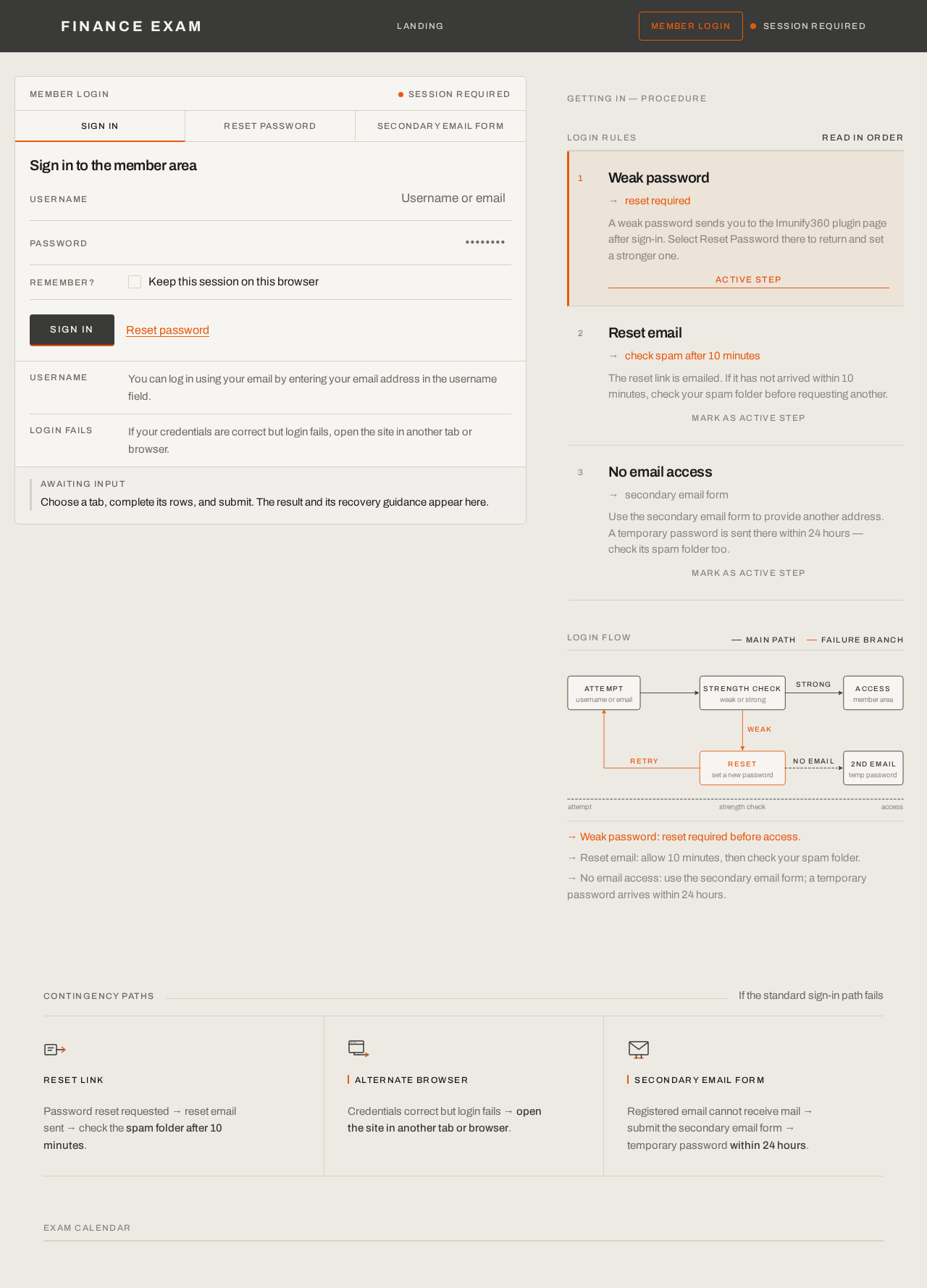
Sign in to the member area
Choose a tab, complete its rows, and submit. The result and its recovery guidance appear here.
Getting in — procedure
Login rules
Read in orderWeak password
reset required
A weak password sends you to the Imunify360 plugin page after sign-in. Select Reset Password there to return and set a stronger one.
Reset email
check spam after 10 minutes
The reset link is emailed. If it has not arrived within 10 minutes, check your spam folder before requesting another.
No email access
secondary email form
Use the secondary email form to provide another address. A temporary password is sent there within 24 hours — check its spam folder too.
Login flow
→ Weak password: reset required before access.
→ Reset email: allow 10 minutes, then check your spam folder.
→ No email access: use the secondary email form; a temporary password arrives within 24 hours.
Password reset requested → reset email sent → check the spam folder after 10 minutes.
Credentials correct but login fails → open the site in another tab or browser.
Registered email cannot receive mail → submit the secondary email form → temporary password within 24 hours.
Sign in to the member area
Choose a tab, complete its rows, and submit. The result and its recovery guidance appear here.
Getting in — procedure
Login rules
Read in orderWeak password
reset required
A weak password sends you to the Imunify360 plugin page after sign-in. Select Reset Password there to return and set a stronger one.
Reset email
check spam after 10 minutes
The reset link is emailed. If it has not arrived within 10 minutes, check your spam folder before requesting another.
No email access
secondary email form
Use the secondary email form to provide another address. A temporary password is sent there within 24 hours — check its spam folder too.
Login flow
→ Weak password: reset required before access.
→ Reset email: allow 10 minutes, then check your spam folder.
→ No email access: use the secondary email form; a temporary password arrives within 24 hours.
Password reset requested → reset email sent → check the spam folder after 10 minutes.
Credentials correct but login fails → open the site in another tab or browser.
Registered email cannot receive mail → submit the secondary email form → temporary password within 24 hours.
No comments yet. Be the first!