fierce-noble

byM G
LandingSuper Admin PanelOwner Sign UpLoginOverviewregistration verification pageAccount RecoverySUPER ADMIN APPROVAL DASHBOARD
Landing

Comments (0)

No comments yet. Be the first!

System Requirements

System Requirements Document for fierce-noble

Page 1 of 64

1. Introduction

BUILD CAFEDESK ☕ – PREMIUM CAFE MANAGEMENT SAAS PLATFORM

Build a premium, fully functional, mobile-first Cafe Management and Customer Loyalty SaaS application called CafeDesk ☕ for cafes, coffee shops, restaurants and small food businesses across India.

My name is MAYUR GORULE.

  1. FINAL USER ACCESS STRUCTURE

FINAL REQUIREMENT

CAFEDESK ☕ – MULTI-BUSINESS SAAS PLATFORM

Upgrade my existing CafeDesk website into a fully functional multi-tenant SaaS platform that I, Mayur Gorule, can offer to ANY cafe owner, restaurant owner, coffee shop or food business in India.

IMPORTANT:

FINAL RESULT:

FINAL GOAL:

Build a premium 4D Smart Live Menu platform where any Cafe or Restaurant Owner can select a template, customize their restaurant branding, upload food photos, change dish names and prices, and publish their own interactive digital menu.

One Restaurant = One Owner Dashboard = One Customizable 4D Smart Menu = Unique Table QR Codes.

  • Project name: fierce-noble.
Page 2 of 64

2. System Overview

This must be a real working SaaS application with frontend, backend, database, authentication, QR generation, order management and separate user permissions.

IMPORTANT: Do not create just a static UI or demo website. Every button, form, dashboard, chart, QR code and management feature must work with real database operations.

Super Admin Panel.

Platform Management.

Owner Settings.

Internal business information.

  1. FIVE MAIN MODULES

SCREEN 1: QR TABLE ORDERING 📱

Create a complete QR-based table ordering system.

SCREEN 4: CUSTOMER LOYALTY & REWARDS 🎁

Build a real, secure, fully functional premium SaaS application.

CafeDesk ☕ – Core System Implementation

Update my existing CafeDesk SaaS application. First focus on building a secure authentication system, multi-tenant database architecture and fully functional QR table ordering system.

Page 3 of 64

This platform must not be limited to one cafe or restaurant. Multiple independent businesses must be able to register and use the same CafeDesk platform.

FINAL REQUIREMENT:

CafeDesk must be a multi-business SaaS platform that I, Mayur Gorule, can offer to unlimited cafes, restaurants and food businesses.

Do not create a single-cafe website. Build a scalable multi-business platform.

Page 4 of 64

3. Functional Requirements

  1. PREMIUM UI/UX DESIGN

Create a beautiful premium SaaS design inspired by modern restaurant management platforms.

  1. THREE SEPARATE USER ROLES

Create three independent access levels.

Super Admin permissions:

View all registered cafes and restaurants.

Super Admin permissions:

Create, edit and manage cafe owner accounts.

Super Admin permissions:

Activate, suspend or deactivate accounts.

Super Admin permissions:

View platform revenue and analytics.

Super Admin permissions:

Manage subscription plans.

Manage all platform settings.

View registered businesses.

Manage platform-wide configurations.

Manage website content.

Page 5 of 64

Monitor platform activity.

Manage customer support requests.

Access all administrative permissions.

B. CAFE / RESTAURANT OWNER

Every cafe owner must have an independent private workspace.

During signup, ask the owner to enter:

Cafe / Restaurant Name.

Owner Name.

Mobile Number.

Email Address.

Business Address.

City and State.

Cafe Logo.

Every owner must enter their own business name.

Allow owners to edit their business information anytime.

Do not use any fixed cafe name such as Mayur Cafe or Osteria Lume.

C. CUSTOMER

Customers do not need access to the management dashboard.

Never show customers:

Dashboard.

Admin Panel.

Page 6 of 64

Automatically display their saved business name and logo throughout their own website, menu and QR pages.

Every owner can access ONLY their own Dashboard and business data.

When customers scan a cafe QR code, show only that cafe's public menu and ordering page.

Features:

Generate unique QR codes for every cafe table.

Assign a unique QR code to each table.

Allow owners to add, edit and delete tables.

Download QR codes as PNG and PDF.

Print QR codes for table standees.

Customers scan QR codes using their smartphones.

Open the correct restaurant's digital menu automatically.

Display food and beverages with photos, prices and descriptions.

Add items to cart.

Customize food orders.

Add special instructions.

Automatically identify the scanned table.

Place orders directly from the customer's phone.

Show order confirmation.

Customer enters name and WhatsApp number.

SCREEN 2: CAFE OWNER DASHBOARD 📊

Page 7 of 64

Create a premium management dashboard.

Display:

Today's Sales.

Total Orders.

Pending Orders.

Completed Orders.

Total Customers.

Best-Selling Items.

Revenue Analytics.

Weekly Sales Chart.

Monthly Sales Chart.

Recent Orders.

Customer Activity.

Dashboard navigation:

Overview

Orders

Menu Management

Categories

Table Management

QR Code Generator

Customer Management

Page 8 of 64

Loyalty & Rewards

Payments

Analytics

Business Settings

SCREEN 3: MENU & FOOD MANAGEMENT 🍔

Allow cafe owners to manage their complete digital menu independently.

Features:

Add food items.

Upload food photographs.

Edit food names.

Add descriptions.

Set prices in Indian Rupees (₹).

Create food categories.

Mark items as Available or Unavailable.

Add Veg and Non-Veg labels.

Add Bestseller labels.

Add preparation time.

Create special offers.

Update menu anytime.

Example categories:

Coffee.

Page 9 of 64

Tea.

Breakfast.

Pizza.

Burgers.

Sandwiches.

Snacks.

Desserts.

Cold Beverages.

IMPORTANT:

These are example categories only. Each owner must be able to customize their own menu.

Create a complete customer loyalty system.

Features:

Register customers using mobile number.

Maintain customer profiles.

Track customer orders.

Automatically calculate loyalty points.

Reward customers for purchases.

Spend ₹100 = Earn 5 loyalty points.

Allow owners to configure reward rules.

Create discount coupons.

Page 10 of 64

Create birthday offers.

Offer cashback or points-based rewards.

Display customer loyalty history.

Show available rewards.

Allow customers to redeem eligible rewards.

Example:

Allow cafe owners to customize the reward rules.

SCREEN 5: ORDER & PAYMENT MANAGEMENT 💳

Create a complete order management system.

Order statuses:

New Order.

Accepted.

Preparing.

Ready.

Served.

Completed.

Cancelled.

Features:

Real-time order updates.

Order notifications.

Order details.

Page 11 of 64

Customer name and contact number.

Table number.

Ordered food items.

Quantity.

Total price.

Payment status.

Order history.

Printable receipts.

Payment Methods

Support the following payment options:

Google Pay (GPay).

PhonePe.

UPI QR Code.

Cash Payment.

Allow each cafe owner to configure their own UPI ID and payment QR code.

Only display payment methods enabled by the respective cafe owner.

Do not show Razorpay in the customer interface.

Do not mark payments as successful without actual payment confirmation.

  1. LIVE ORDER NOTIFICATIONS

Create a live order notification system.

When a customer places an order:

Page 12 of 64

Immediately save it in the database.

Show it in the owner's dashboard.

Notify the owner about new orders.

Update order status in real time.

Show status updates to customers.

Use supported real-time backend capabilities.

  1. CUSTOMER-FACING DIGITAL MENU

Every cafe must have its own unique public menu page.

Example structure:

/cafe/{unique-business-slug}

/cafe/{unique-business-slug}/menu

/cafe/{unique-business-slug}/table/{table-id}

Customer page must automatically display:

Cafe logo.

Cafe name.

Address.

Menu categories.

Food images.

Food prices.

Cart.

Place Order.

Page 13 of 64

Available payment methods.

  1. BUSINESS ONBOARDING SYSTEM

Create a professional onboarding flow for newly registered cafe owners.

Display:

GET YOUR CAFE READY

Set your cafe name and upload your logo.

Add your real food menu and prices.

Add your restaurant tables and generate QR codes.

Configure your payment methods.

Show onboarding progress.

Allow owners to complete these steps themselves from their dashboard.

  1. SUBSCRIPTION MANAGEMENT

Create a SaaS subscription system.

Suggested plans:

STARTER:

Digital Menu.

QR Table Ordering.

Basic Dashboard.

PRO:

All Starter Features.

Customer Loyalty.

Page 14 of 64

Advanced Analytics.

Order Notifications.

PREMIUM:

All Pro Features.

Advanced Reports.

Multiple Table Management.

Premium Business Features.

Allow Super Admin to manage plans, prices and subscription status.

Implement strict database-level access controls.

  1. SECURITY & ACCESS CONTROL 🔐

Implement proper role-based authentication.

SUPER ADMIN:

Mayur Gorule – Complete platform administration.

CAFE OWNER:

Access only to their own business dashboard and records.

CUSTOMER:

Access only to public menu, cart, ordering and permitted loyalty features.

Security requirements:

Secure login and signup.

Password hashing.

Backend authorization.

Page 15 of 64

Database-level permissions.

Business-wise data isolation.

Protected dashboard routes.

Cafe owner signup and login.

Owner can enter their own business name.

Owner can upload and change their logo.

Owner can add menu items and prices.

Owner can generate table-specific QR codes.

QR scanning opens the correct public menu.

Customer can place orders.

Orders appear in the correct owner dashboard.

Loyalty points calculate correctly.

Payment methods work according to their configuration.

Different cafe owners have completely separate dashboards.

Customers cannot access dashboards.

Mayur Gorule can access the Super Admin Panel.

I am the original Platform Owner and Super Admin.

I must have complete control over the entire CafeDesk platform.

All backend permissions work correctly.

Every cafe owner must independently register, create their own business profile, upload their logo, manage their menu, set prices, configure payment methods and manage their own private dashboard.

Page 16 of 64

Customers scanning QR codes must see only the respective cafe's digital menu and ordering experience.

Do not mix different cafe owners' data.

Update my existing CafeDesk SaaS application. First focus on building a secure authentication system, multi-tenant database architecture and fully functional QR table ordering system.

Do not expose administrative features to customers.

Create three separate user roles.

SUPER ADMIN – MAYUR GORULE

I, Mayur Gorule, am the original Platform Owner.

Give me:

Full Super Admin Panel access.

Complete platform control.

Access to all registered cafe accounts.

Manage cafe and restaurant owners.

View platform-wide analytics.

Activate or suspend business accounts.

Manage platform settings.

My Super Admin account must be separate and protected.

CAFE / RESTAURANT OWNER

Every cafe or restaurant owner must:

Register their own account.

Page 17 of 64

Enter their own cafe/restaurant name.

Upload their business logo.

Add their address and contact information.

Access only their own private Dashboard.

Manage their own menu, prices, tables, QR codes and orders.

No owner can access another owner's dashboard or data.

CUSTOMER

Customers can:

Scan restaurant QR codes.

View the respective restaurant's digital menu.

Select food items.

Add items to cart.

Place orders.

View their order status.

  1. DYNAMIC BUSINESS REGISTRATION

Remove all fixed cafe names and sample business names.

During owner signup, collect:

Business Name.

Owner Name.

Email.

Mobile Number.

Page 18 of 64

Business Address.

City.

State.

Business Logo.

Save the information in the database.

Allow owners to edit their business information anytime.

Automatically display their own business name and logo on their website, menu and QR ordering page.

  1. SECURE AUTHENTICATION

Implement:

Owner signup.

Owner login.

Secure logout.

Password hashing.

Password reset.

Role-based permissions.

Protected dashboard routes.

Backend authentication.

Only authenticated owners can access their dashboards.

Customers attempting to access dashboard URLs must be redirected to login.

Super Admin must have a separate secure login and administration panel.

Page 19 of 64
  1. MULTI-CAFE DATABASE ISOLATION

This is the most important requirement.

Create a multi-tenant database architecture.

Each registered cafe must have:

Unique Business ID.

Separate business profile.

Separate menu.

Separate food categories.

Separate tables.

Separate QR codes.

Separate orders.

Separate customers.

Separate business settings.

Every business record must be connected to its Business ID.

Implement backend authorization and database-level access restrictions.

  1. QR TABLE ORDERING SYSTEM

Build a fully functional QR ordering system.

Cafe owners can:

Add restaurant tables.

Edit table names and numbers.

Delete tables.

Page 20 of 64

Cafe owners can:

Generate unique QR codes for each table.

Download QR codes in PNG and PDF.

Print QR standees.

Customer scans the table QR code.

Correct cafe menu opens.

Correct table number is automatically identified.

Each QR code must identify both the correct Business ID and Table ID.

Customer browses food and beverages.

Customer selects items and quantities.

Customer adds items to cart.

Customer enters name and WhatsApp number.

Customer reviews their order.

Customer places the order.

Order is saved in the correct cafe database.

Order appears in that cafe owner's dashboard.

Do not show dashboard or admin navigation on customer pages.

  1. ORDER MANAGEMENT

Create an owner dashboard with:

New Orders.

Accepted Orders.

Page 21 of 64

Preparing Orders.

Ready Orders.

Completed Orders.

Cancelled Orders.

Allow owners to update order status.

Customers should see their order status updates.

New owner registration.

Owner login and logout.

Dynamic business name.

Business logo upload.

Separate owner dashboards.

Super Admin permissions.

Table creation.

Unique QR generation.

QR scanning.

Correct restaurant identification.

Correct table identification.

Customer ordering.

Order visibility in the correct dashboard.

Unauthorized dashboard access prevention.

UPI QR payments.

Page 22 of 64

Subscription Management.

Advanced Analytics.

Customer Notifications.

User Access

Cafe Owner Only their own Dashboard

User Access

Restaurant Owner Only their own Dashboard

User Access

Customer QR Menu + Ordering

  1. MULTI-BUSINESS REGISTRATION

Allow any business owner to register on CafeDesk.

During registration, collect:

Owner Full Name.

Business Name.

Business Category.

Email Address.

Mobile Number.

Business categories:

Cafe.

Restaurant.

Coffee Shop.

Page 23 of 64

Bakery.

Fast Food Shop.

Hotel Restaurant.

Food Outlet.

Other Food Businesses.

Business Address.

City.

State.

PIN Code.

Every business must receive a unique Business ID.

  1. SUPER ADMIN EMAIL OTP APPROVAL

This is my most important requirement.

My name is Mayur Gorule.

I am the original Platform Owner and Super Admin.

Whenever a new cafe or restaurant owner submits a registration request:

Save their registration information securely.

Generate a secure, time-limited OTP.

Send the OTP to my registered Super Admin Gmail address.

Set the new owner's account status to PENDING APPROVAL.

Show the registration request in my Super Admin Panel.

I will share the OTP with the respective business owner.

Page 24 of 64

The owner enters the OTP on the registration verification page.

Verify the OTP securely on the backend.

If the OTP is correct and valid, activate the owner's account.

If the OTP is incorrect or expired, do not activate the account.

Implement OTP resend limits and attempt limits.

Use secure server-side OTP verification.

Do not activate accounts before successful verification.

Store OTP securely and invalidate it after successful use.

  1. SUPER ADMIN APPROVAL DASHBOARD

Create a separate Super Admin Panel for Mayur Gorule.

Display:

Total Registered Businesses.

Pending Registrations.

Approved Businesses.

Rejected Registrations.

Active Cafe Owners.

Suspended Accounts.

Admin actions:

View registration requests.

View business information.

Admin actions:

Page 25 of 64

Verify new owner registrations.

Approve or reject registrations.

Admin actions:

Resend OTP.

Admin actions:

Suspend accounts.

Reactivate accounts.

Delete business accounts.

Manage all registered businesses.

Only Mayur Gorule can access these controls.

  1. INDIVIDUAL BUSINESS DASHBOARDS

After successful OTP verification, every business owner gets their own private dashboard.

Each owner can:

Set their cafe or restaurant name.

Upload their own logo.

Edit business address.

Each owner can:

Add food menu and photographs.

Manage food prices.

Each owner can:

Page 26 of 64

Add restaurant tables.

Generate QR codes.

Each owner can:

Manage orders.

Each owner can:

Configure UPI payments.

Each owner can:

Manage customers.

Manage loyalty rewards.

View their own analytics.

Only Super Admin Mayur Gorule can access platform-wide business information.

Enforce security through backend authorization and database permissions, not just frontend restrictions.

  1. UNIQUE CUSTOMER QR MENU

Every registered business gets its own unique public menu URL.

Generate unique QR codes for each business and its tables.

When customers scan a QR code:

Open the correct business menu.

Display that business's name and logo.

Display its own food items and prices.

Page 27 of 64

Allow customers to place orders.

Automatically identify the correct table.

Customers must never see another business's menu or any administrative dashboard.

  1. ACCOUNT STATUS MANAGEMENT

Create these account statuses:

Pending Approval.

OTP Verification Required.

Active.

Rejected.

Suspended.

Only ACTIVE business owners can access their dashboards and management features.

If an account is suspended, block its owner dashboard and ordering management access while preserving records for Super Admin review.

Manage only their own business.

  1. FINAL TESTING

Test the complete registration process using two different business accounts.

Verify:

New owner registration works.

OTP arrives at Super Admin Gmail.

Page 28 of 64

Account remains pending before OTP verification.

Correct OTP activates the account.

Wrong OTP does not activate the account.

Expired OTP cannot be reused.

Each owner gets a separate dashboard.

Each owner manages their own business.

QR codes open the correct business menu.

Super Admin can manage all businesses.

Suspended owners cannot access protected features.

Every new business registration must go through my Super Admin Gmail OTP approval process before account activation.

Implement a secure Gmail OTP-based registration approval system in my existing CafeDesk SaaS platform.

Use my verified Super Admin Gmail address as the ONLY destination for new business registration OTPs.

  1. New Business Registration

Whenever a new Cafe Owner or Restaurant Owner registers:

Collect:

Owner Name.

Business Name.

Business Category.

Email Address.

Page 29 of 64

Mobile Number.

Business Address.

After submitting registration:

Save the registration request.

Generate a secure 6-digit OTP.

Send the OTP to my Super Admin Gmail.

Set the business account status to PENDING APPROVAL.

Display an OTP verification screen for the business owner.

I will personally share the OTP with the respective owner.

The owner enters the OTP.

Verify the OTP securely through the backend.

Activate the account only after successful verification.

Active.

Only ACTIVE owners can access their private business dashboards.

  1. Super Admin Panel

Create a registration management section.

Display:

New Registration Requests.

Owner Name.

Business Name.

Business Category.

Page 30 of 64

Registration Date.

Verification Status.

Account Status.

Give Mayur Gorule these permissions:

View registration requests.

Send or resend OTP.

Approve registrations.

Reject registrations.

Suspend accounts.

Reactivate accounts.

Manage all registered businesses.

  1. Gmail Integration

Implement actual backend email delivery using a secure email service connected to my verified Gmail destination.

Store email credentials and API keys in secure backend secrets.

Do not simulate email delivery.

If Gmail configuration is missing, show a clear setup error instead of pretending the OTP was sent.

Only Mayur Gorule is the Super Admin.

I, Mayur Gorule, must personally control the approval of every new cafe and restaurant joining CafeDesk.

Page 31 of 64

No new business owner should receive Dashboard access until I approve their registration through the Gmail OTP process.

Business owners cannot approve themselves.

Customers cannot access registration management.

OTP must only be sent to the verified Super Admin Gmail.

No account activation without successful OTP verification.

Implement real backend verification, not frontend-only validation.

  1. LIVE MENU CUSTOMIZATION – OWNER DASHBOARD

Give every Cafe/Restaurant Owner a complete Smart Menu Editor.

Owner can independently:

Change restaurant name and logo.

Owner can independently:

Upload or change menu cover image.

Select menu templates.

  1. MULTIPLE SMART MENU TEMPLATES

Add unlimited food items.

Upload, replace and delete food photos.

Change dish names and descriptions.

Change prices anytime.

Add food categories.

Add veg/non-veg labels.

Page 32 of 64

Add special offers and discounts.

Mark dishes Available or Out of Stock.

Rearrange menu categories and food items.

Preview changes before publishing.

Add a SAVE CHANGES and PUBLISH MENU button.

All published changes must automatically reflect on the live website and QR menu.

  1. CUSTOMER LIVE MENU EXPERIENCE

When customers scan the restaurant table QR:

Open the correct restaurant's live menu.

Show restaurant logo and branding.

Display animated food images and interactive menu cards.

Show real-time updated prices.

Browse food categories.

Search dishes.

View dish descriptions and images.

Add dishes to cart.

Select quantity.

Place orders.

Choose available payment methods.

Veg/Non-Veg indicator.

Page 33 of 64

Availability status.

  1. LIVE DATABASE CONNECTION

Connect the Smart Menu Editor to the existing database.

Every restaurant must have separate:

Logo.

Menu images.

Food items.

Prices.

Categories.

Theme settings.

Published menu URL.

QR code.

Super Admin can:

Manage all menu templates.

Add or remove available templates.

Activate or deactivate templates.

Super Admin can:

Manage registered restaurants.

Super Admin can:

View published menus.

Super Admin can:

Page 34 of 64

Manage platform-wide settings.

Restaurant owners can customize their own menus but cannot access Super Admin controls.

  1. FINAL REQUIREMENTS

Make all editing, uploading and publishing features functional.

  1. Edit Live Menu Button

Add a prominent button in the Owner Dashboard:

EDIT LIVE MENU

When the owner clicks it, open a complete menu editor where they can:

When the owner clicks it, open a complete menu editor where they can:

Change restaurant name and logo.

Upload, replace or delete food photos.

Add new dishes.

Edit dish names and descriptions.

Change food prices.

Add or remove food categories.

Change food availability.

Update special offers.

Customize menu colors and design.

Preview the customer menu.

Add three buttons:

Page 35 of 64

Save Draft

Preview Menu

Publish Changes

  1. Save & Publish Changes

When the owner clicks Publish Changes:

Validate all updated information.

Save changes to the existing database.

Update the restaurant's published live menu.

Display a successful publishing confirmation.

Keep the existing QR code unchanged.

  1. Automatic QR Menu Synchronization

This is the most important functionality.

Every restaurant must have a permanent public menu URL connected to its database.

Example:

cafedesk.com/menu/restaurant-unique-id

The QR code must point to this permanent URL, not to a static image or temporary menu file.

When an owner publishes any changes:

Update the existing live menu URL.

Refresh the customer-facing menu using the latest published database data.

Page 36 of 64

Display updated food photos, names, prices and availability.

Ensure all existing table QR codes continue working.

Never generate a new QR code just because menu content changes.

  1. Draft & Published Version

Maintain two separate versions:

Draft Menu: Changes visible only to the owner in preview.

Published Menu: Changes visible to customers after publishing.

FINAL REQUIREMENT: ONE PERMANENT QR CODE = ALWAYS UPDATED LIVE MENU.

Do not change or remove the existing QR design, restaurant URL or working features. Implement real database synchronization, not just a visual button

Page 37 of 64

4. User Personas

Interactive charts and analytics.

Fast loading and easy navigation.

Use premium dashboard layouts with clean spacing and modern card designs.

User Access

Mayur Gorule Full Super Admin

  1. FINAL ACCESS STRUCTURE

SUPER ADMIN – MAYUR GORULE

Full platform ownership.

Receive all new registration OTPs.

Approve new business registrations.

Manage all registered businesses.

Complete platform administration.

CAFE / RESTAURANT OWNER

Register their own business.

Receive approval through Super Admin OTP.

Access only their own dashboard.

CUSTOMER

Scan QR code.

View the respective business menu.

Page 38 of 64

Place orders.

Access customer-facing features only.

I must remain the original Platform Owner with complete Super Admin authority.

  1. Super Admin Identity

Platform Owner: Mayur Gorule

Role: Super Admin

Permission: Complete platform control.

  1. SUPER ADMIN CONTROL

5. Core User Flows

Page 39 of 64

5.1 Business Owner Registration and Super Admin OTP Approval

Actors: Cafe/Restaurant Owner (registrant), Mayur Gorule (Super Admin), backend OTP service.

Trigger: A new cafe or restaurant owner submits a registration request.

  1. Owner registers with Owner Full Name, Business Name, Business Category, Email Address, Mobile Number and Business Address.
  2. The request is saved securely and the account status is set to PENDING APPROVAL; a secure, time-limited 6-digit OTP is generated and sent only to Mayur Gorule's verified Super Admin Gmail address.
  3. The request appears in the Super Admin Panel registration section showing Owner Name, Business Name, Business Category, Registration Date, Verification Status and Account Status.
  4. Mayur Gorule reviews the business information and personally shares the OTP with the respective owner.
  5. Owner enters the OTP on the registration verification page; the backend verifies it server-side.
  6. On a correct, valid OTP the account is activated and the OTP is invalidated after use; the owner can then log in and reach their own private dashboard.

Result: An ACTIVE business account with its own isolated dashboard.

Failure/recovery: An incorrect or expired OTP does not activate the account; OTP resend and attempt limits apply. Mayur Gorule can resend the OTP, approve or reject the registration, and suspend, reactivate or delete business accounts. Only ACTIVE owners can access dashboards and management features; a suspended account's dashboard and ordering management are blocked while records are preserved for Super Admin review.

Page 40 of 64

5.2 Owner Login and Dashboard Access

Trigger: An activated owner signs in.

  1. Owner logs in with their credentials and is routed to their own private dashboard.
  2. The dashboard shows the "GET YOUR CAFE READY" onboarding progress: set cafe name and upload logo, add real menu and prices, add tables and generate QR codes, configure payment methods.
  3. Owner completes each step; business name and logo then appear automatically across their website, menu and QR pages, and business information remains editable anytime.

Result: A business profile isolated to that owner, with onboarding progress visible until all steps are done.

Failure/recovery: Unauthenticated or customer attempts to open dashboard URLs are redirected to login; password reset restores access; logout ends the session.

Page 41 of 64

5.3 Menu Editing, Draft Preview and Publishing

Trigger: Owner clicks the prominent EDIT LIVE MENU button in the Owner Dashboard, opening the complete menu editor.

  1. Owner edits restaurant name and logo; uploads, replaces or deletes food photos; adds new dishes; edits dish names, descriptions and prices in Indian Rupees (₹); adds or removes food categories; changes food availability; updates special offers; and customizes menu colors and design.
  2. Owner sets Veg/Non-Veg labels, Bestseller tags, preparation time and discounts, and rearranges categories and items.
  3. Owner previews the customer menu at any point.
  4. Owner chooses Save Draft, Preview Menu or Publish Changes. A draft is visible only to the owner in preview; the Published Menu is what customers see.
  5. On Publish Changes the system validates all updated information, saves it to the existing database, updates the restaurant's published live menu and shows a successful publishing confirmation.

Result: The live menu reflects the latest published data — photos, names, prices and availability — while the existing QR code stays unchanged.

Failure/recovery: Validation errors block publishing until corrected; unsaved edits remain in the draft. Publishing never generates a new QR code, and the existing QR design, restaurant URL and working features are preserved.

Page 42 of 64

5.4 Automatic QR Menu Synchronization

Trigger: Owner publishes any change.

  1. Every restaurant has a permanent public menu URL bound to its database (e.g. cafedesk.com/menu/restaurant-unique-id); the QR code points to this permanent URL, never to a static image or temporary menu file.
  2. On publish, the existing live menu URL is updated and the customer-facing menu is refreshed from the latest published database data.
  3. All existing table QR codes continue working; no new QR code is generated because menu content changed.

Result: Real database synchronization — scanning the same old table QR code shows the new food photo and updated price.

Failure/recovery: If publishing fails validation or saving, the previously published menu stays live and the permanent URL and QR codes remain valid.

5.5 Table and QR Code Generation

Trigger: Owner needs table-level ordering.

  1. Owner adds, edits or deletes tables (names and numbers).
  2. Owner generates a unique QR code per table; each code identifies both the Business ID and Table ID.
  3. Owner downloads QR codes as PNG or PDF and prints standees.

Result: Every table has a distinct QR code resolving to that cafe's menu and table.

Page 43 of 64

5.6 Customer QR Scan and Order Placement

Trigger: Customer scans a table QR code on a smartphone.

  1. The correct cafe's public menu opens at /cafe/{unique-business-slug}/table/{table-id}, showing that business's logo, name, address, categories, animated food images, interactive menu cards and real-time prices.
  2. The scanned table is identified automatically; the customer never sees another business's menu or any administrative dashboard.
  3. Customer browses categories, searches dishes, views descriptions and images, selects quantities, customizes orders, adds special instructions and adds items to cart.
  4. Customer enters name and WhatsApp number, reviews the order, chooses an available payment method and places the order.
  5. Confirmation is shown and status updates remain visible to the customer.

Result: Order saved in the correct cafe's database and shown in that owner's dashboard.

Page 44 of 64

5.7 Live Order Handling and Payment

Trigger: A new order is placed.

  1. Order is immediately saved and appears in the correct owner's dashboard as a New Order; the owner is notified.
  2. Owner advances status through New Order → Accepted → Preparing → Ready → Served → Completed, or Cancelled; updates propagate in real time and the customer sees them.
  3. Owner views order details, order history and prints receipts.
  4. Payment is collected via methods the owner enabled (GPay, PhonePe, UPI QR Code, Cash); each owner configures their own UPI ID and payment QR code.

Result: Order lifecycle completed with only owner-enabled payment methods displayed.

5.8 Customer Loyalty and Rewards

Trigger: Customer is registered by mobile number and makes purchases.

  1. Customer profile and order history are maintained.
  2. Loyalty points accrue automatically (₹100 spent = 5 points); owners customize reward rules and create discount coupons and birthday offers.
  3. Customer views loyalty history and available rewards and redeems eligible rewards.

Result: Points and redemptions tracked per customer within the cafe.

Page 45 of 64

5.9 Super Admin Platform Administration

Trigger: Mayur Gorule signs in through the separate secure admin login and panel.

  1. Super Admin views all registered cafes and restaurants, published menus, platform revenue and analytics.
  2. Super Admin manages cafe owner accounts and activates, suspends or deactivates them.
  3. Super Admin manages menu templates (add, remove, activate, deactivate), subscription plans, prices and subscription status, platform-wide settings and configurations, website content, platform activity and customer support requests.

Result: Platform-wide oversight with full administrative permissions, isolated from owner dashboards; restaurant owners cannot access Super Admin controls.

Page 46 of 64

5.10 End-to-End Verification (Final Testing)

Trigger: Acceptance testing of the complete workflow.

  1. Owner opens the Dashboard and clicks Edit Live Menu.
  2. Owner changes a food photo and a price, then saves as Draft.
  3. Confirm the customer menu remains unchanged.
  4. Owner clicks Publish Changes.
  5. Scan the same old table QR code and confirm the new food photo and updated price appear.

Result: Verified real database synchronization, not just a visual button.

Customer workflow:

  1. Final Registration Workflow

BUSINESS OWNER REGISTERS

↓

REGISTRATION REQUEST SAVED

↓

OTP SENT TO MAYUR GORULE'S GMAIL

ACCOUNT STATUS: PENDING APPROVAL

MAYUR SHARES OTP WITH OWNER

OWNER ENTERS OTP

BACKEND VERIFIES OTP

ACCOUNT ACTIVATED

Page 47 of 64

OWNER CAN ACCESS THEIR PRIVATE DASHBOARD

↓

  1. Final Testing

Test the complete workflow:

Owner opens Dashboard.

Clicks Edit Live Menu.

Changes a food photo and price.

Saves as Draft.

Confirms customer menu remains unchanged.

Clicks Publish Changes.

Scans the same old table QR code.

Sees the new food photo and updated price.

Page 48 of 64

6. Visuals Colors and Theme

[Design proposal; unspecified choices are defaults.]

Muse and headline. Michal Malewicz — Layered translucency over roasted brown: glass for coffee, not for SaaS blue. CafeDesk is a multi-tenant Indian cafe platform serving three audiences at once: Mayur Gorule as Super Admin, independent cafe owners running private dashboards, and phone-first diners scanning table QR codes. The surface must feel like a lit cafe counter; the data surfaces must still read cleanly.

Palette by role. Dark mode (default): ground #160F0B, glass surface #241812, reading text #F6EDDD, primary action/active-nav #C98A4B, hot accent #E0B36A, muted labels #A08A73. Glass cards are #F6EDDD at 6–10% opacity, 1px #E0B36A at 24% luminous edge, 24px backdrop blur. Light mode: ground #F4EBDC, surface #FFF9EF, ink #1A120D, primary #8A4B25, accent #B8863B, muted #6B5A4B; glass panels #FFFFFF at 55% with 1px #8A4B25 at 18% edge. No blue, indigo or violet anywhere; the only cool notes are the Veg indicator green #3F7D4E and Non-Veg red #B23A2E. Dark/light mode is a required, user-selectable feature.

Typography. Headings Fraunces 500–600, large optical size, tight -0.02em tracking, sentence case (all-caps only for micro-labels). Body Manrope. 1.333 modular scale: display 44/56/76/104px, h1 36/44/56px, h2 26/30/36px, h3 20/22/24px, body 15/16/17px, label 11/12px at +0.08em. Line-height 1.05 display, 1.15 headings, 1.6 body; tabular Manrope numerals for prices and stats. Inter, Roboto, Poppins, Arial and system-ui are excluded.

Page 49 of 64

Shape and surfaces. Continuous radii: 28px hero glass panels, 20px cards, 14px inputs/chips, full pill buttons and filter tabs. Every glass surface carries one 1px luminous edge, a 0.5px top inner highlight and a 32px/8% ambient shadow. Food cards use 16px radius inside a 3D perspective wrapper. QR frames are square with 12px champagne-gold corner brackets — the only sharp element, because a table QR must read as an instrument.

Layout. Mobile-first. Customer menu: single column, sticky glass bottom bar (Menu / Cart / Rewards), 2-column food grid at 768px, 3-column at 1280px, floating category chips pinning under the header on scroll. Owner and Super Admin dashboards: fixed glass left sidebar (72px collapsed, 248px expanded) over the espresso ground, business logo chip at top, live-order pulse dot; 12-column content grid with 3–4 glass metric tiles, charts spanning 8 and side panels 4, and a two-pane menu editor (editor 7 / live 4D preview 5) stacking at 768px. Customer QR pages never show dashboard or admin navigation. Every label, price and control stays whole inside its container at 375px, 768px and 1280px.

Imagery. Food photography is the hero material — top-down and 45° shots of masala chai, filter coffee, bun maska, paneer tikka sandwich, dosa, cold brew on dark wood, marble or kraft paper with warm side light and steam. Owner logos sit in frosted circular chips. Charts are thin caramel strokes on glass with champagne gradient fills. Decorative layer: 4% roasted-bean texture and faint SVG steam wisps. No stock smiling people, no gradient blobs.

Templates. Eight selectable menu templates — Luxury 4D Restaurant, Premium Cafe, Modern Fast Food, Fine Dining, Coffee & Bakery, Street Food, Family Restaurant, Minimal Digital QR — each with a distinct visual design and layout, all drawn from this palette and type system. Owners may further change background, theme, fonts, colors and menu design; these are labeled defaults, not fixed brand locks.

Page 50 of 64

Design requirements:

Premium coffee brown, cream, beige and black color palette.

Elegant typography.

Modern glassmorphism cards.

Smooth animations and transitions.

Professional icons.

Rounded buttons and premium components.

Fully responsive mobile, tablet and desktop layouts.

Modern sidebar navigation.

Professional Indian cafe branding.

Glassmorphism UI.

Change website background and theme.

Change fonts and colors.

Create these selectable templates:

Luxury 4D Restaurant Menu.

Premium Cafe Menu.

Modern Fast Food Menu.

Fine Dining Menu.

Coffee & Bakery Menu.

Street Food Menu.

Family Restaurant Menu.

Page 51 of 64

Minimal Digital QR Menu.

Each template must have a different visual design and layout.

7. Signature Design Concept

[Design proposal; unspecified choices are defaults.]

CafeDesk — 4D Smart Live Menu Template System. The signature idea is that the menu itself is the product surface: a premium, futuristic, interactive 4D menu that a diner meets by scanning one permanent table QR and an owner shapes from a private dashboard.

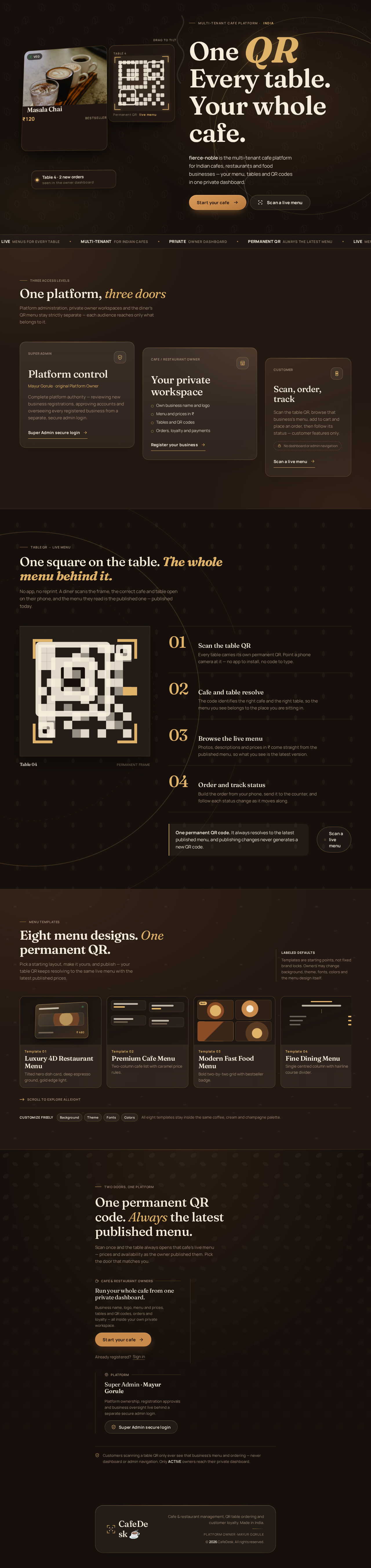
The hero. A dark espresso full-bleed stage, not a centred SaaS hero. Left six columns: an oversized Fraunces headline One QR. Every table. Your whole cafe. at clamp(44px, 7vw, 104px), stacked in three lines with QR set in champagne-gold italic at 1.4× and overhanging the text column edge — the type becomes the CafeDesk mark. Beneath it a cream subline and two pill buttons: caramel Start your cafe and ghost-glass Scan a live menu. Right six columns: a CSS-3D deck of three floating glass food cards — front card tilted 8°/-12° showing masala chai at ₹120 with a Veg dot, a second offset behind showing a gold-bracketed table QR, a third showing a live-order toast Table 4 · 2 new orders. Behind the stack, a large champagne-gold arc and 4% roasted-bean texture. The bottom edge carries a thin cream ticker of live stats (128 cafes · 4,210 tables · ₹18.6L today) that scrolls and pauses on hover. At 375px the deck collapses to one tilted card above the headline, the headline wraps to three lines at 44px, and the ticker becomes a horizontally scrollable row of stat chips.

Page 52 of 64

Signature moves. (1) The gold-cornered QR frame component — SVG brackets with a single champagne pulse on scan detection — reused on dashboard, print sheet and customer menu header. (2) Glass metric tiles with a 1px champagne top highlight and a 56px Fraunces numeral over a Manrope label, so dashboards read like a cafe menu board rather than a BI tool. (3) A persistent glass bottom bar on customer phones (Menu / Cart with count capsule / Rewards with points ring) that lifts 8px on cart update and fills the loyalty ring in champagne gold. (4) The 4D food card: 3D hover tilt, image zoom, price display, Veg/Non-Veg indicator, availability status, food-details popup and add-to-cart animation — with touch-drag and tap-to-open on mobile instead of hover-only behaviour.

What it composes. Only accepted content: the live menu (photos, prices, descriptions, real-time price updates), the permanent QR entry, owner branding and logo, and the cart/rewards controls. The concept adds no new page or behaviour; it recomposes the existing CafeDesk design and functionality rather than replacing it.

CAFEDESK – 4D SMART LIVE MENU TEMPLATE SYSTEM

Create a premium, futuristic, interactive 4D Smart Digital Menu Template System inside my existing CafeDesk website.

  1. 4D SMART MENU DESIGN

Create a visually stunning restaurant menu experience with:

3D food card effects.

Page 53 of 64

8. Interaction Model & Motion Direction

[Design proposal; unspecified choices are defaults.]

Interaction Model: Animated Motion Tempo: expressive Hero Dimensionality: layered_2d

Landing Hero Motion Brief. Focal subject: the three-card glass deck (chai ₹120, gold-bracketed QR, live-order toast) floating over the espresso stage. Thesis: a pointer or touch drag on the deck → the cards tilt within a 6° maximum and the front card's image zooms → the deck springs back, revealing the price, Veg dot and QR frame as the same objects a diner will meet at the table. Motion vocabulary: 240–320ms cubic-bezier(0.22, 1, 0.36, 1) panel reveals, 180ms hover-lift (translateY -4px plus shadow bloom), 2px idle drift on category chips, a 320ms capsule arcing from a food card into the cart pill on add-to-cart, 200ms cross-fade with 12px upward slide on page transitions, and a 300ms ground cross-fade on dark/light toggle. Composed first frame: headline left, deck right at rest with the front card tilted 8°/-12°, gold arc and bean texture behind, stat ticker running along the bottom edge. Reduced-motion state: all tilt, drift, arc and ticker motion collapse to instant state changes and a static flat card grid; the ticker becomes a wrapped or horizontally scrollable row so every stat is fully readable.

Product-wide motion. 4D food cards tilt on pointer or touch drag with spring return; image zoom and food-details popup open on tap as well as hover. The QR frame pulses once in champagne gold when a scan is detected. The customer bottom bar lifts 8px when the cart updates and the rewards ring fills. Images and animations are optimized for fast loading, and every moving or scrollable element (ticker, category chips, stat rows) remains fully readable as it passes.

Page 54 of 64

Dark mode and light mode.

Interactive 3D-style food images.

Smooth 360-degree hover and tilt effects.

Floating food category cards.

Premium image animations.

Animated food gallery.

Premium lighting and shadow effects.

Smooth page transitions.

Interactive menu navigation.

  1. 4D SMART FOOD CARD INTERACTION

Every food card should support:

3D hover tilt.

Image zoom.

Smooth transition.

Price display.

Food details popup.

Add to Cart animation.

On mobile, use touch-friendly interactions instead of hover-only features.

Page 55 of 64

9. Non-Functional Requirements

My Super Admin access must remain separate from normal cafe owner accounts.

Never expose Super Admin credentials or secret keys in frontend code.

Use secure backend authentication and password hashing.

Customers must never see another cafe's data.

Do not expose dashboard or administration links on customer pages.

Do not activate paid subscriptions without verified payment.

Every business must have a unique business ID.

Every business-related record must be linked to its correct business ID.

Secure file uploads.

No frontend admin secrets.

No unauthorized API access.

  1. FINAL TESTING & IMPLEMENTATION

Before completing the project, test:

Website works on Android, iPhone, tablet and desktop.

IMPORTANT:

Cafe A must never access Cafe B's information.

Cafe B must never access Cafe A's information.

Owners must only manage their own business records.

Only Super Admin can access platform-wide information.

Page 56 of 64

Do not rely only on frontend visibility restrictions.

Use real database records, not sample data.

  1. TESTING REQUIREMENTS

Test the following before moving to additional modules:

Database-level data isolation.

Do not compromise the existing working system while adding these modules.

CafeDesk must operate as a secure multi-tenant SaaS platform.

IMPORTANT:

Send OTP only to my verified Super Admin email.

Never send the Super Admin OTP to the business owner's email.

Never display the OTP in frontend code or browser logs.

OTP must expire after 5 minutes.

Use a secure email integration or backend email service.

Do not fake OTP delivery. If Gmail integration or email configuration is missing, show a clear configuration error.

Every business must have its own separate workspace.

  1. MULTI-TENANT DATA SECURITY

Implement strict business-wise data isolation.

Example:

Business A – Royal Cafe

Business B – Shree Restaurant

Page 57 of 64

Business C – Coffee House

Business D – Food Corner

All businesses use the same CafeDesk platform, but:

Business A sees only Business A data.

Business B sees only Business B data.

Business C sees only Business C data.

Business D sees only Business D data.

No business owner can access another business's information.

Do not use any hardcoded or publicly exposed email credentials.

  1. OTP Security

OTP must contain 6 digits.

OTP validity: 5 minutes.

OTP can only be used once.

Maximum 5 incorrect attempts.

Add resend cooldown and rate limiting.

Store OTP securely using hashing.

Never expose OTP in frontend code, API responses or browser logs.

Invalidate expired and previously used OTPs.

Prevent unauthorized account activation.

IMPORTANT SECURITY RULES

Modern responsive mobile-first design.

Page 58 of 64

Make the menu fast, smooth and easy to use on Android, iPhone and desktop.

Use secure restaurant-specific data permissions.

  1. FINAL REQUIREMENTS

Optimize images and animations for fast loading.

  1. FINAL REQUIREMENTS

Ensure mobile responsiveness and accessibility.

Never expose private owner dashboard data to customers.

Unpublished changes must never appear on the customer menu.

Customers can only view published public menu information.

Do not expose private dashboard information.

  1. Security & Multi-Tenant Protection

Each owner can edit only their own restaurant menu.

Use authenticated server-side permission checks.

Keep restaurant data isolated.

Page 59 of 64

10. Tech Stack

  1. DATABASE ARCHITECTURE

Create properly connected database entities:

Users.

CafeBusinesses.

BusinessSettings.

MenuCategories.

MenuItems.

Tables.

QRCodes.

Orders.

OrderItems.

Customers.

LoyaltyPoints.

Rewards.

Coupons.

Payments.

Subscriptions.

Notifications.

Page 60 of 64

Use lightweight CSS 3D transforms and animations. Do not require expensive 3D rendering for normal menu browsing.

Page 61 of 64

11. Assumptions and Constraints

Superseded by explicit chat:

A. SUPER ADMIN – MAYUR GORULE

I, Mayur Gorule, am the original platform owner and Super Admin.

Create a separate secure Super Admin Panel.

Give me complete control over the entire CafeDesk platform.

FINAL PROJECT REQUIREMENT

Build CafeDesk ☕ as a premium, scalable, multi-tenant Cafe & Restaurant SaaS platform for the Indian market.

IMPORTANT:

Each QR code must be connected to the correct cafe and table.

All dashboard data must belong to the authenticated owner.

Do not generate fake customer activity or fake rewards.

Do not force all owners to use the same cafe name, logo, menu or payment details.

One cafe = One private workspace.

No cafe owner can access another cafe's information.

Do not create a static demo.

Do not use fixed business names.

Do not remove existing working functionality.

Do not rebuild the existing website or remove any working features.

Page 62 of 64

Customers must never access any Dashboard or Admin Panel.

  1. FUTURE MODULES

After the above core system works correctly, prepare the architecture for:

Customer Loyalty & Rewards.

Google Pay and PhonePe payments.

Priority: Authentication → Database Isolation → QR Ordering → Order Management → Loyalty → Payments → Subscriptions.

Build and test each core module properly before proceeding to the next stage.

Do not simulate email delivery.

If Gmail configuration is missing, show a clear setup error instead of pretending the OTP was sent.

Preserve all existing CafeDesk features.

IMPORTANT: This must integrate with my existing CafeDesk platform, existing database, Owner Dashboard, Super Admin Panel and QR Code system. Do not rebuild or remove existing features.

  1. FINAL REQUIREMENTS

Do not use static demo menus.

Do not use hardcoded restaurant names.

Every menu must load from the correct restaurant database.

  1. FINAL REQUIREMENTS

Preserve the existing CafeDesk design and functionality.

Page 63 of 64

CAFEDESK – EDIT LIVE MENU & AUTO QR UPDATE SYSTEM

Add a fully functional Edit Live Menu feature inside every Cafe/Restaurant Owner Dashboard.

IMPORTANT: Integrate this feature into my existing CafeDesk website. Do not rebuild the website or remove existing features.

12. Glossary

Subscription & Billing

  1. Account Status

Use these statuses:

Pending Approval.

OTP Verification Required.

Active.

Rejected.

Suspended.

Page 64 of 64
Live
Landing design preview
Owner chooses to register a business
Registration saved and OTP sent to Super Admin Gmail
Correct valid OTP activates account
OTP incorrect or expired
Resend within limits
Password forgotten
Access restored
Active owner signs in
Begin onboarding
Business profile set
Organize menu
Categories created
Dishes added
Keep edits private
Ready to go live
Validation errors block publishing
Errors corrected
Menu published
Tables created
QR codes generated
Standees ready
Payments enabled and order placed
Order accepted
Order completed
Customer registered
Set loyalty program
Rules configured
Offers active
Review performance
Check plan status
Table no longer needed
Landing: Start your cafe
Owner Sign Up: Submit business registration
registration verification page: 1. Enter OTP from Super Admin
registration verification page: 2. Resend OTP request
Login: 1. Sign in
Account Recovery: 2. Reset password
Overview: Review onboarding progress
Business Settings: Set cafe name and logo
Menu Management: Edit live menu
Categories: Add food categories
Menu: Add dishes and prices
Menu Management: Preview customer menu
Menu Management: Save draft
Menu Management: 1. Publish changes
Table Management: Add and edit tables
QR Code Generator: Generate table QR codes
QR Generator: Download PNG or PDF
Payments: Configure UPI and payment QR
Orders: Review new order
Orders: Advance order status
Orders: Print receipt
Customer Management: View customer profiles
Loyalty & Rewards: Configure reward rules
Loyalty: Create coupons and offers
Customers: Review customer order history
Analytics: Review revenue analytics
Subscription & Billing: View plan and billing status
Tables: Delete a table
Menu: 2. Fix validation errors
Live
Landing design preview
Owner chooses to register a business
Registration saved and OTP sent to Super Admin Gmail
Correct valid OTP activates account
OTP incorrect or expired
Resend within limits
Password forgotten
Access restored
Active owner signs in
Begin onboarding
Business profile set
Organize menu
Categories created
Dishes added
Keep edits private
Ready to go live
Validation errors block publishing
Errors corrected
Menu published
Tables created
QR codes generated
Standees ready
Payments enabled and order placed
Order accepted
Order completed
Customer registered
Set loyalty program
Rules configured
Offers active
Review performance
Check plan status
Table no longer needed
Landing: Start your cafe
Owner Sign Up: Submit business registration
registration verification page: 1. Enter OTP from Super Admin
registration verification page: 2. Resend OTP request
Login: 1. Sign in
Account Recovery: 2. Reset password
Overview: Review onboarding progress
Business Settings: Set cafe name and logo
Menu Management: Edit live menu
Categories: Add food categories
Menu: Add dishes and prices
Menu Management: Preview customer menu
Menu Management: Save draft
Menu Management: 1. Publish changes
Table Management: Add and edit tables
QR Code Generator: Generate table QR codes
QR Generator: Download PNG or PDF
Payments: Configure UPI and payment QR
Orders: Review new order
Orders: Advance order status
Orders: Print receipt
Customer Management: View customer profiles
Loyalty & Rewards: Configure reward rules
Loyalty: Create coupons and offers
Customers: Review customer order history
Analytics: Review revenue analytics
Subscription & Billing: View plan and billing status
Tables: Delete a table
Menu: 2. Fix validation errors