exambro

bySquad Buntu

"Design an Android mobile application called 'ExamBro' for online exam management. It must have two distinct user roles: Student and Proctor (Pengawas). Student Features: Login, view upcoming exams, take a multiple-choice exam with a countdown timer, submit answers, and view exam results. Proctor Features: Login, view a list of active students taking the exam in real-time, monitor student status (online/offline), and review student submissions. The UI should be clean, professional, and easy to navigate for both roles. Please generate the app architecture, database schema, and UI wireframes for both Student and Proctor screens."

LandingLogin
Landing

Comments (0)

No comments yet. Be the first!

System Requirements

System Requirements Document for ExamBro

1. Introduction

ExamBro is an Android mobile application for online exam management, built for two distinct user roles: Student and Proctor (Pengawas). The product intent is to give students a calm, dependable path through a timed multiple-choice exam — log in, see upcoming exams, take the exam against a countdown timer, submit answers, and view results — while giving proctors a live operational view of the exam room: a real-time list of active students, each student's online/offline status, and the ability to review student submissions.

The audience is Indonesian secondary and higher-education exam settings, where a student needs fast, unambiguous reading of time and question state, and a proctor needs instant reading of who is present, who has dropped offline, and what has been submitted. The interface must be clean, professional, and easy to navigate for both roles.

This document is the System Requirements Document for ExamBro. It specifies the application architecture, the database schema, and the UI structure for both Student and Proctor screens, expressed as requirements, page coverage, and user flows.

Page 1 of 36

2. System Overview

ExamBro is delivered as an Android mobile application with a shared backend. Two roles exist and are strictly distinct: a Student and a Proctor (Pengawas). Each role authenticates through the same Login surface and then reaches only its own working area.

Actors

  • Student — logs in, views upcoming exams, selects and takes a multiple-choice exam with a countdown timer, submits answers, and views exam results.
  • Proctor (Pengawas) — logs in, views a real-time list of active students taking the exam, monitors each student's online/offline status, and reviews student submissions.

Current delivery and ownership

  • The Android application is the first-party client for all human-facing work.
  • A shared backend service (FastAPI) owns application APIs, exam state, submission state, and the real-time roster feed.
  • A relational database (MariaDB) owns durable application data: users and roles, exams, questions and options, exam sessions, answers, submissions, and results.
  • Redis provides the shared real-time coordination and presence state that the proctor's live roster and online/offline monitoring depend on.
  • The React application UI is the web-rendered surface of the same product experience, sharing the backend APIs.
Page 2 of 36

Accepted behavior summary

  • Role-separated login for Student and Proctor.
  • Student: upcoming exam list → exam selection → timed multiple-choice exam → answer submission → results.
  • Proctor: real-time active student roster → per-student online/offline status → submission review.

Narrow exclusions

  • No third role, no administrator console, no question-authoring workflow, and no grading workflow beyond what is required to show a student their results and a proctor the submitted answers are not part of the accepted scope.
  • No stock photography, no decorative illustration, no playful mascots or emoji in the interface.
Page 3 of 36

2a. Product Interpretation and Delivery Boundary

ExamBro is a first-party Android application. Both roles enter through a public Landing surface that explains the two roles, then authenticate at Login. Identity is application-owned: a Student's exam session, answers, submission, and results must remain bound to that student across app restarts and reconnects, and a Proctor's live roster view must remain bound to that proctor. Because a student's in-progress exam and a proctor's live monitoring both depend on durable, actor-specific state, the application establishes and verifies identity at first use and on return.

Access is role-restricted after login: the Student working area (Upcoming Exams, Take Exam, Exam Results) is reachable only by an authenticated Student, and the Proctor working area (Active Students, Submissions) is reachable only by an authenticated Proctor. The Landing and Login surfaces are reachable anonymously; protected state remains unavailable until identity is established.

Real-time behavior is a delivery responsibility of the backend plus Redis: the proctor's roster and status changes are pushed as they happen, not polled on a manual refresh. The exam countdown is a client-visible timer driven by the exam session's authoritative end time held by the backend, so a reconnect restores the correct remaining time.

Everything described in this document is current scope. No future-horizon features are committed.

2c. Page Content and Component Coverage

Page 4 of 36

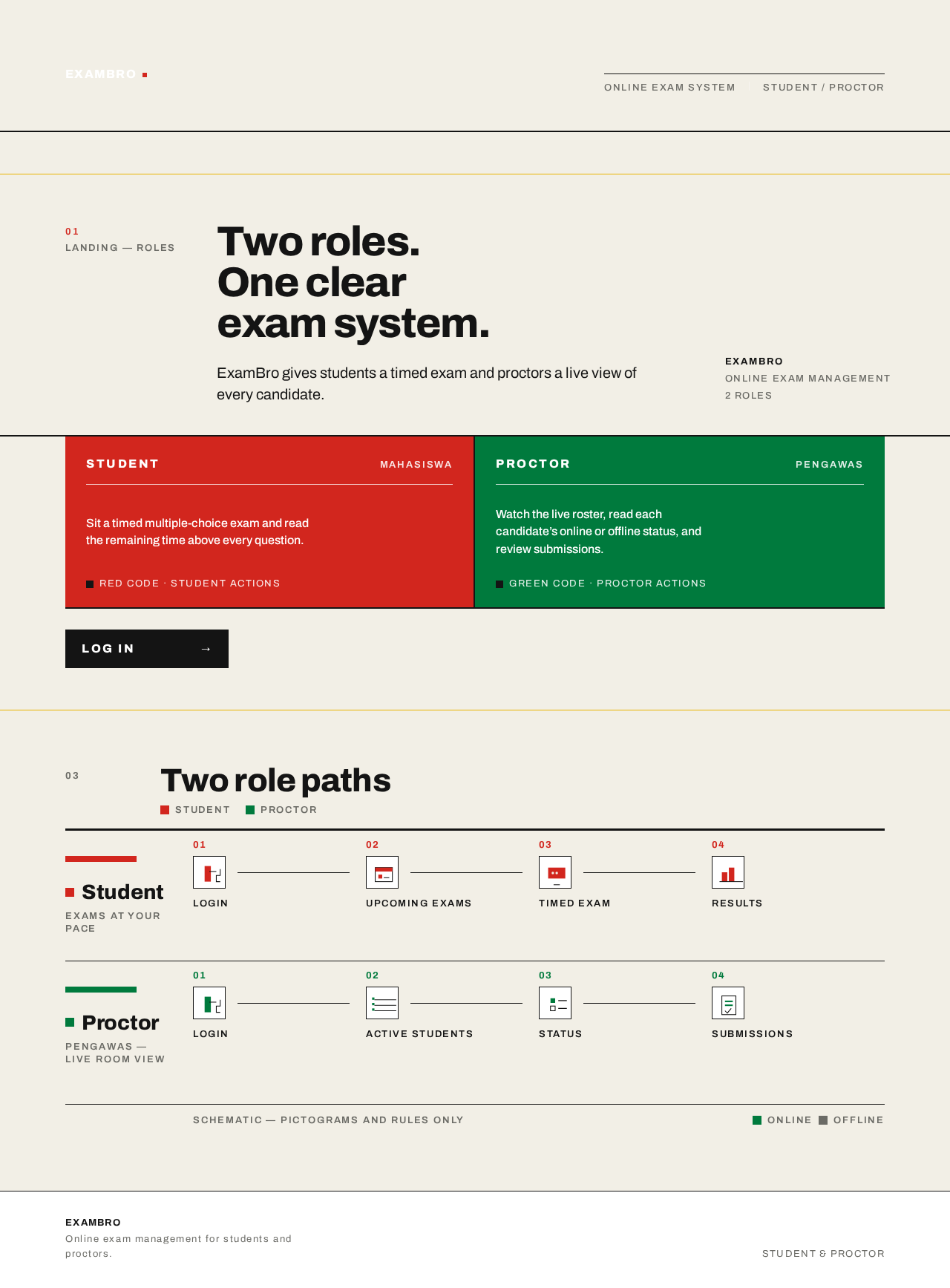
Landing

Information and state

  • Anonymous public entry. Full-width paper ground (#F2EFE6).
  • Black ruled header bar with the ExamBro wordmark flush left in white caps.
  • Headline: "Two roles. One clear exam system." (Archivo Heavy, sentence case, flush left, 40px mobile / 56px desktop).
  • Subline: "ExamBro gives students a timed exam and proctors a live view of every candidate."
  • A single horizontal rule running edge to edge beneath the headline block.
  • Two solid colour blocks side by side below the rule: red (#D2261E) labelled Student, green (#007A3D) labelled Proctor, each with a 16px label.
  • A schematic diagram of the two role paths (Student path and Proctor path) as pictograms and rules only — no photography.
  • Section numbers set small in the margin beside each heading, like a printed manual.

Primary action

  • "Log in" — a black rectangle at the left margin, leading to Login.

Supporting actions

  • Role blocks are informational; they describe what each role does and do not authenticate.

Domain entities

  • None persisted. The page presents the two roles and their paths.
Page 5 of 36

Component responsibilities

  • Header bar: wordmark and identity of the product.
  • Hero block: headline, subline, rule, role blocks, login control.
  • Role-path schematic: shows Student path (login → upcoming exams → timed exam → results) and Proctor path (login → active students → status → submissions).

States

  • Loading: not applicable (static content).
  • Empty: not applicable.
  • Success: page renders fully; "Log in" is always available.
  • Error: not applicable.
  • Recovery: not applicable.
Page 6 of 36

Login

Information and state

  • Anonymous access surface for both roles.
  • Role selection between Student and Proctor is explicit; the selected role is colour-coded (red for Student, green for Proctor).
  • Fields: identity (email or username) and password.
  • First-use state: a student or proctor without an existing account establishes one here (self-service enrollment) and is bound to the selected role.
  • Returning state: an existing student or proctor verifies identity and resumes their own role's working area.

Primary action

  • Submit credentials to sign in and land in the selected role's working area.

Supporting actions

  • Switch the selected role before submitting.
  • Establish a new account on first use.

Domain entities

  • User account (identity, credential, role).

Component responsibilities

  • Role selector: two hard-edged, zero-radius blocks; the active role is filled with its role colour.
  • Credential form: labelled fields with black rules, flush left.
  • Submit control: black rectangle, full-width on mobile.
  • Inline validation and error region.
Page 7 of 36

States

  • Loading: submit control shows a pending state; inputs disabled.
  • Empty: fields blank with labels visible.
  • Success: navigation to the role's working area (Student → Upcoming Exams; Proctor → Active Students).
  • Error: invalid credentials or missing fields show an inline message in red (#D2261E); the form remains filled so the user can correct it.
  • Recovery: after a failed attempt the user can retry, switch role, or establish an account.
Page 8 of 36

Upcoming Exams

Information and state

  • Authenticated Student only.
  • A ruled list of upcoming exams, each row showing exam title, scheduled start date and time, and duration.
  • Rows are divided by thin black rules; no cards, no shadows.
  • Section number set small in the margin beside the heading.

Primary action

  • Select an upcoming exam to open Take Exam.

Supporting actions

  • Return to the list after viewing results.

Domain entities

  • Exam (title, schedule, duration), Student's eligibility for that exam.

Component responsibilities

  • Ruled exam table: one row per upcoming exam.
  • Row selection control: the whole row is the target.
  • Empty-state block.

States

  • Loading: ruled skeleton rows.
  • Empty: a plain statement that no upcoming exams are scheduled, with no action beyond returning.
  • Success: rows render with title, date/time, and duration.
  • Error: a load failure shows an inline message and a retry control.
  • Recovery: retry reloads the list; a selected exam that is no longer available returns the student to the list with a message.
Page 9 of 36

Take Exam

Information and state

  • Authenticated Student only; opened for the exam selected on Upcoming Exams.
  • A countdown timer built as a red block with black tabular numerals, pinned above the question. It steps once per second and shows remaining time for the exam session.
  • The current multiple-choice question with its options; one option selectable per question.
  • Question position indicator (e.g. question number of total).
  • Answer state per question: answered / unanswered.

Primary action

  • Submit answers for the exam.

Supporting actions

  • Select an option for the current question.
  • Move between questions.
  • Confirm submission before it is final.

Domain entities

  • Exam session (student, exam, start time, authoritative end time, status), question, option, selected answer.
Page 10 of 36

Component responsibilities

  • Pinned timer block: red fill, black tabular numerals, always visible above the question.
  • Question panel: question text and option list with hard-edged selection marks.
  • Navigation control: previous/next question and a question index.
  • Submit control: black rectangle; opens a confirmation step.
  • Session-state banner: shows when the session is reconnecting or has ended.

States

  • Loading: exam content loads with the timer already showing the authoritative remaining time.
  • Empty: not applicable once a session is open.
  • Success: answers are recorded per question; submission confirmation returns an acknowledgement and leads to Exam Results.
  • Error: a lost connection shows a reconnecting banner while the timer continues from the authoritative end time; a failed submission shows an inline error and keeps the answers intact for retry.
  • Recovery: on reconnect the session restores the current question and recorded answers; when the countdown reaches zero the session ends and the recorded answers are submitted automatically, leading to Exam Results.
Page 11 of 36

Exam Results

Information and state

  • Authenticated Student only; shown after the student submits answers.
  • The student's result for the submitted exam: score and the submitted answer state, presented in ruled rows with black rules and tabular numerals.
  • Section number set small in the margin beside the heading.

Primary action

  • Return to Upcoming Exams.

Supporting actions

  • Review the submitted answers for the exam.

Domain entities

  • Submission, result (score), submitted answers.

Component responsibilities

  • Result summary block: score in large tabular numerals.
  • Ruled answer review: one row per question with the student's selected option.
  • Return control.

States

  • Loading: result rows load after submission.
  • Empty: if no submission exists for the student, a plain statement is shown with a return control.
  • Success: score and answer review render.
  • Error: a load failure shows an inline message and a retry control.
  • Recovery: retry reloads the result; the student can always return to Upcoming Exams.
Page 12 of 36

Active Students

Information and state

  • Authenticated Proctor only.
  • A real-time roster of students currently taking the exam, drawn as a ruled table, not cards.
  • Each row begins with a status square: green (#007A3D) for online, grey (#6B6B66) for offline.
  • Each row shows the student's name and current exam state.
  • The roster updates in real time as students join, go offline, come back online, or submit.
  • Section number set small in the margin beside the heading.

Primary action

  • Monitor the live roster and each student's online/offline status.

Supporting actions

  • Open a student's submission for review in Submissions.

Domain entities

  • Exam session (student, exam, status), presence state (online/offline), submission reference.

Component responsibilities

  • Ruled roster table: status square, student name, exam state, submission indicator.
  • Live connection indicator: shows whether the real-time feed is connected.
  • Row action: opens Submissions for a submitted student.
Page 13 of 36

States

  • Loading: ruled skeleton rows while the initial roster loads.
  • Empty: a plain statement that no students are currently active.
  • Success: rows render and update in place; status squares switch colour at once with no easing.
  • Error: a dropped real-time feed shows a disconnected indicator and the last known roster, with automatic reconnection.
  • Recovery: on reconnect the roster reconciles to current state; the proctor can continue monitoring without leaving the page.
Page 14 of 36

Submissions

Information and state

  • Authenticated Proctor only.
  • A ruled list of student submissions for the exam, each row showing student name, submission time, and submission state.
  • Selecting a submission opens the student's submitted answers, one ruled row per question with the selected option.
  • Section number set small in the margin beside the heading.

Primary action

  • Review a student's submitted answers.

Supporting actions

  • Return to the submission list.
  • Return to Active Students.

Domain entities

  • Submission (student, exam, submitted time, state), submitted answers.

Component responsibilities

  • Ruled submission table: one row per submission.
  • Answer review panel: question rows with the student's selected option.
  • Back control.

States

  • Loading: ruled skeleton rows.
  • Empty: a plain statement that no submissions exist yet.
  • Success: submission rows and answer review render.
  • Error: a load failure shows an inline message and a retry control.
  • Recovery: retry reloads the list or the selected submission; the proctor can always return to Active Students.
Page 15 of 36

3. Functional Requirements

FR-1 — Android application delivery (explicit) As a user, I should use ExamBro as an Android mobile application, so that I can manage online exams from my phone.

  • Trigger: the user opens the installed Android application.
  • Observable result: the application launches to the Landing surface.
  • Access: anonymous at launch.
  • Failure/recovery: if the app cannot reach the backend, it shows a connection message and a retry control.
  • Continuation: the user proceeds to Landing.

FR-2 — Two distinct roles (explicit) As the product, I should enforce exactly two distinct user roles — Student and Proctor (Pengawas) — so that each role sees only its own working area.

  • Trigger: a user authenticates.
  • Observable result: the authenticated user lands in the working area of the selected role; the other role's pages are not reachable.
  • Access: role-restricted after login.
  • Failure/recovery: an attempt to reach the other role's area returns the user to their own area.
  • Continuation: the user works within their role.
Page 16 of 36

FR-3 — Student login (explicit) As a Student, I should log in, so that I can reach my exams.

  • Trigger: the student opens Login and selects the Student role.
  • Input: identity and password.
  • Observable result: the student lands on Upcoming Exams.
  • Access: Login is anonymous; Upcoming Exams is Student-only.
  • Failure/recovery: invalid credentials show an inline error and the form stays filled for retry.
  • Continuation: the student views upcoming exams.

FR-4 — Student self-service enrollment and returning verification (required_inference) As a Student, I should establish my account on first use and verify it on return, so that my exam session, answers, submission, and results stay bound to me.

  • Trigger: first use of Login with the Student role selected, or a return visit.
  • Input: identity and password.
  • Observable result: a new student account is created and bound to the Student role; on return the student is verified and resumes their own state.
  • Access: anonymous entry at Login; protected state unavailable until verified.
  • Failure/recovery: a failed enrollment or verification shows an inline error and allows retry.
  • Continuation: the student reaches Upcoming Exams.
Page 17 of 36

FR-5 — View upcoming exams (explicit) As a Student, I should view upcoming exams, so that I know what is scheduled.

  • Trigger: the student opens Upcoming Exams.
  • Observable result: a ruled list of upcoming exams with title, scheduled date/time, and duration.
  • Access: Student-only.
  • Failure/recovery: a load failure shows an inline message and a retry control.
  • Continuation: the student selects an exam.

FR-6 — Select an upcoming exam (required_inference) As a Student, I should select an upcoming exam, so that the correct exam opens for me.

  • Trigger: the student taps an exam row on Upcoming Exams.
  • Observable result: Take Exam opens for that exam.
  • Access: Student-only.
  • Failure/recovery: if the exam is no longer available, the student returns to the list with a message.
  • Continuation: the student takes the exam.
Page 18 of 36

FR-7 — Take a multiple-choice exam with a countdown timer (explicit) As a Student, I should take a multiple-choice exam with a countdown timer, so that I can answer within the allotted time.

  • Trigger: Take Exam opens for the selected exam.
  • Input: one selected option per question.
  • Observable result: the current question and options are shown with a red countdown timer block pinned above the question, stepping once per second.
  • Access: Student-only.
  • Failure/recovery: a lost connection shows a reconnecting banner while the timer continues from the authoritative end time; on reconnect the current question and recorded answers are restored.
  • Continuation: the student moves between questions and submits.

FR-8 — Submit answers (explicit) As a Student, I should submit my answers, so that my exam is recorded.

  • Trigger: the student confirms submission, or the countdown reaches zero.
  • Observable result: the answers are recorded as a submission and the student is taken to Exam Results.
  • Access: Student-only.
  • Failure/recovery: a failed submission shows an inline error and keeps answers intact for retry; at zero the recorded answers are submitted automatically.
  • Continuation: the student views results.
Page 19 of 36

FR-9 — View exam results (explicit) As a Student, I should view my exam results, so that I know how I did.

  • Trigger: the student opens Exam Results after submission.
  • Observable result: the score and the submitted answer review render in ruled rows with tabular numerals.
  • Access: Student-only.
  • Failure/recovery: a load failure shows an inline message and a retry control; with no submission, a plain statement and a return control are shown.
  • Continuation: the student returns to Upcoming Exams.

FR-10 — Proctor login (explicit) As a Proctor (Pengawas), I should log in, so that I can reach my monitoring area.

  • Trigger: the proctor opens Login and selects the Proctor role.
  • Input: identity and password.
  • Observable result: the proctor lands on Active Students.
  • Access: Login is anonymous; Active Students is Proctor-only.
  • Failure/recovery: invalid credentials show an inline error and the form stays filled for retry.
  • Continuation: the proctor monitors active students.
Page 20 of 36

FR-11 — Proctor self-service enrollment and returning verification (required_inference) As a Proctor (Pengawas), I should establish my account on first use and verify it on return, so that my live monitoring view stays bound to me.

  • Trigger: first use of Login with the Proctor role selected, or a return visit.
  • Input: identity and password.
  • Observable result: a new proctor account is created and bound to the Proctor role; on return the proctor is verified and resumes their own monitoring state.
  • Access: anonymous entry at Login; protected state unavailable until verified.
  • Failure/recovery: a failed enrollment or verification shows an inline error and allows retry.
  • Continuation: the proctor reaches Active Students.

FR-12 — View active students in real time (explicit) As a Proctor (Pengawas), I should view a list of active students taking the exam in real time, so that I know who is present.

  • Trigger: the proctor opens Active Students.
  • Observable result: a ruled roster table of students currently taking the exam, updating in place as students join, leave, or submit.
  • Access: Proctor-only.
  • Failure/recovery: a dropped real-time feed shows a disconnected indicator with the last known roster and reconnects automatically.
  • Continuation: the proctor monitors status and opens submissions.
Page 21 of 36

FR-13 — Monitor student status (online/offline) (explicit) As a Proctor (Pengawas), I should monitor each student's online/offline status, so that I can see who has dropped off.

  • Trigger: the proctor views the Active Students roster.
  • Observable result: each row begins with a status square — green for online, grey for offline — switching colour at once as status changes.
  • Access: Proctor-only.
  • Failure/recovery: on reconnect the roster reconciles to current status.
  • Continuation: the proctor continues monitoring.

FR-14 — Review student submissions (explicit) As a Proctor (Pengawas), I should review student submissions, so that I can examine what each student submitted.

  • Trigger: the proctor opens Submissions, from the roster or directly.
  • Observable result: a ruled list of submissions; selecting one shows the student's submitted answers, one ruled row per question.
  • Access: Proctor-only.
  • Failure/recovery: a load failure shows an inline message and a retry control; with no submissions, a plain statement is shown.
  • Continuation: the proctor returns to the list or to Active Students.

FR-15 — Clean, professional, easy-to-navigate UI (explicit) As a Student or Proctor, I should experience a clean, professional, and easy-to-navigate interface, so that I can read status and time quickly.

  • Trigger: any screen.
  • Observable result: strict grid, hard edges, thin black rules, role-colour coding, and legible type at every viewport.
  • Access: applies to all surfaces.
  • Failure/recovery: text and controls stay whole and inside the viewport at 375px, 768px, and 1280px.
  • Continuation: the user completes their task without visual obstruction.
Page 22 of 36

4. User Personas

Page 23 of 36

Student

Product context. A Student is taking a scheduled online exam on an Android phone. The student arrives at ExamBro already knowing which exam is due and needs to reach it quickly, answer multiple-choice questions against a countdown, submit, and then see the result.

Primary goal. Complete the scheduled multiple-choice exam within the countdown and see the result.

Distinct accepted responsibilities.

  • Log in with the Student role.
  • View the list of upcoming exams.
  • Select an upcoming exam.
  • Take the multiple-choice exam with a countdown timer.
  • Submit answers.
  • View exam results.

Relevant inputs and decisions. Which exam to open; which option to select for each question; when to confirm submission.

Interactions with other participants. The Student's presence, status, and submission are what the Proctor observes on Active Students and reviews on Submissions. The Student does not interact with the Proctor directly.

Observable success. The student lands on Upcoming Exams after login, completes the exam with the timer visible throughout, submits, and sees a score and answer review on Exam Results.

What makes this role different. The Student's work is time-bound and answer-producing; the interface must keep the countdown legible above the question and preserve answers across reconnects.

Page 24 of 36

Proctor (Pengawas)

Product context. A Proctor (Pengawas) supervises an exam session on an Android phone. The proctor needs a live operational picture of who is taking the exam, who has dropped offline, and what has been submitted.

Primary goal. Maintain a live view of active students and their online/offline status, and review submissions.

Distinct accepted responsibilities.

  • Log in with the Proctor role.
  • View the real-time list of active students taking the exam.
  • Monitor each student's online/offline status.
  • Review student submissions.

Relevant inputs and decisions. Which student to inspect; whether a student's offline status needs attention; which submission to open.

Interactions with other participants. The Proctor observes the Student's presence, status, and submission; the Proctor does not alter the Student's exam.

Observable success. The proctor lands on Active Students after login, sees the roster update in real time with green/grey status squares, and can open any submission to review the submitted answers.

What makes this role different. The Proctor's work is observational and live; the interface must present a ruled table that updates in place, not a static list.

5. Core User Flows

Page 25 of 36

Flow A — Student logs in and views upcoming exams

  1. The Student opens the ExamBro Android application and lands on Landing.
  2. The Student reads the two role blocks and taps Log in.
  3. On Login, the Student selects the Student role (red block) and enters identity and password.
  4. On first use, the Student establishes an account bound to the Student role; on return, the Student's identity is verified.
  5. On success, the Student lands on Upcoming Exams, which shows a ruled list of exams with title, date/time, and duration.
  6. If the list fails to load, an inline message and retry control appear; the Student retries.
  7. Next step: the Student selects an exam.

Flow B — Student takes a timed multiple-choice exam and submits

  1. From Upcoming Exams, the Student taps an exam row.
  2. Take Exam opens for that exam; the red countdown timer block is pinned above the question and steps once per second.
  3. The Student selects one option per question and moves between questions.
  4. If the connection drops, a reconnecting banner appears while the timer continues from the authoritative end time; on reconnect the current question and recorded answers are restored.
  5. The Student taps Submit and confirms.
  6. If submission fails, an inline error appears and the answers remain intact for retry.
  7. If the countdown reaches zero, the recorded answers are submitted automatically.
  8. On success, the Student is taken to Exam Results.
Page 26 of 36

Flow C — Student views exam results

  1. After submission, the Student lands on Exam Results.
  2. The score renders in large tabular numerals, with a ruled answer review showing the selected option per question.
  3. If the result fails to load, an inline message and retry control appear; the Student retries.
  4. If no submission exists, a plain statement and a return control are shown.
  5. The Student taps Return to go back to Upcoming Exams.

Flow D — Proctor logs in and monitors active students

  1. The Proctor opens the ExamBro Android application and lands on Landing.
  2. The Proctor taps Log in.
  3. On Login, the Proctor selects the Proctor role (green block) and enters identity and password.
  4. On first use, the Proctor establishes an account bound to the Proctor role; on return, the Proctor's identity is verified.
  5. On success, the Proctor lands on Active Students, which shows a ruled roster table with a green or grey status square at the start of each row.
  6. The roster updates in place as students join, go offline, come back online, or submit; status squares switch colour at once.
  7. If the real-time feed drops, a disconnected indicator appears with the last known roster; on reconnect the roster reconciles to current state.
  8. Next step: the Proctor opens a submission or continues monitoring.
Page 27 of 36

Flow E — Proctor reviews student submissions

  1. From Active Students, the Proctor taps a submitted student's row, or opens Submissions directly.
  2. Submissions shows a ruled list of submissions with student name, submission time, and state.
  3. The Proctor selects a submission; the student's submitted answers render as ruled rows, one per question with the selected option.
  4. If the list or a submission fails to load, an inline message and retry control appear; the Proctor retries.
  5. If no submissions exist, a plain statement is shown.
  6. The Proctor returns to the list or to Active Students.
Page 28 of 36

6. Visuals Colors and Theme

Muse and headline. Massimo Vignelli — systematic clarity. Headline: "Two roles. One clear exam system."

Mode. Light mode.

Colour tokens (exact hex by role)

  • Background (paper ground): #F2EFE6
  • Surface: #FFFFFF
  • Text: #141414
  • Primary (live and urgent states only): #D2261E
  • Accent: #E8B400
  • Muted: #6B6B66
  • Student role code: #D2261E (red)
  • Proctor role code: #007A3D (green)
  • Online status: #007A3D (green)
  • Offline status: #6B6B66 (grey)
  • Rules and dividers: #141414 (thin black rules)

Typography

  • Headings: Archivo — Heavy grotesque, sentence case, tight tracking, flush left, large scale.
  • Body: Archivo.
  • Small caps labels with wide tracking for status.
  • Modular scale 1.25: 56 / 44 / 28 / 20 / 16 / 13.
  • Mobile headline 40px; desktop headline 56px.
  • Countdown numerals: black tabular numerals on the red timer block.
Page 29 of 36

Shape language

  • Hard edges, zero radius.
  • Thin black rules divide rows.
  • Solid colour bars carry role and status codes.

Layout

  • Strict 12-column grid.
  • Numbered sections and tabular rows.
  • The proctor roster is a ruled table, not cards.
  • Section numbers set small in the margin beside each heading, like a printed manual.

Imagery

  • Diagrams and pictograms only. One schematic map of the two role paths on the Landing page. No stock photography.

Motion

  • Instant state changes with no easing flourish.
  • The countdown timer steps once per second.
  • Status dots switch colour at once.

Accessibility of text and controls

  • Headlines, wordmarks, labels, numbers, and controls stay entirely inside the viewport and their container at 375px, 768px, and 1280px, wrapping or scaling (e.g. font-size: clamp(...) with its mobile size) to fit.
  • No element covers any part of readable text or a control.
Page 30 of 36

Avoid

  • No blue or indigo accent anywhere.
  • No rounded cards, soft shadows, or glass panels.
  • No gradient blobs or decorative illustration.
  • No centred hero with a button under a subtext.
  • No playful mascots or emoji.

7. Signature Design Concept

The public entry (Landing) is built as a printed manual page. A full-width ruled header bar in black carries the ExamBro wordmark flush left in white caps. Below it, on the warm paper ground (#F2EFE6), a 56px black Archivo Heavy headline — "Two roles. One clear exam system." — sits flush left across eight columns, with the subline beneath it. A single horizontal rule runs edge to edge under the headline block. Below the rule, two solid colour blocks sit side by side: red (#D2261E) labelled Student and green (#007A3D) labelled Proctor, each with a 16px label. The Log in control is a black rectangle at the left margin. A schematic diagram of the two role paths — pictograms and rules only — sits beneath the role blocks, showing the Student path and the Proctor path as numbered sections. Section numbers are set small in the margin beside each heading. The composition recomposes only accepted content: the two roles, their paths, and the login control.

Page 31 of 36

8. Interaction Model & Motion Direction

Interaction Model: Static Motion Tempo: still Hero Dimensionality: flat

Landing Hero Motion Brief

  • Focal subject: the two role blocks (red Student, green Proctor) beneath the ruled headline, with the schematic role-path diagram.
  • Input → transformation → outcome thesis: the visitor reads the headline and subline, sees the two role blocks and the role-path schematic, and taps the black Log in control to reach Login. No motion transforms the content; state changes are instant.
  • Motion vocabulary: instant state changes with no easing flourish; status dots switch colour at once; the countdown timer (on Take Exam) steps once per second.
  • Composed first frame: black ruled header bar with white wordmark; paper ground; flush-left 56px headline; subline; edge-to-edge rule; two solid role blocks side by side; black login rectangle at the left margin; schematic role-path diagram below.
  • Reduced-motion state: identical static arrangement; no animation is required for the hero. The countdown timer continues to step once per second as a functional state change, not decoration.
Page 32 of 36

9. Non-Functional Requirements

NFR-1 — Android mobile delivery (explicit) The application is delivered as an Android mobile application. Rationale: explicit hard constraint.

NFR-2 — Two distinct roles (explicit) The application enforces exactly two distinct roles, Student and Proctor (Pengawas), with role-restricted access to each working area. Rationale: explicit hard constraint.

NFR-3 — Multiple-choice exam with countdown (explicit) The exam is multiple-choice and has a countdown timer. The timer is driven by the exam session's authoritative end time held by the backend so that reconnects restore the correct remaining time. Rationale: explicit hard constraint; durable state required.

NFR-4 — Real-time proctor roster (explicit) The proctor's active-student list is real-time. The backend pushes roster and status changes through Redis-backed coordination; the client updates in place without manual refresh. Rationale: explicit hard constraint; Redis required.

NFR-5 — Clean, professional, easy-to-navigate UI (explicit) The UI is clean, professional, and easy to navigate for both roles, following the Vignelli-derived design system in Sections 6–8. Rationale: explicit hard constraint.

NFR-6 — Durable state (required_inference) Exam sessions, answers, submissions, results, and presence state persist in MariaDB and Redis so that a student's work and a proctor's roster survive reconnects and app restarts. Rationale: indispensable for the accepted lifecycles.

Page 33 of 36

NFR-7 — Application-owned identity (required_inference) Identity is application-owned; a student's exam state and a proctor's monitoring state remain bound to the correct participant. Rationale: indispensable for actor continuity.

NFR-8 — Readable text and controls at every viewport (explicit) Headlines, wordmarks, labels, numbers, and controls stay entirely inside the viewport and their container at 375px, 768px, and 1280px. Rationale: explicit design constraint.
10. Tech Stack

  • Frontend: React application UI (shared web-rendered surface of the product experience).
  • Android client: Android mobile application for Student and Proctor.
  • Backend: shared FastAPI process for application APIs and domain modules (exam sessions, submissions, results, roster feed).
  • Database: MariaDB for application-owned persistent data (users and roles, exams, questions and options, exam sessions, answers, submissions, results).
  • Cache/coordination: Redis for the accepted shared real-time coordination and presence state that the proctor roster and online/offline monitoring depend on.
  • Deployment: Docker / docker-compose for the backend, database, frontend, and Redis services.
Page 34 of 36

11. Assumptions and Constraints

  • A-1 (explicit) The application is an Android mobile application.
  • A-2 (explicit) Exactly two roles exist: Student and Proctor (Pengawas).
  • A-3 (explicit) The exam is multiple-choice and has a countdown timer.
  • A-4 (explicit) The proctor's active-student list is real-time.
  • A-5 (explicit) The UI is clean, professional, and easy to navigate for both roles.
  • A-6 (required_inference) Identity is application-owned; first-use enrollment and returning verification occur at Login, with the role selected explicitly.
  • A-7 (required_inference) The exam session's authoritative end time is held by the backend; the client timer reflects it.
  • A-8 (required_inference) Presence (online/offline) is tracked through Redis-backed coordination and pushed to the proctor.
  • A-9 (required_inference) When the countdown reaches zero, the student's recorded answers are submitted automatically.
  • A-10 (explicit) No third role, administrator console, question-authoring workflow, or grading workflow beyond showing results and reviewing submitted answers is in scope.
  • A-11 (explicit) No stock photography, decorative illustration, playful mascots, or emoji in the interface.
Page 35 of 36

12. Glossary

  • ExamBro — the Android mobile application for online exam management described in this document.
  • Student — the role that logs in, views upcoming exams, takes a timed multiple-choice exam, submits answers, and views results.
  • Proctor (Pengawas) — the role that logs in, views the real-time active-student roster, monitors online/offline status, and reviews submissions.
  • Upcoming Exams — the Student page listing scheduled exams.
  • Take Exam — the Student page where the multiple-choice exam is answered against the countdown timer.
  • Exam Results — the Student page showing the score and submitted answer review after submission.
  • Active Students — the Proctor page showing the real-time roster with online/offline status.
  • Submissions — the Proctor page listing and reviewing student submissions.
  • Exam session — the durable record of a student taking a specific exam, including start time, authoritative end time, and status.
  • Presence — a student's online/offline state during an exam session, tracked through Redis-backed coordination.
  • Submission — the recorded set of a student's answers for an exam, produced on submit or at countdown expiry.
  • Pengawas — Indonesian term for Proctor, used interchangeably in this document.
Page 36 of 36
Live
Landing design preview

Landing: Read role paths

Login: Select Proctor role

Login: Establish new account

Login: 1. Sign in

Login: 2. Correct invalid credentials

Active Students: 1. Monitor live roster

Active Students: 2. Track online/offline status

Active Students: 3. Continue after reconnect

Active Students: 4. Open submitted student

Submissions: 5. View submission list

Submissions: 6. Retry failed load

Submissions: 7. Select submission

Submissions: 8. Review submitted answers

Submissions: 9. Return to roster

Live
Landing design preview

Landing: Read role paths

Login: Select Proctor role

Login: Establish new account

Login: 1. Sign in

Login: 2. Correct invalid credentials

Active Students: 1. Monitor live roster

Active Students: 2. Track online/offline status

Active Students: 3. Continue after reconnect

Active Students: 4. Open submitted student

Submissions: 5. View submission list

Submissions: 6. Retry failed load

Submissions: 7. Select submission

Submissions: 8. Review submitted answers

Submissions: 9. Return to roster