english-learning-professionals

byNure Aiza

Build Step 1 of "FluencyPro — Advanced English for Professionals". Create the complete project foundation, database schema, and responsive mobile-first UI for an English learning web app tailored strictly for adult learners (focusing on career advancement, business communication, and real-world networking). ### Important Execution Rules: - I have zero coding experience. Make all technical and architectural decisions yourself. Do not ask me to write or edit code. - For this initial step, focus heavily on the UI layouts, step-by-step user flows, responsive navigation, reusable components, and placeholder data states. Do not attempt to integrate active live voice WebRTC or third-party audio streaming APIs yet. ### Target Audience & Tone: - **Users:** Working professionals, expats, and adult immigrants seeking to upgrade from basic English to confident, workplace-ready fluency. - **Tone & Persona:** Professional, premium, encouraging, and highly practical (avoid gamified elements like cartoon mascots or childish badges; focus instead on real-world milestones and performance analytics). ### Aesthetic & Visual Style Guide: - **Theme:** Clean, modern, executive tech aesthetic. - **Palette:** Deep slate gray or navy blue base, crisp white panels, vibrant indigo/teal accent colors for interactive elements. - **Layout:** Mobile-first responsive layout. A sticky bottom navigation bar for mobile viewports, transforming smoothly into a left-side persistent navigation sidebar on tablet and desktop monitors. ### Core Database Architecture (Initialize Tables): - `users`: ID, name, professional goal (e.g., tech, hospitality, finance), streak, subscription tier. - `scenarios`: ID, title, category (e.g., "Salary Negotiation", "Client Presentation", "Casual Networking"), difficulty. - `user_progress`: ID, user_id, scenario_id, completeness_percentage, top_mistakes_json, speaking_score. ### Main Navigation & Key Screens: Please build a layout containing the following five primary navigation views: 1. **Dashboard (Home):** - Professional streak tracker (e.g., "12 Days Consistent"). - "Daily Challenge" card featuring an adult idiom or workplace phrase of the day with its contextual definition. - Up-next recommendation widget based on their chosen career path. 2. **Scenarios (Practice Roleplay Hub):** - A grid of interactive conversation scenarios categorized by environment (e.g., *The Boardroom*, *The Coffee Break*, *The Interview*). - Each card must display estimated duration, level (Intermediate/Advanced), and a "Start Simulator" call-to-action. - Design a visual placeholder for the upcoming AI chat simulator view, showcasing chat bubbles (User vs. AI Coach) alongside an explicit "Tap to Speak" microphone UI anchor. 3. **Writing Lab (Grammar & Email Correction):** - A split-screen interface or form. - On the left/top: A large text area field where the user can paste an draft email or memo (e.g., "Draft an update to your boss"). - On the right/bottom: A placeholder feedback section showing how grammar corrections, professional tone enhancements, and vocabulary suggestions will be highlighted in real-time. 4. **Flashcards (Idioms & Vocabulary):** - A clean UI component allowing cards to visually flip on tap. - Front side: A high-level idiom, phrasal verb, or corporate jargon phrase (e.g., "Touch base", "Circle back"). - Back side: Clear definition, literal translation placeholder, formal vs. informal usage notes, and an example sentence. 5. **Analytics (Profile):** - User profile data editing form. - A performance visualization dashboard displaying data charts for: Vocabulary Growth, Pronunciation Accuracy %, and Total Speaking Minutes. - A dynamic "Common Mistakes Log" aggregating placeholder text corrections organized by category (e.g., Prepositions, Soft Skills Tone). Please generate the complete, interactive prototype layout structure based on these specifications so we can review the full user flow.

LandingDashboard
Landing

Comments (0)

No comments yet. Be the first!

System Requirements

System Requirements Document for english-learning-professionals

1. Introduction

FluencyPro — Advanced English for Professionals is a web application for adult learners who want to move from basic English to confident, workplace-ready fluency. Its audience is working professionals, expats, and adult immigrants focused on career advancement, business communication, and real-world networking. This document is the System Requirements Document for Step 1 of the product: the complete project foundation, the database schema, and a responsive mobile-first UI prototype that lets the requester review the full user flow.

Step 1 deliberately concentrates on UI layouts, step-by-step user flows, responsive navigation, reusable components, and placeholder data states. Live voice WebRTC and third-party audio streaming integrations are explicitly out of scope for this step; the speaking experience is represented by a visual placeholder with an explicit "Tap to Speak" microphone anchor. The tone is professional, premium, encouraging, and highly practical, with real-world milestones and performance analytics instead of gamified elements such as cartoon mascots or childish badges.

The requester, Nure Aiza, has zero coding experience; all technical and architectural decisions are made by the builder, and the requester is never asked to write or edit code.

Page 1 of 25

Success Criteria

  • The five primary navigation views — Dashboard, Scenarios, Writing Lab, Flashcards, and Analytics — are reachable and render with placeholder data states.
  • The users, scenarios, and user_progress tables exist with the specified fields.
  • The layout is mobile-first: a sticky bottom navigation bar on mobile becomes a left-side persistent sidebar at tablet and desktop widths.
  • The executive tech aesthetic (deep slate/navy base, crisp white panels, indigo/teal accents) is applied consistently.
  • No live voice WebRTC or third-party audio streaming integration is present in this step.
Page 2 of 25

2. System Overview

FluencyPro is delivered as a React frontend served alongside a shared FastAPI backend process and a MariaDB database. The backend hosts the application APIs and domain modules for the current product; the database holds application-owned persistent data for the three initialized tables. The frontend provides the responsive, mobile-first UI with the five primary navigation views plus the anonymous entry and identity surfaces required to reach private progress and profile data.

The active human actors are the Adult English Learner (Working Professional) and the Expat or Adult Immigrant Professional. Both share the same practice, writing, flashcard, and analytics workflows. Application-owned identity is used: a new learner enrolls through self-service Sign Up, and a returning learner verifies identity through Login before reaching protected views. The Landing page is anonymously reachable and explains the product.

Current behavior covers: the Dashboard (streak tracker, Daily Challenge card, up-next recommendation), Scenarios (environment-grouped scenario grid, scenario cards with duration/level/"Start Simulator", and the AI chat simulator placeholder with "Tap to Speak"), Writing Lab (draft text area plus placeholder grammar/tone/vocabulary feedback), Flashcards (tap-to-flip cards with front phrase and back detail), and Analytics (profile editing form, three performance charts, and the Common Mistakes Log). Live voice WebRTC and third-party audio streaming are excluded from this step.

Removed from scope

  • Live voice WebRTC integration (also: WebRTC, live voice)
  • Third-party audio streaming APIs (also: audio streaming APIs)
Page 3 of 25

2a. Product Interpretation and Delivery Boundary

FluencyPro is a first-party web application. The public entry is the Landing page, which anyone can view without an account. To use the practice tools and see private progress and profile data, a learner creates an account through Sign Up (self-service, no invitation or provisioning) and later returns through Login. The Dashboard, Scenarios, Writing Lab, Flashcards, and Analytics are protected views available only after identity is established.

This step delivers the foundation, schema, and interactive prototype UI with placeholder data states. It does not deliver live voice conversation, WebRTC, or third-party audio streaming; the Scenarios simulator is a visual placeholder with chat bubbles and a "Tap to Speak" microphone anchor. Future voice capability is not part of current acceptance.

2b. Source Content Inventory

Not applicable — no reference directive with content_source was supplied.

2c. Page Content and Component Coverage

Page 4 of 25

Landing

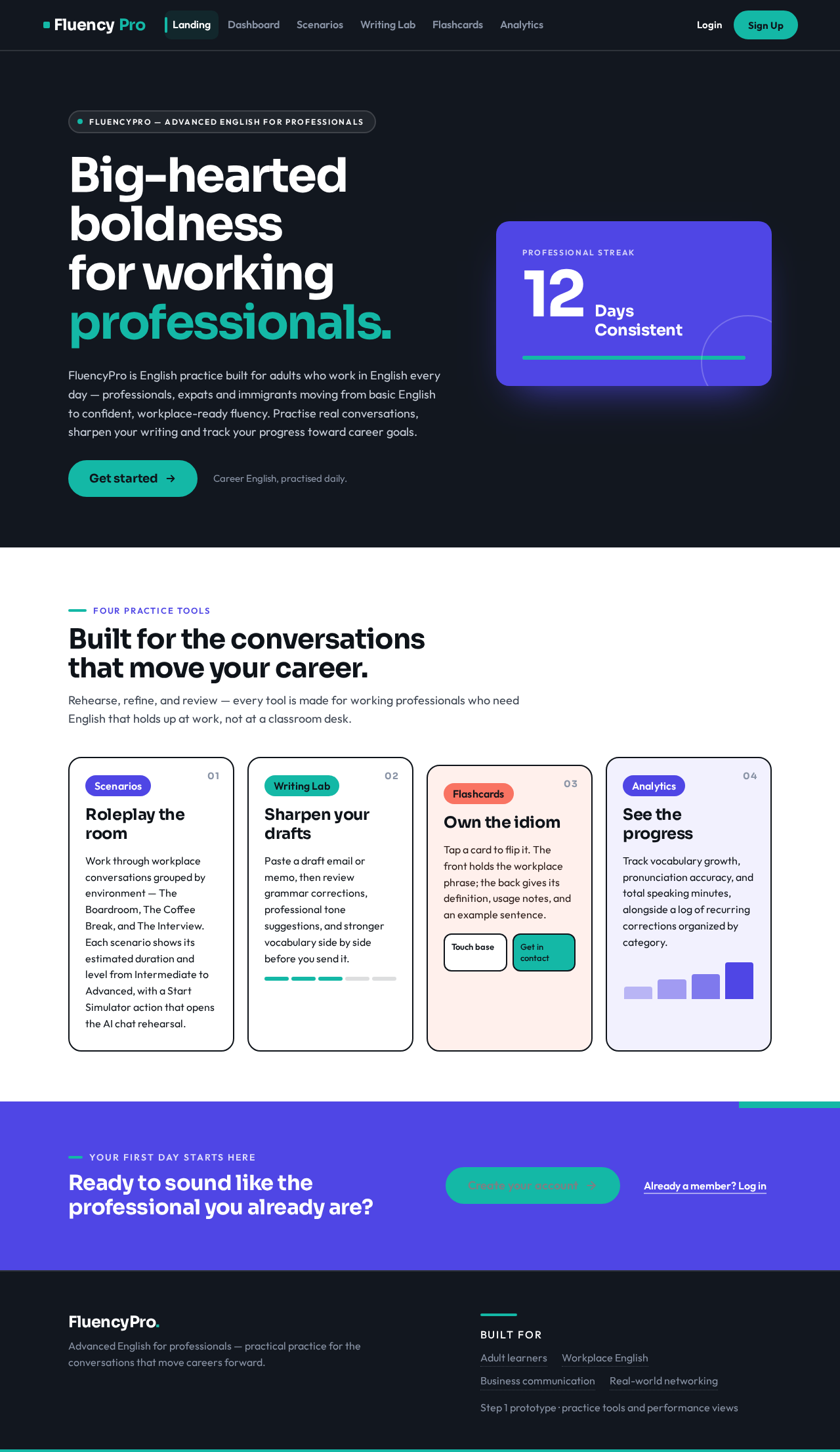
  • Information/state: Anonymous public entry. Explains FluencyPro, its adult professional audience, and its practice tools (scenarios, writing lab, flashcards, analytics). Deep slate band with a large Sora headline in white on the left; a large indigo colour block holding the streak number "12" at 96px; a teal pill CTA under the headline.
  • Primary actions: Navigate to Sign Up; navigate to Login.
  • Supporting actions: Read product explanation.
  • Domain entities: None persisted.
  • Component responsibilities: Hero band (headline, indigo streak block, teal CTA pill); supporting colour-blocked sections describing the practice tools; entry links to Sign Up and Login.
  • States: Loading (static content, no data fetch); empty (n/a); success (renders); error (n/a); recovery (n/a).
Page 5 of 25

Dashboard

  • Information/state: Professional streak tracker (e.g., "12 Days Consistent"); Daily Challenge card with an adult idiom or workplace phrase of the day and its contextual definition; up-next recommendation widget based on the learner's chosen career path.
  • Primary actions: View streak; read Daily Challenge; view up-next recommendation.
  • Supporting actions: Navigate to other views via bottom nav (mobile) or sidebar (tablet/desktop).
  • Domain entities: users (streak, professional goal), scenarios (for up-next recommendation).
  • Component responsibilities: Streak hero block (oversized "12" in solid indigo block, "Days Consistent" label in white Sora); Daily Challenge card; up-next recommendation widget.
  • States: Loading (skeleton for streak, challenge, recommendation); empty (no recommendation available — show encouraging placeholder); success (populated); error (retry affordance); recovery (reload).
Page 6 of 25

Scenarios

  • Information/state: Grid of interactive conversation scenarios categorized by environment (The Boardroom, The Coffee Break, The Interview). Each card shows estimated duration, level (Intermediate/Advanced), and a "Start Simulator" CTA. Colour-coded environment tags: indigo Boardroom, teal Coffee Break, coral Interview. Visual placeholder for the upcoming AI chat simulator view with chat bubbles (User vs. AI Coach) and an explicit "Tap to Speak" microphone UI anchor.
  • Primary actions: Browse scenarios by environment; select "Start Simulator" on a card.
  • Supporting actions: View the simulator placeholder with chat bubbles and microphone anchor.
  • Domain entities: scenarios (title, category, difficulty), user_progress (completeness, speaking score).
  • Component responsibilities: Environment-grouped grid; scenario card (title, duration, level, environment tag, "Start Simulator"); simulator placeholder panel (chat bubbles, "Tap to Speak" microphone anchor).
  • States: Loading (card skeletons); empty (no scenarios in a category — placeholder message); success (grid populated); error (retry); recovery (reload). Simulator placeholder is explicitly non-functional for live voice in this step.
Page 7 of 25

Writing Lab

  • Information/state: Split-screen interface. Left/top: large text area to paste a draft email or memo (e.g., "Draft an update to your boss"). Right/bottom: placeholder feedback section showing how grammar corrections, professional tone enhancements, and vocabulary suggestions will be highlighted in real-time. White textarea left, indigo-tinted feedback panel right.
  • Primary actions: Paste or type a draft into the text area.
  • Supporting actions: View placeholder feedback categories.
  • Domain entities: None persisted in this step (feedback is placeholder).
  • Component responsibilities: Draft textarea; feedback panel with grammar, tone, and vocabulary sections.
  • States: Loading (n/a); empty (textarea empty — prompt with example); success (draft entered, placeholder feedback shown); error (n/a); recovery (clear/re-enter).
Page 8 of 25

Flashcards

  • Information/state: Cards that visually flip on tap on a CSS 3D axis with a teal back face and white front face. Front: a high-level idiom, phrasal verb, or corporate jargon phrase (e.g., "Touch base", "Circle back"). Back: clear definition, literal translation placeholder, formal vs. informal usage notes, and an example sentence.
  • Primary actions: Tap a card to flip it.
  • Supporting actions: Read front and back content.
  • Domain entities: None persisted in this step (card content is placeholder).
  • Component responsibilities: Flip card component (front face, back face); card deck/list.
  • States: Loading (n/a); empty (no cards — placeholder); success (cards render and flip); error (n/a); recovery (n/a).
Page 9 of 25

Analytics

  • Information/state: User profile data editing form; performance visualization dashboard with charts for Vocabulary Growth, Pronunciation Accuracy %, and Total Speaking Minutes; dynamic "Common Mistakes Log" aggregating placeholder text corrections organized by category (e.g., Prepositions, Soft Skills Tone).
  • Primary actions: Edit profile data; view charts; review Common Mistakes Log.
  • Supporting actions: Filter mistakes by category.
  • Domain entities: users (name, professional goal, subscription tier), user_progress (top_mistakes_json, speaking_score).
  • Component responsibilities: Profile edit form; three chart components; Common Mistakes Log grouped by category.
  • States: Loading (chart skeletons); empty (no data — placeholder); success (populated); error (retry); recovery (reload).

Login

  • Information/state: Anonymous identity-access surface for returning learners to verify identity before reaching protected views.
  • Primary actions: Submit credentials to sign in.
  • Supporting actions: Navigate to Sign Up.
  • Domain entities: users.
  • Component responsibilities: Credential form; submit control; link to Sign Up.
  • States: Loading (submitting); empty (n/a); success (redirect to Dashboard); error (invalid credentials — message and retry); recovery (retry).
Page 10 of 25

Sign Up

  • Information/state: Anonymous self-service enrollment surface for new learners.
  • Primary actions: Submit enrollment details to create an account.
  • Supporting actions: Navigate to Login.
  • Domain entities: users.
  • Component responsibilities: Enrollment form; submit control; link to Login.
  • States: Loading (submitting); empty (n/a); success (account created, redirect to Dashboard); error (validation or duplicate — message and retry); recovery (retry).
Page 11 of 25

3. Functional Requirements

FR-1 — Project foundation and schema. As an Adult English Learner, I should have a working FluencyPro foundation with the users, scenarios, and user_progress tables initialized, so that the app has persistent structure for my practice data. Provenance: explicit. Lifecycle: builder initializes schema; tables exist with specified fields; failure surfaces as a setup error; continuation is normal use. Acceptance: all three tables exist with the specified columns.

FR-2 — Adult-learner focus. As an Adult English Learner, I should see content focused on career advancement, business communication, and real-world networking, so that practice is relevant to my professional life. Provenance: explicit. Acceptance: content and copy reflect adult professional contexts.

FR-3 — Professional tone. As an Adult English Learner, I should experience a professional, premium, encouraging, and practical tone without cartoon mascots or childish badges, so that the app feels appropriate for my career. Provenance: explicit. Acceptance: no gamified mascots or childish badges; milestones and analytics are professional.

FR-4 — Executive aesthetic. As an Adult English Learner, I should see a clean, modern, executive tech aesthetic with a deep slate/navy base, crisp white panels, and indigo/teal accents, so that the app feels premium. Provenance: explicit. Acceptance: palette and surfaces match the direction.

FR-5 — Responsive navigation. As an Adult English Learner, I should have a sticky bottom navigation bar on mobile that becomes a left-side persistent sidebar on tablet and desktop, so that navigation is comfortable on any device. Provenance: explicit. Acceptance: bottom bar at mobile widths; left sidebar at ≥1024px.

Page 12 of 25

FR-6 — Dashboard streak. As an Adult English Learner, I should see my professional streak tracker (e.g., "12 Days Consistent") on the Dashboard, so that I can track consistency. Provenance: explicit. Acceptance: streak value and label render.

FR-7 — Daily Challenge. As an Adult English Learner, I should see a Daily Challenge card with an adult idiom or workplace phrase of the day and its contextual definition, so that I learn something practical each day. Provenance: explicit. Acceptance: card shows phrase and contextual definition.

FR-8 — Up-next recommendation. As an Adult English Learner, I should see an up-next recommendation widget based on my chosen career path, so that I know what to practice next. Provenance: explicit. Acceptance: widget reflects the learner's professional goal.

FR-9 — Scenario grid. As an Adult English Learner, I should browse a grid of interactive conversation scenarios categorized by environment (The Boardroom, The Coffee Break, The Interview), so that I can choose practice that fits my situation. Provenance: explicit. Acceptance: grid grouped by environment.

FR-10 — Scenario card details. As an Adult English Learner, I should see estimated duration, level (Intermediate/Advanced), and a "Start Simulator" CTA on each scenario card, so that I can judge and start a scenario. Provenance: explicit. Acceptance: all three elements present per card.

FR-11 — Simulator placeholder. As an Adult English Learner, I should see a visual placeholder for the upcoming AI chat simulator with chat bubbles (User vs. AI Coach) and an explicit "Tap to Speak" microphone anchor, so that I understand the upcoming speaking experience. Provenance: explicit. Acceptance: chat bubbles and microphone anchor render; no live voice integration.

Page 13 of 25

FR-12 — Writing Lab draft input. As an Adult English Learner, I should have a large text area to paste a draft email or memo (e.g., "Draft an update to your boss"), so that I can work on real writing. Provenance: explicit. Acceptance: text area accepts input.

FR-13 — Writing Lab feedback placeholder. As an Adult English Learner, I should see a placeholder feedback section showing how grammar corrections, professional tone enhancements, and vocabulary suggestions will be highlighted in real-time, so that I understand the feedback I will receive. Provenance: explicit. Acceptance: three feedback categories shown as placeholders.

FR-14 — Flashcard flip. As an Adult English Learner, I should be able to tap a flashcard to flip it, so that I can reveal the detail. Provenance: explicit. Acceptance: card flips on tap.

FR-15 — Flashcard front. As an Adult English Learner, I should see a high-level idiom, phrasal verb, or corporate jargon phrase on the front (e.g., "Touch base", "Circle back"), so that I recognize the phrase. Provenance: explicit. Acceptance: front shows the phrase.

FR-16 — Flashcard back. As an Adult English Learner, I should see the definition, a literal translation placeholder, formal vs. informal usage notes, and an example sentence on the back, so that I understand usage. Provenance: explicit. Acceptance: all four elements present.

FR-17 — Profile editing. As an Adult English Learner, I should have a profile data editing form in Analytics, so that I can keep my details current. Provenance: explicit. Acceptance: form edits profile fields.

FR-18 — Performance charts. As an Adult English Learner, I should see charts for Vocabulary Growth, Pronunciation Accuracy %, and Total Speaking Minutes, so that I can track performance. Provenance: explicit. Acceptance: three charts render.

Page 14 of 25

FR-19 — Common Mistakes Log. As an Adult English Learner, I should see a dynamic Common Mistakes Log of placeholder text corrections organized by category (e.g., Prepositions, Soft Skills Tone), so that I can learn from recurring errors. Provenance: explicit. Acceptance: log grouped by category.

FR-20 — Self-service enrollment. As a new Adult English Learner, I should be able to create an account through Sign Up without an invitation, so that I can start using protected views. Provenance: required_inference. Lifecycle: anonymous entry on Sign Up; submit details; account created; redirect to Dashboard; failure shows validation message and retry.

FR-21 — Returning verification. As a returning Adult English Learner, I should verify identity through Login before reaching private progress and profile data, so that my data stays private. Provenance: required_inference. Lifecycle: anonymous entry on Login; submit credentials; success redirects to Dashboard; failure shows message and retry.

FR-22 — Anonymous landing. As a prospective Adult English Learner, I should be able to view the Landing page without an account, so that I can understand the product before enrolling. Provenance: required_inference. Acceptance: Landing renders without identity; links to Sign Up and Login.

4. User Personas

Page 15 of 25

Adult English Learner (Working Professional)

  • Product context: A working professional who wants to upgrade from basic English to confident, workplace-ready fluency for career advancement and business communication.
  • Primary goal: Practice realistic workplace English and track measurable progress.
  • Distinct responsibilities: Uses the Dashboard to maintain a streak and follow the Daily Challenge and up-next recommendation; browses Scenarios by environment and starts the simulator placeholder; drafts emails/memos in the Writing Lab; flips Flashcards to learn idioms and jargon; edits profile and reviews charts and the Common Mistakes Log in Analytics.
  • Inputs/decisions: Chooses a professional goal (e.g., tech, hospitality, finance) that drives the up-next recommendation; selects scenarios; writes drafts; decides when to review flashcards.
  • Interactions: Shares workflows with the Expat or Adult Immigrant Professional; interacts with the app's placeholder AI Coach in the simulator view.
  • Observable success: A visible streak, completed Daily Challenges, scenario progress, and improving charts.
Page 16 of 25

Expat or Adult Immigrant Professional

  • Product context: An expat or adult immigrant professional upgrading basic English to workplace-ready fluency for real-world networking and career growth.
  • Primary goal: Build confident workplace English for networking and professional integration.
  • Distinct responsibilities: Uses the same practice, writing, flashcard, and analytics workflows, with emphasis on real-world networking scenarios and professional tone in the Writing Lab.
  • Inputs/decisions: Selects networking-oriented scenarios; drafts professional communications; reviews tone and vocabulary feedback placeholders.
  • Interactions: Shares workflows with the Adult English Learner (Working Professional); interacts with the placeholder AI Coach.
  • Observable success: Reaches real-world milestones reflected in analytics and the Common Mistakes Log.

5. Core User Flows

Flow A — New learner enrolls and reaches the Dashboard

  1. Prospective learner opens the Landing page (anonymous) and reads the product explanation.
  2. Learner selects the teal pill CTA to Sign Up.
  3. On Sign Up, learner enters enrollment details and submits.
  4. System creates the account; on success the learner is redirected to the Dashboard.
  5. On validation failure, Sign Up shows a message and the learner retries.
  6. Dashboard loads the streak tracker, Daily Challenge card, and up-next recommendation.
Page 17 of 25

Flow B — Returning learner signs in

  1. Learner opens Login (anonymous).
  2. Learner enters credentials and submits.
  3. On success, learner is redirected to the Dashboard with private progress and profile data available.
  4. On invalid credentials, Login shows a message and the learner retries; the learner may navigate to Sign Up instead.

Flow C — Learner reviews the Dashboard

  1. Learner opens the Dashboard (protected).
  2. Learner sees the streak tracker (e.g., "12 Days Consistent").
  3. Learner reads the Daily Challenge card with the phrase of the day and its contextual definition.
  4. Learner views the up-next recommendation based on their chosen career path and proceeds to the relevant view.

Flow D — Learner browses and starts a scenario

  1. Learner opens Scenarios (protected).
  2. Learner browses the grid grouped by environment (The Boardroom, The Coffee Break, The Interview).
  3. Learner reviews a card's estimated duration, level, and environment tag.
  4. Learner selects "Start Simulator".
  5. The simulator placeholder appears with chat bubbles (User vs. AI Coach) and the "Tap to Speak" microphone anchor; no live voice is initiated in this step.
Page 18 of 25

Flow E — Learner drafts in the Writing Lab

  1. Learner opens Writing Lab (protected).
  2. Learner pastes or types a draft email or memo into the large text area (e.g., "Draft an update to your boss").
  3. The feedback panel shows placeholder sections for grammar corrections, professional tone enhancements, and vocabulary suggestions.
  4. Learner reviews the placeholder feedback and continues editing or clears the draft.

Flow F — Learner studies flashcards

  1. Learner opens Flashcards (protected).
  2. Learner reads the front phrase (e.g., "Touch base", "Circle back").
  3. Learner taps the card; it flips on a CSS 3D axis to the teal back face.
  4. Learner reads the definition, literal translation placeholder, formal vs. informal usage notes, and example sentence.
  5. Learner taps again to flip back and continues with other cards.

Flow G — Learner reviews analytics and edits profile

  1. Learner opens Analytics (protected).
  2. Learner edits profile data in the form and saves.
  3. Learner views the Vocabulary Growth, Pronunciation Accuracy %, and Total Speaking Minutes charts.
  4. Learner reviews the Common Mistakes Log grouped by category (e.g., Prepositions, Soft Skills Tone).
Page 19 of 25

6. Visuals Colors and Theme

Muse: Haraldur Thorleifsson — big-hearted boldness for working professionals. Large friendly type and strong colour blocking convey adult confidence and warmth without gamified mascots.

Headline: "Big-hearted boldness for working professionals."

Mode: Dark mode chrome with white content panels.

Colour tokens (exact hex by role):

  • Background: #12171F
  • Surface (panels): #FFFFFF
  • Text: #0E1319
  • Primary (indigo, primary actions): #4F46E5
  • Accent (teal, progress and speech): #14B8A6
  • Muted: #8A94A6
  • Environment tags: Boardroom indigo #4F46E5, Coffee Break teal #14B8A6, Interview coral (coral token, e.g., #F97362)

Typography:

  • Headings: Sora, Bold 700, tight tracking, large sizes, sentence case.
  • Body: Outfit.
  • Scale (1.333 modular): 56/42/32/24/18/16; display 40px mobile to 72px desktop via clamp().

Shape language: Chunky rounded cards at 20px radius; pill buttons; thick 2px borders; colour-blocked panels.

Spacing rhythm: Consistent modular spacing with generous padding inside white panels; colour-blocked sections separate views.

Page 20 of 25

Imagery style: Bold flat character spot art of adult professionals in office settings; no cartoon mascots; colour-blocked hero panels replace photography.

Accessibility: Readable text and controls stay whole at 375px, 768px, and 1280px, wrapping or scaling to fit; no element covers them.

7. Signature Design Concept

The public entry (Landing) is a full-width deep slate band (#12171F) with a 72px Sora headline in white on the left. A large indigo colour block (#4F46E5) holds the streak number "12" at 96px, with the label "Days Consistent" in white Sora. A teal pill CTA (#14B8A6) sits under the headline, leading to Sign Up. Supporting colour-blocked sections below describe the practice tools. The concept recomposes only accepted content and controls: the streak number, the headline, and the entry CTA.

Page 21 of 25

8. Interaction Model & Motion Direction

Interaction Model: Animated Motion Tempo: expressive Hero Dimensionality: layered_2d

Landing Hero Motion Brief

  • Focal subject: The oversized indigo streak block holding "12" and the white Sora headline, with the teal pill CTA.
  • Input→transformation→outcome thesis: On load, the indigo block and headline pop in with a lively entrance; on hover, the teal CTA lifts slightly; the outcome is a composed, confident first frame that invites Sign Up.
  • Motion vocabulary: Lively entrance pops and hover lifts; 180ms ease-out; no bounces above 4px.
  • Composed first frame: Deep slate band, white headline left, indigo streak block with "12", teal CTA pill beneath.
  • Reduced-motion state: Static arrangement with all elements fully visible and readable; no entrance animation.

Signature moves applied across views: Sidebar nav items use a 4px teal left bar on the active view; the mobile bar uses a teal top bar. Flashcards flip on a CSS 3D axis with a teal back face and white front face. Writing Lab is a true split: white textarea left, indigo-tinted feedback panel right. Scenario cards show colour-coded environment tags.

Page 22 of 25

9. Non-Functional Requirements

  • Adult-only audience: The app is tailored strictly for adult learners. Provenance: explicit.
  • No live voice in this step: Do not integrate active live voice WebRTC or third-party audio streaming APIs. Provenance: explicit.
  • No gamified elements: Avoid cartoon mascots and childish badges. Provenance: explicit.
  • No code authoring by requester: The requester has zero coding experience; do not ask them to write or edit code. Provenance: explicit.
  • Prototype scope: This step covers UI layouts, user flows, responsive navigation, reusable components, and placeholder data states. Provenance: explicit.
  • Responsive readability: Text and controls remain whole and readable at 375px, 768px, and 1280px. Provenance: required_inference (from creative direction).
  • Reduced motion: Provide a usable static arrangement under prefers-reduced-motion. Provenance: required_inference (from creative direction).

10. Tech Stack

  • Frontend: React application UI (mobile-first responsive).
  • Backend: Shared FastAPI process hosting application APIs and domain modules.
  • Database: MariaDB for application-owned persistent data (users, scenarios, user_progress).
  • Infrastructure: Docker/docker-compose for the backend, database, and frontend services.
Page 23 of 25

11. Assumptions and Constraints

  • The three tables (users, scenarios, user_progress) are initialized with the specified fields; additional columns are not required by this step.
  • Placeholder data states are acceptable for charts, feedback, flashcards, and the simulator in this step.
  • Application-owned identity is used with self-service Sign Up and Login; no invitation or provisioning flow is required.
  • The simulator is a visual placeholder only; no live voice or audio streaming is integrated.
  • The requester will not write or edit code; the builder makes all technical decisions.
Page 24 of 25

12. Glossary

  • FluencyPro: The product name for the advanced English learning web app.
  • Streak: The count of consecutive days a learner has practiced (e.g., "12 Days Consistent").
  • Daily Challenge: A card featuring an adult idiom or workplace phrase of the day with its contextual definition.
  • Up-next recommendation: A widget suggesting the next practice based on the learner's chosen career path.
  • Scenario: An interactive conversation practice context categorized by environment (The Boardroom, The Coffee Break, The Interview).
  • Simulator: The upcoming AI chat practice view, represented in this step by a visual placeholder with chat bubbles and a "Tap to Speak" microphone anchor.
  • Writing Lab: The split-screen view for drafting emails/memos with placeholder grammar, tone, and vocabulary feedback.
  • Flashcard: A card that flips on tap between a front phrase and a back detail (definition, literal translation placeholder, usage notes, example sentence).
  • Common Mistakes Log: A dynamic log of placeholder text corrections organized by category (e.g., Prepositions, Soft Skills Tone).
  • Professional goal: The learner's career field (e.g., tech, hospitality, finance) that drives recommendations.
  • Subscription tier: The learner's plan level stored in the users table.
Page 25 of 25
Live
Landing design preview
Landing: Read product explanation
Sign Up: Open enrollment form
Sign Up: 1. Submit enrollment details
Sign Up: 2. Fix validation error and retry
Login: Open sign-in form
Login: 1. Submit credentials
Login: 2. Retry after invalid credentials
Dashboard: View streak
Dashboard: Read Daily Challenge
Dashboard: View up-next recommendation
Scenarios: Browse scenarios by environment
Scenarios: Review card duration and level
Scenarios: Start Simulator
Scenarios: View simulator placeholder
Writing Lab: 1. Paste draft email
Writing Lab: 2. Review placeholder feedback
Writing Lab: 3. Clear and re-enter draft
Flashcards: Read front phrase
Flashcards: Tap card to flip
Flashcards: Read back detail
Flashcards: Flip back to next card
Analytics: Edit profile data
Analytics: View performance charts
Analytics: Review Common Mistakes Log
Analytics: Filter mistakes by category
Live
Landing design preview
Landing: Read product explanation
Sign Up: Open enrollment form
Sign Up: 1. Submit enrollment details
Sign Up: 2. Fix validation error and retry
Login: Open sign-in form
Login: 1. Submit credentials
Login: 2. Retry after invalid credentials
Dashboard: View streak
Dashboard: Read Daily Challenge
Dashboard: View up-next recommendation
Scenarios: Browse scenarios by environment
Scenarios: Review card duration and level
Scenarios: Start Simulator
Scenarios: View simulator placeholder
Writing Lab: 1. Paste draft email
Writing Lab: 2. Review placeholder feedback
Writing Lab: 3. Clear and re-enter draft
Flashcards: Read front phrase
Flashcards: Tap card to flip
Flashcards: Read back detail
Flashcards: Flip back to next card
Analytics: Edit profile data
Analytics: View performance charts
Analytics: Review Common Mistakes Log
Analytics: Filter mistakes by category