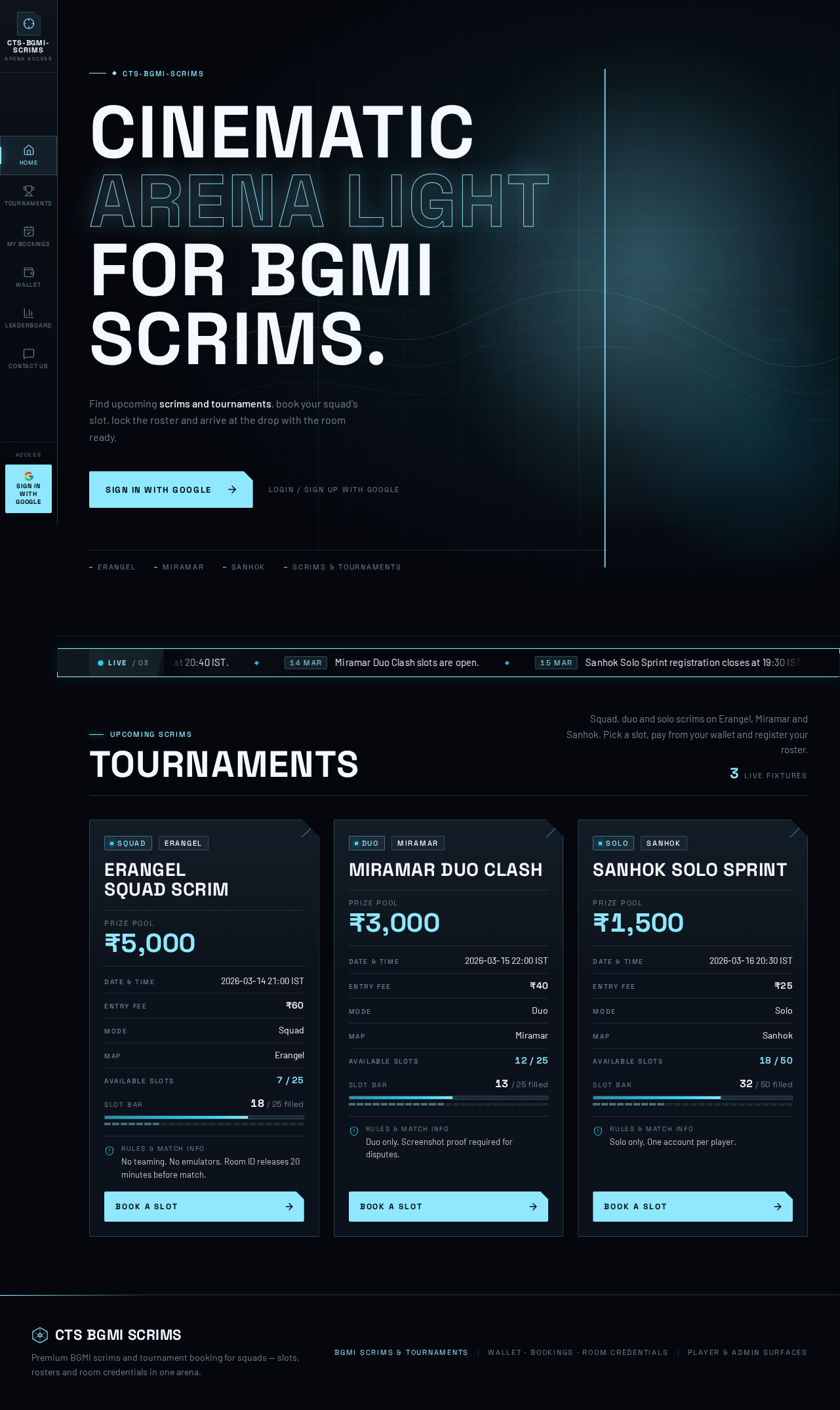
SquadErangel
Erangel Squad Scrim
Prize Pool₹0
- Date & Time
- 2026-03-14 21:00 IST
- Entry Fee
- ₹60
- Mode
- Squad
- Map
- Erangel
- Available Slots
- 7 / 25
Slot Bar18/ 25 filled
Rules & Match Info
No teaming. No emulators. Room ID releases 20 minutes before match.
 Yatendra Kagot
Create a professional, fully functional BGMI Esports Scrims and Tournament Booking Website. Website name: [YOUR ESPORTS NAME] Design theme: - Premium esports gaming look. - Black, White and Ice Blue color combination. - Modern BGMI-inspired gaming UI. - Professional and clean design. - Fully responsive for Android, iPhone, tablet and desktop. - Smooth animations and premium tournament cards. 1. Homepage - Professional esports logo and website name. - Home, Tournaments, My Bookings, Wallet, Leaderboard, Contact Us. - Login / Sign Up with Google. - Display upcoming BGMI scrims and tournaments. - Show prize pool, entry fee, match time, date and available slots. - Live tournament announcements. 2. User Account - Google Sign-in and registration. - Each user gets a personal dashboard. - Profile name, email and mobile number. - Wallet balance. - Booking history. - Transaction history. - Team registration history. 3. Add Money Wallet - Users can add money to their website wallet. - Integrate a secure Indian payment gateway such as Razorpay. - UPI, Google Pay, PhonePe, Paytm and cards. - Automatically update wallet balance only after verified successful payment. - Show payment receipts and transaction IDs. - Admin can manage refunds and wallet transactions. 4. Tournament / Scrims Booking Every tournament card must show: - Tournament name. - Solo / Duo / Squad mode. - Erangel / Miramar / Sanhok map. - Match date and time. - Entry fee. - Prize pool. - Available slots. - Rules and match information. Book Slot button: - User selects a tournament. - Selects available team slot. - Pays the entry fee using wallet balance. - Amount is deducted only after successful booking. - Generate a unique booking ID. - Show booking confirmation. 5. Team Details Form After successful booking, collect: - Team name. - Captain name. - Captain WhatsApp number. - BGMI Character ID. - In-game name (IGN). - Player 2 name and ID. - Player 3 name and ID. - Player 4 name and ID. - Substitute player details (optional). Save all team details in the database and allow users to edit them until the registration deadline. 6. WhatsApp Group After successful booking and team registration: - Show a Join WhatsApp Group button. - Open the official tournament WhatsApp group invitation link. - Display instructions to join the group. - Admin can change the WhatsApp group link for every tournament. 7. My Bookings Users can see: - Registered tournaments. - Booking ID. - Payment status. - Team details. - Match date and time. - Room ID and password when released by admin. - Booking status. 8. Admin Dashboard Create a separate secure admin panel. Admin can: - Create and manage tournaments. - Set entry fees and prize pools. - Set available slots. - View registered teams. - View player names and WhatsApp numbers. - Manage payments and refunds. - Update WhatsApp group links. - Upload tournament banners. - Publish room IDs and passwords. - Cancel tournaments. - Send announcements. - Manage users and wallet transactions. - Export team registration data to Excel. 9. Database and Security Use Supabase for: - Authentication. - User profiles. - Wallet transactions. - Tournament listings. - Team registrations. - Booking records. - Admin permissions. Important: - Never trust frontend wallet balances. - Verify every payment on the server. - Use secure Razorpay payment verification and webhooks. - Prevent duplicate bookings and double payments. - Use database transactions for wallet deductions and slot booking. - Protect user information and admin access. - Show clear payment success and failure messages. 10. Final Requirements Build a fully working website, not just a static design or demo. All buttons, login, registration, wallet, payments, bookings, team forms and admin dashboard must work. Create a premium professional esports platform that can handle real BGMI scrims and tournaments.


Sign in to leave a comment
cts-bgmi-scrims
Find upcoming scrims and tournaments, book your squad's slot, lock the roster and arrive at the drop with the room ready.
Upcoming Scrims
Squad, duo and solo scrims on Erangel, Miramar and Sanhok. Pick a slot, pay from your wallet and register your roster.
3 live fixtures
No teaming. No emulators. Room ID releases 20 minutes before match.
Duo only. Screenshot proof required for disputes.
Solo only. One account per player.
cts-bgmi-scrims
Find upcoming scrims and tournaments, book your squad's slot, lock the roster and arrive at the drop with the room ready.
Upcoming Scrims
Squad, duo and solo scrims on Erangel, Miramar and Sanhok. Pick a slot, pay from your wallet and register your roster.
3 live fixtures
No teaming. No emulators. Room ID releases 20 minutes before match.
Duo only. Screenshot proof required for disputes.
Solo only. One account per player.
No comments yet. Be the first!