cafedesk-payment
 Varsha Asawale
# CafeDesk – Dual Payment System (Online + Pay at Table) Update the existing CafeDesk QR Table Ordering System. Do not redesign the website or remove any existing features. ## 1. Customer Payment Options After a customer scans the table QR code, selects food items and clicks Place Order, show two clear payment options: **OPTION 1: Pay Online** Allow customers to pay online using supported payment gateway methods: * Google Pay (UPI) * PhonePe (UPI) * Paytm (UPI) * Other supported UPI apps * Debit/Credit Cards, if supported. After successful payment verification, automatically update the order payment status to Paid. **OPTION 2: Pay at Table (Cash)** Allow customers to select: * Pay Cash at Table. * Pay directly to the waiter. * Pay at Counter, if enabled by the restaurant. When the customer selects Pay at Table: 1. Place the order immediately. 2. Send the order to the restaurant owner's dashboard. 3. Display the table number clearly. 4. Set payment status to Pending – Cash Payment. 5. Show the customer a confirmation message: "Your order has been placed successfully! Please pay cash to the waiter at your table." 6. Do not mark the order as Paid automatically. 7. The restaurant owner or authorized staff must manually confirm cash received. 8. After confirmation, update payment status to Paid – Cash. ## 2. Restaurant Owner Payment Settings Add a Payment Settings section in every restaurant owner's dashboard. Allow owners to independently configure: * Enable Online Payment. * Enable Pay at Table (Cash). * Enable Pay at Counter. * Connect their own supported payment gateway. If online payment is disabled, hide online payment options from customers. If cash payment is disabled, hide Pay at Table from customers. The customer should only see payment methods enabled by that restaurant. ## 3. Owner Dashboard – Payment Management Display these details for every order: * Order ID. * Table number. * Customer details, if collected. * Ordered items. * Total amount. * Selected payment method. * Payment status. * Order status. Payment status options: * Pending Online Payment. * Paid Online. * Pending Cash Payment. * Paid – Cash. * Payment Failed. * Refunded. For cash orders, show a button: **Confirm Cash Received** Only authorized restaurant owners or staff can use this button. When clicked: * Verify the order belongs to their restaurant. * Record the received amount. * Update payment status to Paid – Cash. * Save confirmation time and confirming user. * Maintain a payment audit history. ## 4. Customer Order Confirmation After ordering, show: * Order number. * Restaurant name. * Table number. * Ordered food items. * Total bill. * Payment method. * Payment status. * Current order status. For cash orders, show: "Payment Pending – Please pay cash at your table." For successful online payments, show: "Payment Successful – Your order is confirmed." ## 5. Important Security Rules * Never mark online payments as successful without backend verification. * Never mark cash payments as received automatically. * Prevent duplicate payment confirmation. * Keep payment records separate for each restaurant. * Customers must never access restaurant dashboards or payment management. * One restaurant owner must never access another restaurant's payment records. ## 6. Testing Requirements Test both complete workflows: **Online Payment:** Scan QR → Select food → Place order → Choose UPI → Complete payment → Backend verifies → Owner receives Paid order. **Cash Payment:** Scan QR → Select food → Place order → Choose Pay at Table → Owner receives Pending Cash order → Customer pays waiter → Owner confirms cash → Payment becomes Paid – Cash. Keep the existing CafeDesk design, menu, QR codes, tables, dashboard and all working features unchanged. Analyze the website reference image I uploaded and create a highly detailed, copy-paste-ready prompt for Google AI Studio. My goal is to build a professional, fully responsive, client-ready website inspired by this reference design. Important instructions: Carefully analyze the complete visual style of the reference image. Understand the layout, spacing, typography, color palette, section structure, cards, buttons, backgrounds, shapes, image placement, alignment, and overall design language. Keep the same overall premium visual direction and design quality, but do NOT copy any brand name, logo, copyrighted text, or exact business identity from the reference. Turn the reference into an original website design. Create a detailed Google AI Studio prompt that includes: Overall website style and visual direction Exact layout direction for every section Hero section structure Navigation/header design Typography style and hierarchy Color palette based on the reference Buttons and CTA styles Card design and section styling Background effects, gradients, shadows, borders, and visual depth Image placement and image style Smooth animations, hover effects, scrolling effects, and micro-interactions where appropriate Fully responsive behavior for desktop, tablet, and mobile Clean professional footer Strong conversion-focused content and CTAs Generate all required high-quality images automatically if possible Do not use placeholder images or empty image boxes Make the final website look polished, premium, modern, and suitable to sell to a real client Website details: Business type: [WRITE BUSINESS TYPE] Business name: [WRITE BUSINESS NAME] Main goal: [GET LEADS / BOOKINGS / SALES / APPOINTMENTS] Target audience: [WRITE TARGET AUDIENCE] Required sections: [WRITE SECTIONS OR LET AI DECIDE] Now write ONLY one complete, detailed prompt that I can directly paste into Google AI Studio to generate the website. Do not explain the reference image separately. Do not give me suggestions or multiple options. Give me only the final Google AI Studio website-building prompt.


Comments (0)
Sign in to leave a comment
Project Tasks
38 planning tasksGenerate system requirement document
Generate personas & user flows
Architecture
Workspace task plan
Create flow for Customer
Create flow for Restaurant Owner
Create flow for Super Admin
landing page
Owner Sign Up
CUSTOMER WEBSITE
Login
RESTAURANT OWNER DASHBOARD
Super Admin Login
SUPER ADMIN PANEL
landing page / Hero
landing page / Landing Product Demonstration
landing page / Landing Benefits
landing page / Landing Entry Actions
landing page / Navigation
landing page / Footer
Navigation
Footer
Fix landing page: The hero’s focal visual is a synthetic QR-code pattern ( with generated ), not the…
Fix landing page review finding: frontend/src/components/Landing Page Hero.jsx: The hero’s…
Owner Sign Up / Header
Owner Sign Up / Form
Owner Sign Up / Footer
Fix Owner Sign Up: This source owns accepted backend behavior but does not await an injected component…
Fix Owner Sign Up review finding: frontend/src/components/Owner Sign Up Form.jsx: this source…
CUSTOMER WEBSITE / Header
CUSTOMER WEBSITE / Restaurant Identity
CUSTOMER WEBSITE / Menu
CUSTOMER WEBSITE / Checkout
CUSTOMER WEBSITE / Order Tracking
CUSTOMER WEBSITE / Footer
Login / Navigation
Login / Form
Login / Footer
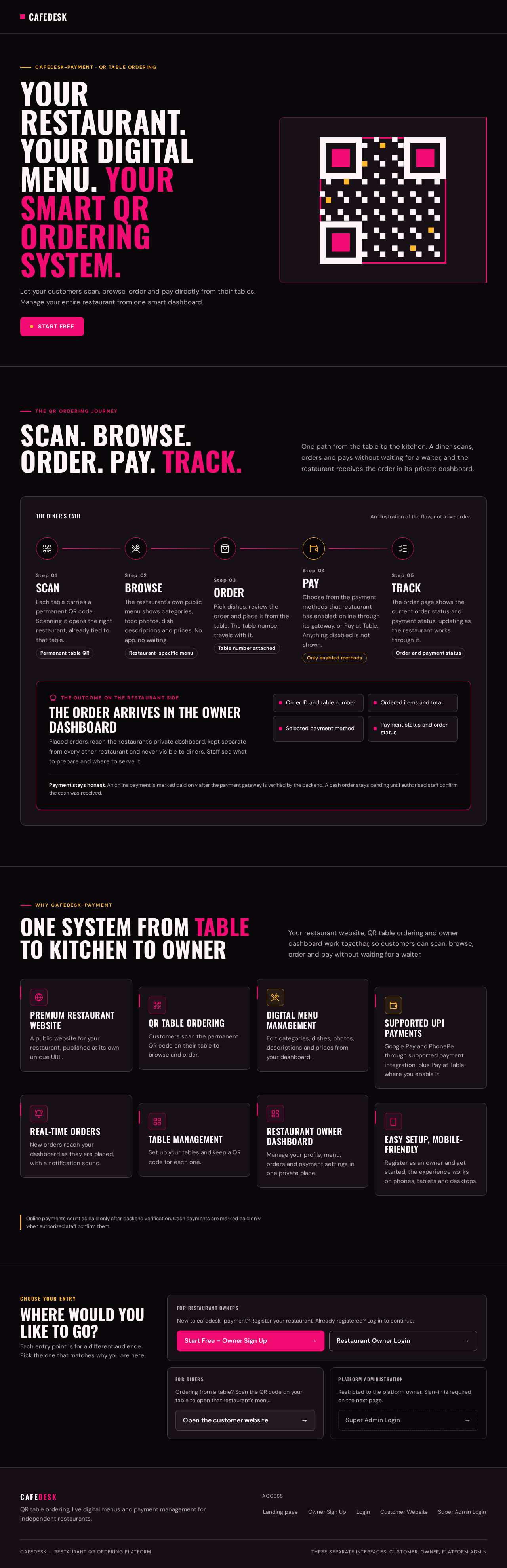
cafedesk-payment · QR table ordering
Your Restaurant. Your Digital Menu. Your Smart QR Ordering System.
Let your customers scan, browse, order and pay directly from their tables. Manage your entire restaurant from one smart dashboard.
The QR ordering journey
Scan.Browse.Order.Pay.Track.
One path from the table to the kitchen. A diner scans, orders and pays without waiting for a waiter, and the restaurant receives the order in its private dashboard.
- Step 01
Scan
Each table carries a permanent QR code. Scanning it opens the right restaurant, already tied to that table.
Permanent table QR - Step 02
Browse
The restaurant's own public menu shows categories, food photos, dish descriptions and prices. No app, no waiting.
Restaurant-specific menu - Step 03
Order
Pick dishes, review the order and place it from the table. The table number travels with it.
Table number attached - Step 04
Pay
Choose from the payment methods that restaurant has enabled: online through its gateway, or Pay at Table. Anything disabled is not shown.
Only enabled methods - Step 05
Track
The order page shows the current order status and payment status, updating as the restaurant works through it.
Order and payment status
The order arrives in the owner dashboard
Placed orders reach the restaurant's private dashboard, kept separate from every other restaurant and never visible to diners. Staff see what to prepare and where to serve it.
- Order ID and table number
- Ordered items and total
- Selected payment method
- Payment status and order status
Payment stays honest. An online payment is marked paid only after the payment gateway is verified by the backend. A cash order stays pending until authorised staff confirm the cash was received.
One system from table to kitchen to owner
Your restaurant website, QR table ordering and owner dashboard work together, so customers can scan, browse, order and pay without waiting for a waiter.
Premium restaurant website
A public website for your restaurant, published at its own unique URL.
QR table ordering
Customers scan the permanent QR code on their table to browse and order.
Digital menu management
Edit categories, dishes, photos, descriptions and prices from your dashboard.
Supported UPI payments
Google Pay and PhonePe through supported payment integration, plus Pay at Table where you enable it.
Real-time orders
New orders reach your dashboard as they are placed, with a notification sound.
Table management
Set up your tables and keep a QR code for each one.
Restaurant owner dashboard
Manage your profile, menu, orders and payment settings in one private place.
Easy setup, mobile-friendly
Register as an owner and get started; the experience works on phones, tablets and desktops.
Online payments count as paid only after backend verification. Cash payments are marked paid only when authorized staff confirm them.
Where would you like to go?
Each entry point is for a different audience. Pick the one that matches why you are here.
For restaurant owners
New to cafedesk-payment? Register your restaurant. Already registered? Log in to continue.
For diners
Ordering from a table? Scan the QR code on your table to open that restaurant’s menu.
Platform administration
Restricted to the platform owner. Sign-in is required on the next page.
cafedesk-payment · QR table ordering
Your Restaurant. Your Digital Menu. Your Smart QR Ordering System.
Let your customers scan, browse, order and pay directly from their tables. Manage your entire restaurant from one smart dashboard.
The QR ordering journey
Scan.Browse.Order.Pay.Track.
One path from the table to the kitchen. A diner scans, orders and pays without waiting for a waiter, and the restaurant receives the order in its private dashboard.
- Step 01
Scan
Each table carries a permanent QR code. Scanning it opens the right restaurant, already tied to that table.
Permanent table QR - Step 02
Browse
The restaurant's own public menu shows categories, food photos, dish descriptions and prices. No app, no waiting.
Restaurant-specific menu - Step 03
Order
Pick dishes, review the order and place it from the table. The table number travels with it.
Table number attached - Step 04
Pay
Choose from the payment methods that restaurant has enabled: online through its gateway, or Pay at Table. Anything disabled is not shown.
Only enabled methods - Step 05
Track
The order page shows the current order status and payment status, updating as the restaurant works through it.
Order and payment status
The order arrives in the owner dashboard
Placed orders reach the restaurant's private dashboard, kept separate from every other restaurant and never visible to diners. Staff see what to prepare and where to serve it.
- Order ID and table number
- Ordered items and total
- Selected payment method
- Payment status and order status
Payment stays honest. An online payment is marked paid only after the payment gateway is verified by the backend. A cash order stays pending until authorised staff confirm the cash was received.
One system from table to kitchen to owner
Your restaurant website, QR table ordering and owner dashboard work together, so customers can scan, browse, order and pay without waiting for a waiter.
Premium restaurant website
A public website for your restaurant, published at its own unique URL.
QR table ordering
Customers scan the permanent QR code on their table to browse and order.
Digital menu management
Edit categories, dishes, photos, descriptions and prices from your dashboard.
Supported UPI payments
Google Pay and PhonePe through supported payment integration, plus Pay at Table where you enable it.
Real-time orders
New orders reach your dashboard as they are placed, with a notification sound.
Table management
Set up your tables and keep a QR code for each one.
Restaurant owner dashboard
Manage your profile, menu, orders and payment settings in one private place.
Easy setup, mobile-friendly
Register as an owner and get started; the experience works on phones, tablets and desktops.
Online payments count as paid only after backend verification. Cash payments are marked paid only when authorized staff confirm them.
Where would you like to go?
Each entry point is for a different audience. Pick the one that matches why you are here.
For restaurant owners
New to cafedesk-payment? Register your restaurant. Already registered? Log in to continue.
For diners
Ordering from a table? Scan the QR code on your table to open that restaurant’s menu.
Platform administration
Restricted to the platform owner. Sign-in is required on the next page.
No comments yet. Be the first!