cafedesk-payment
 Varsha Asawale
# CafeDesk – Dual Payment System (Online + Pay at Table) Update the existing CafeDesk QR Table Ordering System. Do not redesign the website or remove any existing features. ## 1. Customer Payment Options After a customer scans the table QR code, selects food items and clicks Place Order, show two clear payment options: **OPTION 1: Pay Online** Allow customers to pay online using supported payment gateway methods: * Google Pay (UPI) * PhonePe (UPI) * Paytm (UPI) * Other supported UPI apps * Debit/Credit Cards, if supported. After successful payment verification, automatically update the order payment status to Paid. **OPTION 2: Pay at Table (Cash)** Allow customers to select: * Pay Cash at Table. * Pay directly to the waiter. * Pay at Counter, if enabled by the restaurant. When the customer selects Pay at Table: 1. Place the order immediately. 2. Send the order to the restaurant owner's dashboard. 3. Display the table number clearly. 4. Set payment status to Pending – Cash Payment. 5. Show the customer a confirmation message: "Your order has been placed successfully! Please pay cash to the waiter at your table." 6. Do not mark the order as Paid automatically. 7. The restaurant owner or authorized staff must manually confirm cash received. 8. After confirmation, update payment status to Paid – Cash. ## 2. Restaurant Owner Payment Settings Add a Payment Settings section in every restaurant owner's dashboard. Allow owners to independently configure: * Enable Online Payment. * Enable Pay at Table (Cash). * Enable Pay at Counter. * Connect their own supported payment gateway. If online payment is disabled, hide online payment options from customers. If cash payment is disabled, hide Pay at Table from customers. The customer should only see payment methods enabled by that restaurant. ## 3. Owner Dashboard – Payment Management Display these details for every order: * Order ID. * Table number. * Customer details, if collected. * Ordered items. * Total amount. * Selected payment method. * Payment status. * Order status. Payment status options: * Pending Online Payment. * Paid Online. * Pending Cash Payment. * Paid – Cash. * Payment Failed. * Refunded. For cash orders, show a button: **Confirm Cash Received** Only authorized restaurant owners or staff can use this button. When clicked: * Verify the order belongs to their restaurant. * Record the received amount. * Update payment status to Paid – Cash. * Save confirmation time and confirming user. * Maintain a payment audit history. ## 4. Customer Order Confirmation After ordering, show: * Order number. * Restaurant name. * Table number. * Ordered food items. * Total bill. * Payment method. * Payment status. * Current order status. For cash orders, show: "Payment Pending – Please pay cash at your table." For successful online payments, show: "Payment Successful – Your order is confirmed." ## 5. Important Security Rules * Never mark online payments as successful without backend verification. * Never mark cash payments as received automatically. * Prevent duplicate payment confirmation. * Keep payment records separate for each restaurant. * Customers must never access restaurant dashboards or payment management. * One restaurant owner must never access another restaurant's payment records. ## 6. Testing Requirements Test both complete workflows: **Online Payment:** Scan QR → Select food → Place order → Choose UPI → Complete payment → Backend verifies → Owner receives Paid order. **Cash Payment:** Scan QR → Select food → Place order → Choose Pay at Table → Owner receives Pending Cash order → Customer pays waiter → Owner confirms cash → Payment becomes Paid – Cash. Keep the existing CafeDesk design, menu, QR codes, tables, dashboard and all working features unchanged. Analyze the website reference image I uploaded and create a highly detailed, copy-paste-ready prompt for Google AI Studio. My goal is to build a professional, fully responsive, client-ready website inspired by this reference design. Important instructions: Carefully analyze the complete visual style of the reference image. Understand the layout, spacing, typography, color palette, section structure, cards, buttons, backgrounds, shapes, image placement, alignment, and overall design language. Keep the same overall premium visual direction and design quality, but do NOT copy any brand name, logo, copyrighted text, or exact business identity from the reference. Turn the reference into an original website design. Create a detailed Google AI Studio prompt that includes: Overall website style and visual direction Exact layout direction for every section Hero section structure Navigation/header design Typography style and hierarchy Color palette based on the reference Buttons and CTA styles Card design and section styling Background effects, gradients, shadows, borders, and visual depth Image placement and image style Smooth animations, hover effects, scrolling effects, and micro-interactions where appropriate Fully responsive behavior for desktop, tablet, and mobile Clean professional footer Strong conversion-focused content and CTAs Generate all required high-quality images automatically if possible Do not use placeholder images or empty image boxes Make the final website look polished, premium, modern, and suitable to sell to a real client Website details: Business type: [WRITE BUSINESS TYPE] Business name: [WRITE BUSINESS NAME] Main goal: [GET LEADS / BOOKINGS / SALES / APPOINTMENTS] Target audience: [WRITE TARGET AUDIENCE] Required sections: [WRITE SECTIONS OR LET AI DECIDE] Now write ONLY one complete, detailed prompt that I can directly paste into Google AI Studio to generate the website. Do not explain the reference image separately. Do not give me suggestions or multiple options. Give me only the final Google AI Studio website-building prompt.


Comments (0)
Sign in to leave a comment
System Requirements
System Requirements Document for cafedesk-payment
1. Introduction
1.1 PROJECT: CafeDesk – Premium Multi-Restaurant QR Ordering SaaS Platform
Build a complete, premium, production-ready, multi-tenant restaurant website and QR-based table ordering SaaS platform named CafeDesk.
The platform owner must be able to provide this software to ANY cafe, restaurant, hotel, food court, bakery, or food business.
The platform must support unlimited independent restaurant accounts, subject to hosting and database capacity.
Build real working functionality, not just UI designs or demo buttons.
2. System Overview
2.1 PROJECT: CafeDesk – Premium Multi-Restaurant QR Ordering SaaS Platform
The goal is to allow customers to scan a QR code placed on their restaurant table, view the live menu, order food, and pay using UPI payment options such as Google Pay, PhonePe, and other supported payment methods without waiting for a waiter.
2.2 THREE COMPLETELY SEPARATE INTERFACES
Create three independent interfaces:
A. CUSTOMER WEBSITE
B. RESTAURANT OWNER DASHBOARD
C. SUPER ADMIN PANEL
Never mix their permissions or interfaces.
2.3 FINAL REQUIREMENT
Build CafeDesk as a real premium multi-tenant SaaS product, not a static demo website.
Preserve existing working functionality.
Do not remove existing features unnecessarily.
Do not create fake integrations or simulated payment success.
Build the frontend, backend, database, authentication, authorization, QR system, ordering system, payment integration, and all dashboards as one connected product.
The platform must be ready to onboard multiple independent cafe and restaurant owners.
3. Functional Requirements
3.1 PROJECT: CafeDesk – Premium Multi-Restaurant QR Ordering SaaS Platform
The restaurant owner must receive orders instantly in their private dashboard.
3.2 CUSTOMER QR TABLE ORDERING WEBSITE
Create a beautiful, premium, mobile-first customer website.
Customer workflow:
-
Customer visits a restaurant and sits at a table.
-
Customer scans the QR code placed on that table.
-
The QR automatically opens that restaurant's public menu.
-
The system identifies the correct restaurant and table number.
-
Customer sees restaurant logo, name, cover image, food categories, food photos, dish descriptions and prices.
-
Customer selects food items.
-
Customer adds items to cart.
-
Customer changes item quantities and reviews the total.
-
Customer enters their name and mobile number if required.
-
Customer clicks Place Order.
-
Customer gets payment options.
CUSTOMER PAYMENT OPTIONS:
Integrate a supported payment gateway that supports Indian UPI payments.
Show available payment methods such as:
-
Google Pay
-
PhonePe
-
After successful payment verification, the order is sent to the correct restaurant owner's dashboard.
-
Customer receives order confirmation and order number.
-
Customer can view their order status.
-
Paytm
-
Other UPI apps
-
UPI QR payment, if supported by the payment provider
-
Debit/Credit Cards, if enabled
-
Pay at Counter
-
Cash, if enabled by the restaurant
-
Use a legitimate payment gateway such as Razorpay or another supported provider.
-
Enable UPI and supported payment methods through the gateway.
-
Google Pay and PhonePe should appear only when supported by the selected gateway and device.
-
Do not create fake payment success screens.
-
Verify all online payments through secure server-side payment verification and webhooks.
-
Do not mark an order as paid based only on frontend confirmation.
-
Allow Pay at Counter only when the restaurant owner enables it.
IMPORTANT PAYMENT RULES:
-
Use a legitimate payment gateway such as Razorpay or another supported provider.
-
Enable UPI and supported payment methods through the gateway.
-
Google Pay and PhonePe should appear only when supported by the selected gateway and device.
-
Do not create fake payment success screens.
-
Verify all online payments through secure server-side payment verification and webhooks.
-
Do not mark an order as paid based only on frontend confirmation.
-
Allow Pay at Counter only when the restaurant owner enables it.
CUSTOMER PRIVACY:
Customers must see ONLY:
-
Public restaurant menu.
-
Food items and prices.
-
Shopping cart.
-
Customer details required for ordering.
-
Payment options.
-
Order confirmation.
-
Their own order status.
Customers must NEVER see:
- Restaurant owner dashboard.
-
Super Admin panel.
-
Other customers' orders.
-
Restaurant private settings.
-
Other restaurants' private information.
-
Admin login or management options.
No customer login should be required to browse the menu or place a basic order.
3.3 RESTAURANT OWNER REGISTRATION
Allow any restaurant or cafe owner to register independently.
Registration fields:
-
Owner full name.
-
Email.
-
Mobile number.
-
Password.
-
Restaurant name.
-
Restaurant category.
-
Restaurant address.
After successful registration:
-
Automatically create and activate the restaurant owner account.
-
Redirect the owner to their private dashboard.
-
No mandatory Super Admin approval.
-
No manual OTP approval.
-
Secure email verification and password reset may be supported.
-
Each owner must only access their own restaurant workspace.
3.4 COMPLETE RESTAURANT OWNER DASHBOARD
Create a professional premium dashboard where the owner can edit and manage their entire restaurant website.
A. RESTAURANT PROFILE
-
Restaurant name.
-
Logo upload.
-
Cover image upload.
-
Restaurant description.
-
Address.
-
Phone number.
-
WhatsApp number.
-
Opening hours.
-
Restaurant location.
-
Social media links.
B. FOOD MENU MANAGEMENT
Allow owners to:
-
Add unlimited menu items.
-
Edit menu items.
-
Delete menu items.
-
Upload food photos.
-
Add dish names and descriptions.
-
Set individual prices.
-
Create and edit categories.
-
Set vegetarian/non-vegetarian labels.
-
Set food availability.
-
Mark dishes as sold out.
-
Add special offers and discounts.
-
Set recommended or popular dishes.
-
Manage item variants and add-ons.
C. TABLE MANAGEMENT
Allow owners to:
-
Add new tables.
-
Edit table names and numbers.
-
Delete tables.
-
Generate a unique QR code for every table.
-
Download QR codes in PNG format.
-
Download printable PDF table QR cards.
-
Print QR codes.
-
Activate or deactivate individual table QR codes.
-
See table-wise orders.
D. ORDER MANAGEMENT
Show real-time incoming orders.
Every order must display:
-
Order ID.
-
Restaurant name.
-
Table number.
-
Customer name.
-
Customer mobile number, if collected.
-
Food items.
-
Quantity.
-
Item prices.
-
Total bill.
-
Payment method.
-
Payment status.
-
Order time.
Order status controls:
-
New Order.
-
Accepted.
-
Preparing.
-
Ready.
-
Served.
-
Completed.
-
Cancelled.
Provide notification sound and real-time dashboard updates for new orders.
E. PAYMENT MANAGEMENT
-
Connect restaurant's own payment gateway.
-
Configure supported UPI payments.
-
Enable or disable online payments.
-
Enable or disable Pay at Counter.
-
View payment transactions.
-
View payment status.
-
View daily sales and payment reports.
F. COMPLETE DASHBOARD CUSTOMIZATION
The restaurant owner must be able to edit everything related to their own restaurant:
-
Logo.
-
Images.
-
Menu.
-
Prices.
-
Categories.
-
Tables.
-
QR codes.
-
Restaurant information.
-
Website theme.
-
Website template.
-
Colors.
-
Offers.
-
Payment settings.
-
Opening hours.
-
Order settings.
Include Save Changes, Preview Website, Publish Changes and Edit Live Menu controls.
3.5 LIVE RESTAURANT WEBSITE BUILDER
Automatically create a separate public restaurant website for every registered owner.
Example:
CafeDesk Platform
Restaurant A → its own public website.
Restaurant B → its own public website.
Restaurant C → its own public website.
Each restaurant must have its own unique public URL.
Example URL structure:
cafedesk.com/menu/restaurant-name
Each public website should show only that restaurant's published information.
Create multiple premium templates:
-
Luxury Fine Dining.
-
Modern Cafe.
-
Premium Restaurant.
-
Fast Food.
-
Coffee and Bakery.
-
Family Restaurant.
- Street Food.
Allow owners to preview and publish their chosen design.
3.6 PERMANENT QR CODE SYSTEM
Every restaurant table must have a separate permanent QR URL.
Example:
Restaurant A – Table 01 → QR 01
Restaurant A – Table 02 → QR 02
Restaurant B – Table 01 → QR 03
QR scanning must automatically identify:
-
Correct restaurant.
-
Correct table.
-
Correct public menu.
If the owner changes menu items or prices, the existing printed QR code must display the latest published menu.
Never encode a private dashboard URL or temporary QR image URL.
The public QR destination must work without customer login.
Test QR scanning on Android Chrome, iPhone Safari, and desktop browsers.
3.7 REAL-TIME ORDER NOTIFICATIONS
When a customer places an order:
-
Send the order to the correct restaurant.
-
Update the owner's dashboard in real time.
-
Show an incoming order alert.
-
Play an optional notification sound.
-
Display the correct table number.
-
Update the customer order status when the owner changes it.
Use actual backend events or reliable real-time subscriptions.
3.8 EXCLUSIVE SUPER ADMIN PANEL
Create a separate, private Super Admin Panel.
Super Admin features:
-
Total registered restaurants.
-
Active restaurants.
-
Suspended restaurants.
-
View and manage all restaurant accounts.
Super Admin features:
-
Manage restaurant subscriptions.
-
Manage pricing plans.
Super Admin features:
-
Platform-wide analytics.
-
Total orders.
-
Total QR scans.
Super Admin features:
- Platform settings.
Super Admin features:
-
Manage website templates.
-
Restaurant owner management.
-
Manage restaurant accounts.
-
View platform audit logs.
3.9 PREMIUM LANDING PAGE
Create a professional SaaS landing page for CafeDesk.
"Your Restaurant. Your Digital Menu. Your Smart QR Ordering System."
Subheadline:
"Let your customers scan, browse, order and pay directly from their tables. Manage your entire restaurant from one smart dashboard."
Main benefits:
-
Premium restaurant website.
-
QR table ordering.
-
Digital menu management.
-
Google Pay and PhonePe through supported payment integration.
-
Real-time orders.
-
Table management.
-
Restaurant owner dashboard.
-
Easy setup.
-
Mobile-friendly experience.
Include:
-
Hero section.
-
Product demonstration section.
-
Features section.
-
How It Works section.
-
Restaurant benefits.
-
Pricing section.
-
FAQ section.
-
Contact section.
-
Start Free button.
-
Restaurant Owner Login.
3.10 FINAL END-TO-END TESTING
-
A new restaurant owner registers.
-
The owner uploads a logo.
-
The owner adds food items and prices.
-
The owner creates tables.
-
The system generates unique QR codes.
-
The existing QR code continues to work after menu updates.
- Preserve the existing CafeDesk QR table-ordering system, website design, menu, QR codes, tables, dashboard, and all working features.
- After a customer scans a table QR code, selects food items, and clicks Place Order, present only the payment methods enabled by that restaurant.
- Online payment: support Google Pay (UPI), PhonePe (UPI), Paytm (UPI), other supported UPI apps, and debit/credit cards when supported by the connected gateway. Do not mark an online payment successful without backend verification; after successful verification, set the payment status to Paid Online.
- Cash payment: support Pay Cash at Table and payment directly to the waiter; support Pay at Counter only when enabled by the restaurant. For Pay at Table, place the order immediately, send it to the restaurant owner's dashboard, display the table number clearly, set status to Pending Cash Payment, and show: "Your order has been placed successfully! Please pay cash to the waiter at your table." Never mark cash as paid automatically. An authorized restaurant owner or staff member must manually confirm receipt, after which the status becomes Paid – Cash.
- Owner Payment Settings must independently configure Enable Online Payment, Enable Pay at Table (Cash), Enable Pay at Counter, and connection of the owner's supported payment gateway. Hide online options when online payment is disabled, hide Pay at Table when cash payment is disabled, and expose only enabled methods to customers.
- For every order, the owner dashboard must display Order ID, table number, customer details if collected, ordered items, total amount, selected payment method, payment status, and order status.
- Supported payment statuses are Pending Online Payment, Paid Online, Pending Cash Payment, Paid – Cash, Payment Failed, and Refunded.
- For cash orders, provide Confirm Cash Received only to authorized restaurant owners or staff. On use, verify that the order belongs to the user's restaurant, record the received amount, set status to Paid – Cash, save confirmation time and confirming user, prevent duplicate confirmation, and maintain payment audit history.
- After ordering, show the customer order number, restaurant name, table number, ordered food items, total bill, payment method, payment status, and current order status. For cash orders show: "Payment Pending – Please pay cash at your table." For successful online payments show: "Payment Successful – Your order is confirmed."
- Keep payment records separate for each restaurant. Customers must never access restaurant dashboards or payment management, and one restaurant owner must never access another restaurant's payment records.
4. User Personas
CafeDesk is a multi-restaurant QR ordering SaaS with three separate interfaces: the customer website, the restaurant owner dashboard, and the Super Admin panel. Permissions and interfaces are never mixed.
| Role | Responsibilities and goals | Inputs and decisions | Access and observable success |
|---|---|---|---|
| Customer (diner) | Scan the table QR to open that restaurant's public menu, select food, place the order, and pay. | Chooses items and a payment method from those the restaurant enables: online (Google Pay, PhonePe, Paytm, other supported UPI apps, debit/credit cards when the gateway supports them) or Pay at Table (cash to waiter; Pay at Counter only if enabled). | Sees order number, restaurant name, table number, items, total bill, payment method, payment status, and order status. Cash orders show "Payment Pending – Please pay cash at your table."; verified online payments show "Payment Successful – Your order is confirmed." Cannot reach any dashboard or payment management. |
| Restaurant owner | Register independently, build and publish the restaurant's public site, manage profile, menu, tables and QR codes, theme, offers, opening hours and order settings, and receive orders instantly. | Configures Payment Settings independently: Enable Online Payment, Enable Pay at Table (Cash), Enable Pay at Counter, and connection of their own supported gateway. Disabled methods are hidden from customers. Confirms cash receipt for their own orders. | Dashboard shows Order ID, table number, customer details if collected, items, total amount, selected payment method, payment status and order status, plus transactions, payment status, and daily sales/payment reports. Confirm Cash Received verifies the order belongs to their restaurant, records the amount, sets Paid – Cash, saves confirmation time and confirming user, blocks duplicates, and keeps payment audit history. Never sees another restaurant's records. |
| Authorized restaurant staff | Support the owner in order and cash handling. | Uses Confirm Cash Received only for their own restaurant's cash orders. | Same confirmation outcome and audit trail as the owner; no cross-restaurant access. |
| Super Admin (platform owner Mayur Gorule, mayurgorulemg@gmail.com) | Operate the platform across tenants. | Manages restaurant accounts and restaurant owners; reviews totals for registered, active and suspended restaurants. | Exclusive platform-wide access; only this authorized account reaches Super Admin controls. |
Supporting actors, not personas: the payment gateway (backend verification of online payments) and the QR code system (identifies the restaurant and table). Cash is never auto-marked paid; online payments are never marked successful without backend verification. The platform is built to onboard multiple independent cafe and restaurant owners; this chapter does not fix a final persona count.
5. Core User Flows
5.1 Customer places an order and pays online
Trigger: Customer sits at a table and scans the table QR code.
- The QR opens the correct restaurant's public menu; the system resolves the restaurant and table number from the QR URL. No customer login is required.
- Customer browses logo, name, cover image, categories, food photos, descriptions and prices, adds items to the cart, adjusts quantities and reviews the total.
- Customer enters name and mobile number if required, then clicks Place Order.
- The system shows only the payment methods the restaurant has enabled. Customer selects an online method (Google Pay, PhonePe, Paytm, other supported UPI apps, or debit/credit card when supported by the connected gateway).
- The gateway processes payment; the backend verifies it via secure server-side verification and webhooks. Only after verification is the payment status set to Paid Online and the order sent to the correct restaurant owner's dashboard.
- Customer receives the order confirmation screen: order number, restaurant name, table number, items, total bill, payment method, payment status and current order status, with the message "Payment Successful – Your order is confirmed."
- Owner receives the order in real time (incoming alert, optional sound, table number displayed), moves it through New Order → Accepted → Preparing → Ready → Served → Completed; the customer's order status view updates accordingly.
Failure and recovery: If verification fails, the payment status becomes Payment Failed and the order is not treated as paid; the customer may retry payment. Frontend confirmation alone never marks an order paid. Duplicate payment confirmation is prevented.
5.2 Customer places an order and pays cash at the table
Trigger: Customer scans the table QR code and completes item selection.
- Steps 1–3 as in Journey 1 (menu, cart, customer details, Place Order).
- Customer selects Pay at Table (Cash) — paying cash to the waiter, or at the counter if the restaurant has enabled Pay at Counter.
- The order is placed immediately and sent to the restaurant owner's dashboard with the table number clearly displayed; payment status is set to Pending Cash Payment. The order is never marked paid automatically.
- Customer sees: "Your order has been placed successfully! Please pay cash to the waiter at your table." and the confirmation screen shows "Payment Pending – Please pay cash at your table."
- Customer pays the waiter in cash.
- An authorized owner or staff member opens the order and clicks Confirm Cash Received. The system verifies the order belongs to their restaurant, records the received amount, sets payment status to Paid – Cash, and saves the confirmation time and confirming user in the payment audit history.
- Order status continues through the normal lifecycle; the customer sees the updated status.
Failure and recovery: If cash is not received, the order remains Pending Cash Payment; confirmation cannot be triggered automatically or by the customer. Repeat confirmation attempts are blocked to prevent duplicates.
5.3 Restaurant owner registers and opens a dashboard
Trigger: A restaurant or cafe owner decides to join CafeDesk.
- Owner submits registration: full name, email, mobile number, password, restaurant name, category and address.
- The account is created and activated automatically — no Super Admin approval or manual OTP — and the owner is redirected to their private dashboard.
- Owner configures the restaurant profile (logo, cover image, description, address, phone, WhatsApp, opening hours, location, social links), builds the menu (items, photos, descriptions, prices, categories, veg/non-veg labels, availability, sold-out, offers, recommended dishes, variants and add-ons), and creates tables.
- The system generates a unique permanent QR code per table, downloadable as PNG or printable PDF cards; owner can activate/deactivate individual table QR codes.
- Owner configures Payment Settings: enable/disable Online Payment, Pay at Table (Cash) and Pay at Counter, and connect their own supported payment gateway.
- Owner previews and publishes the restaurant website design.
Result: The restaurant's public menu is live at its permanent QR destinations; later menu or price changes appear automatically on already-printed QR codes.
5.4 Owner manages incoming orders and payments
Trigger: A new order arrives in the owner's dashboard.
- Dashboard shows the order in real time with Order ID, table number, customer details (if collected), ordered items, total amount, selected payment method, payment status and order status.
- Owner advances order status through New Order, Accepted, Preparing, Ready, Served, Completed, or Cancelled; the customer's status view reflects each change.
- For cash orders, authorized staff use Confirm Cash Received (Journey 2, step 6).
- Owner reviews payment transactions, payment statuses (Pending Online Payment, Paid Online, Pending Cash Payment, Paid – Cash, Payment Failed, Refunded) and daily sales and payment reports.
Access boundaries: Customers never reach dashboards or payment management; one owner can never access another restaurant's payment records; payment records are kept separate per restaurant.
5.5 Customer tracks order status
Trigger: Customer has placed an order (online or cash).
- Customer views their own order status on the confirmation screen.
- As the owner updates the order, the customer's view reflects the new status; for cash orders the pending-payment message remains until staff confirm receipt.
Result: Customer knows both payment state and preparation progress without contacting staff.
5.6 FINAL END-TO-END TESTING
-
The owner enters their dashboard.
-
A customer scans a table QR code.
-
The correct restaurant menu opens.
-
The customer adds food to the cart.
-
The customer selects Google Pay, PhonePe, or another available UPI method through the integrated gateway.
-
The payment is securely verified.
-
The order appears in the correct owner's dashboard.
-
The owner accepts and prepares the order.
-
The customer sees the updated order status.
- Online payment workflow: Scan QR → Select food → Place order → Choose UPI → Complete payment → Backend verifies payment → Owner receives a Paid order.
- Cash payment workflow: Scan QR → Select food → Place order → Choose Pay at Table → Owner receives a Pending Cash order → Customer pays the waiter → Owner confirms cash → Payment becomes Paid – Cash.
- Test both complete workflows, including backend payment verification for online payment and manual cash confirmation for cash payment.
6. Visuals Colors and Theme
[Design proposal; unspecified choices are defaults.]
6.1 Visual Direction
CafeDesk keeps its existing layout, navigation, pages, menus, QR codes, tables and dashboard structure. The visual layer is a neon-night food-commerce mood applied to the payment-choice, order-confirmation and payment-management surfaces: near-black grounds, hot-pink signature accents, amber food cues and crisp dark commerce cards. The supplied reference is mood context only — no brand name, logo, wording or exact layout is carried over.
Palette (dark mode, exact tokens)
| Role | Hex |
|---|---|
| Background | #09070A |
| Surface | #171017 |
| Text | #FFF4F7 |
| Primary (CTA, focus, active outline) | #F20B73 |
| Accent (prices, food cues, secondary highlights) | #FFB72B |
| Muted (labels, secondary copy) | #B8A9B1 |
Near-black dominates; deep plum-black surfaces carry cards and payment rows. Hot pink is reserved for the primary action and active selection; amber marks prices and food cues. Edge lighting is restrained — thin borders and fine pink outlines, not broad gradients. Body text and every payment/status control stay high contrast.
Typography
- Headings: Oswald, bold/semibold, compact and uppercase for short display labels; large, tightly led display type that wraps rather than being forced onto one line.
- Body and interface copy: DM Sans — payment details, order data, dashboard tables.
- Responsive 1.25 modular scale: display 44px mobile → 76px desktop; section headings 28–40px; card titles 18–22px; body 15–17px; labels 11–13px. Use
clamp()and wrapping so all text fits at 375px, 768px and 1280px.
Shape and surfaces
Crisp dark commerce surfaces, modest rounded corners, thin charcoal borders, and selective hot-pink illuminated outlines on primary actions and active states. Payment choices are clearly separated full-width selectable rows with unmistakable labels and status icons; no decorative shapes sit behind readable content. Food photography, where existing components already use it, stays vivid, close-cropped and dramatically lit against dark surroundings — placement unchanged, no placeholder images, no invented image URLs.
Status colour discipline
Cash-pending, online-paid and failed states use distinct readable text labels plus restrained pink, amber or neutral accents. Colour never carries status alone.
Responsive rule
At narrow widths payment options and order details stay in a single readable column with controls fully visible. Headlines, labels, numbers and controls remain whole inside the viewport and their container at 375px, 768px and 1280px; imagery and decoration may crop or bleed, readable text and controls may not.
6.2 PREMIUM LANDING PAGE
Main headline:
7. Signature Design Concept
[Design proposal; unspecified choices are defaults.]
7.1 Signature Design Concept: "Two Doors, One Dark Room"
The payment moment is the product's defining screen, and it is designed as two unmistakable doors on a dark ground.
The payment selector. After Place Order, the existing payment step presents two full-width selectable rows — Pay Online (Google Pay, PhonePe, Paytm, other supported UPI apps, debit/credit cards where supported) and Pay at Table (cash to waiter, pay at counter where the restaurant enables it). Each row carries a clear method label, concise supporting text and a status icon. The active row takes a thin #F20B73 outline and a subtle fill shift; the primary checkout action is solid #F20B73 with white text, a compact amber detail where useful, and a visible keyboard-focus outline. Only methods enabled in that restaurant's Payment Settings are rendered — disabled methods are absent, not greyed.
The confirmation. The customer confirmation shows order number, restaurant name, table number, items, total, payment method, payment status and current order status. Cash orders read "Payment Pending – Please pay cash at your table."; verified online payments read "Payment Successful – Your order is confirmed." The success check reveals only after backend verification — never before.
The owner side. The existing owner order/payment view reuses the same dark surface and fine-border treatment, keeping order ID, table, customer details, items, total, method, payment status and order status aligned and readable. Confirm Cash Received is emphasised as a deliberate human action — visually distinct from any automatic state change — and is available only to authorised owners/staff of that restaurant.
Trust as a visual property. Because the palette is loud, the payment and status surfaces are quiet: no glow, imagery or overlay sits over method names, amounts, status text or controls. The maximalist appetite appeal lives in the food imagery already present; the money lives in plain, high-contrast type.
8. Interaction Model & Motion Direction
[Design proposal; unspecified choices are defaults.]
Interaction Model: Animated Motion Tempo: restrained Hero Dimensionality: layered_2d
8.1 Landing Hero Motion Brief
The existing CafeDesk hero is preserved in composition, content and placement — no new hero, phone mockup, section or CTA is introduced. Its focal subject is the food visual already in the approved hero placement, treated with the neon-night mood: near-black ground, vivid close-cropped food, hot-pink and amber accents.
Input → transformation → outcome. A visitor lands on the existing hero; the already-present food visual settles into place with a short, low-amplitude fade-and-rise as the headline and subheadline ("Your Restaurant. Your Digital Menu. Your Smart QR Ordering System.") resolve to full contrast. Outcome: a composed, readable first frame in which every existing headline and control is whole at 375px, 768px and 1280px. No behaviour is added — the motion only stages content that already exists.
Motion vocabulary. Restrained and purposeful: quick pink border/fill transitions on payment-method selection, a subtle confirmation-check reveal after verified success, and a small status-label transition when real-time order or payment data updates. No looping glow, no bouncing controls, no motion that implies payment success before server verification.
Composed first frame. Dark ground, food image in its existing position, headline and subheadline fully legible, primary CTA in solid #F20B73 with white text and a visible focus ring.
Reduced motion. With prefers-reduced-motion, all transitions become immediate static state changes; the hero renders in its final composed arrangement with no entrance animation, and every item remains fully readable.
9. Non-Functional Requirements
9.1 EXCLUSIVE SUPER ADMIN PANEL
SECURITY:
-
Use server-side role-based authorization.
-
Never expose Super Admin credentials in frontend code.
-
Protect Super Admin routes and backend operations.
-
Do not allow restaurant owners to promote themselves to Super Admin.
-
No ordinary restaurant owner can access this panel.
9.2 MULTI-TENANT DATABASE AND SECURITY
Enforce server-side ownership validation and database-level access controls wherever supported.
Restaurant A must never read or modify Restaurant B's data.
Customers must never access owner dashboards or private restaurant records.
Do not rely only on frontend hiding or menu restrictions.
9.3 FINAL END-TO-END TESTING
Do not consider the project complete until these workflows work:
-
Another restaurant owner cannot access the first restaurant's private data.
-
Customers cannot access any dashboard.
-
Only the authorized Super Admin can access platform-wide administration.
10. Tech Stack
10.1 MULTI-TENANT DATABASE AND SECURITY
This is a critical requirement.
Create properly related database entities for:
-
Users.
-
Restaurants.
-
Restaurant settings.
-
Menu categories.
-
Menu items.
-
Tables.
-
QR codes.
-
Orders.
-
Order items.
-
Payments.
-
Transactions.
-
Subscriptions.
-
Notifications.
-
Audit logs.
Every restaurant must have a unique restaurant ID.
Every restaurant-owned record must be associated with its correct restaurant ID.
11. Assumptions and Constraints
11.1 PERMANENT QR CODE SYSTEM
Never encode a private dashboard URL or temporary QR image URL.
11.2 EXCLUSIVE SUPER ADMIN PANEL
Platform owner: Mayur Gorule.
Super Admin email: mayurgorulemg@gmail.com
Only my authorized Super Admin account can access platform-wide controls.
-
The work updates the existing CafeDesk QR Table Ordering System; the existing website design, menu, QR codes, tables, dashboard and all working features must remain unchanged and no existing features may be removed.
-
The website must not be redesigned; the dual payment system is added to the existing product.
-
Any reference-image-derived visual direction must be original: do not copy any brand name, logo, copyrighted text, or exact business identity from the reference.
-
No placeholder images or empty image boxes; required high-quality images should be generated automatically where possible.
-
The final website must be polished, premium, modern, fully responsive (desktop, tablet, mobile) and suitable to sell to a real client.
-
Project name: cafedesk-payment.
12. Glossary
No additional details specified.
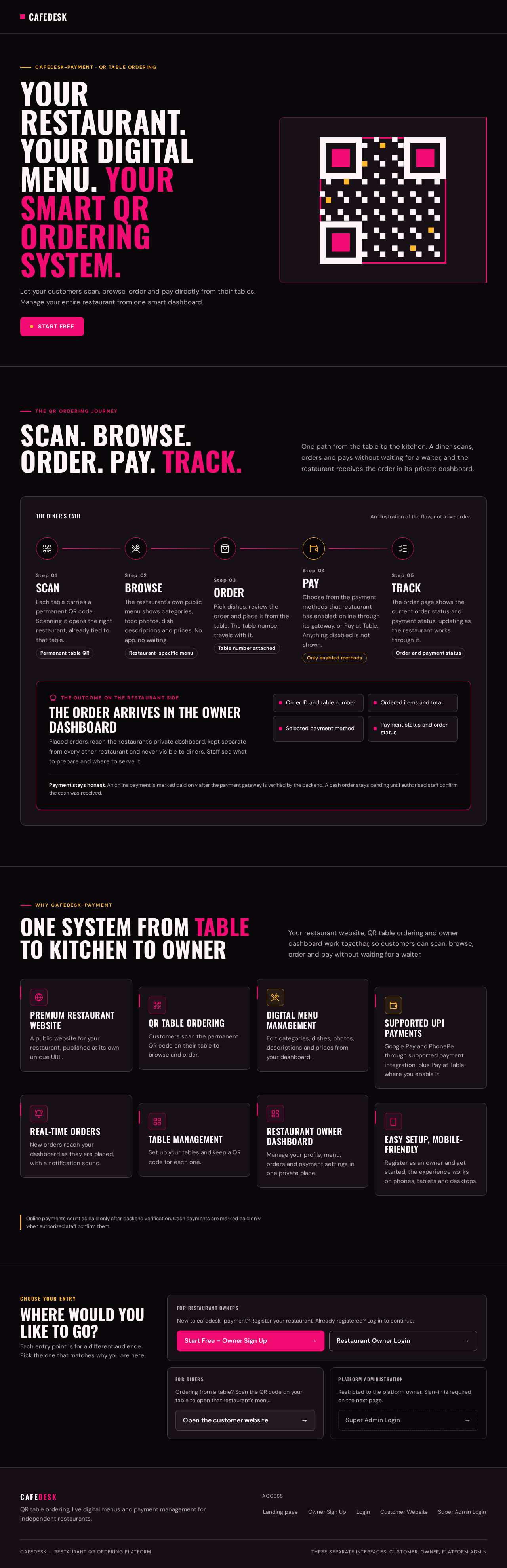
cafedesk-payment · QR table ordering
Your Restaurant. Your Digital Menu. Your Smart QR Ordering System.
Let your customers scan, browse, order and pay directly from their tables. Manage your entire restaurant from one smart dashboard.
The QR ordering journey
Scan.Browse.Order.Pay.Track.
One path from the table to the kitchen. A diner scans, orders and pays without waiting for a waiter, and the restaurant receives the order in its private dashboard.
- Step 01
Scan
Each table carries a permanent QR code. Scanning it opens the right restaurant, already tied to that table.
Permanent table QR - Step 02
Browse
The restaurant's own public menu shows categories, food photos, dish descriptions and prices. No app, no waiting.
Restaurant-specific menu - Step 03
Order
Pick dishes, review the order and place it from the table. The table number travels with it.
Table number attached - Step 04
Pay
Choose from the payment methods that restaurant has enabled: online through its gateway, or Pay at Table. Anything disabled is not shown.
Only enabled methods - Step 05
Track
The order page shows the current order status and payment status, updating as the restaurant works through it.
Order and payment status
The order arrives in the owner dashboard
Placed orders reach the restaurant's private dashboard, kept separate from every other restaurant and never visible to diners. Staff see what to prepare and where to serve it.
- Order ID and table number
- Ordered items and total
- Selected payment method
- Payment status and order status
Payment stays honest. An online payment is marked paid only after the payment gateway is verified by the backend. A cash order stays pending until authorised staff confirm the cash was received.
One system from table to kitchen to owner
Your restaurant website, QR table ordering and owner dashboard work together, so customers can scan, browse, order and pay without waiting for a waiter.
Premium restaurant website
A public website for your restaurant, published at its own unique URL.
QR table ordering
Customers scan the permanent QR code on their table to browse and order.
Digital menu management
Edit categories, dishes, photos, descriptions and prices from your dashboard.
Supported UPI payments
Google Pay and PhonePe through supported payment integration, plus Pay at Table where you enable it.
Real-time orders
New orders reach your dashboard as they are placed, with a notification sound.
Table management
Set up your tables and keep a QR code for each one.
Restaurant owner dashboard
Manage your profile, menu, orders and payment settings in one private place.
Easy setup, mobile-friendly
Register as an owner and get started; the experience works on phones, tablets and desktops.
Online payments count as paid only after backend verification. Cash payments are marked paid only when authorized staff confirm them.
Where would you like to go?
Each entry point is for a different audience. Pick the one that matches why you are here.
For restaurant owners
New to cafedesk-payment? Register your restaurant. Already registered? Log in to continue.
For diners
Ordering from a table? Scan the QR code on your table to open that restaurant’s menu.
Platform administration
Restricted to the platform owner. Sign-in is required on the next page.
cafedesk-payment · QR table ordering
Your Restaurant. Your Digital Menu. Your Smart QR Ordering System.
Let your customers scan, browse, order and pay directly from their tables. Manage your entire restaurant from one smart dashboard.
The QR ordering journey
Scan.Browse.Order.Pay.Track.
One path from the table to the kitchen. A diner scans, orders and pays without waiting for a waiter, and the restaurant receives the order in its private dashboard.
- Step 01
Scan
Each table carries a permanent QR code. Scanning it opens the right restaurant, already tied to that table.
Permanent table QR - Step 02
Browse
The restaurant's own public menu shows categories, food photos, dish descriptions and prices. No app, no waiting.
Restaurant-specific menu - Step 03
Order
Pick dishes, review the order and place it from the table. The table number travels with it.
Table number attached - Step 04
Pay
Choose from the payment methods that restaurant has enabled: online through its gateway, or Pay at Table. Anything disabled is not shown.
Only enabled methods - Step 05
Track
The order page shows the current order status and payment status, updating as the restaurant works through it.
Order and payment status
The order arrives in the owner dashboard
Placed orders reach the restaurant's private dashboard, kept separate from every other restaurant and never visible to diners. Staff see what to prepare and where to serve it.
- Order ID and table number
- Ordered items and total
- Selected payment method
- Payment status and order status
Payment stays honest. An online payment is marked paid only after the payment gateway is verified by the backend. A cash order stays pending until authorised staff confirm the cash was received.
One system from table to kitchen to owner
Your restaurant website, QR table ordering and owner dashboard work together, so customers can scan, browse, order and pay without waiting for a waiter.
Premium restaurant website
A public website for your restaurant, published at its own unique URL.
QR table ordering
Customers scan the permanent QR code on their table to browse and order.
Digital menu management
Edit categories, dishes, photos, descriptions and prices from your dashboard.
Supported UPI payments
Google Pay and PhonePe through supported payment integration, plus Pay at Table where you enable it.
Real-time orders
New orders reach your dashboard as they are placed, with a notification sound.
Table management
Set up your tables and keep a QR code for each one.
Restaurant owner dashboard
Manage your profile, menu, orders and payment settings in one private place.
Easy setup, mobile-friendly
Register as an owner and get started; the experience works on phones, tablets and desktops.
Online payments count as paid only after backend verification. Cash payments are marked paid only when authorized staff confirm them.
Where would you like to go?
Each entry point is for a different audience. Pick the one that matches why you are here.
For restaurant owners
New to cafedesk-payment? Register your restaurant. Already registered? Log in to continue.
For diners
Ordering from a table? Scan the QR code on your table to open that restaurant’s menu.
Platform administration
Restricted to the platform owner. Sign-in is required on the next page.
No comments yet. Be the first!