ai-video-generator
 Jaiki Ansari
Build a complete AI Video Generator web app. The app should allow a user to: 1. Enter a text prompt describing the video they want. 2. Choose video duration: 5, 10, 15, 30 or 60 seconds. 3. Choose aspect ratio: 9:16, 16:9 or 1:1. 4. Choose a style: Cinematic, Realistic, Anime, 3D, Documentary, Advertising or Viral Social Media. 5. Generate a storyboard automatically from the user's prompt. 6. Break the storyboard into individual scenes. 7. Generate suitable AI images/video clips for each scene using the available AI video/image generation APIs. 8. Add smooth transitions between scenes. 9. Generate optional AI voice-over from the script. 10. Add optional background music. 11. Combine all scenes, voice-over and music into one final video. 12. Show generation progress to the user. 13. Provide a preview player for the completed video. 14. Allow the user to regenerate individual scenes without regenerating the whole video. 15. Provide a Download Video button. Create a clean, modern, mobile-friendly interface suitable for beginners. Important: - Use real AI generation APIs where available. - Keep API keys secure on the server and never expose them in frontend code. - If a required video-generation API is unavailable, create the app with a clear provider/API configuration section so an API can be connected later. - Include proper error handling, loading states and retry functionality. - The app should be production-ready and actually functional, not just a static UI. Also include a simple prompt enhancer that automatically converts a user's short idea into a detailed cinematic video prompt with camera movement, lighting, environment, subject actions and scene continuity.

Comments (0)
Sign in to leave a comment
Architecture
No Services Diagrams Yet
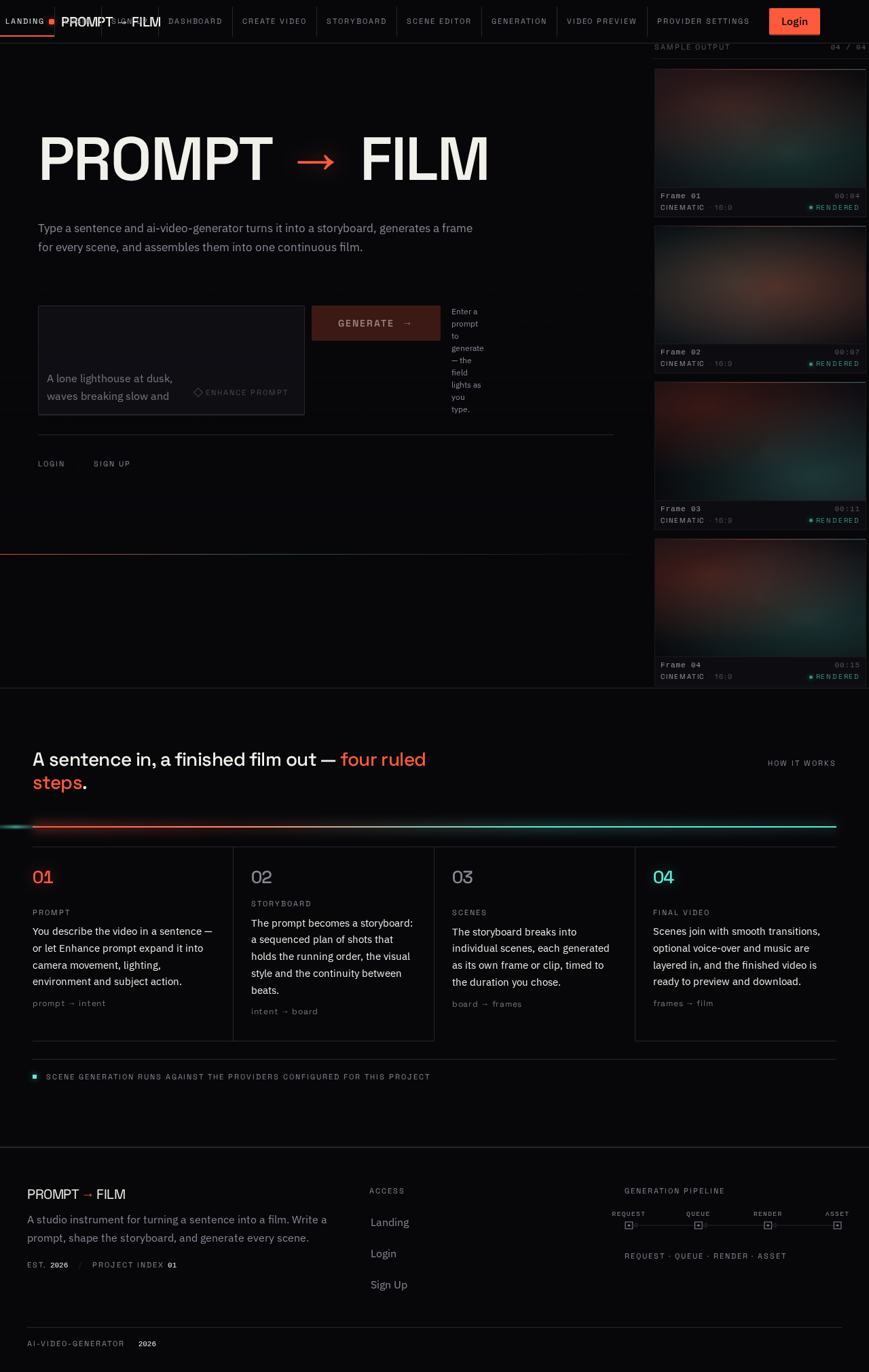
PROMPT→FILM
Type a sentence and ai-video-generator turns it into a storyboard, generates a frame for every scene, and assembles them into one continuous film.
Enter a prompt to generate — the field lights as you type.
How it works
A sentence in, a finished film out — four ruled steps.
- Prompt
You describe the video in a sentence — or let Enhance prompt expand it into camera movement, lighting, environment and subject action.
- Storyboard
The prompt becomes a storyboard: a sequenced plan of shots that holds the running order, the visual style and the continuity between beats.
- Scenes
The storyboard breaks into individual scenes, each generated as its own frame or clip, timed to the duration you chose.
- Final video
Scenes join with smooth transitions, optional voice-over and music are layered in, and the finished video is ready to preview and download.
PROMPT→FILM
Type a sentence and ai-video-generator turns it into a storyboard, generates a frame for every scene, and assembles them into one continuous film.
Enter a prompt to generate — the field lights as you type.
How it works
A sentence in, a finished film out — four ruled steps.
- Prompt
You describe the video in a sentence — or let Enhance prompt expand it into camera movement, lighting, environment and subject action.
- Storyboard
The prompt becomes a storyboard: a sequenced plan of shots that holds the running order, the visual style and the continuity between beats.
- Scenes
The storyboard breaks into individual scenes, each generated as its own frame or clip, timed to the duration you chose.
- Final video
Scenes join with smooth transitions, optional voice-over and music are layered in, and the finished video is ready to preview and download.
No comments yet. Be the first!