zen-simple
 Diya Trivedi
build a simple single page design of calculator

Comments (0)
Sign in to leave a comment
System Requirements
System Requirements Document for zen-simple
1. Introduction
zen-simple is a simple calculator delivered as a single page. The product intent is narrow and exact: a person opens one page, enters numbers and operators, and reads the arithmetic result. There is no account, no history, no multi-page navigation, and no adjacent productivity surface.
The audience is anyone who needs quick arithmetic — a public utility for everyday calculation. The design intent, drawn from the project's creative direction, is a quiet, exact, trustworthy instrument in the spirit of Dieter Rams: honest keys on a strict grid, a calm right-aligned display, and a single signal colour reserved for operators and the equals key.
This document is the System Requirements Document for zen-simple. It specifies the single-page calculator, its one active human persona, its one page, and the delivery boundary around it.
2. System Overview
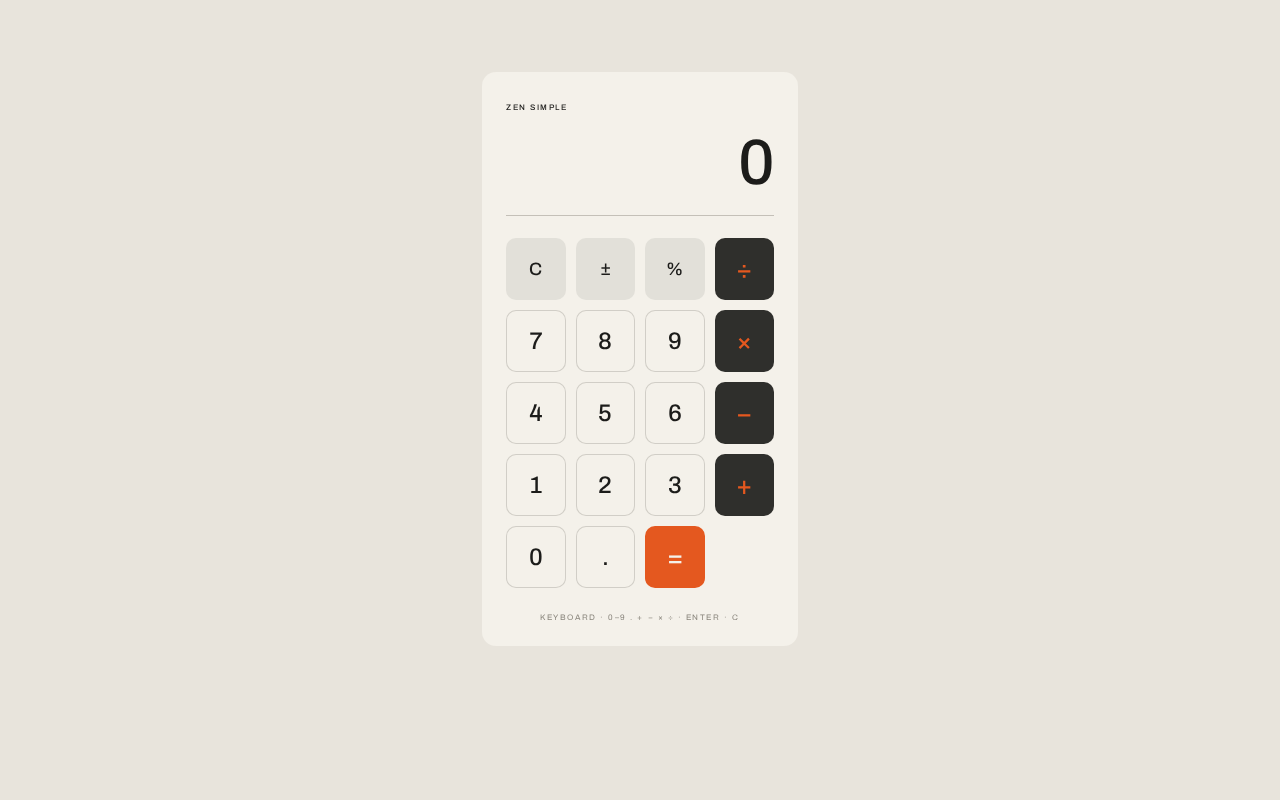
zen-simple is a single-page web calculator. The page presents a small-caps label row, a right-aligned numeric display, a hairline rule, and a 4-by-5 modular key grid. The user presses digit keys to build an operand, presses an operator key to record the pending operation, presses further digits for the second operand, and presses the orange equals key to see the result. The current operator is shown in orange in the label row above the display.
The product is anonymous and public. There is no sign-in, no saved state across sessions, and no server-side calculation requirement. The calculator's working state (current entry, pending operator, stored operand, result) lives in the page for the duration of the visit.
Provisioned infrastructure is a shared FastAPI backend, a MariaDB database, and a React frontend. The calculator's arithmetic is a client-side interaction; the backend and database are provisioned services that do not, by themselves, create calculator domain entities, accounts, or persistence requirements. They remain available for the application's runtime and are reflected in the Tech Stack.
Removed from scope
- User accounts and authentication (also: sign-in, login, sessions)
- Calculation history and saved calculations (also: memory keys, tape)
- Scientific, programmer, or unit-conversion calculator modes
- Multiple pages, routes, or navigation (also: dashboards, settings pages)
- Server-side arithmetic APIs as a product capability
2a. Product Interpretation and Delivery Boundary
zen-simple is delivered as one first-party page, Calculator, which is the anonymous public entry. A visitor lands directly on the calculator; no identity is established, requested, or required, because the accepted behavior creates no durable actor-specific state, commitment, entitlement, or value transfer that would need to be bound to a person. The page is fully usable on first load.
All accepted calculator behavior — digit entry, operator selection, equals, clear, decimal point, sign toggle, and percent — is owned by the Calculator page and executed in the browser. The shared backend and MariaDB are provisioned runtime services; they do not own any accepted calculator interaction and are not required for the calculator to function. No provider surface or external destination participates in the accepted journeys.
The current delivery horizon contains only the single-page calculator described here. Nothing beyond it is currently committed.
2c. Page Content and Component Coverage
Calculator
Information and state
- Product label row in small caps reading
ZEN SIMPLE, with the current pending operator displayed in orange when one is active (for exampleZEN SIMPLE · ×); when no operator is pending, the label row shows onlyZEN SIMPLE. - Right-aligned numeric display showing the current entry, or the result after equals, in tabular figures at
clamp(40px, 9vw, 64px). - A single hairline rule separating the display from the key grid.
- Working state held in the page: current entry string, stored first operand, pending operator, and whether the display is showing a result awaiting a new entry.
Primary actions
- Digit keys
0–9append digits to the current entry. - Decimal point key
.begins or extends a fractional entry; a second decimal point in the same entry is ignored. - Operator keys
+,−,×,÷record the pending operator and, if a first operand and operator are already present, evaluate the pending operation first and use its result as the new first operand. - Equals key
=(solid orange block) evaluates the pending operation and shows the result in the display.
Supporting actions
- Clear key
Cresets the calculator to its initial state: display0, no stored operand, no pending operator. - Sign toggle key
±flips the sign of the current entry. - Percent key
%converts the current entry to its percentage value (entry divided by 100).
Domain entities
- Calculator state: current entry, stored operand, pending operator, result flag. This is transient page state, not a persisted entity.
Component responsibilities
- Label row: renders the product label and the active operator indicator.
- Display: renders the current value right-aligned with tabular figures; never overflows its container (long entries shrink within the
clamprange and remain fully readable). - Hairline rule: static separator.
- Key grid: 4 columns by 5 rows with equal gaps, 10px corner radius, no shadows; ink keys with orange glyphs for operators, a solid orange equals key, and neutral keys for digits and supporting actions.
States
- Loading: a single short fade on page load; the calculator is immediately usable.
- Empty/initial: display shows
0, no operator indicator. - Success: after equals, the display shows the computed result; the operator indicator clears.
- Error: division by zero shows a clear error state in the display (for example
Error); the next digit orCreturns the calculator to normal entry. - Recovery:
Calways returns to the initial state from any state, including the error state.
3. Functional Requirements
FR-1 — Single-page calculator As a Calculator user, I should open one page that presents a calculator, so that I can do arithmetic without navigating anywhere.
- Provenance: explicit.
- Lifecycle: trigger — visiting the application; input — none; result — the Calculator page renders with display
0and the full key grid; access — anonymous public entry; failure/recovery — none material; continuation — the user begins entering digits. - Acceptance: exactly one page exists; it contains the label row, display, hairline rule, and 4-by-5 key grid.
FR-2 — Digit entry As a Calculator user, I should press digit keys to build a number in the display, so that I can enter the operands I want to calculate with.
- Provenance: explicit (calculator behavior).
- Lifecycle: trigger — pressing a digit key; input — digit
0–9; result — the digit is appended to the current entry and shown right-aligned in the display; access — anonymous; failure/recovery — none; continuation — the user presses more digits, an operator, or equals. - Acceptance: pressing
1,2,3shows123; a leading0is replaced by the first non-zero digit.
FR-3 — Operator selection As a Calculator user, I should press an operator key to record the operation I want, so that the calculator knows what to do with my next operand.
- Provenance: explicit (calculator behavior).
- Lifecycle: trigger — pressing
+,−,×, or÷; input — the operator; result — the operator is stored as pending and shown in orange in the label row; if a first operand and operator already exist, the pending operation is evaluated and its result becomes the new first operand; access — anonymous; failure/recovery — none; continuation — the user enters the second operand. - Acceptance: pressing
8,×shows×in the label row; pressing8,×,2,+shows16and pending+.
FR-4 — Equals and result As a Calculator user, I should press the equals key to see the result of my calculation, so that I get the answer I asked for.
- Provenance: explicit (calculator behavior).
- Lifecycle: trigger — pressing
=; input — the stored operand, pending operator, and current entry; result — the computed value appears in the display and the operator indicator clears; access — anonymous; failure/recovery — division by zero shows an error state (see FR-8); continuation — the user starts a new entry or continues from the result. - Acceptance:
7,+,5,=shows12.
FR-5 — Clear As a Calculator user, I should press the clear key to reset the calculator, so that I can start a fresh calculation.
- Provenance: explicit (calculator behavior).
- Lifecycle: trigger — pressing
C; result — display returns to0, stored operand and pending operator are cleared, operator indicator clears; access — anonymous; failure/recovery — works from every state including error; continuation — the user begins a new entry. - Acceptance: after any sequence, pressing
Cyields the initial state.
FR-6 — Decimal point As a Calculator user, I should press the decimal point key to enter fractional numbers, so that I can calculate with non-integers.
- Provenance: explicit (calculator behavior).
- Lifecycle: trigger — pressing
.; result — a decimal point is added to the current entry; a second decimal point in the same entry is ignored; access — anonymous; failure/recovery — none; continuation — the user enters further digits. - Acceptance:
3,.,5shows3.5;3,.,.,5shows3.5.
FR-7 — Sign toggle and percent
As a Calculator user, I should press ± to flip the sign of my entry and % to convert my entry to a percentage, so that I can handle negative and percentage values.
- Provenance: explicit (calculator behavior).
- Lifecycle: trigger — pressing
±or%; result —±negates the current entry;%divides the current entry by 100 and shows the result; access — anonymous; failure/recovery — none; continuation — the user continues entering or presses an operator or equals. - Acceptance:
5,±shows-5;50,%shows0.5.
FR-8 — Division-by-zero error and recovery As a Calculator user, I should see a clear error when I divide by zero and be able to recover, so that the calculator never shows a misleading result.
- Provenance: required_inference (indispensable failure/recovery for the accepted division operation).
- Lifecycle: trigger — pressing
=with a pending÷and a zero divisor; result — the display shows an error state (for exampleError) and the operator indicator clears; access — anonymous; failure/recovery — pressing any digit orCreturns the calculator to normal entry; continuation — the user proceeds with a new calculation. - Acceptance:
5,÷,0,=shows the error state; pressingCrestores0.
4. User Personas
Calculator user
Product context. The Calculator user arrives at zen-simple to do quick arithmetic — a sum, a difference, a product, a quotient, a percentage. They are not signing in, not saving anything, and not returning to a history. They want an exact, quiet instrument that responds immediately.
Primary goal. Enter an expression with digits and operators and read the correct result.
Distinct accepted responsibilities.
- Entering operands with digit keys and the decimal point.
- Selecting operators and reading the pending operator indicator.
- Committing to a result with the equals key.
- Correcting or restarting with clear, sign toggle, and percent.
- Recovering from a division-by-zero error.
Relevant inputs and decisions. Which digits to enter, which operator to apply, when to press equals, and when to clear. The user reads the display and the orange operator indicator to confirm the calculator's state before committing.
Interactions with other participants. None. The Calculator user is the only active human participant; the calculator's arithmetic is performed in the page, and no other persona, provider, or external party is affected by the calculation.
Observable success. The display shows the correct result after equals; the operator indicator reflects the pending operation; clear returns the calculator to 0; an error is shown clearly for division by zero and is recoverable.
5. Core User Flows
Flow 1 — Perform a basic calculation
- The Calculator user opens zen-simple. The Calculator page fades in once and shows the label row
ZEN SIMPLE, the display0, the hairline rule, and the 4-by-5 key grid. No identity is requested. - The user presses digit keys to enter the first operand; the digits appear right-aligned in the display in tabular figures.
- The user presses an operator key; the operator appears in orange in the label row, confirming the pending operation.
- The user presses digit keys to enter the second operand; the display updates with the new entry.
- The user presses the orange equals key; the display shows the computed result and the operator indicator clears.
- The user either starts a new entry (which begins a fresh calculation) or presses
Cto reset to0.
Failure/recovery. If the user makes an entry mistake, pressing C returns the calculator to 0 and clears the pending operator; the user re-enters the calculation.
Flow 2 — Chain operations
- On the Calculator page, the user enters a first operand and presses an operator.
- The user enters a second operand and presses another operator instead of equals; the calculator evaluates the pending operation, shows its result, and records the new operator as pending (shown in orange).
- The user enters the next operand and presses equals; the display shows the final result.
- The user presses
Cto reset, or begins a new entry.
Flow 3 — Fractional, negative, and percentage values
- On the Calculator page, the user enters digits and presses
.to begin a fractional entry; further digits extend it, and a second.is ignored. - The user presses
±to negate the current entry, or%to convert it to a percentage; the display updates immediately. - The user presses an operator and completes the calculation with equals as in Flow 1.
Flow 4 — Recover from division by zero
- On the Calculator page, the user enters a dividend, presses
÷, enters0, and presses equals. - The display shows the error state (for example
Error) and the operator indicator clears. - The user presses
C(or begins a new digit entry); the calculator returns to normal entry with display0or the new digit. - The user proceeds with a new calculation.
6. Visuals Colors and Theme
The creative direction is authoritative: Less, but better: a calculator of honest controls, after Dieter Rams.
Palette (light mode)
- Background:
#E8E4DC— warm off-white ground, approximately 70 percent of the frame. - Surface:
#F4F1EA— the calculator panel. - Text:
#1C1C1A— ink for digits and labels. - Primary:
#2F2F2C— ink keys, approximately 25 percent of the frame. - Accent:
#E4581F— Braun orange, reserved for operator glyphs and the solid equals key only. - Muted:
#8A867D— secondary labels and the hairline rule.
Typography
- Headings and body: Archivo.
- Headings: Archivo Medium, tight tracking, sentence case.
- Labels: small caps at 11px with 0.14em tracking.
- Scale: 1.25 modular — 64 / 40 / 24 / 16 / 13.
- Digits: tabular figures, right-aligned, at
clamp(40px, 9vw, 64px).
Shape language
- Rounded-rectangle keys with 10px radius.
- One hairline rule under the display.
- No shadows, no decoration, no gradients, no glass panels.
Layout
- One centred column of 380px on a wide warm ground.
- A label row sits above a right-aligned display.
- Keys form a 4-by-5 modular grid with equal gaps.
Imagery
- No images. The key grid and the ruled display are the visual content.
Accessibility
- Readable text and controls stay whole at 375px, 768px, and 1280px; the display scales within its
clamprange and never overflows its container. - The orange accent is used only on operator glyphs and the equals key; contrast against the ink keys and the warm surface is maintained.
7. Signature Design Concept
The public entry is the calculator panel itself: a 380px warm-white block (#F4F1EA) on a large warm-grey ground (#E8E4DC). A small-caps label row reads ZEN SIMPLE above a 64px right-aligned display in tabular figures. A single hairline rule separates the display from the 4-by-5 key grid. The orange equals key is the only hot mark in the frame; operator keys are ink with orange glyphs. The composition is flat, composed, and quiet — the display is the calm focus, and the key grid is the visual content. No images, no shadows, no decoration.
8. Interaction Model & Motion Direction
Interaction Model: Static (direction) Motion Tempo: restrained Hero Dimensionality: flat
Landing Hero Motion Brief
- Focal subject: the calculator panel — the 380px warm-white block with its label row, right-aligned display, hairline rule, and 4-by-5 key grid.
- Input → transformation → outcome thesis: a key press produces instant 90ms press feedback on the key; the display updates immediately with the new entry, operator, or result; state changes have no flourish.
- Motion vocabulary: instant key press feedback in 90ms; no transitions on state changes; one short fade on page load.
- Composed first frame: the warm-grey ground fills the viewport; the calculator panel is centred; the label row reads
ZEN SIMPLE; the display shows0; the orange equals key is the only hot mark. - Reduced-motion state: the page-load fade is removed; the calculator renders immediately in its composed first frame and remains fully usable.
9. Non-Functional Requirements
- Single page. The product is exactly one page; no additional routes, navigation, or pages exist. (explicit)
- Anonymous public access. The Calculator page is reachable without identity; no sign-in, account, or session is required. (explicit via planning scope access requirement
none) - Responsive readability. Readable text and controls stay whole at 375px, 768px, and 1280px; the display scales within
clamp(40px, 9vw, 64px)and never overflows its container. (explicit via creative direction) - Immediate feedback. Key press feedback completes in 90ms; state changes have no flourish; one short fade on page load. (explicit via creative direction)
- No persistence of calculations. Calculator state is transient page state; no calculation history is stored in the browser or the database. (explicit via scope)
- Reduced motion. With
prefers-reduced-motion, the page-load fade is removed and the calculator remains fully usable. (explicit via creative direction)
10. Tech Stack
- Frontend: React application UI — the Calculator page, key grid, display, and client-side arithmetic.
- Backend: shared FastAPI process for application APIs and domain modules. The calculator's arithmetic is client-side; the backend is provisioned runtime infrastructure and does not own an accepted calculator interaction.
- Database: MariaDB for application-owned persistent data. No calculator domain entities are persisted; the database is provisioned infrastructure only.
- Containerization: Docker / docker-compose for the frontend, backend, and database services.
11. Assumptions and Constraints
- Single page (explicit). The design is a single page; the page count is exactly one.
- Simple calculator (explicit). The product performs basic arithmetic — addition, subtraction, multiplication, and division — with decimal, sign, percent, and clear controls.
- Anonymous (explicit via planning scope). The Calculator page has access requirement
none; no identity is established. - Client-side arithmetic (required_inference). The calculator's arithmetic is performed in the page; the provisioned backend and database do not create calculator domain entities or persistence requirements.
- Division-by-zero error state (required_inference). An error state and recovery via
Cor a new digit are indispensable for the accepted division operation. - No history (explicit via scope). No calculation history, memory keys, or saved calculations are in scope.
12. Glossary
- Calculator page — the single page of zen-simple; the anonymous public entry containing the label row, display, hairline rule, and key grid.
- Display — the right-aligned numeric readout in tabular figures at
clamp(40px, 9vw, 64px). - Label row — the small-caps row above the display reading
ZEN SIMPLEand showing the pending operator in orange. - Pending operator — the operator recorded by the user and awaiting the second operand and equals.
- Key grid — the 4-by-5 modular grid of keys with equal gaps and 10px radius.
- Equals key — the solid orange key that commits the pending operation and shows the result.
- Calculator user — the single active human persona who enters numbers and operators and reads the result.
- Error state — the display state shown after division by zero, recoverable via
Cor a new digit.
Keyboard · 0–9 . + − × ÷ · Enter · C
0Keyboard · 0–9 . + − × ÷ · Enter · C
0
No comments yet. Be the first!