wise-calculator
 Diya Trivedi
create a simple single page design of calculator

Comments (0)
Sign in to leave a comment
System Requirements
System Requirements Document for wise-calculator
1. Introduction
wise-calculator is a single-page calculator. The product intent is deliberately narrow: a person opens one page, enters numbers and arithmetic operators, and reads the computed result. The design must be simple, and the entire calculator must be contained in a single page.
The audience is broad and anonymous — anyone who needs quick arithmetic. The product is presented as a precision instrument rather than a playful app: a titanium tool-watch dial aesthetic in which the calculator chassis, the oversized result numeral, and the machined keys are the entire experience. There is no marketing hero, no account, and no secondary product surface.
2. System Overview
wise-calculator is delivered as a single custom page, Calculator, which is the anonymous public entry to the product. The page hosts:
- the number and operator entry interaction,
- the running expression readout,
- the computed result display,
- the four arithmetic operators plus AC, ±, %, and decimal entry,
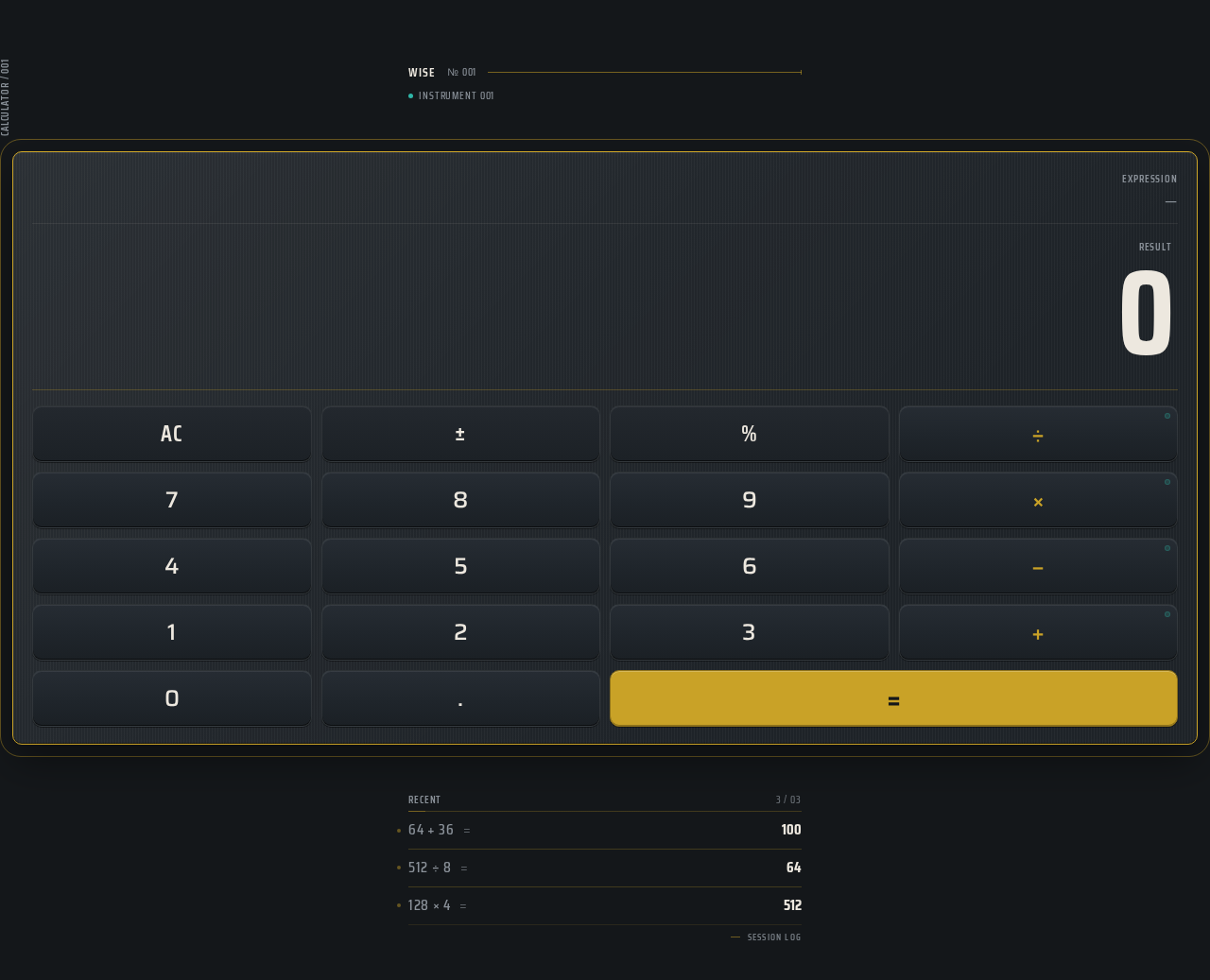
- a ruled strip of the last three calculations.
The only active human actor is the Calculator User. There are no provider-owned or external destinations, no background system processes visible to the user, and no application-owned identity. All arithmetic evaluation happens in the page itself; no server-side persistence of calculations is required.
2a. Product Interpretation and Delivery Boundary
Current delivery. One first-party page, anonymously reachable, with no sign-in, no account creation, and no saved history beyond the in-session "recent" strip of the last three calculations. The calculator is a client-side instrument: entry, evaluation, and display all occur on the page.
Access ownership. The page is public and anonymous. Because no accepted behavior requires a durable, privately owned, resumable state, no application identity is introduced. There is no protected destination and therefore no first-use identity establishment or returning verification.
Current vs. future. Everything described in this document is current. No future features are accepted; the brief explicitly says "simple," and the creative direction explicitly excludes anything beyond the four arithmetic operators plus AC, ±, %, and decimal.
Exclusions. No scientific functions, no memory registers beyond the display, no unit conversion, no history persistence across sessions, no accounts, no sharing, no server API, and no additional pages.
2b. Source Content Inventory
Not applicable — no reference directive declares a content_source.
2c. Page Content and Component Coverage
Calculator
Purpose and access. The single, anonymously reachable public entry page. It is the whole product.
Information and state.
- Current running expression (right-aligned, muted/teal condensed caps).
- Current result (right-aligned, oversized condensed numeral, tabular figures).
- Active operator indicator (teal LED dot beside the selected operator).
- Recent strip: the last three completed calculations, each as
expression = result, separated by hairlines. - Entry state: empty expression, result showing
0.
Primary actions.
- Enter digits
0–9and decimal point. - Select one of
+,−,×,÷. - Press
=to evaluate. - Press
ACto clear all state. - Press
±to toggle the sign of the current entry. - Press
%to convert the current entry to a percentage.
Supporting actions.
- Pressing an operator after a completed result continues calculation from that result.
- Pressing a digit after
=begins a new entry.
Domain entities.
- Expression: the ordered sequence of operands and operators currently being built.
- Result: the numeric outcome of evaluation.
- Recent entry: a completed
expression = resultpair retained in the in-session strip (maximum three).
Component responsibilities.
- Wordmark:
WISEin tracked condensed caps at 13px with a hairline rule beneath. - Micro-label: vertical
CALCULATOR / 001pinned to the left margin on desktop. - Chassis: the machined slab inside a 1px champagne bezel ring with a 12px concentric outer ring.
- Expression line: right-aligned running expression.
- Result display: oversized numeral inside the bezel, framed like a subdial.
- Key grid: 4×5 grid of machined rounded-rectangle keys;
=spans two columns in solid champagne with graphite numerals. - Recent strip: ruled rows of the last three calculations in condensed tabular numerals.
States.
- Loading: not applicable — the page is static markup plus client-side evaluation; no network fetch occurs.
- Empty: expression blank, result
0, recent strip shows a muted "no calculations yet" placeholder row. - Success: result updates on
=; the new calculation is prepended to the recent strip (oldest beyond three is dropped). - Error / recovery: division by zero or an unparseable expression shows
Errorin the result display; the expression line retains the offending input so the user can pressACor edit by entering a new digit. No modal, no toast. - Reduced motion: no bezel sweep, no per-digit flip; values swap instantly.
3. Functional Requirements
FR-1 — Single-page calculator delivery (explicit) As a Calculator User, I should reach the entire calculator on one page, so that I can perform arithmetic without navigating anywhere else.
- Trigger: opening the product.
- Observable result: the Calculator page renders with wordmark, expression line, result display, key grid, and recent strip.
- Access: anonymous, no sign-in.
- Failure/recovery: if the page fails to render, reloading restores the same empty state.
- Continuation: the user may immediately begin entering digits.
FR-2 — Digit and decimal entry (explicit)
As a Calculator User, I should enter digits 0–9 and a decimal point, so that I can build the number I want to calculate.
- Trigger: pressing a digit or decimal key.
- Observable result: the digit appends to the current operand and the expression line updates.
- Failure/recovery: a second decimal point in the same operand is ignored.
- Continuation: the user may continue entering digits or select an operator.
FR-3 — Operator selection (explicit)
As a Calculator User, I should select +, −, ×, or ÷, so that I can specify the operation.
- Trigger: pressing an operator key.
- Observable result: the operator is appended to the expression and a teal LED dot lights beside it.
- Failure/recovery: pressing a different operator before entering the second operand replaces the pending operator rather than stacking two.
- Continuation: the user enters the second operand.
FR-4 — Evaluation with = (explicit)
As a Calculator User, I should press = to compute the result, so that I can read the answer.
- Trigger: pressing
=. - Observable result: the result display shows the computed value; the completed
expression = resultis prepended to the recent strip (maximum three retained). - Failure/recovery: division by zero or an incomplete expression shows
Errorin the result display while the expression line retains the input; pressingACclears it. - Continuation: pressing a digit begins a new entry; pressing an operator continues from the result.
FR-5 — Clear with AC (explicit)
As a Calculator User, I should press AC to clear the calculator, so that I can start over.
- Trigger: pressing
AC. - Observable result: expression is blank, result shows
0, active-operator LED is off. The recent strip is retained. - Continuation: the user begins a new calculation.
FR-6 — Sign toggle with ± (explicit)
As a Calculator User, I should press ± to toggle the sign of the current entry, so that I can enter negative numbers.
- Trigger: pressing
±. - Observable result: the current operand's sign flips and the expression line reflects it.
- Failure/recovery: pressing
±with no current operand has no effect. - Continuation: the user continues the calculation.
FR-7 — Percentage with % (explicit)
As a Calculator User, I should press % to convert the current entry to a percentage, so that I can compute percentage values.
- Trigger: pressing
%. - Observable result: the current operand is divided by 100 and the expression line reflects the converted value.
- Failure/recovery: pressing
%with no current operand has no effect. - Continuation: the user continues the calculation.
FR-8 — Recent calculations strip (explicit, from creative direction) As a Calculator User, I should see the last three calculations listed below the chassis, so that I can reference recent work.
- Trigger: each successful
=evaluation. - Observable result: the new
expression = resultappears at the top of the strip; the oldest beyond three is removed. - Failure/recovery: an
Errorresult is not added to the strip. - Continuation: the strip persists for the session; it is not saved across reloads.
FR-9 — Simple, restrained interface (explicit constraint)
As a Calculator User, I should see only the four arithmetic operators plus AC, ±, %, and decimal, so that the interface stays simple.
- Observable result: no scientific functions, memory registers, unit conversion, or additional pages are present.
4. User Personas
Calculator User
Product context. A broad, anonymous person who needs quick arithmetic — a personal utility user, not a professional with a specialized workflow. They arrive at the page with a number in mind and want an answer in seconds.
Primary goal. Enter an expression and read the computed result without friction, distraction, or setup.
Distinct accepted responsibilities.
- Enter digits and a decimal point to build operands.
- Select one of the four arithmetic operators.
- Press
=to evaluate. - Press
ACto clear,±to toggle sign,%to convert to a percentage. - Read the result and, optionally, reference the last three calculations in the recent strip.
Relevant inputs and decisions. Which digits to enter, which operator to apply, whether to continue from a result or start fresh, and whether to consult the recent strip.
Interactions with other participants. None — the Calculator User is the sole active human actor. There is no counterparty, recipient, or approver; the calculator's output is for the same person who initiated it.
Observable success. The result display shows the correct computed value, the expression line reflects the input, and the recent strip records completed calculations.
What makes this role distinct. The role is defined by direct, immediate, single-actor arithmetic — there is no handoff, no shared state, and no persistence. Its work is entirely contained in one page and one session.
5. Core User Flows
Flow A — Perform a basic calculation
- The Calculator User opens the product. The Calculator page renders anonymously with an empty expression, result
0, and a muted recent-strip placeholder. - The user presses digit keys to build the first operand; the expression line updates as each digit appends.
- The user presses an operator (
+,−,×, or÷); the operator appears in the expression and a teal LED dot lights beside it. - The user presses digit keys to build the second operand.
- The user presses
=. The result display shows the computed value, and the completedexpression = resultis prepended to the recent strip (oldest beyond three is dropped). - Continuation: the user may press a digit to start a new entry, press an operator to continue from the result, or press
ACto clear.
Flow B — Clear and start over
- Mid-calculation, the Calculator User presses
AC. - The expression clears, the result shows
0, and the active-operator LED turns off. The recent strip is retained. - The user begins a new calculation from step 2 of Flow A.
Flow C — Negative numbers and percentages
- The Calculator User enters a number.
- The user presses
±to flip its sign, or%to divide it by 100; the expression line reflects the change. - The user continues with an operator and a second operand, then presses
=to see the result.
Flow D — Recover from an error
- The Calculator User enters an expression that divides by zero (or is otherwise incomplete) and presses
=. - The result display shows
Error; the expression line retains the offending input; nothing is added to the recent strip. - The user presses
ACto clear, or enters a new digit to begin a fresh entry, and proceeds as in Flow A.
Flow E — Reference recent calculations
- After one or more successful evaluations, the Calculator User looks at the ruled strip below the chassis.
- The strip lists up to three
expression = resultrows in condensed tabular numerals, newest first. - The user reads a prior result and re-enters it if needed. The strip is session-only and is not restored on reload.
6. Visuals, Colors and Theme
Muse and headline. MARQ by Garmin — Precision luxury instrument: a calculator as a titanium tool-watch dial.
Mode. Dark.
Color tokens (exact hex by role).
- Background (graphite-titanium ground):
#14171A - Surface (machined chassis):
#1E2328 - Text (warm off-white):
#EDE8DF - Primary (champagne-amber instrument accent — equals key, active operator, hairline bezel ring):
#C9A227 - Accent (teal — running expression line, AC focus ring, operator LED):
#2FB6A8 - Muted (brushed steel grey — micro-labels, secondary text):
#8A9199
Amber-on-graphite and off-white-on-graphite exceed 4.5:1 at body size; teal is reserved for accents and 16px+ labels only.
Typography.
- Headings and micro-labels: Saira Condensed, uppercase, 600 weight, tracking
0.08em(e.g.EXPRESSION,RESULT,MEMORY). - Result numeral: Saira Condensed 700, tracking
-0.02em,clamp(56px, 12vw, 128px), tabular figures. - Body and key labels: Saira, 400/500.
- Scale: 1.25 modular for UI, with an oversized display step. Micro-label 11px uppercase tracked; key label 20–24px; body 15–16px; section heading 28/22/18.
- Forbidden fonts: Inter, Roboto, Arial, Helvetica, Open Sans, Lato, Poppins, system-ui.
Shape language. Circular bezels and dial rings (chassis inside a 1px champagne hairline ring with a 12px concentric outer ring); rounded-rectangle keys with 10px radii — not pills; ruled data rows for the recent strip. Every corner is either a true circle or a 10px machined radius; nothing in between. Hard 1px hairlines separate rows.
Layout. Single centered column, max-width 420px on mobile and 480px on desktop, floating on a full-bleed graphite ground with faint topographic contour lines etched at 4% opacity. Above the chassis: an oversized WISE wordmark in condensed caps and a one-line expression readout. The chassis is a stacked dial: expression line (right-aligned, muted), result (right-aligned, enormous), then a 4×5 key grid with = spanning two columns in amber. Below the chassis, a thin ruled recent strip of the last three calculations in condensed tabular numerals. On desktop the chassis sits slightly right of center with the WISE mark and a vertical CALCULATOR / 001 micro-label pinned to the left margin.
Spacing rhythm. Consistent 8px base unit; generous breathing room around the chassis; hairline rules rather than heavy dividers.
Imagery style. No photography, no illustration. The imagery is the instrument itself: a CSS-drawn concentric bezel with a subtle 135° brushed-metal sheen (a single linear-gradient at 6% white), faint topographic contour lines in the background, and a tiny knurled texture on the chassis edge built from repeating-linear-gradient. Data is the ornament — tabular numerals, ruled rows, LED dots.
Readable text and controls. Headlines, wordmarks, labels, numbers, and controls stay entirely inside the viewport and their container at 375px, 768px, and 1280px, wrapping or scaling to fit. Decoration and motion may bleed or crop; readable text and controls may not.
7. Signature Design Concept
The first screen is the instrument, not a marketing hero. A full-bleed graphite field (#14171A) with faint etched contour lines at 4% opacity holds, dead center, a single floating calculator chassis — a dark machined slab (#1E2328) inside a 1px champagne bezel ring (#C9A227) with a 12px concentric outer ring — occupying roughly 60% of viewport height.
At the top of the chassis, the running expression sits in small teal condensed caps (#2FB6A8), right-aligned. Beneath it, the result is a watch-dial numeral: Saira Condensed 700 at clamp(56px, 12vw, 128px), right-aligned with tabular figures, framed like a subdial inside the bezel ring. Above the chassis, the WISE wordmark in tracked condensed caps at 13px with a hairline rule. No headline sentence, no subtext paragraph, no CTA button — the keypad is the call to action.
The 4×5 key grid uses machined rounded rectangles (10px radius) with a 1px top highlight and 1px bottom shadow to imply a bevel. The = key spans two columns in solid champagne (#C9A227) with graphite numerals — the single loudest element on the page, the only filled colour block in the composition. Below the chassis, a ruled recent strip lists the last three calculations in condensed tabular numerals separated by hairlines, like log entries on an instrument.
On desktop, the chassis sits slightly right of center with the WISE mark and a vertical CALCULATOR / 001 micro-label pinned to the left margin, echoing an instrument face.
8. Interaction Model & Motion Direction
Interaction Model: Animated Motion Tempo: restrained Hero Dimensionality: dimensional_css
Landing Hero Motion Brief.
- Focal subject: the calculator chassis — a CSS-drawn concentric bezel with a subtle 135° brushed-metal sheen, floating on a graphite field with faint topographic contour lines.
- Input → transformation → outcome thesis: the user presses a key → the key depresses 1px with a 90ms mechanical ease and returns with a 140ms ease-out (no bounce) → the expression line updates and, on
=, the result digit flips with a 60ms per-digit crossfade like a split-flap. - Motion vocabulary: mechanical key depression (90ms in / 140ms out, no bounce); per-digit result crossfade (60ms); a single 8s needle-sweep highlight traveling once around the champagne bezel ring on load, then resting; a teal LED dot lighting beside the active operator.
- Composed first frame: the chassis centered on the graphite field, expression line empty, result showing
0, bezel ring at rest, recent strip showing a muted placeholder row. - Reduced-motion state: no bezel sweep, no digit flip — values simply swap; keys still depress without animation; the layout remains fully usable and static.
9. Non-Functional Requirements
NFR-1 — Simplicity (explicit)
The interface must remain simple: only the four arithmetic operators plus AC, ±, %, and decimal. No scientific functions, memory registers, unit conversion, or additional pages.
NFR-2 — Single page (explicit) The entire calculator must be contained in a single page. No navigation, routing, or secondary destinations.
NFR-3 — Anonymous access (required_inference) The page is publicly reachable with no sign-in, account creation, or identity establishment, because no accepted behavior requires durable, privately owned, resumable state.
NFR-4 — Client-side evaluation (required_inference) Arithmetic evaluation occurs in the page; no server API or persistence is required for the accepted behavior.
NFR-5 — Readable text and controls at all viewports (explicit, from creative direction) Headlines, wordmarks, labels, numbers, and controls stay entirely inside the viewport and their container at 375px, 768px, and 1280px, wrapping or scaling to fit. No other element covers any part of them.
NFR-6 — Reduced-motion support (explicit, from creative direction)
With prefers-reduced-motion, provide a usable static arrangement: no bezel sweep, no digit flip; values swap instantly.
NFR-7 — Contrast (explicit, from creative direction) Amber-on-graphite and off-white-on-graphite exceed 4.5:1 at body size; teal is reserved for accents and 16px+ labels only.
NFR-8 — No forbidden fonts or palette (explicit, from creative direction) No Inter, Roboto, Arial, Helvetica, Open Sans, Lato, Poppins, or system-ui for any text. No blue or indigo anywhere. No rounded pill buttons, soft drop shadows, pastel surfaces, gradient-blob heroes, floating glass cards, device mockups, photography, stock people, illustration, playful bounce, springy easing, or confetti on equals.
10. Tech Stack
- Frontend: React (single-page application) with a single route rendering the Calculator page.
- Styling: CSS with the exact tokens in Section 6; CSS 3D for the bezel bevel;
repeating-linear-gradientfor the knurled chassis edge;linear-gradientfor the brushed-metal sheen. - Fonts: Saira Condensed (600, 700) and Saira (400, 500), loaded as web fonts.
- Arithmetic: client-side evaluation in the page; no backend service is required for the accepted behavior.
- Storage: none — the recent strip is in-memory for the session only.
- Deployment: static hosting of the built single-page application. No Docker, database, or Kubernetes is required for the accepted behavior.
11. Assumptions and Constraints
Assumptions.
- The calculator evaluates a single binary operation at a time (operand, operator, operand), consistent with the "simple" brief and the 4×5 key grid.
- The recent strip is session-only and is not persisted across reloads, because no persistence requirement is stated.
- Division by zero and incomplete expressions display
Errorin the result display, with the expression line retaining the input for recovery. - The
%key divides the current entry by 100, the conventional simple-calculator behavior. - The
±key toggles the sign of the current entry.
Constraints.
- The design must be simple.
- The calculator must be contained in a single page.
- The page is anonymous and publicly reachable.
- The creative direction's palette, fonts, shape language, layout, motion, and exclusions are binding.
12. Glossary
- Chassis: the machined calculator slab inside the champagne bezel ring.
- Expression line: the right-aligned running expression shown above the result.
- Result display: the oversized watch-dial numeral showing the computed value.
- Recent strip: the ruled list of the last three completed calculations below the chassis.
- LED dot: the small teal indicator beside the active operator.
- Bezel ring: the 1px champagne hairline ring with a 12px concentric outer ring framing the result.
- Needle-sweep: the single 8s highlight that travels once around the bezel ring on load.
- Split-flap flip: the 60ms per-digit crossfade applied to the result when it changes.
- 64 + 36 equals 100
- 512 ÷ 8 equals 64
- 128 × 4 equals 512
- 64 + 36 equals 100
- 512 ÷ 8 equals 64
- 128 × 4 equals 512
No comments yet. Be the first!