wild-simple
 Diya Trivedi
start a project to build a simple single page design of calculator

Comments (0)
Sign in to leave a comment
System Requirements
System Requirements Document for wild-simple
1. Introduction
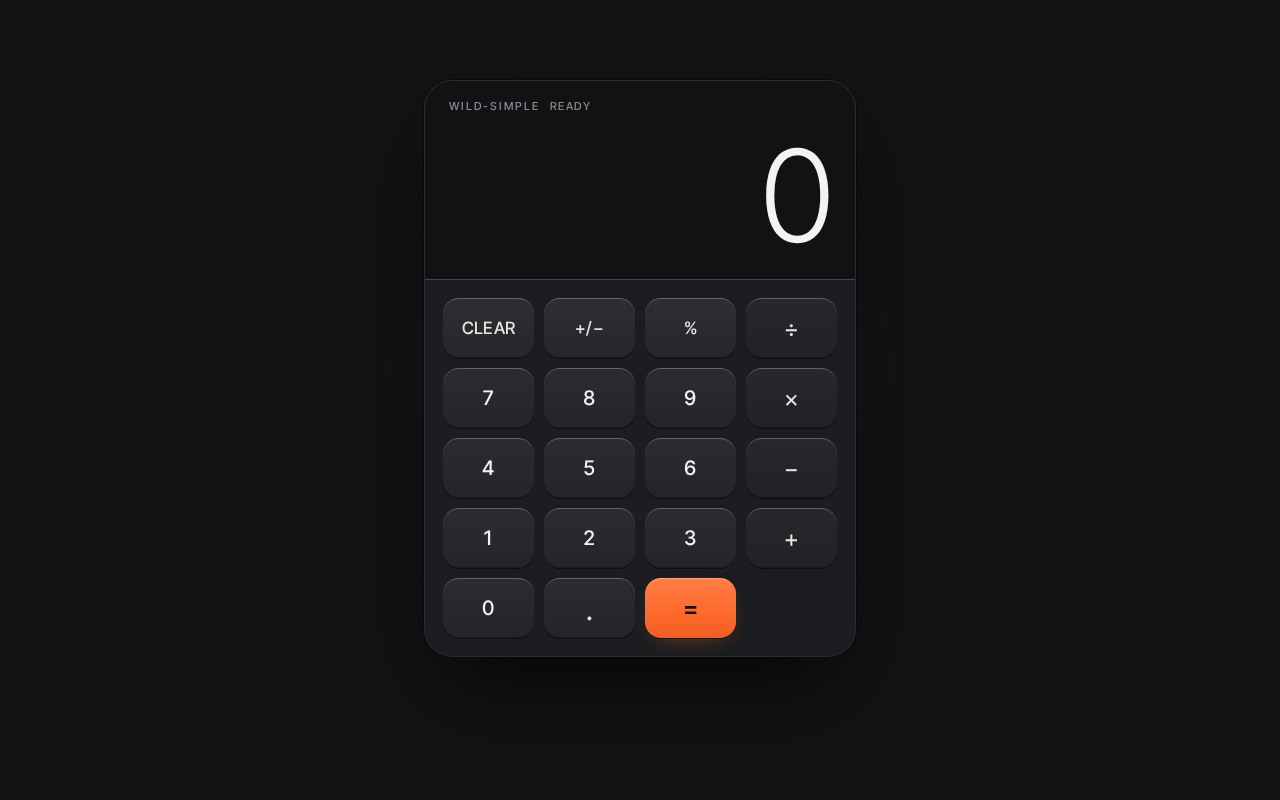
wild-simple is a simple, single-page calculator design. The product exists to give anyone who needs fast arithmetic a calm, focused place to enter numbers and operators and read a clear result. The entire product is one page: a large result display above a key grid, presented with quiet precision — a dark graphite field, hairline rules, soft continuous-curve keys, and a single warm orange equals key as the only accent.
The audience is any person who opens the page to perform basic arithmetic. There is no account, no sign-in, and no saved history: the calculator is an anonymous, public, single-page tool. The design is deliberately simple and restrained, following a Jony Ive-inspired direction in which the number is the single subject and nothing decorative appears that is not a control.
This document is the System Requirements Document for the project named wild-simple, requested by Diya Trivedi.
2. System Overview
2a. Product Interpretation and Delivery Boundary
wild-simple is delivered as a single first-party web page, Calculator, that is publicly reachable with no identity, no account, and no session continuity. The page is the anonymous public entry and holds all calculator work: entering numbers and operators, computing a result, and reading it. Because the product is explicitly a single-page design and no durable, actor-specific state is required, there is no application-owned identity, no login, and no protected destination.
The calculator's arithmetic runs in the browser as part of the page interaction; the provisioned shared backend, database, and frontend services exist as the project's runtime scaffold but do not add product behavior. No data is persisted, and no server round-trip is required for a calculation. The current delivery horizon is exactly this one page and its arithmetic interaction. There are no future-horizon features defined in the authoritative requirements.
2c. Page Content and Component Coverage
Calculator
The single page of the product. It is the anonymous public entry and the complete working surface for all calculator behavior.
- Information and state
- A large result display showing the current entered number or the computed result, using tabular figures at
clamp(56px, 12vw, 128px). - The current expression state: the digits entered so far, the pending operator, and the second operand as they are built.
- A resting state before any input (display shows a starting value such as
0). - An active-entry state while digits are being typed.
- A computed-result state after equals is pressed.
- An error state when an operation cannot produce a number (for example division by zero), shown in the display area.
- A large result display showing the current entered number or the computed result, using tabular figures at
- Primary actions
- Digit keys
0–9to enter numbers. - Operator keys
+,−,×,÷to choose an operation. - The equals key
=to compute and show the result; it is the only orange element and pulses once when a result lands. - A clear key to reset the current entry and expression.
- Digit keys
- Supporting actions
- A decimal point key to enter fractional numbers.
- A sign-toggle key to flip the sign of the current entry.
- A percent key to convert the current entry to a percentage.
- Domain entities
- Entry: the number currently being typed.
- Expression: the pending first operand, chosen operator, and second operand.
- Result: the numeric outcome of an evaluated expression.
- Error state: a display condition when an operation is undefined.
- Component responsibilities
- Result band: a dark graphite band holding the oversized result numeral alone, separated from the key grid by a hairline rule that runs edge to edge.
- Key grid: a 4-by-5 grid of keys with soft continuous-curve radii and a 1px aluminium top edge catching soft light; aluminium grey keys and hairline rules at 25 percent.
- Equals key: the single orange (
#FF6B2C) key, distinguished from all others. - Calculator panel: one floating panel with soft edge light on the graphite field, centred in a single column with wide margins at 375px, 768px, and 1280px.
- States
- Loading: not applicable; the page renders its panel and keys immediately with a single reveal on load.
- Empty: the resting display shows a starting value before any input.
- Success: the computed result appears in the result band and the equals key pulses once.
- Error: an undefined operation shows an error indication in the display; the user can clear and continue.
- Recovery: the clear key resets the expression and returns the display to its resting value so the user can start a new calculation.
3. Functional Requirements
FR-1 — Enter numbers and operators to calculate a result (explicit) As a Calculator user, I should enter numbers and operators on the Calculator page so that I can calculate a result.
- Trigger/input: the user presses digit keys and an operator key on the key grid.
- Observable result: the entered digits appear in the result display and the chosen operator is registered as pending.
- Access state: anonymous public page; no identity required.
- Failure/recovery: if the user mis-enters, the clear key resets the entry and expression.
- Continuation: the user enters the second operand and presses equals.
- Owner: Calculator page.
FR-2 — Compute and display the result (explicit) As a Calculator user, I should press the equals key so that the calculator computes and shows the result of my expression.
- Trigger/input: the user presses the equals key after entering an expression.
- Observable result: the computed result replaces the display content, and the equals key pulses once.
- Access state: anonymous public page.
- Failure/recovery: if the operation is undefined (for example division by zero), the display shows an error state instead of a number; the user clears and retries.
- Continuation: the user may continue calculating from the result or clear to start again.
- Owner: Calculator page.
FR-3 — Clear the current calculation (required_inference) As a Calculator user, I should clear the current entry and expression so that I can start a new calculation after a mistake or a completed result.
- Trigger/input: the user presses the clear key.
- Observable result: the display returns to its resting value and any pending operator is discarded.
- Access state: anonymous public page.
- Failure/recovery: not applicable; clearing always succeeds.
- Continuation: the user begins a new entry.
- Owner: Calculator page.
FR-4 — Enter fractional values (required_inference) As a Calculator user, I should enter a decimal point so that I can calculate with fractional numbers.
- Trigger/input: the user presses the decimal point key while entering a number.
- Observable result: a decimal point is appended to the current entry and shown in the display.
- Access state: anonymous public page.
- Failure/recovery: a second decimal point in the same entry is ignored.
- Continuation: the user continues entering digits or an operator.
- Owner: Calculator page.
FR-5 — Toggle the sign of the current entry (required_inference) As a Calculator user, I should toggle the sign of the current entry so that I can calculate with negative numbers.
- Trigger/input: the user presses the sign-toggle key.
- Observable result: the current entry's sign flips and the display updates.
- Access state: anonymous public page.
- Failure/recovery: not applicable.
- Continuation: the user continues the expression.
- Owner: Calculator page.
FR-6 — Convert the current entry to a percentage (required_inference) As a Calculator user, I should apply the percent key so that I can use a percentage value in my calculation.
- Trigger/input: the user presses the percent key.
- Observable result: the current entry is converted to its percentage value and shown in the display.
- Access state: anonymous public page.
- Failure/recovery: not applicable.
- Continuation: the user continues the expression or presses equals.
- Owner: Calculator page.
4. User Personas
Calculator user
- Product context: A person who opens the wild-simple page needing fast, simple arithmetic. They arrive at the anonymous public Calculator page with no account and no prior state; the page is the whole product.
- Primary goal: Enter numbers and operators and read a clear, correct result with minimal friction and calm focus.
- Distinct accepted responsibilities: Entering digits and operators, choosing an operation, pressing equals to compute, reading the result, and clearing to start again. They also use the decimal point, sign toggle, and percent keys to shape their entries.
- Relevant inputs or decisions: Which digits to enter, which operator to apply, when to press equals, and when to clear. They decide when a result is acceptable or when to redo the calculation.
- Interactions with other accepted participants: None. The calculator is a single-user, single-page tool with no counterparty, recipient, or shared state; the only participant is the Calculator user acting alone.
- Observable success: The result numeral appears in the result band, the equals key pulses once, and the user can read the outcome at a glance and continue or clear.
5. Core User Flows
Flow 1 — Perform a basic calculation
- The Calculator user opens the wild-simple page. The Calculator page renders its single centred panel: the result band showing a resting value, and the 4-by-5 key grid below a hairline rule. (Starting context: anonymous public entry, no identity.)
- The user presses digit keys to enter the first number. The digits appear in the result display. (Observable result: entry shown.)
- The user presses an operator key (
+,−,×, or÷). The operator is registered as pending. (Decision: which operation.) - The user presses digit keys to enter the second number. The second operand appears in the display.
- The user presses the equals key. The calculator computes the result; the result numeral replaces the display content and the equals key pulses once. (Observable result: computed result shown; success state.)
- The user reads the result and either continues calculating from it or presses the clear key to reset to the resting value and start a new calculation. (Continuation.)
Flow 2 — Recover from a mistake or an undefined operation
- The Calculator user is mid-entry or has just pressed equals on an expression that cannot produce a number (for example division by zero). The display shows an error state instead of a result. (Material failure.)
- The user presses the clear key. The display returns to its resting value and any pending operator is discarded. (Recovery.)
- The user re-enters the expression from step 2 of Flow 1 and completes the calculation. (Continuation.)
Flow 3 — Calculate with fractional, negative, or percentage values
- The Calculator user enters a number and presses the decimal point key to append a fractional part; a second decimal point in the same entry is ignored. (Observable result: fractional entry shown.)
- The user presses the sign-toggle key to flip the sign of the current entry; the display updates to the negative value. (Observable result: sign flipped.)
- The user presses the percent key to convert the current entry to a percentage; the converted value is shown. (Observable result: percentage value shown.)
- The user completes the expression with an operator and a second operand and presses equals; the result appears and the equals key pulses once. (Completion.)
6. Visuals Colors and Theme
The visual direction is Quiet precision for a calculator, after Jony Ive. The number is the single subject; nothing decorative appears that is not a control.
Mode: dark.
Colour tokens (exact hex by role)
- Background:
#111214(graphite ground, ~70 percent of the frame) - Surface:
#1B1D20(calculator panel and keys) - Text:
#F4F3F1(result numerals and labels) - Primary:
#E8E6E1(key faces and primary controls) - Accent:
#FF6B2C(the equals key only) - Muted:
#8A8D91(secondary labels and hairline rules) - Aluminium grey keys and hairline rules at 25 percent opacity.
Typography
- Headings: Inter Tight, Light 200–300 weight, tight tracking, large display numerals.
- Body: Inter Tight.
- Labels and keys: medium 500 in small caps.
- Type scale: 1.25 modular — 96 / 64 / 40 / 24 / 16.
- Display numerals use tabular figures at
clamp(56px, 12vw, 128px).
Shape language
- Soft continuous-curve radii on keys and the panel.
- Hairline dividers at 1px.
- No decoration that is not a control.
Layout
- One centred column.
- A large result display sits above a 4-by-5 key grid.
- Wide margins hold the single focus at 375px, 768px, and 1280px.
Imagery
- No photography. The lit keypad and the tabular numerals are the only visual subject.
Avoid: no blue or indigo accent on a white ground; no gradient blobs or floating decoration; no grid of identical hover-lift cards; no playful stickers or emoji; no stock photography of people.
7. Signature Design Concept
The public entry is a dark graphite field holding one floating calculator panel with soft edge light. A single oversized result numeral — clamp(56px, 12vw, 128px) — spans the panel top, sitting alone on a dark graphite band and filling the panel width at every viewport. A hairline rule separates the result band from the key grid and runs edge to edge. The keys use soft continuous-curve radii with a 1px aluminium top edge that catches a soft light. The equals key is the only orange element in the frame and pulses once when a result lands. The composition recomposes only the accepted calculator content — the result display, the key grid, and the equals key — with no added behavior or destination.
8. Interaction Model & Motion Direction
Interaction Model: Animated Motion Tempo: restrained Hero Dimensionality: layered_2d
Landing Hero Motion Brief
- Focal subject: the single floating calculator panel on the graphite field, with the oversized result numeral as the visual anchor and the orange equals key as the only warm point.
- Input → transformation → outcome thesis: a key press (input) depresses the key with slow physical easing and updates the result numeral (transformation), and pressing equals lands the computed result with a single pulse of the orange equals key (outcome). Only accepted calculator behavior is used.
- Motion vocabulary: slow physical easing on key press and result change; one reveal on load; no bounce and no particles.
- Composed first frame: the panel revealed on load, the result band showing its resting value, the key grid fully visible, and the equals key at rest in orange.
- Reduced-motion state: with
prefers-reduced-motion, the load reveal and the equals pulse are suppressed; the panel appears in its final static arrangement and key presses update the display without animated easing, keeping every control and numeral fully readable.
9. Non-Functional Requirements
- Single page (explicit): The product is exactly one page, the Calculator. No additional pages, routes, or destinations are introduced.
- Simplicity (explicit): The design is simple; only controls that perform calculator actions appear on the page.
- Readable text and controls (explicit, from design constraints): Headlines, labels, numbers, and controls stay entirely inside the viewport and their container at 375px, 768px, and 1280px, wrapping or scaling (for example
font-size: clamp(...)) to fit, with no other element covering any part of them. - Reduced motion (explicit, from design constraints): With
prefers-reduced-motion, a usable static arrangement is provided; motion is suppressed without hiding content or controls. - No identity or persistence (required_inference): The page is anonymous and public; no account, login, or saved history is required or provided.
- Responsive layout (explicit, from design constraints): The single centred column with wide margins holds its focus at 375px, 768px, and 1280px.
10. Tech Stack
- Frontend: React application UI rendering the single Calculator page.
- Backend: shared FastAPI process for application APIs and domain modules (provisioned scaffold; the calculator's arithmetic runs in the page and requires no server round-trip).
- Database: MariaDB for application-owned persistent data (provisioned scaffold; the calculator persists no data).
- Containerization: Docker / docker-compose for the backend, database, and frontend services.
11. Assumptions and Constraints
- Assumption (required_inference): The calculator supports the four basic operations (addition, subtraction, multiplication, division) plus decimal point, sign toggle, percent, and clear, as the minimum set needed to satisfy "enter numbers and operators to calculate a result" on a 4-by-5 key grid.
- Assumption (required_inference): An undefined operation such as division by zero shows an error state in the display rather than a number, and the clear key recovers.
- Constraint (explicit): The design is a single page and is simple.
- Constraint (explicit): The page is anonymous and public; no identity is established.
- Constraint (explicit, design): The palette, fonts, surfaces, tone, and layout follow the supplied creative direction; the generic indigo/blue-on-white SaaS template is forbidden.
12. Glossary
- Calculator page: The single page of wild-simple; the anonymous public entry and complete working surface.
- Result band: The dark graphite band at the top of the panel holding the oversized result numeral alone.
- Key grid: The 4-by-5 grid of keys below the result band, separated by a hairline rule.
- Equals key: The single orange (
#FF6B2C) key that computes the result and pulses once when a result lands. - Expression: The pending first operand, chosen operator, and second operand.
- Entry: The number currently being typed.
- Result: The numeric outcome of an evaluated expression.
- Error state: The display condition shown when an operation cannot produce a number.
wild-simple
Ready
No comments yet. Be the first!