urban-simple
 Diya Trivedi
start a project to build a simple single page design of calculator

Comments (0)
Sign in to leave a comment
System Requirements
System Requirements Document for urban-simple
1. Introduction
urban-simple is a simple calculator delivered as a single page. The product intent is narrow and explicit: one page where a person enters numbers and operators and reads the arithmetic result. There is no account, no navigation, no secondary screen, and no surrounding application shell — the calculator is the product.
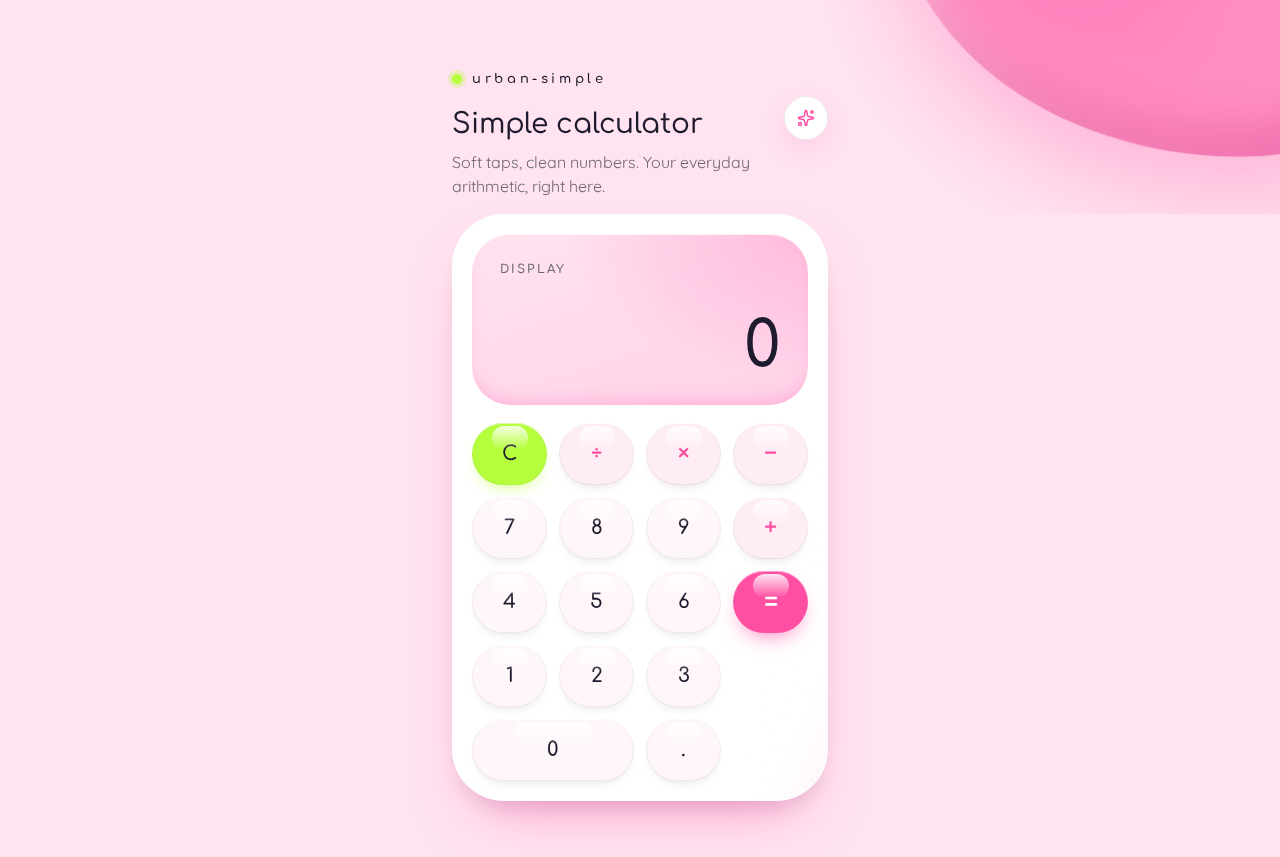
The audience is everyday users who need quick arithmetic in a browser. The page must be simple and must feel light, tactile, and optimistic, following a sensual pop-minimalist direction inspired by Karim Rashid: a bubblegum-pink ground, one soft white capsule panel, capsule keys, and a glossy 3D blob floating behind the panel.
This document is the System Requirements Document for the project named urban-simple, requested by Diya Trivedi.
2. System Overview
2a. Product Interpretation and Delivery Boundary
The product is a single public page. It is the public entry surface and the calculator itself: a visitor lands on it, performs arithmetic, and reads the result. No identity, sign-in, account, or session continuity is required or provided — the calculator holds no durable user-specific state, so there is nothing to privately own or resume. The page is reachable anonymously and is fully usable on first load.
All calculation behavior runs in the browser on the single page. The provisioned backend (FastAPI) and database (MariaDB) exist as project infrastructure but carry no calculator domain responsibility: no calculation history, saved expressions, or user records are part of the accepted scope, and none are introduced here. The frontend (React) owns the entire accepted experience.
Everything described in this document is current scope. No future-horizon features have been accepted.
2c. Page Content and Component Coverage
Calculator
Information and state
- The current display value: the number being entered, or the result of the last completed operation. Displayed in a wide pink-tinted band at the top of the white panel, with tabular numerals at 64px on desktop and 44px on mobile.
- The pending operation state: when an operator has been pressed, the display shows the first operand and the chosen operator is visibly marked (pink) until the second operand and equals complete the calculation.
- A short page title, flush left above the panel, in Comfortaa, sentence case.
- No history list, no memory register, no expression tape — the page shows only the current display value.
Primary actions
- Digit keys
0–9and a decimal point key: append to the current entry. - Operator keys
+,−,×,÷: mark the chosen operator in pink and begin the second operand. - Equals key
=: pink capsule key; computes and shows the result in the display band. - Clear key
C: lime capsule key; resets the display and any pending operation to the initial zero state.
Supporting actions and states
- Key press feedback: a soft liquid morph and pink glow on the pressed key.
- Error state: an invalid operation (for example division by zero) shows a clear error indication in the display band; pressing
Crecovers to the initial zero state. - Empty/initial state: the display reads
0on first load.
Domain entities
- Display value (string/number shown in the band).
- Pending operand and pending operator (in-page calculation state only; not persisted).
Component responsibilities
- Page ground: full-bleed bubblegum pink
#FFE3F0. - Title: flush-left heading above the panel.
- Panel: one centred white
#FFFFFFcapsule panel with soft shadow, holding the display band and the 4×4 key grid. - Display band: wide pink-tinted band with tabular numerals.
- Key grid: 4×4 capsule keys, each at least 56px tall at 375px width; white keys on the panel, pink
#FF4FA3for operators and equals, lime#B6FF3Cfor clear only. - Decorative 3D blob: glossy pink blob partly off the right edge behind the panel; never covers readable text or controls.
States
- Loading: not applicable beyond initial render; the page is immediately usable.
- Empty: initial display
0. - Success: result shown in the display band.
- Error: invalid operation indicated in the display band;
Crecovers. - Recovery:
Calways returns to the initial zero state.
3. Functional Requirements
FR-1 — Single-page calculator entry (explicit) As a Calculator user, I should open the single Calculator page and immediately see a working calculator, so that I can do arithmetic without any setup.
- Trigger: navigating to the page.
- Observable result: the page renders the title, white panel, display band showing
0, and the 4×4 key grid. - Access: anonymous, no identity required.
- Failure/recovery: if the page fails to render, reloading restores the calculator; there is no partial state to recover.
FR-2 — Enter numbers (explicit) As a Calculator user, I should press digit keys and a decimal point to build a number, so that I can enter the operands I want to calculate.
- Input: digit keys
0–9, decimal point. - Observable result: the display band updates to show the entered number.
- Failure/recovery: pressing
Cclears the entry back to0.
FR-3 — Choose an operator (explicit)
As a Calculator user, I should press +, −, ×, or ÷ to choose an operation, so that the calculator knows which arithmetic to perform.
- Input: an operator key after a first operand.
- Observable result: the chosen operator is visibly marked in pink and the calculator awaits the second operand.
- Failure/recovery: pressing
Ccancels the pending operation.
FR-4 — Compute a result (explicit)
As a Calculator user, I should press = after entering the second operand, so that I see the arithmetic result.
- Input: equals key with a pending operator and second operand.
- Observable result: the display band shows the computed result.
- Failure/recovery: an invalid operation (such as division by zero) shows an error indication in the display band; pressing
Crecovers to0.
FR-5 — Clear the calculator (explicit)
As a Calculator user, I should press the lime C key to reset, so that I can start a fresh calculation.
- Input: clear key.
- Observable result: display returns to
0and any pending operand/operator is discarded. - Failure/recovery:
Cis always available and always recovers to the initial state.
FR-6 — Tactile key feedback (explicit, from creative direction) As a Calculator user, I should see a soft liquid morph and pink glow when I press a key, so that the calculator feels tactile and responsive.
- Observable result: the pressed key animates and glows pink.
- Failure/recovery: with
prefers-reduced-motion, the sheen and morph are suppressed and the calculator remains fully usable.
4. User Personas
Calculator user
- Product context: An everyday browser user who needs quick arithmetic and lands directly on the single Calculator page. No account, profile, or prior visit is involved.
- Primary goal: Enter numbers and operators and read the correct result with minimal friction.
- Distinct accepted responsibilities: Entering operands via digit and decimal keys; selecting one of the four operators; committing the calculation with
=; clearing withCto start over or recover from an error. - Relevant inputs or decisions: Which numbers to enter, which operator to apply, and when to press
=versusC. - Interactions with other accepted participants: None — the calculator is a single-user, single-page tool with no counterparty, recipient, or shared state.
- Observable success: The display band shows the expected result, or a clear error that
Cresolves.
5. Core User Flows
Flow 1 — Perform a calculation
- The Calculator user opens the Calculator page (anonymous, no sign-in).
- The page renders the title, the white capsule panel, the display band showing
0, and the 4×4 key grid. - The user presses digit keys to enter the first operand; the display band updates.
- The user presses an operator key; it is marked pink and the calculator awaits the second operand.
- The user presses digit keys to enter the second operand; the display band updates.
- The user presses
=; the display band shows the computed result. - Continuation: the user may press
Cto reset to0and begin a new calculation, or enter a new operator to continue from the result.
Flow 2 — Recover from an invalid operation
- The user enters an operation that cannot be computed (for example division by zero) and presses
=. - The display band shows an error indication.
- The user presses the lime
Ckey; the display returns to0and pending state is discarded. - The user proceeds with a fresh calculation (Flow 1).
Flow 3 — Clear and start over
- Mid-entry or after a result, the user presses
C. - The display returns to
0and any pending operand/operator is discarded. - The user begins a new calculation.
6. Visuals Colors and Theme
Muse and headline: Karim Rashid — sensual pop minimalism for a simple calculator. A plain tool becomes a soft, glossy object on one warm colour ground.
Mode: light only.
Colour tokens (exact hex by role)
- Background / page ground:
#FFE3F0(bubblegum pink, full-bleed) - Surface (panel and keys):
#FFFFFF - Text:
#1E1B2E - Primary (equals key, operators, display band tint, press glow):
#FF4FA3 - Accent (clear key only):
#B6FF3C - Muted (secondary labels):
#8A7F92
Typography
- Headings: Comfortaa, medium weight, wide tracking on small labels, sentence case.
- Body: Quicksand.
- Scale: 1.25 modular — 56 / 44 / 28 / 20 / 16.
- Display numerals: tabular, 64px desktop / 44px mobile.
Shape language: capsule keys, blob-shaped panel edges, glossy highlights; all corners fully round, no sharp edges.
Layout: one centred column; short title flush left above a soft white panel; panel holds the display band and a 4×4 key grid; keys at least 56px tall at 375px.
Imagery: no photos; one glossy 3D blob floats partly off the right edge behind the panel as a soft pink form.
Avoid: blue or indigo accents on white; square keys and sharp corners; grids of identical hover-lift cards; gradient blob heroes with a centred headline and button.
7. Signature Design Concept
The public entry is the calculator itself: a full-bleed bubblegum-pink ground holding one large white capsule panel with a soft shadow. The display is a wide pink-tinted band at the top of the panel with 64px tabular numerals. A glossy pink 3D blob sits partly off the right edge behind the panel, bleeding past the viewport edge as decoration only. The title sits flush left above the panel, not centred. Capsule keys carry a pink glow on press, and a slow sheen sweeps across the white panel. Readable text and controls — title, display numerals, key labels — remain whole and uncovered at 375px, 768px, and 1280px; the blob and sheen carry the gesture instead.
8. Interaction Model & Motion Direction
Interaction Model: Animated Motion Tempo: expressive Hero Dimensionality: webgl
Landing Hero Motion Brief
- Focal subject: the glossy pink 3D blob floating partly off the right edge behind the white capsule panel.
- Thesis: on load, the blob settles into place behind the panel with a slow glossy sheen sweeping across the panel surface; on key press, the pressed capsule key performs a soft liquid morph with a pink glow, then returns — input becomes tactile feedback, outcome is a responsive, optimistic calculator.
- Motion vocabulary: soft liquid morph, slow glossy sheen, pink press glow.
- Composed first frame: bubblegum-pink ground, flush-left title, white capsule panel with pink display band showing
0, 4×4 capsule keys, blob partly off the right edge. - Reduced-motion state: the sheen and morph stop; the static arrangement shows the same panel, display, and keys fully usable.
Landing Hero 3D Scene Brief — DIRECTION-DERIVED
One crafted real-time glossy pink blob (soft, rounded, high-gloss material) positioned partly off the right edge behind the panel, with gentle idle drift and a subtle sheen highlight. It must never cover the title, display numerals, or key labels, and it degrades to a static rendered form under prefers-reduced-motion.
9. Non-Functional Requirements
- Single page (explicit): the product is exactly one page; no additional routes, navigation, or screens.
- Simplicity (explicit): the interface is simple — one display, one 4×4 key grid, no history or memory features.
- Responsive readability (explicit): headlines, labels, numerals, and controls stay entirely inside the viewport and their container at 375px, 768px, and 1280px, wrapping or scaling (e.g.
clamp(...)) to fit; no element covers readable text or controls. - Reduced motion (explicit): with
prefers-reduced-motion, the sheen and morph are suppressed and the calculator remains fully usable. - Accessibility (required_inference): keys are operable by keyboard and pointer, with visible focus and adequate contrast against the panel.
10. Tech Stack
- Frontend: React application UI (single page).
- Backend: shared FastAPI process for application APIs and domain modules (provisioned; no calculator domain responsibility in current scope).
- Database: MariaDB for application-owned persistent data (provisioned; no calculator entities in current scope).
- 3D: WebGL/R3F for the glossy blob hero subject.
- Deployment: docker-compose with the
frontend,backend, anddatabaseservices.
11. Assumptions and Constraints
- Assumption: the calculator performs standard four-function arithmetic (
+,−,×,÷) with a decimal point and clear; no scientific functions, memory, or history are in scope. - Assumption: the page is publicly reachable with no authentication.
- Constraint: exactly one page (page count = 1, explicit).
- Constraint: the design is simple and single-page (explicit).
- Constraint: the palette, fonts, shape language, and layout follow the supplied creative direction; the generic indigo/blue-on-white SaaS template is forbidden.
12. Glossary
- Calculator page: the single public page that is both the entry surface and the calculator.
- Display band: the wide pink-tinted band at the top of the panel showing the current value or result.
- Capsule key: a fully rounded key in the 4×4 grid.
- Pending operation: the stored first operand and chosen operator awaiting the second operand and
=. - Blob: the decorative glossy pink 3D form behind the panel.
Simple calculator
Soft taps, clean numbers. Your everyday arithmetic, right here.
0
Simple calculator
Soft taps, clean numbers. Your everyday arithmetic, right here.
0
No comments yet. Be the first!