tidal-stcok

byShonekan Mayokun

build a website for stcok management

LandingSign UpLogin
Landing

Comments (0)

No comments yet. Be the first!

System Requirements

System Requirements Document for tidal-stcok

1. Introduction

tidal-stcok is a web-based stock management application for a small inventory operation. It gives a Stock Manager and a Warehouse Operator one shared, durable record of what is in stock, how much of it there is, and every movement in and out of the store. The product intent is exactness and speed: counts must be current, every change to a quantity must be traceable to a recorded movement, and the surface must read like a calibrated instrument rather than a friendly form.

The audience is the two operational roles who touch stock daily: the Stock Manager, who owns the correctness of item records and quantities, and the Warehouse Operator, who records the physical movement of goods and checks quantities on the floor. Both reach the product through a public Landing page, create their own account on Sign Up, and return through Login. The application owns identity so that stock records, movements, and quantity edits remain bound to the correct person and can be resumed across sessions.

Page 1 of 28

2. System Overview

tidal-stcok is delivered as a React single-page frontend served alongside a shared FastAPI backend process, with MariaDB holding application-owned persistent data. The backend exposes the inventory, stock item, stock movement, and identity APIs; the frontend renders the six accepted destinations. There is no separate worker, queue, or third-party inventory provider in the current delivery.

The active human actors are the Stock Manager and the Warehouse Operator. Both are first-party users of the application. The application itself is the only system actor of consequence: it validates input, applies quantity arithmetic, persists movements, and enforces which role may reach which destination.

Current accepted behavior covers: self-service enrollment and returning verification; a Landing page that explains the product before any identity check; an Inventory list of stock items with current levels and the start of item creation; a Stock Item page showing one item and letting the Stock Manager edit its quantity; and a Stock Movements page where the Warehouse Operator records stock in and out and sees the resulting quantity. Access is layered: Landing, Sign Up, and Login are open; Inventory requires a logged-in user; Stock Item is restricted to the Stock Manager role; Stock Movements is restricted to the Warehouse Operator role.

Removed from scope

  • None. No concept from the authoritative requirement thread was removed or superseded.
Page 2 of 28

2a. Product Interpretation and Delivery Boundary

tidal-stcok is a first-party web application. The application owns the user identity, the stock item records, the quantity values, and the movement history. Nothing in the accepted requirements delegates inventory state to an external provider, and nothing is delivered headless.

Access is deliberately staged. A visitor can read the Landing page and can reach Sign Up and Login without an account. Everything that reads or changes stock — the Inventory list, a single Stock Item, and the Stock Movements ledger — sits behind login. Within the logged-in area, the two roles have different working surfaces: the Stock Manager owns item records and quantity corrections on Stock Item, and the Warehouse Operator owns the movement ledger on Stock Movements. Both roles can read the Inventory list, because both need to know current levels.

The current horizon is the six accepted pages and the behaviors described in Section 3. No reporting, purchasing, supplier, barcode, multi-warehouse, or notification capability is part of this delivery, and none should be inferred from the product category.

2c. Page Content and Component Coverage

Page 3 of 28

Landing

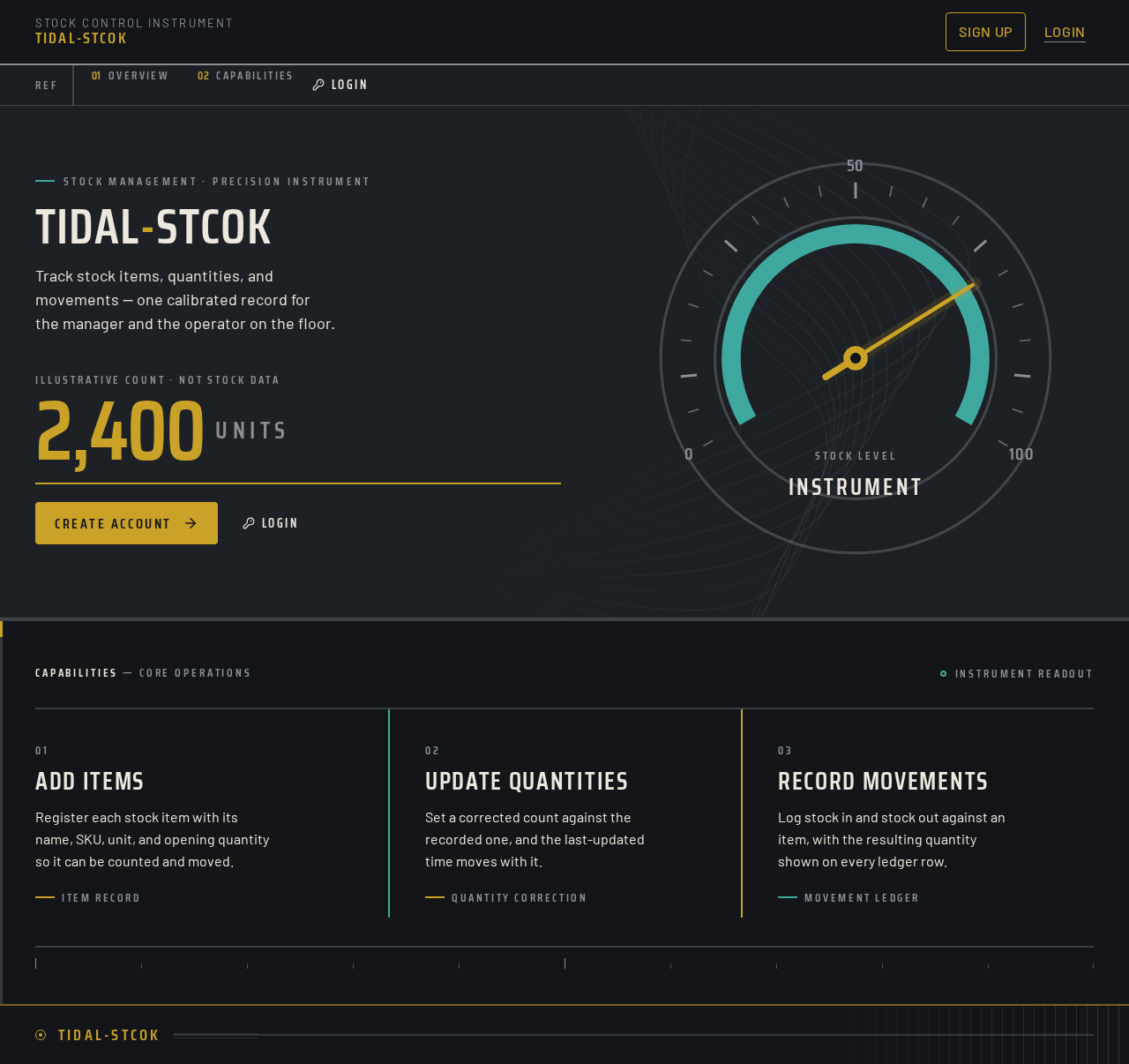
  • Information and state: Product name tidal-stcok; a one-line statement of what the product does (track stock items, quantities, and movements); a live-feeling total-units figure and a stock-level gauge ring drawn from the direction; entry points to Sign Up and Login. No stock data is exposed to an anonymous visitor — the hero figures are presentational instrument framing, not a read of inventory.
  • Primary actions: Go to Sign Up; go to Login.
  • Supporting actions: None beyond navigation.
  • Domain entities: None read or written.
  • Component responsibilities: Hero band with the condensed total-units count, the teal gauge ring with champagne needle, and the champagne rule carrying the primary call to action; a ruled three-column band describing the three core capabilities (add items, update quantities, record movements); a numbered left rail for section navigation; a footer with the product name.
  • States: Loading — not applicable, the page is static. Empty — not applicable. Success — the page renders fully. Error — if the visitor is already authenticated, the page still renders and the primary call to action becomes a link into Inventory. Recovery — none required.
Page 4 of 28

Sign Up

  • Information and state: A short explanation that an account is needed to manage stock; fields for the new user's name, email address, password, and role selection (Stock Manager or Warehouse Operator); inline validation messages; a link to Login for people who already have an account.
  • Primary actions: Submit the enrollment form to create the account and sign in.
  • Supporting actions: Switch to Login; correct a field after a validation error.
  • Domain entities: User account (name, email, password credential, role).
  • Component responsibilities: Form with labeled fields, a role selector presented as two ruled options rather than a dropdown, a submit control on a champagne rule, and an error region above the form.
  • States: Loading — submit control shows a pending state and is disabled while the request is in flight. Empty — fields start blank with the role unselected. Success — the account is created, the session begins, and the user is taken to Inventory. Error — duplicate email, invalid email format, password below the minimum length, or no role selected each produce a specific inline message and the form retains entered values. Recovery — the user corrects the field and resubmits; a network failure leaves the form intact with a retry message.
Page 5 of 28

Login

  • Information and state: Email and password fields; a link to Sign Up for people without an account; an error region.
  • Primary actions: Submit credentials to verify the returning user and start a session.
  • Supporting actions: Go to Sign Up; correct credentials after a failure.
  • Domain entities: User account credential and role.
  • Component responsibilities: Compact centered form on a dark titanium ground, labeled fields, submit control on a champagne rule, and an error region.
  • States: Loading — submit control pending and disabled. Empty — fields blank. Success — session established and the user is taken to Inventory. Error — wrong email or password produces a single non-revealing message; the form retains the email and clears the password. Recovery — the user retries; repeated failures do not lock the account in this delivery.
Page 6 of 28

Inventory

  • Information and state: A full-width ruled table of stock items with columns for item name, SKU, unit, current quantity, and last-updated time; a total item count and total unit count in the header band; a numbered left rail; a search field filtering by name or SKU; an empty state when no items exist.
  • Primary actions: Open a stock item to view it; start creation of a new stock item.
  • Supporting actions: Search and clear search; sort by name or quantity; navigate to Stock Movements when the signed-in user is a Warehouse Operator.
  • Domain entities: Stock item (name, SKU, unit, quantity, last updated), user role.
  • Component responsibilities: Header band with counting numerals for totals; ruled data table with 2 px dividers and hard-edged rows; search input; "New item" control on a champagne rule; row link into Stock Item; role-aware navigation to Stock Movements.
  • States: Loading — table shows ruled skeleton rows. Empty — a ruled panel states that no stock items exist yet and offers the "New item" control. Success — rows render with current quantities. Error — a failed load shows a retry panel with the failure reason. Recovery — retry reloads the list; a newly created item appears at the top of the list on return.
Page 7 of 28

Stock Item

  • Information and state: One stock item's name, SKU, unit, current quantity shown as a large condensed count, last-updated time, and a compact history of the most recent movements affecting it; an editable quantity field; a create mode for a new item with name, SKU, unit, and opening quantity fields.
  • Primary actions: Save a corrected quantity (Stock Manager); create the item when in create mode (Stock Manager).
  • Supporting actions: Return to Inventory; cancel an edit; open Stock Movements for the item.
  • Domain entities: Stock item, quantity adjustment, movement record.
  • Component responsibilities: Item header with the 72 px counting quantity; gauge ring reflecting quantity against a recorded capacity reference when one exists, otherwise a neutral ring; edit form with a numeric quantity field; save and cancel controls; recent-movements list with teal inbound and champagne outbound left rules.
  • States: Loading — header and form show ruled placeholders. Empty — create mode with blank fields. Success — the saved quantity counts to its new value and the last-updated time refreshes. Error — a non-numeric or negative quantity is rejected inline; a save conflict reports that the item changed and offers a reload. Recovery — reload the item and reapply the correction. Access — a Warehouse Operator who reaches this page is shown a ruled notice that quantity editing belongs to the Stock Manager and is offered the Inventory list instead.
Page 8 of 28

Stock Movements

  • Information and state: A movement entry form (stock item selector, direction of in or out, quantity, optional note) and a chronological ledger of recorded movements with item, direction, quantity, resulting quantity, note, actor, and timestamp; a filter by item and by direction.
  • Primary actions: Record an inbound or outbound movement (Warehouse Operator).
  • Supporting actions: Filter the ledger; open the affected stock item; clear the form.
  • Domain entities: Movement record (item, direction, quantity, resulting quantity, note, actor, timestamp), stock item.
  • Component responsibilities: Entry form with a searchable item selector, a two-option direction control, a numeric quantity field, and a note field; submit control on a champagne rule; ruled ledger with teal left rules on inbound rows and champagne left rules on outbound rows; resulting-quantity column rendered as a counting numeral.
  • States: Loading — ledger shows ruled skeleton rows. Empty — the ledger states that no movements have been recorded and the form remains available. Success — the movement is appended, the resulting quantity counts to its new value, and the form resets. Error — an outbound quantity larger than the current stock is rejected with a message naming the available quantity; a missing item or zero quantity is rejected inline. Recovery — the operator corrects the quantity and resubmits; the ledger is unchanged by a rejected attempt. Access — a Stock Manager who reaches this page is shown a ruled notice that movement recording belongs to the Warehouse Operator and is offered the Inventory list instead.
Page 9 of 28

3. Functional Requirements

FR-1 — Manage a stock inventory on a website (explicit) As a Stock Manager or Warehouse Operator, I should have a persistent, shared stock inventory in the web application, so that both roles work from one authoritative record.

  • Trigger: the user opens Inventory while signed in.
  • Observable result: the current set of stock items with their quantities is listed, and any change made by either role is visible to the other on next load.
  • Access: login required.
  • Failure/recovery: a failed load shows a retry panel; retrying reloads the list.
  • Continuation: the user opens an item or starts a new one.

FR-2 — Add stock items with their details (explicit) As a Stock Manager, I should add a stock item with its details, so that the item exists in the inventory and can be counted and moved.

  • Input: item name, SKU, unit, and opening quantity.
  • Observable result: the item is persisted and appears in Inventory with its opening quantity.
  • Access: login required; creation is initiated from Inventory and completed on Stock Item.
  • Failure/recovery: a missing name or SKU, a duplicate SKU, or a negative opening quantity is rejected inline and the entered values are retained.
  • Continuation: the user returns to Inventory, where the new item is listed.
Page 10 of 28

FR-3 — Update stock item quantities (explicit) As a Stock Manager, I should update a stock item's quantity directly, so that the recorded count matches a physical count or correction.

  • Input: a new quantity for one item.
  • Observable result: the item's quantity is replaced, the last-updated time refreshes, and the change is recorded as a quantity adjustment in the item's movement history.
  • Access: login required and Stock Manager role.
  • Failure/recovery: a non-numeric or negative quantity is rejected inline; a concurrent change reports a conflict and offers a reload.
  • Continuation: the user returns to Inventory or opens Stock Movements for the item.

FR-4 — View current stock levels (explicit) As a Stock Manager or Warehouse Operator, I should view current stock levels, so that I can judge what is available before acting.

  • Trigger: the user opens Inventory or a single Stock Item.
  • Observable result: current quantities are shown per item, with totals in the Inventory header and a large count on Stock Item.
  • Access: login required.
  • Failure/recovery: a failed load shows a retry panel.
  • Continuation: the user proceeds to a correction or a movement.
Page 11 of 28

FR-5 — Record stock movement in and out (explicit) As a Warehouse Operator, I should record stock moving in and stock moving out, so that the ledger explains every change to a quantity.

  • Input: stock item, direction (in or out), quantity, optional note.
  • Observable result: a movement record is appended with the resulting quantity, and the item's current quantity increases for inbound or decreases for outbound.
  • Access: login required and Warehouse Operator role.
  • Failure/recovery: an outbound quantity exceeding available stock is rejected with the available quantity named; a zero quantity or unselected item is rejected inline; the ledger is unchanged by a rejected attempt.
  • Continuation: the operator records the next movement or opens the affected item.

FR-6 — Self-service enrollment on Sign Up (required_inference) As a new Stock Manager or Warehouse Operator, I should create my own account and choose my role, so that I can begin using the product without an administrator.

  • Input: name, email, password, role.
  • Observable result: the account is created, a session begins, and the user lands on Inventory.
  • Access: none — Sign Up is reachable anonymously.
  • Failure/recovery: duplicate email, invalid email, short password, or missing role each produce a specific inline message with values retained.
  • Continuation: the user proceeds into Inventory.
Page 12 of 28

FR-7 — Returning verification on Login (required_inference) As a returning Stock Manager or Warehouse Operator, I should verify my identity, so that I resume my own work with my role intact.

  • Input: email and password.
  • Observable result: a session begins and the user lands on Inventory with their role's destinations available.
  • Access: none — Login is reachable anonymously.
  • Failure/recovery: incorrect credentials produce a single non-revealing message; the email is retained and the password cleared.
  • Continuation: the user proceeds into Inventory.

FR-8 — Role-appropriate access to stock actions (required_inference) As a signed-in user, I should only reach the stock actions my role permits, so that quantity corrections and movement records stay with the role that owns them.

  • Observable result: a Stock Manager reaches Stock Item and is redirected from Stock Movements with a notice; a Warehouse Operator reaches Stock Movements and is redirected from Stock Item with a notice; both reach Inventory.
  • Access: login required, plus role restriction on Stock Item and Stock Movements.
  • Failure/recovery: a direct attempt at a restricted page shows the ruled notice and a link back to Inventory rather than an error.
  • Continuation: the user returns to Inventory and continues with permitted work.

4. User Personas

Page 13 of 28

Stock Manager

The Stock Manager is accountable for the correctness of the inventory record. Their work is corrective and supervisory: they decide what items exist, what unit each is counted in, and what the true quantity is when a physical count disagrees with the system. They are the only role that creates items and the only role that edits a quantity directly, which means every discrepancy that is not a physical movement lands with them.

Their primary goal is that no item is wrong and no shortage is discovered late. They start on Inventory, scan the ruled table for items whose quantity looks off, and open a Stock Item to correct it. They read the recent-movements list on that page to understand why a quantity drifted before they overwrite it, because a correction that ignores a recorded movement hides a real problem. They also create new items when a new product enters the store, supplying name, SKU, unit, and opening quantity.

Their inputs are item details and corrected counts; their decisions are whether a discrepancy is a correction or a movement that the Warehouse Operator should have recorded. They interact with the Warehouse Operator indirectly through the shared ledger: a movement the operator records changes the quantity the manager sees, and a correction the manager makes appears in the history the operator can read. Their observable success is a table whose quantities match the physical store and a history that explains every change.

Page 14 of 28

Warehouse Operator

The Warehouse Operator works at the point of physical movement. Their work is transactional and high-frequency: goods arrive, goods leave, and each event must be recorded at the moment it happens so the count stays true. They do not decide what items exist or what the true count should be; they record what physically moved and let the arithmetic follow.

Their primary goal is to record a movement quickly and see the resulting quantity immediately, so they can confirm the count before walking away. They start on Inventory to check what is on hand, move to Stock Movements, select the item, choose in or out, enter the quantity, and submit. The resulting quantity counts to its new value in the ledger, which is their confirmation. When an outbound quantity exceeds what is available, the rejection names the available quantity so they can reconcile on the spot rather than guess.

Their inputs are the item, the direction, the quantity, and an optional note describing the delivery or dispatch. Their decisions are direction and quantity, and whether a discrepancy is theirs to record or the Stock Manager's to correct. They interact with the Stock Manager through the ledger the manager reads and the quantities the manager corrects. Their observable success is a ledger entry for every physical movement and a current quantity that matches the shelf.

5. Core User Flows

Page 15 of 28

Flow 1 — A new user enrolls and reaches the inventory

  1. The visitor opens tidal-stcok and lands on Landing, which states what the product does and offers Sign Up and Login.
  2. The visitor selects Sign Up and arrives on Sign Up.
  3. The visitor enters name, email, and password and selects a role — Stock Manager or Warehouse Operator.
  4. The visitor submits. The application validates the fields; on a duplicate email, invalid email, short password, or missing role it shows a specific inline message and keeps the entered values, and the visitor corrects and resubmits.
  5. On success the account is created, a session begins, and the user is taken to Inventory, where the list is either populated or shows the empty state with a "New item" control.
  6. Continuation: a Stock Manager proceeds to Flow 2; a Warehouse Operator proceeds to Flow 4.

Flow 2 — The Stock Manager adds a stock item

  1. The Stock Manager is on Inventory and selects "New item".
  2. Stock Item opens in create mode with blank name, SKU, unit, and opening quantity fields.
  3. The manager enters the details and submits.
  4. The application validates; a missing name or SKU, a duplicate SKU, or a negative opening quantity is rejected inline with the values retained, and the manager corrects and resubmits.
  5. On success the item is persisted with its opening quantity and the manager is returned to Inventory, where the item appears in the ruled table.
  6. Continuation: the manager may open the item to confirm its record.
Page 16 of 28

Flow 3 — The Stock Manager corrects a quantity

  1. The Stock Manager is on Inventory and scans the ruled table, using search or sort if needed, and opens an item whose quantity looks wrong.
  2. Stock Item shows the item's large current count and its recent movements. The manager reads the history to see whether a movement explains the difference.
  3. The manager enters the corrected quantity and saves.
  4. The application validates; a non-numeric or negative value is rejected inline. If the item changed since load, a conflict is reported and the manager reloads and reapplies the correction.
  5. On success the quantity counts to its new value, the last-updated time refreshes, and the correction is recorded as a quantity adjustment in the item's history.
  6. Continuation: the manager returns to Inventory, where the corrected quantity is listed.
Page 17 of 28

Flow 4 — The Warehouse Operator records a movement

  1. The Warehouse Operator is on Inventory, checks the current level of the item in question, and navigates to Stock Movements.
  2. The operator selects the stock item, chooses in or out, enters the quantity, and optionally adds a note.
  3. The operator submits.
  4. The application validates. An outbound quantity larger than available stock is rejected with the available quantity named; a zero quantity or unselected item is rejected inline. The ledger is unchanged by a rejected attempt, and the operator corrects and resubmits.
  5. On success the movement is appended to the ledger with its resulting quantity, the item's current quantity increases for inbound or decreases for outbound, the resulting quantity counts to its new value, and the form resets.
  6. Continuation: the operator records the next movement, or opens the affected item to confirm its record.

Flow 5 — A returning user signs in

  1. The returning user opens Landing and selects Login.
  2. On Login the user enters email and password and submits.
  3. The application verifies. Incorrect credentials produce a single non-revealing message; the email is retained and the password cleared, and the user retries.
  4. On success a session begins and the user is taken to Inventory with their role's destinations available.
  5. Continuation: the user proceeds to Flow 3 or Flow 4 according to their role.
Page 18 of 28

Flow 6 — A user reaches a page their role does not own

  1. A signed-in user navigates directly to Stock Item as a Warehouse Operator, or to Stock Movements as a Stock Manager.
  2. The application shows a ruled notice naming the role that owns the page and offering a link back to Inventory.
  3. The user follows the link and continues with permitted work.
Page 19 of 28

6. Visuals Colors and Theme

The muse is MARQ by Garmin: a luxury instrument surface where dark titanium grounds, ruled data, and dial gauges make counting feel calibrated. The headline for the direction is "Precision instrument control for stock."

Mode: dark only.

Colour tokens by role

RoleHexUse
Background#131518Page ground, 70 percent of the surface
Surface#1D2024Raised bands, form wells, table header
Text#EDE8DFBody and headings, high contrast on both grounds
Primary#C9A227Primary actions, live counts, outbound rules, the needle
Accent#3FA9A0Inbound movement only, the stock-level gauge ring
Muted#8A8F96Micro-labels, secondary metadata, dividers at reduced weight

Typography

  • Headings: Saira Condensed, weight 600, uppercase for section heads and labels, wide tracking on labels and tight tracking on large counts.
  • Body: Barlow, weight 400, 16 px.
  • Scale, 1.25 modular: display 96 / 72 / 56 / 40 px; section head 28 px; label 18 px; body 16 px; micro-label 13 px.
  • Large counts use clamp() so the 96 px hero count and 72 px quantity counts scale down to fit at 375 px without clipping.

Shape language

Page 20 of 28
  • Circular gauges and bezels for stock-level indication.
  • 2 px ruled dividers between data rows and bands.
  • 4 px control radii; hard edges on data rows, no soft cards, no hover lift.

Layout rhythm

  • Edge-to-edge dark bands with no outer margin.
  • A numbered left rail for section navigation.
  • A full-width ruled data table.
  • Gauge clusters arranged in a three-column row.
  • Spacing on an 8 px base with 24 px and 40 px band padding.

Imagery

  • Macro metal and texture crops, topographic line fields, and dial-style gauge rings drawn in CSS.
  • No stock photography of people.
Page 21 of 28

7. Signature Design Concept

The public entry is a full-bleed dark titanium band. On the left, a 96 px condensed count of total units sits above a champagne rule, with the primary call to action resting on that rule. On the right, one large teal gauge ring carries a champagne needle that sweeps once on load and settles at its resting position. A topographic line field is drawn faintly behind the ring in muted tone, cropped by the band edge. Below the band, a ruled three-column strip names the three core capabilities — add items, update quantities, record movements — each separated by a 2 px divider and numbered from the left rail.

The concept recomposes only accepted content: the product name, the capability statements, and the Sign Up and Login entry points. The hero count and gauge are instrument framing, not a read of inventory, and no stock data is exposed before login.

Page 22 of 28

8. Interaction Model & Motion Direction

Interaction Model: Animated Motion Tempo: restrained Hero Dimensionality: dimensional_css

Landing Hero Motion Brief

  • Focal subject: the large teal stock-level gauge ring with its champagne needle, paired with the 96 px condensed total-units count.
  • Thesis: on load, the needle sweeps once from its zero position to its resting angle while the count settles into place; the input is page entry, the transformation is a single precise sweep and a short numeral settle, and the outcome is a composed instrument panel at rest. No accepted behavior is simulated — the gauge is framing, and the call to action beneath the count is immediately available.
  • Motion vocabulary: one needle sweep, counting numerals on quantity change, 400 ms precise easing with no bounce, 2 px rules that draw in from the left on band entry.
  • Composed first frame: dark titanium ground, faint topographic lines behind the ring, the count at rest on the left above the champagne rule, the needle at its resting angle on the right.
  • Reduced-motion state: the needle renders at its resting angle with no sweep, the count renders at its final value with no settle, and the rules render fully drawn. The layout is identical and every control remains whole and reachable.
Page 23 of 28

Quantity numerals on Stock Item and in the Stock Movements ledger count to their new value over 400 ms with the same precise easing. Inbound ledger rows carry a teal left rule and outbound rows a champagne left rule; the rule draws in on row entry. No element animates in a way that covers readable text or a control, and all headlines, labels, counts, and controls stay entirely within the viewport and their container at 375 px, 768 px, and 1280 px.

Page 24 of 28

9. Non-Functional Requirements

  • Durability of stock state (required_inference): stock items, quantities, and movement records persist in MariaDB across sessions and restarts, because the accepted inventory is a shared durable record.
  • Movement integrity (required_inference): a movement record and the resulting item quantity are written atomically, so the ledger and the current quantity cannot disagree after a failure.
  • Credential handling (required_inference): passwords are stored only as a salted hash and are never returned by any API response; sessions are established on Sign Up and Login and required for Inventory, Stock Item, and Stock Movements.
  • Role enforcement (required_inference): role restrictions on Stock Item and Stock Movements are enforced by the backend, not only by the frontend, so a direct request cannot bypass them.
  • Readability at every viewport (explicit, from the design direction): headlines, wordmarks, labels, numbers, and controls remain whole and inside the viewport and their container at 375 px, 768 px, and 1280 px, scaling with clamp() where needed.
  • Reduced motion (explicit, from the design direction): with prefers-reduced-motion, the needle, counts, and rules render in their final static arrangement with no loss of content or control.
  • Contrast (basic_default): text at #EDE8DF on #131518 and #1D2024 meets WCAG AA for body text; champagne and teal are used for accents and rules, with text on those colours set in the dark ground tone.
Page 25 of 28

10. Tech Stack

  • Frontend: React single-page application, with Saira Condensed and Barlow loaded as web fonts.
  • Backend: a shared FastAPI process exposing the identity, inventory, stock item, and stock movement APIs as domain modules within one service.
  • Database: MariaDB for application-owned persistent data — users, stock items, quantity adjustments, and movement records.
  • Runtime: docker-compose.yml with three services: frontend, backend, and database. The frontend reaches the backend over the compose network; the backend reaches MariaDB over the compose network. No additional worker, queue, or ingress service is required for the accepted workflows.
Page 26 of 28

11. Assumptions and Constraints

  • A-1 (required_inference): the application owns identity through self-service Sign Up and Login, because stock records and role-bound actions must remain attached to the correct person across sessions.
  • A-2 (required_inference): role is chosen by the user at Sign Up from exactly two options, Stock Manager and Warehouse Operator, because the accepted pages are role-restricted and no administrator or invitation path is in scope.
  • A-3 (required_inference): a Stock Manager's direct quantity edit is recorded as a quantity adjustment in the item's movement history, so the ledger explains every change to a quantity.
  • A-4 (basic_default): a stock item's unit is a free-text label (for example "each", "box", "kg"); no unit conversion is performed.
  • A-5 (basic_default): SKU is unique per item and is the natural identifier used in search and the movement selector.
  • A-6 (basic_default): the gauge ring on Stock Item reflects quantity against a recorded capacity reference when one exists and renders a neutral ring otherwise; no capacity field is added to the item record in this delivery.
  • A-7 (explicit): no reporting, purchasing, supplier, barcode scanning, multi-warehouse, or notification capability is part of this delivery.
  • A-8 (explicit): the visual direction is authoritative for Section 6 and Section 8; no white ground, blue primary, soft rounded cards, gradient blobs, playful illustrations, stock photography of people, or Inter/Roboto/system fonts are used.
Page 27 of 28

12. Glossary

  • Stock item — a distinct product held in the inventory, identified by name and SKU, counted in a unit, with a current quantity.
  • Quantity — the current recorded count of a stock item.
  • Movement — a recorded event of stock going in or out, with item, direction, quantity, resulting quantity, optional note, actor, and timestamp.
  • Quantity adjustment — a direct correction of a stock item's quantity by the Stock Manager, recorded in the item's history.
  • Inbound — a movement that increases a stock item's quantity; marked with a teal left rule.
  • Outbound — a movement that decreases a stock item's quantity; marked with a champagne left rule.
  • Resulting quantity — the stock item's quantity immediately after a movement is applied.
  • Stock Manager — the role that creates stock items and corrects quantities.
  • Warehouse Operator — the role that records inbound and outbound movements and checks quantities.
  • Gauge ring — the circular stock-level indicator with a champagne needle, drawn in CSS.
  • Ruled table — the full-width data table with 2 px dividers and hard-edged rows used across the product.
Page 28 of 28
Live
Landing design preview
Landing: Review product overview
Sign Up: Enter details and select role
Sign Up: Correct rejected field
Sign Up: Submit enrollment
Inventory: Review stock levels
Inventory: Search or sort items
Inventory: Start new item
Stock Item: Enter item details
Stock Item: Correct rejected details
Stock Item: Create item
Inventory: Confirm new item listed
Stock Item: Open item to inspect
Stock Item: Read recent movements
Stock Item: Enter corrected quantity
Stock Item: Reload after conflict
Stock Item: Save corrected quantity
Inventory: Verify corrected quantity
Stock Movements: Read role notice
Inventory: Return to permitted work
Landing: Choose Login
Login: Enter credentials
Login: Retry after failed sign-in
Login: Submit credentials
Live
Landing design preview
Landing: Review product overview
Sign Up: Enter details and select role
Sign Up: Correct rejected field
Sign Up: Submit enrollment
Inventory: Review stock levels
Inventory: Search or sort items
Inventory: Start new item
Stock Item: Enter item details
Stock Item: Correct rejected details
Stock Item: Create item
Inventory: Confirm new item listed
Stock Item: Open item to inspect
Stock Item: Read recent movements
Stock Item: Enter corrected quantity
Stock Item: Reload after conflict
Stock Item: Save corrected quantity
Inventory: Verify corrected quantity
Stock Movements: Read role notice
Inventory: Return to permitted work
Landing: Choose Login
Login: Enter credentials
Login: Retry after failed sign-in
Login: Submit credentials