tidal-single
 Diya Trivedi
start a project to build a simple single calculator

Comments (0)
Sign in to leave a comment
System Requirements
System Requirements Document for tidal-single
1. Introduction
tidal-single is a simple single calculator. It exists so one everyday person can do basic arithmetic — entering numbers and operations and reading the result — on one calm, uncluttered calculator. The product is deliberately small: a single calculator, one user, basic arithmetic. There is no account, no history, no multi-calculator management, and no adjacent productivity tooling.
The audience is the everyday user who wants to add, subtract, multiply, and divide without a technical or device-panel feel. The interface is designed to read like a warm printed page rather than a piece of hardware.
This document is the System Requirements Document for tidal-single, written for the requester Diya Trivedi.
2. System Overview
tidal-single is delivered as a small web application with two first-party pages: a public Landing page that introduces the simple single calculator, and a Calculator page where the user performs arithmetic and reads the current result. Both pages are anonymously reachable; no account, sign-in, or identity establishment is required or offered.
The active human actor is the Calculator user, who enters numbers and operations and reads the result. There are no other human personas. The application backend supports the calculator's arithmetic evaluation; the frontend renders the Landing and Calculator pages.
Current delivery is limited to: one calculator, basic arithmetic, a result display, and the two pages above. Nothing else is in scope.
2a. Product Interpretation and Delivery Boundary
The product is a single calculator for basic arithmetic. The user arrives at the Landing page, which explains the simple single calculator in plain language, and moves to the Calculator to do arithmetic. The Calculator is the working surface: the user enters numbers and operators, and the current result is shown.
Both pages are public and anonymous. The product does not establish accounts, does not persist a user's calculations as a durable history, and does not offer multiple calculators or saved sessions. The calculator's working state lives in the current page session; there is no cross-session continuity requirement.
Arithmetic evaluation is supported by the shared application backend. The backend exists to serve the calculator's evaluation needs; it does not introduce user accounts, saved data, or additional product capabilities.
Nothing beyond the simple single calculator is planned for the current delivery. No future capabilities are committed.
2c. Page Content and Component Coverage
Landing
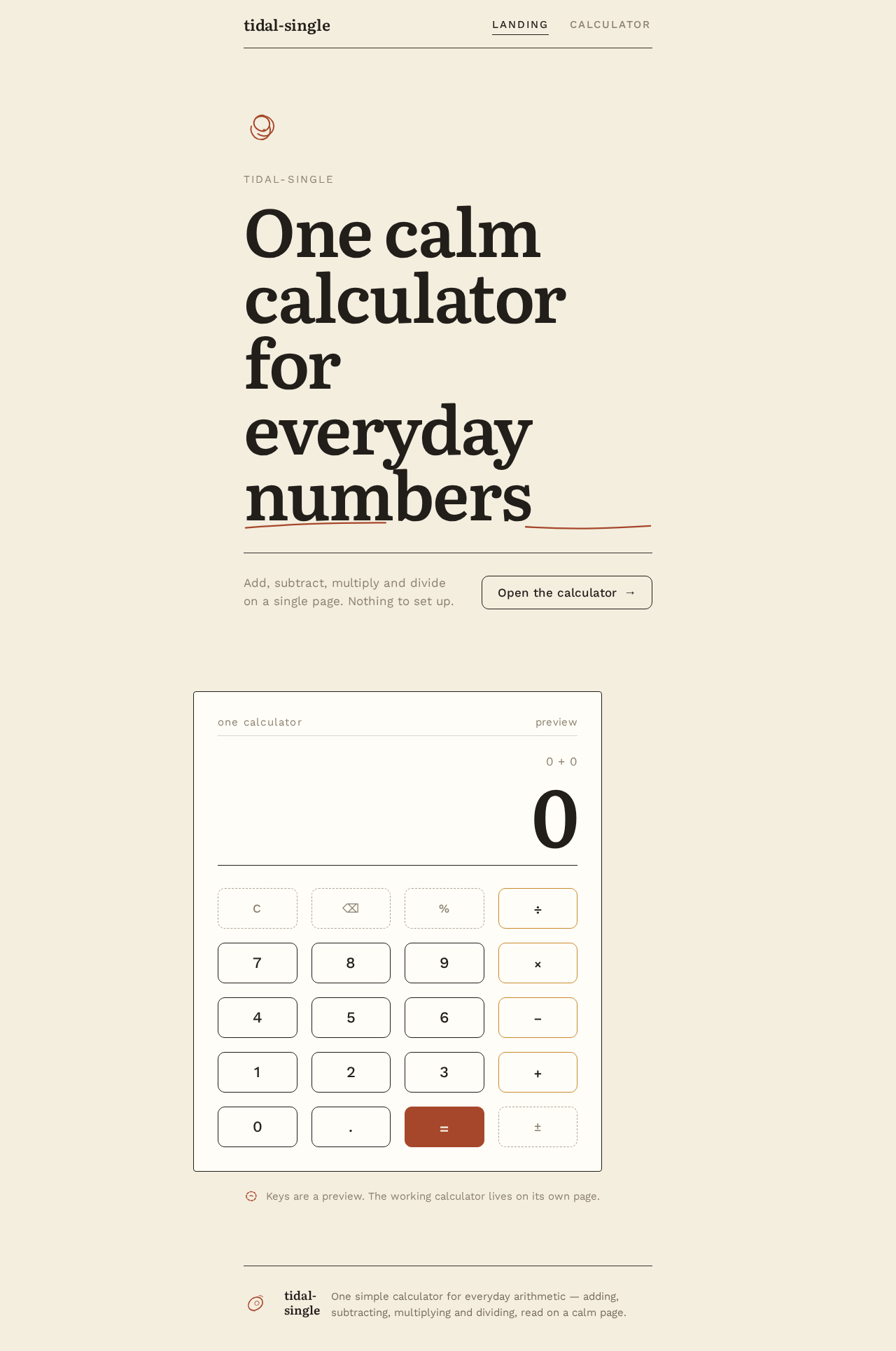
- Information and state: A public, anonymous entry page. It presents one oversized editorial sentence introducing the simple single calculator, a single thin ink rule beneath it, and a paper calculator panel below the rule, offset left of centre, showing a large result number in ink. A small rust hand-drawn spot drawing sits beside the section opener.
- Primary action: Proceed to the Calculator.
- Supporting actions: None beyond navigation to the Calculator.
- Domain entities: None persisted; the page presents product intent and a preview of the calculator panel.
- Component responsibilities:
- Oversized Literata headline (56px–96px, sentence case, tight leading) spanning the measure, with a rust hand-drawn underline beneath one word.
- Single 1px ink rule separating headline from the panel.
- Paper calculator panel preview: 1px ink border, no shadow, 4px panel radius, 10px key radii, 4×5 key grid with wide gaps, result number in tabular Literata numerals right-aligned above the keys.
- Small rust hand-drawn spot drawing at the section opener.
- Entry control to the Calculator.
- States:
- Loading: static content; no loading state required.
- Empty: not applicable (static editorial content).
- Success: page renders headline, rule, panel preview, and entry control.
- Error: not applicable; if the Calculator cannot be reached, the entry control remains visible and the user can retry.
- Recovery: retry navigation to the Calculator.
Calculator
- Information and state: A public, anonymous working surface. It shows the current expression being entered and the current result, with the result number set large in tabular Literata numerals (72px mobile to 128px desktop), right-aligned above the keys. Keys sit in a 4×5 grid with wide gaps on a paper surface with a 1px ink border and no shadow.
- Primary action: Enter digits and operators and evaluate the expression to produce the current result.
- Supporting actions: Clear the current entry; correct the current entry (backspace/delete of the last entered token); select an operator (add, subtract, multiply, divide); evaluate (equals).
- Domain entities: The current expression (the sequence of entered numbers and operators) and the current result. These are session-scoped working state, not persisted records.
- Component responsibilities:
- Result display: tabular Literata numerals, right-aligned, crossfading when the result changes.
- Expression display: the current entered expression, in Work Sans, above or beside the result.
- Digit keys (0–9) and decimal point key: paper surface, 1px ink border, 10px radius, 1px press offset.
- Operator keys (+, −, ×, ÷): mustard #C98A2E outlines.
- Equals key: solid rust #A6472B with cream text.
- Clear key and backspace/delete key: muted styling consistent with the paper surface.
- Error message region for invalid expressions (for example division by zero or malformed input).
- States:
- Loading: not applicable; the calculator is immediately usable.
- Empty: initial state shows a zero or blank result and an empty expression, ready for input.
- Success: the result updates and crossfades when the expression is evaluated or when the current result changes.
- Error: an invalid expression (such as division by zero) shows a clear error message in the error region; the user can clear and re-enter.
- Recovery: the Clear key resets the expression and result to the empty state; the user can then re-enter.
3. Functional Requirements
FR-1 — Simple single calculator (explicit) As a Calculator user, I should have one simple calculator available, so that I can do basic arithmetic in one place.
- Trigger/input: the user opens the Calculator.
- Observable result: a single calculator surface with a result display and a 4×5 key grid is presented.
- Access state: anonymous, public.
- Failure/recovery: if the calculator surface fails to render, the user can reload the page.
- Continuation: the user proceeds to enter numbers and operations.
- Acceptance: exactly one calculator is presented; no additional calculators can be created or selected.
FR-2 — Basic arithmetic (explicit) As a Calculator user, I should be able to perform basic arithmetic — addition, subtraction, multiplication, and division — so that I can compute a result from entered numbers.
- Trigger/input: the user enters digits and operators and presses equals.
- Observable result: the current result is displayed in the result area.
- Access state: anonymous, public.
- Failure/recovery: an invalid expression (for example division by zero) shows an error message; the user clears and re-enters.
- Continuation: the user can continue entering a new expression after a result is shown.
- Acceptance: addition, subtraction, multiplication, and division each produce the correct result for valid inputs.
FR-3 — Enter numbers and operations and read the result (explicit) As a Calculator user, I should be able to enter numbers and operations and read the current result, so that I can see the outcome of my calculation.
- Trigger/input: the user presses digit keys, operator keys, and the equals key.
- Observable result: the expression is shown as entered, and the result is shown large and right-aligned, crossfading when it changes.
- Access state: anonymous, public.
- Failure/recovery: malformed input shows an error message; the Clear key resets the state.
- Continuation: the user can start a new expression immediately after reading a result.
- Acceptance: the displayed result matches the evaluated expression for valid input.
FR-4 — Open the Landing page and start the Calculator (required_inference) As a Calculator user, I should open the Landing page and start the Calculator from it, so that I can reach the calculator from the product's entry point.
- Trigger/input: the user opens the Landing page and activates the entry control to the Calculator.
- Observable result: the Calculator page opens with an empty, ready state.
- Access state: anonymous, public.
- Failure/recovery: if navigation fails, the entry control remains available and the user can retry.
- Continuation: the user begins entering numbers and operations on the Calculator.
- Acceptance: the Landing page presents the calculator introduction and an entry control that opens the Calculator.
FR-5 — Clear and correct the current entry (required_inference) As a Calculator user, I should be able to clear or correct my current entry, so that I can recover from a mistake without reloading.
- Trigger/input: the user presses the Clear key or the backspace/delete key.
- Observable result: the expression and/or result are reset or the last token is removed.
- Access state: anonymous, public.
- Failure/recovery: this is itself the recovery path for FR-2 and FR-3 errors.
- Continuation: the user re-enters the corrected expression.
- Acceptance: Clear returns the calculator to the empty state; backspace removes the last entered token.
4. User Personas
Calculator user
- Product context: An everyday person who wants to do basic arithmetic quickly and calmly. They are not a technical user and do not want a device-panel feel. They arrive at tidal-single with a single calculation in mind.
- Primary goal: Enter numbers and operations and read the correct result on one simple calculator.
- Distinct accepted responsibilities: Entering digits and operators, evaluating the expression, reading the result, and clearing or correcting the entry when needed. This is the only human role in the product.
- Relevant inputs or decisions: Which numbers and operators to enter; when to evaluate; when to clear or correct.
- Interactions with other accepted participants: None. The Calculator user is the sole human participant; the backend evaluates arithmetic on their behalf but is not a persona.
- Observable success: The result displayed matches the evaluated expression, and the user can start a new calculation immediately.
- Constraints: No account, no sign-in, no saved history. The experience must feel warm, humane, and clear, not technical.
5. Core User Flows
Flow A — First visit and start the calculator
- The Calculator user opens the Landing page in a browser. The page is public and anonymous.
- The Landing page presents the oversized Literata sentence introducing the simple single calculator, the thin ink rule, and the paper calculator panel preview with a large result number.
- The user activates the entry control to the Calculator.
- The Calculator page opens in its empty, ready state: an empty expression and a zero or blank result, with the 4×5 key grid visible.
- Failure/recovery: If the Calculator does not open, the entry control remains visible on the Landing page and the user retries.
- Continuation: The user proceeds to Flow B.
Flow B — Perform a basic arithmetic calculation
- Starting on the Calculator, the user presses digit keys to enter the first number. The expression display updates as digits are entered.
- The user presses an operator key (+, −, ×, or ÷). The operator appears in the expression.
- The user presses digit keys to enter the second number.
- The user presses the equals key. The backend evaluates the expression and the result is displayed large and right-aligned in tabular Literata numerals, crossfading from the previous result.
- The user reads the result.
- Failure/recovery: If the expression is invalid (for example division by zero), an error message appears in the error region. The user presses Clear to reset, then re-enters the expression.
- Continuation: The user can immediately begin a new expression, or continue from the current result as the product's arithmetic allows.
Flow C — Correct or clear an entry
- Starting on the Calculator with an expression in progress, the user notices a mistake.
- The user presses the backspace/delete key to remove the last entered token, or the Clear key to reset the expression and result to the empty state.
- The expression display updates to reflect the correction.
- The user re-enters the corrected expression and continues with Flow B.
6. Visuals Colors and Theme
The creative direction is authoritative: warm editorial calm after Frank Chimero. The calculator should feel like a printed page, not a device panel.
Palette (light mode only; no dark mode):
- Background (cream):
#F4EEDF— fills roughly 60% of the screen. - Surface (paper):
#FFFDF7— holds the calculator keys and panel. - Text (ink):
#221E1A— all text and the 1px rules. - Primary (rust):
#A6472B— the one hot accent: the equals key fill and focus states. - Accent (mustard):
#C98A2E— operator key outlines. - Muted:
#8A7F6E— labels and rules.
Typography:
- Headings: Literata at 600 weight, tight leading, sentence case.
- Body: Work Sans.
- Result digits: tabular Literata numerals at large scale — 72px on mobile to 128px on desktop.
- Modular scale (1.25): 72 / 56 / 32 / 22 / 17 / 15.
Shape language: Soft 10px radii on keys, 4px on panels. Thin 1px ink rules divide sections. No shadows and no gloss.
Layout: One centred column with a 680px measure. The Landing page places a large sentence above a single ink rule, then the calculator panel below, offset left of centre. Keys sit in a 4×5 grid with wide gaps.
Imagery: Small hand-drawn rust spot drawings beside section openers. No photographs and no 3D.
Avoid: No gradient blobs or glass panels; no blue or indigo accents; no grid of identical hover-lift cards; no Inter, Roboto, or system fonts; no dark mode or neon glow; no 3D or WebGL scenes.
Readable text and controls stay whole at every viewport (375px, 768px, 1280px), wrapping or scaling (for example font-size: clamp(...)) to fit, with no other element covering them. Decoration and motion may be cropped, bled, rotated, or overlapped as the direction asks, as long as they cover no readable text or control.
7. Signature Design Concept
The public entry is a cream page with one oversized Literata sentence spanning the full 680px measure, set at 56px to 96px, with a rust hand-drawn underline beneath one word. A single 1px ink rule sits below the sentence. Below the rule, the paper calculator panel — a card with a 1px ink border, no shadow, 4px panel radius, and 10px key radii — is set off-centre to the left, with its result number in tabular Literata numerals at 72px to 128px, right-aligned above the keys. The equals key is solid rust #A6472B with cream text; operator keys are mustard #C98A2E outlines. A small rust hand-drawn spot drawing sits at the section opener. The composition reads as a printed page introducing a small, humane tool.
8. Interaction Model & Motion Direction
Interaction Model: Animated Motion Tempo: restrained Hero Dimensionality: flat
Landing Hero Motion Brief
- Focal subject: The oversized Literata sentence and the paper calculator panel below the ink rule.
- Input → transformation → outcome thesis: On load, the headline and rule fade in slowly (220ms), then the paper panel fades in beneath the rule; the result number crossfades when it changes. The user's input (activating the entry control) transitions to the Calculator page with a slow 220ms fade.
- Motion vocabulary: Slow 220ms fades; a small 1px key press offset; result number crossfade on change. No bounce and no spring.
- Composed first frame: Cream background, oversized Literata sentence with rust underline, single ink rule, paper panel offset left of centre with large ink result number, small rust spot drawing at the opener.
- Reduced-motion state: All fades resolve immediately to their final state; the key press offset is removed; the result number updates without crossfade. The layout remains fully usable and readable.
9. Non-Functional Requirements
- Simplicity constraint (explicit): The product is a simple single calculator. No additional calculators, accounts, saved history, or adjacent productivity features may be added.
- Readability at every viewport (explicit, from creative direction): Headlines, labels, numbers, and controls stay entirely inside the viewport and their container at 375px, 768px, and 1280px, wrapping or scaling to fit; no other element covers them.
- Reduced motion (explicit, from creative direction): With
prefers-reduced-motion, provide a usable static arrangement; fades resolve immediately and the key press offset is removed. - No dark mode, no 3D/WebGL, no blue/indigo accents (explicit, from creative direction): These are binding visual constraints.
- Accessibility: Controls must be operable by keyboard and have discernible labels; focus states use rust
#A6472B. - Performance: The calculator responds to key presses without perceptible delay; arithmetic evaluation is fast enough to feel immediate.
10. Tech Stack
- Frontend: React application UI.
- Backend: Shared FastAPI process for application APIs and domain modules, including arithmetic evaluation.
- Database: MariaDB, provisioned as application-owned persistent storage. The current calculator's working state is session-scoped; no domain entities or user records are required by the accepted requirements.
- Infrastructure: Docker/docker-compose for the backend, database, and frontend services. Kubernetes is not required for this simple single calculator.
11. Assumptions and Constraints
- A-1: The calculator supports the four basic arithmetic operations (addition, subtraction, multiplication, division) and decimal input. (required_inference — the minimum needed to make "basic arithmetic" usable.)
- A-2: The calculator's working state is session-scoped and is not persisted across sessions; no history is stored. (required_inference — consistent with the simple single calculator constraint.)
- A-3: Both pages are public and anonymous; no identity establishment is required or offered. (explicit via Planning Scope access contract.)
- A-4: The backend evaluates arithmetic; the frontend renders the UI and sends expressions for evaluation. (required_inference — consistent with the provisioned shared backend.)
- A-5: The MariaDB database is provisioned but no domain entities are required by the current accepted requirements. (explicit via scaffold inventory.)
- A-6: Visual and motion details follow the supplied creative direction; unspecified presentation details use labeled defaults consistent with that direction.
12. Glossary
- Calculator user: The sole active human persona; enters numbers and operations and reads the result.
- Expression: The sequence of numbers and operators currently entered on the Calculator.
- Result: The evaluated outcome of the current expression, displayed large and right-aligned.
- Landing: The public entry page introducing the simple single calculator.
- Calculator: The public working page where arithmetic is performed.
- Paper panel: The calculator surface styled as a paper card with a 1px ink border and no shadow.
- Tabular numerals: Literata numerals of equal width used for the result display.
tidal-single
One calm calculator for everyday numbers
Add, subtract, multiply and divide on a single page. Nothing to set up.
Open the calculatorKeys are a preview. The working calculator lives on its own page.
tidal-single
One calm calculator for everyday numbers
Add, subtract, multiply and divide on a single page. Nothing to set up.
Open the calculatorKeys are a preview. The working calculator lives on its own page.
No comments yet. Be the first!