tidal-calculator
 Diya Trivedi
start a simple single page design of calculator

Comments (0)
Sign in to leave a comment
System Requirements
System Requirements Document for tidal-calculator
1. Introduction
tidal-calculator is a simple calculator delivered as a single page. A visitor opens the page, enters numbers and arithmetic operators to build a calculation, sees the computed result, and can clear the entry to start over. There is no login, no navigation, and no workflow beyond the arithmetic itself: the product is one instrument-like surface where digits go in and a correct number comes out.
The audience is anyone who needs everyday arithmetic — a single, anonymous Calculator User who wants a correct result on the same page without navigating elsewhere. The design intent is trust and tactile control: the quiet confidence of a well-machined instrument rather than a friendly app or a dashboard.
2. System Overview
tidal-calculator is a single-page, client-facing calculator. The page presents a display band showing the running expression and its computed result, and a key grid of digits and arithmetic operators. The visitor builds an expression by pressing keys, evaluates it, reads the result, and clears the entry to begin again.
Actors
- Calculator User (active human persona): the anonymous visitor who performs arithmetic on the page.
- Calculator page (application-owned custom surface): hosts the display, key grid, evaluation, and clear behavior.
Accepted behavior
- A simple calculator presented as a single page.
- Entry of numbers and arithmetic operators to build a calculation.
- Display of the computed result of the calculation.
- Clearing the current calculation to start over.
Ownership and access
- The single Calculator page is application-owned and anonymously reachable; no identity, account, or session continuity is required for any accepted behavior.
- All arithmetic evaluation is a local, in-page operation; no server-side persistence, history, or account state is part of the current product.
Exclusions
- No multi-page navigation, no accounts, no saved history beyond the transient on-page reading strip described in the design direction, and no capabilities beyond the four accepted behaviors above.
Removed from scope
- None.
2a. Product Interpretation and Delivery Boundary
The requester asked for a simple single-page calculator design. That request is the whole current product: one page, one instrument, arithmetic in and a result out. The page is public and anonymous — there is no sign-in, no profile, and no durable state to resume, so no identity establishment or verification belongs in this delivery.
Everything the Calculator User does happens on the Calculator page itself: entering digits and operators, reading the computed result, and clearing to start over. There is no separate destination, no provider-owned surface, and no external handoff. The design direction frames the page as a precision instrument — a graphite field holding a single device panel — but that framing is presentation only; it introduces no new behavior, page, or destination.
Future ideas are not part of this delivery and are not represented on the page.
2c. Page Content and Component Coverage
Calculator
The single page of the product. It is anonymously reachable, application-owned, and hosts the entire calculator lifecycle: building an expression, evaluating it, reading the result, and clearing.
Information and state
- Running expression: the sequence of digits and operators the user has entered, shown in the display band in condensed tabular numerals.
- Computed result: the evaluated value of the current expression, shown in the display band after evaluation.
- Active operator: the operator most recently selected, indicated with a single amber ring pulse and amber emphasis.
- Reading strip: a thin live strip listing the last three operations as ruled rows with amber operator glyphs — an instrument log, not a persistent history.
- Idle/empty state: on first load the display shows an empty or zero expression with no result; the reading strip is empty.
Primary actions
- Press digit keys (0–9) to append digits to the running expression.
- Press arithmetic operator keys (+, −, ×, ÷) to insert an operator and mark it active.
- Press the equals key to evaluate the expression and display the computed result.
- Press the AC (clear) key to clear the current calculation and return to the idle state.
Supporting actions
- Continue entering digits or operators after a result is shown, extending or replacing the expression per normal calculator entry.
- Read the reading strip to see the last three operations.
Domain entities
- Expression: an ordered sequence of numeric operands and arithmetic operators.
- Result: the numeric value produced by evaluating an expression.
- Operation record: one completed expression-and-result pair shown in the reading strip (last three only).
Component responsibilities
- Display band: renders the running expression and the computed result inside a hairline watch-dial bezel with engraved tick marks; the result is set in large condensed tabular numerals so digits do not shift as the user types; the expression wraps inside the bezel rather than overflowing.
- Key grid: a 4-column grid of keycaps — digits, operators, AC, and equals — with the equals key as a full-height amber pillar spanning two rows on the right edge; the AC key is teal-outlined.
- Wordmark: 'TIDAL CALCULATOR' in uppercase condensed type with wide tracking and a hairline rule.
- Reading strip: lists the last three operations as ruled rows.
States
- Loading: not applicable — the page is a static client surface with no remote data fetch.
- Empty: idle display with no expression or result; empty reading strip.
- Success: expression entered, equals pressed, computed result displayed; the completed operation is added to the reading strip.
- Error: an invalid or incomplete expression (for example, an operator with a missing operand, or division by zero) does not produce a misleading result; the display indicates the expression cannot be evaluated and the user can clear or correct it.
- Recovery: pressing AC clears the expression, result, and active operator and returns the page to the idle state; the user can then begin a new calculation.
3. Functional Requirements
FR-1 — Single-page calculator As a Calculator User, I should get the calculator as a single page, so that I can do arithmetic without navigating anywhere else.
- Provenance: explicit.
- Lifecycle: the page loads directly into the calculator; there is no navigation chrome or secondary destination.
- Acceptance: the calculator is reachable at one page; no other page or route is required to complete any accepted behavior.
FR-2 — Enter numbers and operators As a Calculator User, I should enter numbers and arithmetic operators to build a calculation, so that I can express the sum I want to compute.
- Provenance: explicit.
- Trigger/input: pressing digit keys (0–9) and arithmetic operator keys (+, −, ×, ÷).
- Observable result: the running expression appears in the display band; the selected operator is marked active with an amber ring pulse.
- Access state: anonymous; no identity required.
- Failure/recovery: if an entry is malformed (for example, an operator with no preceding operand), the display indicates the expression cannot be evaluated; the user can correct it or press AC.
- Continuation: the user continues pressing keys until the expression is complete, then presses equals.
FR-3 — See the computed result As a Calculator User, I should see the computed result of my calculation, so that I know the answer.
- Provenance: explicit.
- Trigger/input: pressing the equals key with a complete expression.
- Observable result: the computed result is displayed in the display band in large condensed tabular numerals; the completed operation is added to the reading strip (last three retained).
- Access state: anonymous.
- Failure/recovery: an invalid expression or division by zero does not display a misleading numeric result; the display indicates the expression cannot be evaluated, and the user can clear or correct it.
- Continuation: the user can read the result, continue entering a new expression, or press AC to start over.
FR-4 — Clear the calculation As a Calculator User, I should clear the current calculation to start over, so that I can begin a fresh sum.
- Provenance: explicit.
- Trigger/input: pressing the AC (clear) key.
- Observable result: the running expression, computed result, and active operator are cleared; the display returns to the idle state.
- Access state: anonymous.
- Failure/recovery: not applicable — clearing is always available and always succeeds.
- Continuation: the user begins a new calculation from the idle state.
4. User Personas
Calculator User
Product context. A person who opens the tidal-calculator page to perform everyday arithmetic. They arrive anonymously, with no account and no prior state, and expect the page to be immediately usable as a calculator.
Primary goal. Get a correct arithmetic result on the same page, quickly, without navigating elsewhere.
Distinct accepted responsibilities.
- Enter numbers and arithmetic operators to build a calculation.
- Evaluate the calculation and read the computed result.
- Clear the current calculation to start over.
Relevant inputs and decisions. Which digits and operators to press, when the expression is complete enough to evaluate, and whether to continue with the result or clear and start a new sum.
Interactions with other participants. None — the Calculator User is the only active human participant; all work happens on the single Calculator page.
Observable success. A correct result appears in the display band after pressing equals, and the user can clear the entry to begin again, all without leaving the page.
5. Core User Flows
Flow 1 — Perform a calculation
- The Calculator User opens the tidal-calculator page. The page loads directly into the Calculator surface in its idle state: an empty display band and an empty reading strip.
- The user presses digit keys to enter the first operand; the digits appear in the display band in condensed tabular numerals.
- The user presses an arithmetic operator key; the operator appears in the expression and is marked active with a single amber ring pulse.
- The user presses digit keys to enter the second operand; the expression continues to build in the display band.
- The user presses the equals key. The expression is evaluated and the computed result is displayed in the display band; the completed operation is added to the reading strip.
- The user reads the result. They may continue entering a new expression, or press AC to clear and start over (Flow 3).
Failure/recovery. If the expression is incomplete or invalid (for example, an operator with a missing operand, or division by zero), the display indicates the expression cannot be evaluated rather than showing a misleading number. The user corrects the expression or presses AC to reset.
Flow 2 — Read the computed result
- From a completed calculation (Flow 1, step 5), the Calculator User reads the computed result in the display band.
- The user may glance at the reading strip to see the last three operations as ruled rows with amber operator glyphs.
- The user continues with a new calculation or clears the entry.
Flow 3 — Clear and start over
- The Calculator User presses the AC (clear) key.
- The running expression, computed result, and active operator are cleared; the display returns to the idle state.
- The user begins a new calculation from step 2 of Flow 1.
6. Visuals Colors and Theme
The creative direction is authoritative for this section: Precision instrumentation for the everyday sum, muse MARQ by Garmin — a luxury instrument aesthetic for a single-page everyday calculator.
Mode. Dark mode only.
Colour tokens (exact hex by role)
- Background (graphite-titanium ground):
#121417 - Surface (brushed-steel keycaps and plate):
#1C2024 - Hairline edge / bezel:
#2E343A - Text (warm champagne ink):
#EDE8DF - Primary (amber instrument accent — equals key, active operator, result rule):
#D9A441 - Accent (teal — clear/AC key and focus rings only):
#3FB6A8 - Muted (labels and secondary numerals):
#8A9099
Amber on graphite and ink on graphite both clear 4.5:1 at body size.
Typography
- Headings and display numerals: Barlow Condensed — uppercase micro-labels at 12–13px with 0.16em tracking; display numerals in Barlow Condensed 600 with tabular figures and tight 0.98 leading.
- Body and key legends: Saira at 500 weight with slightly open tracking so keycaps read as engraved labels.
- Scale: 1.333 modular — display
clamp(44px, 9vw, 96px)(44px mobile / 72px tablet / 96px desktop); page title 28/40/56; key legend 18/20/22; label 11/12/13 uppercase; body 15/16/17. - Inter, Roboto, Arial, and system-ui are excluded from the type stack.
Shape language. Instrument geometry: circular dial rings, rounded-rectangle keycaps with 14px continuous radii, 1px hairline bezels, ruled data rows. Keys sit on a visible brushed-steel plate with an inset shadow like a machined button; the equals key is a full-height amber pillar. No blobs, no pills, no drop-shadow cards.
Layout. Single page, no navigation chrome. On desktop, a left column holds the vertical wordmark 'TIDAL / CALCULATOR' along the edge plus a thin live reading strip of recent operations; the right seven columns hold the instrument — a wide display band above a 4-column key grid. On tablet the two columns stack with the wordmark becoming a horizontal header rule. On mobile everything is one column, key grid at 4 columns with 56px minimum key height, and the display clamped so the full expression wraps inside the bezel. Nothing scrolls horizontally.
Imagery. No photography. The interface is the instrument: engraved tick marks around the display bezel, a faint topographic contour line pattern at 4% opacity in the page margin, and a dial ring behind the clear key. All decoration is vector, hairline, and non-overlapping with text.
7. Signature Design Concept
The first screen is the instrument itself, not a marketing hero: a full-viewport graphite field (#121417) with a single centered device panel — a brushed-steel plate (max-width 520px, 20px radius, 1px #2E343A bezel, inset top highlight) holding a large amber-ruled display at top showing the running expression in condensed numerals up to 96px, with a thin tick-mark bezel around it and a small uppercase 'READING' label. Beneath, the 4×5 key grid: digits and operators as dark steel keycaps, the AC key teal-outlined, the equals key a solid amber pillar spanning two rows on the right. Above the plate, flush-left, a small wordmark 'TIDAL CALCULATOR' in uppercase Barlow Condensed with 0.2em tracking and a hairline rule; the rest of the viewport is empty graphite, giving the device the isolation of a watch on a display stand.
Signature moves carried into the build:
- A watch-dial display bezel: the expression and result sit inside a hairline ring with engraved tick marks, and the result is set in 96px condensed numerals with tabular figures so digits never shift as you type.
- The equals key is a full-height solid amber (
#D9A441) pillar spanning two rows on the right edge of the key grid — the only large colour mass on the page. - A vertical wordmark 'TIDAL / CALCULATOR' running up the left edge of the viewport in uppercase condensed type with 0.2em tracking, separated from the instrument by a hairline rule.
- A live reading strip under the wordmark listing the last three operations as ruled monospace-style rows with amber operator glyphs — an instrument log rather than a history panel.
- Keycaps depress 1px into the steel plate with a 90ms mechanical ease and a single amber ring pulse on the selected operator; the result counts up over 220ms on equals.
8. Interaction Model & Motion Direction
Interaction Model: Animated Motion Tempo: restrained Hero Dimensionality: flat
Landing Hero Motion Brief
- Focal subject. The centered device panel — the brushed-steel plate holding the amber-ruled display and the 4×5 key grid — isolated on the empty graphite field.
- Input → transformation → outcome thesis. A key press depresses the keycap 1px into the steel plate (90ms ease-out) and, for an operator, fires a single amber ring pulse; pressing equals counts the result up over 220ms while the display's last digit fades in, settling into the final computed number inside the watch-dial bezel.
- Motion vocabulary. Restrained and mechanical: 1px key depression at 90ms ease-out, a single amber ring pulse on the pressed operator, a 220ms result count-up on equals, and a fade-in of the display's last digit. No bounces, no parallax, no decorative loops.
- Composed first frame. Full-viewport graphite field; flush-left 'TIDAL CALCULATOR' wordmark with hairline rule above the plate; the device panel centered with the display band showing the idle expression and the key grid below, the amber equals pillar the only large colour mass.
- Reduced-motion state. With
prefers-reduced-motion, all transitions collapse to instant state changes and the result appears without counting.
9. Non-Functional Requirements
- Single-page constraint (explicit): the calculator design must be a single page; no additional pages or routes are part of the current product.
- Anonymous access (required_inference): the page is reachable without identity, account, or session; no authentication is required for any accepted behavior.
- Readable text and controls at every viewport (explicit design constraint): headlines, wordmarks, labels, numbers, and controls stay entirely inside the viewport and their container at 375px, 768px, and 1280px, wrapping or scaling to fit; no element covers any part of them; nothing scrolls horizontally.
- Display overflow (explicit design constraint): the expression wraps inside the bezel and is never clipped or overflowing at 375px.
- Accessible contrast (design direction): amber on graphite and ink on graphite both clear 4.5:1 at body size.
- Reduced motion (design direction): with
prefers-reduced-motion, all transitions collapse to instant state changes and the result appears without counting. - No remote data dependency (required_inference): the page performs arithmetic locally with no server round-trip required for any accepted behavior.
10. Tech Stack
- Frontend: React single-page application rendering the Calculator page.
- Styling: CSS with the exact colour, typography, shape, and layout tokens in Section 6; fonts Barlow Condensed and Saira.
- Arithmetic: client-side evaluation of the entered expression; no backend service is required for the accepted behaviors.
- Deployment: static hosting of the built single-page application.
11. Assumptions and Constraints
- Assumption: arithmetic operators are the four basic operations (+, −, ×, ÷); no other functions are part of the accepted requirements.
- Assumption: the reading strip retains the last three operations only, as specified by the design direction; it is transient and not persisted.
- Assumption: the page is anonymous and stateless across visits; no account, history, or saved state is required.
- Constraint: the product is exactly one page; no navigation chrome or secondary destinations.
- Constraint: the design follows the creative direction's dark graphite instrument aesthetic; the generic indigo/blue-on-white SaaS template is forbidden.
- Constraint: Inter, Roboto, Arial, and system-ui are excluded from the type stack.
12. Glossary
- Calculator page: the single application-owned page hosting the display band, key grid, evaluation, and clear behavior.
- Expression: the ordered sequence of numeric operands and arithmetic operators entered by the user.
- Result: the numeric value produced by evaluating an expression.
- Reading strip: the thin live strip listing the last three operations as ruled rows with amber operator glyphs.
- AC (clear) key: the teal-outlined key that clears the current calculation and returns the page to its idle state.
- Equals key: the full-height amber pillar key that evaluates the expression and displays the result.
- Idle state: the page state on first load or after clearing, with an empty display and empty reading strip.
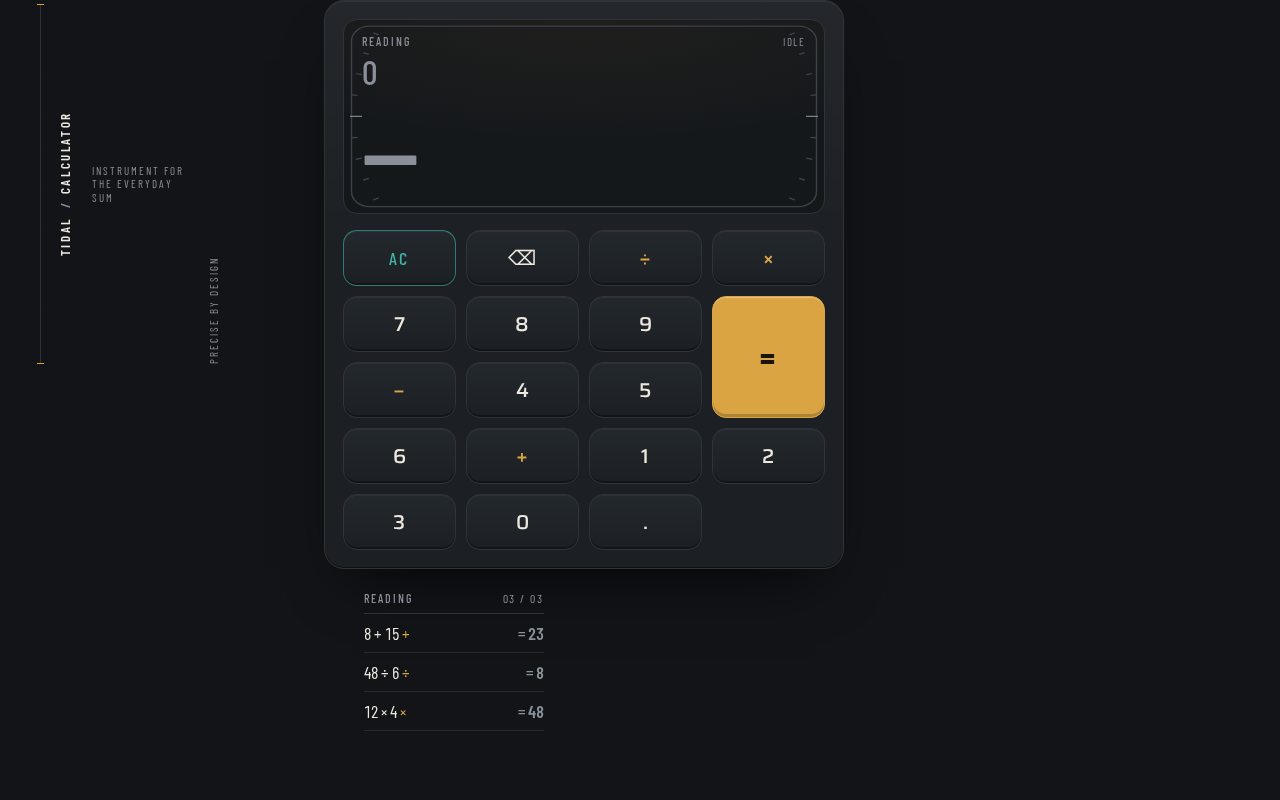
TidalCalculator
Instrument for the everyday sum
- 8 + 15+= 23
- 48 ÷ 6÷= 8
- 12 × 4×= 48
TidalCalculator
Instrument for the everyday sum
- 8 + 15+= 23
- 48 ÷ 6÷= 8
- 12 × 4×= 48
No comments yet. Be the first!