
teal-system

byBullet Delivery Company

Create an app that has $1,000,000 in it and Glenn zabel can access the money but can't withdraw

LandingLogsDashboardLogin
Landing

Comments (0)

No comments yet. Be the first!

System Requirements

System Requirement Document
Page 1 of 4

teal-system

Introduction

The teal-system is a project initiated by Bullet Delivery Company, based in the US. The primary objective of this project is to develop a secure application that manages a significant sum of money, ensuring specific access controls and restrictions are in place.

System Overview

The teal-system is designed to securely manage a financial account containing $1,000,000. The system must ensure that only authorized personnel, specifically Glenn Zabel, can access the account. However, the system must also enforce restrictions to prevent any withdrawal of funds by Glenn Zabel or any other user.

Functional Requirements

  • As Glenn Zabel, I should be able to access the account containing $1,000,000.
  • As Glenn Zabel, I should not be able to withdraw any funds from the account.
  • As an Admin, I should be able to monitor access to the account to ensure compliance with access restrictions.

User Personas

  • Glenn Zabel: An authorized user who can access the account but is restricted from withdrawing funds.
  • Admin: A system administrator responsible for monitoring account access and ensuring security protocols are followed.
Page 2 of 4

Core User Flows

  • Glenn Zabel logs into the system -> accesses the account -> views account balance -> logs out.
  • Admin logs into the system -> reviews access logs -> verifies compliance with access restrictions -> logs out.

Visuals Colors and Theme

  • primary: #004d40 (Deep Teal)
  • primary_light: #39796b (Light Teal)
  • secondary: #ffab00 (Amber)
  • accent: #d50000 (Red)
  • highlight: #ff6f00 (Orange)
  • bg: #ffffff (White)
  • surface: rgba(0, 77, 64, 0.8)
  • text: #212121 (Dark Gray)
  • text_muted: #757575 (Light Gray)
  • border: rgba(0, 0, 0, 0.1)

Signature Design Concept

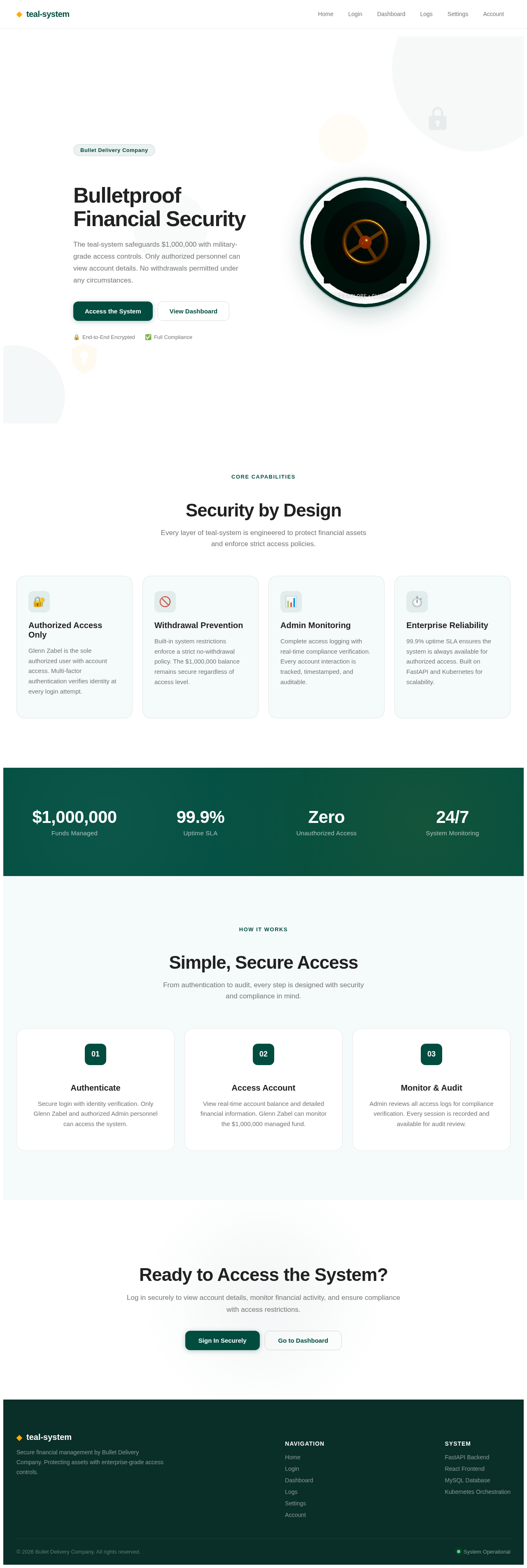
The teal-system's homepage will feature an interactive 3D vault door that users can manipulate. Using @react-three/fiber and @react-three/drei, the vault door will rotate and open to reveal the account balance. This engaging visual will symbolize security and exclusivity. Users can click and drag to explore the vault's interior, with subtle animations highlighting different sections of the account information.

Page 3 of 4

Interaction Model & Motion Direction

The landing page will employ a "parallax" interaction model. Layers of security-themed graphics will move at different speeds as users scroll, creating a sense of depth and intrigue. This model will enhance the storytelling aspect of the teal-system, emphasizing its secure and sophisticated nature.

Non-Functional Requirements

  • The system must ensure data security and integrity at all times.
  • Access to the account must be logged and auditable.
  • The system should be available 99.9% of the time.

Tech Stack

  • Frontend: React for Web
  • Backend: Python, FastAPI
  • Database: MySQL or MariaDB, using alembic for migrations
  • Local orchestration: Docker, docker-compose
  • Server-side orchestration: Kubernetes

Assumptions and Constraints

  • The system will operate within the US, adhering to local financial regulations.
  • Glenn Zabel is the only user with access to the account, and no withdrawals are permitted.
  • The system must be scalable to accommodate future enhancements.
Page 4 of 4

Glossary

  • Access Control: Mechanisms that restrict access to resources, ensuring only authorized users can access specific data.
  • Parallax: A visual effect where background images move slower than foreground images, creating an illusion of depth.
  • 3D Vault Door: An interactive element representing security, allowing users to explore account details in a visually engaging manner.
Landing design preview
Landing: View Info
Login: Sign In
Dashboard: View Overview
Logs: Review Access Logs
Logs: Verify Compliance
Logs: Flag Violations
Settings: Configure Alerts
Dashboard: Log Out