teal-calculator
 Diya Trivedi
start a project to build a simple single page design of the calculator

Comments (0)
Sign in to leave a comment
System Requirements
System Requirements Document for teal-calculator
1. Introduction
teal-calculator is a simple calculator delivered as a single page. The product intent is narrow and complete: a person opens one page, enters numbers and operators, and reads a correct computed result without navigating anywhere else. The page is the product — there is no account, no dashboard, no marketing site, and no second destination.
The audience is anyone who needs quick everyday arithmetic in a browser. The design treats that utility as a tactile toy: keys that physically respond, digits that land with weight, and a result that reads clearly at any viewport. Delight is the differentiator on an otherwise invisible tool, but it never displaces correctness or legibility.
This document is the System Requirements Document for the project named teal-calculator, requested by Diya Trivedi.
2. System Overview
teal-calculator is a single-page web application. The page is anonymously reachable and requires no identity, no session, and no stored data. It contains one calculator slab with a display area and a key grid, plus a wordmark and a one-line instruction.
Current delivery:
- One custom page, Calculator, owned by the application, reachable anonymously with no access requirement.
- One active human actor, Calculator user, who enters operands and operators and reads the computed result.
- All arithmetic evaluation happens in the page itself; there is no server-side computation, no persistence, and no cross-participant handoff. No other human participant is affected by any accepted capability, so no second participant interaction exists.
- The visual and motion language is defined by the supplied creative direction (warm paper ground, cream slab, teal operators, one orange equals key, square outlined keys with hard offset shadows, kinetic wordmark).
Narrow exclusions: no accounts, no saved history, no memory keys, no scientific functions, no unit conversion, no sharing, no export, no multi-page navigation, no backend API, and no third-party calculator service.
Removed from scope
- None. No concept was removed by the user; the single-page calculator requirement stands as originally stated.
2a. Product Interpretation and Delivery Boundary
The accepted requirement is a simple calculator presented as a single page. That single page is both the entry point and the entire working surface. A visitor lands on it anonymously, the calculator is already live and showing 0, and every subsequent action happens in place. There is no pre-identity step, because there is nothing private to establish: no durable actor-specific state, no commitment, no entitlement, and no value transfer that must remain bound to a participant.
The delivery boundary is therefore the page boundary. Everything the product does — number entry, operator selection, expression display, computation, clearing, and error recovery — is owned by the Calculator page. Nothing is deferred to a provider surface or an external destination, and nothing is planned for a future release beyond what is described here.
2c. Page Content and Component Coverage
Calculator
The single page of the product. Anonymous, no access requirement, no identity. It is simultaneously the public entry surface and the working calculator.
Information and state
- Current expression line: the operands and operator entered so far, rendered in muted warm grey type above the result (for example
12 × 4). - Current result / entry display: the live number, right-aligned, in very large tabular figures. Initial state is
0. - Pending operator state: which operator is armed and whether the next digit begins a new operand.
- Error state: a division-by-zero or otherwise non-finite result is shown as a clear error message in the display in place of a number.
- No loading state is required; the page is static and computes locally. No empty state beyond the initial
0display.
Primary actions
- Press a digit key (0–9) to append to the current operand, or to begin a new operand when an operator is armed.
- Press a decimal point key to begin a fractional part of the current operand.
- Press an operator key (+, −, ×, ÷) to arm that operation and show it in the expression line.
- Press the equals key to compute and display the result, and to emit the single orange ring pulse.
- Press the clear key to reset the display to
0and clear the expression line.
Supporting actions and components
- Wordmark
teal, oversized lowercase, letters nudged by cursor with spring physics on desktop. - One-line instruction beneath the wordmark:
a calculator that answers back. - Keyboard hint row (small\x20\xe2\x8c\xa8 glyph row) indicating that physical keyboard input is supported.
- Dot-grid paper texture behind the slab, nudging 2px around the pointer on desktop.
Domain entities
- Operand: a numeric string being entered.
- Operator: one of
+,−,×,÷. - Expression: the ordered pair of operands and the operator between them.
- Result: the computed numeric value or an error indicator.
Component responsibilities and states
- Display component: renders expression line and result; handles the digit slide-and-settle animation (120ms) and the error message; keeps text fully inside the slab at 375px, 768px, and 1280px.
- Key grid component: 4-column grid with a 7:1:1:1 rhythm; square keys with 1.5px ink outlines and 3px hard offset shadows that collapse to 0 on press with a 90ms snap; circular clear key; pill-shaped equals key in orange.
- Wordmark component: kinetic type with cursor-reactive displacement; static under
prefers-reduced-motion. - Texture component: 24px dot grid that shifts 2px near the pointer; replaced by a static grid under
prefers-reduced-motion.
States summary
- Success: result displayed in large tabular figures with the expression line above it.
- Error: non-finite result replaced by an explicit error message; the user can press clear to recover and continue.
- Recovery: clear key always returns the page to the initial
0state. - Reduced motion: all decorative motion disabled; key presses and results change instantly.
3. Functional Requirements
FR-1 — Single-page calculator delivery (explicit) As a Calculator user, I should reach a simple calculator on one single page, so that I can do arithmetic without navigating anywhere else.
- Trigger: opening the page.
- Observable result: the Calculator page renders with the calculator slab, display showing
0, and the full key grid. - Access: anonymous, no identity required.
- Failure/recovery: if the page fails to render, reloading returns the same single page; there is no alternate destination.
- Continuation: the user proceeds directly to entry.
FR-2 — Digit entry (required_inference) As a Calculator user, I should press digit keys 0–9 and see each digit appear in the display, so that I can build the number I want to compute.
- Trigger: pressing a digit key (pointer or keyboard).
- Observable result: the digit is appended to the current operand and rendered in the display with a 120ms vertical slide-and-settle; the key depresses 2px with a 90ms snap and its offset shadow collapses.
- Access: anonymous.
- Failure/recovery: leading zeros are not duplicated; pressing a digit after an operator begins a new operand.
- Continuation: the user presses further digits, a decimal point, or an operator.
FR-3 — Decimal entry (required_inference) As a Calculator user, I should press the decimal key to enter fractional values, so that I can compute with non-integers.
- Trigger: pressing the decimal key.
- Observable result: a single decimal point is added to the current operand and shown in the display.
- Failure/recovery: a second decimal point in the same operand is ignored.
- Continuation: the user continues entering digits or selects an operator.
FR-4 — Operator selection (required_inference) As a Calculator user, I should press an operator key and see it recorded in the expression line, so that I know which operation will run.
- Trigger: pressing
+,−,×, or÷. - Observable result: the operator appears in the muted expression line above the result (for example
12 ×), and the next digit begins a new operand. - Failure/recovery: pressing a different operator before entering the second operand replaces the armed operator rather than stacking operations.
- Continuation: the user enters the second operand.
FR-5 — Compute result (required_inference) As a Calculator user, I should press the equals key and see the computed result, so that I get the answer I came for.
- Trigger: pressing the equals key with two operands and an operator present.
- Observable result: the expression line shows the full expression (for example
12 × 4) and the display shows the result (48) in large tabular figures; the equals key emits a single expanding orange ring pulse. - Failure/recovery: pressing equals without a complete expression leaves the display unchanged.
- Continuation: the user can clear, or enter a new operator to continue from the result.
FR-6 — Clear and reset (required_inference) As a Calculator user, I should press the clear key and return the calculator to its starting state, so that I can start a fresh calculation.
- Trigger: pressing the circular clear key.
- Observable result: the display returns to
0and the expression line is emptied. - Failure/recovery: clear works from any state, including the error state.
- Continuation: the user begins a new calculation.
FR-7 — Error display and recovery (required_inference) As a Calculator user, I should see a clear message when a calculation cannot produce a number, so that I understand what happened and can recover.
- Trigger: a computation that yields a non-finite result, such as division by zero.
- Observable result: the display shows an explicit error message in place of a number.
- Failure/recovery: pressing clear returns the calculator to
0; no state is corrupted. - Continuation: the user starts a new calculation.
FR-8 — Keyboard input (required_inference) As a Calculator user, I should be able to type digits and operators on a physical keyboard, so that I can calculate quickly without aiming at keys.
- Trigger: pressing a digit, operator, decimal, equals, or clear key on the keyboard while the page is focused.
- Observable result: the same display and expression updates as pointer input, with the corresponding on-screen key showing its pressed state.
- Failure/recovery: unrecognized keys are ignored.
- Continuation: the user continues with either input method.
FR-9 — Reduced-motion compliance (explicit, from creative direction) As a Calculator user who prefers reduced motion, I should get instant state changes with no decorative animation, so that the tool remains usable and comfortable.
- Trigger: the operating system
prefers-reduced-motionsetting is active. - Observable result: key presses, digit changes, the equals pulse, the cursor-following ink dot, the wordmark spring, and the dot-grid nudge are all disabled; the dot grid renders as a static pattern.
- Continuation: all functional behavior remains identical.
4. User Personas
Calculator user
Product context. A person who needs quick everyday arithmetic — checking a total, splitting a bill, multiplying a quantity — and who opens a single web page to do it. They arrive anonymously, with no account and no expectation that anything is saved.
Primary goal. Get a correct result from the calculator without navigating away from the page.
Distinct responsibilities. This is the only active human role, and its work is entirely local to one page: entering operands, choosing an operator, reading the expression line to confirm what will be computed, committing with equals, reading the result, and clearing to start again. The role also carries the recovery responsibility — recognizing an error message and clearing it.
Inputs and decisions. Digits, a decimal point, one of four operators, equals, and clear, entered by pointer or keyboard. The decision points are which operator to arm, when the expression is complete enough to compute, and whether to continue from a result or clear.
Interactions with other participants. None. No other human participant is affected by any accepted capability; there is no handoff, no shared state, and no recipient of the result beyond the user reading it.
Observable success. The display shows the correct result with the expression visible above it, and the user can immediately begin another calculation.
What makes this role distinct. The role's entire value is a single tight loop of input and feedback on one page. There is no persistence, no collaboration, and no administrative surface — the persona is defined by the speed and clarity of that loop, not by any organizational or permission context.
5. Core User Flows
Flow 1 — Perform a basic calculation
- The Calculator user opens the Calculator page. The page is anonymously reachable; no identity step occurs.
- The page renders the wordmark
teal, the linea calculator that answers back, and the cream calculator slab with the display showing0. - The user presses digit keys to enter the first operand. Each digit slides into the display with a 120ms settle and the pressed key snaps down 2px.
- The user presses an operator key. The operator appears in the muted expression line above the result, and the next digit will begin a new operand.
- The user enters the second operand.
- The user presses the orange equals key. The expression line shows the full expression (for example
12 × 4), the display shows the result (48) in large tabular figures, and the equals key emits a single expanding orange ring pulse. - The user reads the result. To continue, they press an operator to compute from the result, or press clear to start fresh.
Failure/recovery. If the user presses equals before a complete expression exists, the display is unchanged and they can continue entering. If the result is non-finite (for example division by zero), the display shows an explicit error message; pressing clear returns the display to 0 and the user starts again.
Flow 2 — Calculate with fractional values
- The user is on the Calculator page with the display showing
0. - The user enters the integer part of the first operand.
- The user presses the decimal key; a single decimal point appears in the display.
- The user enters the fractional digits. A second decimal point press in the same operand is ignored.
- The user selects an operator, enters the second operand, and presses equals.
- The result appears with the expression line above it, and the user continues or clears.
Flow 3 — Keyboard-driven calculation
- The user is on the Calculator page with the page focused.
- The user types digits, an operator, digits, and the equals key on the physical keyboard.
- The display and expression line update exactly as with pointer input, and the corresponding on-screen keys show their pressed state.
- The result appears with the orange pulse on the equals key.
- The user presses the keyboard clear key to reset to
0, or continues with another operator.
Failure/recovery. Unrecognized keys are ignored and leave the display unchanged.
Flow 4 — Recover from an error
- The user performs a calculation that yields a non-finite result, such as dividing by zero.
- The display replaces the number with an explicit error message.
- The user presses the circular clear key.
- The display returns to
0and the expression line is emptied. - The user begins a new calculation.
Flow 5 — Reduced-motion use
- The user with
prefers-reduced-motionactive opens the Calculator page. - The page renders with the dot grid as a static pattern, the wordmark at rest, and no cursor-following ink dot.
- The user enters operands and an operator; keys change state instantly with no snap animation and digits appear without sliding.
- The user presses equals; the result appears immediately with no ring pulse.
- All functional behavior is identical to the animated experience.
6. Visuals Colors and Theme
Muse and headline. After Yugo Nakamura — Interaction as delight. The tool is a toy you can trust: playful precision, flat colour so motion reads clearly, no gradients, no glass, no chrome.
Colour tokens (light mode)
| Role | Hex | Use |
|---|---|---|
| Background | #F2EFE6 | Warm paper ground for the page |
| Surface | #FFFDF7 | Cream calculator slab |
| Text | #141414 | Near-black ink for digits, outlines, wordmark |
| Primary | #0E7C6B | Teal — operator keys and wordmark ink |
| Accent | #FF5A1F | Orange — reserved for the equals key and the live result underline only |
| Muted | #8A8578 | Warm grey for labels, expression line, instruction text |
Flat fills only. No gradients anywhere. The calculator slab carries a 1.5px ink border and a hard 3px offset shadow with no blur.
Typography
- Headings and body: Space Grotesk. No Inter, Roboto, Arial, Poppins, or system-ui.
- Wordmark and one-line page title: Space Grotesk 700, tight
-0.03emtracking, lowercase. - Display digits: Space Grotesk 500 with tabular figures at very large scale.
- Micro-labels: Space Grotesk 500, uppercase, 11px,
+0.16emtracking. - Scale (1.25 modular): display
clamp(48px, 11vw, 132px); title 28 → 40px; result 40 → 72px; key label 20 → 26px; micro-label 11 → 12px; body 15 → 16px.
Shape language. Perfectly square keys on a 4px-radius grid, 1.5px ink outlines, hard 3px offset shadows that collapse to 0 on press. The calculator is a single bordered slab. The only curves are the circular clear key and the pill-shaped equals key. Nothing floats, nothing blurs.
Spacing rhythm. 4px base unit; 20px page gutters on mobile; the slab is capped at 420px wide with a 4-column key grid on a 7:1:1:1 rhythm.
Imagery style. No photography and no illustration. The imagery is the interface: oversized tabular digits, ruled hairlines, and a faint 24px dot-grid paper texture behind the slab that nudges nearby dots 2px around the pointer. A small\x20\xe2\x8c\xa8 glyph row is the only pictogram.
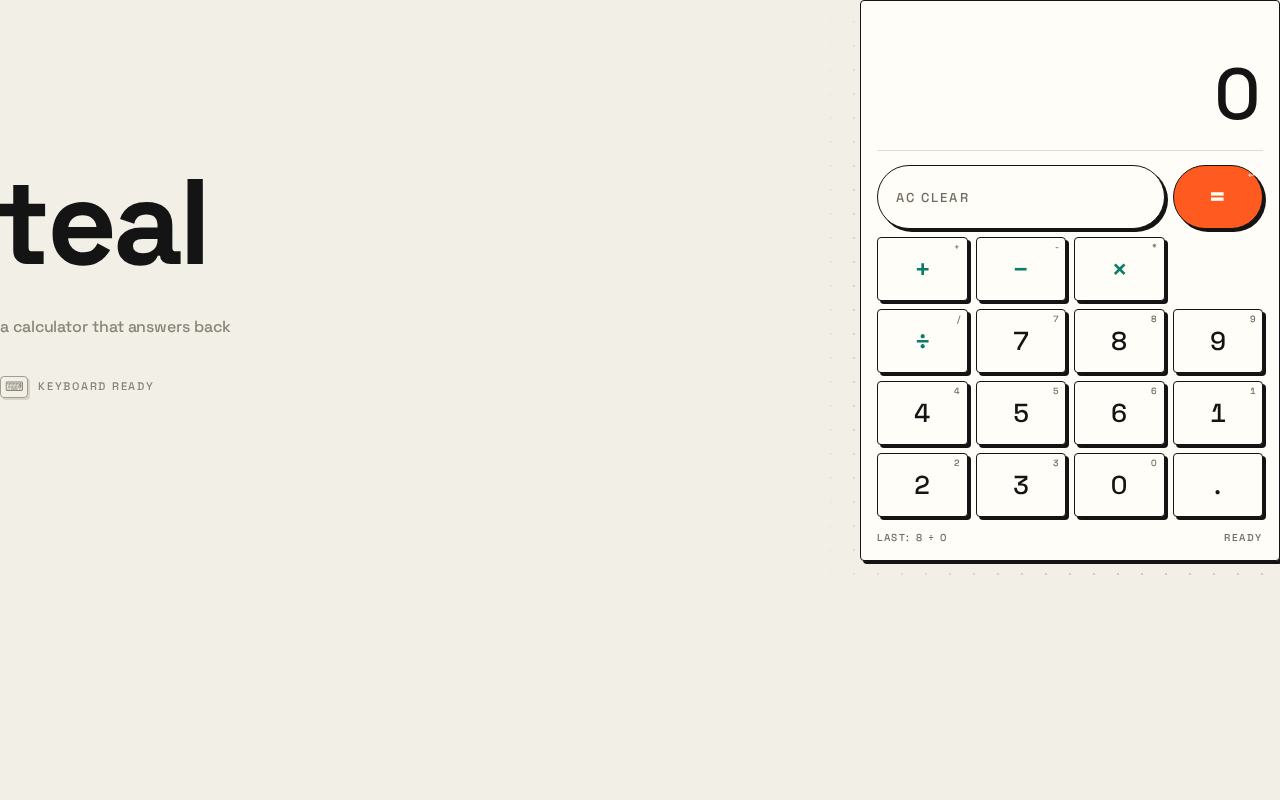
Layout. Desktop: two zones — left column with the oversized kinetic wordmark teal and the one-line instruction; right column with the calculator slab. Mobile: one column, wordmark as a stacked band above the slab, 20px gutters. The display sits inside the slab above the keys, right-aligned, with the live expression in muted type above the big result. All readable text and controls stay fully inside the viewport and their containers at 375px, 768px, and 1280px.
7. Signature Design Concept
The first screen is a two-column editorial spread on warm paper, and the calculator is already live inside it.
On the left, the wordmark teal is set at clamp(48px, 11vw, 132px) in ink, lowercase and tight. Its letters lean away from the cursor with spring physics — 2–6px of displacement that returns to rest — so the name behaves like a physical object on the page. Beneath it, one muted line: a calculator that answers back.
On the right, the cream calculator slab sits with a 1.5px ink border and a hard 3px offset shadow. Its display shows 0 in 72px tabular figures, right-aligned, with the muted expression line above it. The key grid below is square, outlined, and shadowed. The orange equals key is the only saturated accent on the screen.
Behind the slab, a faint 24px dot grid shifts 2px around the pointer. There is no centred headline, no button stack, and no gradient — the calculator is the hero, and it is already answering.
8. Interaction Model & Motion Direction
Interaction Model: Animated Motion Tempo: expressive Hero Dimensionality: layered_2d
Landing Hero Motion Brief
- Focal subject. The live calculator slab and the kinetic
tealwordmark, composed as a two-column editorial spread on warm paper. - Input → transformation → outcome thesis. Pointer movement over the wordmark displaces its letters 2–6px away from the cursor and springs them back to rest; pointer movement over the dot grid nudges nearby dots 2px; pressing a key depresses it 2px with a 90ms snap and collapses its offset shadow; a digit lands in the display with a 120ms vertical slide-and-settle; pressing equals emits a single expanding orange ring pulse. The outcome is a page that visibly answers every input.
- Motion vocabulary. Spring-physics letter displacement, 90ms key snap, 120ms digit settle, single ring pulse, 2px dot-grid nudge, 6px teal cursor-following ink dot on desktop only. No bounce, no confetti, no sound.
- Composed first frame. Warm paper ground;
tealat up to 132px on the left with the muted instruction beneath; cream slab on the right with0in 72px tabular figures and the orange equals key as the only hot accent; faint dot grid behind the slab. - Reduced-motion state. All decorative motion is disabled: the wordmark sits at rest, the dot grid is static, the ink dot is absent, keys change state instantly, digits appear without sliding, and the equals pulse does not fire. Every functional behavior is unchanged.
9. Non-Functional Requirements
- Single-page constraint (explicit). The product is exactly one page. No routing, no additional destinations, no navigation chrome.
- Simplicity (explicit). The design is a simple single-page calculator; no scientific functions, memory, history, or unit conversion are added.
- Legibility at every viewport (explicit, from creative direction). Headlines, wordmarks, labels, numbers, and controls stay entirely inside the viewport and their containers at 375px, 768px, and 1280px, wrapping or scaling with
clamp(...)to fit. No element covers any part of readable text or a control. - Reduced-motion support (explicit, from creative direction). Under
prefers-reduced-motion, all decorative motion is disabled and a usable static arrangement is provided. - Performance (required_inference). The page computes locally and renders without a network round trip for any calculation; motion is CSS/JS-driven and must not block input.
- Accessibility (required_inference). Keys are operable by keyboard and expose accessible names; the display updates are announced to assistive technology; colour is never the only signal for the equals key or the error state.
- No persistence (required_inference). No calculation state is stored beyond the current page session.
10. Tech Stack
- Frontend: React with a single-page component tree; no router.
- Styling: CSS with custom properties for the colour and type tokens; Space Grotesk loaded as a web font.
- Motion: CSS transitions for key snap and digit settle; a lightweight pointer-tracking effect for the wordmark and dot grid, gated behind
prefers-reduced-motion. - Computation: client-side arithmetic in the page; no backend service, no database, no container orchestration required for the current product.
11. Assumptions and Constraints
- Assumption (required_inference). The calculator supports the four basic operations (+, −, ×, ÷), decimal input, equals, and clear — the minimum set implied by "a simple calculator."
- Assumption (required_inference). Keyboard input mirrors the on-screen keys, since the creative direction includes a keyboard hint row.
- Assumption (required_inference). Calculations are single-step (one operator at a time); chained operations are performed by computing a result and then arming a new operator from it.
- Constraint (explicit). The product is a single page; no additional pages may be added.
- Constraint (explicit). The design must remain simple; no adjacent calculator features are introduced.
- Constraint (explicit, from creative direction). The palette, fonts, square outlined keys, hard offset shadows, and single orange accent are fixed; the generic indigo/blue-on-white SaaS template is forbidden.
- Constraint (explicit, from creative direction). No photography, no illustration, no gradients, no glassmorphism, no confetti, and no sound.
12. Glossary
- Calculator slab — the bordered cream surface containing the display and the key grid.
- Expression line — the muted line above the result showing the operands and operator entered so far.
- Operand — a number being entered or already entered in the current expression.
- Operator — one of
+,−,×,÷. - Armed operator — the operator selected and waiting for the second operand.
- Equals pulse — the single expanding orange ring emitted by the equals key on compute.
- Dot grid — the faint 24px paper texture behind the slab that nudges around the pointer.
- Reduced motion — the
prefers-reduced-motionsetting under which all decorative animation is disabled.
a calculator that answers back
No comments yet. Be the first!