task-managing24
 Likhith Kumar. N Laptop
task managing website'

Comments (0)
Sign in to leave a comment
System Requirements
System Requirements Document for task-managing24
1. Introduction
task-managing24 is a personal task-management website. Its intent is to give an individual Task Manager a deliberate, durable place to capture tasks, see them in a list, update their details and status, mark them complete, and remove them. The product is a single-purpose tool: it does not attempt to be a project suite, a team collaboration platform, or an enterprise dashboard.
The audience is an individual who wants their day to feel ordered rather than buried in a dashboard — someone who cares about craft and wants a task list that feels like a well-designed notebook while still reliably persisting their work. The product is delivered as a first-party web application with application-owned identity so that each Task Manager's task records remain private and durable across visits.
2. System Overview
task-managing24 is delivered as a web application composed of three provisioned services:
- frontend — a React application UI that renders the Landing, Sign Up, Login, Tasks, and Task Details pages.
- backend — a shared FastAPI process that exposes the application APIs and domain modules for identity and task records. All feature APIs reuse this single backend process, port, and deployment.
- database — MariaDB, holding application-owned persistent data: Task Manager identities and their task records.
Actors. The only active human persona is the Task Manager. The backend and database are non-persona system actors that execute and persist work on the Task Manager's behalf.
Accepted behavior. A Task Manager can create tasks, view their tasks in a list, update task details and status, mark tasks complete, and remove tasks. Because task records are durable and private to their owner, the product establishes application-owned identity: a new Task Manager enrolls through self-service Sign Up, and a returning Task Manager verifies through Login before reaching protected task records. The Landing page is the anonymous public entry that explains the product before any identity is established.
Ownership. All five pages are first-party application surfaces. The Landing, Sign Up, and Login pages are anonymously reachable; the Tasks and Task Details pages require login. Task persistence and identity verification are executed by the backend against MariaDB.
Exclusions. The product does not include team collaboration, shared task assignment, project hierarchies, notifications, integrations, reporting dashboards, or any capability beyond creating, listing, viewing, updating, completing, and removing an individual's own tasks.
Removed from scope
- None.
2a. Product Interpretation and Delivery Boundary
task-managing24 is a first-party, application-owned web product. Every page the Task Manager uses — Landing, Sign Up, Login, Tasks, and Task Details — is built and owned by this application; no provider surface or external destination carries accepted product behavior.
Identity is application-owned because task records are durable and private: a Task Manager must be able to leave and return to their own list, and their tasks must remain bound to them. First use is self-service enrollment on Sign Up; returning use is verification on Login. The Landing page is the anonymous entry that explains the product and routes a visitor to Sign Up or Login. The Tasks and Task Details pages are protected and are reachable only after identity is established; neither page owns the interaction that establishes access to itself.
All current behavior described in this document is in the current delivery horizon. No future-horizon capabilities are accepted, and none are represented in current pages or acceptance.
2b. Source Content Inventory
Not applicable — no reference directive declares a content_source.
2c. Page Content and Component Coverage
Landing
- Purpose and access. Anonymous public entry surface. Explains the task-management website, its audience, and what it does before any identity establishment. Reachable without login.
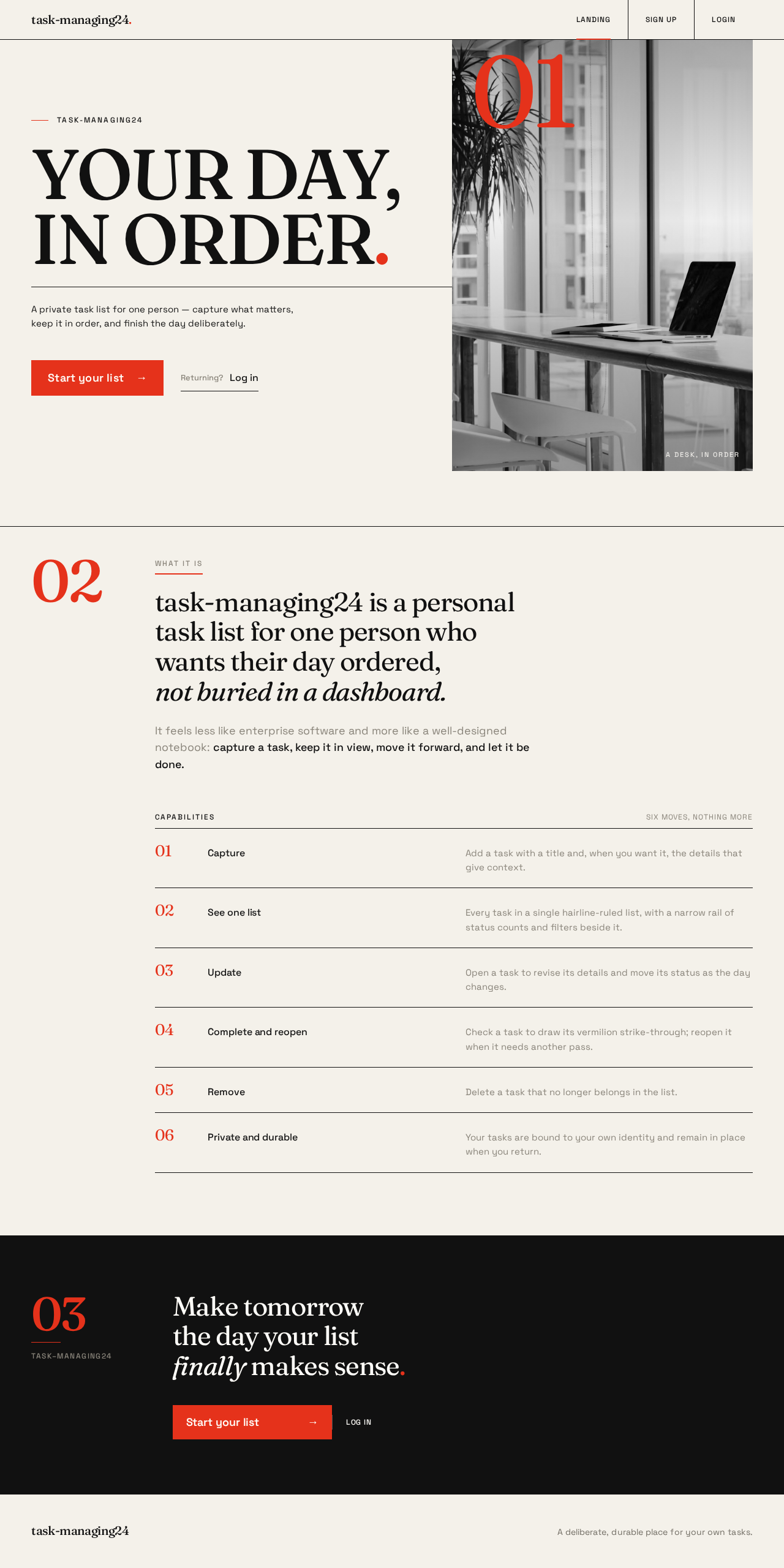
- Information and state. Product wordmark; the headline "YOUR DAY, / IN ORDER."; a single short subtext line describing the product; a primary call to action leading to Sign Up; a secondary path to Login for returning Task Managers. No task data is shown.
- Primary actions. Proceed to Sign Up (primary CTA); proceed to Login (secondary).
- Supporting actions. None beyond navigation to the two identity surfaces.
- Domain entities. None displayed.
- Component responsibilities. Hero split (headline column and full-bleed dark block with oversized vermilion numeral and monochrome photograph); top navigation bar with all-caps labels and active-page vermilion underline; primary CTA bar; section markers with oversized numerals and hairline rules.
- States. Loading: static content, no data fetch. Empty: not applicable. Success: page renders fully. Error: not applicable. Recovery: not applicable.
Sign Up
- Purpose and access. Anonymous self-service first-use enrollment for a new Task Manager who will own durable task records. Reachable without login.
- Information and state. Enrollment form collecting the credentials needed to establish a Task Manager identity; inline validation messaging; a link to Login for visitors who already have an identity.
- Primary actions. Submit enrollment to create the Task Manager identity and establish a session.
- Supporting actions. Navigate to Login.
- Domain entities. Task Manager identity.
- Component responsibilities. Form fields with labels and inline error text; submit control; validation summary; link to Login.
- States. Loading: submit control shows in-progress state while the backend processes enrollment. Empty: blank form on first arrival. Success: identity created and the Task Manager is taken to Tasks. Error: invalid or incomplete input shows field-level messages and preserves entered values; a duplicate or rejected identity shows a form-level message with a path to Login. Recovery: the Task Manager corrects input and resubmits, or switches to Login.
Login
- Purpose and access. Anonymous returning verification so a Task Manager can reach their private durable task list. Reachable without login.
- Information and state. Verification form for an existing Task Manager identity; inline validation messaging; a link to Sign Up for visitors without an identity.
- Primary actions. Submit credentials to verify identity and establish a session.
- Supporting actions. Navigate to Sign Up.
- Domain entities. Task Manager identity.
- Component responsibilities. Form fields with labels and inline error text; submit control; validation summary; link to Sign Up.
- States. Loading: submit control shows in-progress state during verification. Empty: blank form on first arrival. Success: verified and taken to Tasks. Error: incorrect credentials show a form-level message without revealing which field was wrong; the form remains usable. Recovery: the Task Manager retries, or navigates to Sign Up.
Tasks
- Purpose and access. Protected owner of the Task Manager's recurring task list and of creating new tasks with a title and optional details. Requires login.
- Information and state. The Task Manager's task list, each task shown as a full-width hairline-ruled row with a large tabular numeral in the left gutter, its title, and its status; a narrow left rail carrying status counts and filters; a creation control for a new task with a title field and an optional details field.
- Primary actions. Create a task (title required, details optional); open a task to reach Task Details.
- Supporting actions. Filter or focus the list by status using the left rail; mark a task complete directly from its row.
- Domain entities. Task (title, details, status, completion state, owner).
- Component responsibilities. Left rail with status counts and filters; task list with hairline rows and tabular numerals; inline creation form; per-row completion control; empty-state block; error banner with retry.
- States. Loading: list area shows a loading state while tasks are fetched. Empty: a first-run empty state explains that no tasks exist yet and points to the creation control. Success: the new or updated task appears in the list with its current status. Error: a failed fetch or create shows an error banner with a retry action and preserves any typed input. Recovery: retry the failed operation; the list reloads from persisted state.
Task Details
- Purpose and access. Protected focused owner for editing a task's title, details, and status, marking it complete or reopening it, and deleting it. Requires login.
- Information and state. A single centred column at a 62ch measure showing the selected task's title, details, and status; the status control pinned to the top-right of the column; the completion control; the delete control.
- Primary actions. Edit title, details, and status and save; mark the task complete or reopen it; delete the task.
- Supporting actions. Return to Tasks.
- Domain entities. Task (title, details, status, completion state, owner).
- Component responsibilities. Editable title and details fields; status control; save control; completion control with the strike-through gesture; delete control with confirmation; error banner with retry; back navigation to Tasks.
- States. Loading: the task record is fetched and shown in a loading state. Empty: not applicable — the page is reached for a specific task. Success: saved changes are reflected immediately and persist. Error: a failed load shows an error with a retry and a path back to Tasks; a failed save or delete shows an error banner and preserves unsaved input. Recovery: retry the operation, or return to Tasks where the persisted state is shown.
3. Functional Requirements
FR-1 — Create tasks (explicit) As a Task Manager, I should create a task with a title and optional details so that new work is captured in my list.
- Trigger/input: the Task Manager submits the creation control on Tasks with a title (required) and details (optional).
- Observable result: the task is persisted to the database under the Task Manager's identity and appears in the task list with its status.
- Access state: requires login.
- Failure/recovery: a missing title or a failed save shows an inline error and preserves typed input; the Task Manager retries.
- Continuation: the Task Manager can open the new task on Task Details or continue adding tasks.
FR-2 — View tasks in a list (explicit) As a Task Manager, I should view my tasks in a list so that I can see my current work at a glance.
- Trigger/input: the Task Manager opens Tasks after login.
- Observable result: the list shows only the Task Manager's own tasks as full-width rows with title and status, plus status counts in the left rail.
- Access state: requires login.
- Failure/recovery: a failed fetch shows an error banner with retry; the list reloads from persisted state.
- Continuation: the Task Manager opens a task, creates a new one, or marks one complete from its row.
FR-3 — Update task details and status (explicit) As a Task Manager, I should update a task's details and status so that my list reflects current work.
- Trigger/input: the Task Manager edits title, details, or status on Task Details and saves.
- Observable result: the changes are persisted and reflected on Task Details and in the Tasks list.
- Access state: requires login.
- Failure/recovery: a failed save shows an error banner and preserves unsaved input; the Task Manager retries.
- Continuation: the Task Manager returns to Tasks and sees the updated row.
FR-4 — Mark tasks complete (explicit) As a Task Manager, I should mark a task complete so that finished work is visibly distinguished.
- Trigger/input: the Task Manager uses the completion control on a task row on Tasks or on Task Details.
- Observable result: the task's completion state is persisted; the title is struck through with a vermilion line and the row fades to muted, and the status counts update.
- Access state: requires login.
- Failure/recovery: a failed update shows an error and leaves the prior state visible; the Task Manager retries.
- Continuation: the Task Manager can reopen the task from Task Details if it was completed in error.
FR-5 — Reopen a completed task (required_inference) As a Task Manager, I should reopen a completed task so that a task marked complete in error returns to active work.
- Trigger/input: the Task Manager uses the completion control on a completed task on Task Details.
- Observable result: the completion state is cleared and persisted; the strike-through is removed and the row returns to active styling.
- Access state: requires login.
- Failure/recovery: a failed update shows an error and leaves the completed state visible; the Task Manager retries.
- Continuation: the Task Manager returns to Tasks and sees the task as active.
FR-6 — Remove tasks (explicit) As a Task Manager, I should remove a task so that work I no longer need leaves my list.
- Trigger/input: the Task Manager uses the delete control on Task Details and confirms.
- Observable result: the task is deleted from the database and no longer appears in the Tasks list.
- Access state: requires login.
- Failure/recovery: a failed delete shows an error banner and leaves the task intact; the Task Manager retries or returns to Tasks.
- Continuation: the Task Manager returns to Tasks, where the removed task is absent.
FR-7 — Self-service enrollment (required_inference) As a new Task Manager, I should enroll through Sign Up so that I own a private, durable task list.
- Trigger/input: an anonymous visitor submits the Sign Up form.
- Observable result: a Task Manager identity is created, a session is established, and the Task Manager is taken to Tasks.
- Access state: anonymous entry; the resulting session unlocks protected pages.
- Failure/recovery: invalid input shows field-level messages; a rejected or duplicate identity shows a form-level message with a path to Login.
- Continuation: the Task Manager creates their first task on Tasks.
FR-8 — Returning verification (required_inference) As a returning Task Manager, I should verify through Login so that I can reach my private task list again.
- Trigger/input: a returning Task Manager submits the Login form.
- Observable result: identity is verified, a session is established, and the Task Manager is taken to Tasks with their persisted tasks.
- Access state: anonymous entry; the resulting session unlocks protected pages.
- Failure/recovery: incorrect credentials show a form-level message without revealing which field was wrong; the Task Manager retries or navigates to Sign Up.
- Continuation: the Task Manager resumes work on their list.
FR-9 — Anonymous product entry (required_inference) As an anonymous visitor, I should see the Landing page so that I understand what the product does before establishing identity.
- Trigger/input: a visitor opens the site root.
- Observable result: the Landing page renders with the product explanation and paths to Sign Up and Login.
- Access state: anonymous.
- Failure/recovery: not applicable to static content.
- Continuation: the visitor proceeds to Sign Up or Login.
4. User Personas
Task Manager
- Product context. An individual who wants a deliberate, ordered place to manage their own tasks. They are the sole owner of their task records and the only human actor in the product. They arrive either as a first-time visitor who needs to enroll or as a returning user who needs to verify before reaching their list.
- Primary goal. Keep a current, trustworthy list of their work: capture tasks as they arise, see them in one list, adjust details and status as work evolves, mark finished work complete, and remove what no longer matters.
- Distinct accepted responsibilities. Creating tasks with a title and optional details; viewing their tasks in a list with status counts; updating a task's title, details, and status; marking tasks complete and reopening them when needed; removing tasks; enrolling on first use; verifying on return.
- Relevant inputs and decisions. The task title (required) and details (optional); the status they assign; the decision to complete, reopen, or delete a task; their enrollment and verification credentials.
- Interactions with other participants. None — the Task Manager is the only active human persona. The backend and database act on their behalf without requiring their interaction.
- Observable success. Their task list reflects current work: new tasks appear immediately, edits and status changes persist across visits, completed tasks are visibly distinguished, and removed tasks are gone.
5. Core User Flows
Flow A — First-time enrollment and first task
- An anonymous visitor opens the site root and lands on Landing, which explains the product and offers Sign Up and Login.
- The visitor chooses the primary call to action and arrives at Sign Up.
- The visitor enters their enrollment credentials and submits. The submit control shows an in-progress state while the backend creates the Task Manager identity in MariaDB.
- On success, a session is established and the Task Manager is taken to Tasks. On invalid input, field-level messages appear and entered values are preserved; on a rejected or duplicate identity, a form-level message offers a path to Login.
- On Tasks, the empty state explains that no tasks exist yet and points to the creation control.
- The Task Manager enters a title and, optionally, details, and submits. The task is persisted and appears as a hairline row with its tabular numeral and status; the left-rail status counts update.
- Continuation: the Task Manager opens the task on Task Details, or creates another task.
Flow B — Returning verification
- A returning Task Manager opens the site and chooses Login from Landing, arriving at Login.
- They enter their credentials and submit; the submit control shows an in-progress state while the backend verifies identity.
- On success, a session is established and they are taken to Tasks, where their persisted tasks load. On incorrect credentials, a form-level message appears without revealing which field was wrong, and the form remains usable for a retry or a switch to Sign Up.
- Continuation: the Task Manager resumes work on their list.
Flow C — View the task list
- After login, the Task Manager arrives at Tasks.
- The list loads their own tasks as full-width rows with title and status, and the left rail shows status counts and filters.
- If the fetch fails, an error banner offers a retry; retrying reloads from persisted state.
- The Task Manager may filter by status, open a task, create a task, or complete a task from its row.
Flow D — Update a task's details and status
- From Tasks, the Task Manager opens a task and arrives at Task Details, which loads the task into a centred 62ch column with the status control pinned top-right.
- The Task Manager edits the title, details, or status and saves.
- On success, the changes are persisted and reflected on the page and in the Tasks list. On failure, an error banner appears and unsaved input is preserved for a retry.
- Continuation: the Task Manager returns to Tasks and sees the updated row.
Flow E — Complete a task (and reopen if needed)
- On Tasks, the Task Manager uses the completion control on a task row (or does so on Task Details).
- The completion state is persisted; the title is struck through with a 220ms left-to-right vermilion line and the row fades to muted; the status counts update.
- If the update fails, an error appears and the prior state remains visible for a retry.
- If the task was completed in error, the Task Manager opens Task Details and uses the completion control to reopen it; the strike-through is removed and the task returns to active styling.
Flow F — Remove a task
- On Task Details, the Task Manager uses the delete control and confirms.
- The task is deleted from MariaDB. On failure, an error banner appears and the task remains intact for a retry.
- Continuation: the Task Manager returns to Tasks, where the removed task is absent.
6. Visuals Colors and Theme
The creative direction is authoritative for this section. Muse: Tobias van Schneider. Headline: "YOUR DAY, / IN ORDER."
Color tokens (light mode)
| Role | Token | Value |
|---|---|---|
| Background | --bg | #F4F1EA |
| Surface | --surface | #FFFDF8 |
| Text / primary | --ink | #111111 |
| Accent (only accent) | --accent | #E5321B |
| Muted | --muted | #8A857B |
| Hairline rule | --rule | #111111 (1px) |
No gradients, no second accent hue. White type on #E5321B is used only at ≥18px semibold. #111111 on #F4F1EA and #FFFDF8 is far above AA at body size.
Typography
- Headings: Fraunces, variable optical size, weight 400–600, tracking
-0.03em, mixed case with occasional all-caps micro-labels. - Body: Space Grotesk 400/500 at 16–18px, line-height 1.5.
- Marketing scale (1.414 modular): display
clamp(48px, 9vw, 132px)/ h1clamp(40px, 6vw, 80px)/ h2clamp(28px, 3.4vw, 44px)/ body 18px / small 14px. - App scale: 40 / 28 / 20 / 16 / 13 with the same family pairing.
Shape language. Sharp corners (0–2px radius maximum); 1px #111111 hairlines; full-bleed colour blocks with hard edges; oversized numerals as ornament; one thin vermilion underline as the recurring "this is active" gesture. No pills, no soft shadows, no rounded cards.
Layout. Asymmetric 12-column editorial grid. Marketing pages use a 5/7 split with a full-bleed image or colour block on the heavier side and type flush-left in the lighter side; section transitions are marked by a full-width 1px rule and an oversized section numeral (01, 02, 03) in the left margin. Tasks tightens to a two-column app layout — narrow left rail for filters and status counts, wide right column for the list — with each task as a full-width hairline row rather than a card. Task Details is a single centred column at a 62ch measure with the status control pinned top-right, never floating over text.
Imagery. Typography is the imagery. Where a visual is needed, one large monochrome editorial photograph (a desk, a hand writing, a wall of pinned notes) treated in high-contrast black and white and cropped hard to the grid, or a solid vermilion block carrying a single oversized numeral or word. No stock people smiling at laptops, no 3D blobs, no icon illustration beyond a thin 1.5px line set.
Readability constraint. Headlines, wordmarks, labels, numbers, card text, and controls stay entirely inside the viewport and their container at 375px, 768px, and 1280px, wrapping or scaling to fit; no other element covers any part of them. Imagery and decoration may crop, bleed, or overlap as the direction asks, provided they cover no readable text or control.
7. Signature Design Concept
The Landing page is a full-viewport asymmetric split. The left 7 columns carry the enormous Fraunces headline "YOUR DAY, / IN ORDER." set flush-left at clamp(48px, 9vw, 132px) with tight leading, stacked over a thin 1px rule and a single small Space Grotesk line of subtext. The right 5 columns are a solid #111111 block bleeding to the top, right, and bottom edges, containing one oversized vermilion numeral "01" and a hard-cropped monochrome photograph of a desk surface. The primary CTA sits beneath the headline as a solid #E5321B bar with white type, flush-left — no centred headline, no gradient, no floating glass card.
The same system carries into the app: the Tasks page keeps the editorial grid but tightens to the two-column app layout, and each task row is a full-width hairline entry with a large tabular Fraunces numeral in the left gutter. Hover swaps the hairline to vermilion rather than lifting anything. The completion gesture — a 2px vermilion strike-through drawn left-to-right in 220ms with the row fading to muted — is the product's signature interaction and is reused on Task Details.
8. Interaction Model & Motion Direction
Interaction Model: Animated Motion Tempo: restrained Hero Dimensionality: flat
Landing Hero Motion Brief
- Focal subject. The oversized Fraunces headline "YOUR DAY, / IN ORDER." against the warm off-white ground, balanced by the full-bleed
#111111block with its vermilion "01" numeral and hard-cropped monochrome desk photograph. - Input → transformation → outcome thesis. On first paint, the headline's lines rise 12px into place and resolve; the dark block and its numeral settle into the grid. The primary CTA bar remains flush-left and static. The outcome is a composed, confident first frame that presents the product and its two paths — Sign Up and Login — without motion competing with the message.
- Motion vocabulary. Slow 400–500ms crossfades on route change; a 12px type reveal on first paint; hover swaps the hairline rule to vermilion rather than lifting anything; the 220ms left-to-right strike-through on task completion. No bounce, no parallax scroll-jacking, no gradient drift.
- Composed first frame. Headline flush-left in the left 7 columns over a 1px rule and one subtext line; the
#111111block bleeding off the top, right, and bottom edges in the right 5 columns with the vermilion "01" and the monochrome photograph; the vermilion CTA bar beneath the headline. - Reduced-motion state. With
prefers-reduced-motion, all reveals resolve instantly, route changes cut rather than crossfade, and the strike-through appears at once. The static arrangement remains fully readable and every control remains whole and operable.
9. Non-Functional Requirements
- Durability. Task records and Task Manager identities persist in MariaDB across sessions and visits; a returning Task Manager sees their persisted tasks after Login. (required_inference — durable state is required by the accepted create/list/update/complete/remove lifecycle.)
- Privacy of records. A Task Manager sees and modifies only their own tasks; the backend scopes every task operation to the authenticated identity. (required_inference — task records are private and bound to their owner.)
- Protected access. Tasks and Task Details are reachable only after identity is established; an unauthenticated request is routed to Login. Landing, Sign Up, and Login are anonymously reachable. (required_inference.)
- Readability and responsiveness. Readable text and controls stay whole and inside the viewport and their container at 375px, 768px, and 1280px; headlines and numerals scale with
clamp(...). (explicit — creative direction.) - Accessibility.
#111111on#F4F1EAand#FFFDF8meets AA at body size; white on#E5321Bis used only at ≥18px semibold;prefers-reduced-motionyields a usable static arrangement. (explicit — creative direction.) - Error resilience. Failed fetches, saves, completions, and deletes surface an error with a retry and preserve the Task Manager's input or prior visible state. (required_inference.)
10. Tech Stack
- frontend — React application UI rendering the five pages, using Fraunces and Space Grotesk with the tokens in Section 6.
- backend — shared FastAPI process exposing identity and task APIs; all feature APIs reuse this process, port, dependencies, and deployment.
- database — MariaDB for application-owned persistent data (Task Manager identities and task records).
- Containerization — Docker / docker-compose provisioning the three services above.
11. Assumptions and Constraints
- Identity is application-owned. Task records are durable and private, so the product establishes identity through self-service Sign Up and returning Login. (required_inference.)
- Single persona. The Task Manager is the only active human persona; there are no shared, assigned, or collaborative tasks. (explicit — closed persona catalog.)
- Task fields. A task has a title (required), optional details, and a status; completion is a distinct state that can be set and cleared. (explicit for title/details/status; required_inference for the reopen path.)
- Page contract. The five pages — Landing, Sign Up, Login, Tasks, Task Details — and their access requirements are fixed as supplied. (explicit — versioned page contract.)
- No future scope. No future-horizon capabilities are accepted; nothing beyond the current pages and requirements is represented.
- Design defaults. Where the creative direction is silent, presentation defaults are
[Default — not specified by user]and do not create product behavior.
12. Glossary
- Task Manager — the sole active human persona; the individual who owns and manages their own tasks.
- Task — a unit of work with a title, optional details, a status, and a completion state, owned by one Task Manager.
- Completion state — whether a task is marked complete; can be set and cleared (reopened).
- Status — the Task Manager-assigned state of a task, editable on Task Details and reflected in the list and left-rail counts.
- Landing — the anonymous public entry page explaining the product.
- Sign Up — the anonymous self-service enrollment page for a new Task Manager.
- Login — the anonymous returning verification page for an existing Task Manager.
- Tasks — the protected page owning the task list and task creation.
- Task Details — the protected page owning editing, completion/reopening, and deletion of a single task.
task-managing24
YOUR DAY,IN ORDER.
A private task list for one person — capture what matters, keep it in order, and finish the day deliberately.

What it is
task-managing24 is a personal task list for one person who wants their day ordered, not buried in a dashboard.
It feels less like enterprise software and more like a well-designed notebook: capture a task, keep it in view, move it forward, and let it be done.
Capabilities
Six moves, nothing moreCapture
Add a task with a title and, when you want it, the details that give context.
See one list
Every task in a single hairline-ruled list, with a narrow rail of status counts and filters beside it.
Update
Open a task to revise its details and move its status as the day changes.
Complete and reopen
Check a task to draw its vermilion strike-through; reopen it when it needs another pass.
Remove
Delete a task that no longer belongs in the list.
Private and durable
Your tasks are bound to your own identity and remain in place when you return.
Make tomorrow the day your list finally makes sense.
task-managing24
YOUR DAY,IN ORDER.
A private task list for one person — capture what matters, keep it in order, and finish the day deliberately.
What it is
task-managing24 is a personal task list for one person who wants their day ordered, not buried in a dashboard.
It feels less like enterprise software and more like a well-designed notebook: capture a task, keep it in view, move it forward, and let it be done.
Capabilities
Six moves, nothing moreCapture
Add a task with a title and, when you want it, the details that give context.
See one list
Every task in a single hairline-ruled list, with a narrow rail of status counts and filters beside it.
Update
Open a task to revise its details and move its status as the day changes.
Complete and reopen
Check a task to draw its vermilion strike-through; reopen it when it needs another pass.
Remove
Delete a task that no longer belongs in the list.
Private and durable
Your tasks are bound to your own identity and remain in place when you return.
No comments yet. Be the first!