swift-simple
 Diya Trivedi
start a simple single page design of calculator

Comments (0)
Sign in to leave a comment
System Requirements
System Requirements Document for swift-simple
1. Introduction
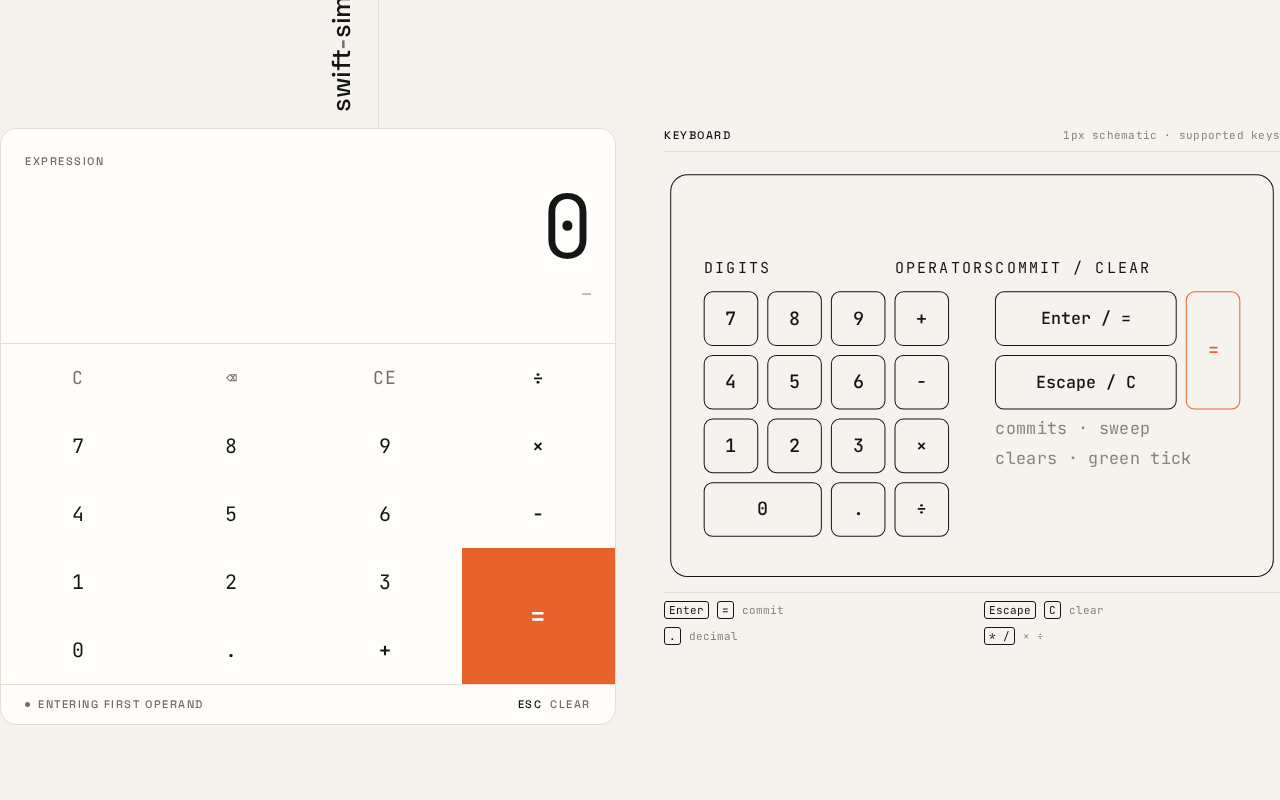
swift-simple is a simple calculator delivered as a single page. The product intent is narrow and complete: a person opens the page, enters numbers and arithmetic operators, sees the computed result displayed, and can clear the calculation to start over. The design brief frames the calculator as a precision instrument — the interface itself is the product, with an oversized tabular-numeral readout, a machined key grid, and one hot accent reserved for the equals key.
The audience is anyone with a browser who needs everyday arithmetic done quickly and correctly. There is no brand context, no account, and no multi-step workflow: one anonymous visitor, a few seconds, one calculation at a time. Credibility comes from precision, legibility, and speed rather than from marketing content.
2. System Overview
swift-simple is a single-page web calculator. The current delivery consists of:
- Frontend (React application UI): renders the single Calculator page — the result readout, the live expression line, the key grid, the clear control, and (at desktop widths) the expression history column and keyboard-shortcut legend.
- Backend (shared FastAPI process): the provisioned application API process. The accepted calculator behavior is client-side arithmetic on a single page; the backend remains available as the shared application process and is not required to perform any accepted calculator operation.
- Database (MariaDB): provisioned application-owned persistent storage. No accepted requirement in this document creates durable calculator data, history persistence, accounts, or domain entities; the database is provisioned infrastructure only.
Actors:
- Calculator user (active human persona): the anonymous visitor who enters numbers and operators, reads the result, and clears the calculation.
- Application (non-persona system actor): the React frontend that evaluates the entered expression and renders the result, expression line, and history.
Accepted behavior: entry of numbers and arithmetic operators, display of the computed result, and clearing the calculation to start over — all on one page, with no identity, no persistence, and no additional destinations.
Narrow exclusions: no accounts or sign-in, no saved or server-side calculation history, no multi-page navigation, no scientific or programmer calculator modes, no unit conversion, no currency data.
Removed from scope
- None.
2a. Product Interpretation and Delivery Boundary
The entire product is one anonymously reachable page. There is no identity establishment, no session continuity, and no protected state: a visitor lands on the Calculator page and can immediately enter numbers and operators, read the result, and clear the calculation. Nothing about the accepted behavior requires the application to know who the visitor is, to resume work across visits, or to bind a result to a participant, so no account, sign-in, or permission model is introduced.
The expression history shown on desktop (and its single-line mobile form) is a display of the current page session only. It is not persisted to the database and does not survive a reload as a product commitment. The provisioned FastAPI backend and MariaDB database remain part of the deployed system but carry no accepted calculator domain behavior in this document.
Everything described here is current. No future-horizon requirements have been accepted.
2c. Page Content and Component Coverage
Calculator
The single page of the product, anonymously reachable at the application root. It hosts the full calculator lifecycle: entry, display of the result, and clearing.
Information and state
- Result readout: the current computed result (or the current entry before a result is committed), rendered in JetBrains Mono with tabular figures, right-aligned, at
clamp(44px, 9vw, 88px), tracking -0.03em, so digits occupy a fixed grid and never shift sideways as they grow. - Micro-label: an 11px uppercase, +0.14em letterspaced label reading
EXPRESSIONabove the readout. - Live expression line: the current expression string (operands and operators as entered) in muted
#8A8478beneath the readout. - Operator chip: the active operator (
+,−,×,÷) rendered as a small filled#141517square with a white glyph, positioned at the active operator key, sliding between operator keys in 160ms. - Expression history (desktop, ≥768px): a right column listing the last 6 committed expressions with their results, tabular numerals, right-aligned, hairline-separated.
- Expression history (mobile, <768px): a single most-recent line above the display.
- Keyboard-shortcut legend (desktop): a compact schematic diagram drawn in 1px
#141517lines with 11px labels, documenting the supported keys. - Wordmark:
swift-simplein Space Grotesk at 500 weight, rotated -90° in the left margin beside a vertical 1px rule, visible only at ≥768px. - Cleared confirmation: a deep green
#1E7A4Cconfirmation tick shown briefly when the calculation is cleared.
Primary actions
- Press a digit key (0–9) to append a digit to the current entry.
- Press a decimal key to begin or extend a fractional entry.
- Press an operator key (
+,−,×,÷) to set the pending operation; the operator chip moves to that key. - Press the equals key (
=, tangerine#E8622C, spanning two rows) to commit the calculation and display the result. - Press the clear key to reset the calculation to an empty state and start over.
Supporting actions
- Keyboard input: digits,
.,+,-,*,/,Enter/=, andEscape/Cmirror the on-screen keys. - Read the expression history to review the last committed calculations.
Domain entities
- Expression: an ordered sequence of operands and operators currently being entered.
- Result: the numeric value produced when the expression is committed.
- History entry: a committed expression paired with its result, held in page session only (last 6 retained).
Component responsibilities
- Readout component: formats the current value with tabular figures, right-aligned, and re-flows within a fixed digit grid.
- Expression line component: renders the in-progress expression string in muted text.
- Operator chip component: tracks and displays the active operator, animating between operator keys in 160ms.
- Key grid component: a 4×5 grid of keys separated by 1px hairlines (no gaps, no shadows), 10px key radius, key labels at
clamp(16px, 2.4vw, 20px); the equals key spans two rows and is the only filled tangerine surface. - Clear control: resets expression, result, and active operator; triggers the green confirmation tick.
- History component: appends a committed expression/result pair, retains the last 6, crossfades a new row in over 180ms on desktop, and collapses to one line on mobile.
- Shortcut legend component: static schematic of supported keys, desktop only.
States
- Loading: not applicable — the page renders synchronously with no remote data fetch.
- Empty: readout shows
0; expression line is blank; no operator chip is active; history is empty (desktop column shows no rows; mobile shows no recent line). - In progress: digits accumulate in the readout; the expression line shows the operands and operators entered so far; the operator chip marks the pending operator.
- Success: on equals, the result replaces the readout, the expression and result are appended to history, and a 200ms underline sweep runs across the equals key.
- Error / recovery: an invalid or incomplete expression (for example a trailing operator committed with equals, or division by zero) does not produce a result; the readout retains the last valid value and the expression line remains editable so the user can correct it or press clear. Recovery is always available through the clear key.
- Cleared: readout returns to
0, expression line clears, operator chip disappears, and the green confirmation tick appears briefly.
3. Functional Requirements
FR-1 — Enter numbers and arithmetic operators As a Calculator user I should enter numbers and arithmetic operators so that I can build an arithmetic expression.
- Provenance: explicit.
- Trigger/input: pressing digit keys, the decimal key, and operator keys (
+,−,×,÷) on the key grid, or typing the equivalent characters on a keyboard. - Observable result: digits appear in the result readout; the expression line shows the operands and operators entered; the operator chip marks the active operator.
- Access state: anonymous; no identity required.
- Failure/recovery: an unrecognized key press is ignored; the user can correct the entry by continuing to type or by clearing.
- Continuation: the user presses equals to commit, or clear to start over.
- Owner: Calculator page.
FR-2 — See the computed result displayed As a Calculator user I should see the computed result displayed so that I know the outcome of my calculation.
- Provenance: explicit.
- Trigger/input: pressing the equals key (or
Enter/=on the keyboard) with a complete expression. - Observable result: the result replaces the readout in tabular JetBrains Mono numerals, right-aligned, within a fixed digit grid; the committed expression and result are appended to the expression history (last 6 retained); a 200ms underline sweep runs across the equals key.
- Access state: anonymous.
- Failure/recovery: if the expression is incomplete or invalid (trailing operator, division by zero), no result is committed; the readout retains the last valid value and the expression line stays editable for correction.
- Continuation: the user may continue calculating from the result or clear to start over.
- Owner: Calculator page.
FR-3 — Clear the calculation to start over As a Calculator user I should clear the calculation so that I can start over with a fresh entry.
- Provenance: explicit.
- Trigger/input: pressing the clear key (or
Escape/Con the keyboard). - Observable result: the readout returns to
0, the expression line clears, the operator chip disappears, and a deep green#1E7A4Cconfirmation tick appears briefly. - Access state: anonymous.
- Failure/recovery: clear is always available and always succeeds; it is the recovery path for any invalid entry.
- Continuation: the user begins a new calculation.
- Owner: Calculator page.
FR-4 — Review recent expressions As a Calculator user I should review my recent expressions so that I can see what I just calculated.
- Provenance: required_inference (indispensable observable result of the accepted history display in the creative direction; no persistence beyond the page session).
- Trigger/input: committing a result with equals.
- Observable result: on desktop (≥768px) the committed expression and result appear as a new hairline-separated row in the right-hand history column, crossfading in over 180ms, with the oldest of more than 6 entries dropped; on mobile (<768px) the single most-recent line above the display updates.
- Access state: anonymous; page-session only.
- Failure/recovery: history is display-only; if it is empty the column shows no rows and the mobile line is absent.
- Continuation: the user continues calculating or clears.
- Owner: Calculator page.
FR-5 — Use the keyboard As a Calculator user I should use my keyboard so that I can calculate without reaching for the pointer.
- Provenance: required_inference (the creative direction establishes a keyboard-first instrument and a keyboard-shortcut legend; the mapping below is the indispensable mechanic).
- Trigger/input: digits,
.,+,-,*,/,Enter/=,Escape/C. - Observable result: the same readout, expression line, operator chip, and history updates as the corresponding on-screen keys, with the same 120ms press feedback on the matching key.
- Access state: anonymous.
- Failure/recovery: unmapped keys are ignored.
- Continuation: as FR-1 through FR-4.
- Owner: Calculator page.
4. User Personas
Calculator user
Product context. An anonymous visitor with a browser who needs a quick piece of everyday arithmetic. They arrive with no account, no prior state, and no expectation beyond a working calculator; the page is the whole product.
Primary goal. Enter a short arithmetic expression and read a correct result in a few seconds, then either continue from that result or clear and start again.
Distinct responsibilities.
- Builds an expression by pressing digit and operator keys (or typing them), watching the readout and expression line.
- Commits the expression with equals and reads the result.
- Reviews the recent-expression history to confirm what was just calculated.
- Clears the calculation to start over, using clear as the recovery path for any invalid entry.
Inputs and decisions. Which operands and operator to enter; when the expression is complete enough to commit; whether to continue from the result or clear.
Interactions with other participants. None — the Calculator user is the only human participant. The application evaluates and renders; there is no counterparty, recipient, or approver.
Observable success. The result appears in the oversized tabular readout, the committed expression joins the history, and clearing returns the instrument to 0 with a green confirmation tick.
What makes this role distinct. The work is a single continuous instrument interaction — entry, commit, read, clear — with no handoff, no saved state, and no identity. The persona's entire value comes from speed and numerical legibility, not from managing records or coordinating with others.
5. Core User Flows
Flow 1 — Perform a calculation
- The Calculator user opens the application root and lands on the Calculator page. The readout shows
0, the expression line is blank, and no operator chip is active. - The user presses digit keys (or types digits) to enter the first operand; the digits appear in the readout and the expression line.
- The user presses an operator key (
+,−,×, or÷); the operator chip becomes a filled#141517square at that key, sliding into place in 160ms, and the operator appears in the expression line. - The user enters the second operand; it appears in the readout and expression line.
- The user presses the tangerine equals key (or
Enter); the result replaces the readout in tabular numerals, a 200ms underline sweep runs across the equals key, and the committed expression and result are appended to the history (desktop column, or the single mobile line). - Continuation: the user may press an operator to continue calculating from the result, or press clear to start over.
Failure/recovery: if the user presses equals with a trailing operator or divides by zero, no result is committed; the readout keeps the last valid value and the expression line stays editable. The user corrects the expression or presses clear, which resets the instrument to 0 and shows the green confirmation tick.
Flow 2 — Clear and start over
- On the Calculator page, with any entry or result showing, the Calculator user presses the clear key (or
Escape/C). - The readout returns to
0, the expression line clears, and the operator chip disappears. - A deep green
#1E7A4Cconfirmation tick appears briefly to confirm the cleared state. - The user begins a new calculation from step 2 of Flow 1.
Flow 3 — Review a recent expression
- After committing a result (Flow 1, step 5), the Calculator user looks at the history.
- On desktop (≥768px) the committed expression and result appear as the newest hairline-separated row in the right-hand column, crossfading in over 180ms; the column retains the last 6 entries.
- On mobile (<768px) the single most-recent line above the display updates to the latest committed expression and result.
- The user continues calculating or clears.
6. Visuals Colors and Theme
The visual language is Rasmus Andersson's "interface as the product": a warm paper ground, hairline borders, a strict 4/8-pt spacing scale, tabular numerals as ornament, and one hot non-blue accent. The calculator is the hero — no marketing headline, no subtext paragraph, no CTA button.
Colour tokens (light mode)
| Role | Hex | Use |
|---|---|---|
| Background | #F6F3EE | Warm paper ground filling the viewport |
| Surface | #FFFDF9 | The single calculator body |
| Text | #141517 | Graphite numerals, labels, operator chip fill |
| Primary | #E8622C | Tangerine — equals key and live operator chip only (~4% of pixels) |
| Accent | #1E7A4C | Deep green — cleared confirmation tick and focus ring on operator keys |
| Muted | #8A8478 | Labels, key sub-legend, memory strip, expression line |
| Hairline | #E4DDD1 | 1px borders, key separators, history rules, decorative grid |
No blue anywhere. The equals key is the only filled tangerine surface.
Typography
- Headings and wordmark: Space Grotesk, 500 weight, tracking -0.02em; wordmark in sentence case at
clamp(20px, 3vw, 26px); micro-labels uppercase 11px with +0.14em letterspacing. - Result display: JetBrains Mono, 300–400 weight, tabular figures, tracking -0.03em, at
clamp(44px, 9vw, 88px). - Body: JetBrains Mono, 15px.
- Key labels:
clamp(16px, 2.4vw, 20px); sub-legend 11px. - Scale: 1.25 modular with the display as an outlier.
Shape language. Compact engineered rectangles: 10px radius on keys, 16px on the calculator body. Nothing pill-shaped. Keys are separated by 1px hairlines rather than gaps, so the pad reads as one machined block. Focus rings are 2px #1E7A4C offset 2px and are never removed.
Layout. Single centred column, max-width 420px on mobile and 720px on desktop, on the warm paper ground with 64–96px top margin. On desktop the calculator shifts left of centre and a right column holds the live expression history (last 6 entries, tabular numerals, right-aligned, hairline-separated) plus a compact keyboard-shortcut legend. On mobile the history collapses to a single most-recent line above the display. Spacing follows 8, 16, 24, 32, 48, 64. No cards, no shadows, no floating rounded containers on gradients.
Imagery. No photography, illustration, or 3D. The imagery is the interface itself: tabular numerals, hairline rules, a schematic keyboard-shortcut diagram in 1px #141517 lines with 11px labels, and the operator chip as a small coloured token. Optional single decorative element: a faint 1px grid of 8px squares in #E4DDD1 behind the calculator, visible only at ≥1280px and cropped at the viewport edges.
Readability constraint. Headlines, the wordmark, labels, numbers, and controls stay entirely inside the viewport and their container at 375px, 768px, and 1280px, wrapping or scaling with clamp(...) to fit; no other element covers them. Decoration may be cropped or bled off edges but never covers readable text or controls.
7. Signature Design Concept
The instrument is the hero. The first screen is the calculator itself, not a marketing page. An oversized JetBrains Mono result readout (44px mobile → 88px desktop, right-aligned, tabular figures) dominates the top of a single #FFFDF9 machined block on the warm #F6F3EE ground. Above it sits a small 11px uppercase EXPRESSION micro-label; beneath it, the live expression string in muted #8A8478. Below, a 4×5 key grid separated by hairlines, with the tangerine #E8622C equals key spanning two rows as the only saturated element in the frame. At desktop width, a vertical 1px rule and the wordmark swift-simple in Space Grotesk rotated -90° run up the left margin. There is no centred headline, no subtext paragraph, and no button — the instrument carries the page.
The signature moves that make this concept implementable and product-specific:
- The oversized tabular-mono readout re-flows in a fixed digit grid so numbers never shift sideways as they grow.
- The key grid is built from 1px hairlines instead of gaps and shadows, so the keypad reads as one milled block.
- The tangerine equals key spans two rows as the single hot accent.
- The live expression history column on desktop (hairline-separated, right-aligned tabular numerals, last 6 entries) collapses to one most-recent line above the display on mobile.
- The operator chip — the active
+ − × ÷token as a small filled#141517square with a white glyph — slides between operator keys in 160ms so the current operation is always legible. - The wordmark is set vertically in the left margin at desktop widths and disappears entirely below 768px.
8. Interaction Model & Motion Direction
Interaction Model: Animated Motion Tempo: restrained Hero Dimensionality: flat
Landing Hero Motion Brief
- Focal subject: the oversized tabular-numeral result readout at the top of the machined calculator block, with the live expression line beneath it and the tangerine equals key as the single saturated element below.
- Input → transformation → outcome thesis: a key press (pointer or keyboard) scales the pressed key to 0.97 and back over 120ms ease-out; the readout updates in a fixed digit grid so digits never jitter; pressing an operator slides the filled
#141517operator chip between operator keys over 160ms; pressing equals commits the result, runs a single 200ms underline sweep across the equals key, and crossfades the new history row in over 180ms. The outcome is a legible, stable instrument state — never a decorative flourish. - Motion vocabulary: 120ms ease-out key press (scale 0.97 then back); 160ms operator-chip slide; 180ms history-row crossfade; single 200ms underline sweep on equals commit. Nothing loops, nothing bounces, nothing drifts.
- Composed first frame: warm
#F6F3EEground; the#FFFDF9calculator block with a 1px#E4DDD1hairline and no shadow;EXPRESSIONmicro-label,0in oversized JetBrains Mono, blank expression line; the 4×5 hairline key grid with the tangerine equals key spanning two rows; at desktop, the vertical rule and rotatedswift-simplewordmark in the left margin and the empty history column on the right. - Reduced-motion state:
prefers-reduced-motiondrops all transforms and the underline sweep, keeping only instant colour feedback on press; the history row appears without crossfade; the layout remains fully usable and static.
9. Non-Functional Requirements
- Single page (explicit): the product is exactly one page; no additional routes, navigation, or destinations.
- Simplicity (explicit): the design must remain a simple single page; no adjacent calculator modes or features.
- Numerical legibility (creative direction): the result readout uses tabular figures so digits occupy a fixed grid and never shift sideways as values change.
- Responsive integrity (creative direction): readable text and controls stay whole and inside the viewport and their container at 375px, 768px, and 1280px.
- Accessibility (creative direction): focus rings are 2px
#1E7A4Coffset 2px and never removed;prefers-reduced-motionyields a usable static arrangement with instant colour feedback only. - Performance (required_inference): key press feedback begins within the 120ms interaction budget; the page renders synchronously with no remote data fetch on load.
- No persistence (required_inference): calculation history is page-session only; no calculator data is written to the provisioned database.
10. Tech Stack
- Frontend: React application UI (provisioned), rendering the single Calculator page.
- Backend: shared FastAPI process for application APIs and domain modules (provisioned; no accepted calculator API is required by this document).
- Database: MariaDB for application-owned persistent data (provisioned; no calculator domain entities are defined).
- Containerization: Docker / docker-compose for the provisioned services (backend, database, frontend).
- Typography: Space Grotesk (headings, wordmark) and JetBrains Mono (body, numerals), loaded as web fonts.
11. Assumptions and Constraints
- Assumption: arithmetic is standard four-function (
+,−,×,÷) with decimal entry; no scientific functions, memory registers, or unit conversion are in scope. - Assumption: the expression history is a page-session display only and is not persisted or restored across reloads.
- Assumption: the provisioned FastAPI backend and MariaDB database remain deployed but carry no accepted calculator behavior; they do not imply accounts, domain entities, or an ER model.
- Constraint (explicit): the product is a simple single page; the page count is exactly one.
- Constraint (creative direction): no blue or indigo anywhere, especially on the equals key; no drop shadows, hover-lift cards, gradient blobs, glass panels, pill buttons, or 24px+ radii; no Inter, Roboto, Arial, system-ui, or Poppins; no centred marketing headline with subtext and CTA; no proportional figures; no decorative looping or bouncy motion.
- Constraint (creative direction): tangerine
#E8622Cis reserved for the equals key and the live operator chip; deep green#1E7A4Cappears only on the cleared confirmation tick and operator-key focus rings.
12. Glossary
- Expression: the ordered sequence of operands and operators currently being entered, shown in the muted expression line.
- Result: the numeric value produced when an expression is committed with equals.
- Operator chip: the small filled
#141517square with a white glyph marking the active operator, which slides between operator keys. - History entry: a committed expression paired with its result, retained in page session (last 6 on desktop, most recent only on mobile).
- Machined block: the single
#FFFDF9calculator surface with a 1px hairline border, no shadow, and a key grid separated by hairlines rather than gaps. - Tabular figures: monospaced-width digits that occupy a fixed grid so values do not shift sideways as they change.
swiftsimple
History
Keyboard
1px schematic · supported keysswiftsimple
No comments yet. Be the first!