sweet-hospital
 Aditya Pal
make a hospital website will full resopnsive with full backend and things data that re imprtant on hospital website ,ke it


Comments (0)
Sign in to leave a comment
System Requirements
System Requirements Document for sweet-hospital
1. Introduction
sweet-hospital is a fully responsive hospital website with a complete backend and the essential data that a hospital website must carry. The product serves two audiences with one shared source of truth:
- Patients and prospective patients (and the family members helping them) who arrive — often stressed, often on a phone in a waiting room — needing to find a department, a doctor, an opening hour, a phone number, or a way to reach the hospital, and to trust that what they read is current.
- Hospital staff / administrators who keep that information accurate — services and departments, doctors, and contact/location/hours details — through the site's backend, so that what patients read is trustworthy.
The intent is wayfinding clarity with warmth inside order: a hospital's real design problem is helping people locate care without decoding a brand. The site is public and anonymous for visitors, and application-owned for staff, who enroll on first use and verify their identity on return before managing hospital information content. All hospital information content lives in the application-owned backend so public pages and staff management pages read from the same durable state.
2. System Overview
sweet-hospital is delivered as a responsive web application with a first-party backend that owns durable hospital information content. Public visitors browse anonymously; hospital staff establish an account on first use, verify identity on return, and then create, edit, and remove the records that the public pages display.
Actors
- Patient / Prospective Patient — anonymous public visitor browsing services, departments, doctors, and contact/location/hours information.
- Hospital Staff / Administrator — authenticated hospital-side user maintaining services, departments, doctors, and contact/hours information through the backend.
Accepted behavior at a glance
- A fully responsive public site (375px, 768px, 1280px and between) presenting hospital services and departments, doctors, and contact/location/hours information.
- A full backend with durable data management for that content, shared by public and staff surfaces.
- Staff first-use enrollment, returning identity verification, and protected management of services, doctors, and contact information.
Narrow exclusions
- No appointment booking, patient records, billing, prescriptions, lab results, or clinical workflow is accepted by the source; the "Book an appointment" control is a contact/wayfinding affordance, not a scheduling system (see Assumptions).
- No invitation- or provisioning-based staff onboarding is established; staff enrollment is self-service.
- No differentiated permission tiers beyond staff access to protected management destinations are established by the source.
2a. Product Interpretation and Delivery Boundary
The product is a first-party website plus a first-party backend. The public side is anonymous and needs no account: a visitor can read services, departments, doctors, and contact information freely, on any device. The staff side is application-owned: because staff must privately own and resume durable hospital content, and because edits must remain bound to the correct staff participant, the application establishes staff identity itself — self-service enrollment on first use, verification on return. Protected management destinations are reachable only after that identity is established; the enrollment and verification surfaces themselves are anonymously reachable, and no protected state is exposed before identity is established.
Everything in this document is current delivery. No future-horizon features are accepted by the source; nothing in the current pages depends on unbuilt capability.
2b. Source Content Inventory
No reference directive in this request declares a content_source, so no source content inventory is included. Hospital information content (services, departments, doctors, contact/location/hours) is authored and maintained by hospital staff through the backend rather than supplied as fixed source facts.
2c. Page Content and Component Coverage
Landing
- Information / state: Hospital identity and wordmark; a wayfinding strip of three facts (emergency availability, number of departments, number of specialists); a left-aligned hero headline; a full-width emergency bar with the emergency phone number; entry points to Services, Doctors, and Contact; staff login link.
- Primary actions: Navigate to Services; navigate to Doctors; navigate to Contact; call the emergency number; open Staff Login.
- Supporting actions: "Find a department" (routes to Services); "Book an appointment" (routes to Contact — see Assumptions); numbered primary navigation.
- Domain entities: Hospital profile summary, department count, specialist count, emergency contact number.
- Component responsibilities: Persistent left navigation rail with numbered entries (01 Services, 02 Doctors, 03 Contact), emergency number in red, staff login at the bottom; hero split composition (headline left, documentary photograph right, no text over the photograph); wayfinding strip in letterspaced small caps; full-width red emergency bar with tabular-figure phone number; section headers as full-width hairlines with right-aligned index.
- States: Loading — skeleton for the wayfinding strip counts and emergency number. Empty — if a count or the emergency number is not yet maintained, the strip omits that item rather than showing a placeholder number. Success — hero, strip, emergency bar, and navigation render fully. Error — if hospital summary data fails to load, the hero and navigation still render and the strip is hidden with a quiet retry. Recovery — retry re-fetches the summary; navigation remains usable throughout.
Services
- Information / state: The hospital's services and departments, each with department name, description, and opening hours; department colour tag.
- Primary actions: Browse the service/department list; open a department's detail view; call the emergency number.
- Supporting actions: Navigate to Doctors or Contact; hover a row to reveal "View department →".
- Domain entities: Service/Department (name, description, opening hours, colour tag).
- Component responsibilities: Asymmetric hairline-ruled list (department name in condensed type left, description and hours right-aligned on the same baseline); 4px colour-coded line that widens on hover; section header with right-aligned index; persistent emergency bar.
- States: Loading — hairline row skeletons. Empty — a plain statement that service information is being updated, with a route to Contact. Success — full list rendered with hours. Error — inline error with retry; navigation and emergency bar remain available. Recovery — retry re-fetches the list without leaving the page.
Doctors
- Information / state: The hospital's doctors with specialty, clinic room, languages, and hours as tabular-figure metadata columns.
- Primary actions: Browse the doctor directory; read a doctor's metadata; call the emergency number.
- Supporting actions: Navigate to Services or Contact; filter/scan by specialty where the directory is long.
- Domain entities: Doctor (name, specialty, clinic room, languages, hours).
- Component responsibilities: Three-column directory that drops to one column at 375px; tabular-figure metadata columns aligned to the grid so the directory scans like a timetable; section header with right-aligned index; persistent emergency bar.
- States: Loading — column skeletons preserving the metadata grid. Empty — a plain statement that the directory is being updated, with a route to Contact. Success — directory rendered with aligned metadata. Error — inline error with retry; navigation and emergency bar remain available. Recovery — retry re-fetches the directory.
Contact
- Information / state: Hospital contact details, location, and opening hours; emergency number.
- Primary actions: Read contact details and hours; call the hospital or the emergency number; open the location.
- Supporting actions: Navigate to Services or Doctors.
- Domain entities: Contact information (phone numbers, address/location, opening hours).
- Component responsibilities: Hairline-ruled contact blocks with small-caps micro-labels ("OPENING HOURS"); tabular-figure phone numbers; location block; persistent emergency bar.
- States: Loading — block skeletons. Empty — a plain statement that contact details are being updated. Success — all maintained contact fields rendered. Error — inline error with retry; emergency bar remains available. Recovery — retry re-fetches contact information.
Staff Login
- Information / state: Returning-verification form for hospital staff; link to first-use enrollment.
- Primary actions: Submit credentials to verify identity; proceed to Admin Dashboard on success.
- Supporting actions: Navigate to Staff Sign Up; return to public pages.
- Domain entities: Staff account (identity credential).
- Component responsibilities: Credential form with inline validation; error region for failed verification; link to enrollment.
- States: Loading — submit control in progress state. Empty — not applicable (form is always present). Success — identity verified, redirect to Admin Dashboard. Error — clear message for invalid credentials, with the form preserved and no field cleared. Recovery — retry submission; enrollment link available if the staff member has no account.
Admin Dashboard
- Information / state: Protected entry and summary of the site's key information content — services/departments, doctors, and contact information — with counts and last-updated context where maintained.
- Primary actions: Open Manage Services; open Manage Doctors; open Manage Contact Info.
- Supporting actions: Sign out; return to public pages.
- Domain entities: Service/Department, Doctor, Contact information (as summary counts/status).
- Component responsibilities: Protected shell with staff identity context; summary blocks linking to each management surface; sign-out control.
- States: Loading — summary skeletons. Empty — zero-count summaries with direct links to create the first record. Success — summaries rendered with working links. Error — if summaries fail, the management links still render so work can continue. Recovery — retry summaries; if the session has expired, route to Staff Login with the intended destination preserved.
Staff Sign Up
- Information / state: First-use enrollment form for hospital staff accounts.
- Primary actions: Submit enrollment details to create the staff account; proceed to Admin Dashboard on success.
- Supporting actions: Navigate to Staff Login if already enrolled; return to public pages.
- Domain entities: Staff account (identity credential).
- Component responsibilities: Enrollment form with inline validation; error region for rejected submissions; link to verification.
- States: Loading — submit control in progress state. Empty — not applicable. Success — account created and staff member admitted to protected management. Error — clear message for invalid or already-registered details, with entered values preserved. Recovery — retry, or switch to Staff Login when an account already exists.
Manage Services
- Information / state: Existing service and department records with name, description, opening hours, and colour tag.
- Primary actions: Create a service/department record; edit an existing record; remove a record.
- Supporting actions: Return to Admin Dashboard; sign out.
- Domain entities: Service/Department (name, description, opening hours, colour tag).
- Component responsibilities: Record list with per-row edit and remove controls; create/edit form with validation; confirmation for removal; save/cancel controls.
- States: Loading — row skeletons. Empty — prompt to create the first service/department record. Success — saved record reflected immediately in the list and on the public Services page. Error — validation errors inline on the form; save failures reported without losing entered values. Recovery — retry save; cancel returns to the list unchanged; removal is confirmed before it takes effect.
Manage Doctors
- Information / state: Existing doctor records with name, specialty, clinic room, languages, and hours.
- Primary actions: Create a doctor record; edit an existing record; remove a record.
- Supporting actions: Return to Admin Dashboard; sign out.
- Domain entities: Doctor (name, specialty, clinic room, languages, hours).
- Component responsibilities: Record list with per-row edit and remove controls; create/edit form with validation; confirmation for removal; save/cancel controls.
- States: Loading — row skeletons. Empty — prompt to create the first doctor record. Success — saved record reflected immediately in the list and on the public Doctors page. Error — validation errors inline; save failures reported without losing entered values. Recovery — retry save; cancel returns to the list unchanged; removal is confirmed before it takes effect.
Manage Contact Info
- Information / state: Existing contact, location, and hours information.
- Primary actions: Create or edit contact, location, and hours information; remove a contact entry where multiple are maintained.
- Supporting actions: Return to Admin Dashboard; sign out.
- Domain entities: Contact information (phone numbers, address/location, opening hours).
- Component responsibilities: Editable contact fields with validation; save/cancel controls; confirmation for removal.
- States: Loading — field skeletons. Empty — prompt to enter the hospital's contact, location, and hours information. Success — saved information reflected immediately on the public Contact page and in the emergency bar where applicable. Error — validation errors inline; save failures reported without losing entered values. Recovery — retry save; cancel restores the last saved values.
3. Functional Requirements
FR-1 — Fully responsive hospital website (explicit) As a Patient / Prospective Patient, I should be able to read and use the hospital website on any device — phone, tablet, or desktop — so that I can find care information wherever I am.
- Trigger/input: Opening any public page at 375px, 768px, 1280px, or between.
- Observable result: Navigation, headlines, service rows, doctor directory, contact blocks, and the emergency bar reflow without loss of content; the left rail becomes a numbered top bar at 768px and a stacked header with a full-width menu button at 375px; the emergency number remains pinned and visible.
- Access state: Anonymous; no identity required.
- Failure/recovery: If a viewport-specific layout fails to reflow, content remains readable and reachable through the stacked navigation.
- Continuation: The visitor continues to Services, Doctors, or Contact.
FR-2 — Full backend with durable hospital data (explicit) As a Hospital Staff / Administrator, I should be able to have the site's hospital information content stored and managed in the application's backend so that public pages and staff management pages read from the same durable state.
- Trigger/input: Any staff create, edit, or remove action on services, doctors, or contact information.
- Observable result: The change persists in application-owned storage and is reflected on the corresponding public page.
- Access state: Protected; requires verified staff identity.
- Failure/recovery: A failed write is reported to the staff member with entered values preserved and can be retried.
- Continuation: The staff member returns to the record list or the Admin Dashboard.
FR-3 — Services and departments content (explicit) As a Patient / Prospective Patient, I should be able to browse the hospital's services and departments — each with a name, description, and opening hours — so that I can identify the care area I need.
- Trigger/input: Opening Services or following a department link from Landing.
- Observable result: An asymmetric hairline-ruled list of departments with descriptions and hours, each carrying a colour tag.
- Access state: Anonymous.
- Failure/recovery: If the list fails to load, an inline error with retry appears while navigation and the emergency bar remain usable.
- Continuation: The visitor opens a department detail view or moves to Doctors or Contact.
FR-4 — Doctors directory content (explicit) As a Patient / Prospective Patient, I should be able to browse the hospital's doctors with their specialty, clinic room, languages, and hours so that I can find the right care provider.
- Trigger/input: Opening Doctors or following a doctor link from Landing.
- Observable result: A directory whose metadata columns align to the grid and scan like a timetable.
- Access state: Anonymous.
- Failure/recovery: If the directory fails to load, an inline error with retry appears while navigation and the emergency bar remain usable.
- Continuation: The visitor moves to Contact to reach the hospital.
FR-5 — Contact, location, and hours content (explicit) As a Patient / Prospective Patient, I should be able to read the hospital's contact details, location, and opening hours so that I can practically reach or visit the hospital.
- Trigger/input: Opening Contact or following a contact link from any public page.
- Observable result: Contact blocks with small-caps micro-labels, tabular-figure phone numbers, location, and hours.
- Access state: Anonymous.
- Failure/recovery: If contact information fails to load, an inline error with retry appears while the emergency bar remains available.
- Continuation: The visitor calls the hospital or plans a visit.
FR-6 — Always-visible emergency contact (explicit, from the accepted design direction) As a Patient / Prospective Patient, I should be able to see the emergency phone number at all times on every public page so that I can act immediately in an emergency.
- Trigger/input: Any public page view.
- Observable result: A full-width red emergency bar with the phone number in tabular figures, never covered by another element.
- Access state: Anonymous.
- Failure/recovery: If the emergency number is not yet maintained, the bar omits the number rather than displaying a placeholder.
- Continuation: The visitor calls the number.
FR-7 — Staff first-use enrollment (required_inference) As a Hospital Staff / Administrator, I should be able to establish my staff account on first use so that I can begin maintaining hospital information content.
- Trigger/input: Submitting the enrollment form on Staff Sign Up.
- Observable result: A staff account is created and the staff member is admitted to protected management.
- Access state: Anonymous entry; protected state remains unavailable until enrollment succeeds.
- Failure/recovery: Invalid or already-registered details produce a clear message with entered values preserved; the staff member can retry or switch to Staff Login.
- Continuation: The staff member lands on the Admin Dashboard.
FR-8 — Staff returning verification (required_inference) As a Hospital Staff / Administrator, I should be able to verify my identity on return visits so that I can resume managing hospital information content.
- Trigger/input: Submitting credentials on Staff Login.
- Observable result: Identity is verified and the staff member reaches the Admin Dashboard.
- Access state: Anonymous entry surface; protected destinations require verified identity.
- Failure/recovery: Invalid credentials produce a clear message with the form preserved and no field cleared; the staff member can retry or use the enrollment link.
- Continuation: The staff member opens a management surface.
FR-9 — Protected management entry and summary (required_inference) As a Hospital Staff / Administrator, I should be able to see a protected summary of the site's key information content so that I can choose what to maintain.
- Trigger/input: Arriving at the Admin Dashboard after verification.
- Observable result: Summaries of services/departments, doctors, and contact information with working links to each management surface.
- Access state: Protected; unverified visitors are routed to Staff Login with the intended destination preserved.
- Failure/recovery: If summaries fail, management links still render so work can continue; an expired session routes to Staff Login.
- Continuation: The staff member opens Manage Services, Manage Doctors, or Manage Contact Info.
FR-10 — Manage services and departments (required_inference) As a Hospital Staff / Administrator, I should be able to create, edit, and remove service and department records so that patients see current service information.
- Trigger/input: Submitting the create/edit form or confirming a removal on Manage Services.
- Observable result: The record list updates and the public Services page reflects the change.
- Access state: Protected; requires verified staff identity.
- Failure/recovery: Validation errors appear inline; save failures preserve entered values and can be retried; removal is confirmed before it takes effect.
- Continuation: The staff member continues editing or returns to the Admin Dashboard.
FR-11 — Manage doctors (required_inference) As a Hospital Staff / Administrator, I should be able to create, edit, and remove doctor records so that patients find the right care provider.
- Trigger/input: Submitting the create/edit form or confirming a removal on Manage Doctors.
- Observable result: The record list updates and the public Doctors page reflects the change.
- Access state: Protected; requires verified staff identity.
- Failure/recovery: Validation errors appear inline; save failures preserve entered values and can be retried; removal is confirmed before it takes effect.
- Continuation: The staff member continues editing or returns to the Admin Dashboard.
FR-12 — Manage contact, location, and hours information (required_inference) As a Hospital Staff / Administrator, I should be able to create, edit, and remove contact, location, and hours information so that patients can reach and visit the hospital.
- Trigger/input: Submitting the contact form or confirming a removal on Manage Contact Info.
- Observable result: The public Contact page and, where applicable, the emergency bar reflect the saved information.
- Access state: Protected; requires verified staff identity.
- Failure/recovery: Validation errors appear inline; save failures preserve entered values and can be retried; cancel restores the last saved values.
- Continuation: The staff member returns to the Admin Dashboard or continues editing.
4. User Personas
Patient / Prospective Patient
A person seeking care — or a family member helping them — who arrives at the site under stress and often on a phone. Their context is practical and time-pressured: they need to know whether this hospital offers the care they need, which department handles it, which doctor to look for, when it is open, and how to reach it. They are anonymous and expect to read without creating anything.
- Primary goal: Find the right care information and a clear way to reach the hospital.
- Distinct accepted responsibilities: Browsing services and departments with descriptions and hours; browsing the doctor directory with specialty, clinic room, languages, and hours; reading contact, location, and opening hours; using the always-visible emergency number.
- Relevant inputs or decisions: Which department matches their need; which doctor and clinic room to look for; whether the hospital is open when they need it; whether to call the hospital or the emergency number.
- Interactions with other accepted participants: None directly. Their reading experience depends entirely on the accuracy of what Hospital Staff / Administrators maintain; a stale or missing record is the failure they experience.
- Observable success: They locate a department, a doctor, and the hospital's hours and contact details, and they leave with a phone number or a plan to visit.
Hospital Staff / Administrator
A hospital-side user responsible for keeping the site's important data accurate so that patients see current, trustworthy content. Their context is operational: they are correcting or adding records, not browsing, and they need their edits to take effect on the public site immediately and to remain bound to their own account.
- Primary goal: Maintain up-to-date hospital information — services, departments, doctors, and contact/hours — through the site's backend.
- Distinct accepted responsibilities: Establishing their staff account on first use; verifying identity on return; reading the protected summary of key content; creating, editing, and removing service/department records; creating, editing, and removing doctor records; creating, editing, and removing contact, location, and hours information.
- Relevant inputs or decisions: The exact wording of a department description, its opening hours and colour tag; a doctor's specialty, clinic room, languages, and hours; the hospital's phone numbers, address, and hours; whether a record should be removed.
- Interactions with other accepted participants: Their work is the direct cause of what Patients / Prospective Patients read; a save they make is the patient's next accurate page view.
- Observable success: Saved changes appear on the corresponding public page, and the staff member can return later, verify identity, and continue maintaining content.
5. Core User Flows
Flow 1 — Patient finds a department and a way to reach the hospital
- The patient opens the site on a phone and lands on Landing. The hero headline, the wayfinding strip, and the red emergency bar with the emergency number are visible without scrolling past them.
- The patient taps 01 Services in the stacked header (375px) or the numbered left rail (desktop) and arrives at Services.
- On Services, the patient scans the asymmetric hairline-ruled list: department names on the left, descriptions and opening hours on the same baseline to the right, each row carrying a 4px colour tag.
- The patient hovers or taps a row; the colour line widens and View department → appears at the row's right edge. The patient opens the department detail and reads its description and hours.
- The patient moves to Doctors and scans the directory, reading specialty, clinic room, languages, and hours in aligned tabular-figure columns.
- The patient moves to Contact, reads the phone numbers, location, and opening hours, and calls the hospital.
- Failure/recovery: If Services or Doctors fails to load, an inline error with retry appears; the navigation and the emergency bar remain usable, and the patient can retry or go straight to Contact.
- Continuation: The patient has the department, the doctor, and the phone number, and can plan the visit or call immediately.
Flow 2 — Patient acts in an emergency
- The patient opens any public page — Landing, Services, Doctors, or Contact.
- The full-width red emergency bar is visible directly beneath the hero (and pinned beneath the stacked header at 375px), carrying the emergency phone number in tabular figures at 28px, never covered by another element.
- The patient reads the number and calls it.
- Failure/recovery: If the emergency number has not yet been maintained, the bar omits the number rather than showing a placeholder; the patient uses the hospital's main number from Contact.
- Continuation: The patient reaches emergency care.
Flow 3 — Hospital staff enrolls on first use
- A staff member opens Staff Login from the bottom of the left rail (or the stacked header at 375px) and follows the link to Staff Sign Up.
- On Staff Sign Up, the staff member completes the enrollment form. Inline validation flags any invalid field before submission.
- The staff member submits. The submit control shows a progress state.
- Success: The staff account is created and the staff member is admitted to protected management, landing on Admin Dashboard.
- Failure/recovery: If the details are invalid or an account already exists, a clear message appears with the entered values preserved; the staff member corrects the form and retries, or switches to Staff Login.
- Continuation: The staff member sees the protected summary of services/departments, doctors, and contact information.
Flow 4 — Hospital staff verifies identity on return and updates a service
- The staff member opens Staff Login and submits credentials.
- Success: Identity is verified and the staff member arrives at Admin Dashboard, which shows summaries of services/departments, doctors, and contact information with working links.
- The staff member opens Manage Services. The existing records load with name, description, opening hours, and colour tag.
- The staff member edits a department's description and opening hours, or creates a new department record, and saves.
- Success: The record list updates immediately, and the change is reflected on the public Services page because both read the same durable backend state.
- Failure/recovery: Validation errors appear inline on the form; a save failure is reported without losing entered values and can be retried; cancel returns to the list unchanged.
- Continuation: The staff member returns to Admin Dashboard or continues editing.
Flow 5 — Hospital staff maintains the doctor directory
- From Admin Dashboard, the verified staff member opens Manage Doctors.
- The staff member creates a doctor record with name, specialty, clinic room, languages, and hours, or edits an existing record.
- The staff member saves. The record list updates and the public Doctors page reflects the change.
- Failure/recovery: Inline validation catches missing or malformed fields; a failed save preserves entered values for retry.
- Continuation: The staff member returns to Admin Dashboard.
Flow 6 — Hospital staff updates contact, location, and hours
- From Admin Dashboard, the verified staff member opens Manage Contact Info.
- The staff member edits the hospital's phone numbers, address/location, and opening hours, or adds a contact entry.
- The staff member saves. The public Contact page reflects the change, and the emergency bar reflects the emergency number where applicable.
- Failure/recovery: Inline validation catches malformed fields; a failed save preserves entered values; cancel restores the last saved values.
- Continuation: The staff member returns to Admin Dashboard or signs out.
Flow 7 — Hospital staff removes an outdated record
- From Manage Services, Manage Doctors, or Manage Contact Info, the verified staff member selects a record to remove.
- A confirmation is presented before the removal takes effect.
- Success: The record is removed from the list and no longer appears on the corresponding public page.
- Failure/recovery: If the removal fails, the record remains and an error is reported; the staff member can retry.
- Continuation: The staff member returns to Admin Dashboard.
Flow 8 — Session expiry during staff work
- A verified staff member is working on Manage Services, Manage Doctors, or Manage Contact Info when the session expires.
- The next protected action routes the staff member to Staff Login with the intended destination preserved.
- The staff member verifies identity again and is returned to the intended management surface.
- Failure/recovery: If verification fails, the staff member can retry or use the enrollment link.
- Continuation: The staff member resumes the interrupted edit.
6. Visuals Colors and Theme
Muse: Erik Spiekermann. Headline idea: Typographic infrastructure for a hospital — wayfinding clarity with warmth inside order. The site should feel like a well-signed hospital corridor: calm, legible, humane authority, not a startup landing page.
Colour tokens (light mode)
| Role | Hex | Use |
|---|---|---|
| Background | #F4F1EA | Warm paper ground across all pages |
| Surface | #FFFFFF | Content cards and form surfaces |
| Text | #1C1B18 | All reading text (≈14:1 on the paper ground) |
| Primary | #0E5A6B | Navigation chrome, section rules, department coding |
| Accent | #D93A2B | Emergency bar, emergency phone number, one CTA per screen |
| Muted | #7A756B | Metadata, hours labels, secondary copy |
| Line colour A | #C98A1B | 4px department tag only |
| Line colour B | #2E6B4F | 4px department tag only |
| Hairline rule | #D8D2C6 | 1px rules separating sections and table rows |
Primary is a deep clinical teal, deliberately not blue-indigo. Accent red is used like a transit line colour — never decoratively, and never more than one red CTA in a single viewport.
Typography
- Headings: Fira Sans; Fira Sans Condensed for department names and data labels; SemiBold (600) and Bold (700) at generous sizes with
-0.01emtracking, sentence case — never all-caps for long headings. - Body: Fira Sans.
- Small caps only for micro-labels such as
DEPARTMENTandOPENING HOURS, letterspaced0.08emat 12–13px. - Numbers in Fira Sans with tabular figures so phone numbers, hours, and room numbers align.
- Scale: 1.25 modular on mobile, 1.333 on desktop. Hero
clamp(40px, 7vw, 88px); page titleclamp(32px, 5vw, 56px); section 28px; card title 20px; body 17px (16px on mobile) with 1.65 line-height; label 13px. Body measure capped at 68ch.
Shape language
Rectilinear and confident. Maximum 2px corner radius on cards and inputs. 1px hairline rules in #D8D2C6 separate every section and table row. Numbered circular badges (28px, 1.5px teal stroke, teal numeral) mark the four steps of "Getting care". Department tags are small filled rectangles with a 4px colour line on the left edge. Buttons are 44px tall, 2px radius, solid teal or solid red — no pills, no glass, and no shadow beyond a single 0 1px 2px rgba(28,27,24,0.06) on surfaces.
Layout
A visible 12-column grid with a persistent left rail. On desktop the rail (280px) holds the hospital wordmark, primary navigation as a numbered list (01 Services, 02 Doctors, 03 Contact), the emergency number in red, and the staff login link at the bottom. Content occupies columns 4–12 with a maximum 1180px content width and 40px gutters. Sections are separated by full-width hairlines with a small right-aligned section index ("02 / 06"). At 768px the rail collapses to a top bar with a horizontal numbered nav; at 375px it becomes a stacked header with a full-width menu button and the emergency number pinned as a red bar directly beneath it. Cards are never a uniform grid: services use a two-column asymmetric list, doctors use a three-column directory that drops to one column at 375px.
Imagery
Documentary and diagrammatic. One full-bleed photograph of the hospital building or a bright corridor on the landing hero, desaturated toward the warm paper tone so teal and red read as signal colours. Department cards use simple 2px-stroke line pictograms drawn on the same grid as the type — a stethoscope, a scan ring, a heart, a child's figure. No stock photos of smiling doctors in scrubs, no 3D renders, no gradient meshes, and no photography inside data tables.
7. Signature Design Concept
"A signed building." The public entry is composed as a wayfinding system rather than a marketing page.
- Split hero, not a centred stack. The left two-thirds is warm paper ground (
#F4F1EA) carrying a left-aligned headline atclamp(40px, 7vw, 88px)in Fira Sans Bold, set flush-left across six lines of a visible 12-column grid: "Care you can find your way to." Beneath it sit one 44px teal button (Find a department) and one ghost button (Book an appointment), then a single hairline rule. - Right third is a full-height documentary photograph of the hospital entrance, bleeding off the top and right edges, warm-graded, with no text over it.
- Above the headline, a three-item wayfinding strip in 13px letterspaced small caps —
EMERGENCY 24/7 · 12 DEPARTMENTS · 240 SPECIALISTS— separated by thin vertical rules. - Below the hero, a red emergency bar spans the full viewport width with the phone number set large in tabular figures and the words "Emergency — call now" in white.
- Navigation as a transit map. The persistent left rail numbers its entries (01 Services, 02 Doctors, 03 Contact), collapsing to a numbered top bar at 768px and a stacked header at 375px.
- Section headers as signage. Every section opens with a full-width hairline, a right-aligned index ("02 / 06"), and a 13px letterspaced small-caps label, so the page reads like a signed building.
No gradient blob, no centred headline, no floating card cluster. The concept recomposes only accepted content, states, and controls.
8. Interaction Model & Motion Direction
Interaction Model: Static Motion Tempo: restrained Hero Dimensionality: flat
Landing Hero Motion Brief
- Focal subject: The hospital entrance photograph in the right third of the split hero, warm-graded and bleeding off the top and right edges.
- Input → transformation → outcome thesis: As the visitor arrives, the hero's typographic block and the wayfinding strip settle into place with a single 220ms fade-and-rise (8px); the photograph holds still. The outcome is a composed, legible first frame in which the headline, the numbered navigation, and the emergency number are all immediately readable — nothing moves that does not convey state.
- Motion vocabulary: 150–200ms ease-out on hover and focus states; one 220ms fade-and-rise (8px) on section entry; no bounce, no parallax, no looping decoration. Hovering a service row slides its 4px colour line 4px wider and reveals "View department →" at the row's right edge. The emergency bar's numbers are static and always visible.
- Composed first frame: Warm paper ground, flush-left headline across six grid lines, three-item small-caps wayfinding strip above it, teal and ghost buttons beneath, hairline rule, documentary photograph filling the right third, and the full-width red emergency bar directly below the hero.
- Reduced-motion state: With
prefers-reduced-motion, the fade-and-rise is removed and all content renders in its final position; hover affordances remain as static state changes (colour line width and the "View department →" label appear without transition). No content depends on motion to become readable.
9. Non-Functional Requirements
- NFR-1 — Full responsiveness (explicit): The website must be fully responsive. Layouts must hold at 375px, 768px, and 1280px and between; headlines, wordmarks, labels, numbers, card text, and controls stay entirely inside the viewport and their container, wrapping or scaling (for example
font-size: clamp(...)with its mobile size) to fit, and no other element covers any part of them. Imagery and decoration may crop or bleed as the direction asks, provided they cover no readable text or control. - NFR-2 — Full backend with data management (explicit): The site must include a full backend with data management. Hospital information content is stored in application-owned durable storage; public pages and staff management pages read from the same state.
- NFR-3 — Shared durable state (required_inference): A staff save must be reflected on the corresponding public page, because both surfaces read the same backend state rather than separate copies.
- NFR-4 — Protected staff state (required_inference): Management destinations require verified staff identity; unverified access routes to Staff Login with the intended destination preserved, and no protected state is exposed before identity is established.
- NFR-5 — Legibility and contrast (from the accepted design direction): Reading text uses
#1C1B18on#F4F1EA(≈14:1); body measure is capped at 68ch; tabular figures are used for phone numbers, hours, and room numbers. - NFR-6 — Accessible motion (from the accepted design direction): With
prefers-reduced-motion, all content renders in its final position and remains fully usable without animation. - NFR-7 — Failure resilience (required_inference): A failed content load or save must not strand the user; public pages keep navigation and the emergency bar usable, and staff forms preserve entered values for retry.
10. Tech Stack
- Frontend: React (web), fully responsive, implementing the layout, typography, and motion direction in sections 6–8.
- Backend: Python / FastAPI, owning hospital information content (services/departments, doctors, contact/location/hours) and staff identity.
- Storage: A relational database for durable hospital information content and staff accounts.
- Packaging and local run: Docker and docker-compose, with the frontend and backend as the runnable services.
- Deployment: Kubernetes only if deployment requires it; not otherwise.
No source-specified technology was overridden; these are the practical choices for the accepted current scope.
11. Assumptions and Constraints
- A-1 (assumption): "Book an appointment" is a wayfinding affordance that routes the visitor to Contact; the source accepts no appointment scheduling, calendar, or booking-record capability, and none is implemented.
- A-2 (assumption): The wayfinding strip counts ("12 DEPARTMENTS", "240 SPECIALISTS") are derived from maintained department and doctor records rather than hardcoded; if a count is not yet available, that strip item is omitted.
- A-3 (assumption): Staff enrollment is self-service, because the source establishes no invitation or provisioning boundary.
- A-4 (assumption): No differentiated permission tiers exist among staff; all verified staff reach the same management surfaces. Role-restricted access on Admin Dashboard, Manage Services, Manage Doctors, and Manage Contact Info means "verified staff only," not a permission hierarchy.
- A-5 (assumption): Hospital information content is authored by staff through the backend; no fixed source dataset is supplied, so no content inventory is reproduced.
- C-1 (constraint, explicit): The website must be fully responsive.
- C-2 (constraint, explicit): The site must include a full backend with data management.
- C-3 (constraint, from the accepted design direction): The generic indigo/blue-on-white SaaS template is forbidden; blue-indigo primaries (
#2563EB,#4F46E5and neighbours), gradient-blob heroes, Inter/Roboto/Arial/Helvetica/Open Sans/Lato/Poppins/system-ui for headings or body, uniform grids of identical hover-lift cards with soft shadows and pill buttons, stock photography of smiling medical staff, glassmorphic panels, 3D blob renders, all-caps long headings, decorative looping animation or parallax, text or controls over the hero photograph, and more than one red CTA in a single viewport are all excluded. - C-4 (constraint, from the accepted design direction): Readable text and controls stay whole at every viewport; imagery and decoration may crop or bleed instead.
12. Glossary
- Department / Service — A care area the hospital offers, with a name, description, opening hours, and a colour tag; maintained by staff and browsed by patients.
- Doctor record — A directory entry with name, specialty, clinic room, languages, and hours.
- Contact information — The hospital's phone numbers, address/location, and opening hours.
- Emergency bar — The full-width red bar carrying the emergency phone number in tabular figures, visible on every public page and never covered.
- Wayfinding strip — The three-item small-caps strip above the hero headline stating emergency availability, department count, and specialist count.
- Left rail — The persistent 280px desktop navigation holding the wordmark, numbered primary navigation, the emergency number, and the staff login link; collapses to a numbered top bar at 768px and a stacked header at 375px.
- Staff account — The application-owned identity a Hospital Staff / Administrator establishes on first use and verifies on return.
- Protected management surface — Admin Dashboard, Manage Services, Manage Doctors, or Manage Contact Info; reachable only after staff identity is verified.
- Tabular figures — Numerals of equal width so phone numbers, hours, and room numbers align in columns.
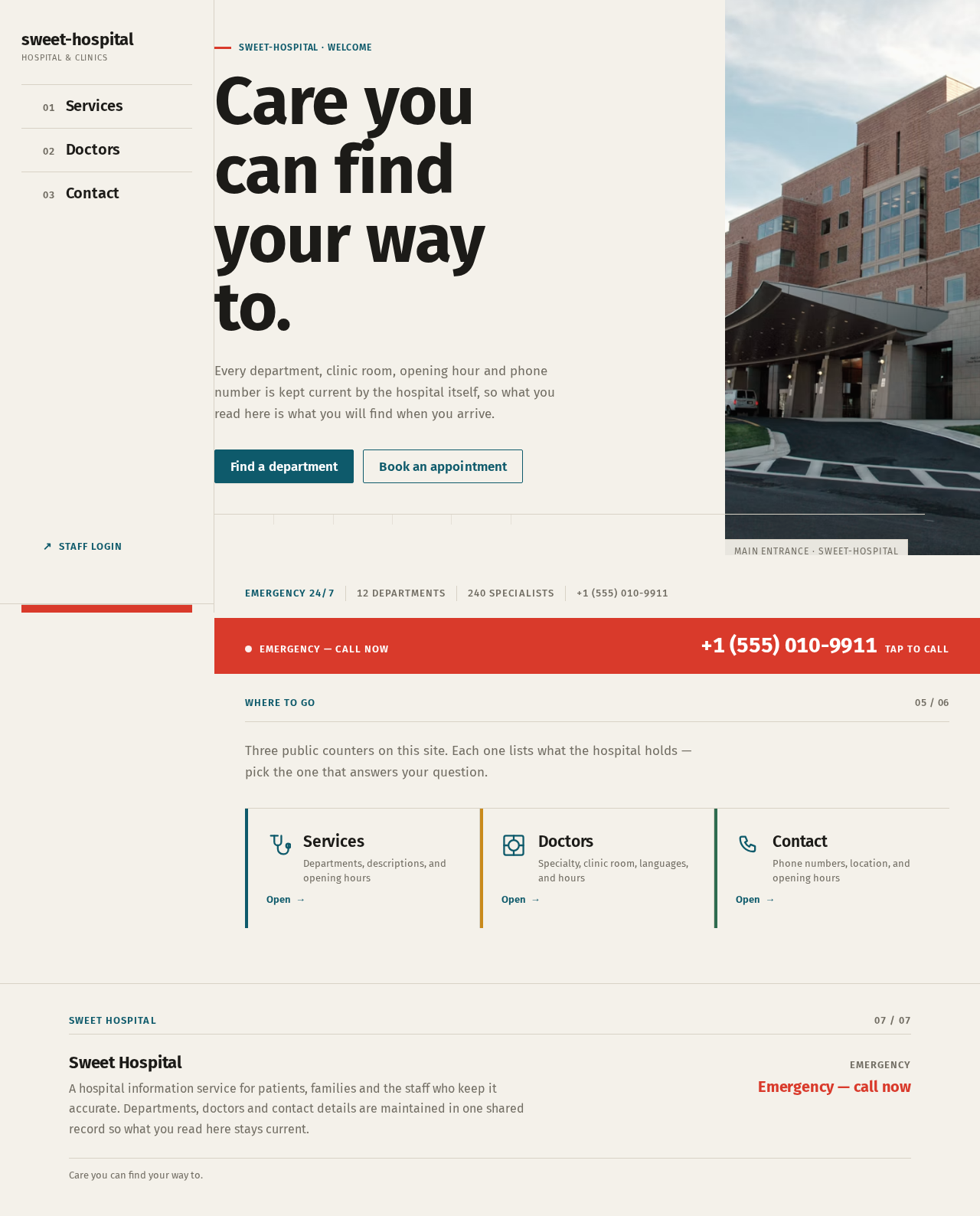

sweet-hospital · Welcome
Care youcan findyour wayto.
Every department, clinic room, opening hour and phone number is kept current by the hospital itself, so what you read here is what you will find when you arrive.
- Emergency 24/7
- 12 departments
- 240 specialists
- +1 (555) 010-9911
Where to go
Three public counters on this site. Each one lists what the hospital holds — pick the one that answers your question.
sweet-hospital · Welcome
Care youcan findyour wayto.
Every department, clinic room, opening hour and phone number is kept current by the hospital itself, so what you read here is what you will find when you arrive.
- Emergency 24/7
- 12 departments
- 240 specialists
- +1 (555) 010-9911
Where to go
Three public counters on this site. Each one lists what the hospital holds — pick the one that answers your question.
No comments yet. Be the first!