sunny-start
 Diya Trivedi
start a project to build a simple single page design of calculator

Comments (0)
Sign in to leave a comment
System Requirements
System Requirements Document for sunny-start
1. Introduction
sunny-start is a simple calculator delivered as a single-page design. The product intent is narrow and explicit: one page on which a person enters numbers and arithmetic operations and reads the computed result, with no navigation to other destinations, no accounts, and no surrounding application surface. The design must be simple, and the whole experience must live on one page.
The audience is broad and casual — anyone who needs quick arithmetic, such as a student checking homework, someone splitting a bill, or a shopper tallying a cart. Because the audience is casual and the interaction is one-tap, legibility and immediate clarity of the display and keys are as important as the visual character of the page.
The visual character is deliberately poster-like rather than instrument-neutral: the calculator is treated as a printed poster that happens to do math, with the display as the headline and the keypad as stacked colour bands. This document specifies that product, its single page, its one human role, and the visual, interaction, and technical constraints that make it buildable.
2. System Overview
2a. Product Interpretation and Delivery Boundary
sunny-start is a first-party, single-page web calculator. The entire product is one anonymously reachable page, Calculator, which is both the public entry and the only working surface. There is no sign-in, no account, no saved history, no settings destination, and no second route. A visitor opens the page, performs arithmetic, reads the result, and may continue calculating or clear the display — all without leaving the page.
The page is owned by the application and rendered by the React frontend. Arithmetic evaluation is a small, self-contained computation; the shared FastAPI backend is available as the application's API process and the MariaDB database is provisioned as application-owned storage, but neither is required to create product behavior: the calculator has no durable domain entities, no persistence requirement, and no identity requirement. The backend and database remain part of the delivered infrastructure inventory and may host the arithmetic evaluation endpoint and health checks, but they do not introduce accounts, saved calculations, or additional pages.
Current scope is exactly the one page and the arithmetic behavior described in this document. Anything beyond a simple single-page calculator — history, memory keys, scientific functions, unit conversion, accounts, sharing — is outside the current delivery boundary and is not part of acceptance.
2c. Page Content and Component Coverage
Calculator
The single page of the product, anonymously reachable, hosting the poster composition and the working calculator. It is the public entry surface and the only destination.
Information and state
- The live display value: the current entry or the computed result, shown as the largest numeral on the page.
- The pending expression context: the first operand and selected operator, held while the second operand is being entered, so the user can see what operation is in progress.
- The current input phase: entering the first operand, entering the second operand after an operator, or showing a completed result.
- An error state when an operation cannot be evaluated (for example division by zero), shown in the display in place of a numeral.
- No loading state is required for arithmetic; the page renders its static poster composition immediately.
Primary actions
- Digit keys 0–9 append digits to the current operand.
- Decimal point key begins or extends a fractional operand.
- Operator keys (÷, ×, −, +) select the operation to apply to the current operand and the next one.
- Equals key (full-width red bar) evaluates the pending expression and shows the result in the display.
- Clear key (yellow block) resets the display, the pending expression, and any error state to a fresh zero.
Supporting actions and states
- Sign toggle and percent are not part of the accepted scope and are not present.
- Keypress feedback: an instant 1px inset shift on the pressed key, with no easing.
- Result update feedback: a 120ms yellow colour-block wipe across the display band, then clear.
- Error recovery: after an error, pressing Clear returns the page to a usable zero state; digit entry after an error starts a fresh operand.
Domain entities
- Operand: a numeric value being entered or already committed as the first operand.
- Operator: one of ÷, ×, −, +.
- Expression: first operand, operator, second operand.
- Result: the evaluated numeric value, or an error indicator.
Component responsibilities
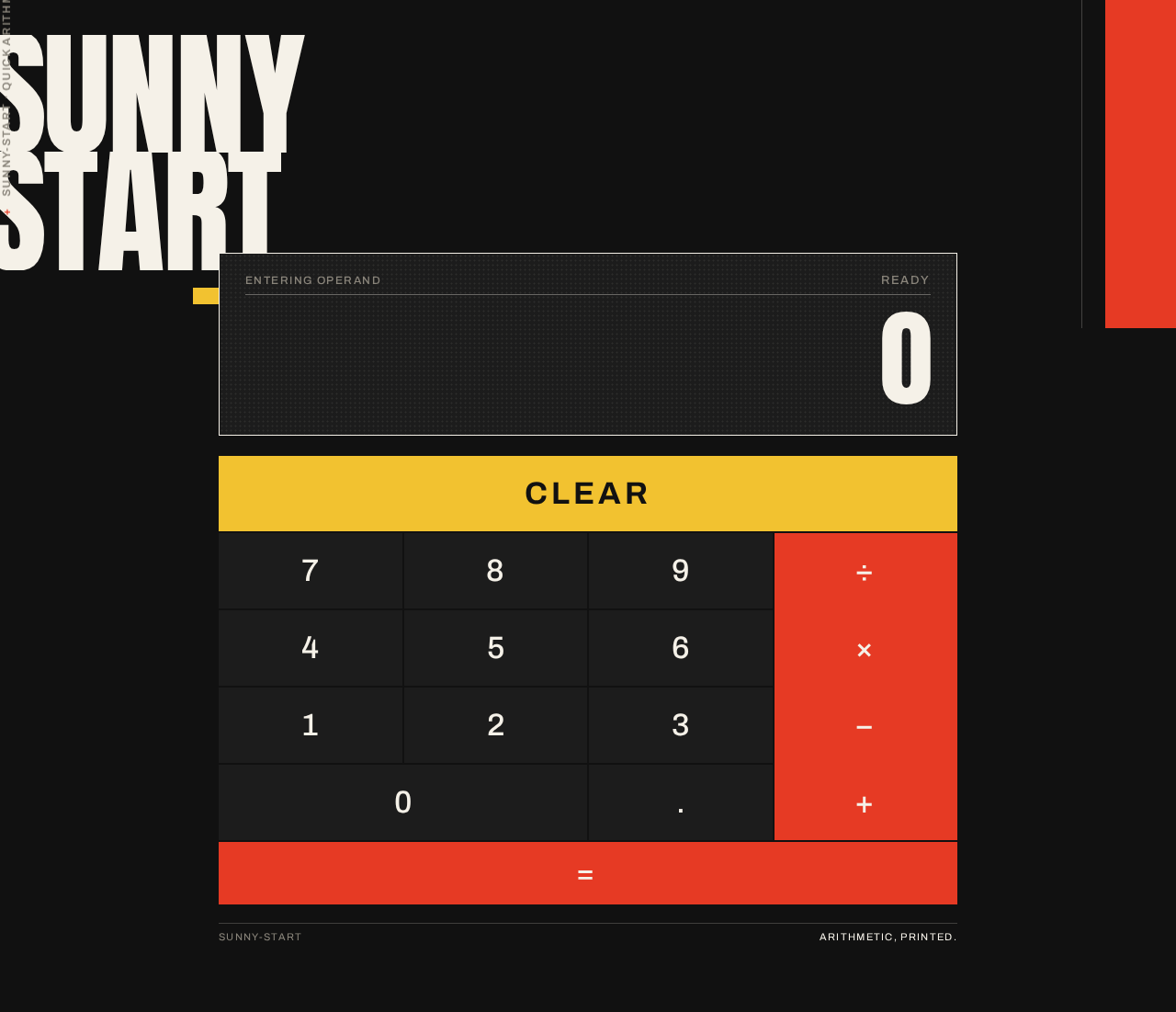
- Poster frame: full-bleed ink-black ground carrying the oversized stacked Anton wordmark "SUNNY / START" at top-left, the yellow horizontal band underlining the wordmark, the Scher-red vertical band down the right margin, and the rotated vertical caption in the right margin at 768px and above.
- Display panel: a cream-ruled rectangle on black overlapping the lower-right corner of the wordmark, containing the live display numerals in Anton at display scale, with an optional 8% halftone-dot texture inside the band.
- Keypad grid: a 4×5 modular grid with 2px black gutters and zero border radius — digits in a three-wide column of dark keys, operators in a single Scher-red column, zero spanning two cells, equals as a full-width red bar beneath the grid, and the clear key as a yellow block.
- Key labels: Archivo at medium weight, uppercase for operators, with tracked small labels.
- Responsive behaviour: at 375px the poster chrome collapses to the wordmark alone above the panel; at 768px the rotated caption appears; at 1280px the wordmark bleeds off the left edge and the panel gains generous surrounding space. All readable text and every key remain whole inside the viewport and their containers at 375px, 768px, and 1280px.
States
- Empty/initial: display shows 0, no pending operator.
- In progress: display shows the current operand; the selected operator is visibly indicated in the red operator column.
- Success: display shows the computed result; the yellow wipe plays once.
- Error: display shows an error indication; Clear restores the initial state.
- Reduced motion: all motion is disabled, leaving the static poster; the calculator remains fully usable.
3. Functional Requirements
FR-1 — Single-page calculator delivery (explicit) As a Calculator User, I should get the whole calculator on one page, so that I can do arithmetic without navigating anywhere.
- Trigger: the user opens the product.
- Observable result: the Calculator page renders with the poster composition, display, and keypad; there are no other routes or destinations.
- Access: anonymous, no identity required.
- Failure/recovery: if the page fails to render, reloading the page restores the same single-page calculator.
- Continuation: the user remains on the page for further calculations.
FR-2 — Simple, legible design (explicit) As a Calculator User, I should see a simple design whose display and keys are immediately readable, so that I can calculate quickly without deciphering the interface.
- Trigger: page load at any supported viewport.
- Observable result: the display numerals and every key label are fully visible, whole, and high-contrast against their colour blocks at 375px, 768px, and 1280px.
- Failure/recovery: if a viewport would crop text or a key, the layout scales or wraps so the text and control stay whole.
- Continuation: the user can read and press keys without zooming.
FR-3 — Digit entry (required_inference) As a Calculator User, I should press digit keys to build the number I want to calculate with, so that I can enter operands.
- Trigger: the user presses a digit key 0–9.
- Observable result: the digit appends to the current operand and the display updates to show it.
- Access: anonymous.
- Failure/recovery: leading zeros are not duplicated into a meaningless string; pressing Clear resets entry.
- Continuation: the user may keep entering digits, press the decimal point, or press an operator.
FR-4 — Decimal entry (required_inference) As a Calculator User, I should enter fractional numbers, so that I can calculate with decimals.
- Trigger: the user presses the decimal point key.
- Observable result: a decimal point is added to the current operand, and subsequent digits extend the fractional part.
- Failure/recovery: a second decimal point in the same operand is ignored rather than producing an invalid number.
- Continuation: the user continues entering digits or selects an operator.
FR-5 — Operator selection (required_inference) As a Calculator User, I should choose an operation (÷, ×, −, +), so that the calculator knows what to do with my numbers.
- Trigger: the user presses an operator key after entering an operand.
- Observable result: the current operand is committed as the first operand, the operator is recorded, and the selected operator is visibly indicated in the red operator column; the display is ready for the second operand.
- Failure/recovery: pressing a different operator before entering a second operand replaces the pending operator rather than stacking operations.
- Continuation: the user enters the second operand.
FR-6 — Evaluation and result display (required_inference) As a Calculator User, I should press equals to see the computed result, so that I get my answer.
- Trigger: the user presses the equals bar with a complete expression.
- Observable result: the expression is evaluated and the result replaces the display numerals; a 120ms yellow colour-block wipe plays across the display band and clears.
- Failure/recovery: pressing equals without a complete expression leaves the display unchanged or repeats the last result rather than producing an undefined value.
- Continuation: the result can be used as the first operand of a further operation, or cleared.
FR-7 — Clear and reset (required_inference) As a Calculator User, I should clear the calculator, so that I can start a fresh calculation or recover from a mistake.
- Trigger: the user presses the yellow clear key.
- Observable result: the display returns to 0, the pending expression and operator are discarded, and any error state is removed.
- Continuation: the user begins a new calculation.
FR-8 — Error handling and recovery (required_inference) As a Calculator User, I should be told when an operation cannot be computed, so that I am not shown a misleading number.
- Trigger: an operation that cannot be evaluated, such as division by zero.
- Observable result: the display shows an error indication instead of a numeral.
- Failure/recovery: pressing Clear restores the initial zero state; pressing a digit after an error starts a fresh operand.
- Continuation: the user resumes calculating.
FR-9 — Keypress and result feedback (explicit, from creative direction) As a Calculator User, I should feel each key press and see the result arrive, so that the calculator feels responsive and poster-like.
- Trigger: a key press or a result update.
- Observable result: the pressed key shifts by an instant 1px inset with no easing; a result update triggers a 120ms yellow colour-block wipe across the display band.
- Failure/recovery: under
prefers-reduced-motion, all motion is disabled and the static poster remains fully usable. - Continuation: the user continues calculating.
4. User Personas
Calculator User
Product context. A casual, broad-audience visitor — a student checking homework, someone splitting a bill, a shopper tallying a cart — who arrives at the single Calculator page with a small piece of arithmetic to do and no interest in setup, accounts, or navigation.
Primary goal. Enter numbers and an operation and read the correct result quickly, on one page, without leaving it.
Distinct accepted responsibilities.
- Entering operands with digit and decimal keys.
- Selecting one of the four operations.
- Committing the expression with equals and reading the result.
- Clearing the calculator to start fresh or recover from a mistake.
- Recovering from an error such as division by zero.
Relevant inputs and decisions. Which numbers to enter, which operation to apply, when to press equals, and when to clear. The user decides when a calculation is complete and whether to chain another operation onto the result.
Interactions with other participants. None. The calculator has a single human role; there is no counterparty, recipient, or approver. The only other actors are the application itself (rendering the page and evaluating arithmetic) and the provisioned backend/database infrastructure, which do not interact with the user directly.
Observable success. The display shows the correct result after equals, the page never navigates away, and the user can immediately begin another calculation or clear the display.
What makes this role distinct. The role's entire work is a tight, repeated loop of entry → operation → result → clear, performed anonymously on one page. There is no persistent state, no history to manage, and no cross-participant handoff — the role is defined by speed and legibility rather than by any administrative or collaborative responsibility.
5. Core User Flows
Flow 1 — Perform a basic calculation
- The Calculator User opens the product and lands on the Calculator page. The poster composition renders: the stacked Anton "SUNNY / START" wordmark, the cream-ruled display panel showing
0, and the hard-edged keypad with the red operator column and full-width red equals bar. - The user presses digit keys to enter the first operand. Each digit appends to the display, and each pressed key gives an instant 1px inset shift.
- The user presses an operator key (÷, ×, −, or +). The first operand is committed, the operator is recorded and visibly indicated in the red operator column, and the display is ready for the second operand.
- The user presses digit keys (and the decimal point if needed) to enter the second operand. The display updates with each key.
- The user presses the full-width red equals bar. The expression is evaluated, the result replaces the display numerals, and a 120ms yellow colour-block wipe plays across the display band and clears.
- The user reads the result. They may press an operator to chain the result into a new calculation, or press the yellow clear key to reset to
0and start again.
Failure/recovery. If the user presses a second decimal point in the same operand, it is ignored. If the user presses a different operator before entering a second operand, the pending operator is replaced. If the user presses equals without a complete expression, the display is left unchanged or repeats the last result.
Flow 2 — Clear and start over
- On the Calculator page, the user has entered a partial or completed calculation.
- The user presses the yellow clear key.
- The display returns to
0, the pending expression and operator are discarded, and any error state is removed. - The user begins a new calculation from step 2 of Flow 1.
Flow 3 — Recover from an error
- On the Calculator page, the user enters an expression that cannot be evaluated, such as a division by zero, and presses equals.
- The display shows an error indication instead of a numeral.
- The user presses the yellow clear key, restoring the initial
0state, or presses a digit key to start a fresh operand. - The user resumes calculating.
Flow 4 — Reduced-motion use
- The user opens the Calculator page with
prefers-reduced-motionenabled. - The page renders the static poster: the wordmark, display panel, and keypad are fully visible, with no word reveal, no colour-block wipe, and no marquee motion.
- The user performs any of Flows 1–3 normally; key presses still register and results still update, only without motion.
6. Visuals Colors and Theme
The creative direction is authoritative for this section: the muse is Paula Scher, and the headline idea is "Calculator as poster: type that fills the frame, keys as colour blocks."
Mode. Dark mode only.
Colour tokens (exact hex, by role).
- Background / ink ground:
#111111— dominates roughly 60% of the frame. - Surface:
#1C1C1C— dark digit keys and panel surfaces. - Text:
#F5F1E8— cream, carrying all numerals and labels at high contrast. - Primary:
#E63A24— Scher red; owns the right-hand operator column and the equals bar. - Accent:
#F2C230— poster yellow; the band behind the display header and the clear key. - Muted:
#8A857B— warm grey, only for secondary labels and hairline rules.
No gradients. Every colour is a flat field meeting another at a hard edge. Blue and indigo are forbidden anywhere in the palette.
Typography.
- Headings and display numerals: Anton, all-caps, ultra-condensed, tracking
-0.02em, stacked and occasionally rotated 90° along the left edge as a poster gesture. - Body and key labels: Archivo at medium weight, uppercase for operators, with generous letter-spacing on small labels.
- Scale: 1.5 modular for display, 1.25 for UI. Hero wordmark
clamp(56px, 12vw, 160px); live displayclamp(48px, 9vw, 120px); key glyphsclamp(22px, 4.5vw, 34px); labels 12–14px uppercase tracked+0.12em; body 16px/1.5.
Shape language. Hard edges only — zero border radius on keys, display, and bands. Keys are solid rectangles separated by 2px black gutters so they read as a printed grid. Diagonal colour bands slice across section boundaries at −8°. Thin 1px cream rules under labels. No shadows, no glass, no rounded pills.
Layout. A single centred column capped at 480px on mobile and 900px at desktop, set inside a full-bleed poster: an oversized Anton wordmark "SUNNY / START" stacked at top-left bleeding off the left edge at 1280px, a rotated vertical caption along the right margin, and the calculator as a cream-ruled panel on the ink ground. The keypad is a 4×5 modular grid: digits in a three-wide column of dark keys, operators in a single Scher-red column, zero spanning two cells, equals as a full-width red bar. At 375px the poster chrome collapses to the wordmark alone above the panel; at 768px the rotated caption appears; at 1280px the wordmark bleeds and the panel gains generous surrounding space.
Imagery. Typography is the image. No photography, no illustration, no icons beyond flat geometric operator glyphs (÷ × − + =) drawn as thick strokes. A single halftone-dot texture may sit at 8% opacity inside the display band for print-poster grain.
Accessibility. All readable text and controls stay whole inside the viewport and their containers at 375px, 768px, and 1280px; the cream-on-ink and cream-on-red pairings maintain high contrast; motion is fully disabled under prefers-reduced-motion.
7. Signature Design Concept
The public entry is a full-bleed ink-black poster that computes. Its dominant element is an oversized Anton "SUNNY START" wordmark stacked in two lines at top-left, bleeding past the left viewport edge at desktop scale (up to 160px). The live calculator display panel — a cream-ruled rectangle on black — physically overlaps the wordmark's lower-right corner, and its huge Anton numerals are the second-largest type on screen. A solid Scher-red vertical band runs the full height of the right margin behind the operator column, colliding with a yellow horizontal band that underlines the wordmark. The keypad sits below as a hard-edged grid, with equals as a full-width red bar like a printed rule that also computes.
There is no centred headline, no subtext, and no call-to-action button — the composition is a printed poster whose only interaction is arithmetic. The signature moves are: the bleeding stacked wordmark, the display panel overlapping its corner, operators living in a single full-height red column rather than reading as buttons, the full-width equals bar, the 120ms yellow colour-block wipe on result updates, and the rotated 90° vertical caption in the right margin at 768px and above.
8. Interaction Model & Motion Direction
Interaction Model: Animated Motion Tempo: restrained Hero Dimensionality: flat
Landing Hero Motion Brief
- Focal subject. The oversized Anton "SUNNY / START" wordmark and the overlapping cream-ruled display panel — typography as the hero image.
- Input → transformation → outcome thesis. On load, each letter of the wordmark snaps in 40ms apart (staggered word reveal), assembling the poster headline; when the user presses equals, a yellow colour-block wipe flashes across the display band for 120ms and clears, revealing the computed result. The motion only reveals and confirms accepted behavior — it never adds a new control or destination.
- Motion vocabulary. Staggered letter snap-in (40ms apart), 120ms yellow colour-block wipe on result update, instant 1px inset keypress shift with no easing, and a type marquee only for the thin caption strip. No bouncy or springy easing.
- Composed first frame. Ink-black ground; the stacked wordmark partially assembled at top-left; the display panel showing
0; the red operator column and yellow clear key already in place; the yellow band underlining the wordmark. - Reduced-motion state. All motion is disabled under
prefers-reduced-motion, leaving the static poster fully assembled and the calculator fully usable.
9. Non-Functional Requirements
- Single-page constraint (explicit): the product must be delivered as exactly one page. No additional routes, tabs, or destinations may be introduced.
- Simplicity constraint (explicit): the design must remain simple; no features beyond basic arithmetic entry, evaluation, and clear may be added.
- Readability at every viewport (explicit, from creative direction): headlines, wordmarks, labels, numbers, and controls stay entirely inside the viewport and their containers at 375px, 768px, and 1280px, wrapping or scaling with
clamp(...)to fit; no element covers any part of readable text or a control. - Reduced motion (explicit): under
prefers-reduced-motion, all motion is disabled and a usable static arrangement is provided. - Contrast (required_inference): cream
#F5F1E8on ink#111111and on Scher red#E63A24must remain high-contrast for numerals and labels. - No persistence requirement (required_inference): the calculator holds no durable user state; the provisioned database is not required to store calculations, and no identity or account is required to use the page.
- Performance (required_inference): the page renders its static poster composition immediately, and arithmetic evaluation returns a result without a perceptible wait.
10. Tech Stack
- Frontend: React application UI, rendering the single Calculator page and the poster composition.
- Backend: shared FastAPI process for application APIs and domain modules; available to host the arithmetic evaluation endpoint and health checks, reusing its existing process, port, and deployment.
- Database: MariaDB, provisioned as application-owned persistent storage. It is part of the delivered infrastructure inventory but is not required to store calculator state, since the product has no persistence requirement.
- Containerization: Docker / docker-compose, with the
backend,database, andfrontendservices as the runnable inventory. - Typography: Anton (headings and display numerals) and Archivo (body and key labels), loaded as web fonts.
11. Assumptions and Constraints
- Assumption (required_inference): arithmetic follows standard calculator precedence for a single pending binary operation; chained operations evaluate left to right as each equals is pressed.
- Assumption (required_inference): the calculator supports the four basic operations (÷, ×, −, +), digits 0–9, a decimal point, equals, and clear; no memory, percent, sign toggle, or scientific functions are in scope.
- Assumption (required_inference): the page is anonymously reachable and requires no account, consistent with the single-page, no-identity delivery boundary.
- Constraint (explicit): the design must be a single page and must be simple.
- Constraint (explicit, from creative direction): the palette, fonts, hard-edged shape language, poster layout, and motion vocabulary in Sections 6–8 are binding; rounded keys, gradients, glass, shadows, centred headline heroes, and blue/indigo are forbidden.
- Constraint (explicit): readable text and controls must stay whole at 375px, 768px, and 1280px; decoration and motion may bleed or overlap but must never cover readable text or a control.
12. Glossary
- Calculator page: the single page of the product; the public entry and only working surface.
- Display panel: the cream-ruled rectangle on black showing the live display numerals.
- Operand: a numeric value being entered or already committed as the first operand.
- Operator: one of ÷, ×, −, +.
- Expression: the first operand, the selected operator, and the second operand.
- Result: the evaluated numeric value, or an error indication.
- Equals bar: the full-width Scher-red bar beneath the keypad that evaluates the expression.
- Clear key: the yellow block that resets the calculator to
0. - Colour-block wipe: the 120ms yellow flash across the display band on result update.
- Poster composition: the full-bleed ink-black layout with the bleeding Anton wordmark, red operator column, and yellow band.
- Scher red: the primary colour
#E63A24used for operators and equals. - Poster yellow: the accent colour
#F2C230used for the display header band and clear key.
sunny-start
0
sunny-start
0
No comments yet. Be the first!